


Embedding videos one by one works for blog posts, but it looks cluttered when you are trying to show off a full body of work.
To impress clients, you need a professional gallery layout that plays smoothly without slowing down your website. The problem is that the default WordPress editor simply stacks videos vertically, which looks cluttered.
We have tested the best gallery tools and found a method that creates a stunning, fast-loading grid automatically. Here is how to create a video portfolio in WordPress, step by step.

How to Get Started with Your Video Portfolio
First, if you haven’t done so already, you need to start a WordPress blog or website.
WordPress allows you to easily embed videos in your blog posts and pages. However, it does not let you create a beautiful video portfolio out of the box.
For your portfolio website, you will want to display your videos in a nice grid-based layout so that more videos can be viewed without a lot of scrolling.
A professional portfolio can also benefit your SEO. High-quality video content encourages visitors to stay on your site longer, which is a positive signal for search engines. It can also help you attract more organic traffic from video search results.
While you can upload a video to your WordPress site, we recommend using a third-party service like YouTube or Vimeo because videos are resource-intensive and can slow down your site.
For more details, you may want to see our article on why you should never upload videos to WordPress.
That being said, let’s take a look at how to easily create a video portfolio in WordPress, step by step.
Creating a Video Portfolio in WordPress With Envira Gallery
You can easily create a video portfolio in WordPress with Envira Gallery. It is the best WordPress gallery plugin on the market that comes with a video addon.
While you can embed single videos into a WordPress page, a gallery plugin like Envira gives you powerful tools to control the layout, look, and feel of your entire portfolio at once. This is key for creating a professional grid that’s easy for visitors to browse.
The plugin lets you create beautiful video and image galleries. It offers features like premade templates, a lightbox popup for viewing, and much more to make your portfolio look professional.
Our team uses Envira Gallery on several of our portfolio sites because it’s both powerful and easy to manage. The drag-and-drop builder and video addon make it simple to create professional-looking galleries without any hassle. To see our full analysis, check out our complete Envira Gallery review.
First, you need to install and activate the Envira Gallery plugin. For detailed instructions, see our step-by-step guide on how to install a WordPress plugin.
Note: Envira Gallery also has a free version. However, you will need a premium license to unlock the Videos addon.
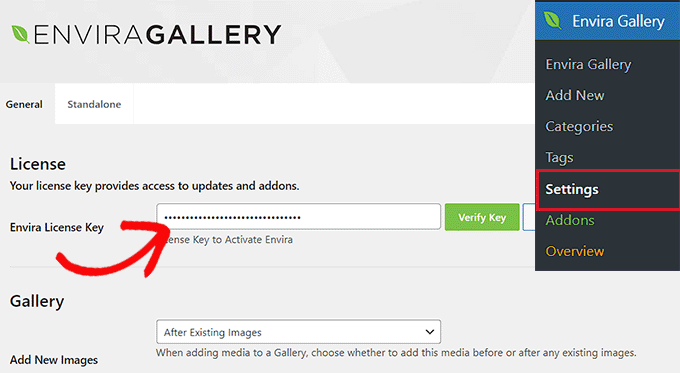
Upon activation, visit the Envira Gallery » Settings page from the WordPress dashboard to enter your license key. You can get this information from your account on the Envira Gallery website.
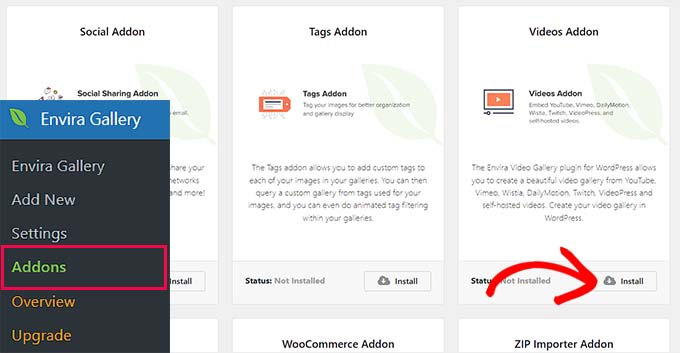
Next, go to the Envira Gallery » Addons page and locate the ‘Videos’ addon.
Simply click the ‘Install’ button next to it. Then, click ‘Activate’ to start using it on your website.
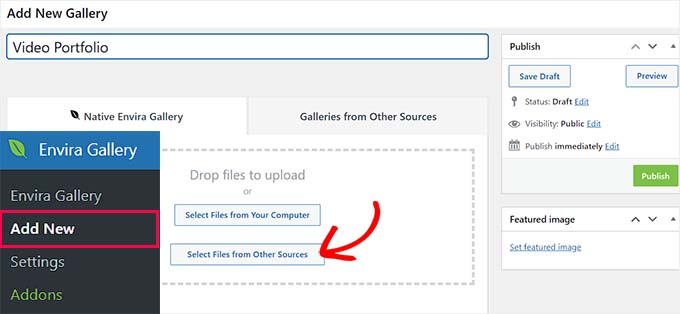
Now you are ready to create your video portfolio. Simply head to the Envira Gallery » Add New page from the WordPress admin sidebar.
Keep in mind that Envira Gallery allows you to create a gallery of your self-hosted videos as well as videos hosted on platforms like YouTube, Wistia, and Vimeo.
However, we recommend using third-party video hosting services to avoid performance issues or problems with your WordPress hosting.
First, give your new gallery a name. To add your videos, click the ‘Select Files from Other Sources’ button.
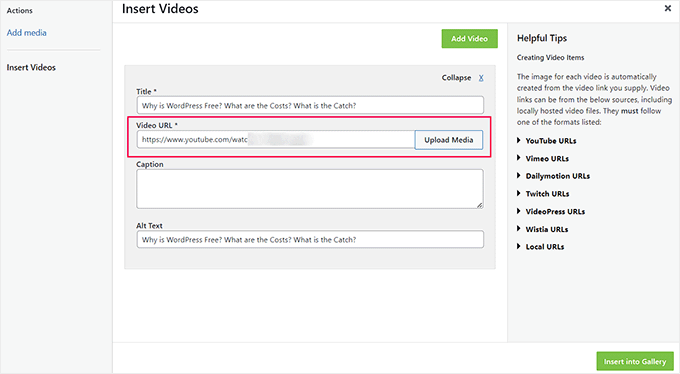
This will launch the media library. Go ahead and switch to the ‘Insert Videos’ tab.
Here, you can add details for your video. The ‘Title’ and ‘Caption’ can be displayed in your gallery. We also recommend adding ‘Alt Text’ to help search engines understand your video content, which improves SEO.
If you want to upload a video from your computer, then you can click the ‘Upload Media’ button.
You can also add more videos by clicking on the ‘Add Video’ button at the top. Then, repeat the process until you have added all the videos you wanted to show in your portfolio.
When you are finished adding videos, click the ‘Insert into Gallery’ button.
Envira will now show the thumbnails it fetched from your videos in the ‘Currently in your Gallery’ section.
You can click the pencil icon on any thumbnail to edit the details.
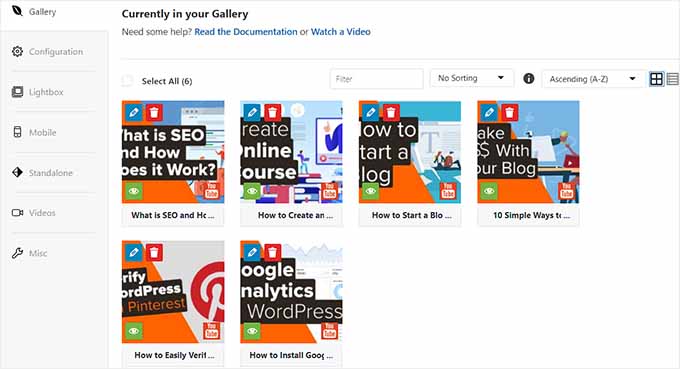
Tip: If the automatic thumbnail from YouTube looks blurry, you can upload a custom ‘Video Cover Image’ here to make your portfolio look polished.
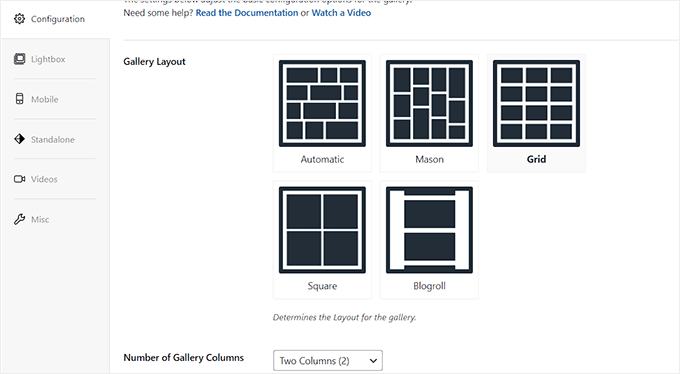
Next, switch to the ‘Configuration’ tab.
Here you can choose your gallery layout and dimensions. We also recommend checking the ‘Enable Lazy Loading’ box. This ensures the videos only load when a user scrolls down to them, which keeps your website fast.
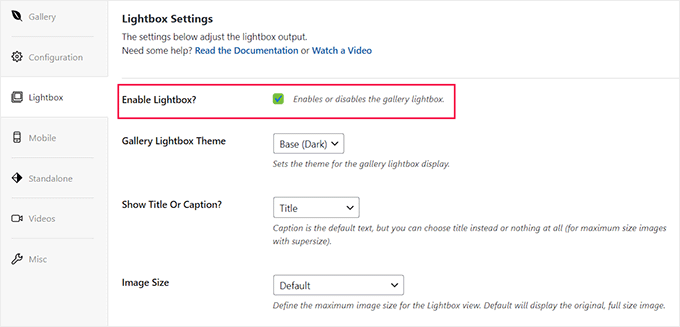
Next, switch to the ‘Lightbox’ tab and check the ‘Enable Lightbox’ option. This allows users to play your videos in a popup window without leaving the page, which provides a better user experience.
For detailed instructions, see our tutorial on how to add a gallery in WordPress with a lightbox effect.
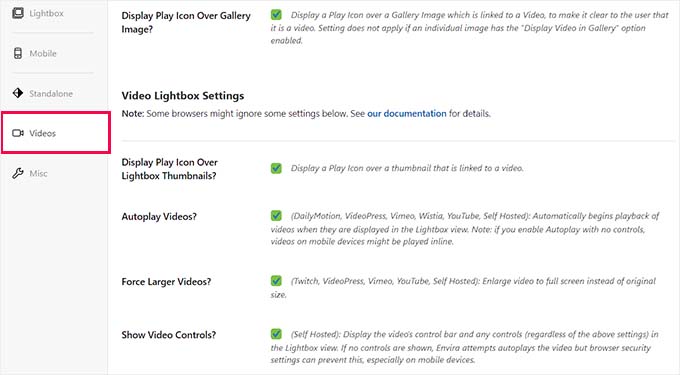
Next, switch to the ‘Videos’ tab and check the box next to the ‘Display play icon over gallery image’ option. That way, users can click on the play button to start watching your videos.
After that, you can scroll down to the ‘Video Lightbox Settings’ section and enable video autoplay, display video controls, add a progress bar or current time, enable video download, and more.
You can then also configure other gallery settings according to your liking. When you are happy with your settings, click the ‘Publish’ button at the top to save your video portfolio.
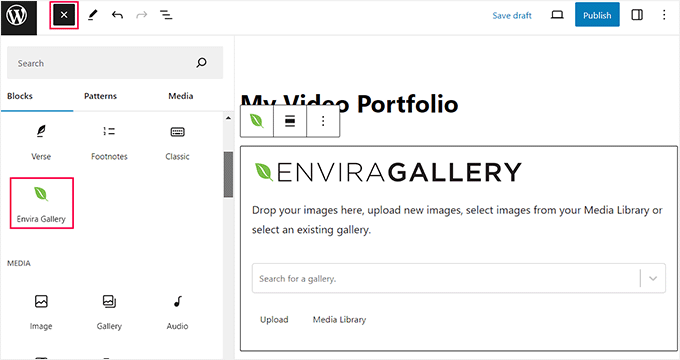
Next, open the WordPress page or post where you want to add your video portfolio. Here, click the ‘+’ add block button to open the block menu and add the Envira Gallery block.
Inside the block, click the dropdown menu to select the video portfolio you just created.
Finally, click the ‘Publish’ or ‘Update’ button to store your settings.
You can now visit your WordPress site to view the video portfolio. This is what it looked like on our demo WordPress website.

Bonus: Add Your YouTube Feed to Your WordPress Site
If you regularly upload new work to YouTube, you can also add your entire channel feed to your site. This keeps your portfolio fresh and up-to-date automatically, without you needing to manually add every new video to your gallery.
This can also help improve your search engine rankings and allow you to showcase your skills and creativity within the video feed.
You can easily add a YouTube feed in WordPress with the Smash Balloon YouTube Feed plugin. It is the best WordPress YouTube gallery plugin on the market that comes with multiple feed types, customizable layouts, a user-friendly builder, social media sharing, and live stream support.

Here at WPBeginner, we use Smash Balloon plugins to power all of our social media feeds. It allows us to seamlessly integrate our YouTube, Facebook, and other social content directly into our website, which keeps our audience engaged.
Upon activation, visit the YouTube Feed » All Feeds page and click ‘Add New’ to connect your YouTube channel.
After connecting your account, the Smash Balloon builder will open. Here you can customize the feed layout, add a subscribe button, change color schemes, and edit individual elements.
For detailed instructions, you can see our tutorial on how to create a video gallery in WordPress.
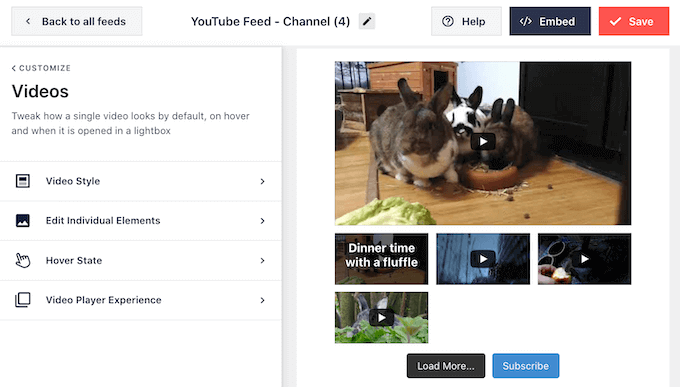
Apart from YouTube, you can also use other Smash Balloon plugins to embed your Facebook, Instagram, or Twitter feeds within your website.
For more information, just see our complete Smash Balloon review.
Frequently Asked Questions About Video Portfolios in WordPress
Having helped thousands of users create websites, we’ve heard many questions about building video portfolios. Here are answers to some of the most common ones.
What is the best plugin for creating a video portfolio in WordPress?
We recommend Envira Gallery for creating video portfolios. It’s a powerful and user-friendly plugin with a dedicated video addon.
It supports major platforms like YouTube, Vimeo, and Wistia, as well as self-hosted videos, giving you plenty of flexibility.
Can I create a video portfolio in WordPress for free?
While some free gallery plugins exist, most require a premium version for video support. The free version of Envira Gallery is for images only.
To use its Videos addon, you will need to upgrade to a pro plan. We find this to be a worthwhile investment for any professional who relies on video to showcase their work.
Where is the best place to host my portfolio videos?
We strongly recommend using a third-party video hosting service like YouTube or Vimeo. They are built to handle large video files and streaming.
Uploading videos directly to WordPress can use up a lot of server resources. This can make your website slow and create a poor experience for your visitors.
How can I make my video portfolio load faster?
The best way to keep your portfolio fast is to use an external hosting platform like YouTube and a well-coded plugin like Envira Gallery.
Envira also has a built-in lazy loading feature. This means it only loads the video thumbnails when they are about to become visible on the user’s screen, which greatly improves your page’s initial load time.
Can I add both images and videos to the same portfolio?
Yes, absolutely. A flexible plugin like Envira Gallery allows you to create mixed galleries that contain both images and videos.
This is perfect for creative professionals who want to show a diverse range of work in a single, organized portfolio.
Additional Resources to Improve Your Portfolio
Now that you know how to create a great video portfolio, you may want to check out these other guides to further improve your website.
- How to Create an Online Portfolio Website in WordPress – A complete guide to building a full portfolio site from scratch.
- Why You Should Never Upload a Video to WordPress – Learn more about the technical reasons for using platforms like YouTube or Vimeo.
- How to Speed Up WordPress Performance – Essential tips to ensure your portfolio site loads quickly for every visitor.
- Ways to Prevent Image Theft in WordPress – Protect the images and video thumbnails in your portfolio from being stolen.
- How to Fade Images on Mouseover in WordPress – Add a simple, professional effect to the images on your site.
If you liked this article, then please subscribe to our YouTube Channel for WordPress video tutorials. You can also find us on Twitter and Facebook.




kzain
For those who might have existing videos hosted elsewhere (like YouTube), it’s great that Envira Gallery allows embedding them as well while Envira Gallery seems like a powerful option, some users might also be interested in exploring free video gallery plugins like “WP Video Gallery.
Michael Obot
Great insights to be implemented on my baby site. Thanks.
Navneethkrishnan
Great Article! I am relatively new to this field but your site has helped me a lot. One of the best site for Wordpress Noobs.