


If you’re running a membership site or online community, then you’ve probably noticed that WordPress’s default registration form only collects a username and email address. That means you’re missing crucial information from your members right from the start.
Custom registration forms solve this problem. You can collect specific information you need upfront, such as phone numbers, social media profiles, or bio details.
Plus, you can improve your site’s security with better spam protection and email verification options.
In this tutorial, I’ll show you how to create a custom user registration form in WordPress without writing any code.
Whether you’re building a membership site, online community, or just want better control over your signup process, you’ll learn the easiest way to set this up quickly.

TL;DR: Default WordPress registration forms are limited to just a username and email. In this tutorial, I will show you how to use WPForms to create a completely custom user registration form. You will learn how to add custom fields, improve security, and match your site’s branding without writing any code.
You can use the quick links below to navigate through this tutorial:
- Why Add a Custom User Registration Form in WordPress?
- Step 1: Adding Custom User Fields in WordPress
- Step 2: Creating the User Registration Form
- Step 3: Adding Your Registration Form to WordPress
- Bonus: Create a Custom Login Page to Match
- Frequently Asked Questions About User Registration Forms
- Additional Resources for User Registration
Why Add a Custom User Registration Form in WordPress?
Creating a custom user registration form in WordPress gives you much more control over how new members join your site. Instead of collecting just a username and email, you can gather the exact information your business needs right from the start.
Custom registration forms also let you match your site’s branding and create a more professional first impression. Your signup page becomes an extension of your brand, not just a generic WordPress screen.
Beyond appearance, custom forms provide practical benefits that can save you time and improve your site’s security:
- Collect essential user information. For example, if you are organizing an event, you can gather dietary restrictions, session preferences, or special requirements right at the start.
- Add spam protection automatically. You can assign specific ‘User Roles’ to prevent security risks and use CAPTCHA to block spam registrations.
- Create a better user experience. Design forms that match your site’s look and guide users through signup smoothly.
- Email Marketing Integration. You can automatically add new users to your email newsletter list when they register.
- Target the right audience. Whether you run a blog, eCommerce store, or a community platform, custom forms help you capture the data that matters most to your business.
I’ve found that taking control of your registration process early on prevents headaches down the road. You won’t need to chase members for missing information or deal with spam accounts cluttering your database.
In this tutorial, I will use WPForms because it is the best WordPress contact form plugin on the market. It comes with a powerful User Registration addon that handles the technical work for you.
However, you first need to create a space in your database to store this extra information. Think of it this way: You need to create a ‘container’ in the database first, and then use WPForms to create the visible form that collects the data to put in it.
Step 1: Adding Custom User Fields in WordPress
WordPress user profiles come with a limited set of fields by default. If you want to collect extra information, such as a phone number, social media handle, or address, you need to use a custom fields plugin.
The best free plugin for this is Advanced Custom Fields (ACF). It allows you to create the necessary “container” for your data without writing any code.
First, you need to install and activate the plugin. If you need help, then please see our guide on how to install a WordPress plugin.
Upon activation, go to the ACF » Field Groups page in your WordPress dashboard and click either the ‘+ Add New’ or ‘+ Add Field Group’ button.
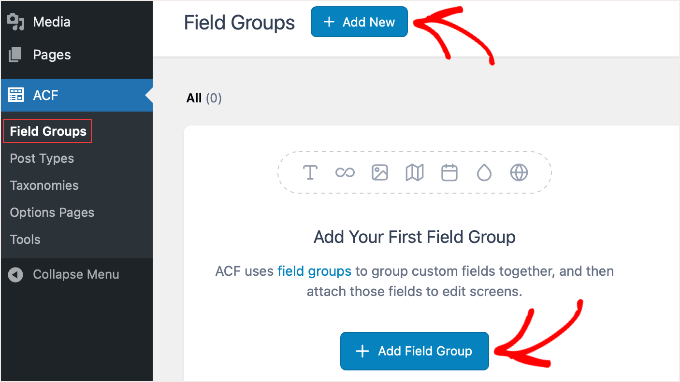
On the next screen, give your field group a title.
For this tutorial, I’ll call it ‘User Profile Details’.
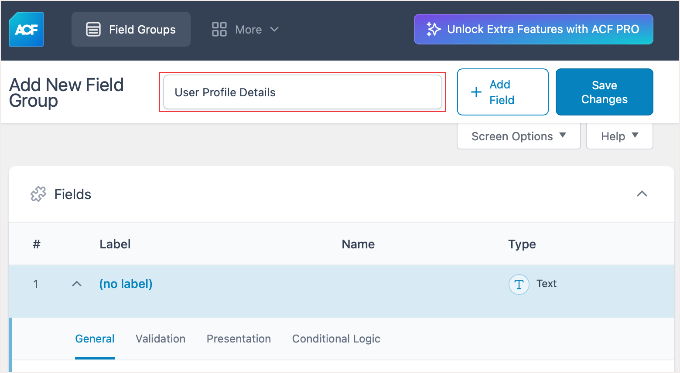
Now, scroll down to the Fields section. You can simply select a Field Type from the dropdown menu to start creating your first custom field.
For this example, I will choose ‘Text’ to create a field for a ‘Twitter Handle’.

You will see a configuration panel open up. Here are the two most important settings:
- Field Label: This is the name visible to you (“Twitter Handle”).
- Field Name: This is the internal system name used by the WordPress database (such as
twitter_handle).
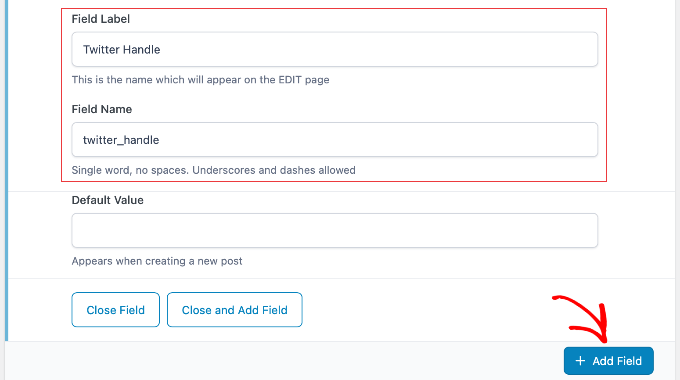
Important: Copy the field name or write it down exactly as it appears. It usually contains lowercase letters and underscores. You will need this exact name later to connect it to your registration form.
If you want to add more fields, simply click the ‘+ Add Field’ button at the bottom of the list and repeat the process.
Once you are done adding fields, scroll down to the Settings section and click on the ‘Location Rules’ tab.
You need to tell ACF where to display these fields. Change the rule so that it reads: ‘Show this field group if User Form is equal to Add / Edit’.
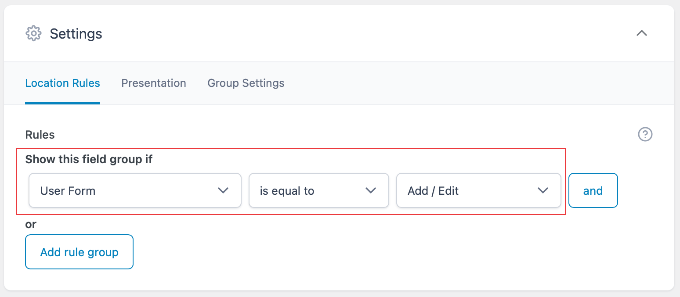
This ensures these fields appear in the WordPress user profile area for administrators to see.
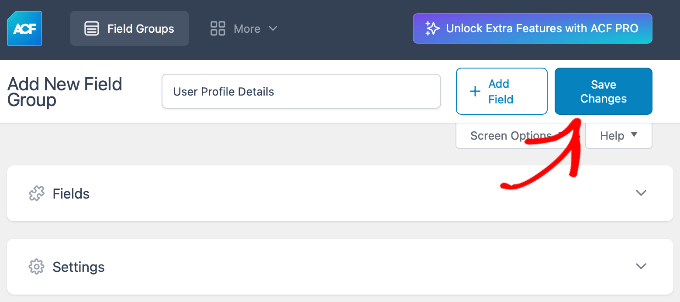
Finally, click the ‘Save Changes’ button at the top right of the screen to publish your new fields.
Step 2: Creating the User Registration Form
Now that your custom fields are ready, it’s time to build the form itself.
First, install and activate the WPForms plugin. You will need the Pro version or higher to access the User Registration features.
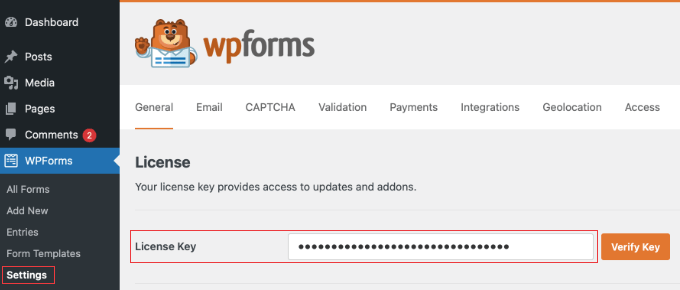
Upon activation, go to WPForms » Settings to enter your license key. You can find this information in your account on the WPForms website.
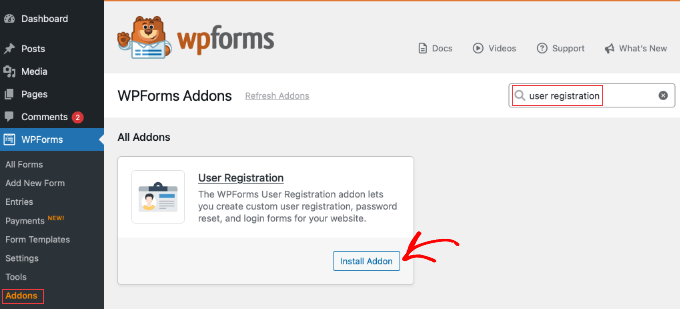
Next, you need to install the User Registration addon.
Go to the WPForms » Addons page. Search for ‘User Registration Addon’ and click the ‘Install Addon’ button.
Once the addon is active, go to WPForms » Add New to launch the form builder.
On the setup screen, give your form a name, such as ‘New User Registration’. Then, use the search bar on the left to find the User Registration Form template, and click ‘Use Template’.
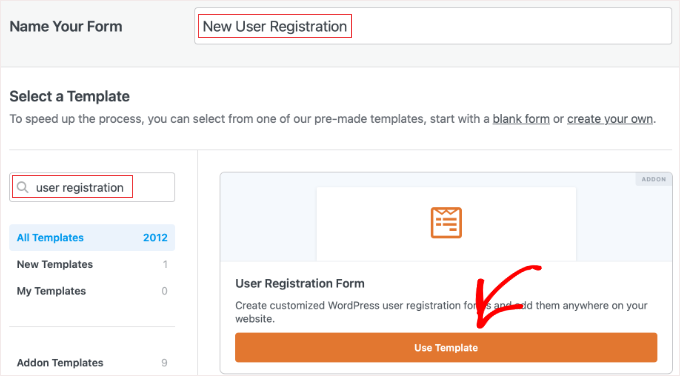
WPForms will automatically create a registration form.
It will include the standard fields you need, such as Name, Username, Email, Password, and Short Bio.
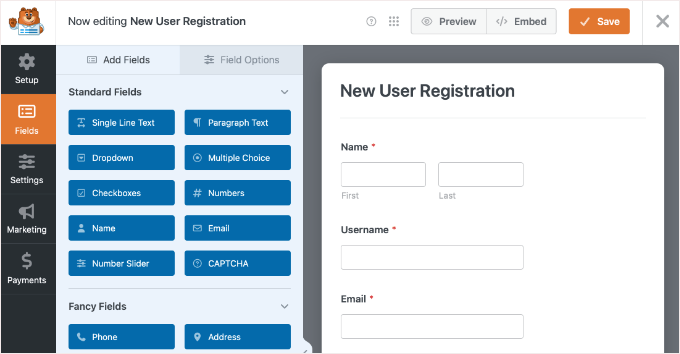
Adding Your Custom Fields
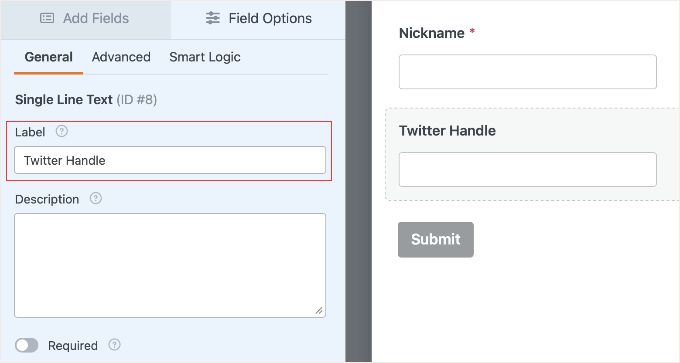
Now, let’s add the custom field for the Twitter Handle (or whichever field you created in Step 1).
Look at the left-hand panel under ‘Standard Fields’. Drag a Single Line Text field onto your form. Click on the field to edit it, and change the Label to ‘Twitter Handle’.
Mapping the Data
Next, you need to tell WPForms to save the data from this new field into the ACF field you created earlier.
Click on the Settings icon in the left menu, and then select the User Registration tab.
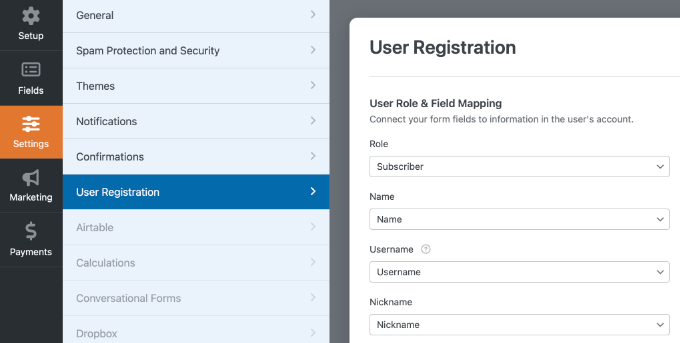
Because you used the User Registration template, WPForms has automatically configured the main settings for you. You will see that standard fields like Name, Email, and Password are already mapped to the corresponding WordPress user profile fields.
Important Security Step: While you are on this page, look at the User Role setting near the top. Ensure it is set to ‘Subscriber’. This prevents new users from having administrative access to your website.
Now you’ll need to scroll down to the Custom User Meta section.
Here, you need to enter two pieces of information:
- Meta Key: Paste the Field Name you copied from ACF in Step 1 (
twitter_handle). - Meta Value: Select the “Twitter Handle” form field from the dropdown menu.
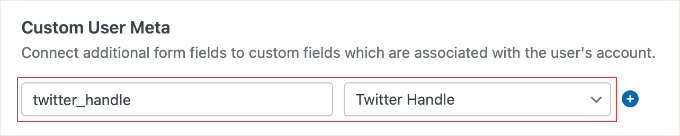
If you need to map additional fields, simply click the ‘+’ button to add a new meta key and value.
Choose Activation Method
Before you save, scroll up to the User Activation & Login section.
You have two choices here:
- Email Verification (Recommended for Security): Check the ‘Enable User Activation’ box. The user will receive an email with a link to activate their account before they can log in.
- Immediate Access: Uncheck ‘Enable User Activation’ and check ‘Enable auto log in’. This will log the user in immediately after they submit the form.

Once you have made your choice, click the ‘Save’ button in the top-right corner.
Step 3: Adding Your Registration Form to WordPress
Now that your form is ready, you need to add it to a page on your website so users can actually sign up. You can add the form to an existing page or create a new one.
For this tutorial, I will create a new page.
Go to Pages » Add New in your WordPress dashboard. Give your page a title, such as ‘Register’ or ‘Sign Up’. Next, click the ‘+‘ button to add a new block and search for ‘WPForms’.
Then you can drag the WPForms block into your content area.
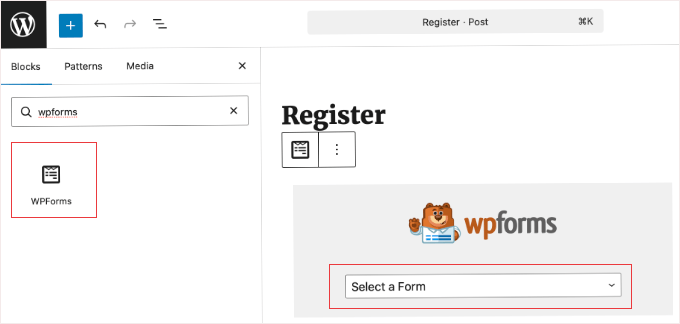
Once the block is added, you will see a dropdown menu. Click it and select the ‘New User Registration’ form you created in the previous step.
WPForms will instantly load a preview of your form inside the editor.
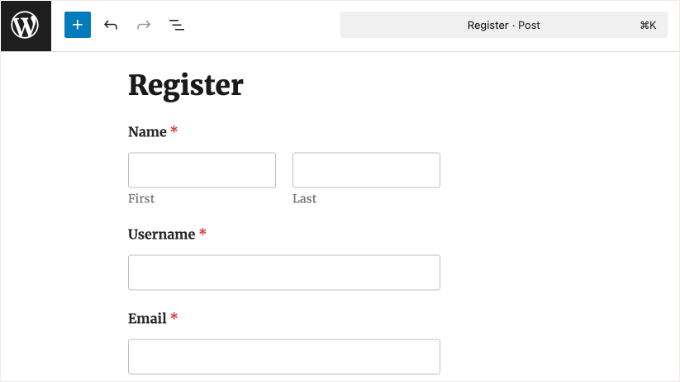
You can now add any other content you like to the page, such as headings or instructions. When you are ready, click the ‘Publish’ button in the top-right corner.
Congratulations! You now have a live user registration page that collects custom data and automatically adds it to your WordPress user profiles.
Pro Tip: Since you are already logged in as an administrator, you might not see the form when you visit the page. To test your new form properly, open the page in an Incognito window or log out of your website first.
Bonus: Create a Custom Login Page to Match
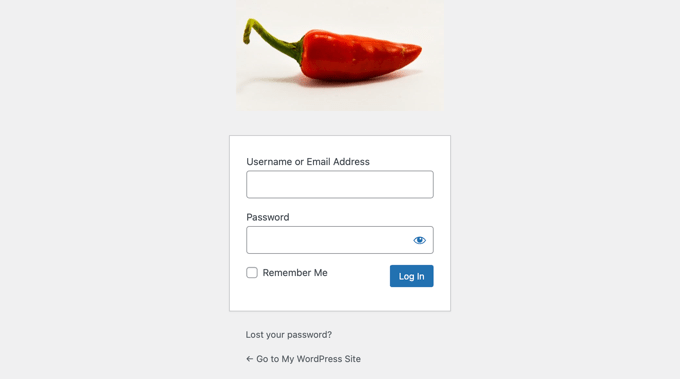
Now that you have a custom user registration form, you may notice that the default WordPress login screen looks a bit out of place by comparison.
To provide a seamless experience, I recommend creating a custom login page that matches your new registration form’s branding.
You can easily do this using WPForms or SeedProd. For step-by-step instructions, please see our ultimate guide on how to create a custom WordPress login page.
Frequently Asked Questions About User Registration Forms
Creating custom user registration forms in WordPress can be challenging, but it doesn’t have to be.
Here are some common questions people ask about creating and managing these forms, along with straightforward answers to help guide you.
1. What is the best free plugin for creating login and sign-up forms in WordPress?
WPForms offers a free version that is excellent for standard contact forms. However, if you want to automatically register users on your WordPress site, you will need the WPForms Pro version, which includes the specialized User Registration addon.
2. How do I prevent spam registrations on my WordPress forms?
Spam registrations can be minimized by enabling CAPTCHA or reCAPTCHA in your forms. Plugins with features such as honeypots also help reduce spam entries.
3. Can I approve new user registrations before they can log in?
Yes, manual approval can be enabled via your user registration settings, ensuring you control access to your content or features.
4. What user role should I assign to new registrants on my WordPress site?
Assign the ‘Subscriber’ role to new users to allow content viewing while restricting sensitive actions. Never assign ‘Administrator’ or ‘Editor’ roles to a public registration form due to security risks.
Additional Resources for User Registration
I hope this article helped you learn how to easily create a custom user registration form in WordPress.
You may also want to see these additional resources:
- How to Create a Custom WordPress Login Page (Ultimate Guide)
- How to Stop Spam Registrations on your WordPress Membership Site
- The Ultimate Guide to WordPress and GDPR Compliance
- Ultimate Guide to Creating a WordPress Membership Site
- Beginner’s Guide to WordPress User Roles and Permissions
If you liked this article, then please subscribe to our YouTube Channel for WordPress video tutorials. You can also find us on Twitter and Facebook.



Faisal
How can I modify the confirmation email which is sent to the user after he submits the registration form? I don’t want to display certain info in the email such as the login link.
WPBeginner Support
For changing the registration email, you would want to take a look at our article below:
https://www.wpbeginner.com/plugins/how-to-send-a-custom-welcome-email-to-new-users-in-wordpress/
Admin
Vikas Shukla
How can we disable the default fron New User Approve plugin? or how we can apply woocommerce template to this one?
Thanks
Waseem Safdar
Does it also fulfill the purpose of Theme My Login ?
I mean if I install this I’d be able to cater to the mentioned plugin’s feature as well right?
Waseem Safdar
No need to reply, I got my answer. Thank you.

P.S: You people are doing a great job! Keep it up!
Mark Cub
What was your answer? Does it do what Theme My Login does?
Bongo
I meant, will it allow me to create customs in general?
Bongo
Great plugin. Will this plugin allow me to add the form elements to my current default WooCommerce forms?
Is having too many plugins safe for my WordPress site? Will it not slow down or be expose in terms of Security?