


Uploading a huge batch of photos to WordPress can often feel like a test of patience. You might stare at a slow progress bar or run into file size limits that stop the process entirely.
We have encountered this issue many times while managing large media libraries for our own websites. The standard uploader often struggles with moving hundreds of files at once.
The good news is that you can use FTP to upload everything in one go. It is faster, more reliable, and prevents those annoying timeout errors.
In this guide, we will show you how to bulk upload media files using FTP and make sure they appear correctly in your WordPress library.
Here’s a quick overview of what we’ll cover in this guide:
Why Bulk Upload WordPress Media Files Using FTP
Usually, the standard WordPress uploader is all you need to bulk upload files. Simply click on the ‘Upload files’ tab in the media library and then click on ‘Select Files.’
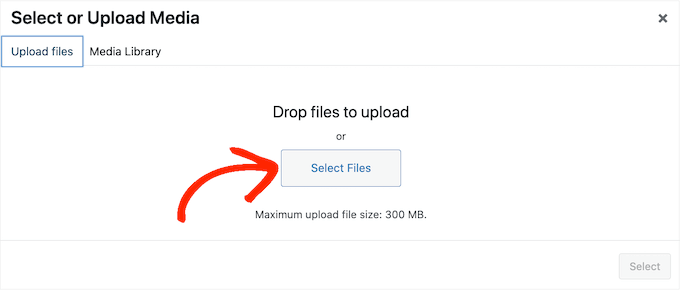
This opens a popup where you can select as many media files as you want and then upload them to WordPress.
Another option is to go to Media » Add New in the WordPress dashboard. Here, you can either drag and drop files into the media library or click on ‘Select Files’ and then choose the photos, images, audio, or other files that you want to upload.

Most of the time, this is all you need to bulk upload files. However, sometimes you may get a WordPress error, such as a maximum file upload size limit, or the media files might take a long time to upload.
If this happens, then you can always bulk upload media files using FTP. The problem is that WordPress doesn’t recognize files uploaded via FTP, so these media files won’t show up inside the WordPress dashboard.
Let’s look at how to bulk upload media files using FTP and make sure they appear correctly inside the WordPress dashboard.
Bulk Uploading Media Files in WordPress via FTP
First, you need to connect to your WordPress site using an FTP client. These applications let you manage files on your server directly.
There are many great FTP clients available, but we recommend FileZilla since it’s free and works on all major operating systems. If you’re new to this, check out our beginner’s guide on how to use FTP to upload files to WordPress.
Expert Insight: At WPBeginner, our own development team relies on FileZilla for transferring large batches of files. It’s a reliable and free tool that handles bulk uploads efficiently, making it a staple in our workflow.
Once you are connected to your website via FTP, navigate to the /wp-content/uploads/ folder.
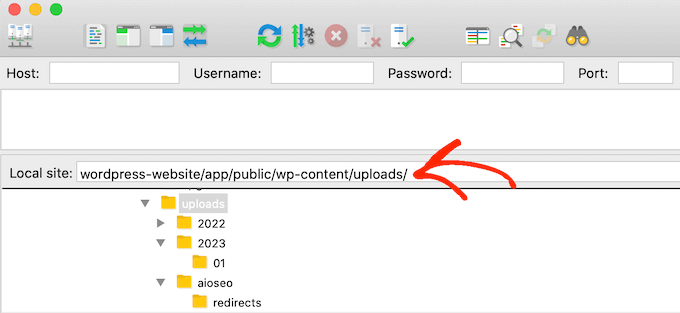
Inside the ‘uploads’ folder, you will see subfolders organized by year and month. This is how WordPress stores media files by default.
You should upload your files to the folder for the current year and month. If a folder doesn’t exist, you can simply create it. For instance, inside the ‘2025’ folder, you would create a new folder named ’11’ for November.
Next, upload all your media files into that folder. The transfer time will depend on your internet speed, file sizes, and your WordPress hosting provider.
After all the files are on your server, you are ready for the final step: making them visible in the WordPress media library.
Making Your FTP Media Uploads Visible in WordPress
At this point, you’ve successfully uploaded the media files to your website’s server. However, when you upload files using FTP, WordPress doesn’t store the file information in its database. This means those media files won’t appear in the WordPress dashboard.
Let’s fix this.
The first thing you’ll need to do is install and activate the Bulk Media Register plugin. For more details, see our step-by-step guide on how to install a WordPress plugin.
Upon activation, you must go to Bulk Media Register » Bulk Register. You can now open the first dropdown menu and select the specific folder where you just uploaded your media files.
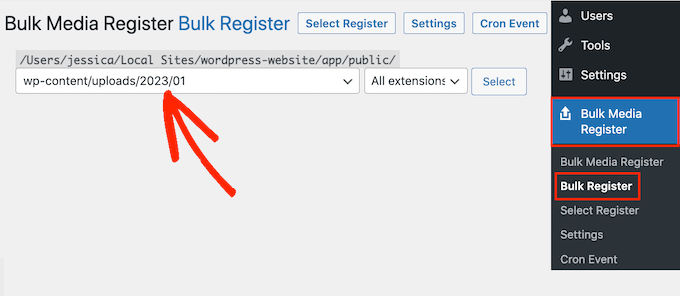
You can either leave the second dropdown menu set to ‘All extensions’ or choose a specific file extension.
For example, if you want to import PNG media files only, then you can open the dropdown menu and select ‘PNG.’

With that done, click on ‘Select Register.’
The plugin will now show any media files that match your search criteria. Simply check the box next to each file that you want to import.
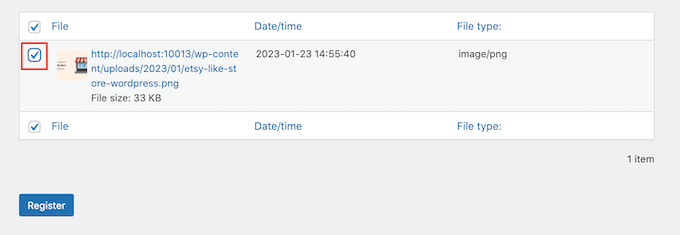
After that, click on the ‘Register’ button. Bulk Media Register will then go ahead and import the selected files into your media library.
If you head over to Media » Library, then you’ll see all the files you uploaded using FTP.
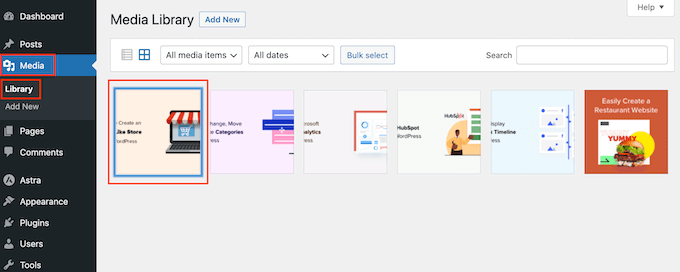
You can now go ahead and add these images, audio, and other media files to your WordPress posts and pages.
Frequently Asked Questions About Bulk Uploading Media
Here are answers to some of the most common questions we receive about bulk uploading media files to WordPress using FTP.
1. Can I upload media via FTP without using a plugin?
While you can upload the files directly to your server using an FTP client, WordPress won’t see them in your media library.
A plugin like Bulk Media Register is needed to scan the folder and register those files in the WordPress database, making them visible and usable in your posts and pages.
2. Does uploading via FTP bypass the maximum file upload size limit?
Yes. Since you are uploading files directly to your server, you are not bound by the maximum upload size limit that is sometimes enforced through the WordPress media uploader. This makes FTP the ideal method for transferring very large media files.
3. Will WordPress create different image sizes for my uploaded files?
Yes. When the plugin registers your images, it will also attempt to generate the various image sizes (like thumbnail, medium, and large) used by your theme. Just keep in mind that for very large batches, this process might take a few minutes.
4. What is the best FTP client to use?
There are many great options, but we recommend FileZilla because it’s free, reliable, and works on all major operating systems (Windows, macOS, and Linux). It’s the tool our own team uses for these tasks.
Next Steps: Optimizing Your WordPress Site
We hope this article helped you learn how to easily bulk upload media files using FTP. To further improve your site, we recommend checking out these additional resources:
- The Ultimate Guide to Boost WordPress Speed & Performance – Learn our top tips for making your website load faster for all visitors.
- Must-Have WordPress Plugins for Business Websites – Discover our expert picks for the essential plugins every business site needs for growth and security.
If you liked this article, then please subscribe to our YouTube Channel for WordPress video tutorials. You can also find us on Twitter and Facebook.


Mrteesurez
Helpful guide, thanks.
I used to upload multiple files through default Wordpress media library and it usually takes a long time to upload as you have said in this article.
Using FTP is quite helpful and powerful even for uploading other media type.
Carlos Rangel
Thanks for this article. Just what I was looking for
Jiří Vaněk
Fortunately, today’s hostings have a fairly large max execution time and file size that you can upload using php. Thanks to this, fortunately, many users do not have to deal with this problem. However, uploading data via FTP is sometimes really useful, and not just for media. Thanks for the great tutorial.
Mrteesurez
This is a great observation. While today’s hosting services generally offer generous max execution times and file size limits, using FTP remains incredibly useful. For instance, I’ve found FTP essential when uploading large plugin files or performing bulk media uploads, bypassing the limitations of the WordPress uploader. It’s also handy for directly managing and troubleshooting files when issues arise. This tutorial is excellent for understanding FTP’s versatility beyond just media uploads, highlighting its role in efficient site management.
Jiří Vaněk
Yes, exactly. Personally, I wouldn’t want shared hosting without FTP access. And yes, such options are offered here in the Czech Republic as well, where they only include an application installer. Whenever I have a problem with WordPress, I almost always need FTP, for example, to deactivate a plugin that caused a conflict. So you’re absolutely right—FTP is essential, if not critical, for a website, and anyone who wants to work with WordPress and solve issues more easily should get familiar with it sooner or later. Understanding WordPress’s file structure is also crucial for troubleshooting. Personally, I prefer hosting that offers both FTP and SSH access. That’s a truly great combination for working efficiently.
Muhammad Rafiq
Is there any without ftp solution?
WPBeginner Support
If your hosting provider has a file manager you should be able to use that instead of FTP if you wanted.
Admin
Randy C
As of May 2022, the plug in listed hasn’t been updated in over a year, may not be comparable with the last 3 ver of WP and is heading towards being depreciated. Is there another that you recommend?
WPBeginner Support
We do not have an alternative plugin we would recommend at the moment but for that warning, we would recommend taking a look at our article below:
https://www.wpbeginner.com/opinion/should-you-install-plugins-not-tested-with-your-wordpress-version/
Admin
Janek
Life saver! Thank you, even though the AddFromServer plugin has not been updated for a while I am running WP 5.7.2 an it worked perfectly.
WPBeginner Support
Glad our recommendation was still helpful
Admin
Kam
Awesome, this worked perfectly. Thanks!
WPBeginner Support
Glad our guide was helpful
Admin
Paolo
Thanks for your tutorial mate.
It helped me overcome the limits set by my website maintainer.
WPBeginner Support
Glad our guide was helpful
Admin
James
Is there any alternative to this? This plugin is no longer supported in later releases of WP and I have tried finding another solution.
WPBeginner Support
Not at the moment, we will keep an eye out for alternatives.
Admin
Andrew Marks
I’ve just used it with WordPress 5.4.2 and it worked fine, although it couldn’t bulk upload the 2,000 product images I needed in one go (the process appeared to timeout). To get it to work, I just uploaded the images in groups of 100-200 at a time.
The plugin is no longer being maintained, so I would not leave it installed on a product website, but it is still fit for purpose.
Dan
It seems this plugin no longer works, which is unfortunate.
Here is what I get when installing it:
“This plugin failed to load properly and is paused during recovery mode.”
When having this installed, as an admin you will not be able to log in, only in recovery mode.
This plugin has compatibility issues when used with more recent versions of WordPress.
WPBeginner Support
Thank you for letting us know, we will be sure to look into updating the article when able
Admin
martin
Thanks for this article! just what I needed
WPBeginner Support
Glad our article was helpful
Admin
Kris
Will this method autogenerate thumbnail sizes? The current media uploader adds resized image versions for you.
WPBeginner Support
You would normally need to use a plugin like Regenerate thumbnails to have the other sizes created by your site
Admin
Olagist
My question now is, after importing the files to wordpress media, what is happen going to happen to the original one you imported, is it going to be deleted automatically after importation to the wp media
Thanks.
WPBeginner Support
This method shouldn’t overwrite the images in your media library but it will add the images to your media library
Admin
Mehedy
Thanks a lot. Working Perfectly
scottio
The Add-From-Server plugin seems to be dead as of March 23 2018. You keep saying you’ve replaced the plugin. I don’t see where that applies here.
WPBeginner Support
Hi Scottio,
The plugin is available for download on WordPress.org. It must be a temporary glitch that you witnessed.
Admin
Yacine
Hi,
The plugin is no longer available …
The notice “This plugin was closed on January 11, 2018 and is no longer available for download.”
WPBeginner Support
Hi Yacine,
Thank you for notifying us. We have replaced the plugin.
Admin
Ken
The plugin has been closed and not available to download just now
WPBeginner Support
Hey Ken,
Thanks for notifying us. We have replaced the plugin.
Admin
Sahil Malik
Can you guide me on how to develop price comparison website in WordPress? i mean A website that can show different price for a single product from different shopping websites
Pantelis Koumelas
Thank you for this article.
I wondering if it creates different copies of the same image but with different sizes as it happens I’m case of upload using wp media.