


Do you feel like your WordPress categories and tags are out of control? Many beginners start by creating new categories for every post, only to realize later that their site structure is a mess.
In my experience, a disorganized site makes it hard for visitors to find what they are looking for. If users can’t find your content, they leave, and your bounce rate goes up. That is bad news for your SEO.
Luckily, you don’t have to fix thousands of posts one by one. I have helped many site owners clean up their content structure, and I always use a bulk editing method to save hours of manual work.
In this article, I will show you how to easily bulk move posts to categories and tags in WordPress to clean up your website fast.
Quick Summary
TL;DR: Cleaning up your WordPress site structure involves moving posts to better categories. I recommend using the free TaxoPress plugin to merge terms and All in One SEO (AIOSEO) to manage 301 redirects automatically. This ensures you maintain link integrity and search rankings while reorganizing your content.
Why Bulk Move Posts to Categories and Tags in WordPress?
Categories and tags are the main ways to sort content on your WordPress website. But I often see new users treating them the same way, creating hundreds of tags that they never use again.
This is often called taxonomy bloat, and it can confuse search engines. To fix this, you need to combine similar categories or tags.
For example, you might have duplicate terms on your site like:
- Vacation Spots
- Holiday
- Travel
Cleaning this up prevents your own categories from competing with each other in search results and helps search engines understand exactly what your blog is about.
⚠️ Important SEO Warning: Moving a post can change its URL (such as from yoursite.com/vacation/post-name/ to yoursite.com/travel/post-name/). This will break your links. I strongly recommend setting up redirections using a plugin like All in One SEO (AIOSEO) to prevent 404 errors. I use this on all my websites to ensure I don’t lose traffic during a cleanup.
Now, let’s see how to easily bulk move posts to categories and tags.
You can use the quick links below to jump to different parts of the tutorial:
Installing the TaxoPress Plugin
While WordPress has a built-in bulk edit feature, I find it very limited. It allows you to add categories, but it doesn’t let you remove the old ones easily. This usually results in posts being stuck in two categories at once, which defeats the purpose.
The easiest and safest way to manage your categories is by using TaxoPress. It is a powerful plugin that allows you to:
- Move posts between categories and tags.
- Merge multiple terms into one.
- Delete taxonomies efficiently.
First, you need to install and activate the TaxoPress plugin. For more details, please see our guide on how to install a WordPress plugin.
Upon activation, you are ready to start cleaning up your site structure.
How to Move Specific Posts to Categories and Tags
If you want to move specific posts from one category to another (but not all of them), then you should use the ‘Mass Edit Terms’ feature.
I find this tool perfect for splitting a broad category into smaller ones. It displays all your posts in a list, allowing you to rapidly edit them one by one without opening every single post editor.
To get started, head over to the TaxoPress » Mass Edit Terms page from your WordPress dashboard.
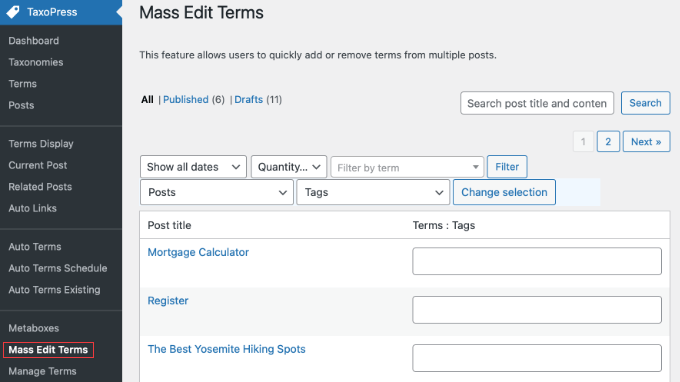
You can use this page to manage either Tags or Categories. For this tutorial, I will show you how to move posts between categories.
Step 1: Find your posts
First, look at the second row of controls and ensure ‘Categories’ (or ‘Tags’) is selected in the dropdown menu.
If you change this, then you need to click ‘Change selection’ to update the page.

Next, use the filters at the top of the screen to find the posts you want to move. You need to click the ‘Filter by term’ dropdown menu. A list will appear with a search box at the top.
Then you can type the name of the old category you want to empty (for example, ‘Holiday’) and select it from the list. After that, you simply click the ‘Filter’ button next to the dropdown.

The plugin will now show only the posts assigned to that category (or tag).
Step 2: Update the categories
TaxoPress displays a list of your posts with their current categories in a text field on the right side of the screen.
To move a post, just delete the old category name from the text box. Then, start typing the new category.
A dropdown menu will appear, and you must click the existing category to select it. This makes sure you don’t accidentally create a new category due to a typo.
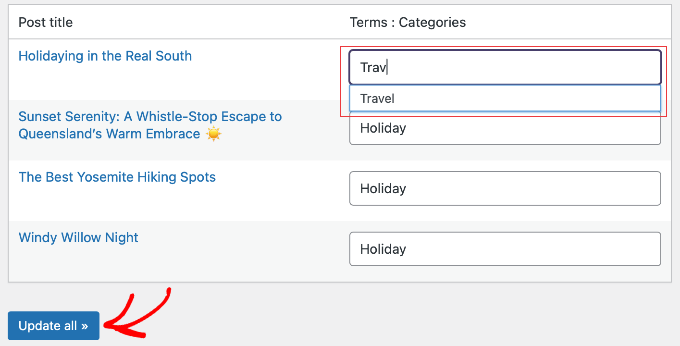
Once you have adjusted the categories for your posts, click the ‘Update All’ button to save your changes.
Tip: Since you have to edit each row manually, this method is best if you only want to move a few specific posts. If you want to move all posts from one category to another, then the ‘Merge’ method below is instant and much easier.
How to Bulk Merge Categories and Tags
Sometimes, you might realize you have two categories that are almost identical, like ‘Guide’ and ‘Tutorials’.
In this case, I recommend merging them. This combines both categories into one and automatically deletes the old, duplicate category to keep your site clean. This is one of the best ways of fixing a cluttered site.
Note: Merging is a permanent action and there is no undo button. Once you merge terms, the old category is deleted and cannot be restored. I strongly recommend you use a plugin like Duplicator, the best WordPress backup and migration plugin, to create a full database backup before clicking that button.
To do this, navigate to the TaxoPress » Manage Terms page.
Then, simply enter the old category you want to get rid of in the ‘Terms to merge’ field. Next, enter the destination category you want to keep in the ‘New term name’ field.
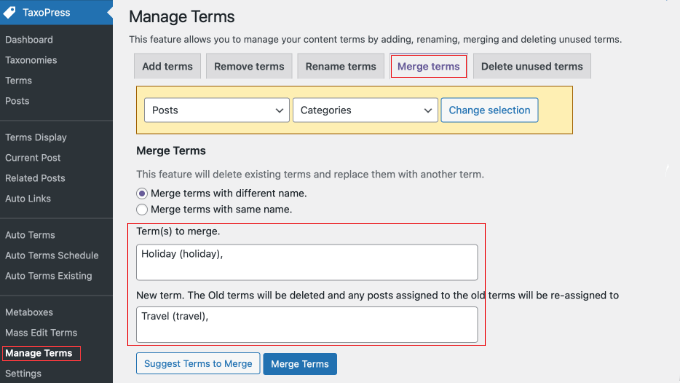
Finally, you need to click the ‘Merge Terms’ button, and TaxoPress will handle the rest. I find this incredibly useful for cleaning up tags on older blogs that have been running for years.
Frequently Asked Questions About Bulk Moving Posts
Here are some of the most common questions I receive from readers about how to bulk move posts to categories and tags in WordPress.
1. Does moving posts to a new category affect my WordPress SEO?
It can. If your URL structure includes the category name, then moving the post will change the URL. To avoid losing your search rankings, I always set up 301 redirects using All in One SEO (Pro). It automatically detects post changes and redirects the old URL to the new one.
2. Can I bulk move posts without using a plugin?
Technically yes, but I don’t recommend it for moving. The default WordPress ‘Bulk Edit’ tool allows you to add a category, but it does not uncheck the old category. This means you have to go back and manually remove the old category from every post, which takes forever.
3. What happens to my posts if I simply delete a category?
If you delete a category, WordPress will not delete your posts. If the post is assigned to other categories, it stays there. However, if the deleted category was the only one assigned, then WordPress will force the post into your default category (usually ‘Uncategorized‘). This looks unprofessional, so I always recommend moving posts first.
4. Can I bulk move WordPress pages to categories?
By default, WordPress pages do not have categories or tags. However, if you use a plugin to add categories to WordPress pages, you can then use TaxoPress to manage them just like you would for posts.
Additional Resources for Blogging
I hope this article helped you learn how to easily bulk move posts to categories and tags.
You may also be interested in these additional resources:
- Categories vs Tags – SEO Best Practices for Sorting Your Content
- How to Bulk Add Posts and Pages in WordPress
- Ultimate WordPress SEO Guide for Beginners
- Best Related Posts Plugins for WordPress (Compared)
- How to Rename the Uncategorized Category in WordPress
If you liked this article, then please subscribe to our YouTube Channel for WordPress video tutorials. You can also find us on Twitter and Facebook.




Will Sanio
Doesn’t moving posts within categories create 404 pages?
WPBeginner Support
It can if there are links to the old location, you can update the links by redirecting following our guide below:
https://www.wpbeginner.com/beginners-guide/beginners-guide-to-creating-redirects-in-wordpress/
Admin
Deddy Hidayat
Thanks for article.. This website help me saving time to try multiple plugin..
WPBeginner Support
Glad our guides can be helpful
Admin
Francesco
Hi,
I’m managing a website that has thousands of posts assigned to each category and, trying to achieve this with a different plugin, it reached the limit in execution time (I guess it’s a php limit?) with undefined behavior. Of course, I can’t allow this to happen again..
Do you have any suggestion on how to bulk move categories with thousands of posts assigned? Will this plugin work?
Benson
Is there a way to mass update which category is “primary”? I have a lot of posts that fit into a couple different categories and now see a need to make certain categories primary. Do I need to go through each post one by one to select the primary category, or is there a tool to help with that?
Dawn Mo
The video supplied does not match the content topic.
WPBeginner Support
Hi Dawn,
Thanks for pointing this out. We have updated the article with correct video.
Admin
Martin
Hi WPBEGGINERS SUPPORT
You have trained me a lot on blogs.
Still learning with you.
Moore Alex
Your blog is very resourceful. Please how do I move my posts to specific pages on wordpress? For example I have a page called “News” and have sub menu pages under News such as Political, Local, Business.
If I want to move a post to news sub menu “Business” how do I go about it. Please help. Thank you.
WPBeginner Support
You can use categories for that and then add those categories in your navigation menu. how to add topics in WordPress navigation menu
Admin
francisca
You just solved my problem. You are the best.
I was actually trying to change my site niche from news blog to best affiliate marketing and product reviews, however, I need to put all news categories in one page. I have to change the niche on my site because I have many customers in my super market, however, I ensure that my customers leave a review in any products the buy. however, my product review will be based on my usage review and customer review.
anna
Hello I left a message this morning, but it has gone now, why did you delete it ? I was mot spamming the article….just asking about how to avoid google issues with a lot og disspeared categories
I even BUY your plugins …so Im a little dissapointed you just delete my question :((
WPBeginner Support
Anna, your comment was awaiting moderation, we did not delete it. At WPBeginner we recieve lots of comments and sometimes it takes us time to go through all the comments and approve or reply them. We apologize for the inconvenience this delay caused. Thank you for your continous support, we really appreciate it.
Admin
anna
HEllo Thank for the great tool, I was doing it manually
But what about google ?, it will create a lot of 404, do I still have to enter the 301 with a redirection plugin ? or is this pluin adding them automatically
You make great and very helpful articles, I read a lot here (and buy your plugins) but it’s not the first time I read something here and think “but what about google, they didnt mention anything about the 301 or 404”.
WPBeginner Support
Anna, redirection plugin will make sure that users are redirected with a 301 header. This will ensure that search engines follow the 301 header and understand that the page has moved to this new location.
Admin
Emily
Sooo why didn’t this article talk people talk? Why doesn’t it say how many tags is too many? You call this for beginners, and it isn’t. I would say it’s intermediary.
WPBeginner Support
Please check the article categories vs tags it may answer some of your question.
Admin
syed shafaat hussain
Thanks you ok.
A.K.Andrew
Fantastic post . Thanks so much for the help. I have added too many categories and only a week ago trimmed them down. I put some things in subcategories, which was helpful to be under parent categories. Is there any way to make only the Categories show up when they are listed in the categories widget in the sidebar? At the moment all the subcategories show up too. In the end I used a category cloud as the catogory list was still too long. Many Thanks
Brij Kumar
very informative article for wordpress user and sites
Brian Snyder
Do you have any tips or articles that cover how to organize tags and categories properly? I have to admit I am confused about this, confused about the point of tags and categories in the first place, am very random about it, and am probably not doing it correctly.
Thanks. Am loving the site!
WPBeginner Support
Yes here is how to ogranize your categories and tags in WordPress.
Admin
Sü Smith
Very useful for blogger to wordpress imports. Thanks for sharing!