


If you’re updating to the newest version of WordPress, older content may appear in the Classic block within the new editor. And if you have a large number of posts, converting these Classic blocks to Gutenberg blocks one by one can be time-consuming.
Luckily, there’s an easier way to bulk convert them.
At WPBeginner, we originally used the Classic Editor but switched to Gutenberg when it launched. This meant converting older posts from Classic blocks to Gutenberg, giving us hands-on experience with the process.🔄
Over time, we’ve mastered this transition, making it smooth and efficient.⚡
In this article, we will show how to easily bulk convert classic blocks into Gutenberg blocks on your WordPress site.
💡 Quick Answer: How to Bulk Convert Classic Blocks to Gutenberg in WordPress
To bulk convert Classic blocks to Gutenberg, install the ‘Convert to Blocks‘ plugin.
After activating it, simply open any post or page that still uses a Classic block and click Update. The plugin will automatically convert the Classic content into individual Gutenberg blocks in the background.
Why Convert Classic Blocks to Individual Gutenberg Blocks?
Converting Classic blocks into individual Gutenberg blocks gives you more control and flexibility over your content.
If your WordPress blog has older posts created with the Classic Editor, they will appear inside a Classic block in the block editor.
By converting them, each paragraph, heading, and image becomes its own editable block.
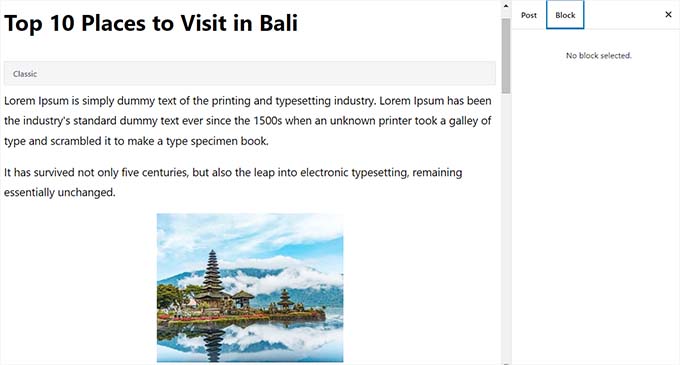
This allows you to easily edit and customize your posts using the block editor’s features.
You can adjust settings in the sidebar for each block, and take advantage of layouts and design options that weren’t available in the Classic Editor—like columns, image galleries, buttons, and more.
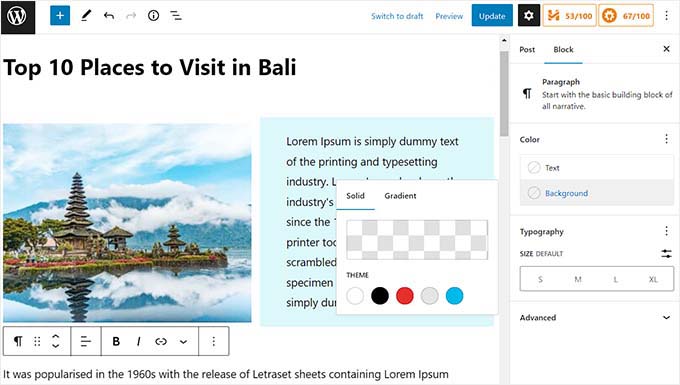
Overall, converting to Gutenberg blocks makes your content easier to manage and lets you create more engaging, modern layouts for your readers.
💡 Note: In most cases, switching from the classic to the block editor will not affect your posts on the front end.
That being said, let’s see how to easily bulk-convert classic blocks to Gutenberg in WordPress. We will cover 2 methods, and you can use the quick links below to jump to the one you want to use:
Method 1: Convert Classic Block to Gutenberg Using Default Settings
If you want to convert a single post or page from the Classic block into individual blocks, then this method is for you.
First, you need to edit the post and page where you want to convert the blocks. You can do this by heading to the Posts » All Posts page in your WordPress dashboard. Then, click the ‘Edit’ link under the post you wish to convert.
This will open your post in the Gutenberg editor. From here, simply click on the ‘Convert to blocks’ button in the toolbar at the top of the Classic block.
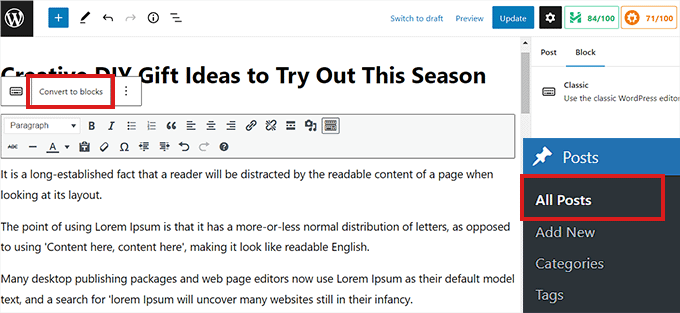
The Classic block will now be converted into individual Gutenberg blocks.
You can now also access all the block settings for individual blocks from the right column. If you cannot see this panel, then click on the gear icon at the top right of the editor.
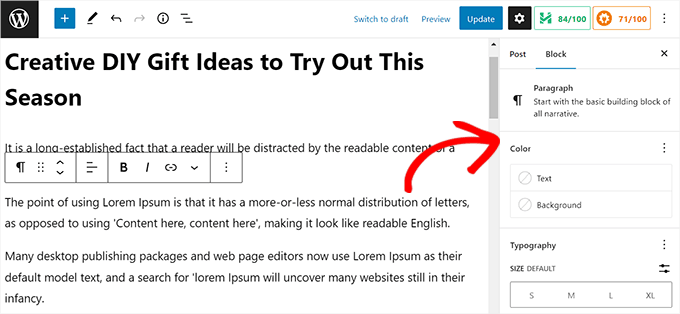
Once you are done, don’t forget to click the ‘Update’ button to save your changes.
Method 2: Bulk Convert Classic Block into Gutenberg Blocks
If you want to easily convert the Classic block into Gutenberg blocks for all the old posts and pages immediately, then this method is for you.
💡 Important: Make sure to create a complete WordPress backup of your site before using this method.
The plugin makes permanent changes to your site’s database, and a backup is the only way to undo the conversion if anything goes wrong.
First, you need to install and activate the Convert to Blocks plugin. For more instructions, please see our step-by-step guide on how to install a WordPress plugin.
The plugin streamlines the conversion process. Once activated, it automatically converts any post or page from the Classic block into individual blocks the moment you open it in the editor.
This saves you from having to manually click the ‘Convert to blocks’ button for each post, making it a great time-effective tool.
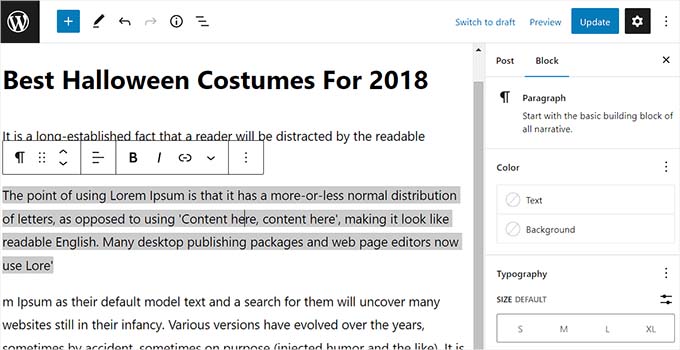
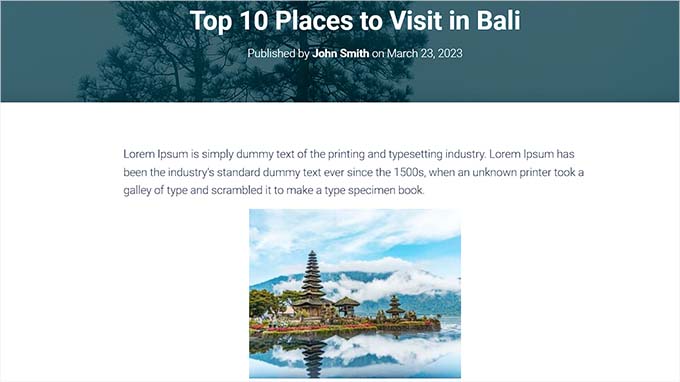
Remember that the bulk conversion will not affect the layout of your posts on the front end, so the posts will look the same on your WordPress website.
This is how the same post looked on our demo site after converting it from Classic to individual blocks.
After the bulk conversion is complete, the plugin has done its job. You can then safely deactivate and delete the Convert to Blocks plugin to keep your site tidy.
Bonus Tips and Tricks to Use the Block Editor
Now that you are using the block editor on your WordPress site, you can access some powerful features unavailable in the classic editor. Here are some key blocks and functionalities to explore:
- Group and Column Blocks: Organize multiple elements like images, headings, and paragraphs into flexible, multi-column layouts. This allows for visually appealing and structured page designs.
- Embed Block: Seamlessly insert content from popular third-party sources such as YouTube, Discord, Twitter, Facebook, and more directly into your posts.
- Cover Block: Integrate text and media content (images or videos) within a single block to create striking section headers, banners, or full-width background sections.
- Table Block: Easily create structured data displays without needing to write custom HTML, offering basic styling and column/row management.
- Button Block: Add customizable call-to-action buttons with options for color, style, and link.
- Nested blocks: Place blocks inside other blocks (e.g., buttons within a column block or paragraphs within a group block) for advanced design possibilities.
- Block Patterns: Save frequently used block configurations or complex layouts as reusable blocks or patterns, allowing you to quickly insert them across your site.
For details on how to maximize your use of these features, see our step-by-step guide on on how to use the WordPress block editor.
Video Tutorial
Not a fan of written instructions? Check out our tutorial on how to bulk convert blocks in WordPress:
Frequently Asked Questions About Converting Classic Blocks to Gutenberg
Here are some questions that our readers frequently ask about converting the classic blocks to Gutenberg in WordPress:
Will converting blocks break my site?
No, in most cases, converting Classic blocks to individual Gutenberg blocks will not break your site’s appearance.
The main change happens in the back-end editor, giving you more control over individual elements. We always recommend spot-checking a few important posts or pages after the conversion just to be safe.
Can I undo the conversion?
The bulk conversion using the plugin is a permanent change and cannot be easily undone. Once the classic content is converted into blocks, there isn’t a reversal button.
This is why creating a complete WordPress backup before you begin is a critical step. If you run into any issues, you can restore your site from that backup.
Is the ‘Convert to Blocks’ plugin free?
Yes, the ‘Convert to Blocks’ plugin we mentioned in the second method is completely free. You can find and install it directly from the official WordPress plugin directory.
We hope this article helped you learn how to bulk convert classic blocks into Gutenberg blocks in WordPress. You may also want to see our beginner’s guide on how to add a blog post checklist to the WordPress editor and our top picks for the best full site editing themes.
If you liked this article, then please subscribe to our YouTube Channel for WordPress video tutorials. You can also find us on Twitter and Facebook.



Susan Taunton
I understand shortcodes, which you covered in this article, will need special attention. But other than shortcodes – after conversion to Blocks, will old posts, which had been created using a lot of html and css, appear exactly as they had appeared prior to conversion to Blocks?
WPBeginner Support
There is no guarantee as each site is different with what has been added but if you wanted to test converting your content without concern, we would recommend creating a staging site following our guide below:
https://www.wpbeginner.com/wp-tutorials/how-to-create-staging-environment-for-a-wordpress-site/
Admin
Susan Taunton
Thanks for taking the time to share this suggestion.
Best,
Susan
WPBeginner Support
Glad we could be helpful
Lauren Cantoni
The convert to blocks button isn’t working – I click on it and nothing happens. Any ideas for troubleshooting this? Thanks!
WPBeginner Support
If you’re using the plugin, we would recommend reaching out to the plugin’s support. If you are manually doing this, you would want to try disabling your plugins in case it is due to a plugin conflict.
Admin
Aryane
Thank you SO MUCH for this! I was converting posts one by one and it was driving me crazy. Luckily I thought of googling how to do it by batches. This is life saving!
WPBeginner Support
Glad our guide was helpful
Admin
Sieglinde Anderson
Why would I want to convert all my old pages and posts to the Gutenberg version?
WPBeginner Support
To give yourself the editing tools that come with the new blocks
Admin