


Are your best articles getting lost on category pages, even after you’ve made them sticky?
WordPress has a built-in sticky post feature, which is great for keeping content at the top of your main blog page. However, this feature doesn’t work on category pages by default. This means your most important articles can still get buried in their specific categories.
Luckily, I’ve found an easy way to fix this. You can make the sticky post feature work for your category pages and ensure that your best content is always the first thing visitors see.
In this guide, I will show you exactly how to add sticky posts for your categories in WordPress, step by step.

Why Add Sticky Posts for Categories in WordPress?
Adding sticky posts for categories in WordPress lets you pin key content to the top of each category page. This makes it easier for visitors to find important posts, improves your website navigation, and keeps readers engaged.
As your website grows, it’s easy for new visitors to miss your most important articles. Your best content can quickly get hidden by newer posts.
Making posts sticky on category pages solves this. It brings your most important content to the front. This can quickly improve a post’s visibility and increase its click-through rate (CTR).
Making these posts sticky helps you guide visitors to your pillar articles. These are your most important, in-depth posts that cover a core topic on your site.
By keeping them at the top, you can get more pageviews, boost engagement, and show new readers your best work.
For example, you can use sticky posts to:
- Highlight cornerstone content to make sure visitors see your most comprehensive guides.
- Promote sales or special offers in relevant product categories.
- Feature important announcements like a business update or a popular event.
You can also use this feature for timely content. For example, making a giveaway post sticky is a great way to get more people to join.
Adding Sticky Posts for Categories Using a Code Snippet
Using a code snippet is an easy way to add sticky posts to category pages. This method is light, safe, and avoids issues with plugins that might slow your site or become outdated.
The safest way to add code to your site is with the WPCode plugin. It helps you avoid breaking your site when editing theme files. It also gives you one place to manage all your custom code and already contains the snippet you need in its library.
First, you need to install and activate the free WPCode plugin. For detailed instructions, you can follow my guide on how to install a WordPress plugin.
Once the plugin is active, you can go to Code Snippets » + Add Snippet on your dashboard. Then use the plugin’s search feature to find the ‘Sticky Posts on Category Pages’ snippet.
When you hover your mouse over the snippet, you will be able to click the ‘Use snippet’ button.

On the next page, you will find the snippet already set up for you.
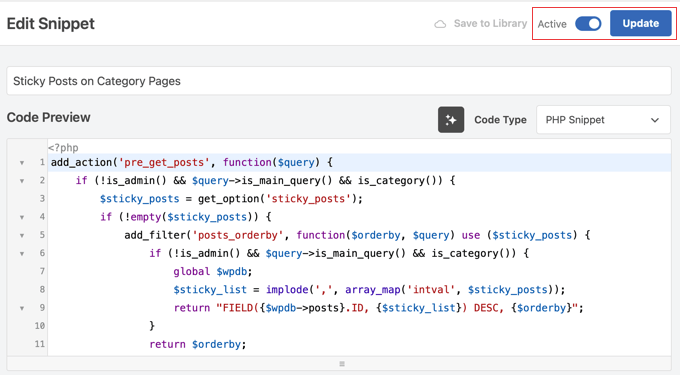
All you need to do is click the toggle switch to ‘Active’ and then click the ‘Update’ button at the top of the screen.
How to Make a Post Sticky
Now that your code is active, you can make any post sticky. The built-in WordPress feature will now work on your category pages.
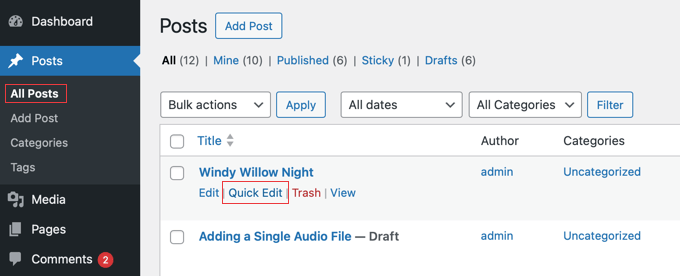
To get started, go to Posts » All Posts in your admin dashboard. Find the post you want to feature, hover over it, and then click the ‘Quick Edit’ link.
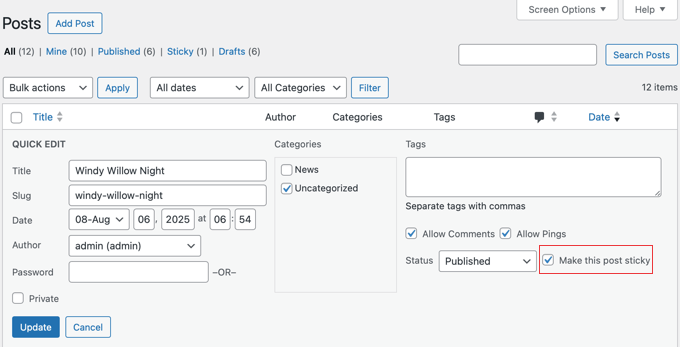
In the menu that opens, simply check the box that says ‘Make this post sticky’.
After that, click the ‘Update’ button to save your changes.
That’s it! The post will now stay at the top of its category page.
To see it in action, simply visit that category page on your live website. This is how you can confirm the change worked and see exactly what your visitors will see.
Frequently Asked Questions About Sticky Category Posts
I often get questions about making posts sticky on category pages. Here are the answers to the most common ones.
Can I make a post sticky for only one specific category?
No, the code in this guide makes a post sticky across all its assigned category pages. To make a post sticky in only one category, you would need a more advanced code snippet.
This is because the code must include a custom function that first checks which specific category page is being viewed before displaying the post. For most users, the global method in this guide is the simplest and most effective approach.
How many sticky posts can I have?
You can have as many sticky posts as you want. The code will show all of them at the top of your category pages. However, I suggest using only one or two sticky posts at a time. This keeps your pages looking clean and helps readers focus on your most important content.
How do I un-sticky a post?
To un-sticky a post, go back to the ‘Quick Edit’ screen for that post. Uncheck the ‘Make this post sticky’ box and click ‘Update’. The post will go back to its normal spot on the category page.
What should I do if the code snippet doesn’t work?
If your sticky posts are not showing up, then first make sure the WPCode snippet is active and saved. Sometimes, your WordPress theme can cause an issue. To check this, you can switch to a default theme like Twenty Twenty-Four.
If the sticky posts work with the default theme, then this indicates a conflict with your current theme’s code, which can sometimes happen. In this case, I recommend contacting your theme’s developer for support.
Additional Resources for Website Organization
I hope this article helped you learn how to make posts sticky on your WordPress category pages. It’s a great way to guide visitors to your most important content.
You may also want to check out these other guides to help you organize your content and improve your site:
- Categories vs Tags – SEO Best Practices for Sorting Your Content
- How to Easily Re-Order Posts in WordPress (Step by Step)
- How to Display Recent Posts in WordPress
- How to Create a Sticky Floating Navigation Menu in WordPress
- Internal Linking for SEO: The Ultimate Guide with Best Practices
If you liked this article, then please subscribe to our YouTube Channel for WordPress video tutorials. You can also find us on Twitter and Facebook.


Kamil
and can you disable sticky post for some categories?
or set different sticky post for different categories?
WPBeginner Support
The plugin should allow you to decide which categories to display the sticky post in.
Admin
Kamil
where? seems like it’s sticking on every page within the type
WPBeginner Support
It looks like we were mistaken, if you do not set a sticky post in a category then it will not display on that category’s page.
Amara Young
I’d really like to know how to stick different posts to the top of their respective categories. My website has one blog page with multiple categories that are not related, and I don’t want to stick the same post to the top of each category. Please help!
WPBeginner Support
We would recommend using the plugin from our article above
Admin
Kevin Klasman
I would like to have a single sticky post per category, but unfortunately this plugin doesn’t do that. Having multiple sticky posts simply sticks them at the top of all category pages, instead of just the sticky post for the category the user clicks on.
WPBeginner Support
You are correct that this plugin does not add the sticky post per category, this plugin is currently for placing one post on the top of all of your category pages. We will be sure to look into a plugin we would recommend for individual sticky posts
Admin
Dave
Thanks for posting. Plug-in still works in 2022!
WPBeginner Support
You’re welcome and glad to hear it is still working
Admin
Szilard
Thank You!
Wordpress hides this plugin in the search since they say not tested with the recent wp versions. But based on your article I could find it again. And it just works.
WPBeginner Support
Glad our guide could be helpful
Admin
lisa
Please could someone give me a simple explanation of the difference between stickys and featured posts. Many tutorial sites seem to use the words as if they were interchangeable but it seems they are not – they obviously have different functions, otherwise why give them different names. Thanks
WPBeginner Support
Sticky posts are a WordPress default option to have a post appear before your other content while featured posts are an option in some themes that depending on the theme it can either be interchangeable or for a specific section of the theme.
Admin
Vera
Thanks.
How can I make the Category Sticky Post full length and the rest of the Category Posts excerpt (Twenty-Thirteen theme)?
Thank you.
Blair Scheeers
Any idea why my categories wouldn’t show up in the sticky post dropdown box?
Karunakar
With “Category Sticky Post” Plugin, we are able to stick only a single post in a category.
How to stick multiple posts in a single category?
Thank you in advance.
Halong Bay
How can I have more than one sticky posts in the same category please?
Clodagh Phelan
Please could someone give me a simple explanation of the difference between stickys and featured posts. Many tutorial sites seem to use the words as if they were interchangeable but it seems they are not – they obviously have different functions, otherwise why give them different names. Thanks
WPBeginner Support
Clodagh, Sticky posts are sometimes referred as featured posts. Some WordPress themes or tutorials would want you to create a category called Featured Posts on your site and use posts in that category to be highlighted as featured posts.
Admin
Tim
Found this plugin that solves my problem. Works. Beautiful! http://wordpress.org/plugins/category-sticky-posts/
Tim
The big question is: Why can’t a sticky post just be sticky everywhere?
Eg what if a post is in multiple categories? (eg an art exhibition with live music and wine tasting should go in all three categories, and be sticky in all three if it’s happening this week).
I’m guessing the reason is you can’t have multiple sticky posts per category. But… why? If there are multiple sticky posts, just put _them_ in date order, above the other posts.
Feels like this would simplify things a bit.
Wordpress Awards
well done Thanks
rakesh kumar
Very useful information you have shared with us. I was just trying to figure it out how to do this for each category and suddenly found your article, Thanks a lot.
Olivia
What is a sticky post? What does it look like when I see it? Why do i need it?
WPBeginner Support
Olivia, see the screenshot in the article. A Sticky post is much like a featured post, it is usually displayed on top of your regular post no matter when it was published.
Admin
Ali
Thank you for this article!
I have been thinking about categories and archives lately because I’m starting to get more posts on my site.
The sticky posts looks like a great way to showcase one post.
How do I set up my site so that if someone clicks on a category (or an archive date) they see only a short stub of ALL posts under that category or date?
Maybe even a list of all post titles if it’s not possible to have a title and intro?
Currently when I click on a category or archive date all of the posts show, but they show as full posts – so it’s a LONG page and hard to find the one post you want to read.
Thank you!
Ali Jayne
http://alijayne.com
WPBeginner Support
Ali you should replace
the_content()tag withthe_excerpt()in your archive templates like archive.php, category.php, tag.php, etc. For more on this please check out Full Post vs Summary (Excerpt) in your WordPress Archive Pages.Admin