


Tired of sharing links that look boring and get completely ignored by your readers? This is one of the most common frustrations website owners face when trying to share valuable content.
The thing is, plain links don’t grab attention.
Fortunately, WordPress has a built-in feature (called Embeds) that turns links from supported websites into rich content cards. These include images, titles, and descriptions, just like the previews you see on Facebook and X (Twitter).
In this guide, we’ll show you how to add links as content cards in WordPress. We’ve helped hundreds of users add this feature, and it works every time. We will also show you exactly what to do when an embed doesn’t work correctly. 🙌
What Is a Content Card (and Why Does It Matter)?
A content card lets you display a visual summary of a link you share on your site. Instead of showing a plain URL, it automatically pulls in key information, like the title, featured image, and a short description, to create a clickable preview box.
It works a lot like Twitter Cards or Facebook Link Previews. When you paste a link into your post, WordPress turns it into a more engaging, media-rich element that stands out and invites clicks.
You can think of it like embedding a video or a tweet. Except, instead of social posts, you’re embedding full articles, podcast episodes, or other external content.
Here’s what it looks like in action:
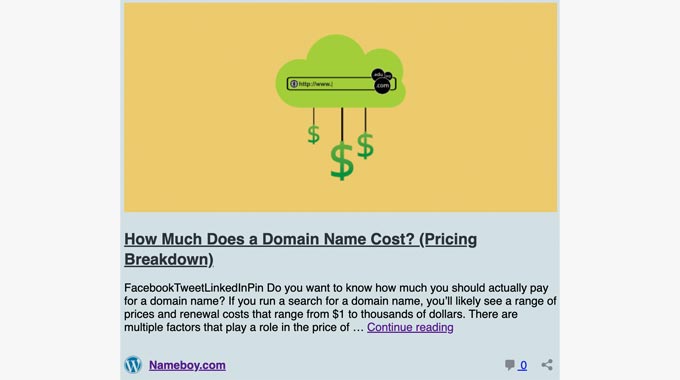
These content cards don’t just look nicer; they make your posts easier to scan and more interactive. Readers are far more likely to click when they see a clear headline and image, rather than just a bare link.
Whether you’re linking to your own posts or other helpful content, content cards make your site more engaging, which helps encourage visitors to click around and stay longer.
How to Embed a Link as a Content Card in WordPress
Generally, there are 2 methods for embedding a link as a content card in WordPress:
- Method 1: Copying and pasting the URL (The easiest way).
- Method 2: Using the Embed block (For specific placement).
In the following sections, we’ll show you just how to do it using both methods. Here’s a quick look at all the topics we’ll share:
Let’s jump right in! 🚀
Method 1. Copy and Paste the URL
By default, WordPress allows you to easily embed links as content cards from supported websites. These include all WordPress-powered sites (including your own) and many popular services like YouTube and Vimeo.
To embed links as content cards, simply paste the URL inside your page or post’s content editor.
But do note that the URL must be on its own line. Also, make sure the text is black (plain text). If the text is blue and underlined (hyperlinked), the content card will not appear.
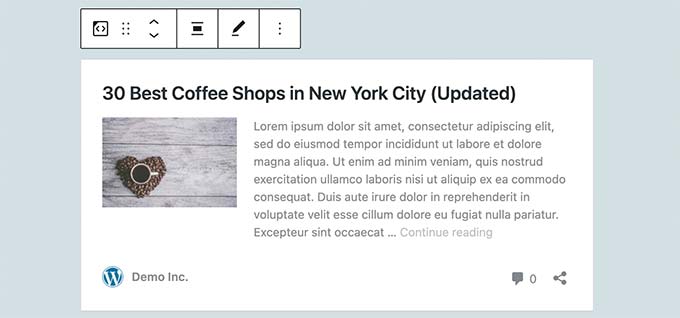
As soon as you paste the link, WordPress will automatically convert it into a content card.
Method 2. Use the Embed Block
Another way to add a link as a content card is by adding the Embed block in the block editor.
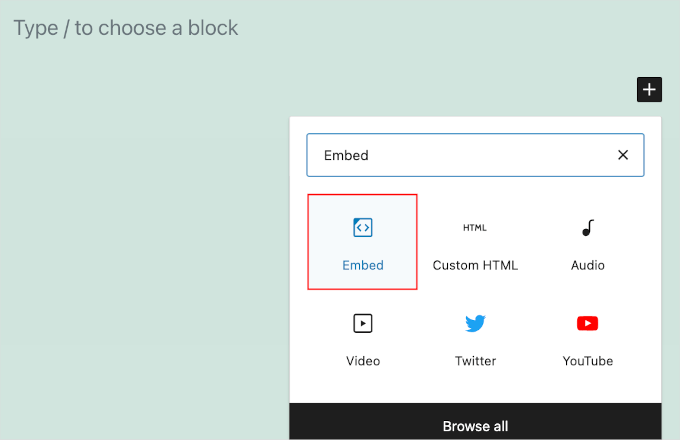
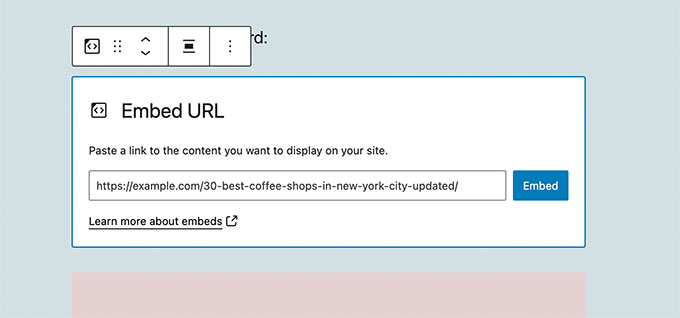
To do this, you’ll want to open your page or post’s block editor. Then, simply click the ‘+’ add block button and search for ‘Embed’ to locate the block.
You can now paste the URL of the blog post into the block’s field. Once done, go ahead and click the ‘Embed’ button.
WordPress will then automatically fetch the metadata for the URL and convert it into a content card.
Bonus Tip: How Do Content Cards Work?
By default, WordPress uses oEmbed technology to fetch metadata information (like the title, description, and image) from websites that support oEmbed formats.
All WordPress websites support the oEmbed protocol out of the box. This means you can embed links from a typical WordPress site as a content card on yours.
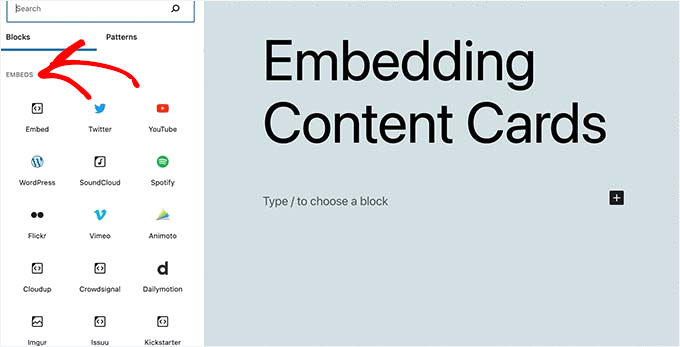
Other than WordPress websites, you can also embed content from many popular social media platforms that are on the official allow-list, such as YouTube, Vimeo, Twitter (X), TikTok, and more.
If you try to paste a link from a website that is not on this supported list, WordPress will not create a content card and will simply display the text link.
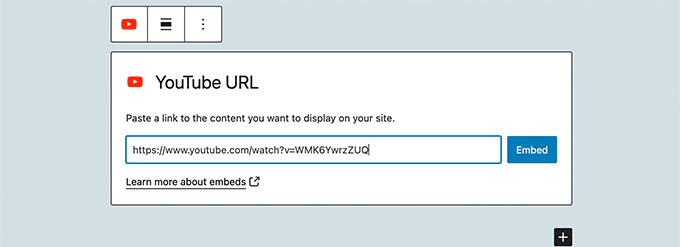
For instance, you can embed YouTube videos instantly by simply pasting a video URL on its own line in the editor. Here’s what it might look like in your block editor:
💡 Note: Facebook and Instagram embeds don’t work out of the box on WordPress websites due to Meta’s API changes. You’ll need a plugin like the Smash Balloon Facebook plugin to easily embed content from those platforms.
For details, see our guide on how to embed Instagram content in WordPress.
Frequently Asked Questions About Content Cards
Got questions about how content cards work in WordPress? You’re not alone! Below are some of the most common things people ask when setting up or troubleshooting link previews.
Which websites can I embed as content cards in WordPress?
WordPress can automatically generate content cards (also called embedded previews) for a variety of sites using the oEmbed protocol. This includes popular social media platforms like YouTube, Vimeo, Twitter (now X), and TikTok.
It also works seamlessly when linking to other WordPress websites.
However, Facebook and Instagram embeds no longer work natively in WordPress due to API changes made by Meta. To embed content from those platforms, you’ll need a dedicated social media plugin like Smash Balloon.
What should I do if my link doesn’t turn into a content card?
You can start by checking whether the site you’re linking to supports oEmbed. WordPress only creates content cards for approved providers.
Next, make sure the link is placed on its own line. It must be plain text. If you accidentally pasted it as a blue clickable link, click the ‘Unlink’ button in the toolbar to revert it to plain text, and the embed should appear.
If you’re still not seeing the preview, try clearing your site’s cache. Occasionally, caching can interfere with how embeds load.
Can I change how the content card looks?
The design of the content card is controlled by two things:
- The source site (which provides the data), and
- Your WordPress theme (which determines how that data is displayed).
If you want to customize the appearance beyond what your theme allows, you’ll likely need to use custom CSS. That said, for most websites, the default embed style looks clean and works well out of the box.
Related WordPress Tutorials and Tips
We hope this article helped you learn how to easily embed links as content cards in WordPress.
Next, you may also want to see these related guides:
- How to Remove Numbers From WordPress URLs
- How to Add Title and Nofollow to the Insert Link Popup in WordPress
- How to Disable Auto-Linking of URLs in WordPress Comments
- How to Find and Fix Broken Links in WordPress
- Internal Linking for SEO: The Ultimate Guide to Best Practices
If you liked this article, then please subscribe to our YouTube Channel for WordPress video tutorials. You can also find us on Twitter and Facebook.




Brent Wilson
This plugin has been removed. Is there no alternative?
WPBeginner Support
We do not have a specific alternative at the moment, we will be sure to keep an eye out for one we would recommend.
Admin
Dave
This is really bad advice.. the plugin has some MAJOR flaws and appears to be abandoned…
WPBeginner Support
Thank you for letting us know, we’ll be sure to look into updating this article from 2015 with a new plugin as we’re able
Admin
Jeff Whitmore
Got the plugin to work, then when I published, BAM. Blank page except for the words “The site is experiencing technical difficulties. Please check your site admin email”
WPBeginner Support
If you’re still running into that issue, you would want to take a look at our troubleshooting guide here: https://www.wpbeginner.com/beginners-guide/beginners-guide-to-troubleshooting-wordpress-errors-step-by-step/
Admin
Lazarus
Hallo,
The plugin doesn’t work with WordPress 5.0.3. Is there any patch or the new version?
WPBeginner Support
You would want to reach out to the Plugin’s support for information about updates to the plugin. If you mean it is not tested then you would want to take a look at our article: https://www.wpbeginner.com/opinion/should-you-install-plugins-not-tested-with-your-wordpress-version/
Admin
Dennis Herman
This is great. Exactly what I was looking for. I’ll give it a try.
yair
i did the content card but the imag is blank …
do ineed to install the face book open grafe plaug in first?
WPBeginner Support
If the link you added with content cards was for one of your own sites, then you need to install Facebook open graph. If it was an external site, then the site needs to be using Facebook open graph. You can also set a default fallback image in the plugin settings, this image will be used when no image is found.
Admin
Steve Media
Now if I can only find a good solution to export firefox bookmarks, sort by url, pull all sites with “thisdotcom” into one category and all sites with “thatdotcom” into another category.. mass import into wordpress – auto sort by category, date url added – and pull these content cards.. very cool it would be.
Arūnas
Need some help?
Avil Beckford
I did a curated post today, so I tested it with content cards and it works fine. The preview image size is quite large though. Thanks for the post.
Avil Beckford
Abhishek
This is what i needed, Thanks.
Rikki
I am getting the same message. In the list of plugins it says explicitly that the plugin is not compatible with my WP version (which is 4.3.) A glitch?
WPBeginner Support
You can safely install the plugin. We have tested it with WordPress 4.3.
Admin
Rikki
Thank you. I will give it a try then, :-).
fergal walsh
I would use this plugin but incompatible with latest releases of wordpress
WPBeginner Support
It is compatible with WordPress 4.3, which is the latest version. Also please checkout our article should you install plugins not tested with your WordPress version.
Admin