


Struggling to keep your readers engaged? Even the best-written blog posts often get skimmed or ignored, especially when they’re just long blocks of text. If you want visitors to actually interact with your content, you need to show, not just tell.
That’s where Google Slides comes in.
By adding interactive presentations right inside your WordPress posts, you turn plain text into something much more engaging.
Whether you’re walking someone through a concept, showing off a product, or sharing key data, Google Slides gives you a simple, visual way to keep people interested and clicking around.
In this tutorial, we’ll show you how to easily embed Google Slides in WordPress to boost engagement, increase time on page, and drive more conversions. 🚀
📘 Summary: You can embed Google Slides in WordPress using a plugin or manual embed code.
- Using a plugin – best for beginners who want an easy way to embed slides and customize how they appear on their site.
- Using manual embed code – best if you only need to add a presentation once and prefer not to install another plugin.
Why Add Google Slides Presentations to WordPress?
Here’s a simple answer: A Google Slides presentation can make your content easier to understand and more engaging – right away.
Presentations aren’t just for boardrooms or classrooms anymore. On a WordPress website, they can act like mini-slideshows embedded in your page. Visitors can click through slides showing key points, images, or charts while staying on your site.
For example, you can:
- 📈 Share case studies, research, or statistics in a more digestible format
- 🛒 Highlight product features and specifications in your online store
- 🎒 Provide lesson slides for students if you offer online courses or training
- 🗂️ Showcase project portfolios, marketing plans, or client reports to stakeholders
No matter your niche, adding Google Slides helps turn passive readers into active participants, keeping them on your site longer and boosting conversions.
With that in mind, let’s look at two easy ways to embed Google Slides in WordPress: using a plugin or adding them manually.
Feel free to use the links below to jump ahead to your preferred section:
Ready? Let’s get started!
Method 1: Add Google Slides in WordPress Using a Plugin
This method is easier and recommended for beginners. Plus, it gives you more control over how the slides appear on your website, such as adjusting the embed size, spacing, or display settings.
You can use the EmbedPress plugin to add Google Slides to your WordPress site. This free plugin lets you add documents, slides, PDF files, videos, images, and more to WordPress without editing code.
📝 Note: The free EmbedPress plugin works well for this tutorial. But if you want more control, EmbedPress Pro is the way to go. It unlocks more features like custom branding, advanced player controls, lazy loading, and even content protection.
First, you need to install and activate the EmbedPress plugin. For more details, see our step-by-step guide on how to install a WordPress plugin.
The plugin works out of the box. However, you can visit the EmbedPress option from your WordPress dashboard to edit the embed settings.
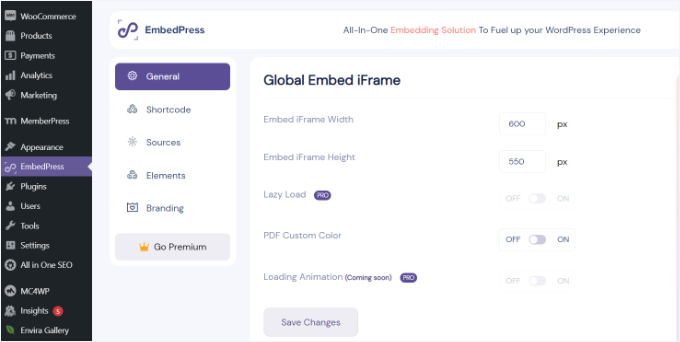
For instance, you can change the width and height of the iFrame, so that the slides fit your layout better. You can also customize options for other embedded content like PDFs.
When you are done, don’t forget to click the ‘Save Changes’ button.
Getting Google Slides Shareable Link
Next, you will need the shareable URL of your Google Slides presentation.
You can get that by opening your presentation in Google Slides and then clicking on File » Share » Publish to web. Using the “Publish to web” link ensures your slides display in a clean presentation player, rather than showing the Google Slides editing interface.
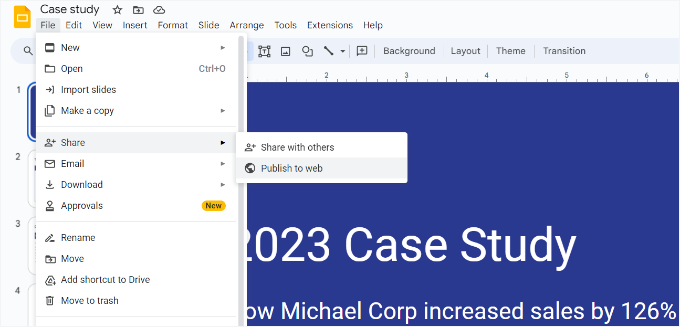
This will bring up a popup, where you can configure slideshow settings like the delay between slides and autoplay.
You will need to click on the ‘Publish’ button to continue.
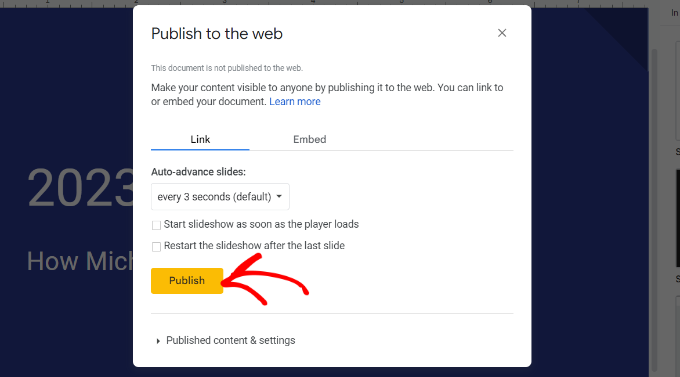
This will bring up a popup asking you to confirm that you want to publish the presentation so people can view it on the web.
Once that’s done, you should be able to see a URL for sharing your Google Slides presentation.
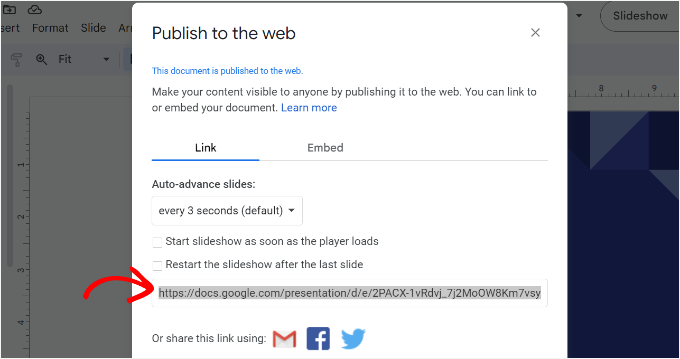
Go ahead and copy this URL and return to the admin area of your WordPress site.
Embed Google Slides Presentation in WordPress
Next, you can create a new page or post in WordPress or edit an existing one to add your Google Slides presentation.
Once you are in the content editor, simply click the ‘+’ button to add the EmbedPress Google Slides block.
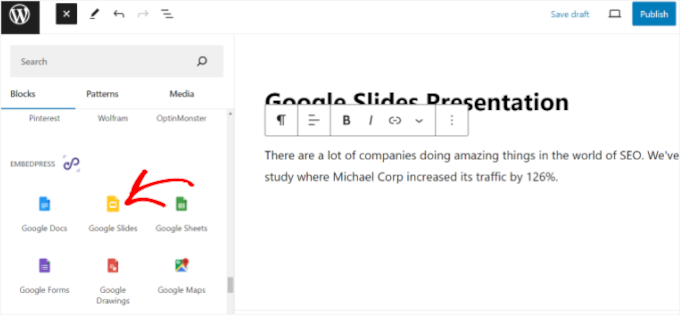
After that, you can paste the Google Slides link into the block.
📝 Note: For security reasons, WordPress only allows Administrators and Editors to embed iframe code in a standard single-site WordPress setup. If you have an Author or Contributor user role, WordPress may remove the code when you save the post.
Once that’s done, simply click the ‘Embed’ button.
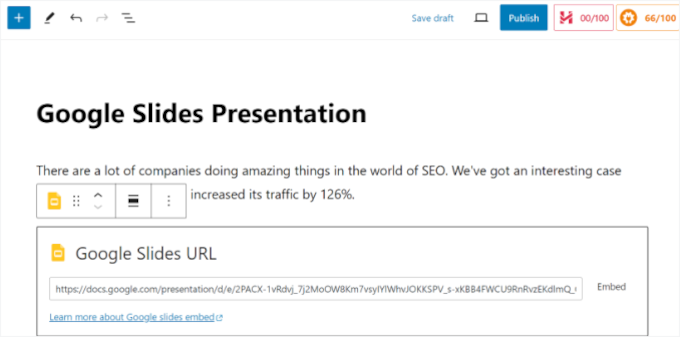
You should now see a preview of your Google Slides presentation in the content editor.
When you are ready, simply ‘Publish’ or ‘Update’ your page. You can now visit your WordPress blog to see the Google Slides presentation in action.

Method 2: Add Google Slides Embed Code in WordPress
This method does not require you to install any plugins. We only recommend using this method if you will not be frequently adding Google Slides to your WordPress site.
First, you will need to open the Google Slides presentation you want to share and then go to File » Share » Publish to web.
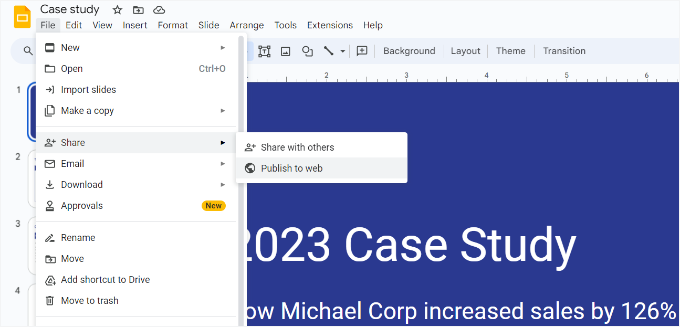
You will see a popup where you can configure the slideshow settings.
You need to click on the ‘Publish’ button to make your presentation public.
Next, you will see a popup asking you to confirm that you want to publish the presentation.
Now, you need to switch to the ‘Embed’ tab and copy the embed code.
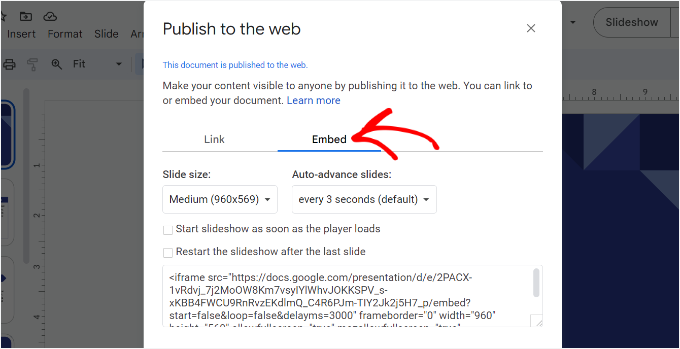
Next, you need to head to the WordPress admin area and edit the post or page where you want to add your Google Slides presentation.
Once you are in the content editor, you will need to click the ‘+’ sign and add a Custom HTML block.
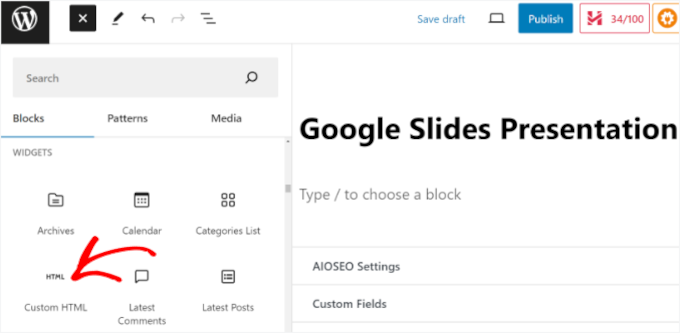
After that, you can paste the Google Slides embed code into the Custom HTML block.
You can also switch to the Preview mode in the Custom HTML block to see how your presentation will appear.
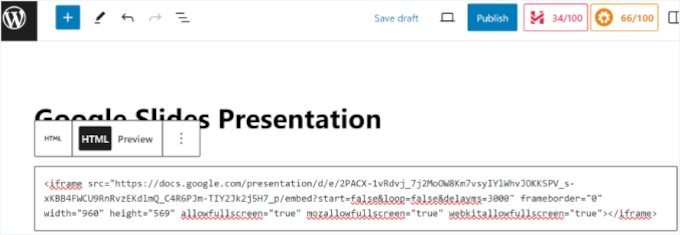
Once you are happy with its appearance, you can publish or update your page or post.
Next, simply visit your website to see the Google Slides presentation embedded into the page.

Bonus Tip: Add Image and Video Sliders in WordPress
Now that you’ve added Google Slides to your content, why not take things a step further? If you want to add images and videos in a sleek, interactive format, sliders are a great way to do it.
An image and video slider lets you display different types of media in a single space, without cluttering up your page. Whether you’re showing off a product or sharing a testimonial, sliders help organize your content and keep things looking clean.
The benefits?
- They grab attention fast, especially with autoplay enabled
- Great for featured promotions, client stories, or real estate listings
- Perfect for landing pages, portfolios, and online stores

To create a beautiful and responsive slider, we recommend using Soliloquy. It’s one of the best WordPress slider plugins out there, with easy drag-and-drop features and full support for both videos and images.
Check out our step-by-step tutorial on how to create video and image WordPress sliders. And to learn more about the tool, you can check out our complete Soliloquy review.
Frequently Asked Questions About Adding Google Slides
We’ve helped thousands of WordPress users, and questions about Google Slides come up a lot. Here are some quick answers to the most common ones:
Can I customize how my Google Slides look when embedded?
Yes, definitely! When you grab the embed code from Google Slides, you can tweak things like the size of the slides, whether they autoplay, how fast they play, and if they loop. If you’re using a plugin like EmbedPress, you get even more options without touching any code.
Will embedding Google Slides slow down my site?
Adding external content can affect load time, but Google Slides are hosted on Google’s super-fast servers, so the impact is usually minimal.
To keep things running smoothly, we recommend avoiding embedding too many different presentations on a single page. Loading multiple external iframes at the same time is what can actually impact your page speed.
What’s the easiest way to embed Google Slides in WordPress?
It depends on what you’re comfortable with. If you’re new to WordPress or just want the easiest option, go with a plugin, as it handles everything for you.
But if you’re only embedding one presentation and you don’t mind copying and pasting a little code, the manual method works just fine and saves you from installing another plugin.
Further Reading: More Helpful Google Tutorials
We hope this article helped you learn how to add Google Slides presentations to WordPress.
If you’re looking to make the most of Google tools on your WordPress site, these guides can help you take things even further:
- How to Create Presentations in WordPress
- How to Add Google Translate to WordPress
- Google Meet vs. Zoom: Which Is Better for Your Business?
- Best Google Reviews Plugins for WordPress
- Best WordPress Chrome Extensions
If you liked this article, then please subscribe to our YouTube Channel for WordPress video tutorials. You can also find us on Twitter and Facebook.





Marie
In this video it is showing you have the same issue that I do when I try to do this, there is a large black area above and below the actual presentation. Is there a way to fix this?
Adeel Sami
Hello, guys!
That’s extremely great finding this method of adding Google slides!
I once was invited to the WordPress meetup where I spoke as the guest speaker. After it, I was wondering if I could add those slides I had created up on my blog post.
I did a little search but couldn’t find the method. But I think it is now the time to add those slides onto that post.
Thanks for covering up this topic!
~ Adeel