


I remember staring at a folder of 500 edited photos, dreading the moment I had to upload them. It wasn’t the uploading that scared me. It was manually typing the aperture, shutter speed, and ISO for every single image caption.
Sharing technical details helps your readers learn, but copying that data by hand is a massive waste of time. It also leads to typos that can confuse your audience.
At WPBeginner, we believe in automating the boring stuff so you can focus on creativity. In this guide, I will share two easy ways to automatically display EXIF photo tags in WordPress.

Why Display EXIF Tags in Your WordPress Image Captions?
If you’re a photographer, then WordPress is a great way to show off your work. It has tons of beautiful themes for WordPress photographers and plugins that can help promote your images, build your brand, and even get more customers.
However, there is a big drawback you may have already noticed. By default, WordPress doesn’t show any of your exchangeable image file format (EXIF) tags, such as the camera manufacturer and model, resolution and exposure, and the location and time the photo was taken.
This data can be useful for visitors to know, especially if you’re selling digital photos and graphics online.
EXIF tags are also useful if you’re running a photography blog, as they can help readers learn more about your photos.
Getting this data and then adding it to your website manually would take time and effort, especially if you have lots of different photos. If you add this information manually each time, then it may also be difficult to create a consistent design.
With that said, let’s see how you can add EXIF photo tags to your captions automatically using a plugin. Both these methods can save you a ton of time while displaying your tags in a consistent way.
Simply use the quick links below to jump straight to the method you want to use:
Not sure which method to choose? Here’s a quick breakdown:
- Method 1 is best for you if you want to control which specific photos display EXIF data. It’s perfect for adding details to some images while keeping others private.
- Method 2 is best for you if you want a “set it and forget it” solution that automatically adds EXIF data to all new images you upload.
Method 1: Adding EXIF Tags to Specific Photo Captions
Sometimes, you may want to show the EXIF tags for specific photos only. For example, you might show the location tags for photos of a famous landmark but hide this information on images of your house.
Exif Caption lets you add EXIF tags to specific photos, so you can save time while still staying in control.
The first thing you need to do is install and activate the Exif Caption plugin. For more details, see our step-by-step guide on how to install a WordPress plugin.
Upon activation, go to Media » Exif Caption in the WordPress dashboard. Here, you’ll see all the photos that have EXIF data.
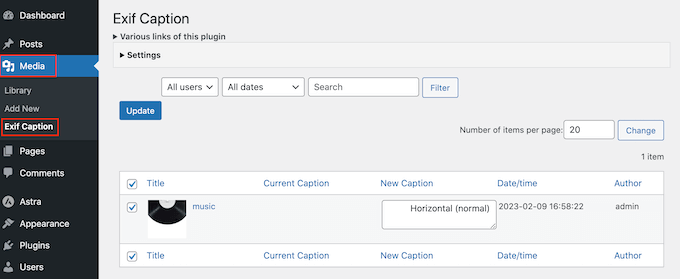
To configure Exif Caption, go ahead and click to expand the ‘Settings’ section.
To start, you can choose whether to replace the current image caption with EXIF data or show the tags next to the original caption.
If you don’t want to override the current captions, then select either ‘Insert to left’ or ‘Insert to right.’ The plugin will then add the tags before or after the original image caption on your WordPress blog.
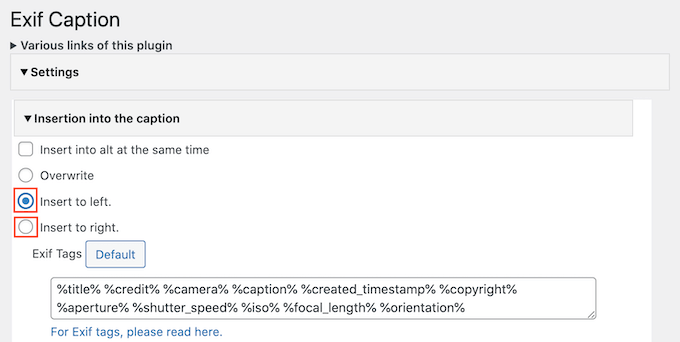
Next, you’ll see a box with all the EXIF tags you can add to the image captions.
By default, Exif Caption adds all the available tags, so simply delete any you don’t want to use.
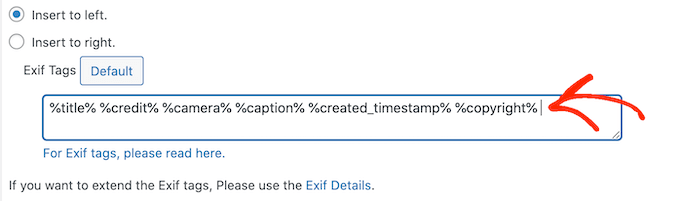
If you delete a tag and then change your mind, then just click on the ‘Default’ button. This re-adds all the available EXIF tags.
The plugin offers an option to add EXIF data to the image’s alt text. However, we strongly recommend against using this feature.
Alt text should describe the visual content of the image (like ‘a golden retriever catching a frisbee in a park’) for accessibility and to help search engines understand what the image is about. A string of camera data does not achieve this and provides a poor user experience.
When you’re happy with how the plugin is set up, don’t forget to click on ‘Save Changes.’
With that done, you’re ready to add EXIF data to your image captions. Simply go down the list of images and check the box next to each photo where you want to show EXIF data.
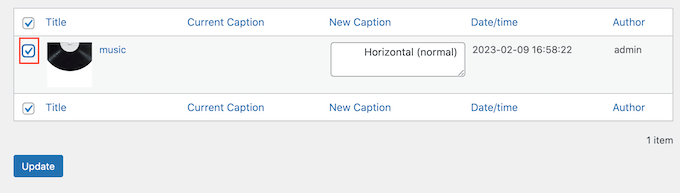
To go ahead and add EXIF tags to these image captions, simply click on ‘Update.’
Now, every time you add these photos to a page or post, WordPress will automatically show the EXIF tags in the image’s caption.

Method 2: Automatically Display EXIF Data For All Your Photos
Do you want to show EXIF tags for all your images? Then it makes more sense to use a plugin that adds this information to your captions automatically, as it’s the ultimate time-saver.
Exif Details shows detailed EXIF information in the WordPress admin dashboard. It can also add these tags to your image captions automatically, so they’re displayed in a consistent way.
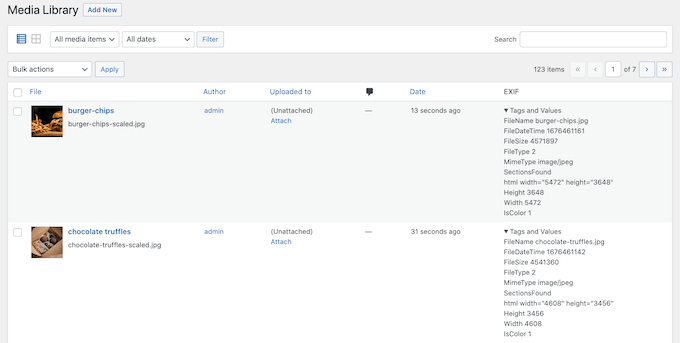
Be aware that this method requires the plugin and a custom code snippet. The plugin retrieves the data, but you need the code snippet to display it in your captions.
Don’t worry, we’ll walk you through it step-by-step, and you won’t have to write any code from scratch.
Exif Details also gets the EXIF information when you first upload the image to WordPress. This means it won’t show EXIF tags for any images that you’ve already added to the media library.
That said, this plugin tends to work the best if you’re just starting your photography blog or you’ve only uploaded a small number of images so far.
First, you need to install and activate the Exif Details plugin. For more information, see our step-by-step guide on how to install a WordPress plugin.
Upon activation, go to Media » Library and take a look at the ‘EXIF’ column.
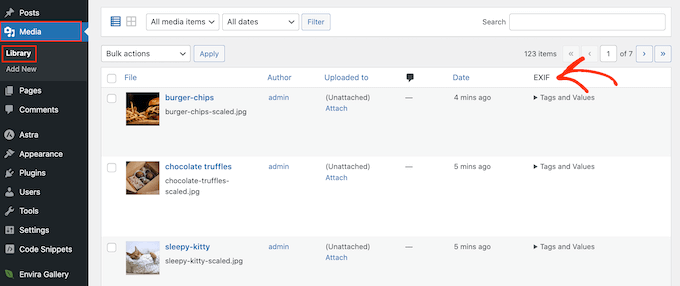
To see the tags for a specific image, simply click on its ‘Tags and Values’ text.
Now, make a note of the EXIF codes for the data you want to display. For example ‘DateTimeOriginal’ shows the date and time when the file was created.
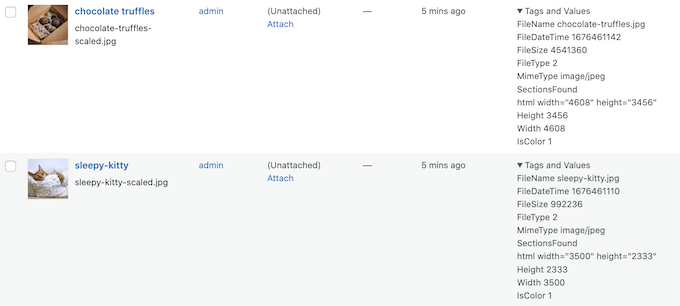
For a complete list of the available tags, take a look at the EXIF Tags page.
Once you have these tags, it’s time to add custom code to WordPress. Often, guides ask you to edit your theme’s functions.php file directly, but this can cause all sorts of common WordPress errors.
You’ll also lose the custom code the next time you update your WordPress theme. For that reason, we recommend using the free WPCode plugin instead.
At WPBeginner, we use WPCode to manage all the custom code snippets across our network of sites. It’s a much safer way to add functionality because it prevents the kind of errors that can break your site, and your code is never lost during theme updates.
The first thing you need to do is install and activate the free WPCode plugin. For more details, see our step-by-step guide on how to install a WordPress plugin. Upon activation, head over to Code Snippets » Add Snippet.
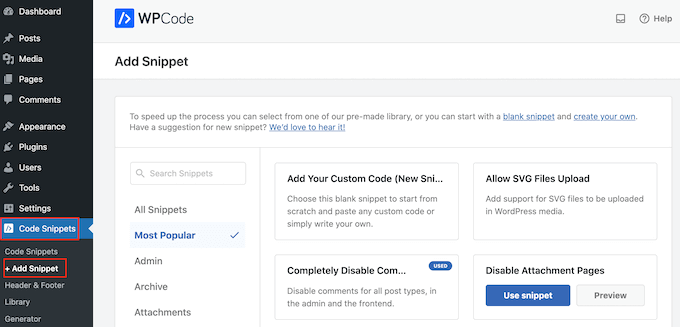
Here, you’ll see all the ready-made WPCode snippets you can add to your site. These include snippets that add a featured image column to your admin panel, allows users to upload images to your website, disables attachment pages, and much more.
Simply hover your mouse over ‘Add Your Custom Code,’ and then click the ‘Use snippet’ button when it appears.

To start, type in a title for the custom code snippet. This can be anything that helps you identify the snippet in the WordPress dashboard.
After that, open the ‘Code Type’ dropdown and select ‘PHP Snippet.’
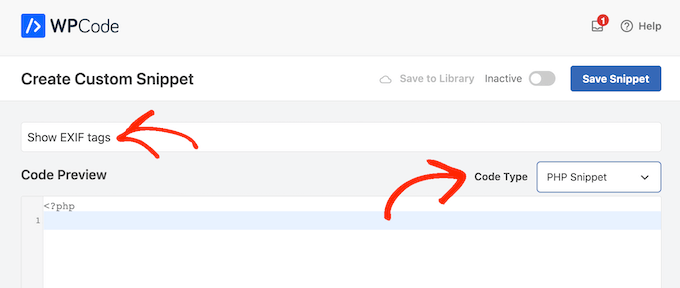
In the ‘Code Preview’ editor, you need to add a snippet that gets the EXIF tags and then adds this information to the image’s caption.
For example, here’s a snippet that gets the file’s shooting date and time:
function exif_details_change( $exifdatas, $id ) {
    if ( array_key_exists( 'DateTimeOriginal', $exifdatas ) ) {
        $shooting_date = str_replace( ':', '-', substr( $exifdatas['DateTimeOriginal'], 0, 10 ) );
        $shooting_time = substr( $exifdatas['DateTimeOriginal'], 10 );
        $exifdatas['DateTimeOriginal'] = $shooting_date . $shooting_time;
    }
    return $exifdatas;
}
add_filter( 'exif_details_data', 'exif_details_change', 10, 2 );

function media_caption( $metadata, $id ) {
    $mime_type = get_post_mime_type( $id );
    if ( in_array( $mime_type, array( 'image/jpeg', 'image/tiff' ) ) ) {
        do_action( 'exif_details_update', $id );
        $exifdatas = get_post_meta( $id, '_exif_details', true );
        if ( ! empty( $exifdatas ) ) {
            $camera = null;
            $f_number = null;
            $s_speed = null;
            $iso = null;
            $date = null;
            $googlemap = null;
            if ( array_key_exists( 'Model', $exifdatas ) ) {
                $camera = 'Camera:' . $exifdatas['Model'];
            }
            if ( array_key_exists( 'ApertureFNumber', $exifdatas ) ) {
                $f_number = 'F-number:' . $exifdatas['ApertureFNumber'];
            }
            if ( array_key_exists( 'ExposureTime', $exifdatas ) ) {
                $s_speed = 'Shutter speed:' . $exifdatas['ExposureTime'];
            }
            if ( array_key_exists( 'ISOSpeedRatings', $exifdatas ) ) {
                $isodata = json_decode( $exifdatas['ISOSpeedRatings'] );
                if ( is_array( $isodata ) ) {
                    $iso = 'ISO:' . $isodata[0];
                } else {
                    $iso = 'ISO:' . $isodata;
                }
            }
            if ( array_key_exists( 'DateTimeOriginal', $exifdatas ) ) {
                $date = 'Date:' . $exifdatas['DateTimeOriginal'];
            }
            if ( array_key_exists( 'latitude_dd', $exifdatas ) && array_key_exists( 'longtitude_dd', $exifdatas ) ) {
                $googlemap = '<a href="https://www.google.com/maps?q=' . $exifdatas['latitude_dd'] . ',' . $exifdatas['longtitude_dd'] . '">Google Map</a>';
            }
            $caption = sprintf( '%1$s %2$s %3$s %4$s %5$s %6$s', $camera, $f_number, $s_speed, $iso, $date, $googlemap );
            $caption = rtrim( $caption );
            $caption = preg_replace( '/\s(?=\s)/', '', $caption );
            $media_post = array(
                'ID'           => $id,
                'post_excerpt' => $caption,
            );
            wp_update_post( $media_post );
        }
    }
    return $metadata;
}
add_filter( 'wp_generate_attachment_metadata', 'media_caption', 10, 2 );
This code is set up to display the camera model, F-number, shutter speed, ISO, date, and a link to a Google Map (if GPS data exists). But what if you want to customize it?
It’s easier than it looks! You can turn off any line of data you don’t want to display by adding two slashes (//) to the beginning of that line. This makes it a comment, so the code will just ignore it.
For example, if you don’t want to show the shutter speed, find this line:
$s_speed = 'Shutter speed:' . $exifdatas['ExposureTime'];
And change it to this:
// $s_speed = 'Shutter speed:' . $exifdatas['ExposureTime'];
You can do this for any of the data variables ($camera, $f_number, $iso, etc.) that you don’t want to include in your captions. 👍
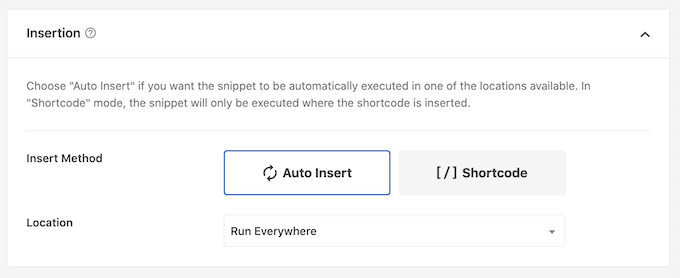
When you’re happy with your code, scroll to the ‘Insertion’ section. WPCode can add your PHP to different locations, such as after every post, frontend only, or admin only.
We want to use the custom PHP across our entire WordPress website, so click on ‘Auto Insert’ if it isn’t already selected. Then, open the ‘Location’ dropdown and choose ‘Run Everywhere.’
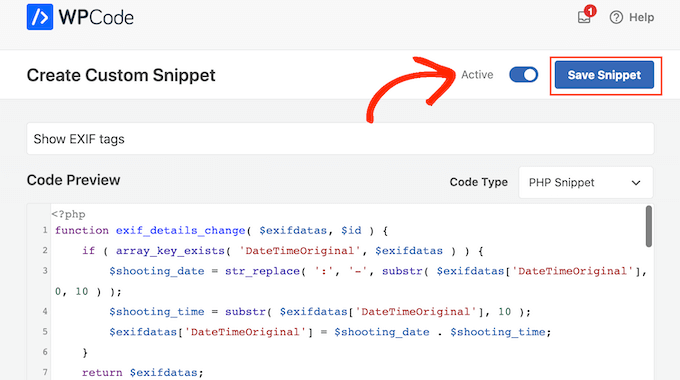
After that, you’re ready to scroll to the top of the screen and click on the ‘Inactive’ toggle, so it changes to ‘Active.’
Finally, click on ‘Save Snippet’ to make the PHP snippet live.
Now, Exif Details will get the tags every time you upload a new image. It will then add this information to the image caption automatically.
To try this out, head over to Media » Library and then click on ‘Add New.’
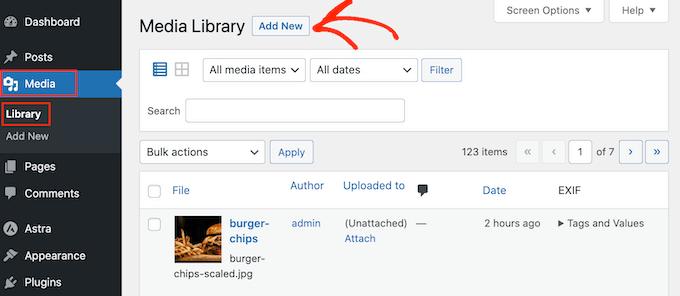
You can now upload an image from your computer.
After that, head back to Media » Library and click to expand the image’s ‘Tags and Values.’
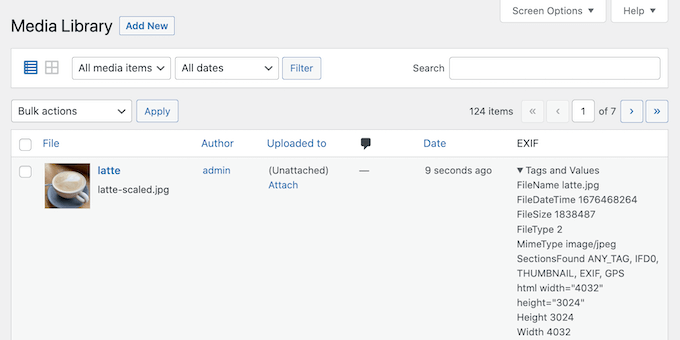
Assuming the photo has the right EXIF tags, WordPress will add this information to the caption automatically.
For example, in the following image, you can see that WordPress has already added the shooting date and time to the image caption.

Frequently Asked Questions About EXIF Photo Tags
Here are answers to some of the most common questions we get asked about working with image metadata in WordPress.
1. What is EXIF data?
EXIF stands for Exchangeable Image File Format. It is a set of data that your digital camera automatically embeds into the image file.
This metadata can include the camera make and model, aperture, shutter speed, ISO, and sometimes the GPS location where the photo was taken.
2. Is it safe to display all EXIF data on my website?
You should be cautious. While camera settings are safe to share, you may want to avoid displaying GPS data. This could reveal private locations like your home or office. It’s best to review what data is being shared and only show information that is useful for your visitors.
3. Will WordPress remove EXIF data when I upload an image?
No, WordPress preserves the original EXIF data within the image file when you upload it to your media library. However, it does not display this information on the front end of your site by default. The plugins in this guide make that hidden data visible.
4. Does adding EXIF data to image captions help with SEO?
Adding EXIF data to captions doesn’t directly impact your search engine rankings. However, it can improve the user experience for your audience, which may lead them to stay on your site longer. These positive user signals can indirectly help your SEO.
5. Can I edit or remove EXIF data from my photos?
Yes, you can edit or remove EXIF data using photo editing software like Adobe Photoshop or Lightroom before uploading your images to WordPress. This is a good practice if you have privacy concerns about specific information, like location tags.
Additional Resources for Photographers
Now that you know how to display EXIF data, you might find these other guides helpful for building an amazing photography website with WordPress:
- How to Create a Photo Gallery with Albums in WordPress – Learn to organize your images into stunning galleries and albums that are easy for visitors to navigate.
- Best WordPress Slider Plugins – Create engaging, responsive sliders to highlight your best photos and capture your audience’s attention.
- Best WordPress Themes for Photographers – Find the perfect design to showcase your work beautifully and professionally.
- How to Sell Digital Art and Graphics Online – Turn your passion into profit by learning the best ways to sell your photos directly from your site.
If you liked this article, then please subscribe to our YouTube Channel for WordPress video tutorials. You can also find us on Twitter and Facebook.


vadakkus
Hello,
I would like to display EXIF data of pictures on a pre-configured location within a DIV. I tried using the code you provided here through a shortcode generated in WPCODE but nothing shows up. What am I doing wrong? Thanks!
WPBeginner Support
Please ensure that the photo was uploaded with the EXIF data by using the plugin at the start of method 2 as that is the most likely cause. The second likely cause would be if your theme’s design hides the caption of the images in which case you would need to reach out to your theme’s support and they could help
Admin