


Have you ever looked at a photo on a website and felt like it was missing something? Images can capture attention, but when you add a voice narration or sound clip, they come alive and create a lasting impression for your visitors.
In this guide, I’ll show you how to add audio stories to your images in WordPress using the free Audio Story Images plugin. It’s beginner-friendly and requires no coding.
This approach works great for narrated portfolios, audio-visual storybooks, or even WooCommerce product photos with spoken descriptions. It’s a simple way to make your content more engaging and interactive.
Why Add Audio Stories to Your Images in WordPress?
Adding audio to images can have a huge impact on how visitors interact with your site.
First, it’s a powerful storytelling tool. If you’re a photographer, artist, or blogger, then you can add your own commentary, explanations, or narrative to your visuals. This creates a much deeper connection with your audience.
It’s also great for engagement because interactive content keeps visitors on your page longer. This is a positive signal for search engines and can help improve your rankings.
Plus, when the audio is a narrated description, it makes your content more accessible for users with visual impairments.
Whether you’re creating a product tutorial, a children’s story, or a personal blog, this technique adds a unique and professional touch.
How to Add Audio Stories to Images (Step by Step)
For this tutorial, I’ll be using the free Audio Story Images plugin. It is a lightweight plugin built specifically to link an audio file to any image in your WordPress Media Library. I found it to be incredibly straightforward, which is why it’s perfect for beginners.
First, you need to install and activate the plugin. If you need a refresher on how to do that, you can follow my detailed guide on how to install a WordPress plugin.
Once the plugin is active, you’re ready to start pairing your media. The whole process only takes a few clicks right from your WordPress dashboard.
Step 1: Upload Your Image and Audio Files
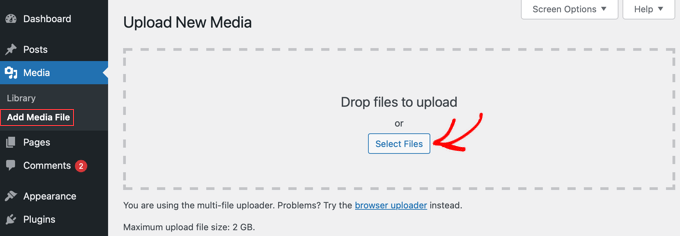
To begin, navigate to Media » Add Media File from your WordPress admin panel. Here, you can upload both the image and the audio file that you want to link together.
You can drag and drop them or use the ‘Select Files’ button.
Step 2: Attach the Audio File to Your Image
After your files are uploaded, head over to Media » Library. For the next step to work, you need to be in the list view.
Simply click the list icon at the top of the screen to switch over from the default grid view.
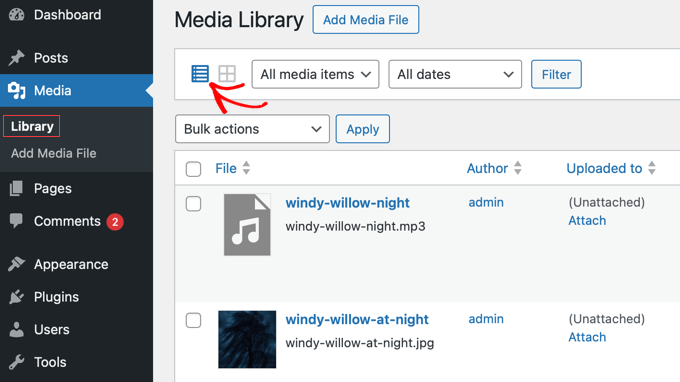
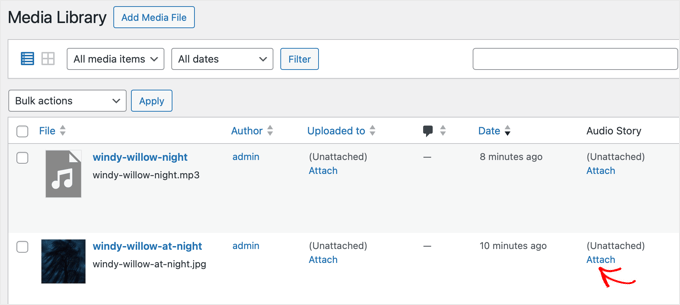
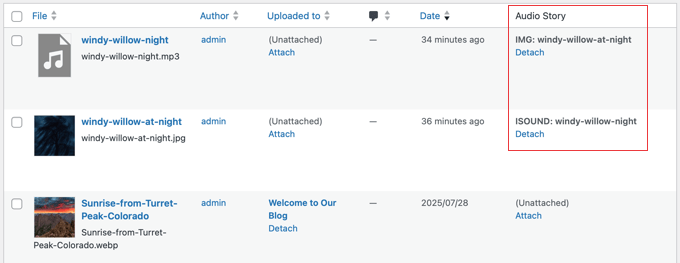
In list view, you’ll see a new column added by the plugin called ‘Audio Story.’
Find your image in the list and click the ‘Attach’ link right next to it.
A popup window will appear, showing your media library again.
Now, just search for and select the audio file you want to connect to that image.
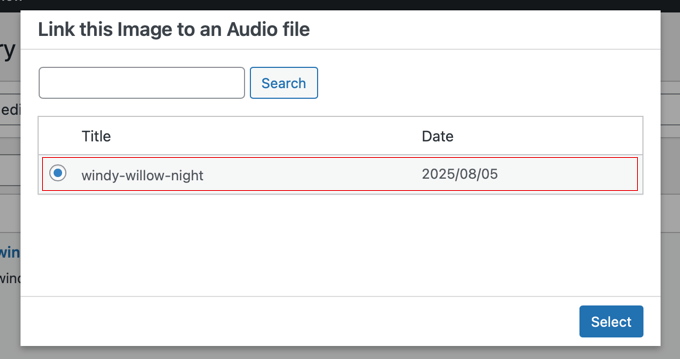
Once you’ve picked your audio file, click the ‘Select’ button to confirm.
The plugin will link the two files, and you’ll see the audio file’s name appear in the ‘Audio Story’ column next to your image. This confirms they’re successfully paired.
Step 3: Add the Audio Image to a Post or Page
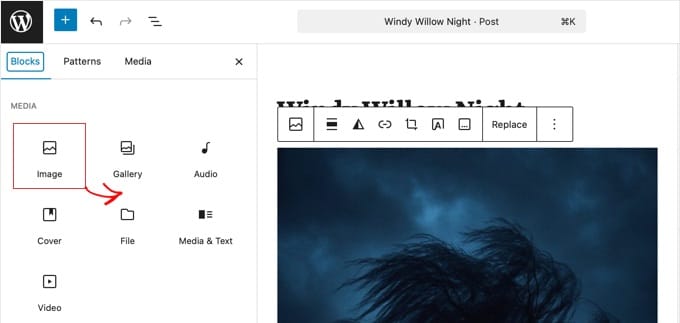
Now that your image has its audio story attached, you can add it to any WordPress post or page. You can simply open the WordPress editor for a new or existing post.
From there, click the ‘+’ icon to add a new block and choose the ‘Image’ block. Open the ‘Media Library’ and select the image you just configured.
Step 4: Preview Your Audio Story Image
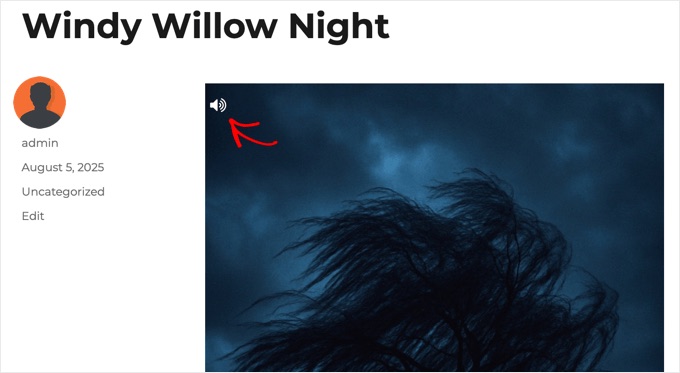
That’s all there is to it. Once you save or publish your post, you can preview the page. You will now see a small volume icon in the top-left corner of your image.
When a visitor clicks this icon, the audio file you attached will begin to play. It’s a simple and effective way to add a new dimension to your site’s visual content.
And that’s it! You’ve now learned how to pair audio with your images in WordPress.
Frequently Asked Questions About Adding Audio Stories in WordPress
I occasionally receive questions about adding audio stories to images in WordPress, so I’ve addressed some of the most common ones here.
1. What audio file formats can I use in WordPress?
The plugin works with the standard WordPress audio player, so it supports common formats like MP3, OGG, and WAV. I recommend using MP3s because they offer a good balance of sound quality and small file size.
2. Will adding audio files slow down my website?
Yes, large audio files can slow down your website. To prevent this, it’s important to compress your audio files to make them as small as possible before uploading them to WordPress. This helps your pages load quickly and keeps your visitors happy.
3. Can I add audio stories to images in a gallery?
No, the Audio Story Images plugin is designed to work with individual images placed in your post or page. It does not work with the default WordPress gallery block or most other gallery plugins.
4. Is the Audio Story Images plugin free to use?
Yes, the Audio Story Images plugin is completely free. You can download and install it from the official WordPress plugin directory without any cost.
5. How will the audio story image look on mobile devices?
The audio icon is designed to be responsive, so it works well on mobile devices. It will appear on your image, and mobile users can simply tap the icon to play the audio, just like on a desktop computer.
Additional Resources for Managing Media Files in WordPress
I hope this article helped you learn how to add audio stories to images.
To further help you master media on your WordPress site, here are some essential guides:
- How to Find Royalty Free Images for Your WordPress Blog Posts
- How to Optimize Images for Web Performance
- How to Fix Common Image Issues in WordPress
- How to Create an Image Gallery in WordPress
- How to Add an Audio Music Player Widget in WordPress
If you liked this article, then please subscribe to our YouTube Channel for WordPress video tutorials. You can also find us on Twitter and Facebook.


Daniel
Are there any ways to customize the play button?
WPBeginner Support
You would want to reach out to the plugin’s support for what customization options are available.
Admin
Penelope
Hey there, I have installed everything as you say but when I click on the image it does not play the audio. I did create the page with Elementor – would that affect it?
WPBeginner Support
Hi Penelope,
Try creating an audio story in a regular WordPress page.
Admin
Umeh Chidera
Please how do I make my site’s logo to be appearing anytime one downloads my music and and plays it. So The image will be appearing in boomplay, how do I do that please?
indra
When the image background is white or any other light color..that volume icon is not visible..
also if its possible to get different sound for the same image at different places ,then it would be great..!
Trelandon
I always enjoy your reads on WP.
George
It would have been nice to see an example of this being done in the article so we could gauge the UX.
Thanks for the explanation but a live example would have helped.
WPBeginner Support
Hi George,
If you visit the plugin’s page on WordPress.org directory you will find a link to more information with a live demo.
Admin
Awontis
As always, wpbeginner has all the answers about WordPress.
Marius Haga Skaar
Hello. I was wondering if I could get some help. Recently I’ve moved my website from blogger to WordPress. But my problem is Google. I’ve deleted my blogger blogs, but Google seach console still shows my old website or blog. Like Google hasn’t indexed my site, but it has taken many days or even weeks. I was then wondering if there’s a fix to this, so Google would show my newest site in example in the data structure (text marketing or what the name was). Ether way, thanks from Marius HS (15 years old from Norway).
WPBeginner Support
Hi Marius,
Did you add your new website to Google Search Console? Also, did you properly redirect your Blogger blog to WordPress? Please take a look at our guide on how to switch from Blogger to WordPress without losing Google rankings.
Admin