


It can be frustrating when people visit your WordPress website but never reach out. Maybe they browse your pages, even spend a few minutes reading, but your contact form doesn’t receive any submissions.
Often, it’s not that visitors don’t want to connect. They just don’t see an easy or inviting way to do it.
That’s where a slide-out contact form can make a big difference. It appears gently from the side, offering help right when visitors need it, without interrupting their experience.
In this guide, we’ll show you how to add a slide-out contact form to your WordPress site step by step, using a reliable and tested method. 🧑💻
Why Add a Slide Out Contact Form in WordPress? 💭
A slide-out contact form makes it easier for visitors to reach out without leaving the page they’re on. It slides in gently from the side, catches attention, and lets users send a quick message right when they need help.
Many small business owners add a contact page, hoping visitors will use it and that it will help grow their business.
But in reality, most people leave without ever getting in touch. That’s why you’ll see popular websites using contact popups, sliders, or floating buttons to make communication easier.
These animated and interactive options draw attention to the contact form, making your site feel more interactive and approachable. So, you can turn casual visitors into real leads or customers more easily.
With that being said, we’ll share how to create a slide-out contact form in WordPress. Here’s a quick overview of all the things we’ll cover in this guide:
Let’s get started.
Adding a Slide Out Contact Form in WordPress
For this tutorial, you will need WPForms. It is the best WordPress contact form plugin on the market because it is both easy and powerful.
ℹ️ Note: WPForms powers all of our forms at WPBeginner, including our contact form. It’s easy to use, highly customizable, and the new AI tools make creating forms quicker than ever.
Curious how it works? Check out our full WPForms review to explore everything it can do.

To follow through with this tutorial, you can use the free version of the WPForms contact form plugin if you don’t need any of its premium features (conditional logic, advanced integrations, and more).
Then, you’ll connect your form with OptinMonster. It’s the most powerful conversion optimization software, and it helps you convert abandoned website visitors into customers.
Step 1: Creating a Contact Form in WordPress
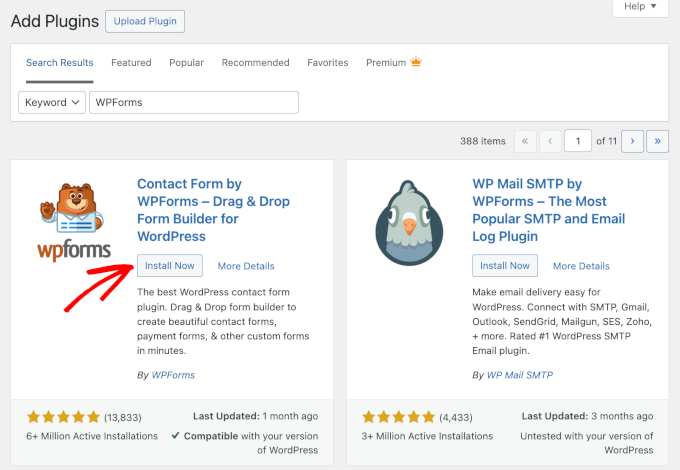
First, you need to install and activate the WPForms plugin. From your WordPress admin area, go to Plugins » Add New Plugin to get started.

On the next screen, you can use the search bar to quickly find the WPForms plugin.
In the search result, simply click on ‘Install Now’ and then ‘Activate’ to complete the process.
For more details, see our step-by-step guide on how to install a WordPress plugin
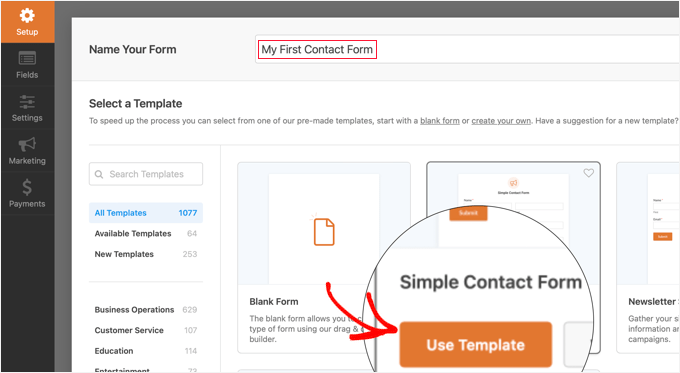
Upon activation, you need to visit the WPForms » Add New page to create a new contact form. This will launch the WPForms builder interface.
Enter a name for your contact form at the top of the page.
After that, you need to hover your mouse over the ‘Simple Contact Form’ template and click the ‘Use Template’ button.
🧑💻 Insider Tip: You can use AI to instantly generate your forms with ease! Simply provide a prompt, and WPForms AI will create the perfect form for you in no time.
WPForms will create a new form based on the Simple Contact Form template.
You will see the form preview in the right pane of the form builder. You can click on any field to edit it or add new form fields from the left column.

For step-by-step instructions, please see our guide on how to create a WordPress contact form.
Once you have finished editing the form, just click on the ‘Save’ button to store your changes.
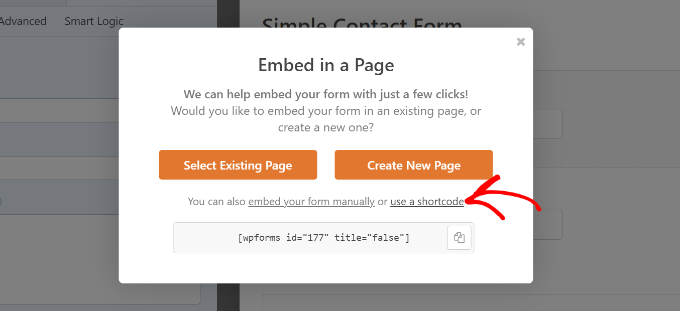
Next, you need to click on the ‘Embed’ button at the top to get your form’s embed code.
This will bring up a popup showing several ways to embed your form. Simply click the ‘use a shortcode’ link and then copy the shortcode. You will need it in the next step.
Step 2: Creating a Slide-Out Campaign in OptinMonster
Now, we will create a slide-out campaign that will display the contact form you created in the first step.
You need to install and activate the free OptinMonster plugin. This plugin acts as a connector between your website and your OptinMonster account.
ℹ️ Note: We use OptinMonster at WPBeginner to promote exclusive deals via popups, slide-ins, and banners. It’s a versatile tool that drives engagement and grows our email list effortlessly.
Want to know more? Check out our complete OptinMonster review to explore its features.
To start, let’s get your OptinMonster account. On their website, click the ‘Get OptinMonster Now’ button, select a plan, and complete the registration process.

With that done, you’ll be redirected to your OptinMonster dashboard.
Now, go to Plugins » Add New Plugin in your WordPress dashboard to install the OptinMonster plugin.
Next, just use the search feature to quickly find the OptinMonster plugin.
Once you have found it, click the ‘Install Now’ button and then ‘Activate.’
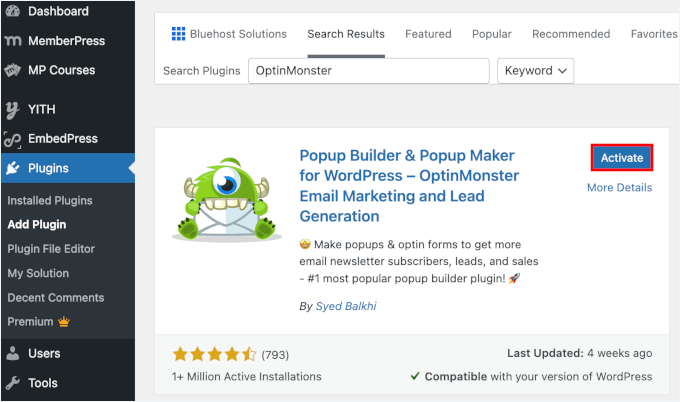
For details, you can refer to our guide on how to install a WordPress plugin.
Upon activation, the OptinMonster setup wizard will start automatically. This will let you create a new account or connect an existing account.
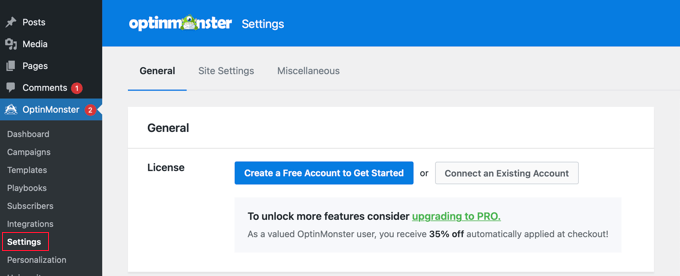
After you create or connect your OptinMonster account, you can create a new optin campaign.
Simply navigate to the OptinMonster » Campaigns page and click the ‘Add New’ button. If you don’t have any campaigns yet, then you can also click the ‘Create Your First Campaign’ button.
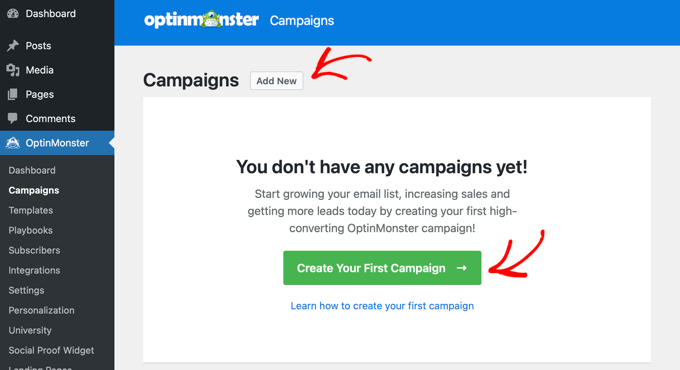
OptinMonster offers different types of dynamic campaigns.
For this tutorial, we will be using the ‘Slide-in’ campaign.
Go ahead and click to select ‘Slide-in’ as your campaign type.
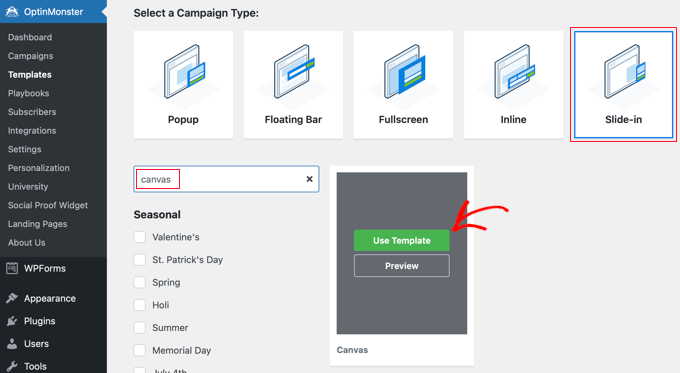
Next, you need to select the template. OptinMonster offers several ready-made templates.
For this tutorial, you need to choose ‘Canvas’.
You can find this easily using the search feature, and then click the ‘Use Template’ button that appears when you hover your mouse over it.
As soon as you select the template, you’ll be asked to provide a name for your campaign. This will help you easily locate the campaign in your OptinMonster dashboard.
Next, click the ‘Start Building’ button.
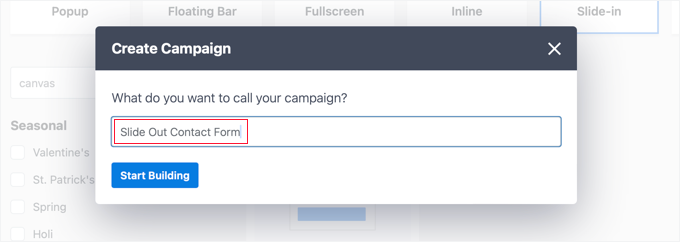
Now, OptinMonster will load its campaign builder interface.
You’ll see a live preview of your campaign on the right and the different blocks in the menu on your left.
Simply find the WPForms block, then drag and drop it onto the preview area.
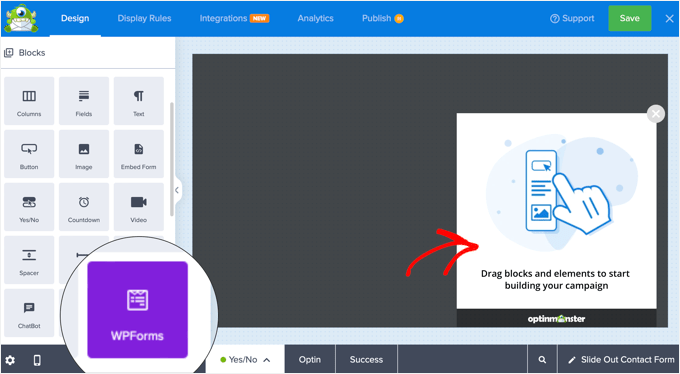
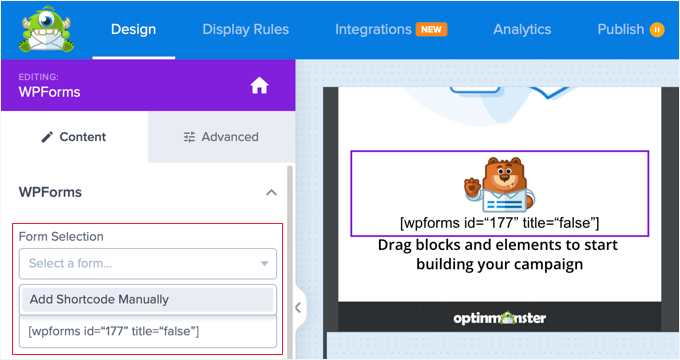
Now, the WPForms block will appear on the template, and you will see its settings on the left.
You’ll need to click the ‘Form Selection’ dropdown menu from the block settings in the left menu and select the ‘Add Shortcode Manually’ option.
This will allow you to paste your WPForms contact form shortcode in the block. You copied it earlier in the tutorial.
Now, you can delete or customize the other blocks on the form.
For example, you can change the image by clicking on it and using the settings on the left.
Or you can delete it simply by hovering your mouse over the block and clicking the ‘Trash’ icon.
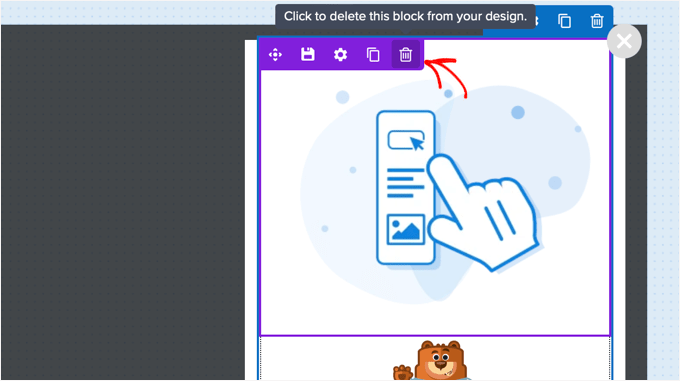
For this tutorial, we will delete the other blocks from the optin, leaving only the WPForms block.
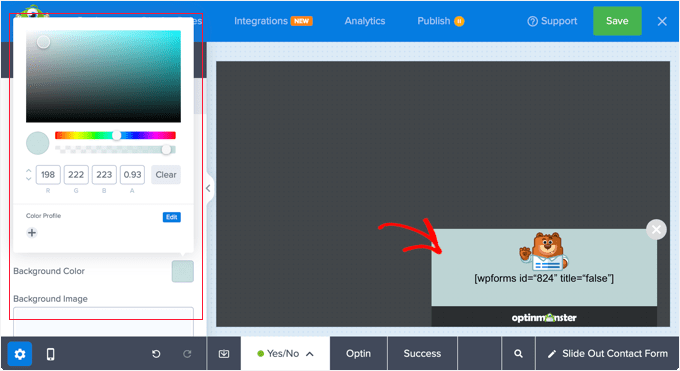
If you like, you can also click on the background and choose a color, gradient, or image for the option from the settings panel on the left.
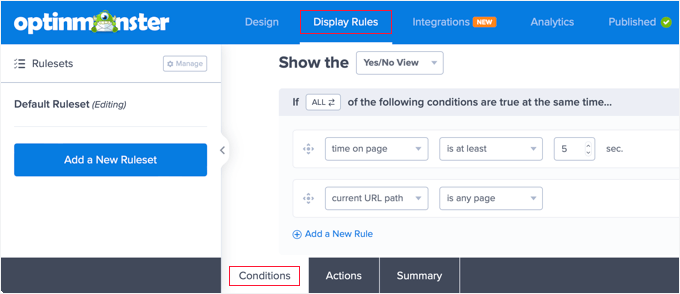
Next, you need to click the ‘Display Rules’ tab at the top of the page to configure when and how the optin will be displayed.
You should be looking at the ‘Conditions’ tab at the bottom of the screen. Here, the default settings will display the optin on any page after 5 seconds. This should work for most websites.
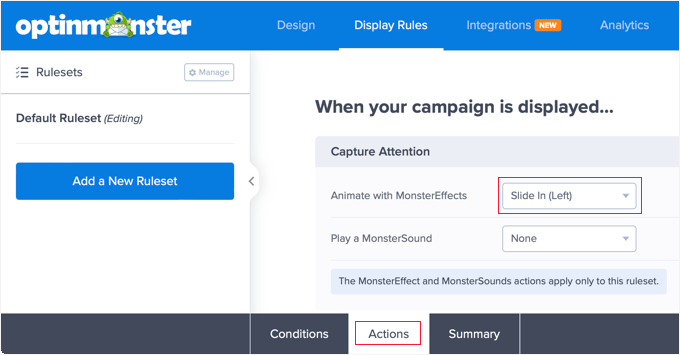
Next, you should click the ‘Actions’ tab at the bottom of the page.
By default, there is no animation or sound when the optin is displayed. If you like, you can select an option from the ‘Animate with MonsterEffects’ dropdown, such as ‘Slide In (Left)’.
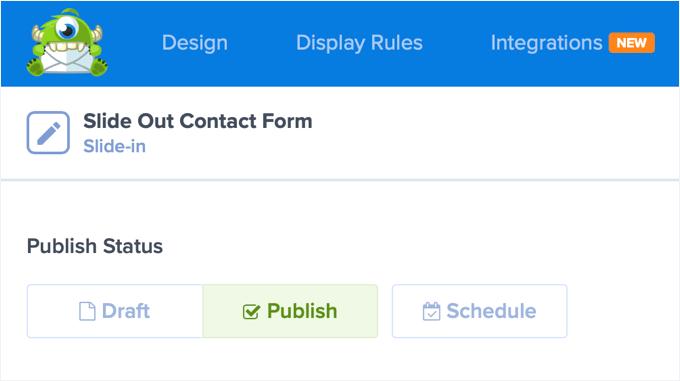
When you are finished configuring the Display Rules, you need to click the ‘Save’ button at the top to store your settings and then click on the ‘Publish’ button.
On the next screen, you need to change the Publish Status to ‘Publish’. This will make the optin available on your WordPress blog or website.
Step 3: Showing the Slide Out Contact Form in WordPress
Now that you have created both the contact form and slide-out campaign, you are ready to display them on your website.
You can close the Publish Status page by clicking the ‘X’ icon in the top right. You should now see a page that lets you configure the ‘WordPress Output Settings’ and ‘Visibility & Status’ of the optin.
When you scroll down the ‘Visibility & Status’ section, you will normally want ‘All Visitors and Logged-In Users’ to see the campaign. However, there are options for ‘Visitors Only’ and ‘Logged-In Users Only‘.
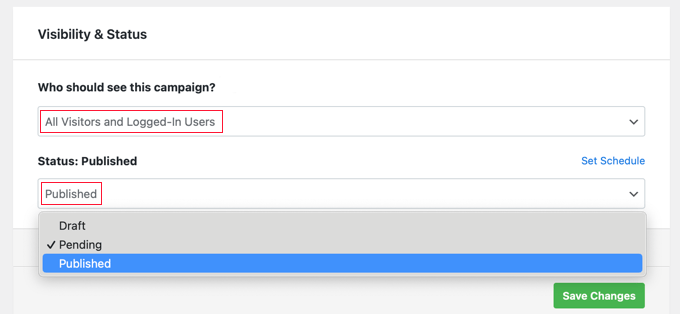
Once you have done that, you should click the ‘Save Changes’ button to store your settings.
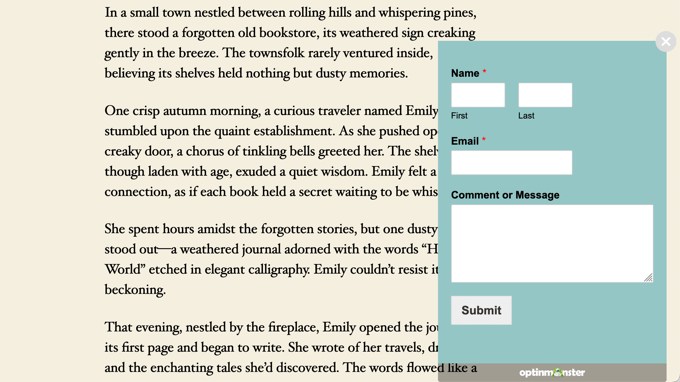
You can now visit your website to see the slide-out contact form in action:
FAQ: Add a Slide Out Contact Form in WordPress
Now that you know how to add a slide-out contact form in WordPress, let’s go over a few common questions users often ask.
What is the ideal size for a slide-out box?
Around 400–600 px wide and 300–400 px tall usually works well. It should stand out without covering too much of the page.
What’s the difference between a slide-out, a popup, and an overlay?
A slide-out slides in from the side, a popup appears in the center, and an overlay covers the whole screen. Slide-outs are usually less intrusive, but each option can help you boost engagement – just choose what fits your site’s style best.
What are some of the best alternatives to popup forms?
You can use inline forms, floating bars, or slide-out forms for a smoother, less disruptive user experience.
Bonus Resources for Using WordPress Forms
We hope this article helped you learn how to add a slide-out contact form in WordPress.
You may also want to see some of our other guides on WordPress forms:
- How to Show a Floating Contact Form in WordPress
- How to Add a Contact Form Popup in WordPress
- Best Practices for Contact Form Page Design (with Examples)
- How to Use Contact Form to Grow Your Email List in WordPress
- How to Block Contact Form Spam in WordPress
If you liked this article, then please subscribe to our YouTube Channel for WordPress video tutorials. You can also find us on Twitter and Facebook.




Jiří Vaněk
I have a sliding contact form on my main website. I created it using WP Forms and Elementor. It basically works on a similar principle to Optin Monster, but the popup window is created in Elementor with the fade-in and fade-out effects. So, if someone has Elementor, it can be conveniently done there as well – just a tip for others.
Soumik Sadman Anwar
Does Optinmonster also have a lite free version? It would be great if there was!!!
WPBeginner Support
Hi Soumik,
OptinMonster doesn’t have a lite free version or a free trial.
Admin