


Have you noticed how some websites have those sleek, custom scrollbars that perfectly match their brand colors? 🤩
We’ve noticed this feature, too. And many of our users have asked us how to create these eye-catching custom scrollbars on their own WordPress sites.
The good news? Customizing your WordPress scrollbar is much easier than you might think. Whether you want to match your brand colors, improve navigation, or add a professional touch to your website, we’ll show you exactly how to do it. No coding experience required!
💡 Quick Answer: How to Add a Custom Scrollbar in WordPress
You can easily add a custom scrollbar to your WordPress site using a free plugin like Advanced Scrollbar. For more advanced designs, you can also use custom CSS code, but this method primarily works on desktop WebKit browsers.
What You Should Know Before Adding a Custom Scrollbar 💡
So, you’re interested in customizing your WordPress scrollbar. But before you dive in, there are a few important things you should know to ensure you’re making the right decision for your WordPress website.
Key Considerations for Custom Scrollbars:
- Browser Compatibility: While modern browsers like Chrome, Safari, and Edge (WebKit-based browsers for CSS) support custom scrollbars well, others might offer limited customization or none at all. Always test your changes across different browsers to ensure a consistent experience.
- Mobile Device Limitations: On mobile devices, traditional scrollbars are often replaced by intuitive touch gestures (swiping). This means custom scrollbars typically won’t display on smartphones or tablets.
- User Experience & Accessibility: Your scrollbar should improve, not distract from, your content. Overly flashy or hard-to-see designs can negatively impact user navigation. Aim for subtle adjustments that match your brand colors and improve the overall flow of your site.
- Performance Impact: While generally minimal, adding plugins or extensive CSS can slightly affect website loading speed. Choose optimized solutions and keep your code clean to maintain good performance.
- Testing is Crucial: Regardless of the method you choose, thoroughly test your custom scrollbar across various browsers, devices, and screen sizes to ensure it functions effectively.
When done right, this WordPress design element can give your site that extra professional touch while maintaining excellent usability.
Now that you understand what to expect, let’s look at how to add a custom scrollbar to your WordPress site. Simply use the quick links below to jump to the method you want to use:
🔎 Want to add custom scrollbars to specific elements like content boxes or sidebars? Check out our guide on how to add custom scrollbars to any element in WordPress.
Option 1: Use Advanced Scrollbar Plugin (Free + Easy)
The easiest way to customize the scrollbar in WordPress is by using the Advanced Scrollbar. This free plugin lets you change the scrollbar’s width, color, scroll speed, and more without having to write a single line of code.
The first thing you need to do is install and activate the Advanced Scrollbar plugin. For more details, see our step-by-step guide on how to install a WordPress plugin.
Upon activation, head over to Settings » Advanced Scrollbar Settings.
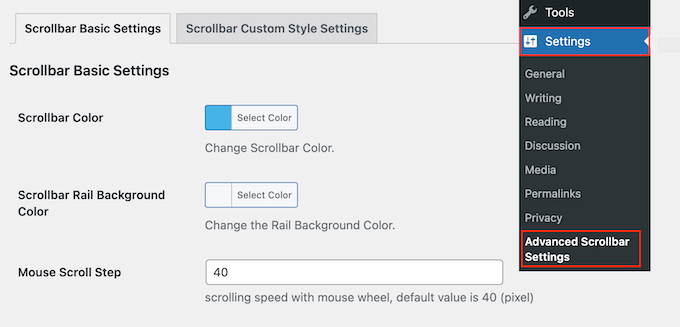
Here, you can change the scrollbar design, like the color scheme and rail background color.
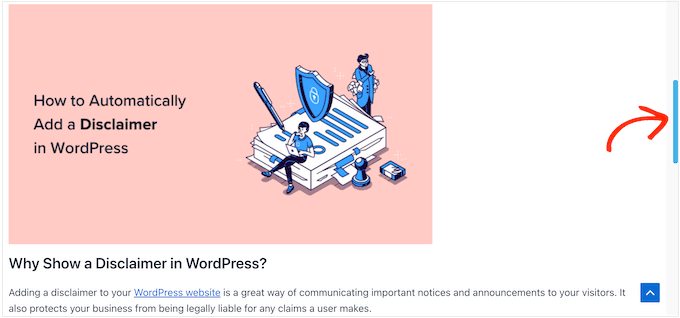
In the following image, we have created a blue scrollbar.
You can also change the mouse scroll step by typing a new number into the ‘Mouse Scroll Step’ field.
A lower number will make your site scroll more slowly, and a higher number will make it scroll more quickly.
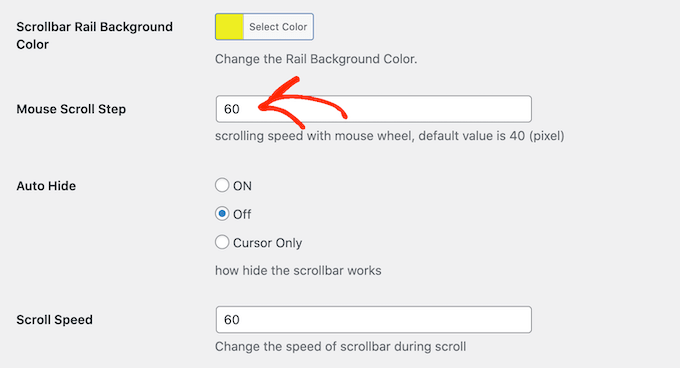
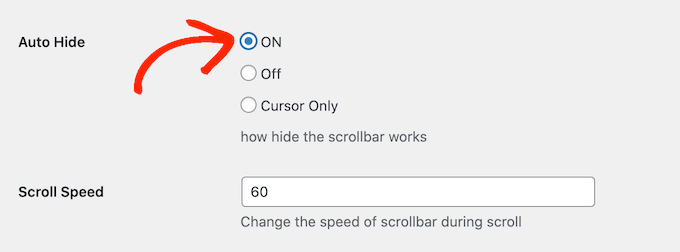
You can also select whether you want to auto-hide the scrollbar so that it only appears when the visitor is scrolling.
This can be useful if you have created a more colorful scrollbar and are worried it might distract from the rest of your content.
By default, the scrollbar appears on the right side of the browser window. However, you can move it to the left-hand side using the ‘Rail Align’ settings if you prefer.
When you are happy with the scroll bar’s configuration, remember to click on ‘Save Changes’ to save your settings.
You can now visit your WordPress blog to see the custom scrollbar in action.
Option 2: Create CSS Scrollbar (Advanced)
If you want to make more advanced changes to your scrollbar, then another option is to use CSS.
Creating a custom scrollbar with CSS using the ::-webkit-scrollbar pseudo-elements (like the example below) lets you customize many parts of the element.
However, these specific CSS rules primarily work on WebKit-based desktop browsers like Chrome, Safari, and the new Microsoft Edge.
This means your custom scrollbar might not show up or will appear differently on other browsers (like Firefox) or most mobile devices.
To customize your scrollbar using CSS, go to Appearance » Customize.
Note: If you are using a block theme (also known as a Full Site Editing theme), the ‘Additional CSS’ option might be found in a different place.
You’ll typically add custom CSS through the Site Editor by going to Appearance » Editor. Then, click on the Styles icon (a half-filled circle) and look for the ‘Additional CSS’ panel.
For more information, check out our guide on how to fix missing theme customizer in WordPress admin.
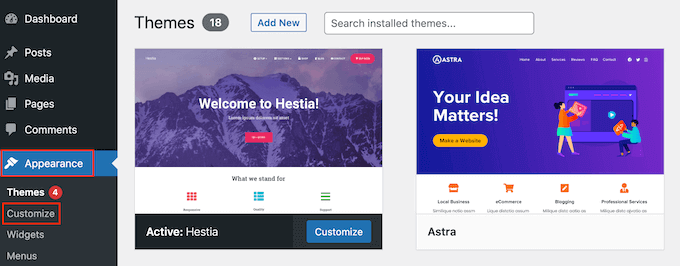
In the WordPress customizer, click on ‘Additional CSS’.
You can now add your code to the small editor that appears.

Here’s an example of code that changes how the scrollbar looks:
::-webkit-scrollbar {
-webkit-appearance: none;
}
::-webkit-scrollbar {
width: 10px;
}

::-webkit-scrollbar-track {
background: #ffb400;
border:1px solid #ccc;
}

::-webkit-scrollbar-thumb {
background: #cc00ff;
border:1px solid #eee;
height:100px;
border-radius:5px;
}

::-webkit-scrollbar-thumb:hover {
background: blue;
}
You can add any code you want. For more information on CSS, please see our complete guide on how to add custom CSS to your WordPress theme.
When you are happy with your code, just click on the ‘Publish’ button. You can now visit your WordPress site in a WebKit browser to see your changes in action.
Bonus Tip: Add a Scroll to Top Effect in WordPress
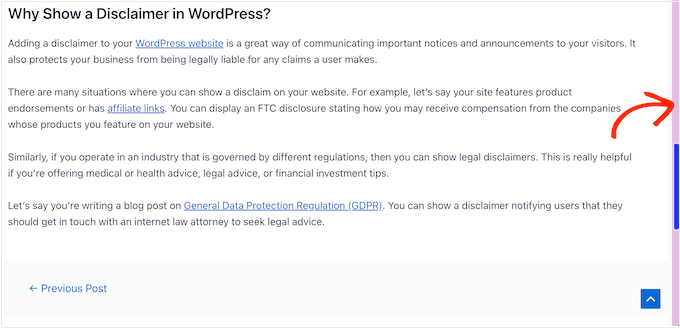
Apart from creating a custom scrollbar, you may also want to add a scroll-to-top effect on your WordPress site. This can be super helpful if you have longer blog posts and want to provide users with a quick way to get back to the top.
To add this feature, you must install and activate the WPFront Scroll Top plugin. For detailed instructions, see our tutorial on how to install a WordPress plugin.
Upon activation, visit the Settings » Scroll Top page from the WordPress dashboard and check the ‘Enabled’ box to activate the scroll to top effect.
After that, you can edit the scroll offset, button size, opacity, fade duration, scroll duration, and more from here.
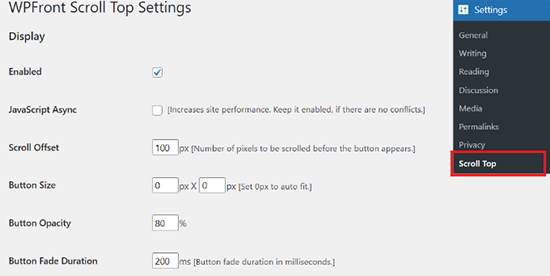
Once you are done, don’t forget to click the ‘Save Changes’ button to store your settings.
You have now successfully added a scroll-to-top effect to your website. For more detailed instructions, see our tutorial on how to add a smooth scroll to top effect in WordPress.
Frequently Asked Questions About Adding a Custom Scrollbar in WordPress
Here are some questions that our readers have frequently asked about adding a custom scrollbar in WordPress:
How do I add a scrollbar in WordPress?
You can add a scrollbar by using custom CSS or a plugin like Advanced Scrollbar that enables scrolling content areas inside posts, pages, or widgets in WordPress.
How do I insert a slider in WordPress?
You can insert a slider by using a slider plugin like Soliloquy, creating your slider, and then adding it to a page using a block. For more information, check out our tutorial on creating a responsive slider in WordPress.
What is the best slider plugin for WordPress?
Soliloquy is the best WordPress slider plugin because it’s beginner-friendly, flexible, and works well with most themes and page builders.
How do I create a custom banner?
You can use OptinMonster to create a custom banner with its premade templates. The plugin also allows you to fully customize the content, add CTA, and use different colors according to your liking. For detailed instructions, please see our tutorial on how to make a banner in WordPress.
We hope this article helped you learn how to add a custom scrollbar in WordPress. You may also want to see our expert picks for the best WordPress drag-and-drop page builders and our ultimate guide on how to edit a WordPress website.
If you liked this article, then please subscribe to our YouTube Channel for WordPress video tutorials. You can also find us on Twitter and Facebook.



Dennis Muthomi
One thing I’d like to add is the importance of considering accessibility when customizing scrollbars.
While aesthetics are important, we should ensure that the custom scrollbar remains easily visible and usable for all visitors, including those with visual impairments.
Perhaps using high-contrast colors or ensuring the scrollbar width is sufficient could help in this regard.
Marcos
Thank you! The CSS is plug&play.
WPBeginner Support
Glad to hear our guide was helpful!
Admin
Luqman Essam
THank You! It helped me!
WPBeginner Support
Glad our guide was helpful!
Admin
Victor
Is there any plugin for WP that will display sequential art as in a comic strip where installments can be posted on a weekly basis?
WPBeginner Support
You may want to take a look at our guide on managing a post series: https://www.wpbeginner.com/plugins/how-to-effeciently-manage-post-series-in-wordpress/
Admin
ash
it not working very fine on some websites, depends to the themes that the website uses, it might even hide the scroll bar and make the website loading time more than normal, i suggest using a CSS code it’s easy to use and customizable as well … i give a sample ans you guys just modify it as your own
===
::-webkit-scrollbar {
width: 14px;
background-color: silver;
}
::-webkit-scrollbar-track {
-webkit-box-shadow: inset 0 0 6px rgba(0,0,0,0.3);
border-radius: 10px;
background-color: silver;
}
::-webkit-scrollbar-thumb {
border-radius: 10px;
-webkit-box-shadow: inset 0 0 6px rgba(0,0,0,0.5);
background-color: #0099cc;
}
Vas
Excellent…The cleanest solution.
It would be nice to post the code for Firefox…if there is such option.
Thanks for sharing.
WPBeginner Staff
There might be someway to override it through a custom css. Please contact plugin’s support.
Karen
What a fun plugin. I just installed it. Is there any way to control the opacity – of the color of the scrollbar when you aren’t hovered over it? Thanks for this post!
WPBeginner Staff
Thank you for notifying us. Fixed it.
Vernon Trent
please correct your link to the plugin.
there is a missing S in the url “pluginS”
Guest
Hi the link in the post seems broken may affect your site rank.
Please place correct link for “Dewdrop Custom Scrollbar” plugin.