


Updating old content is a necessary part of maintaining a successful WordPress site.
Through working with numerous WordPress users, we’ve seen how converting classic posts to blocks can enhance older content while improving its performance.
Many site owners worry that updating old posts with Gutenberg will break their content.
The good news is that WordPress makes this transition smooth and manageable, allowing you to improve your posts with modern block features without losing any content.
In this guide, we will show you how to safely update your old WordPress posts using the block editor, step by step.
Note: The WordPress Gutenberg editor offers an easy and flexible way of creating content in WordPress. However, if you are not ready to use it yet, then you can disable Gutenberg and use the Classic Editor plugin.
Alternatively, you can test your website’s compatibility for updating to Gutenberg first.
What’s the Difference Between Classic Editor and Gutenberg Editor?
Before we get started, it helps to understand the main differences between the old Classic Editor and the modern Block Editor, also known as Gutenberg.
The Classic Editor was a single text field with a toolbar, much like Microsoft Word.
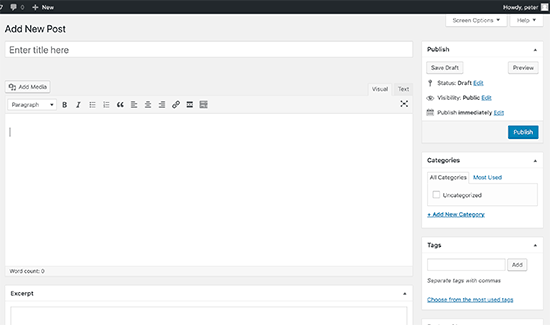
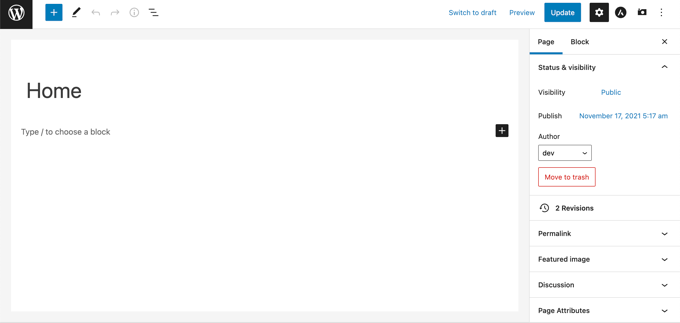
The Block Editor, on the other hand, treats every piece of content—like a paragraph, image, or button—as its own individual “block.”
Here’s what the Gutenberg Block Editor looks like:
To help you better understand the difference between the two, we have created the following table:
| Feature | Classic Editor | Block Editor (Gutenberg) |
|---|---|---|
| Editing Style | A single text field, similar to a word processor. | A collection of individual “blocks” for each piece of content. |
| Content Control | One main toolbar at the top for formatting the entire document. | Each block has its own toolbar and settings for precise control. |
| Layouts | Limited layout options, often requiring shortcodes or HTML. | Easily create complex layouts like multi-column designs. |
| Flexibility | Less flexible. All content is treated as one continuous document. | Highly flexible. You can easily drag and drop blocks to rearrange content. |
To create or edit a post in the Gutenberg editor, you will need to use blocks. Here’s how to update your old blog posts and pages with the Gutenberg Block Editor.
How to Convert Your Classic WordPress Posts to Gutenberg (Step by Step)
If you’ve updated your WordPress blog to the latest version of WordPress, then you will have the Gutenberg Block Editor as your default editor.
The good thing about Gutenberg is that it doesn’t affect any of your old content, and you can easily edit your old articles.
To edit an older post or page, simply edit it as you would normally do in WordPress.
In the content editor, you will see the entire content wrapped inside a single Classic block.
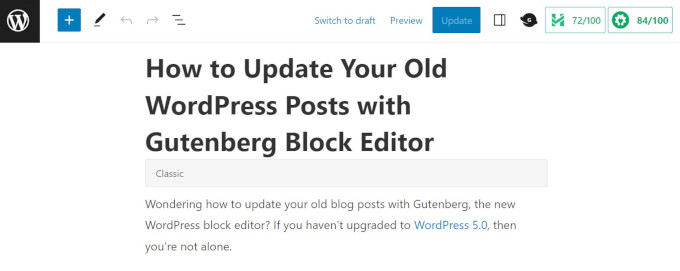
The same post would look like the screenshot below in the old classic editor.
As you may notice, the existing content is the same. However, the way it’s organized looks slightly different.
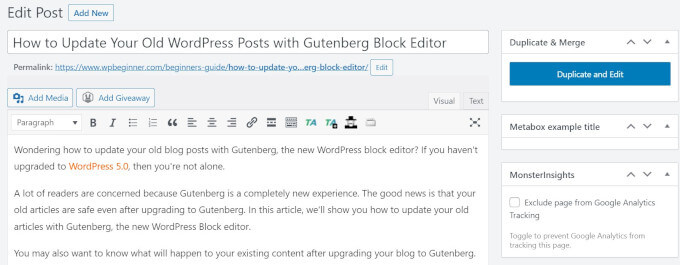
The new WordPress block editor will not make any changes to the content, and it will still look the same on your WordPress website.
Now, you have two options to edit your old blog posts and pages:
- Continue editing inside the Classic block.
- Convert your old content to new Gutenberg blocks.
The first option is to continue editing your old article inside the Classic block.
The Classic block offers you the same Classic editor interface with formatting options at the top. This should be fairly straightforward.
The second option is converting your old content into new Gutenberg blocks.
You can do this by clicking on the top of the content and selecting the ‘Convert to blocks’ button.
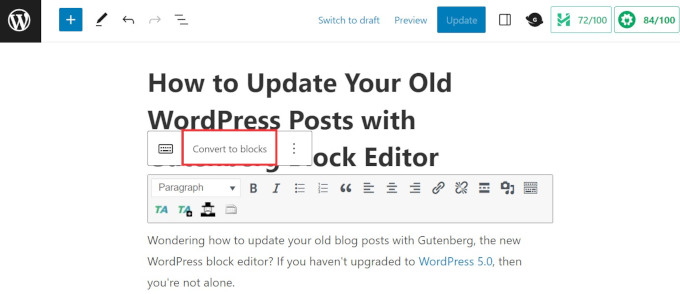
That’s it!
Your old content will be automatically converted into matching blocks. The content inside the Classic block will be split into several different blocks.
This is powerful because it allows you to move, style, and configure each piece of content independently.
Now, you can edit your old article using the new Gutenberg editor blocks. Each block is a separate entity with its own formatting options, styles, and design options.
If you want to make changes to how the image appears, then you can simply click the image to select the block, and the editing options will appear at the top.
You will also see more options in the ‘Block’ tab in the right column of the screen.
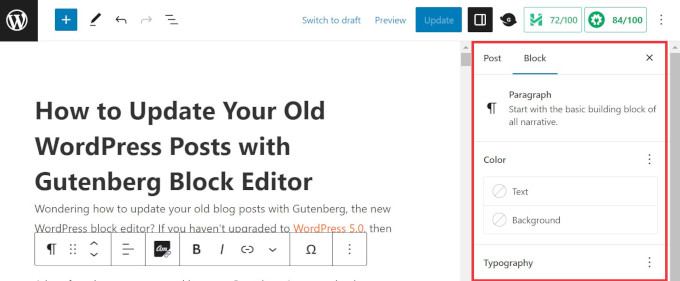
For example, with a Paragraph block, you can use the toolbar to change its text and background color, choose the typography, add links, and more.
Following the same process, you can edit all of the blocks to create engaging layouts, add call-to-action buttons, make image galleries, and improve readability.
Once you have finished making all the necessary edits, you can simply click the ‘Update’ button at the top right of the screen to save your changes.
Pro Tip: This automatic conversion is very reliable. However, we recommend quickly scrolling through the post afterward to double-check that all images and formatting look just right.
Frequently Asked Questions About Using the Block Editor
Here are some questions that our readers frequently ask about updating old WordPress posts with the Gutenberg editor:
Will converting old posts to blocks affect my website’s SEO?
No, the process of converting a post to blocks will not directly harm your SEO. It doesn’t change the post’s URL or its published content. The change happens in the backend editor.
In fact, using the block editor can help improve your SEO over time. It allows you to create better-structured content with features like FAQ blocks, tables, and buttons that can improve user engagement.
Do I have to convert my old posts?
You are not required to convert your old posts. You can continue to edit them inside the single ‘Classic block’ indefinitely.
However, by not converting, you miss out on the powerful features, design options, and block patterns that make content creation easier and more flexible.
What happens to shortcodes when I convert to blocks?
WordPress is smart about handling shortcodes. When you click ‘Convert to blocks,’ it will automatically place each of your existing shortcodes into its own ‘Shortcode block.’
The functionality should remain exactly the same.
Learn More Gutenberg Editor Tips and Tricks
Ready to make the most of the block editor? Here are some WordPress tutorials to get you started:
- How to Add and Align Images in WordPress Block Editor (Gutenberg)
- How to Change Block Height and Width in WordPress
- Best Gutenberg Blocks Plugins for WordPress (Super Useful)
- How to Select and Use Nested Blocks in WordPress
- How to Bulk Convert Classic Blocks to Gutenberg in WordPress
- Common WordPress Block Editor Problems and How to Fix Them
- How to Add Collaboration in WordPress Block Editor (Google-Doc Style)
We hope this article helped you learn how to update your old articles with the Gutenberg Block Editor. You may also want to see our tutorial on how to create a custom WordPress block and our guide on how to use WordPress block patterns.
If you liked this article, then please subscribe to our YouTube Channel for WordPress video tutorials. You can also find us on Twitter and Facebook.





Dennis Muthomi
As I was reading this article, I noticed something with the third screenshot above – it shows the admin sidebar enabled on the left alongside the Gutenberg editor.
My editor occupies the entire screen, how did you enable the admin sidebar to appear on the left alongside the editor?
WPBeginner Support
In your preferences in the top-right you should be able to disable fullscreen mode to see your sidebar.
Admin
Steve
In the classic editor, there was a way to update the date on an existing post and schedule it for a new date/time. I don’t see that option in Gutenberg. I only see a way to change the date and then update the post. Does this accomplish the same thing?
WPBeginner Support
You should be able to change the date with the same functionality as the classic editor. We would recommend taking a look at our article below:
https://www.wpbeginner.com/beginners-guide/schedule-your-posts-in-wordpress/
Admin
Deborah
When I click Convert to blocks my page turns to what looks like code. So, I guess it is not converting correctly. I have other pages that converted fine a while back and I’m able to create new pages using blocks. Does that mean I will need to retype it all by hand?
WPBeginner Support
If it is a specific page then there may be an issue with that page, you likely would need to manually recreate that specific page.
Admin
Bettye
I don’t have the 3 dots to the right of the editing toolbar. Does that mean my theme does not support the Gutenberg editor? I’ve been using it since 2016 but I’m on Wordpress version 5.3.2.
Bettye
WPBeginner Support
You may not be using a classic block for your content if the editor looks different than what we’re showing as one common reason for that
Admin
RoseMary
I am on the current version of WordPress, but do not have any option to switch from the classic editor to Gutenberg. Now that’s a puzzle! I do not have any plugins installed that would inhibit Gutenberg or keep me with the classic editor.
Any ideas?
WPBeginner Support
You may want to go to your profile to see if you have disable visual editor checked as a possible reason.
Admin
Karen
I guess pages would done the same way? Can you add meta description for each page with code block? Thank you.
WPBeginner Support
Yes, pages would be done the same way and if you wanted you could add the HTML using the code block if you wanted
Admin
Sarmad
how will i earn from bloging when i have not to write articles
WPBeginner Support
If you’re looking to monetize your site, you would want to take a look at our article: https://www.wpbeginner.com/beginners-guide/make-money-online/
Admin
Van
Oh my goodness, I’ve been doing the conversion laboriously by hand. At least I haven’t done all of my prior posts by hand. Thank you for this great post. The info will definitely be a time saver for me.
WPBeginner Support
Hey Van,
Glad you found the article helpful.
Admin
Van
I tried the technique earlier this morning. It works and it’s definitely better than redoing a post by hand, but it strips out inline CSS.
Deb
Very difficult getting a PayPal Button into a page now. Even with the PayPal Plugin installed and I tried to us the new button block. Hours later, I am still stuck.
WPBeginner Support
If you are using their html to embed the button you may want to try the custom html block
Admin
Janet
I believe the article is correct when you have something simple like an image and some text. What about videos, links, embeds, anchors, documents, woocommerce, plugins that are images or text etc.? How much after the fact fixing is needed for hundreds of pages created in the old editor. Creating from scratch looks easy, fixing created pages scares me for the amount of additional work needed.
WPBeginner Support
Hi Janet,
Your content would work just fine even if you don’t edit your old articles. However, if you feel you need to create them from scratch, then you can do that as well.
Admin