


When we started the WPBeginner YouTube channel, we had no fancy gear—just a laptop, basic tools, and a lot of trial and error. Over a small period, we’ve successfully grown it into a channel with over 1 million subscribers and 54 million views. 🥳
Since then, we’ve built and managed several other successful YouTube channels across our brands. Along the way, we’ve learned what works when you’re trying to grow a business through video.
If you’re starting from scratch or trying to revive a dormant channel, we’ve been there. And we’ve made the mistakes you don’t have to.
This beginner-friendly guide will walk you through how to start a YouTube channel for your business, with the same steps, tools, and tips that helped us grow from zero to millions of views.
Why Start a YouTube Channel for Your Business?
YouTube is the world’s second-largest search engine, with over 2 billion active users. For businesses, video marketing is a powerful tool, with 88% of people reporting they’ve been convinced to buy a product after watching a brand’s video.
A business YouTube channel can fuel serious growth by helping you reach new audiences, build trust, and promote your products.
Here are the primary benefits of using video to grow your business:
| Benefit | Explanation |
|---|---|
| Increased Brand Recognition | Consistently publishing helpful content makes your brand more recognizable and memorable, helping you build awareness quickly. |
| Increased Sales | Videos connect on a personal level. Viewers who watch product demos or tutorials are far more likely to become paying customers. |
| Increased Website Traffic | YouTube can become a reliable source of traffic for your website. Adding links in video descriptions guides viewers to your products. |
| Promote Products/Services | Use videos to simplify complex features and highlight benefits. Embedding these in support docs can also reduce support requests. |
| Build a Loyal Following | Video helps you form real connections with your audience, growing a community of engaged viewers who trust your brand. |
| Add an Extra Revenue Source | YouTube monetization through ads, affiliate links, and sponsorships can create an additional income stream for your business. |
Success on YouTube doesn’t happen overnight. However, from our own journey, we’ve learned that consistency and a clear content strategy make all the difference.
Here’s a quick overview of what we will cover in this post:
- Creating a YouTube Channel for Your Business
- Securing Your Brand Name
- Making Artwork for Your YouTube Channel
- Creating a Featured Video and YouTube Channel Trailer
- What Do You Need to Make Great YouTube Videos
- How to Edit YouTube Videos 🎞️
- Video Editing Best Practices to Follow
- Making Thumbnails for YouTube Videos
- Uploading Your First YouTube Video
- Mastering YouTube SEO
- Growing Your YouTube Channel
- Using Your Website to Promote YouTube Videos
- Making a Consistent Video Calendar
- Experiment with Different Video Styles and Formats
- Frequently Asked Questions About Creating a YouTube Channel
- Bonus Resources for YouTubers
1. Creating a YouTube Channel for Your Business
Before anything else, you’ll need to set up your YouTube channel—and it’s super easy to do.
Just head over to the YouTube website and sign in using your Google Account.
Once you’re signed in, click your profile icon at the top right corner and choose ‘Create a channel’ from the dropdown menu.
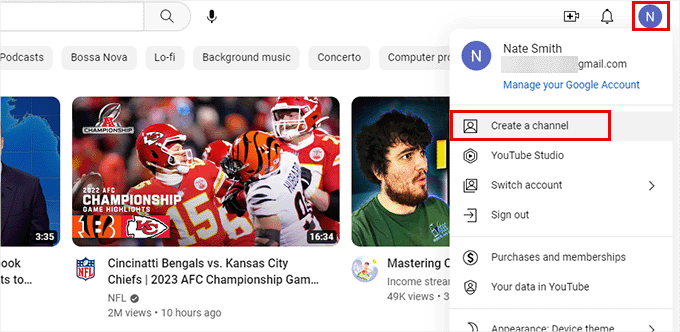
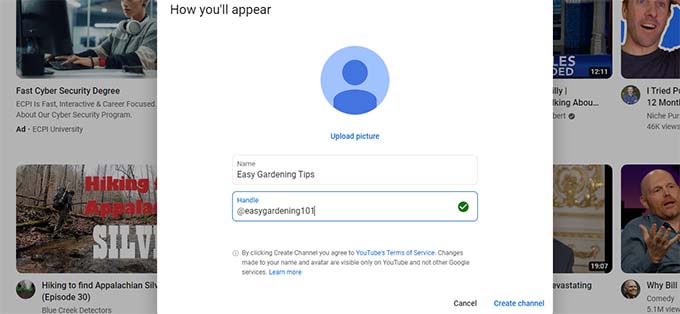
That will open a simple form where you can add your channel’s name, handle, and a profile picture.
But hold up—don’t rush through this part just yet. Choosing the right name and handle is more important than it seems.
Tips for Picking the Perfect Channel Name
Your channel name and handle help people find you on YouTube and even on Google. So it’s smart to include keywords, which are words that your audience might search for when looking for your type of videos.
Think about what kind of content you’ll be sharing. Will it be tutorials, entertainment, interviews, behind-the-scenes videos, or something else?
For example, if you’re launching a channel for your gardening business, having the word ‘gardening’ in your name and handle can give you a nice boost in search visibility.
You can also just stick with your business name if you already have one. That way, your brand feels more consistent across your website, social media, and YouTube channel.
That’s exactly what we did. Our channel is called WPBeginner – WordPress Tutorials, which makes it clear who we are and what we teach, while keeping our brand front and center.
Tips for Making a Great YouTube Profile Photo
Your profile photo is one of the first things people notice about your channel.
It shows up next to your name on your channel page, under your videos, and even in search results.
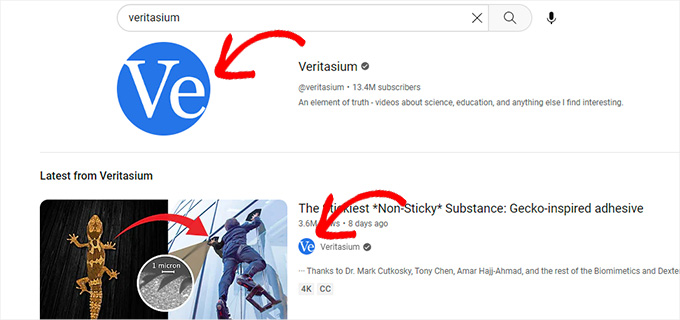
Most small businesses go with their logo for the profile picture, and that’s a smart move. It keeps things consistent across your brand.
If you don’t have a logo yet, no worries. You can easily create a custom channel photo using Canva.
It’s a free online design tool that comes with ready-made templates for YouTube and other social platforms, which is super handy if you’re just starting out.
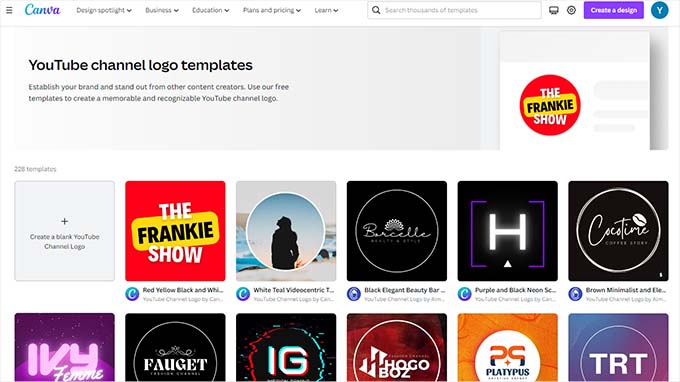
Using a different image editor? Just make sure your photo is a square and at least 800 x 800 pixels. That way, it looks crisp everywhere it shows up.
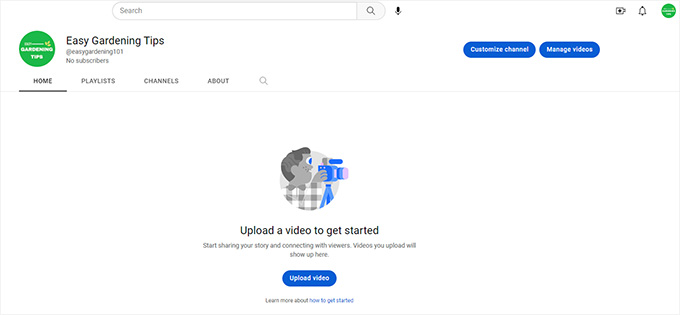
Once you’ve added your channel name, handle, and profile photo, go ahead and click the ‘Create Channel’ button.
YouTube will take care of the rest and send you straight to your brand-new channel page.
2. Securing Your Brand Name
Before you upload your first video, it’s a smart idea to lock down your brand name across the web.
This means getting a domain name that matches your YouTube channel, setting up a website, and creating consistent social media profiles.
1. Making a Website for Your YouTube Channel
Having your own website is key to building your brand.
To get started, you will need a domain name (your site’s address) and web hosting (where its files live).
We recommend using Bluehost, as they offer WPBeginner readers a free domain and a discount on hosting.
For a full walkthrough, see our complete guide on how to make a WordPress website.
2. Securing Your Social Media Profiles
If you haven’t already set up social media accounts for your business, now is the perfect time. It’s one of the easiest ways to protect your brand online.
Think about where your audience hangs out. That’s where you want to be. Depending on your target audience, some platforms will work better than others.
At the very least, we recommend creating profiles on Facebook and X (formerly Twitter). From there, you can branch out based on your business type and audience.
For example, LinkedIn is great for business-focused brands. Pinterest and Instagram work well for lifestyle or visual content. And if you’re running an educational site, Reddit might be a good place to build a community.
Try to use the same name across all platforms. This is because matching your business name and YouTube handle keeps your brand consistent and easy to recognize.
3. Making Artwork for Your YouTube Channel
Let’s head back to your shiny new YouTube channel. Right now, it’s a blank canvas—literally.
A great place to start is by adding channel artwork, such as a banner, also known as the channel cover or header. This image appears at the top of your channel and sets the tone for your brand.
One of the easiest tools for this is Canva. It’s free, beginner-friendly, and comes with ready-to-use YouTube banner templates.
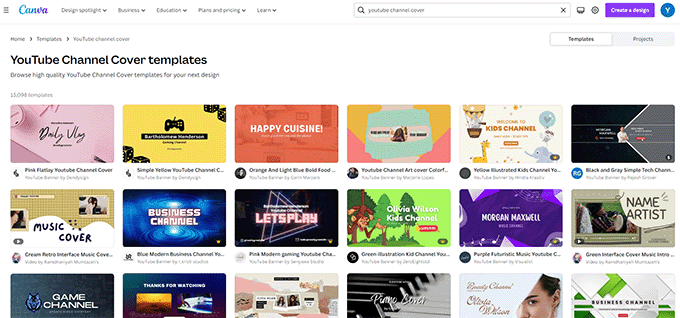
Scroll through the templates and find one that fits your brand colors and style. Then customize it right inside Canva.
If you’re more advanced, you can create your banner using image editing tools like Photoshop, Illustrator, or Affinity instead.
YouTube recommends a banner image of 2048 x 1152 pixels and under 6MB in size. However, it’s crucial to place your most important elements, like logos and text, within the central “safe area.”
This central zone is approximately 1235 x 338 pixels. Keeping key elements here ensures they won’t be cut off on different devices like mobile phones, tablets, or TVs.
Once it’s ready, go to your YouTube channel and click the ‘Customize Channel’ button.
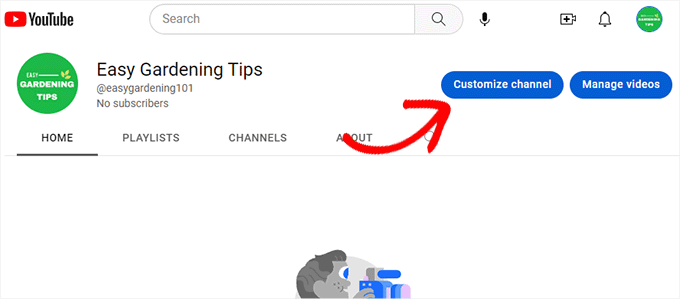
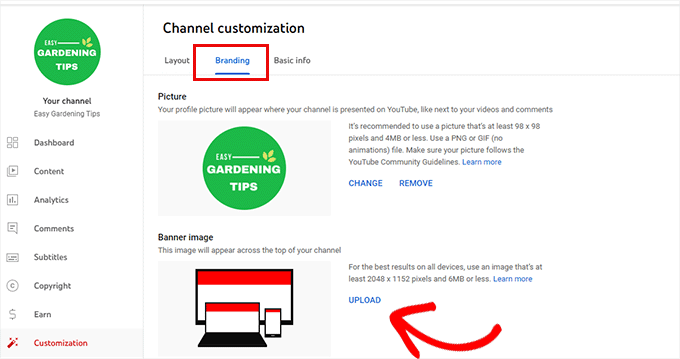
This will open the Channel Customization page. From here, switch over to the ‘Branding’ tab.
You’ll see your profile photo already in place. Now, click the ‘Upload’ button next to the banner image section to add your new artwork.
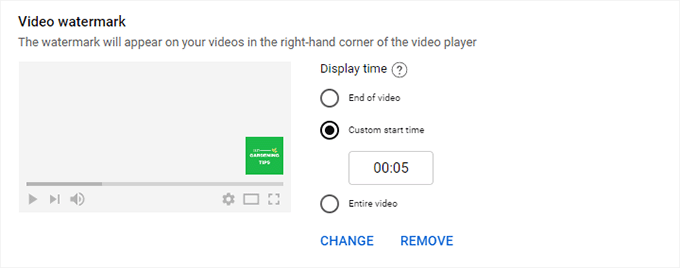
While you’re here, you can also add a video watermark. This small image appears in the corner of your videos and acts like a mini branding badge—or even a subtle reminder to subscribe.
Most channels use their logo or profile photo. You’ll upload it right here from the same Branding tab.
Just make sure it’s a square image, at least 150×150 pixels. A transparent background works best because it doesn’t distract from your video.
4. Creating a Featured Video and YouTube Channel Trailer
Your YouTube channel trailer is like your elevator pitch. It gives new visitors a quick taste of what your channel is all about.
Once added, this trailer appears at the top of your channel page and plays automatically for people who haven’t subscribed yet.
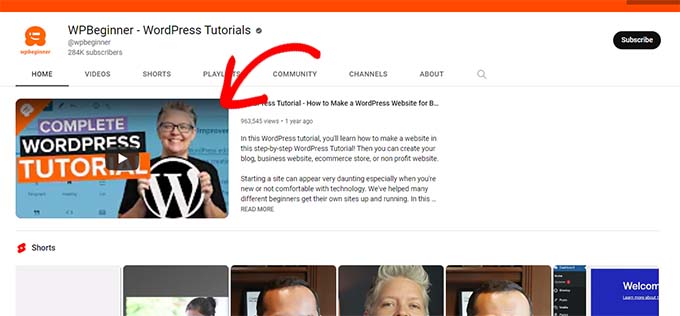
You can also set a different featured video for subscribers. This one appears in the same spot but is only visible to people who have already subscribed to your channel.
Just keep in mind—if they’ve already watched it, they won’t see it again in that spot.
To upload either of these videos, go to your YouTube Studio page.
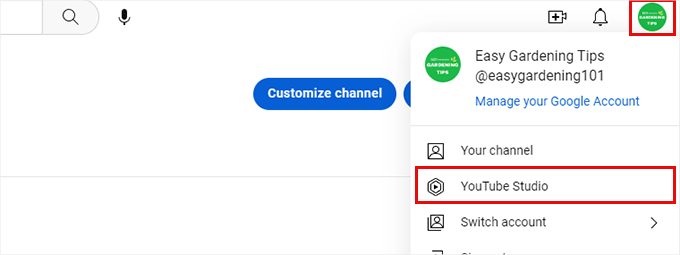
From there, switch to the Customization tab. You’ll see options to add your channel trailer and featured video right away.
Not quite ready to film something yet? No worries—we’ll cover how to make videos later in this guide.
5. What Do You Need to Make Great YouTube Videos
You don’t need a fancy studio or expensive gear to create great videos for your YouTube channel. Most modern smartphones have excellent cameras, and with a few low-cost tools, you can produce high-quality content without a huge budget.
Here’s a simple list of recommended gear to get you started:
| Equipment | Recommendation | Purpose |
|---|---|---|
| Camera 📷 | Your smartphone (such as an iPhone, Google Pixel, or Samsung Galaxy) is a great starting point. For an upgrade, consider a compact option like the GoPro Hero 11. | Captures high-quality video footage for a professional look. |
| Tripod | An affordable stand from Amazon or an all-in-one option like the Rode Vlogging Kit. | Keeps your shots steady and prevents shaky, unprofessional footage. |
| Lighting | A simple ring light is a budget-friendly option. They are portable and often come with adjustable brightness and height. | Improves the visual quality of your video, especially when filming indoors, by providing soft, even light. |
| Video Editing Software | For beginners, try free tools like iMovie (Mac), Clipchamp (Windows), or the web-based editor in Canva. | Allows you to trim clips, add music and text, and polish your video before uploading it to YouTube. |
6. How to Edit YouTube Videos 🎞️
You don’t need to be a tech expert to edit your videos. Just learning a few basics can make your content look cleaner and more professional.
Shooting Videos with Editing in Mind
- Always shoot in the highest video quality your camera or phone allows.
- Use a tripod or gimbal to avoid shaky footage—it makes a big difference.
- If your camera supports it, use manual focus to keep your subject in sharp focus.
- Record in a quiet space, or use a microphone to cut down background noise.
Editing Videos for Your YouTube Channel
Once you’ve recorded your video, open it in your favorite video editor and start making it look great:
- Trim any mistakes or sections you don’t want to keep.
- Add background music to set the mood or fill in silent moments.
- Use transitions to smoothly move between clips.
- Add text, images, or graphics to explain things visually or reinforce your message.
Your editing software will give you a preview as you work. Once you’re happy with the final version, go ahead and export your video so it’s ready to upload.
Finding Media to Use in Your YouTube Videos
YouTube takes copyright seriously. If you use music, images, or video clips without permission, your video (or even your whole channel) could get taken down.
Make sure any media you include is either royalty-free or something you have full rights to use. There are tons of royalty-free media sources available.
YouTube also has its own Audio Library with thousands of free tracks and sound effects you can use in your videos.
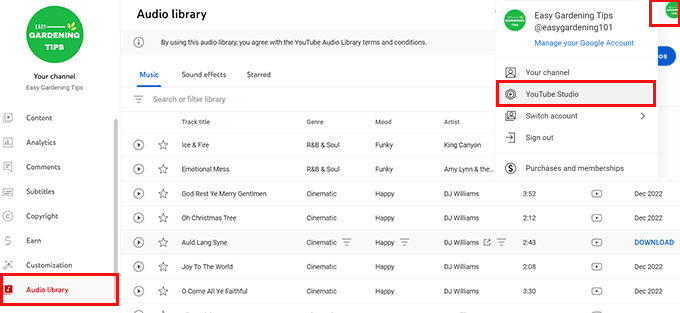
You can find it inside YouTube Studio. Just search or browse the collection, download what you like, and add it to your video in your editor.
Saving Your Video to Upload on YouTube
By default, YouTube lets you upload videos up to 15 minutes long. But once your account is verified, you can upload much longer videos.
To upload longer videos, your file must be below both of these limits: 256 GB in size and 12 hours in length.
When you’re done editing, make sure to export your video using the highest quality settings your editor allows. For best results, use the H.264 codec and save the file as an MP4. It gives you a good balance between quality and file size.
Just a heads up: exporting large files can take a while, especially if your video is long or includes a lot of effects. Be patient—it’s worth the wait.
7. Video Editing Best Practices to Follow
The more videos you edit, the better you’ll get at spotting what works and what doesn’t. Here are some simple best practices we recommend keeping in mind as you get started:
- Always export your videos in the highest quality settings. YouTube will automatically adjust the playback quality for viewers, but uploading the best version ensures the highest resolution is available.
- Longer videos can take a while to process on your computer. To avoid interruptions, keep your laptop or desktop plugged into a power source during export.
- Video files are large and take time to upload. Make sure you’re on a stable, fast internet connection before starting the YouTube upload.
- Watch your final video through completely before uploading. This helps you catch small mistakes, such as spelling errors, awkward cuts, or music that’s too loud.
- Don’t overuse transitions or effects. A few smooth transitions go a long way—keep things clean and focused so your message stays front and center.
8. Making Thumbnails for YouTube Videos
Your thumbnail is the first thing people notice before they click on your video. It acts as a preview image across YouTube, showing up in search results, recommendations, and your channel page.
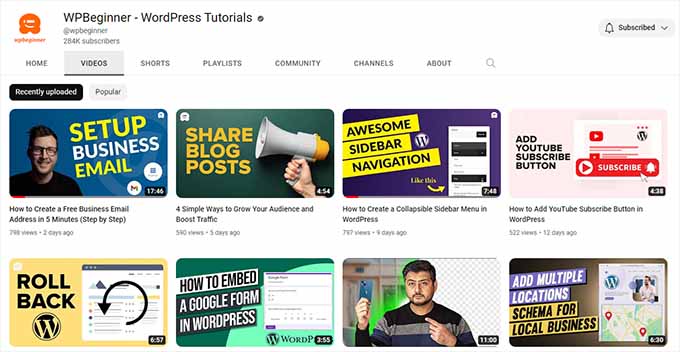
Thumbnails play a huge role in getting clicks and can make or break your video’s click-through rate. While YouTube lets you pick a frame from your video, we always recommend creating a custom one instead.
You can use a tool like Canva or Photoshop to design your thumbnail. Make sure it’s at least 1280×720 pixels so it looks great on all devices.
Here are some thumbnail tips that have worked well for us:
- Use High-Quality Images: A blurry or pixelated thumbnail hurts credibility. Use clear, sharp images that look good even at smaller sizes.
- Catch the Eye: Use bold colors, strong contrast, and expressive faces to draw attention. That’s why you’ll often see thumbnails with surprised 😮, excited 😲, or dramatic 😥 expressions.
- Highlight the Main Point: Show what your video is about right on the thumbnail. This helps viewers quickly understand what they’ll get from watching.
- Use Text Wisely: Add a short headline or a few words that tease the content. Keep the font large and readable, even on small screens.
- Keep It Simple: Avoid packing in too many elements. A clean, focused thumbnail is easier on the eyes and often performs better than a cluttered one.
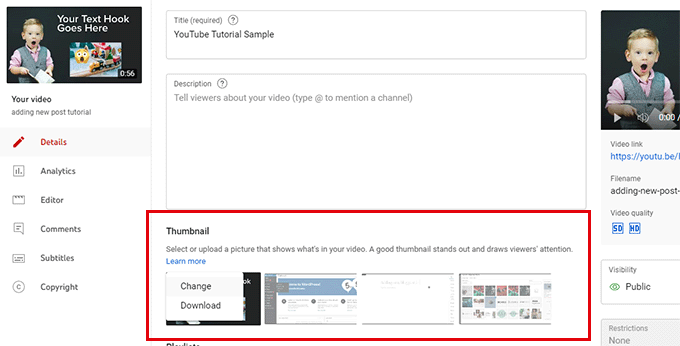
Once you’ve designed your thumbnail, you can upload it after your video finishes uploading to YouTube. If you ever want to change it later, just head to YouTube Studio and update it from there.
9. Uploading Your First YouTube Video
Uploading your first video is exciting, and YouTube makes the process pretty simple.
Start by heading over to your YouTube Studio page. Once you’re there, click on the ‘Upload Videos’ button.
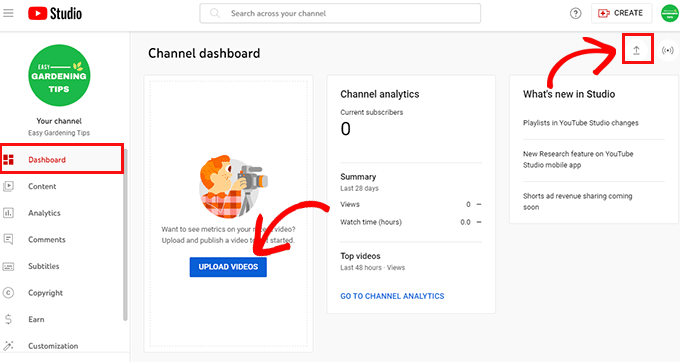
This will open a popup where you can choose the video file(s) from your computer.
Click on ‘Select Files’ to get started.
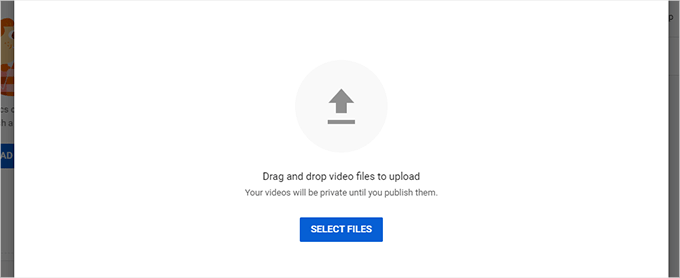
As your video uploads, you’ll be asked to fill in details like your video title, description, thumbnail, and tags.
Take your time with this step, as it’s crucial for YouTube SEO.
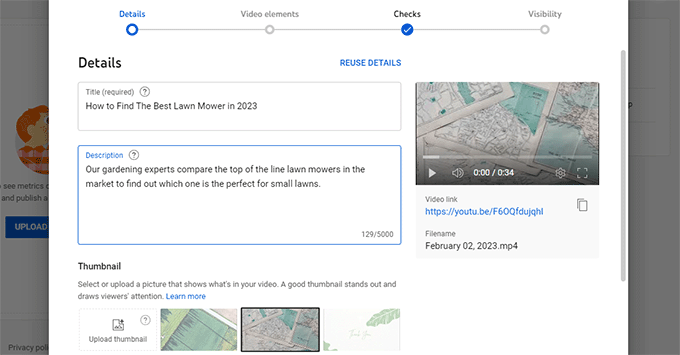
Once you’re happy with the info, click the ‘Next’ button.
On the next screen, you can add extra features like subtitles, end screens, and video cards.
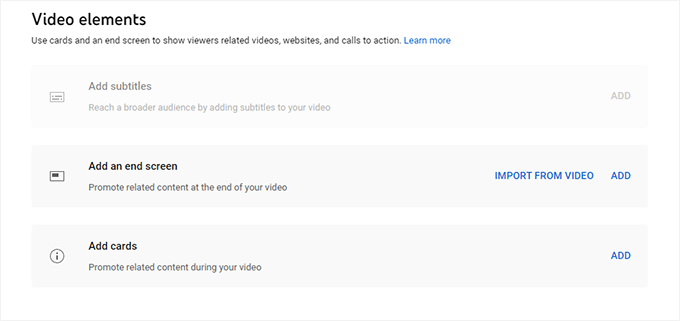
Click ‘Next’ again.
YouTube will now run a quick check for copyright issues or inappropriate content.
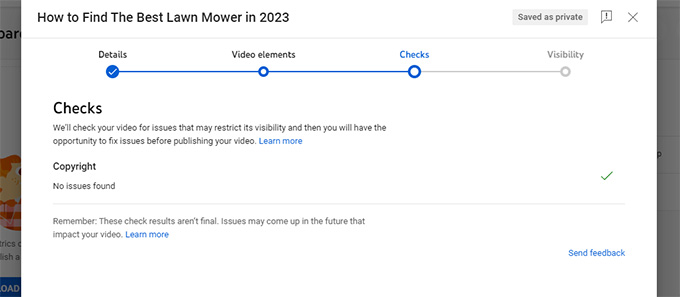
If everything looks good, click ‘Next’ one more time to go to the final step.
Now, you’ll decide how to publish your video. You can make it Public (for everyone), Unlisted (only people with the link can view), or Private (only you can see it).
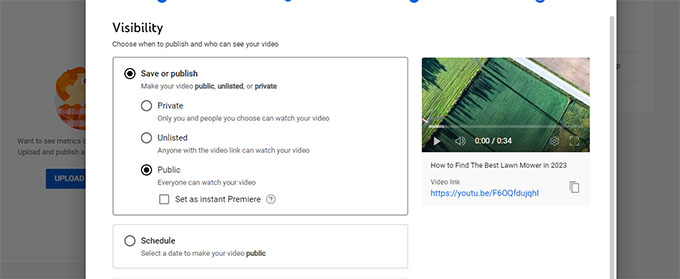
You can also schedule your video to go live at a later date. This is perfect if you’re planning content in advance.
When you’re ready, hit the ‘Publish’ button—and just like that, your first video is live!
10. Mastering YouTube SEO
YouTube isn’t just a video platform. It’s also the second biggest search engine in the world, right after Google.
That’s why paying attention to YouTube SEO from day one is one of the best things you can do for your channel. Effective YouTube SEO helps your videos appear in YouTube search results, be featured in suggested videos, and even rank in Google video results.
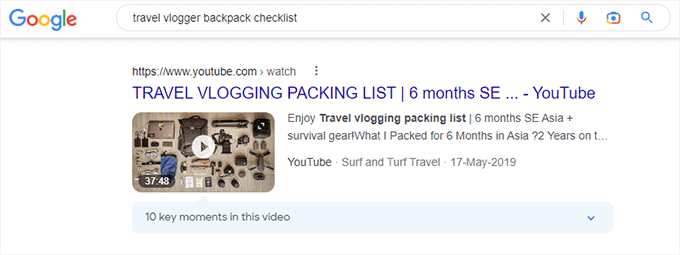
Here are some beginner-friendly YouTube SEO tips that can give your videos a boost in search rankings:
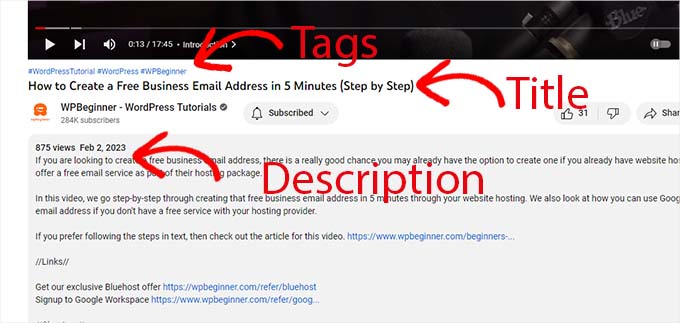
- Use Keywords in Your Title & Description – Think about what your viewers would type to find your video. Use those search terms—called keywords—in your title and description. You can also sprinkle them into your channel description and About page.
- Create a Custom Thumbnail – We talked about this earlier, but it’s worth repeating. A custom thumbnail gives context and increases your click-through rate, which helps your rankings too.
- Add Subtitles and Closed Captions – Captions make your videos more accessible and give YouTube extra text to understand what your video is about.
- Use Tags Strategically – Tags help categorize your video and can improve discoverability. They also tell YouTube what your content is related to.
- Make the Most of Character Limits – YouTube gives you a lot of space in key areas—use it wisely:
- Title: Up to 100 characters. Use keywords and try to follow the title patterns that work for other creators in your niche.
- Description: Up to 5000 characters. Add a detailed summary of your video, links to your site or blog, social media handles, affiliate links, and more.
- Tags: Up to 500 characters. Use tags that describe your topic, related terms, and other variations people might search for.
YouTube SEO is one of those skills that gets better with practice.
As you upload more videos, you’ll start to notice what works, and you’ll naturally improve your rankings over time.
11. Growing Your YouTube Channel
Growing a YouTube channel takes time, consistency, and a bit of patience. Growth usually happens slowly and steadily, one video at a time.
Here are a few things we’ve learned that can help you build momentum:
- Create High-Quality Videos: People won’t stick around for videos that don’t offer value, whether it’s tips, knowledge, or entertainment. When you make content that answers questions or solves problems, people are more likely to subscribe.
- Upload Regularly: Consistency is key. Aim for one video per week to start. This helps build momentum, keeps your audience engaged, and gives the YouTube algorithm positive signals.
- Engage with Your Audience: YouTube is a social platform, so engagement matters. Ask questions in your videos and reply to comments. Viewers love knowing there’s a real person behind the content.
- Run Giveaways to Boost Engagement: Hosting a contest is a proven way to get more subscribers and interaction. We use RafflePress to run our giveaways because it makes it easy for viewers to enter by subscribing, watching a video, or following on social media.
- Curate Your Content in Playlists: As your library grows, group related videos into playlists. This improves watch time, makes your channel easier to navigate, and can even help playlists appear in search results.
- Dig Into Your Analytics: Use YouTube’s detailed analytics to understand what’s working. We look at watch time, views, and audience demographics to create content our viewers actually want to see.
- Promote Your Videos: Uploading isn’t enough. Promote your videos through email newsletters and by embedding them on your website. Every view counts, especially when you’re just getting started.
12. Using Your Website to Promote YouTube Videos
A website is one of the most effective tools for driving traffic from YouTube to your business and vice versa. We’ve used our websites to promote videos, grow subscribers, and increase sales.
Here are the same strategies you can follow:
1. Start a Blog to Promote Your YouTube Channel
Starting a WordPress blog helps you attract people searching for your topics on Google. Repurposing your videos into blog posts is one of the easiest ways to grow both your website and YouTube channel.
If you’re still on the fence, check out our post on why blogging is worth it.
2. Learn WordPress SEO to Promote Your Video Content
SEO plays a big role in promoting video content. We use All in One SEO across our websites to get higher rankings. The Pro plan includes a video sitemaps feature, which helps your videos appear in Google search results with rich snippets.
For complete instructions, see our WordPress SEO guide.
3. Embed Your Videos in Blog Posts to Get More Subscribers
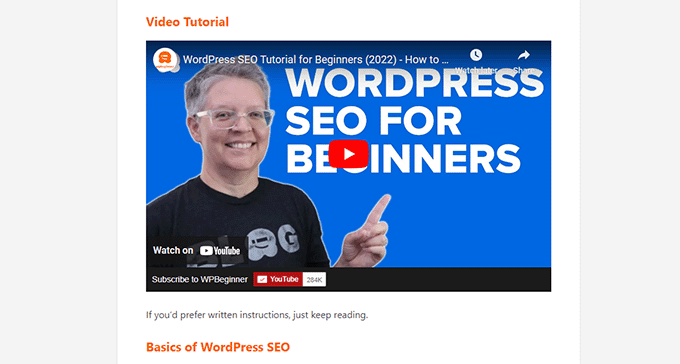
Embedding your YouTube videos in blog posts is one of the easiest ways to boost views.
Just paste the video URL in the WordPress editor, and it will embed automatically. No extra setup needed.
4. Create Video Galleries on Your Website
To showcase your video library, you can create a video gallery on your website. We recommend using Smash Balloon’s YouTube Feed Pro plugin. It lets you display beautiful, responsive YouTube galleries anywhere on your site.
For a detailed tutorial, see our guide on creating a video gallery in WordPress.
13. Making a Consistent Video Calendar
To maintain a successful YouTube channel, you’ll need to consistently upload new videos. Many beginners start with one video per week. The real challenge for most is coming up with new video ideas.
Here are a few tips for generating video ideas for your YouTube channel:
- View YouTube Analytics: See what content your users like most, then create videos on deeper or related topics.
- Get Hints from YouTube Search: As you type a keyword in the YouTube search bar, it suggests popular search terms. Use these for new video ideas.
- Read YouTube Comments: Your viewers will often post questions in the comments. You can turn the most common questions into new videos.
- Repurpose Blog Content: Turn your most popular blog posts into YouTube videos.
- Ask Your Audience: Ask your social media followers what topics they want to see next. You can also run polls and surveys on your site with a tool like WPForms to gather ideas.
- Browse Online Communities: Forums like Reddit, Facebook Groups, and LinkedIn are goldmines for trending questions. Join communities in your niche to see what people are asking.
- Use Keyword Research Tools: For more data-driven ideas, several tools can help you find what people are searching for:
14. Experiment with Different Video Styles and Formats
To discover what your audience loves most, it’s important to test different video formats. Experimenting helps you see what gets the best reaction in views, likes, and comments.
Here are a few popular formats to try:
- YouTube Shorts: These short-form vertical videos are great for quick tips or behind-the-scenes moments.
- How-To Tutorials: Step-by-step guides that solve a specific problem for your audience.
- Interviews: Conversations with experts or influencers in your industry.
- Video Essays or Commentaries: Deep dives into a particular topic, sharing your unique perspective.
Mixing things up helps you find what clicks with your viewers. You can also go back and update older videos by swapping out the thumbnail or tweaking the title to improve visibility.
Frequently Asked Questions About Creating a YouTube Channel
Now that your YouTube channel is up and running, here are answers to some of the most common questions from beginner creators.
1. How many views do I need to get paid on YouTube?
To join the YouTube Partner Program and be eligible for monetization, you must meet one of the following thresholds:
- 1,000 subscribers AND 4,000 public watch hours in the last 12 months.
- 1,000 subscribers AND 10 million valid public Shorts views in the last 90 days.
2. Can I start a YouTube Channel with my phone?
Yes, you can start a YouTube channel using your mobile phone. The YouTube app for smartphones makes it super easy to create a channel, record live videos, or upload videos from your phone.
3. How do you make money online using YouTube?
The easiest way to make money online using YouTube is by joining the YouTube Partner Program. Once you are approved, you become eligible to get paid for revenue sharing on ads displayed during your videos.
4. Can I start a YouTube channel without showing my face?
Yes, you can start a YouTube channel and upload videos without showing your face.
5. Do I need an LLC to start a YouTube channel for my business?
No, you don’t need an LLC to start a YouTube channel for your business. You’ll automatically be considered a sole proprietor, and all earnings will be subject to local taxes, such as income tax.
However, some creators register as a limited liability company (LLC) to protect their business from potential liabilities for legal and financial reasons.
Disclaimer: Please note that this information is for educational purposes and should not be considered professional, legal, or financial advice. We strongly recommend consulting with a qualified professional, such as an accountant or lawyer, to determine the best business structure for your specific situation.
Bonus Resources for YouTubers
Getting started on YouTube is just the beginning.
We’ve put together a few extra resources to help you level up your content and grow your channel faster:
- WordPress SEO Settings for Beginners – Learn how to optimize your site so more people can discover your videos.
- What Is a Blog and How Is It Different From a Website? – See how blogging can support your YouTube channel and build your brand at the same time.
- Best WordPress Video Gallery Plugins Compared – Explore top tools to display YouTube videos beautifully on your site.
- How to Add a YouTube Widget in WordPress – Show your latest videos in your sidebar, footer, or any widget-ready area.
We hope this article helped you learn how to easily start a successful YouTube channel for your business. You may also want to see our list of other popular online business ideas or learn how to create and sell online courses to generate passive income.
If you liked this article, then please subscribe to our YouTube Channel for WordPress video tutorials. You can also find us on Twitter and Facebook.


Samuel
I like to also say that focusing on your niche and target audience from the get-go. Knowing who you’re speaking to will help you create content that’s both relevant and valuable to them.
Mrteesurez
I really appreciate the comprehensive guide provided in this post on starting a successful YouTube channel. I’ve recently begun my own YouTube journey but haven’t seen much subscriber growth yet. This guide offers practical steps and strategies that I believe will help refine my approach and boost my channel’s performance. Your insights on content creation, audience engagement, and optimization are exactly what I need to overcome the early hurdles and build a stronger presence. Thank you for sharing such valuable information!
Jiří Vaněk
I was in the exact same situation, and it was frustrating that after starting my channel, I had practically no subscribers for months. Even though I thought the content of the videos was comprehensive and well-made, there was still something missing to attract people and get them to subscribe. As you mentioned, many tips from this guide and small details on how to customize the channel helped me start gaining my first subscribers. Although there still aren’t many, just seeing the list grow is proof for me that the advice from this tutorial really works.
Jiří Vaněk
Thank you for the very detailed and detailed instructions. I started YouTube mainly to have a place to upload videos that I presented on the website. I wanted a fast platform so the videos wouldn’t overload my own server. Now I’ve also started looking more into how to promote the whole channel a bit more and not just use it as a repository for videos. This tutorial gave me a lot of guidance on what to focus on. Great work.
Mrteesurez
I can completely relate to your initial approach of using YouTube mainly as a video repository for your website, I did the same when I first started, I set all my videos to unlisted. Hosting videos on YouTube kept my server from getting overloaded, just like you mentioned. But once I realized the potential of building a channel for engagement, things started to change. I then focused more on optimization, titles, tags, and thumbnails, it significantly boosted visibility and engagement. I’m sure with the steps you’re taking now, your channel will see similar growth. Keep it up!
Moinuddin waheed
This is the most comprehensive guide on starting a YouTube channel for business. I have already started a YouTube channel and working on it to grow.
Having YouTube channel is infact creating an authority on the subject in viewer’s mind. The audience starts to connect and make an attachment with the authority on the subject this making potential for growing the business.
YouTube is Google’s sibling and has billions of traffic. So making an audience on YouTube means increasing business manifold.
Thanks wpbeginner for this guide. I will try implementing most of these instructions. I have already bookmarked it to read it several times.
Mrteesurez
I completely agree! Starting a YouTube channel has been a game changer for my business as well. When I launched mine, I saw firsthand how building authority on a subject helps create trust and deeper connections with the audience. It not only boosts engagement but also opens up more avenues for growth. YouTube’s massive traffic potential is undeniable, and tapping into that can truly scale a business.
Web Guy Nick
I just stumbled upon this fantastic blog post, and I have to say, these YouTube tips are incredibly helpful for anyone running a channel, no matter the size or niche! The advice you’ve provided here is not only practical but also easy to implement. I appreciate how you’ve broken down each tip into simple steps, making it accessible to even the newest content creators. Your insights into algorithm optimization, audience engagement, and video production are invaluable for growing and maintaining a successful channel. I’ll definitely be sharing this with fellow YouTubers and can’t wait to apply these tips to my own channel. Thank you for sharing your expertise and keep up the great work!
WPBeginner Support
You’re welcome, glad you found our article helpful!
Admin