


When managing a WordPress website, there are times when you need to make changes or updates without immediately publishing them.
At WPBeginner, we write and update lots of articles, and we know how important it is to save changes without publishing them right away. Every day, we save posts without publishing them so that editors can review them first.
This helps us keep our articles high-quality and makes our workflows quicker and smoother.
In this article, we will show you how to easily save your changes in WordPress without publishing.
💡Quick Answer: How to Save Changes Without Publishing
The safest way to update a live post is by using the Yoast Duplicate Post plugin. Its ‘Rewrite & Republish’ feature creates a private clone of your post. You can edit this clone and save drafts as needed.
Why Save Changes Without Publishing WordPress Posts and Pages?
WordPress makes it incredibly easy to add new blog posts and pages.
But if you update a post or page that’s already live, then it will immediately overwrite the content that’s already there.
What if you want to draft an update and save that draft without publishing it? This can be useful if you need more time to edit your draft or if you are running a multi-author blog and want to approve any changes before they go live.
The only default way to do this is to switch it back to a draft and then republish the content again when the changes are ready.
But if you switch a live post back to a draft, its public URL will no longer work. Anyone who tries to visit it, including search engines, will see a 404 ‘page not found’ error. This creates a bad user experience and can hurt your site’s SEO.
An alternative is to simply create a new draft and copy and paste the content, but this doesn’t transfer over the categories and tags, your featured image, and more.
Luckily, you can use a WordPress plugin to create a cloned version of any page or post on your WordPress website and save the draft without making it live. Then, when you are ready, you can merge the changes and update the published post.
This is useful when you are redesigning a website, copying landing pages, rewriting old content, making edits, and more.
That being said, let’s show you how to save your changes in posts without publishing them on your WordPress site.
How to Save Changes Without Publishing in WordPress
The easiest way to save changes without publishing them live is by using the free Yoast Duplicate Post plugin.
This plugin temporarily duplicates any page or post in WordPress with a single click, including all of the original settings. Then, when you’re ready, you can merge your changes and update the original post.
First, you need to install and activate the Yoast Duplicate Post plugin. For more details, see our step-by-step guide on how to install a WordPress plugin.
Upon activation, head over to the Posts » All Posts page in your WordPress dashboard.
When you hover over a post, you will see a few new options: Clone, New Draft, and Rewrite & Republish.
Simply click the ‘Rewrite & Republish’ link.

While ‘Clone’ creates a separate new post, ‘Rewrite & Republish’ is designed specifically to update a live post. It automatically creates a duplicate version and opens it in the content editor screen.
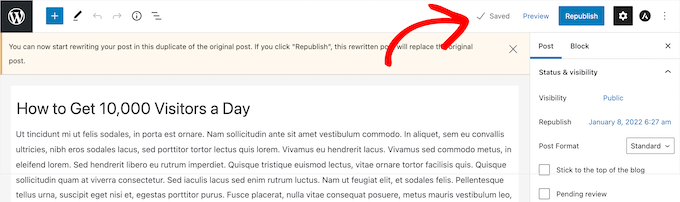
You can now make as many changes as you want to this post and save it without publishing live. To save your progress, simply click the ‘Save draft’ button in the top right corner of the page.
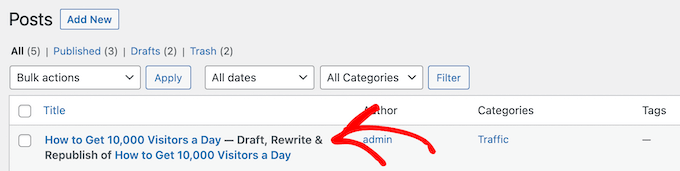
You will now be able to access this WordPress post by visiting the Posts » All Posts page from the WordPress admin sidebar.
It will say, ‘Draft, Rewrite & Republish’ next to the post name.
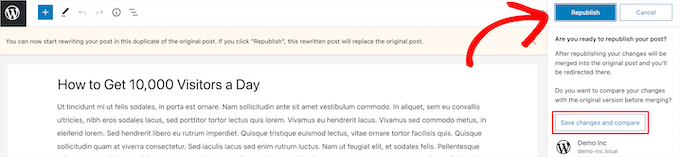
When you are ready to publish, just click the ‘Republish’ button.
The plugin will then ask you if you are ready to republish the post and merge your new changes to the live post. If you are ready, then click the ‘Republish’ button again.
You can also check how your post looks before republishing it by clicking the ‘Preview’ button on the top right corner of the screen.
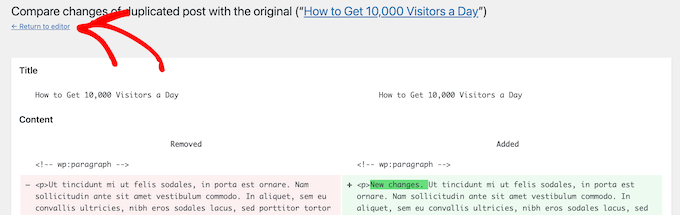
The plugin also adds a helpful ‘Compare’ button at the top of the editor. This lets you see a side-by-side comparison of your old content versus your new changes.
This brings up a revision screen where you can see the differences highlighted in green.
If you are happy with the changes, then click the ‘Return to editor’ link at the top of the screen.
You can also change the date when you want your edited post to go live. If you want the changes to publish instantly, then don’t change the date.
If you want to publish in the future, then simply click the ‘Republish:’ option and change the date to a time in the future.
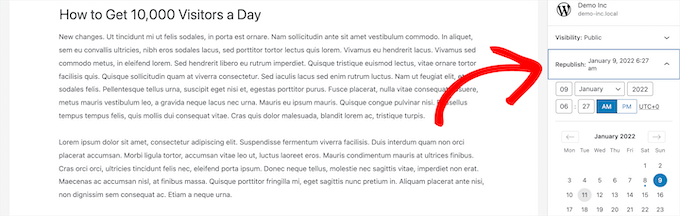
Finally, click the ‘Republish’ button again.
You’ll now get a notification at the top of the page that says the original post has been replaced with the rewritten post.
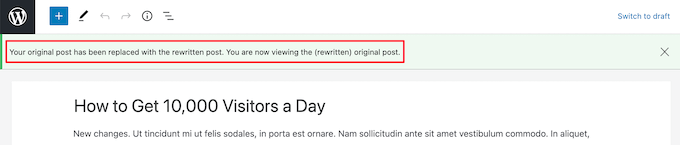
Now, the changes you made to the cloned post will replace the original version of the post on that date.
Bonus: Schedule Your Posts in WordPress
Yoast Duplicate Post is great for editing individual posts. However, if you are managing a lot of content updates or working with a team, keeping track of your schedule can get complicated.
This is where an editorial calendar plugin can be a huge help. To do this, we recommend using PublishPress Planner.
It adds a beautiful drag-and-drop content calendar right inside your WordPress dashboard, making it easy to visualize your publishing schedule.
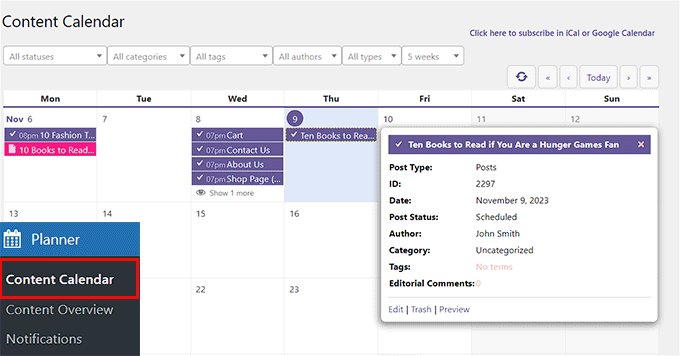
You can see all your scheduled updates at a glance, reschedule posts by simply dragging them to a new date, and even create custom statuses to manage your team’s workflow (like ‘Needs Review’ or ‘Ready to Publish’).
This gives you a clear overview of your content pipeline and helps make sure nothing gets missed.
For detailed instructions, see our tutorial on how to auto-schedule your WordPress blog posts.
Frequently Asked Questions About Saving Changes Without Publishing in WordPress
Here are some questions frequently asked by our readers about saving changes without publishing a post:
What’s the best way to save changes in WordPress without publishing?
The safest and most efficient method is to use a plugin like Yoast Duplicate Post.
It lets you create a copy of a post or page, edit it privately, and then merge the changes with the live version when you’re ready. This process avoids any downtime or SEO issues.
Will switching a post to a draft affect my SEO?
Yes. If you switch a published post back to a draft, it is taken offline.
Any visitor or search engine trying to visit that URL will see an error page because the content no longer exists publicly. This can harm your rankings and creates a bad experience for your readers.
Can I schedule my updated post to go live later?
Absolutely. The Yoast Duplicate Post plugin has a built-in scheduling feature.
This allows you to choose a future date and time for your rewritten post to automatically replace the live version. It’s great for planning your content calendar ahead of time.
We hope this article helped you learn how to save changes without publishing in WordPress. You may also want to see our detailed guide on WordPress post revisions made simple and our list of essential tips for using shortcodes in WordPress.
If you liked this article, then please subscribe to our YouTube Channel for WordPress video tutorials. You can also find us on Twitter and Facebook.




Have a question or suggestion? Please leave a comment to start the discussion.