


You know that feeling of stepping into a messy room and realizing it’s time for a little cleanup? Websites can be like that too.
As your WordPress site grows, plugins that once felt essential might now be collecting dust.
Unused plugins don’t just sit quietly. They can slow things down and even pose security risks, like leaving windows open when you’re not home.
At WPBeginner, we’ve seen how much of a difference a good cleanup can make. Removing unneeded plugins is a small step that can have big benefits for your website’s performance and security.
In this guide, we’ll walk you through how to uninstall a plugin in just a few steps. By the end, your site will be all the cleaner and safer, ready to run as smoothly as ever.
💡Quick Answer: How to Uninstall a Plugin in 3 Steps
- Use the Default Uninstaller: Navigate to Plugins » Installed Plugins in your WordPress dashboard. Deactivate the plugin you want to remove, and then click the Delete link.
- Remove Leftover Files (Optional): Some plugins leave behind files. You can connect to your site with an FTP client, navigate to the
/wp-content/folder, and delete any empty folders left by the plugin. - Clean the Database (Advanced): To completely remove the plugin’s tables, use phpMyAdmin in your hosting control panel to locate and delete them.
Why Do You Need to Uninstall WordPress Plugins?
It’s important to uninstall WordPress plugins you no longer use. Here are the main reasons why a regular cleanup is a good idea:
- Security Risks: An unused plugin can become a security threat. If it isn’t updated, it can develop vulnerabilities that hackers could exploit.
- Larger Backup Sizes: Keeping unnecessary files on your server increases the size of your WordPress backup. This means they take longer to download and restore.
- Slower Performance: Some plugins leave “junk” data in your database even after being deactivated. Over time, this can bloat your database and slow down your website.
Of course, you can install as many WordPress plugins as you need. However, if you are not using a plugin, then we believe that you should uninstall it properly.
What Is the Difference Between Deactivating and Uninstalling a WordPress Plugin?
Deactivating a plugin is like temporarily shutting it down, while uninstalling it permanently removes it.
Understanding the difference is key to managing your site properly.
Here’s a quick breakdown of what each action does:
| Deactivating a Plugin | Uninstalling a Plugin |
|---|---|
| Temporarily disables the plugin’s code from running. | Permanently removes all of the plugin’s files from your server. |
| Keeps all settings and configuration in case you reactivate it. | Often cleans up data it added to your database, improving performance. |
| Useful for temporary troubleshooting or debugging conflicts. | The best option for plugins you no longer intend to use. |
| Can still be a potential security risk if the plugin has a vulnerability. | Eliminates any potential security risks from that plugin. |
That being said, let’s take a look at how you can remove a plugin from your WordPress website. Here are the topics we will cover:
How to Uninstall a WordPress Plugin
Before you begin, it’s a good practice to check the plugin’s settings page for a dedicated ‘Uninstall’ or ‘Remove Data’ option. Many larger plugins include this feature, and using it is the best method for a clean removal when it’s available.
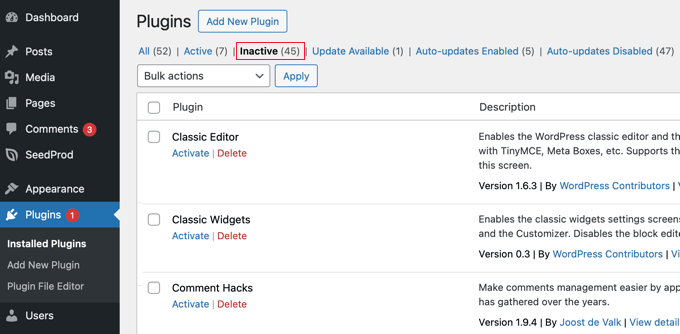
If that option doesn’t exist, WordPress makes it super easy to uninstall plugins from the admin area. Simply log in to your dashboard and go to the Plugins » Installed Plugins page.
You will see the list of currently installed plugins on your site. Active plugins are highlighted with a blue background color and have a link to Deactivate them.
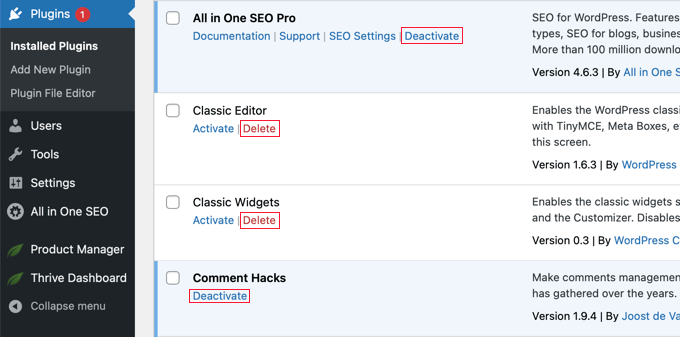
On the other hand, inactive plugins have a link to Activate or Delete them from your site. To uninstall a plugin, go ahead and click on the ‘Delete’ link below the plugin’s name.
WordPress will now ask you to confirm that you want to delete the plugin and its data. You can simply click the ‘OK’ button to continue.
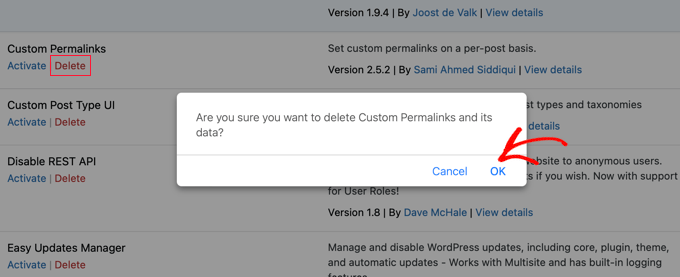
WordPress will now safely remove plugins from your web server. That’s all, you have successfully uninstalled a plugin from your WordPress site.
The simple uninstall is sufficient for most users. The following sections are optional advanced steps for those who want to learn more and ensure every trace of the plugin is gone.
Removing Extra Files Added by a WordPress Plugin
In most cases, simply deleting a WordPress plugin will uninstall it completely. However, some plugins store files outside of the plugins folder. Those files will not be deleted when you uninstall the plugin.
You can check and delete files stored by the plugin using your WordPress hosting file manager or an FTP client. Simply connect to your website using FTP and then go to the /wp-content/ folder.
You can often spot these because they’ll be named after the plugin you just removed. For example, a plugin named ‘Awesome Slider’ might leave a folder at /wp-content/awesome-slider/.
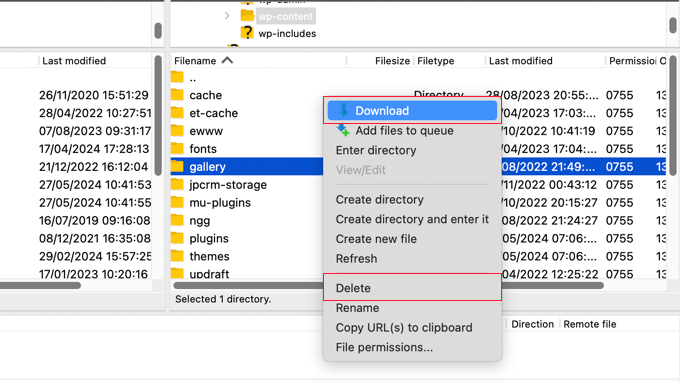
Many WordPress backup plugins, gallery plugins, and sliders create and store data directly in the wp-content folder. If you do not have a complete backup of your WordPress site, then you should download these files to your computer as a backup.
After that, you can safely delete these files from your server using an FTP client.
Removing Unused Shortcodes in WordPress
Many WordPress plugins use shortcodes to add things to your posts or pages. Once you deactivate or uninstall a plugin, those shortcodes will become visible in your posts, and they look quite ugly.
Here’s what a shortcode would look like in your content:
[pluginshortcode]
You can easily disable shortcodes by adding a small piece of code to WordPress. The safest and easiest method is to use a code snippets plugin like WPCode. This prevents errors that can happen when editing your theme’s functions.php file directly.
add_shortcode( 'pluginshortcode', '__return_false' );
This code adds the shortcode back and makes it display nothing. Don’t forget to replace pluginshortcode with the shortcode tag used by the plugin you want to remove.
It is important to note that you will need to remove this code if you ever decide to use that plugin again.
You can also remove shortcodes using a plugin. For detailed instructions, see our guide on how to find and remove unused shortcodes from WordPress posts.
Cleaning Up the WordPress Database
Some WordPress plugins create their own tables in the WordPress database. If these tables have too much data in them, then that would increase your WordPress backup size.
You can delete those tables using phpMyAdmin. However, we must warn you that you should be very careful about making any changes to the WordPress database.
Your WordPress database contains all of your site’s important content and settings. That’s why being extremely careful here is crucial to avoid accidentally breaking your site.
We highly recommend having a complete WordPress backup before you perform any action.
All of our recommended WordPress hosting providers offer cPanel with phpMyAdmin.
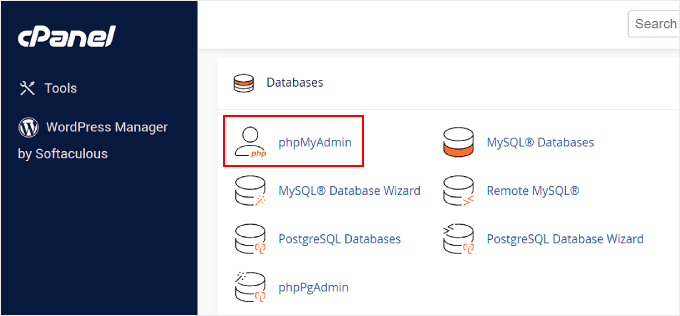
Go ahead and log in to your cPanel account and then scroll down to the database section. Next, you can click on the ‘phpMyAdmin’ icon.
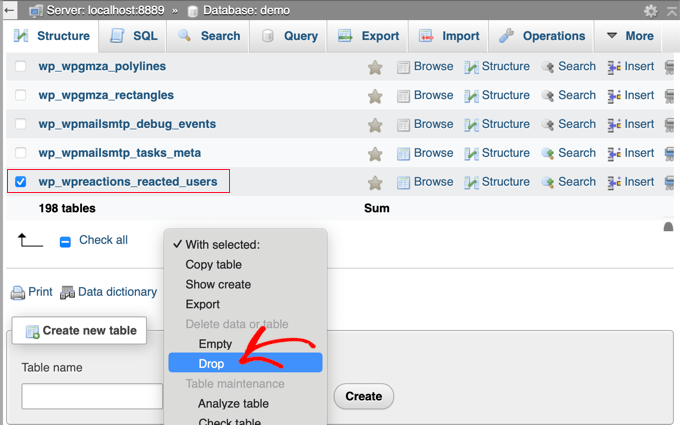
After that, you will need to click on your database and select the tables you want to delete. Look for tables that are clearly named by the plugin.
For instance, a plugin like MonsterInsights might have tables that start with wp_monsterinsights_. Be 100% sure the tables belong to the plugin you uninstalled before selecting them.
Once you have chosen the tables, simply select the ‘Drop’ option from the drop-down menu at the bottom of the list to remove them.
You will now see a warning that you are about to delete these tables.
You need to click on the ‘Yes’ button to confirm the action.
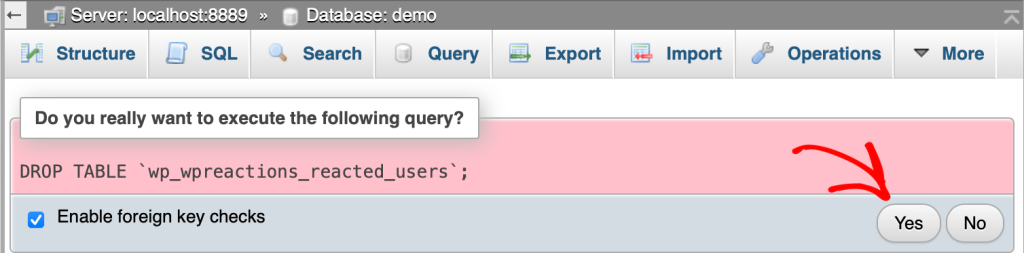
phpMyAdmin will now drop the tables and will delete all data in those tables. Please note that this action is irreversible because once you’ve deleted the tables, you will not be able to restore them unless you have a backup.
For more details, you may want to check out our beginner’s guide to WordPress database management with phpMyAdmin.
Frequently Asked Questions About Uninstalling WordPress Plugins
Here are some questions that are frequently asked by our readers about uninstalling a WordPress plugin.
Will uninstalling a plugin delete its data?
Uninstalling a plugin removes its files, but many plugins intentionally leave settings and other data in your database in case you decide to reinstall them.
For a truly complete removal, you would need to follow the advanced steps for cleaning up extra files and database tables
Can I reinstall a plugin after I’ve uninstalled it?
Definitely! You can reinstall any plugin by searching for it in your WordPress dashboard and setting it up again. However, you might need to reconfigure its settings.
Do inactive plugins slow down my website?
Inactive plugins don’t actively slow down your site, but they can still pose security risks if left unattended. That is why it’s best to uninstall them if you don’t plan to use them again.
What happens if I delete a plugin’s data from my database?
Deleting plugin data from your database can free up space, but be cautious. Changes can be permanent, so use a backup and proceed carefully.
Expert Guides on WordPress Plugins
We hope this article helped you learn how to properly uninstall a WordPress plugin. You may also want to see some other guides related to making the most of plugins in WordPress:
- What Are WordPress Plugins? And How Do They Work?
- Beginner’s Guide: How to Choose the Best WordPress Plugin
- How Many WordPress Plugins Should You Install? What’s too many?
- Do Inactive Plugins Slow Down WordPress? Should You Delete Them?
- Must Have WordPress Plugins for Business Websites
- How to Properly Update WordPress Plugins (Step by Step)
- How to Easily Deactivate WordPress Plugins (Beginner’s Guide)
- When Is It Worth It to Buy Premium WordPress Plugins? (Explained)
- How to Create a WordPress Plugin (Step by Step for Beginners)
If you liked this article, then please subscribe to our YouTube Channel for WordPress video tutorials. You can also find us on Twitter and Facebook.


kzain
Great guide! I was having a bit of trouble with a plugin slowing down my website. This step-by-step process made it super easy to remove it. One thing I’d add is to emphasize the importance of creating a full website backup before uninstalling any plugin, just in case something goes wrong. Thanks for sharing!
Dennis Muthomi
Are there any plugins or tools you’d recommend to help automate the cleanup process after uninstalling a plugin?
I am asking this because I am a beginner on phpMyAdmin, and I want to avoid messing up my site.
WPBeginner Support
Our recommendation would be to check with the plugin’s support as only some plugins would have external files and most that do should have a process outlined for where to find their specific files.
Admin
Jiří Vaněk
I have experience with the Advanced Database Cleaner plugin. Thanks to it, I was often able to find unused data in the database, such as the remnants left after uninstalling plugins. Definitely give it a try. It helps a lot with working in MySQL without having to go into the phpMyAdmin interface, and it can be especially helpful for beginners. However, I always recommend making a backup before any changes to the database, in case anything goes wrong.
Dennis Muthomi
THANK YOU SO MUCH Jiří !
I really appreciate you taking the time to suggest the Advanced Database Cleaner plugin. I checked it out, and you’re right – the interface looks very intuitive even for a beginner like me.
Thanks again for the recommendation!
kzain
It’s great for finding plugin leftovers and cleaning up your database without messing with phpMyAdmin. Just remember to backup first, though!
Mrteesurez
Thanks for sharing your experience with the Advanced Database Cleaner plugin. I’ve had issues in the past where I uninstalled a plugin but still found remnants left behind, which was frustrating. I’m glad to know this plugin can help clean up unused data without needing to go into phpMyAdmin. I’ll definitely give it a try. Do you know if it also handles leftover files and folders? Your advice about making a backup is spot on, definitely a step not to skip.
Mrteesurez
I have this issue of deleting a plugin and still finding some left over files and folders, I have learnt here to delete it but how will I Identify those files and folders amidst others there ?
WPBeginner Support
It would depend on the plugin and the files added by the plugin but it would be a manual search unless the plugin has documentation on the extra files to look for.
Admin
Moinuddin Waheed
I have doing the same for a long time and never realised that just deactivating doesn’t solve the problem from the root.
I have deactivated and not used and not deleted in the hope to use some day. installed other alternative plugins.
Thanks for making it clear that deactivated plugins can also be a gateway of vulnerabilities of malicious codes and activities.
I will ensure to delete any plugin if not using rather than just deactivating it.
WPBeginner Support
Glad we could share and clarify this
Admin
Yf
Hi, thanks for the tutorial
WPBeginner Support
You’re welcome
Admin
Axel Metayer
You could talk a bit more about the option table and all the stuff that’s stored there or stays there after an uninstall
Digember
Nice tutorial. Covers all the details
Krishna Prasad
Hi, I recently removed my comingsoon plugin from my site which was used in my site during maintanence mode but after deleting still my pages and posts when share on social sites stil it shows site coming soon also my ads are not displaying on old pages only its displays on newly added pages after removal of that plugin pls help me how to get rid of it!
Arturo Treviño
Thanks for the post, this kind of posts can help many begginers as me.
Thabks again.
Kimberly
Thank you for this article! I have been receiving your updates for over a year, never having time to sit and learn WP, but knew this was a great resource.
I am a novice at WP, but quickly ramping up from my “learned experiences” that includes waste of money, weeks no exaggeration of my time, my frustration and everyone around me…..its been hard. But, in hindsight, necessary for me because I feel smarter and I finally cut the cord from using and paying for templates from hosting providers. I’m slowly getting there…
I need help now again before I spin my wheels even more. Here is the story… For purpose of time, I am copying an email I just sent to my Dad to give him an idea of what I’ve been working on. Nobody else understands it. In laymans terms, I basically built a house on a garbage foundation made by gypsys that didn’t care/know, and now I begin to see that my foundation needs fixing too much. Constant repairs, that others don’t waste time on. Here it is…
I’ve been getting this newsletter for about a year. Finally getting to read an article I think will be useful. Basically the long and short of it, that “expert” was a dummy.
My site is running a Wordpress theme v2.0. It includes plug ins. I never knew there was documentation and support. But mine is a “free” version. Probably hijacked somehow.
I built everything on top of it. Hours of making documentation. Hours wasted time trying to tweak things, figure out fonts, functionality, customizing buggy plug ins. Setting up backend email functionality to “sign up for more info” and collect email addresses. And last… Never built it on a “child” version. The child version allows you to customize your site, then when theme updates are made, if you choose to install them or have them pushed out, you won’t lose your content.
Then…. I CLONE THE SITE, and customize for my other site. Mistake.. More wasted time.
And there are more issues, setting up Google analytics and Google Adwords. The code still said the other web site. You wouldn’t see it, but it’s in the code and screws up.
Now…. I ripped the bandaid off. Freshly installed
Brand new premium theme $59 v5.0 with customer support and documentation and plugins all ready to go like registration form for summer camp. (That was another time waster looking for plugins for V2.0) half the plugs ins they stopped using years ago.
But…..now my big fiasco will be fixing meadow creek. It’s getting a lot of hits now since I set up Google Adwords so I can’t screw it up. It really just needs to be rebuilt. Tear it down, restart with proper foundation. I could leave a few pieces and see if it imports over. But not gonna.
If you followed it this far…thanks! Any advise? Because you don’t know, what you don’t know!
Thanks Kim