


You can’t improve your WordPress website if you don’t know what’s happening on it.
Google Analytics gives you those insights for free. Although it may sound technical, you don’t need to be a developer to add it to WordPress.
In this guide, we’ll show you how to install Google Analytics in WordPress step by step.
Before you can connect your site, you need a Google Analytics account and a Measurement ID. If you already have both, you can skip ahead to the installation methods below.
How to Sign Up With Google Analytics
To start tracking your site visitors with Google Analytics, sign up for it with your Google account.
First, visit the Google Analytics website and click the ‘Get started today’ button. Then sign in with your Google account, or create one if you don’t have it yet.
Once you are signed in, click the ‘Start measuring’ button on the welcome screen. Google will then ask for an ‘Account name’, which only appears in your own account, so enter your business name here.
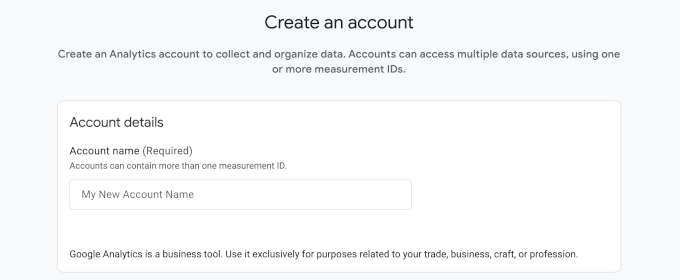
You can leave the data-sharing settings at their defaults and click ‘Next’.
Once your account exists, Google asks you to create a property. A property is simply the container that holds the data for one website. Enter a property name for your website, select your reporting time zone and currency, and then click the ‘Next’ button.
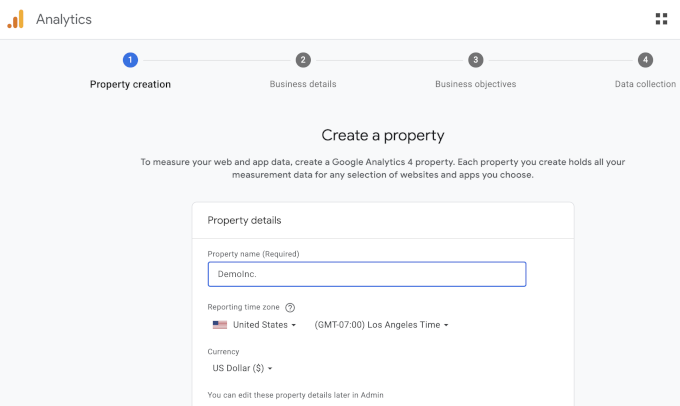
Google will then ask about your business industry, size, and goals. Answer these to match your business, click ‘Next’.
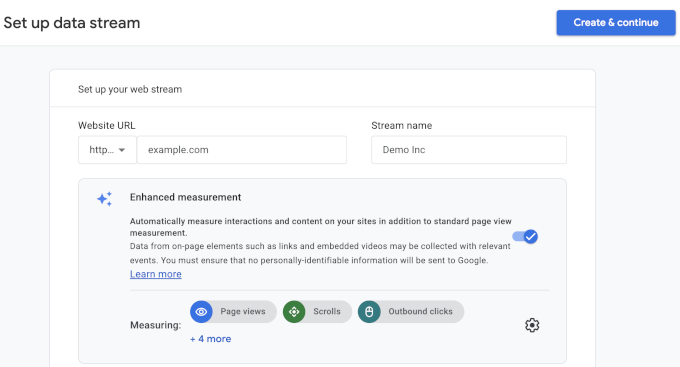
Now that your property is ready, Google needs to know where its data will come from. This is called a data stream. Since we are tracking a WordPress site, select ‘Web’ as the platform.
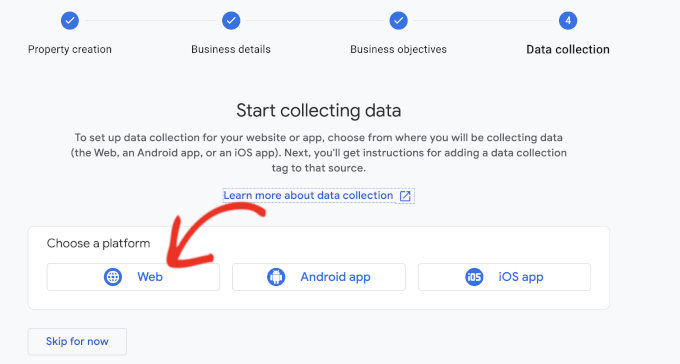
After that, enter your website URL and a stream name. By default, Google Analytics keeps ‘Enhanced measurement’ turned on, which tracks pageviews, scrolls, outbound clicks, file downloads, and more.
Next, click the ‘Create & continue’ button.
You will now see your stream details, including the Measurement ID. It starts with ‘G-‘ and is what connects your website to this Google Analytics property.
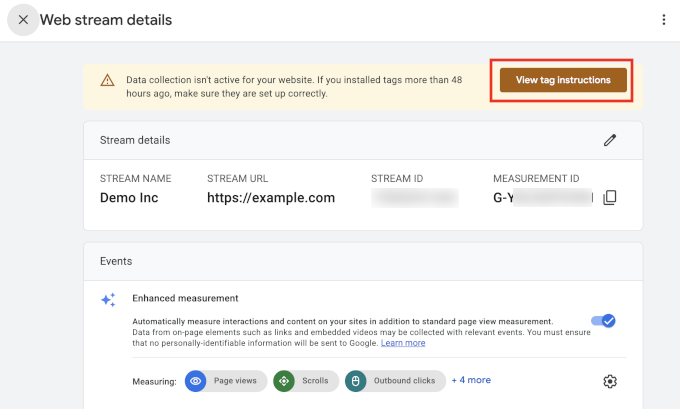
Google also shows an alert bar at the top with instructions for adding the tracking code to your site. Click the ‘View tag instructions’ button to see them.
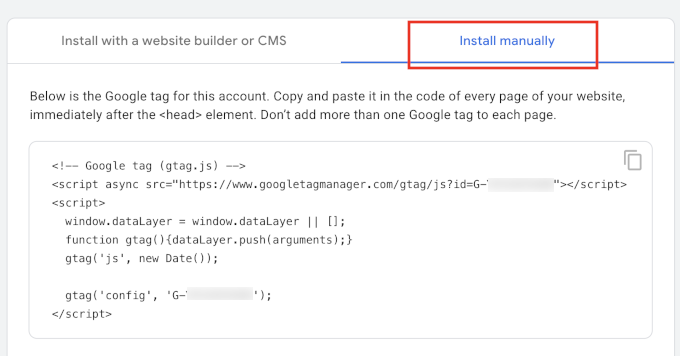
Switch to the ‘Install manually’ tab, and you will see the Google Analytics tracking code. You only need this code for Methods 2 and 3 below.
If you plan to use the plugin method, MonsterInsights adds the code for you.
Keep this browser tab open. You may need to come back to it while installing the code on your WordPress site.
How to Install Google Analytics in WordPress
Now that you have your Google Analytics account and Measurement ID, let’s add the tracking to your WordPress site.
There are three ways to add Google Analytics to WordPress. We recommend using a Google Analytics plugin (Method 1) because it’s the easiest and safest option for most WordPress users. You won’t need to edit your theme files, plus you can see Analytics data directly from your WordPress dashboard.
The other two methods let you add the tracking code manually. They’re useful if you prefer not to use a plugin or want more control over how the code is added.
- Method 1: Install Google Analytics with an Analytics Plugin
- Method 2: Install Google Analytics in WordPress with WPCode (Manual)
- Method 3: Install Google Analytics in Your WordPress Theme (Advanced)
- Bonus Tip: Track More Analytics Data in Google Analytics
- Video Tutorial: Install Google Analytics in WordPress
Method 1: Install Google Analytics with an Analytics Plugin
The easiest way to add Google Analytics to WordPress is by using a Google Analytics plugin. We use and recommend the free MonsterInsights plugin. It connects your site to Google Analytics without touching any code and shows your traffic reports right inside the WordPress dashboard.
You can also find many other Analytics plugins, like Google Site Kit, which works well for basic pageview and search data. But unlike MonsterInsights, it doesn’t offer a Pro version and lacks many advanced features, like User Journey, which shows the exact conversion path a visitor took through your site.
For details, see our comparison of MonsterInsights vs. Site Kit.
First, you need to install and activate the MonsterInsights plugin. For more details, see our step-by-step guide on how to install a WordPress plugin.
Upon activation, MonsterInsights opens its setup wizard. If it doesn’t, go to the Insights » Settings page and click the ‘use our setup wizard’ link.
The wizard first asks which category best describes your website. Choose business website, publisher, or eCommerce, and then click the ‘Save and Continue’ button.
Next, you need to connect the plugin to your Google Analytics account. Click the ‘Connect MonsterInsights’ button.
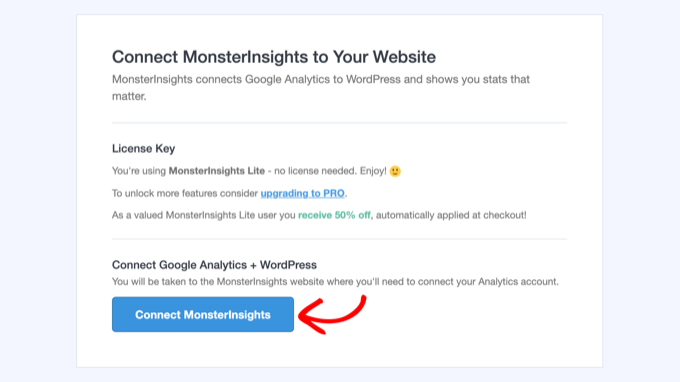
This takes you to Google, where you choose the Google account you used to create your Analytics property. Then click ‘Allow’ so that MonsterInsights can access your Google Analytics data.
After that, select the property you created for your website from the dropdown menu and click the ‘Complete Connection’ button.
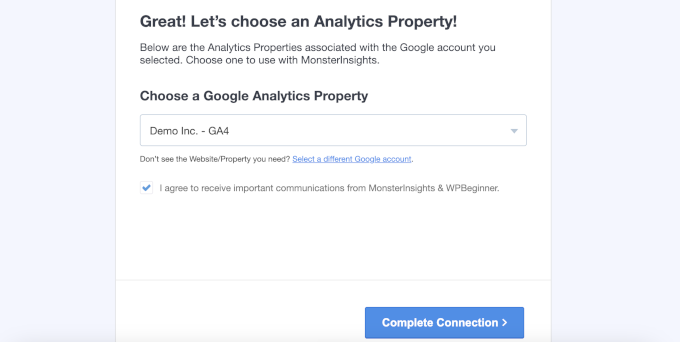
MonsterInsights will now add the tracking code to your site for you. All that’s left are a few screens where the wizard suggests settings based on the website category you picked earlier.
The defaults work well for most websites, so you can click ‘Save and Continue’ on each screen.
If you see a screen asking for a license key, just click the option to finish setup without upgrading.
That’s it! You’ve now successfully set up Google Analytics on your WordPress website.
View Google Analytics Reports Inside the WordPress Dashboard
Once Google Analytics has collected some data, you can see your reports without leaving WordPress. Visit the Insights » Reports page to see an overview of your traffic, top pages, and where your visitors come from.
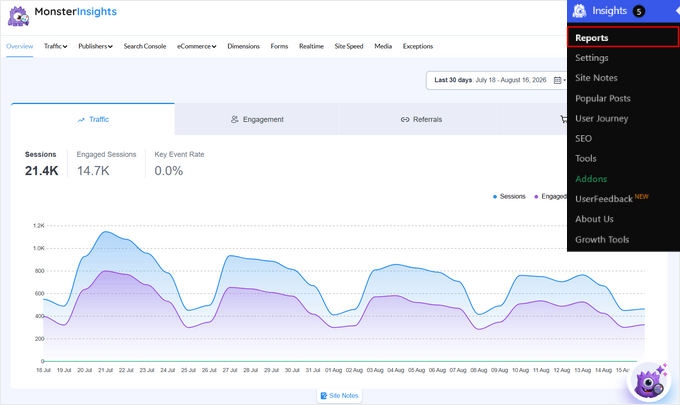
Keep in mind that Google Analytics takes a few hours to start showing data after you install it.
Method 2: Install Google Analytics in WordPress with WPCode (Manual)
If you don’t want to use a dedicated Google Analytics plugin, then you can use the free WPCode plugin instead. WPCode keeps the code separate from your theme, so you won’t have to worry about losing it during theme updates or accidentally breaking your site while making changes.
First, install and activate the WPCode plugin. If you need help, see our guide on how to install a WordPress plugin.
Upon activation, go to the Code Snippets » Header & Footer page. Then paste the Google Analytics tracking code you copied while creating your Analytics account into the ‘Header’ box.
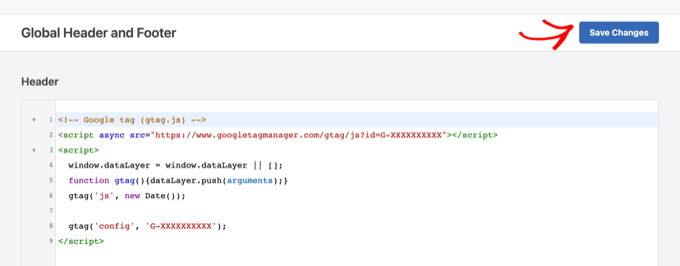
Don’t forget to click the ‘Save Changes’ button. Google Analytics is now installed on your site.
Method 3: Install Google Analytics in Your WordPress Theme (Advanced)
The last method skips plugins altogether and adds the tracking code directly to your theme.
Keep in mind that with this method, you will lose Analytics tracking whenever you update or switch your theme.
Simply add the following code at the bottom of your WordPress theme’s functions.php file.
add_action( 'wp_head', 'wpb_add_googleanalytics' );
function wpb_add_googleanalytics() { ?>

<!-- Paste your Google Analytics tracking code here -->

<?php }
Replace the comment line with the tracking code you copied from your Google Analytics account, and then save the file.
Your WordPress theme will now load the Google Analytics tracking code across your WordPress site.
Bonus Tip: Track More Analytics Data in Google Analytics
By default, Google Analytics tracks pageviews and basic engagement. However, it does not give you advanced reporting, like eCommerce tracking, affiliate link clicks, video tracking with Vimeo, and more.
With MonsterInsights Pro, you can enable additional tracking through addons. All you have to do is install the right addons by navigating to Insights » Addons page. Here is how to set up each one.
- eCommerce tracking: Enable the ‘eCommerce’ addon if you run a WooCommerce store, a digital downloads store, or a membership site. You can then see which products and customers bring in your revenue, and more.
- Set up form conversion tracking: Enable the ‘Forms’ addon to start tracking your form views, submissions, and conversion rates. MonsterInsights integrates with form plugins like WPForms, Formidable Forms, and more, so no additional configuration needed.
- Track video analytics: Enable the ‘Media’ addon to track whether people watch your videos or click away after a few seconds. It works with YouTube, Vimeo, and self-hosted HTML5 videos.
- Custom event tracking: With custom event tracking, you can record specific actions visitors take on your site, like a button click. It doesn’t need a separate addon to be installed.
For example, if you want to track a custom click event, then follow this formula:
<a href="https://www.example.com" data-vars-ga-category="Custom Category" data-vars-ga-action="Custom Action" data-vars-ga-label="Custom Label">Example</a>
Using this template, you’ll be able to override the default tracking behavior of MonsterInsights to customize what gets tracked as the category, action, and label. For example:
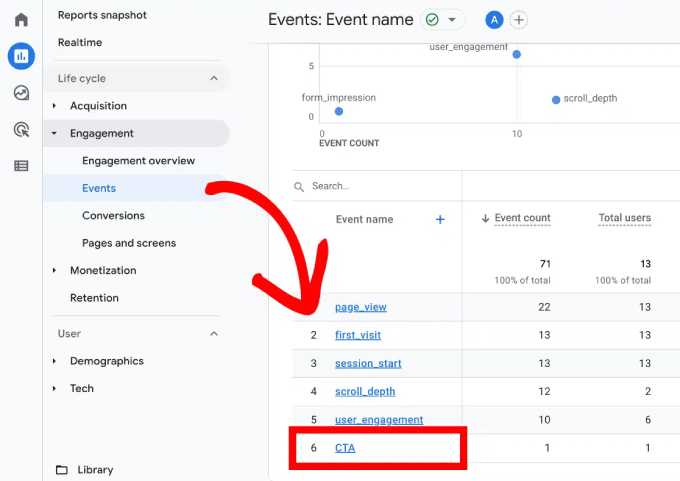
<a href="http://www.example.com/download.pdf" data-vars-ga-category="CTA">Download now</a>
To see the results, log in to your Google Analytics account and go to Reports » Engagement » Events. Your category name will appear in the list of events.
FAQs About Installing Google Analytics in WordPress
Here are answers to some of the most common questions we get about setting up Google Analytics.
Is Google Analytics free to use?
Yes, Google Analytics is completely free. Google offers a paid version for large enterprise websites, but the free version is more than enough for most small business sites and blogs.
How long does it take for Google Analytics to start working?
After you add the tracking code, Google Analytics may take a few hours to begin showing data in your reports. We recommend checking back after 24 hours to see your first full day of statistics.
Do I need Google Analytics if my site has Jetpack Stats?
Jetpack Stats gives you a simple overview of your traffic. Google Analytics goes much deeper, with detail about your audience, their behavior, and how they found your site.
For a full comparison, see our article on Google Analytics vs. Jetpack Stats.
How do I keep personally identifiable information (PII) out of Google Analytics?
Google’s terms do not allow you to send personal details like names, email addresses, or phone numbers to Google Analytics. To ensure you’re not accidentally adding such details via forms, you can go to Admin » Data streams and select your website’s stream in your Google Analytics Account. Then click ‘Redact data’ and strip any URL parameters.
If you use MonsterInsights, the Privacy Guard feature does this automatically from Insights » Settings » Engagement. It is included in the Plus plan and higher.
Video Tutorial: Install Google Analytics in WordPress
If you prefer to watch the process, our video tutorial shows you how to install Google Analytics in WordPress.
We hope this article helped you learn how to install Google Analytics in WordPress.
Next, you may want to see our ultimate guide to GA4 in WordPress to make sense of your new reports. You can also check our WordPress SEO guide for tips on growing your traffic in AI search era.
If you liked this article, then please subscribe to our YouTube Channel for WordPress video tutorials. You can also find us on Twitter and Facebook.


jinson
Hai.. I edited header.php file for Verifing Google Analitycs for my WordPress blog http://lastly.org. But after that it shows “The Google Analytics tracking code has not been detected on your website’s home page.” I tried after half an hour still the same result.
Finally I used “Insert Header footer plugin and get the result.
Thanks Syed.
Akhil
Actually I am using one Wordpress plugin Google Analytics as I don’t want display the results on my website but I want them on Wordpress itself. I have installed and configured the plugin successfully, one day it showed some visits on my websites but today it is showing same status as if no one has visited the website. But my friends have visited the website, that I have confirmed. What could be the issue?
As someone said that google may take 3 to 4 hours to update the status, I waited. But the whole day has passed, still it is not showing any update.
Thanks
Aarish Maluja
I have done everything right.It is showing everything ok but the data is not increasing from last month.my website is http://www.tecq.in.please help.
WPBeginner Support
Aarish, Google Analytics code can not be found on your site. Please refer to second section of the article and choose another method to insert code into your WordPress site.
Admin
aarish
i installed the tracking info correctly but the data is not increasing .It is not showing any visits.still on zero
WPBeginner Support
Check your Analytics dashboard, does it detect code on your site? Generally, when Google Analytics is added to a site for the first time it may take a while before you can see any data.
Admin
Misty Young
Thank you so much for your simple instructions! I was able to generate the Google Analytics code quickly and found the right spot in my theme to insert it within a couple minutes. Very helpful, thank you again!
Vince
Hi…I installed the ‘insert headers and footers’ plug-in to my wp and copied my Google Analytics code to the footers box under settings, clicked save but GA is telling me the tracking is not installed. I did this 24 hrs ago. Did I do something wrong? Can you help?
WPBeginner Support
can you see the analytics code in your site’s source code? You can view source by visiting your site, right clicking on any empty space and selecting view source from the menu. On the view source scroll down the document and see if you can find Google Analytics code there. Alternatively, you can try the second method described in the article.
Admin
Mary
I liked this post because anything to do with google seems to be quite complicated
But I tried the plugin you recommended but GA wasn’t tracking.
SO I just put the code on the page and it still isn’t tracking.
Any advice? Thanks Mary
Mary
Thank you for this post, but google analytics isn’t showing up on my site
I pasted the code into the footer of the “header and footer plugin”.
It was blank.
I saved the changes.
But where will I find the analytics page? There is nothing labled google analytics.
Thanks Mary
Mehul
Let me know if you need help. I will be happy to help you in installing the Google Aanalytics Code on your website.
Alo Knows
You’ll find all the Analytics data on your GA Account. Not on wordpress.
Latreasa
Can I add it to Wordpress.com blog if my domain is hosted by godaddy.com? I would like to do this without having to change my blog to Wordpress.org
Regards
WPBeginner Support
Yes you can. Compare Self hosted WordPress sites vs WordPress.com
Admin
Alin
If you install Google Analytics Dashboard for WP you will be able to display Google Analytics data and statistics, in a chart, inside your WordPress Blog.
Eddy
Very useful post. I have a problem I install the GA wordpress plugin and when I go to the Settings > Google Analytics don’t show me anything only the title “Google Analytics for WordPress Configuration” what’s wrong with this? please I need help
Zoe
Thank you for this tutorial.
Lula
Someone should really mention at some point that if you’re using wordpress.com (not wordpress.org) and you don’t have a separate software purchased for your sites hosting you CANNOT add google analytics there is no ability to add your own plugins. I think they think it’s better for wordpress to handle everything but I would have liked to have known this before starting.
:X
Editorial Staff
Sorry Lula, we have written numerous posts about the differences, but we simply cannot add on every article that this tip is only for WordPress.org users. All articles written on this site is intended for self-hosted WordPress users.
Admin
Ann
Thanks for the helpful tutorial. I installed GA using your plugin about a week ago and the page views that GA is showing are significantly less than what Jetpack is telling me. Page views according to GA are roughly half of page views per Jetpack. Is this typical?
Editorial Staff
Google Analytics is going to be more accurate.
Admin
Anna
Hi
Thanks for the great simple instructions for beginners like me.
I have installed this plugin successfully and activated it but I am unable to add the Google Analytics code as there is no Settings option!
Under the Plugin name I only get two options: Deactivate or Edit
I am probably being stupid but where can I find the plugin Settings option?
Many thanks for your help
Noumaan Yaqoob
@Anna the plugin settings are located under Settings > Insert Headers and Footers.
Fran
Status: Tracking Not Installed
Last checked: Jun 16, 2013 7:44:16 PM PDT
The Google Analytics tracking code has not been detected on your website’s home page. For Analytics to function, you or your web administrator must add the code to each page of your website.
I used the header/footer plug in, followed instructions, and received this code.
What should I do now? I’m hosted WP btw.
Editorial Staff
Depending on the theme you are using, it may not have the default wp_head(); or wp_footer(); functions in place. Also if you have a caching plugin installed such as WP Super Cache or W3 Total Cache, then you need to empty the cache.
Admin
Jesse
If the theme is not compatible with header / footer plug-in for analytics, is best to then copy the script manually into every page or is there a way to add the format required to the theme? Thanks!
WPBeginner Support
No, you can still add the code in your theme’s footer.php file just before the /body tag.
Kristina Larse
Hi
I added the tracking code to the header useing the plugin – i went in to my webshell and found the function.php file (in the them folder)- pastede
// Placede my code here and removede the //
But no matter where i try to paste it in the begingne, the end, efter the first break – the site just breaks down.
Any idea whaat im doeing wrong?
Kristina Larsen
//The code i pastede was like this
// Placede my code here and removede the //
//
Waheed
Thanks For This Great Tutorial
I have One Question… i installed The Header and Footers Plugin, So Now I have To paste the Google analytic script In Header of the Plugin setting or Both Header and Footer?
Thanks in advance?
Editorial Staff
Just the header would work.
Admin
Waheed
Thanks a lot For The Quick Response
Chaotic Kristy
Thanks this helped me out a lot
Adam Moustafa
I tried the plugin and the direct method but it still says tracking not installed.
From the google analytics plugin on WP i do get information, though. Any help would be greatly appreciated.
Mahmudul
Thanks for this helpful post
Matthew P. Schneider, LC
What are the advantages of this over Site stats using JetPack. I have a self-hosted blog but use Wordpress.com statistics that are available in the JetPack plugin.
Editorial Staff
Google Analytics is far more advanced and give you much more data. However for some beginners it can get a little complicated. Jetpack Stats give simple data, but its easy to use.
Admin
Tiffany
I can’t find my footer or available plugins. Is there a real step-by-step once you are in your wordpress blog ‘for dummies’? Help!
Editorial Staff
If you can’t add plugins, then you are probably using WordPress.com. This will only work for self-hosted sites.
Admin
TJ Ellis
Amazing blog post it worked nicely! Thanks again
Lanaya Green
That is what it is about getting useful information thanks for the details it makes it so simple to have something you can follow step by step… Thank you rock on brother
leo wolf
Thank you for the clear stepwise description. I had already an account with Google Analytics showing the results on the website. Now I copied the script code in the functions.php, so far so good. Where and when can I expect the GA output now? Is it displayed in the footer?
BTW: I don’t use a standard theme, but one built from scratch so maybe I miss something?
Thnx in advance, Leo
Editorial Staff
The output is not visible unless you view the source code of the page. You should see it towards the bottom in the source code.
Admin
leo wolf
The title of this post suggests that you can have GA data at your site. But if is not visible, what’s the use then?
Editorial Staff
Most tracking software will NOT make your data visible to the general public. Google analytics is a tracking software. You install it on your WordPress site, so you can get better insights about your audience. Google analytics works silently behind the scenes to capture data about your audience such as (what time they visited your site, who referred them, which pages they viewed etc).
Louise Bibby
Thanks so much for this info. It helped me overcome my paralysis with anything related to code. It was really useful!! Cheers Louise
Alan
Where do you get the code from step 6 if you do not get it the first time? I do not see it again when I log in.
Editorial Staff
Login to Google Analytics. Look in the orange bar where it says Admin. Click on that. Under the accounts, click on the account that you want the code of. Under that account, you will see the property. Click on that property. There you will see a tab for Tracking info.
Admin
Webbis
This helped me a lot! But how do I do to measure my subdomains in the same account?
Editorial Staff
When getting your code, it has an option for subdomains there.
Admin
Carly
I wanted to do the paste. I made it to the footer.php page but there is no tag on that page so I can’t paste before it. What am I missing? Plus, I closed the Google page before reading your instructions not to do so. (I did copy the code.) Do I need to start over with Google? Thanks.
Editorial Staff
No you do not. Just use the plugin we are recommending in the article above, and it will take care of it.
Admin
Luis
Thanks! The header and footer plugin helped me a lot!
Naeem
Thank you for this post.
I am totally new in blogging and has recently set up a blog using wordpress platform.
I have set up analytics account and paste the code using my theme’s option.
Now my account is showing that tracking code installed.
But the problem is in the audience section it is showing 0 visits while in the real time section it is showing 2 visitors.
I am totally confused.
( My blog is under construction. Me and one of my friend is the only visitor. And I was unable to find single domain option. there are subdomain, mutiple top level domain options but no single domain option.)
Can you please help me.
Editorial Staff
The stats does take some time to be updated.
Admin
Michael Hickey
I’m not at all sure what I am doing so perhaps you can help. Someone else that is not available now laid out my site. I was told to cut and paste the Google Analytics code one line below this last line of each page of my simple WP site. However, I cannot see where to do that for the Home Page. There is not a tab for the Home Page from the Dashboard. Any help is appreciated.
Editorial Staff
Use our plugin that we mentioned, and it will add it on all pages of your site.
Bob
Does this plugin work retrospectively: that is to say, does it enter the the code into existing headers for pages that I’ve already developed on my Wordpress site? I’ve put the script code in the header section and pressed save settings, but I’m not sure that that’s all I need to do.
Any assistance would be gratefully received.
Editorial Staff
Yes it does.
Admin
Ameh
Hi, great tutorial. Just one question. I have a desktop site and a mobile site. They both use different themes but have the same domain (www.dapopeyoh.com), so do i enter the google code in the footer.php file of one theme or both themes? Thanks.
Editorial Staff
Both themes.
Admin
Saad
Thank you so much for guiding me. I’ve completed and now waiting for 12-24 hours
Omar
I used the “Insert Header and Footer” plugin and pasted the google analytics code into the header in the settings of the plugin. I saved the settings and when I log into google analytics, the status is still “tracking is not installed.” Did I do something wrong and do I simply have to wait a while?
Editorial Staff
If it is not working, then it means that your theme does not have wp_head(); in the header.php which is a standard for all WP themes.
Admin
Ryan
So how would we be able to include the wp_head(); to the site?
I have the same issue (I think) – tried different ways but tracking still stating not installed.
Editorial Staff
It is supposed to be included in your theme’s header.php file in the head markup.
David
We have just started a WP blog as a sub-directory to our main site. We used the main site analytics code in the WP blog but I am not seeing any information about the pages visited in the blog. Should we create a separate analytics account for the blog sub-directory? If so, will that show us information about where visitors move from the blog to the main site?
Editorial Staff
Yes, there is an option in Google Analytics to get subdomain analytics code.
Admin
Monetsky
Hi. Thanks for this tutorial. It simplified my life using the plugin to insert the code. I was wondering thoughif theres a way to get previous months data into google analytics? I only installed the code now and opened an account. Just wondering.. Thanks in advance. Great work!
Editorial Staff
It cannot show you the data of things it didn’t track. The only way google can give you the data is if their script is on your page. Otherwise, they can’t.
Admin
Bob Furber
I followed the instructions to pate in footer.php, and the Tracking status shows “Receiving Data”.
However, when I go to the bottom of the Word Press Dashboard, to the Google Analytics Dashboard Widget, there is a note:
“You need to log in and select an account in the options panel.”
On clicking the options panel or Settings -> Google Analytics Dashboard, I get the following error:
“Error gathering analytics data from Google: GDatainsufficientPermissionsUser does not have any Google Analytics account. Please try again later.”
The problem is later does not arrive and I can find no way out.
Editorial Staff
The issue you are describing is with a specific plugin that you are using “Google Analytics Dashboard Widget”. You should ask that question in their support forum.
Admin
Lisa - Une Belle Vie
Hey, amazing that this is possible, but is google analytics replacing the normal wpstats ? Do you lose your views and information from that ?
Thankyou!
Editorial Staff
WP Stats is not a built-in WordPress plugin in self-hosted WordPress. Google Analytics is definitely a more robust platform.
Admin
Lynette Chiang
When you open Settings>Insert Header and Footer, there are two fields. You don’t specify above whether the code is to go in one field or both.
Editorial Staff
It needs to be inserted in the header. So the first field
Admin
Kate Dewfall
Hi there,
I added the code into the footer – is this incorrect or will it still work?
WPBeginner Support
It will still work.
marie
My Google Analytical has stopped tracking and is showing all 0’s for the past week. Can you advise why?
Editorial Staff
Is the code still added in your site? Did you change your theme? The only reason for it to be zero is if the code from your site got removed.
Admin
Savita
My Google Analytical has stopped tracking and is showing all 0′s for the past week. Can you advise why?
I looked in the footer if the code is still there, but I don’t remember what the code was or looks like (did not make a note of it so it seems…). It does not look good. So what can I do now?
Above the in the footer.php it says:
Thank you.
Editorial Staff
Login to your Google Analytics to get the code again.
vida
hello
my wordpress site is a free one and i don’t see any option for plugins. The site is http://www.lavidavidzi.wordpress.com i’m wondering if this url has the ability to add plugins. I can’t even find the footer option you’re referring to …am i even able to get google analytics ?
Editorial Staff
Unfortunately, you can’t get those features. Refer to this chart for why:
https://www.wpbeginner.com/beginners-guide/self-hosted-wordpress-org-vs-free-wordpress-com-infograph/?display=wide
Admin
Lauren
How do I add a plugin? Wordpress doesn’t let me edit my coding. I downloaded one of the plugins but how do I get it on my site?
Editorial Staff
Please refer to our Videos that will show you how to add plugins in WordPress.
Admin
figz91
I tried to do this and lost everything, I think its because I put in the function.php coding in wrong but did it in the section where it said I was able to add in extra coding anyway.
My site isn’t opening, neither my admin page to correct the problem it just says theres an http 500 error, I’m clueless and scared, is there anyway I can fix this problem? Please help.
wpbeginner
@figz91 Yes, you would need to go through the FTP. Send us an email, and we can help you fix it.
Heidi
The same thing just happened to me, please help me fix this asap!
Editorial Staff
Heidi, you would have to use FTP to fix it. You are probably getting a syntax error because you pasted the code improperly.
AdamCollins
Aloha, so I signed up for analytics and placed the code in my theme options where there was a spot for my analytics built into the wp theme. I also have a squeeze page on the blog. part of the domain and wondering do I upload the same code, or do I get another code? Thanks so much.
wpbeginner
@AdamCollins You can use the same code. Because that is on a separate page. You can see traffic by pages in Google Analytics.
buckingham87
Yeh hi… i tried to follow all this and now i have lost everything! i cant even login to my admin page!!
HELP
wpbeginner
@buckingham87 That probably happened because you pasted the code improperly in your functions.php file. https://www.wpbeginner.com/beginners-guide/beginners-guide-to-pasting-snippets-from-the-web-into-wordpress/
figz91
@wpbeginner I’m having the same problem Buckingham is and I’m about to breakdown. Regardless of why it’s happening I need to get back my 4 years worth of content and I can’t even get to my admin page let alone the actual site.
Is there anyway to fix this. I’m clueless and have no idea what to do. Please help.
Pauline23
Thanks it worked great!
Tommy Stuart
What exactly does the following mean? I have a website that I put together compliments of Wealthy Affiliate University. Does that mean it’s a self-hosted or is it a free word press site?
“Note: This is only for Self-Hosted WordPress.org blogs. Free WordPress.com sites cannot use Google Analytics. Maybe it’s time to upgrade from free WordPress.com to Self-Hosted WordPress? Consider using our Free WordPress Blog Setup program.”
WHICH?
wpbeginner
Go in your WordPress admin panel and click on Appearence > Editor … If you can edit all of your theme files, then you are on self-hosted.
pradeepnairjc
Very useful post. How should I add tracking in case I am using Wordpress as a Subdirectory? For example- http://www.domain.com/blog.
Do I copy -paste the same tracking code in the footer file or do I need to generate a new tracker code for this? I installed the analytics plug-in and configured it but somehow it never recorded visits although the data was being received successfully.