


Sie können Ihre WordPress-Website nicht verbessern, wenn Sie nicht wissen, was auf ihr passiert.
Google Analytics liefert Ihnen diese Einblicke kostenlos. Auch wenn es technisch klingt, müssen Sie kein Entwickler sein, um es zu WordPress hinzuzufügen.
In diesem Leitfaden zeigen wir Ihnen Schritt für Schritt, wie Sie Google Analytics in WordPress installieren.
Bevor Sie Ihre Website verbinden können, benötigen Sie ein Google Analytics-Konto und eine Mess-ID. Wenn Sie beides bereits haben, können Sie zu den unten aufgeführten Installationsmethoden springen.
So melden Sie sich bei Google Analytics an
Um mit der Verfolgung Ihrer Website-Besucher mit Google Analytics zu beginnen, melden Sie sich dafür mit Ihrem Google-Konto an.
Besuchen Sie zuerst die Google Analytics-Website und klicken Sie auf die Schaltfläche „Heute starten“. Melden Sie sich dann mit Ihrem Google-Konto an oder erstellen Sie eines, falls Sie noch keines haben.
Sobald Sie angemeldet sind, klicken Sie auf dem Begrüßungsbildschirm auf die Schaltfläche „Mit der Messung beginnen“. Google fragt dann nach einem „Kontonamen“, der nur in Ihrem eigenen Konto angezeigt wird. Geben Sie hier also Ihren Geschäftsnamen ein.
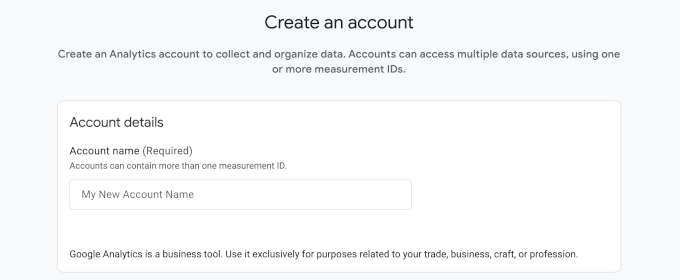
Sie können die Datenaustausch-Einstellungen bei den Standardwerten belassen und auf „Weiter“ klicken.
Sobald Ihr Konto existiert, bittet Google Sie, eine Property zu erstellen. Eine Property ist einfach der Container, der die Daten für eine Website enthält. Geben Sie einen Property-Namen für Ihre Website ein, wählen Sie Ihre Zeitzone und Währung für die Berichterstellung aus und klicken Sie dann auf die Schaltfläche „Weiter“.
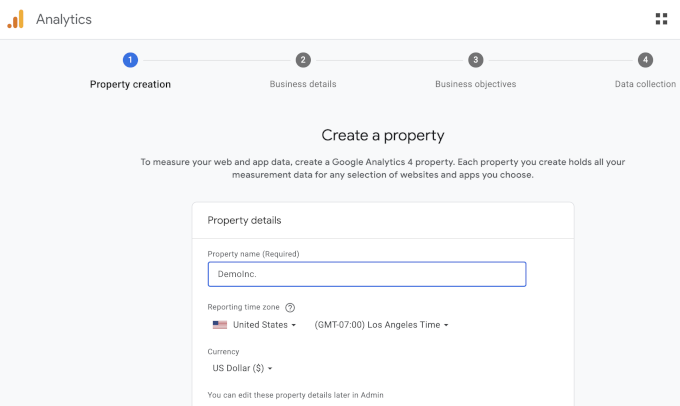
Google fragt Sie dann nach Ihrer Branche, Größe und Ihren Zielen. Beantworten Sie diese Fragen entsprechend Ihrem Unternehmen und klicken Sie auf „Weiter“.
Nachdem Ihre Property nun bereit ist, muss Google wissen, woher die Daten stammen. Dies wird als Datenstrom bezeichnet. Da wir eine WordPress-Website verfolgen, wählen Sie „Web“ als Plattform.
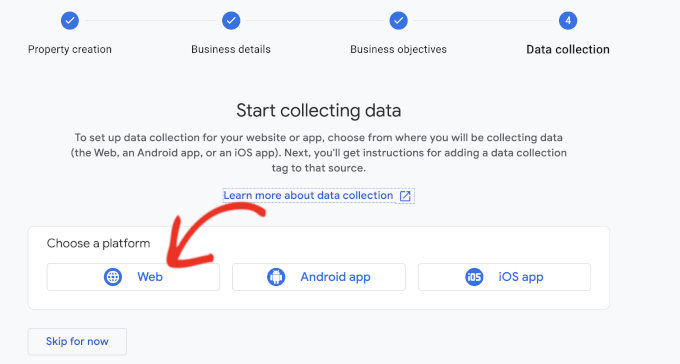
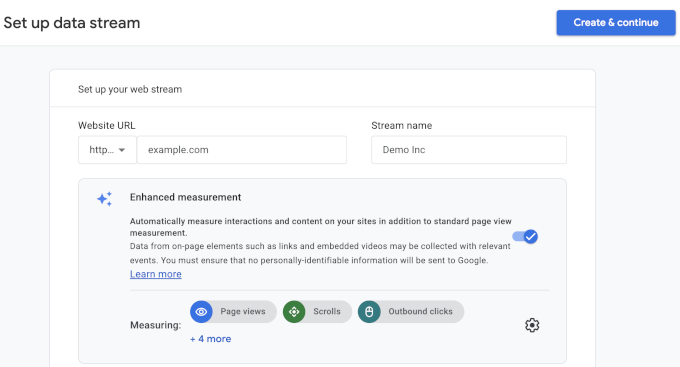
Geben Sie anschließend Ihre Website-URL und einen Stream-Namen ein. Standardmäßig behält Google Analytics die „Erweiterte Messung“ aktiviert, die Seitenaufrufe, Scrollvorgänge, ausgehende Klicks, Dateidownloads und mehr verfolgt.
Klicken Sie als Nächstes auf die Schaltfläche „Erstellen & fortfahren“.
Sie sehen nun Ihre Stream-Details, einschließlich der Mess-ID. Sie beginnt mit „G-“ und ist das, was Ihre Website mit dieser Google Analytics-Property verbindet.
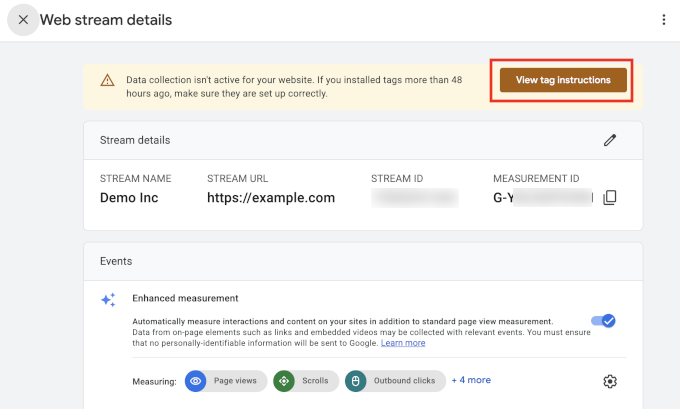
Google zeigt auch eine Benachrichtigungsleiste oben mit Anweisungen zum Hinzufügen des Tracking-Codes zu Ihrer Website an. Klicken Sie auf die Schaltfläche „Tag-Anweisungen anzeigen“, um sie anzuzeigen.
Wechseln Sie zur Registerkarte „Manuell installieren“ und Sie sehen den Google Analytics-Tracking-Code. Sie benötigen diesen Code nur für die Methoden 2 und 3 unten.
Wenn Sie die Plugin-Methode verwenden möchten, fügt MonsterInsights den Code für Sie hinzu.
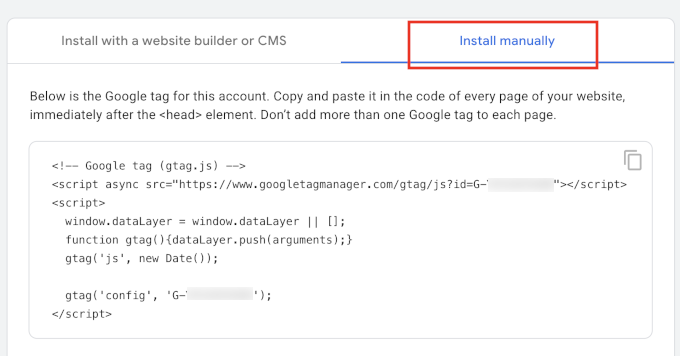
Lassen Sie diesen Browser-Tab geöffnet. Sie müssen möglicherweise darauf zurückkommen, während Sie den Code auf Ihrer WordPress-Seite installieren.
So installieren Sie Google Analytics in WordPress
Nachdem Sie nun Ihr Google Analytics-Konto und Ihre Mess-ID haben, fügen wir das Tracking zu Ihrer WordPress-Seite hinzu.
Es gibt drei Möglichkeiten, Google Analytics zu WordPress hinzuzufügen. Wir empfehlen die Verwendung eines Google Analytics-Plugins (Methode 1), da dies die einfachste und sicherste Option für die meisten WordPress-Benutzer ist. Sie müssen Ihre Theme-Dateien nicht bearbeiten und können Analytics-Daten direkt von Ihrem WordPress-Dashboard aus einsehen.
Die beiden anderen Methoden ermöglichen es Ihnen, den Tracking-Code manuell hinzuzufügen. Sie sind nützlich, wenn Sie kein Plugin verwenden möchten oder mehr Kontrolle darüber wünschen, wie der Code hinzugefügt wird.
- Methode 1: Google Analytics mit einem Analytics-Plugin installieren
- Methode 2: Google Analytics in WordPress mit WPCode installieren (manuell)
- Methode 3: Google Analytics in Ihrem WordPress-Theme installieren (Fortgeschritten)
- Bonus-Tipp: Mehr Analytics-Daten in Google Analytics verfolgen
- Video-Tutorial: Google Analytics in WordPress installieren
Methode 1: Google Analytics mit einem Analytics-Plugin installieren
Der einfachste Weg, Google Analytics zu WordPress hinzuzufügen, ist die Verwendung eines Google Analytics-Plugins. Wir verwenden und empfehlen das kostenlose MonsterInsights-Plugin. Es verbindet Ihre Seite mit Google Analytics, ohne Code anzufassen, und zeigt Ihre Traffic-Berichte direkt im WordPress-Dashboard an.
Sie können auch viele andere Analytics-Plugins finden, wie z. B. Google Site Kit, das für grundlegende Seitenaufrufe und Suchdaten gut funktioniert. Aber im Gegensatz zu MonsterInsights bietet es keine Pro-Version und verfügt über viele erweiterte Funktionen, wie z. B. User Journey, die den genauen Konversionspfad anzeigen, den ein Besucher auf Ihrer Seite genommen hat.
Details finden Sie in unserem Vergleich von MonsterInsights vs. Site Kit.
Zuerst müssen Sie das MonsterInsights-Plugin installieren und aktivieren. Weitere Details finden Sie in unserer Schritt-für-Schritt-Anleitung, wie man ein WordPress-Plugin installiert.
Nach der Aktivierung öffnet MonsterInsights seinen Einrichtungsassistenten. Wenn nicht, gehen Sie zur Seite Insights » Einstellungen und klicken Sie auf den Link 'Unseren Einrichtungsassistenten verwenden'.
Der Assistent fragt zunächst, welche Kategorie Ihre Website am besten beschreibt. Wählen Sie Business-Website, Publisher oder E-Commerce und klicken Sie dann auf die Schaltfläche 'Speichern und fortfahren'.
Als Nächstes müssen Sie das Plugin mit Ihrem Google Analytics-Konto verbinden. Klicken Sie auf die Schaltfläche 'MonsterInsights verbinden'.
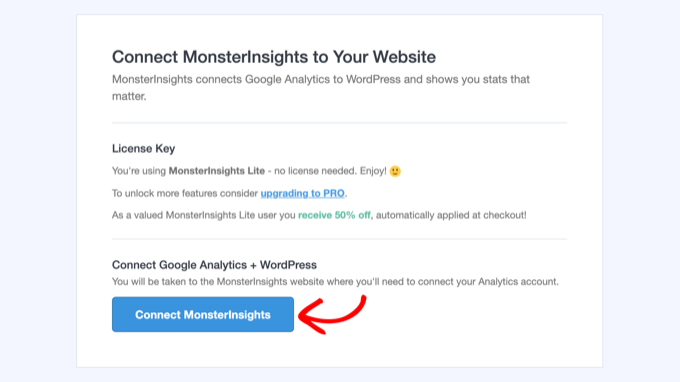
Dies führt Sie zu Google, wo Sie das Google-Konto auswählen, das Sie zum Erstellen Ihrer Analytics-Property verwendet haben. Klicken Sie dann auf 'Zulassen', damit MonsterInsights auf Ihre Google Analytics-Daten zugreifen kann.
Wählen Sie danach die Property aus, die Sie für Ihre Website erstellt haben, aus dem Dropdown-Menü aus und klicken Sie auf die Schaltfläche 'Verbindung abschließen'.
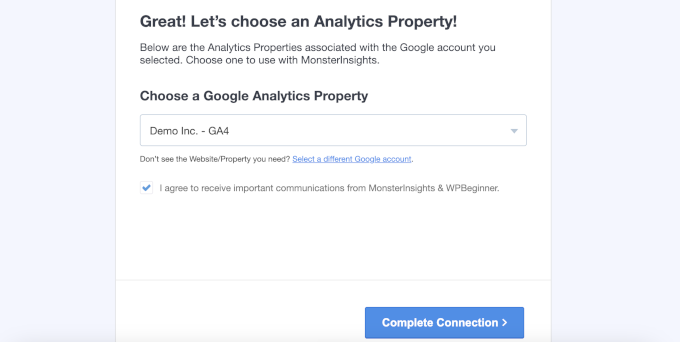
MonsterInsights fügt nun den Tracking-Code für Sie zu Ihrer Seite hinzu. Alles, was übrig bleibt, sind ein paar Bildschirme, auf denen der Assistent Einstellungen basierend auf der zuvor ausgewählten Website-Kategorie vorschlägt.
Die Standardeinstellungen funktionieren für die meisten Websites gut, sodass Sie auf jedem Bildschirm auf 'Speichern und fortfahren' klicken können.
Wenn Sie einen Bildschirm sehen, auf dem nach einem Lizenzschlüssel gefragt wird, klicken Sie einfach auf die Option, die Einrichtung ohne Upgrade abzuschließen.
Das war's! Sie haben jetzt erfolgreich Google Analytics auf Ihrer WordPress-Website eingerichtet.
Google Analytics-Berichte im WordPress-Dashboard anzeigen
Sobald Google Analytics einige Daten gesammelt hat, können Sie Ihre Berichte sehen, ohne WordPress zu verlassen. Besuchen Sie die Seite Insights » Berichte, um eine Übersicht über Ihren Traffic, die Top-Seiten und die Herkunft Ihrer Besucher zu erhalten.
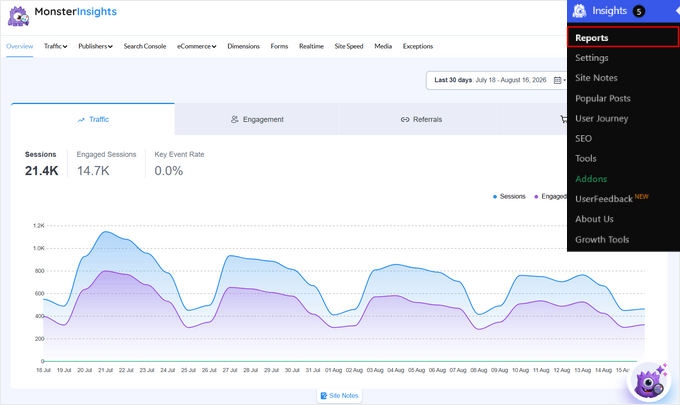
Denken Sie daran, dass es einige Stunden dauert, bis Google Analytics nach der Installation Daten anzeigt.
Methode 2: Google Analytics in WordPress mit WPCode installieren (manuell)
Wenn Sie kein spezielles Google Analytics-Plugin verwenden möchten, können Sie stattdessen das kostenlose Plugin WPCode verwenden. WPCode hält den Code getrennt von Ihrem Theme, sodass Sie sich keine Sorgen machen müssen, ihn bei Theme-Updates zu verlieren oder versehentlich Ihre Website zu beschädigen, während Sie Änderungen vornehmen.
Installieren und aktivieren Sie zuerst das WPCode-Plugin. Wenn Sie Hilfe benötigen, lesen Sie unsere Anleitung zur Installation eines WordPress-Plugins.
Gehen Sie nach der Aktivierung zur Seite Code-Snippets » Header & Footer. Fügen Sie dann den Google Analytics-Tracking-Code, den Sie beim Erstellen Ihres Analytics-Kontos kopiert haben, in das Feld „Header“ ein.
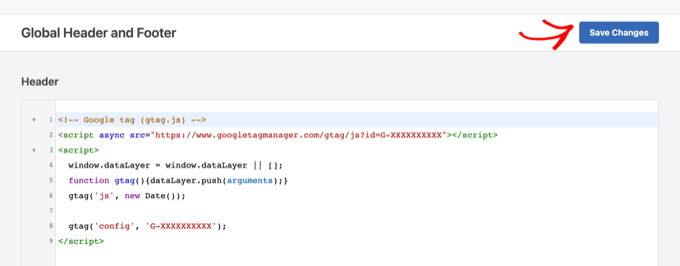
Vergessen Sie nicht, auf die Schaltfläche „Änderungen speichern“ zu klicken. Google Analytics ist jetzt auf Ihrer Website installiert.
Methode 3: Google Analytics in Ihrem WordPress-Theme installieren (Fortgeschritten)
Die letzte Methode überspringt Plugins vollständig und fügt den Tracking-Code direkt in Ihr Theme ein.
Beachten Sie, dass Sie mit dieser Methode das Analytics-Tracking verlieren, wann immer Sie Ihr Theme aktualisieren oder wechseln.
Fügen Sie einfach den folgenden Code am Ende der Datei functions.php Ihres WordPress-Themes ein.
add_action( 'wp_head', 'wpb_add_googleanalytics' );
function wpb_add_googleanalytics() { ?>

<!-- Paste your Google Analytics tracking code here -->

<?php }
Ersetzen Sie die Kommentarzeile durch den Tracking-Code, den Sie aus Ihrem Google Analytics-Konto kopiert haben, und speichern Sie dann die Datei.
Ihr WordPress-Theme lädt nun den Google Analytics-Tracking-Code auf Ihrer gesamten WordPress-Website.
Bonus-Tipp: Mehr Analytics-Daten in Google Analytics verfolgen
Standardmäßig verfolgt Google Analytics Seitenaufrufe und grundlegende Interaktionen. Es bietet jedoch keine erweiterten Berichte wie E-Commerce-Tracking, Klicks auf Affiliate-Links, Video-Tracking mit Vimeo und mehr.
Mit MonsterInsights Pro können Sie zusätzliches Tracking über Add-ons aktivieren. Installieren Sie einfach die richtigen Add-ons, indem Sie zur Seite Insights » Addons navigieren. Hier erfahren Sie, wie Sie jedes einzelne einrichten.
- E-Commerce-Tracking: Aktivieren Sie das Add-on „E-Commerce“, wenn Sie einen WooCommerce-Shop, einen Shop für digitale Downloads oder eine Mitgliedschaftsseite betreiben. Sie können dann sehen, welche Produkte und Kunden Ihren Umsatz generieren und mehr.
- Formular-Conversion-Tracking einrichten: Aktivieren Sie das Add-on „Formulare“, um Ihre Formularaufrufe, Einreichungen und Conversion-Raten zu verfolgen. MonsterInsights integriert sich mit Formular-Plugins wie WPForms, Formidable Forms und anderen, sodass keine zusätzliche Konfiguration erforderlich ist.
- Videoanalysen verfolgen: Aktivieren Sie das Add-on „Medien“, um zu verfolgen, ob Personen Ihre Videos ansehen oder nach wenigen Sekunden wegklicken. Es funktioniert mit YouTube-, Vimeo- und selbst gehosteten HTML5-Videos.
- Benutzerdefiniertes Ereignis-Tracking: Mit benutzerdefiniertem Ereignis-Tracking können Sie bestimmte Aktionen aufzeichnen, die Besucher auf Ihrer Website ausführen, z. B. einen Button-Klick. Es muss kein separates Add-on installiert werden.
Wenn Sie beispielsweise ein benutzerdefiniertes Klickereignis verfolgen möchten, befolgen Sie diese Formel:
<a href="https://www.example.com" data-vars-ga-category="Custom Category" data-vars-ga-action="Custom Action" data-vars-ga-label="Custom Label">Example</a>
Mit dieser Vorlage können Sie das Standard-Tracking-Verhalten von MonsterInsights überschreiben, um anzupassen, was als Kategorie, Aktion und Label verfolgt wird. Zum Beispiel:
<a href="http://www.example.com/download.pdf" data-vars-ga-category="CTA">Download now</a>
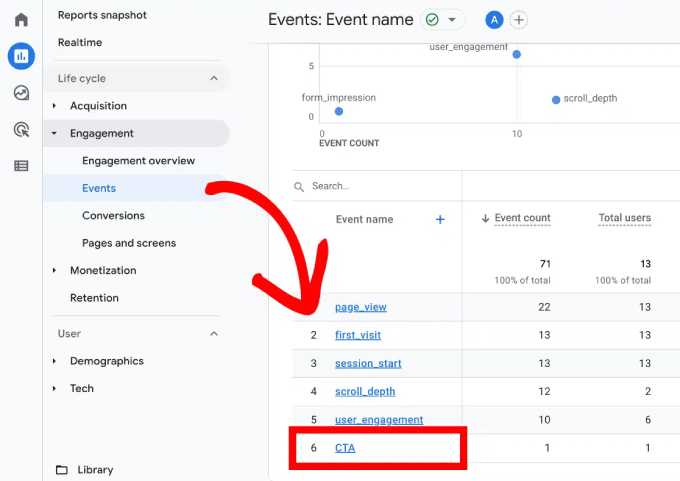
Um die Ergebnisse zu sehen, loggen Sie sich in Ihr Google Analytics-Konto ein und gehen Sie zu Berichte » Engagement » Ereignisse. Ihr Kategoriename wird in der Liste der Ereignisse angezeigt.
FAQs zur Installation von Google Analytics in WordPress
Hier sind Antworten auf einige der häufigsten Fragen, die wir zum Einrichten von Google Analytics erhalten.
Ist Google Analytics kostenlos?
Ja, Google Analytics ist komplett kostenlos. Google bietet eine kostenpflichtige Version für große Unternehmenskunden an, aber die kostenlose Version ist für die meisten kleinen Unternehmen und Blogs mehr als ausreichend.
Wie lange dauert es, bis Google Analytics funktioniert?
Nachdem Sie den Tracking-Code hinzugefügt haben, kann es einige Stunden dauern, bis Google Analytics Daten in Ihren Berichten anzeigt. Wir empfehlen, nach 24 Stunden erneut nachzusehen, um Ihren ersten vollständigen Tag mit Statistiken zu sehen.
Benötige ich Google Analytics, wenn meine Website Jetpack Stats hat?
Jetpack Stats bietet Ihnen einen einfachen Überblick über Ihren Traffic. Google Analytics geht viel tiefer, mit Details über Ihr Publikum, dessen Verhalten und wie es Ihre Website gefunden hat.
Für einen vollständigen Vergleich sehen Sie unseren Artikel über Google Analytics vs. Jetpack Stats.
Wie vermeide ich persönlich identifizierbare Informationen (PII) in Google Analytics?
Die Nutzungsbedingungen von Google erlauben es Ihnen nicht, persönliche Daten wie Namen, E-Mail-Adressen oder Telefonnummern an Google Analytics zu senden. Um sicherzustellen, dass Sie solche Details nicht versehentlich über Formulare hinzufügen, können Sie zu Admin » Datenströme gehen und den Stream Ihrer Website in Ihrem Google Analytics-Konto auswählen. Klicken Sie dann auf „Daten schwärzen“ und entfernen Sie alle URL-Parameter.
Wenn Sie MonsterInsights verwenden, erledigt die Funktion „Privacy Guard“ dies automatisch unter Insights » Einstellungen » Engagement. Sie ist im Plus-Tarif und höher enthalten.
Wie verfolge ich den Traffic meines E-Mail-Newsletters in Google Analytics?
Sie müssen Ihren Links im Newsletter UTM-Tags hinzufügen. Dies sind kurze Bezeichnungen am Ende einer URL, die Google Analytics mitteilen, woher jeder Besucher kam.
Der wichtigste Tag ist utm_medium=email. Google Analytics ordnet einen Besuch nur dann seinem E-Mail-Kanal zu, wenn das Medium „email“ ist. Ein Wert wie „newsletter“ landet stattdessen in der Gruppe „Nicht zugewiesen“.
Die meisten E-Mail-Marketingdienste, darunter Constant Contact, Kit und Mailchimp, können diese Tags für Sie aus einer UTM- oder Google Analytics-Tracking-Einstellung hinzufügen. Sie können auch getaggte Links mit dem kostenlosen URL Builder in MonsterInsights unter Insights » Tools » URL Builder erstellen.
Um die Ergebnisse anzuzeigen, gehen Sie in Google Analytics zu Berichte » Akquisition » Traffic-Akquisition und filtern Sie den Bericht nach E-Mail. Fügen Sie dann „Sitzungskampagne“ als sekundäre Dimension hinzu, um jeden Newsletter namentlich zu sehen.
Google Analytics verfolgt nur, was Besucher tun, nachdem sie auf einen Link geklickt haben. Ihre Öffnungsraten bleiben in Ihrem E-Mail-Dienst.
Video-Tutorial: Google Analytics in WordPress installieren
Wenn Sie den Vorgang lieber ansehen möchten, zeigt Ihnen unser Video-Tutorial, wie Sie Google Analytics in WordPress installieren.
Wir hoffen, dieser Artikel hat Ihnen geholfen zu lernen, wie Sie Google Analytics in WordPress installieren.
Als Nächstes möchten Sie vielleicht unseren ultimativen Leitfaden zu GA4 in WordPress lesen, um Ihre neuen Berichte zu verstehen. Sie können auch unseren WordPress SEO-Leitfaden für Tipps zur Steigerung Ihres Traffics im Zeitalter der KI-Suche prüfen.
Wenn Ihnen dieser Artikel gefallen hat, abonnieren Sie bitte unseren YouTube-Kanal für WordPress-Video-Tutorials. Sie finden uns auch auf Twitter und Facebook.


Alexia
Ich versuche, GCE auf meiner Wordpress-Website zu installieren, und ich habe den Code im Header.php-Theme installiert. Der Code wird für beide Seiten bei Google Analytics validiert. Aber wenn ich dann versuche, meine „Original“-Seite auf meiner Website zu laden, erhalte ich einen 404-Fehler. Ich habe recherchiert und es scheint, dass es etwas mit der Serversicherheit zu tun hat, aber mein Ansprechpartner bei unserem Hoster hat Schwierigkeiten, dies zu klären. Haben Sie spezifische Vorschläge, welche Serverdateien / Berechtigungen geändert werden müssen, damit dies funktioniert? Danke!
Brent Sheive
Vielen Dank!
JayMichaelsSDM
Sie haben mir gerade tonnenweise Zeit gespart ... ha! So einfach
g
Sie müssen es nicht in das Tag einfügen, es ist besser, es direkt vor das Tag einzufügen
WPBeginner-Mitarbeiter
Es befindet sich unter dem Hauptmenü Einstellungen im WordPress-Adminmenü.
Rebecca Hauptman Cashman
Ich habe das Plugin installiert, und der nächste Schritt ist, zum Einstellungsbereich zu gehen, aber dieses Plugin hat keinen Einstellungsbereich. Es gibt die Option "deaktivieren" und "bearbeiten", aber andere Plugins haben die Links "Einstellungen", "deaktivieren" und "bearbeiten"... dieses hier nicht. Was mache ich jetzt?
Danke
Jon
Toller Artikel! Hat mir wirklich geholfen, Google Analytics für meinen Blog zu installieren
Nick
Danke für den Artikel. Er hat mir bei einigen Problemen geholfen, die ich hatte. An erster Stelle stand natürlich, dass der Code nicht auf meiner Website war. Ich konnte ihn sowohl mit functions.php als auch mit dem empfohlenen Header/Footer-Plugin zum Laufen bringen.
elenaleksandra
Hallo! Danke. Ich verwende verschiedene Analysetools und sie liefern mir unterschiedliche Berichte. Wem soll ich glauben?
Darshan Paladiya
Ich denke, Sie sollten Google vertrauen. Denn abgesehen vom direkt hinzugefügten Tracking-Code kann keine andere Firma so viele Daten über Ihre Website haben wie Google.
Und abgesehen davon kommt der meiste organische Traffic von jeder Website hauptsächlich von Google. Daher können ursprüngliche Google Analytics-Daten nützlicher sein, um eine solide Strategie zu entwickeln, die Ihre Google-Ergebnisse beeinflusst, im Vergleich zu jedem anderen Dienst.
So denke ich, ich bin kein Experte, aber sicherlich ein SEO mit 18 Monaten Erfahrung. Viel Glück mit Ihrer Website.
Rodger
Bezüglich der Methode „Insert Headers and Footers“ wäre es ratsam, darauf hinzuweisen, dass das Skript in den Bereich „Insert Header“ oder „Insert Footer“ eingefügt wird – diese Skripte werden im Abschnitt gedruckt. ODER Diese Skripte werden über dem Tag gedruckt.
Ray Uotila
In den Header, Footer oder beides in den Plugin-Einstellungen einfügen?
Giovanni
Ich habe meinen Google Analytics-Code über „Insert Headers and Footers“ eingefügt, aber der Status meiner Tracking-ID wird immer noch als nicht installiert angezeigt. Wie lange dauert es, bis angezeigt wird, dass er installiert wurde, oder habe ich etwas falsch gemacht?
Molly Fabs
Ich habe meinen Tracking-Code manuell in die header.php-Datei meines Themes (suits) eingefügt. Ich habe es direkt nach dem body-Tag versucht, wie Sie vorschlagen, und auch kurz vor dem Ende des head-Tags, was ich anderswo empfohlen gesehen habe. (Ich füge den Code nicht zweimal ein, sondern versuche ihn jeweils einzeln an jeder Stelle). In beiden Fällen sagt mein Analytics-Konto: Tracking nicht installiert. Haben Sie eine Idee, warum GA meinen Code nicht sieht? Vielen Dank im Voraus!
WPBeginner-Support
Geben Sie ihm mindestens einen Tag.
Administrator
Devesh
Hallo,
Ich habe einen Blog auf wordpress.com erstellt, aber wo füge ich den Code von Google Analytics in wordpress.com ein?
WPBeginner-Support
Devesh, dieser Leitfaden ist für selbst gehostete WordPress.org-Websites. Bitte lies den Leitfaden WordPress.org vs WordPress.com, um den Unterschied zu verstehen.
Administrator
Jim
Hallo,
Ich habe versehentlich das Google Analytics-Skript zweimal auf meiner Homepage. Einmal von jemandem eingefügt, der geholfen hat, und ein anderes Mal von einem Plugin.
Ich konnte in der Vergangenheit den HTML-Code anzeigen/ändern, glaube ich, aber ich kann beim besten Willen nicht finden, wo ich auf den vollständigen HTML-Code zugreifen kann.
Ich kann visuell vs. Text sehen, glaube aber nicht, dass mir das genug vom HTML gibt, um eines der Analytics-Skripte zu ändern/entfernen.
Ich habe mir auch Aussehen>Editor angesehen, aber das scheint sich um Themes zu drehen..
Ich kann sehen, was ich entfernen möchte, wenn ich auf einer „Quelltext anzeigen“-Seite meine Seite aus einem Webbrowser betrachte. Aber ich kann es nicht finden, um es über WP zu entfernen.
Jede Hilfe wäre willkommen.
danke
Jim H
PS Ich benutze ein Genesis-Theme News Pro und Premise..
Petia Warzel
Welches Theme hat diese Website? Übrigens, danke für den Artikel, ich habe gerade meinen eigenen Blog gestartet.
Petja
Amber
Vielen Dank dafür! Ich habe eine Frage. Google Analytics zeigt mir 3 Besucher und dann 0 Besucher an, während WordPress mir für diese Tage 30 und 50 anzeigt. Ich habe gerade erst mit meinem Blog begonnen. Warum wird das von GA nicht erfasst? Danke!
WPBeginner-Support
Amber, gib Analytics etwas Zeit. Wenn du Analytics zum ersten Mal installierst, gibt es normalerweise eine Verzögerung bei den Berichten.
Administrator
@ginabegin
Wie sehen Sie Analysen von WordPress selbst? Ich dachte, das sei nur auf Wordpress.com-Sites verfügbar, nicht auf .org, und dass Google Analytics nur für .org verfügbar sei.
Darshan Paladiya
Hallo @ginabegin:disqus, ich denke, du solltest versuchen, ein Plugin zu installieren, entweder "Jetpack" oder "Google Analytics Dashboard for WP".
Beide machen Website-Analysen in Wordpress.org verfügbar.
Becky Manuel
Hallo,
Ich bin bereit, meinen Code einzufügen, und Sie sagten, ich solle es nach dem Body-Tag tun, aber ich bin mir nicht sicher, wo genau Sie es meinen. Zum Beispiel, Enter drücken, nachdem ich die Wörter <body >
gesehen habe, dann einfügen?
Oder am Ende des gesamten Blocks (was das Ende der Seite wäre) als letztes Element auf der gesamten Seite einfügen?
Bitte helfen Sie, danke
WPBeginner-Support
Sie müssen es sofort nach dem <body>-Tag einfügen.
Administrator
Sophie
Wo ist das Tag? Ich sehe nur einmal Platz für Skripte im Header und einen weiteren Platz für Skripte im Footer?
Darshan Paladiya
Sophie, mach dir nichts draus. Normalerweise siehst du nur leeren Platz für Skripte. Es funktioniert trotzdem. Der von Becky beschriebene Fall ist eine Ausnahme.
Geben Sie Ihren Analysen einfach etwas Zeit, nachdem Sie das Skript in diesen Feldern installiert haben.
Bozo Pub
Hallo,
danke für den informativen Artikel. Ich bin daran interessiert, Folgendes zu befolgen:
Ich hatte eine Website in Joomla, mit bereits eingefügtem Analytics-Code. Jetzt habe ich einen Blog in WP mit demselben Namen erstellt, aber mit geänderter Adresse (jetzt hat er /blog in der Erweiterung).
Was ist das Verfahren, um den bestehenden Code weiterlaufen zu lassen, da ich meine Statistikdaten von der vorherigen Website weiterführen möchte.
Danke
Darshan Paladiya
Ganz einfach, das geht nicht. Google Analytics-Daten von einer URL können nicht mit einer anderen fortgesetzt werden.
Jerzy
Hallo,
Wenn das WP-Theme, das ich verwende, bereits eine Google Analytics-Konfiguration integriert hat, gehe ich richtig in der Annahme, dass ich die 3 Schritte des Einfügens von Code in Ihrem Tutorial oben nicht befolgen muss?
Danke.
WPBeginner-Support
Ja, Sie können die Anweisungen in der Dokumentation Ihres Themes befolgen.
Administrator
Darshan Paladiya
Sie müssen den Tracking-Code trotzdem irgendwo hinzufügen, Ihre Theme-Anbieter geben ihn normalerweise nicht an. Sie geben Ihnen nur eine Kopier-Einfügen-Oberfläche, die einfacher ist als Codierungsarbeit.
Kathrine K.
Hallo!
Danke für eine wunderbare Anleitung!
Ich habe mich gefragt, was passiert, wenn ich meinen Code direkt vor dem ? in die header.php einfüge. Ich habe vor Ihrer Anleitung eine andere Anleitung gelesen, in der stand, dass dies der richtige Ort dafür sei. Dort befindet er sich jetzt und meine Analysen scheinen zu funktionieren?
Viele Grüße,
Kathrine
WPBeginner-Support
Wenn es funktioniert, dann ist es gut.
Administrator
Jenna
Ich habe das Plugin installiert, aber es gab keine Einstellungsseite. Gibt es einen bestimmten Bereich im Code, in den ich das Skript einfügen soll?
Danke!
Nishith G.
Ich habe vor 1 Stunde damit begonnen und es jetzt beendet. Dank dieses wunderschön gestalteten Artikels, der einem Neuling wie mir geholfen hat, alles reibungslos zu erledigen.
Warte jetzt darauf, dass die Daten im GA-Dashboard angezeigt werden.
Gott segne dich, Syed.
Rosanne
Hallo, ich habe das Plugin heruntergeladen und die Anweisungen befolgt, aber bei GA steht immer noch, dass es nicht installiert ist… Ich habe ihm 12 Stunden Zeit gegeben… Irgendwelche Ideen zur Fehlerbehebung? Ich habe mich entschieden, das Skript in den Footer einzufügen und sichergestellt, dass ich nach dem Kopieren des Skripts auf Speichern geklickt habe.
Crissy
Ich hatte dasselbe Problem. Ich habe auch andere Plugins ausprobiert und sie funktionierten auch nicht.
Ronald
Ich habe gerade mit dem Aufbau einer neuen Website auf WordPress begonnen und baue sie zuerst auf meinem Computer als lokalen Host auf, bevor ich sie auf einen Online-Host übertrage. Was ich wissen möchte, ist, ob ich das Google Analytics-Plugin jetzt aktivieren kann/sollte oder warten soll, bis ich es auf einen Online-Host hochgeladen habe.
WPBeginner-Support
Warten Sie, bis Sie es online hochgeladen haben.
Administrator
Lucia
Vielen Dank für diese klaren und detaillierten Anweisungen. Ich habe alles getan, was Sie gesagt haben, und es hat großartig funktioniert, bis zum Einfügen des Codes in das Header- und Footer-Plugin. Denn nachdem ich das getan habe, ist der Code tatsächlich im Header meiner Website sichtbar. Was mache ich falsch?
Danke für Ihre Unterstützung!
WPBeginner-Support
Lucia, Sie können versuchen, den Code mit der direkten Einfügemethode einzufügen oder die functions.php-Methode zu verwenden.
Administrator
Nick
Möglicherweise posten Sie auch Code, bei dem das Tag fehlt. Dies führt dazu, dass PHP ihn je nach Situation als normalen HTML-Code liest, und ist sehr wahrscheinlich der Grund, warum Sie nach dem Einfügen eines Skripts in den Header einfachen Text oben auf Ihrer Website sehen.
Norman Weathers
Ich habe gerade eine WordPress-Website unter quriousity.com gestartet und muss meinen Traffic verfolgen. Ihr Rat ist von unschätzbarem Wert.
Carlos
Hallo,
Danke für den informativen Artikel.
Ich habe die Anweisungen für CapitalHustle.com befolgt, aber Google Analytics zeigt immer noch "Tracking nicht installiert" an.
Ich habe den Code in die Header- und Footer-Bereiche der Plugin-Einstellungen eingefügt. Fehlt mir etwas?
Danke!
Carlos
David Jonsson
muss ich den Analytics-Code bei jedem neuen Blogbeitrag auf jedem Blogbeitrag einfügen?
WPBeginner-Support
Nein, das müssen Sie nicht. Wenn Sie ihn richtig einfügen, sollte er Ihre gesamte Website verfolgen.
Administrator
E.S. Ivy
Das Header- und Footer-Plugin ist wirklich nett, so dass ich mir keine Sorgen machen muss, den Rest des Codes zu verändern!
Ich habe mich gefragt, ob ich richtig liege, dass dies auch bedeutet, dass ein Wordpress-Upgrade diese Änderungen nicht verschwinden lässt? Ich schiebe das Erlernen der Erstellung eines Child-Themes immer wieder auf. Und ich glaube, dies war die einzige Änderung, die ich zuvor an meinem Code vorgenommen hatte. Ich habe es vergessen und dann ist es mit einem Wordpress-Update verschwunden.
Dave Jackson
Auf einer Website, die ich verwalte, habe ich Google Analytics installiert, aber obwohl ich die Website mit meinem Telefon besucht habe, also von einer anderen IP-Adresse als der, von der aus ich sie verwalte, wird immer noch kein Traffic angezeigt. Wie lange muss ich nach der Installation warten, bevor ich Ergebnisse sehe?
Hemant
Hallo,
Dieser Artikel ist wirklich hilfreich, danke fürs Teilen. Ich freue mich darauf, in Zukunft weitere Artikel zu lesen. Mach weiter so!!! Prost.
Paige
Ich bin kürzlich von Blogger zu WordPress gewechselt und möchte mein Google Analytics übertragen. Wie mache ich das?
Dan
Ich habe das Plugin-Verfahren zur Installation von Google Analytics verwendet, aber es wird immer wieder angezeigt, dass das Tracking nicht installiert ist. Ich habe den Tracking-Code von Google kopiert und direkt in die Einstellungen für das Plugin „Insert Header and Footer“ eingefügt. Haben Sie Vorschläge, was ich tun kann, um das Problem zu beheben, oder eine Idee, warum es nicht funktioniert? Meine Website ist http://www.thesimplestform.com/
Der Tracking-Code wird angezeigt, wenn Sie den Quelltext anzeigen.
Dan
Ich habe die Plugin-Methode zur Installation von Google Analytics verwendet, aber es wird immer wieder gesagt, dass das Tracking nicht installiert ist. Ich habe den Tracking-Code von Google kopiert und direkt in die Einstellungen für das Plugin "Insert Header and Footer" eingefügt. Haben Sie Vorschläge, was ich tun kann, um es zu beheben, oder eine Idee, warum es nicht funktioniert?
E.S. Ivy
Ich hatte dieses Problem auch. Ich bin mir nicht sicher, ob es nur Zeit war, aber ich habe auch W3 Total Cache installiert und es könnte geholfen haben, den Seiten-Cache zu leeren.
Craig
Woher weiß ich, ob das funktioniert hat und aktiv ist?
Prost.
WPBeginner-Support
Melden Sie sich in Ihrem Analytics-Dashboard an und klicken Sie im oberen Menü auf Admin. Wählen Sie das Konto und die Property aus, die Sie überprüfen möchten, und klicken Sie dann auf Tracking-Informationen. Sie sehen eine Statusmeldung wie Status: Daten empfangen
Administrator
Debbie Pugh-Jones
Ich habe eine wordpress.com-Website foweyholiday.co.uk. Kann ich Google Analytics darauf verwenden, da ich irgendwo gelesen habe, dass dies nicht möglich sei.
danke
WPBeginner-Support
Sie können Google Analytics nicht auf einer WordPress.com-Seite verwenden. Bitte lesen Sie unseren Leitfaden zum Unterschied zwischen WordPress.com und WordPress.org
Emmanuel Rosani
Vielen Dank für diesen großartigen Blogbeitrag! Ich habe Google Analytics erfolgreich auf meiner neuen ersten Wordpress-Website installiert..
Viele Grüße,
Emman
zohar
Danke, das war sehr hilfreich!!
Heather
sehr hilfreich! danke!
ahsan karim
Du bist ein toller Mann. Ich habe keine Worte, um dir zu danken
Kat
Ich habe Google Analytics auf meiner Website installiert und gerade einen Ordnerbereich für unseren neuen Blog erstellt. Benötige ich einen separaten Tracking-Code, um die Blog-Statistiken zu verfolgen, oder installiere ich einfach denselben website-weiten Tracking-Code über das Header/Footer-Plugin? Wenn ja, wo in Google Analytics würde ich die Blog-Statistiken speziell einsehen? Vielen Dank für Ihre Hilfe!
WPBeginner-Support
Wenn Ihr neuer Blog tatsächlich eine separate Website ist, dann erstellen Sie besser ein neues Projekt in Google Analytics. Wenn er sich unter derselben Website, aber in einem Unterverzeichnis befindet, können Sie denselben Analytics-Code verwenden.
Administrator
Samantha
Danke, das war sehr hilfreich. Ich war wirklich verwirrt, wie ich diesen Code in „jede Seite meiner Website“ bekomme, ohne viel Arbeit zu haben, aber dieses „Insert Header and Footer“-Plugin ist eine wirklich schnelle und einfache Möglichkeit, das zu tun! Nochmals vielen Dank,
-Samantha
Carole Rains
Ich benutze Google Analytics seit etwa 6 Monaten, möchte aber die Daten zu Demografie und Interessen nutzen. Ich erhalte immer wieder eine Meldung, dass ich eine Codeänderung implementieren muss, um auf diese Daten zugreifen zu können, aber ich bin mir nicht sicher, wie oder wo ich diese Codeänderung vornehmen soll. Können Sie mir bitte einige Richtlinien geben?
WPBeginner-Support
Carole, als Sie Google Analytics zum ersten Mal in Ihre Website integriert haben, haben Sie wahrscheinlich einen Code-Schnipsel irgendwo auf Ihrer Website eingefügt. Jetzt müssen Sie diesen Code aktualisieren und durch den neuen ersetzen.
Administrator
Stephanie
Wenn Sie das Plugin „Header und Footer einfügen“ verwenden, sollte der Google Analytics-Code-Snippet sowohl in den Header als auch in den Footer oder in eines von beiden eingefügt werden?
Danke
WPBeginner-Support
entweder
Administrator
paola
Hallo! Wenn Sie den Code in die functions.php einfügen, fehlt dann nicht irgendwo ein schließendes php?
WPBeginner-Support
Paola, die Datei functions.php hat am Ende keinen schließenden PHP-Tag.
Administrator
Brooke Muckersie
Hallo, nur eine Sache... ist das ein Fehler in Ihrem Beitrag?
"Direkte Einfügemethode
Kopieren Sie den Code, den Sie in Schritt 6 erhalten haben, und fügen Sie ihn direkt nach dem Tag in den Header.php Ihres Themes ein."
Sollte das nicht 'vor dem Tag.' (nicht danach) sein?
WPBeginner-Support
Brooke, ja, es ist direkt nach dem
<body>-Tag, nicht davor.Administrator
Hugh
Ruft Google Analytics nicht asynchrone Aufrufe ab? Ich schätze, deshalb heißt es in den Anweisungen: "Fügen Sie Ihren Snippet (unverändert, vollständig) in jede Webseite ein, die Sie verfolgen möchten. Fügen Sie ihn unmittelbar vor dem schließenden Tag ein."
Yoasts Plugin Google Analytics for WordPress lädt den Tracking-Code auch im Header
vivek
Ich habe das von Ihnen empfohlene Plugin verwendet und ich bezweifle, ob es wichtig ist, den gesamten Google Analytics-Code sowohl in die Kopf- als auch in die Fußzeilenfelder einzufügen?? oder reicht die Kopfzeile??
Shiv Saroya
Wie wir alle wissen, hat Google Analytics sein Dashboard stark verändert. Tag für Tag wird es benutzerfreundlicher. Guter Beitrag. Teilen Sie weiterhin so.
Ashish kausha
es ist nett und sehr hilfreich für mich………..
Hayley Reed
Hallo
Ich benutze das Header- und Footer-Plugin für GA in meinem WP-Blog und wollte wissen, ob es eine Möglichkeit gibt, Seiten wie die rechtlichen Seiten usw. auszuschließen.
danke
WPBeginner-Support
Standardmäßig sind Header und Footer auf den meisten Themes auf allen Seiten vorhanden und das Insert Headers and Footers Plugin fügt den Code in die Header- und Footer-Funktionen von WordPress ein.
Administrator
Hugh
Sie könnten versuchen, Filter zu verwenden (Admin > Ansichten > Filter). Ein benutzerdefinierter Filter, der das Feld für den Seitentitel ausschließt, könnte funktionieren
Eine andere Möglichkeit ist natürlich, den GA-Code bedingt einzubinden, in diesem Fall können Sie kein Plugin verwenden