


Nothing ruins a website faster than poor image choices. We’ve seen beautiful WordPress themes completely destroyed by low-resolution, irrelevant background images that make visitors question the site owner’s professionalism.
Quality background images can be more than just decoration. They can set the mood, communicate your brand values, and create an emotional connection with visitors before they even read your content.
But with countless image sources available, it’s easy to get overwhelmed or make costly mistakes with licensing and quality.
After years of sourcing images for client projects, we’ve identified the best places to find beautiful, legally-safe background images for WordPress sites.
We’ll show you our go-to resources for free and premium images, plus share the exact criteria we use to choose images that actually improve website performance.

💡 Note: If your theme doesn’t have fullscreen background support, then see our tutorial on how to add a fullscreen background image in WordPress.
Here’s what we’ll cover in the article. Feel free to jump to the part you find most relevant to your needs:
Now, let’s continue with the article!
Understanding Image Copyrights and Sizes
When using images on the web, it’s important to remember that most images online are protected by copyright laws. Even when an image doesn’t have a copyright notice, you should assume it’s copyrighted and get permission before using it.
Thankfully, there are many places online where you can legally find free images for your site.
These images can be used for your blog posts, featured images, sliders, and backgrounds.
Remember, background images usually cover the whole screen, so you need large images. While you can resize smaller images to make them bigger, it often leads to quality loss, especially on bigger screens.
For best results, choose images at least 1920 pixels wide and 1080 pixels high. A 4K image (3840 x 2160 pixels) gives even better quality.
You can resize these images to fit your background size easily. Making them smaller is much simpler and won’t lose quality when optimized for the web.

If your WordPress theme doesn’t specify a background image size, reach out to your theme developer. They’ll help you find the right dimensions for the best look.
How We Tested and Reviewed Free Background Images
To give you the best recommendations, we tested some popular royalty-free image sources. We downloaded images from these sites and tested their quality by adding them to our websites.
When researching the tools, we paid special attention to the following criteria:
- Ease of Use: We have added resources that are beginner-friendly and do not require any complicated steps to download an image.
- Image Quality: We have prioritized tools that boast a large collection of high-quality images.
- Reliability: We have only recommended the tools we have tested ourselves on real websites.
Why Trust WPBeginner?
At WPBeginner, we’re a team of experts with years of experience in WordPress, blogging, online marketing, and SEO.
We use this experience to carefully select background image resources that truly elevate your site’s visual identity.
To understand more about our dedication to quality, see our editorial process.
Having said that, let’s take a look at some places to find free, beautiful background images.
9 Best Platforms to Find Background Images
Here are our top picks for the best platforms to find stunning background images for your WordPress site.
1. FreeImages
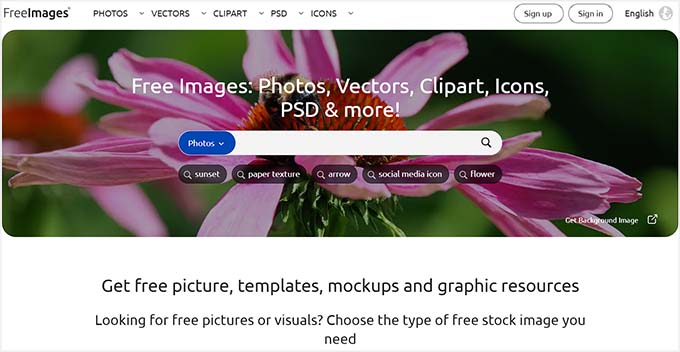
FreeImages is an excellent source for finding high-quality background images. It offers a huge collection of free stock photos that are organized into categories, making it easier to navigate through the website.
Plus, it comes with an easy-to-use search bar to find the right images for your WordPress site.
FreeImages has features like an image lightbox, filtering, a variety of download options, and the ability to comment on and rate images. You can even share these vectors on social media platforms like Pinterest or Facebook.
The platform is completely secure, which makes it a great choice to download your background images.
Why we picked FreeImages: It’s easy to find high-quality images with categories and a simple search tool.
2. SeedProd
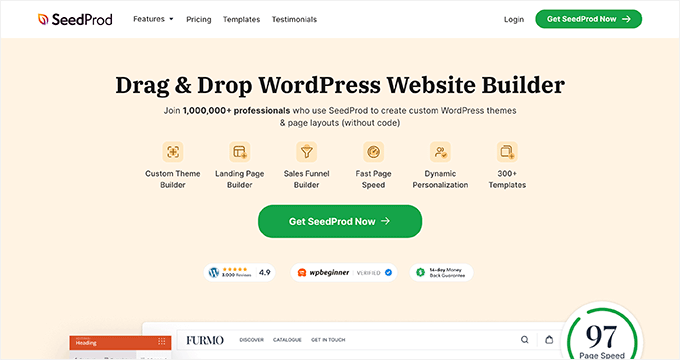
SeedProd is the best WordPress theme builder on the market. It comes with a custom AI image generator, which means that you can describe the type of background image you need, and SeedProd will create it for you using AI.
🌟 Read our full SeedProd review to learn more about the plugin.
Once that is done, you can even edit the picture and make changes to it by modifying the prompt.
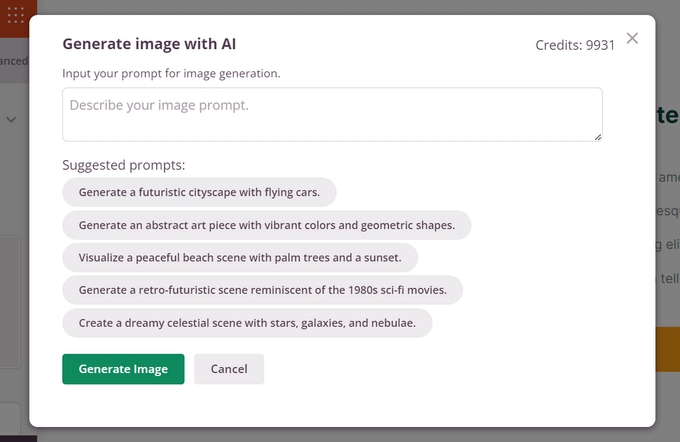
For details, see our tutorial on how to use AI to generate images in WordPress.
This option is a great choice if you don’t want to rely on royalty-free images and prefer to use background pictures that perfectly match your brand identity.
However, keep in mind that you will need to buy the premium version of the plugin to access the AI Assistant. You’ll also need to buy AI credits by clicking the link in your SeedProd account dashboard.
Why we picked SeedProd: You can create your own images with AI, making it easier to match your brand.
3. Subtle Patterns
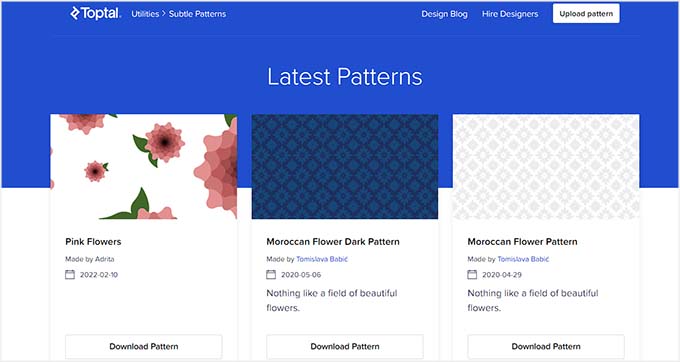
Subtle Patterns is a great resource offering a vast library of free, high-resolution, and seamless textures that can be downloaded and used as background images.
These subtle patterns add visual depth to websites without overwhelming users. They are designed to tile seamlessly, meaning they can be repeated without any visible seams or breaks.
These lightweight files won’t slow down your site’s speed and allow you to see a live preview of each picture before downloading.
Overall, if you have a simple WordPress blog, you can use Subtle Patterns to find a great background image.
Why we picked Subtle Patterns: It has lots of lightweight patterns that can improve your site without changing much.
4. Public Domain Archive
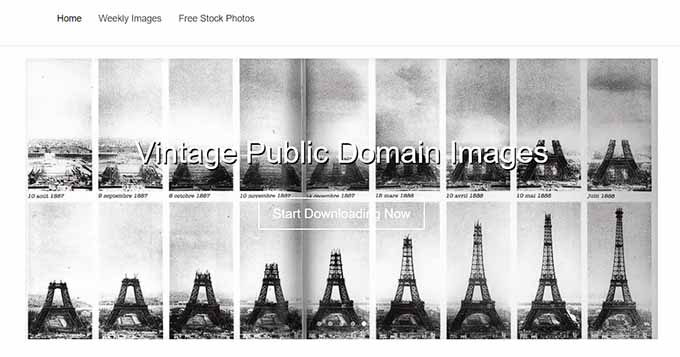
Public Domain Archive is a popular website that offers a mix of vintage and modern stock photos for your use.
It has a clean and simple interface where you just have to click the ‘Download’ button for an image you like. You can also post comments to become a part of the community and make it easier for users to find relevant content.
Other than that, Public Domain Archive comes with an interesting weekly images feature where the tool selects random images each week to boost engagement and highlight visually appealing works.
This makes it easier to find high-quality background images for your website.
Why we picked Public Domain Archive: It offers a mix of old and new styles with an easy-to-use download feature.
5. Unsplash
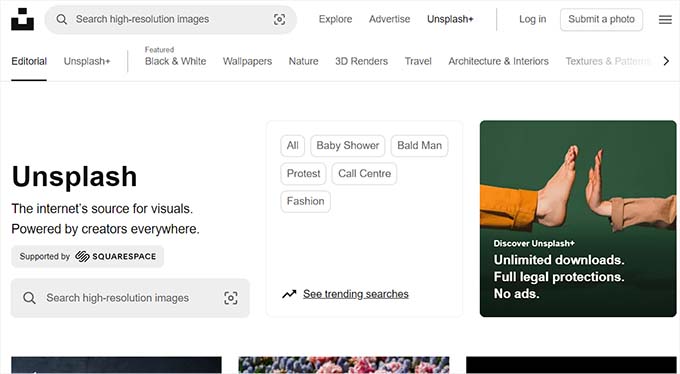
Unsplash boasts a collection of over a million royalty-free images, with new photos added daily. The platform sorts its photographs into categories, which makes it easier for users to browse through the images.
It also lets you choose from various image sizes, from thumbnails to high-resolution originals, depending on your needs. Unsplash encourages photographers to share their work and has a huge community of content creators.
If you are looking to find some unique images for your background, then this is the option for you.
Why we picked Unsplash: With millions of free images and new ones daily, you always have fresh options.
6. Picjumbo
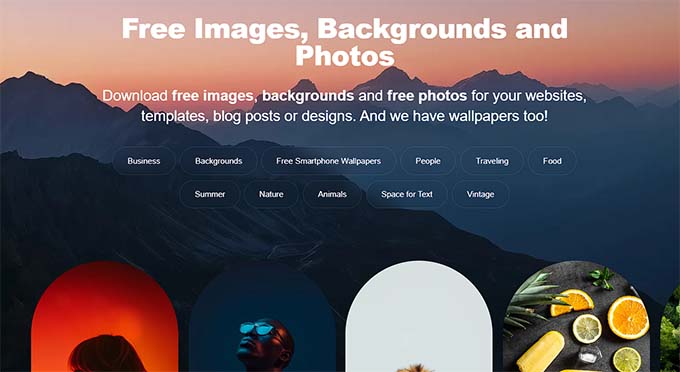
Picjumbo has a large number of free images that can be sorted using tags and categories on the front page.
It also has a blog page where you can get the latest updates about new images being added to the site. Plus, they send you some of the latest pictures to your email address once you sign up for the newsletter.
If you want to add some modern-style background images, then PicJumbo is an ideal choice.
Why we picked Picjumbo: You can find modern images easily, and they send you new ones by email.
7. Magdeleine
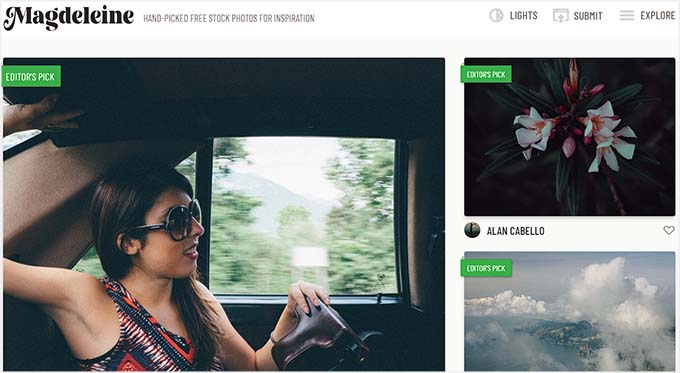
Magdeleine is another popular resource that has high-resolution images for free download.
You can browse images by categories, tags, or a search form. Magdeleine also allows you to choose a dominant color for your images. This helps you find background images that complement the rest of your color scheme.
The resource also lets you share images of your choice on social media platforms and add them to your RSS feeds.
Why we picked Magdeleine: You can choose images by color to better match your site’s look.
8. Pixabay
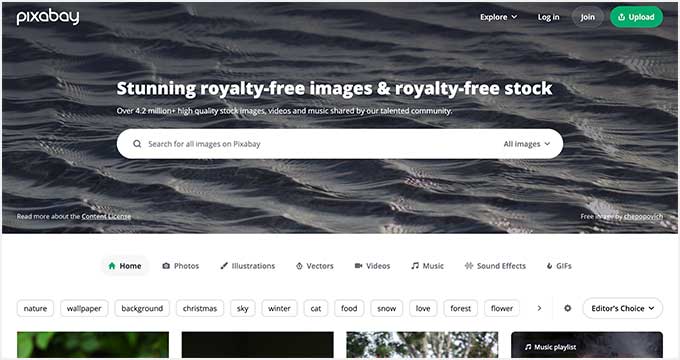
Pixabay has a library of over 2.7 million images for your background. Its powerful search form and easy-to-navigate website let you find the right pictures in minutes.
You can then choose a picture size and its resolution according to your liking, making Pixabay a great option.
Additionally, the platform can be used to download GIFs, music, and videos.
Why we picked Pixabay: It has tons of images, plus music and videos, all in one place.
9. MorgueFile
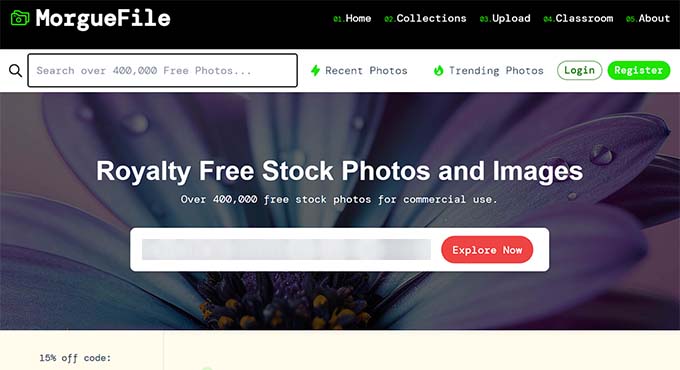
MorgueFile has over 410,000 free stock photos, with a focus on contributor-submitted content. The site is super fast, which makes it easier to locate images. However, some images on MorgueFile require attribution, so do check the images before using them.
The platform also has a unique ‘#Quest’ feature, which sets a daily photo challenge for users to capture and submit images based on a specific theme. This helps expand the image library with fresh content and can be the place where you will find your next background image.
Why we picked MorgueFile: You get lots of unique photos, and fun daily photo challenges ensure the image library is constantly growing.
How to Add a Background Image on Your Website
Once you have selected a background image, it is time to add it to your WordPress site.
You need to open the WordPress dashboard and navigate to the Appearance » Editor page if you are using a block theme.
This will open the full site editor, where you must click the ‘Add Block’ (+) button to open the block menu. From here, add the ‘Cover’ block.
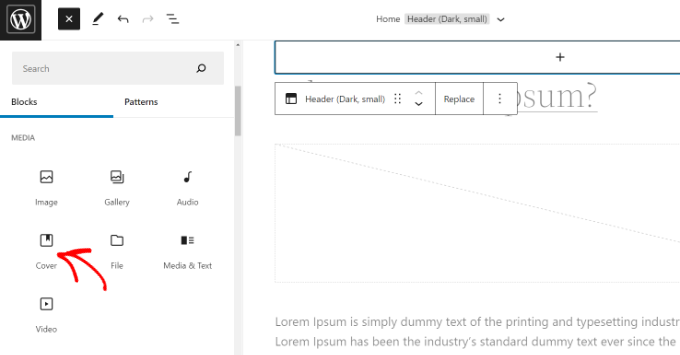
Once that is done, click the ‘Media Library’ button within the block itself.
This will open a prompt on the screen from where you can upload your background image from the computer and add alt text for it. Then, click the ‘Select’ button.
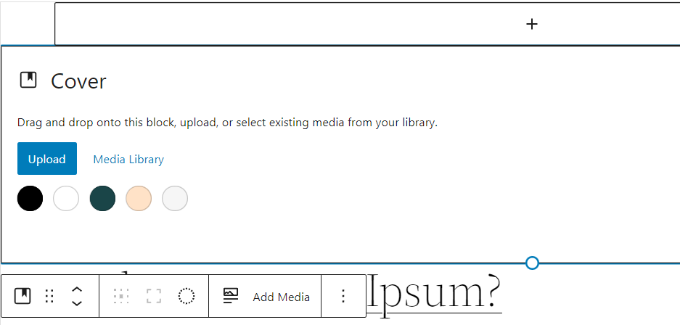
The image will now be added to the ‘Cover’ block. However, you still need to set it as the background for the page.
To do that, click on the ‘List View’ icon at the top (icon with 3 dashes). Here, you will see an outline view of theme elements, such as the site header and footer.
Now, simply drag and drop all the template elements under the ‘Cover’ block in the list view.
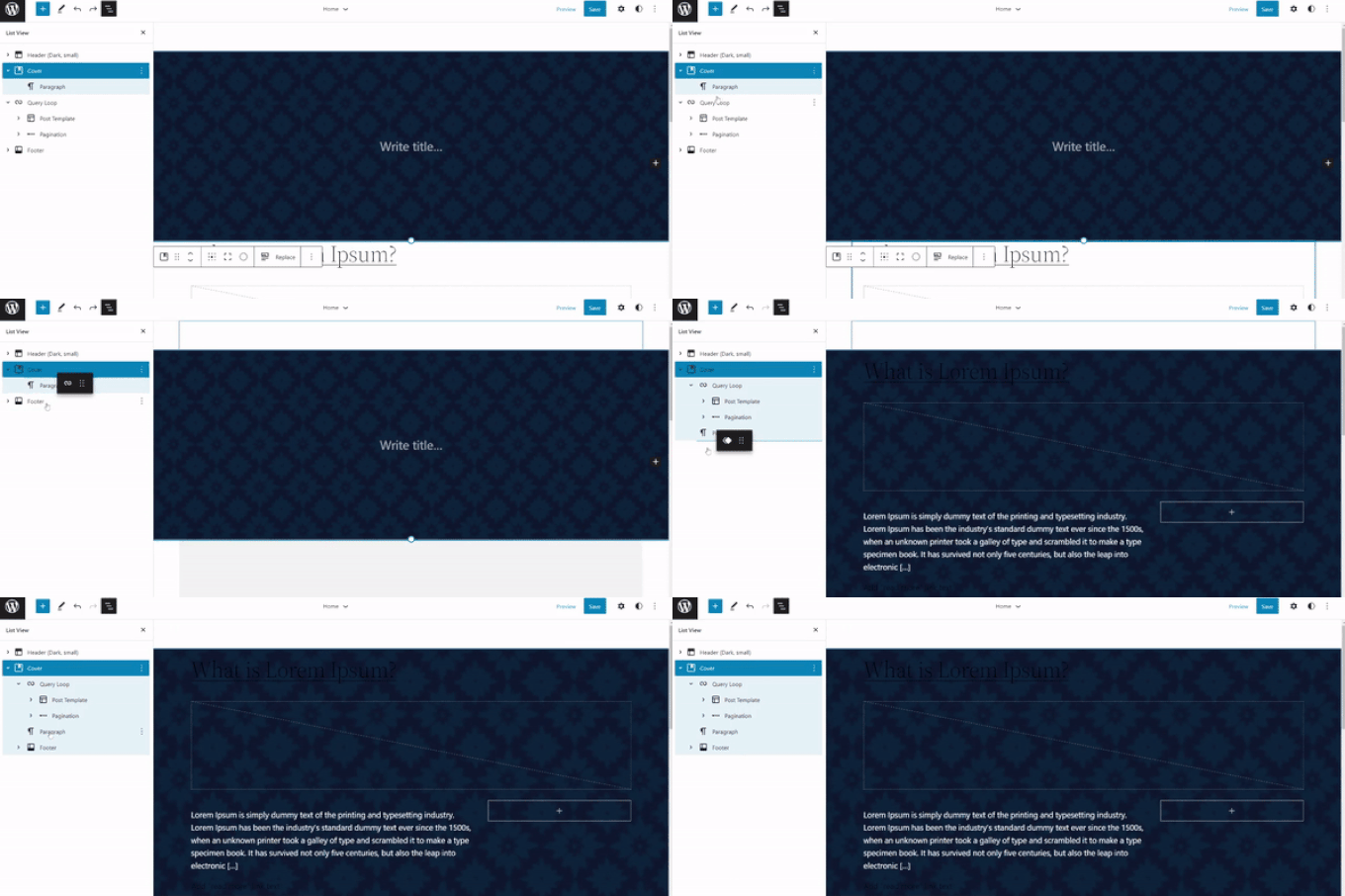
Once you do that, the ‘Cover’ block’s image will show up as the site’s background.
Go ahead and click the ‘Save’ button at the top to store your settings. You have now successfully added a background image to your website.
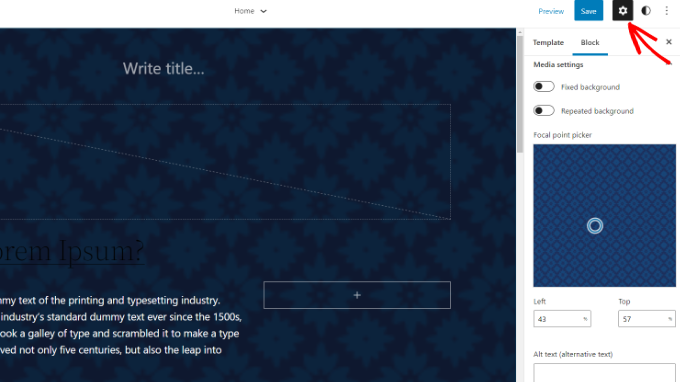
Keep in mind that this method won’t work for you if you are using an older theme or a theme builder on your website. In that case, you can see our tutorial on how to add a background image in WordPress.
Bonus: Additional Resources on WordPress Images
To explore more about using images effectively on your WordPress site, check out these helpful resources:
- How to Add a Hero Image in WordPress (Works for All Themes)
- How to Fix Common Image Issues in WordPress (Ultimate Guide)
- How to Add Text on Top of an Image in WordPress
- Beginner’s Guide to Image SEO – Optimize Images for Search Engines
FAQs About Finding and Using Background Images
If you’re looking to add background images to your WordPress site, you might have a few questions. Here are some common questions and their answers to help you out.
What is the ideal size for background images on a WordPress site?
It’s best to use images that are at least 1920×1080 pixels to maintain quality across devices. Larger 4K images can offer even better resolution.
Can I use any image I find online for my website background?
No, you should only use images with the proper license, such as public domain or CC0, to avoid copyright infringements.
How do I check if a WordPress theme supports full-screen background images?
You can check your theme’s documentation or contact the theme developer to confirm if full-screen backgrounds are supported.
What should I do if my image doesn’t perfectly fit my website’s layout?
You can use WordPress’s built-in tools or image editing software to resize the image without losing quality.
We hope this article helped you find beautiful background images for your WordPress site. You may also want to see our beginner’s guide on how to customize colors on your website and our top picks for the most popular WordPress themes.
If you liked this article, then please subscribe to our YouTube Channel for WordPress video tutorials. You can also find us on Twitter and Facebook.





Dennis Muthomi
I made the mistake of using undersized images in the past and I can vouch for the importance of using high-resolution images (at least 1920×1080 pixels) for backgrounds.
I’d like to add a tip for those using the SeedProd AI image generator: when crafting your prompt, be as specific as possible about the style, colors, and mood you want; Because it can help ensure the generated image aligns closely with your brand identity.
Samantha
This work really well i love it. ❤
WPBeginner Support
Glad you found our article helpful
Admin
Cindy Peterson
Wow! Can I say it again? Wow! You guys have outdone yourself this time. I have just spent a couple of hours just on your first link alone finding GREAT free images for my niche. I always use your site tips and tutorials, but this article blew me away. Thank you for all of your help.
Trinity
Great article! I wanted to point out to you that #6 has a typo. The title says Pickumbo, but should be Picjumbo.
WPBeginner Support
Thanks, we have fixed the mistake.
Admin
Janet Kennedy
Thanks for this curated list. It’s very helpful. I would also like to know where to find graphics or illustrations. I love the images of space, or little towns or countrysides but I’m not where sure where to find them.