


Ever feel like your WordPress website is trying to do too much on a single page?
Maybe your ‘Services’ section has grown into a long scroll of scattered details, or your ‘Case Studies’ page feels more like a wall of text.
When everything is crammed together, even great content can get lost.
That’s where child pages in WordPress come in.
They let you break your content into smaller, focused sections while keeping everything organized under one main topic. By structuring content this way, your site feels cleaner and easier to navigate. Both for visitors and for you, behind the scenes.
In this guide, we’ll show you how to create child pages in WordPress the easy way. Whether you’re organizing services, portfolios, or resources, you’ll learn how to structure your content so visitors can easily find what they’re looking for. 🔍
What Is a Child Page in WordPress?
A child page in WordPress is a page that sits under another page (called a parent page) to help organize your website content in a clear structure.
Before we go further, WordPress comes with two default post types called posts and pages.
- Posts are blog content and show up in reverse order (newest first). They are normally organized with categories and tags, which makes it easy for visitors to find related content.
- Pages are one-off or standalone content that is not part of a blog. Common page examples include an ‘About Us’ or a ‘Contact Us’ page.
Simply put, business owners can build a business website without creating a blog. However, if they want to add a blog to their content marketing strategy, they can do so by simply creating a separate blog page.
If you have too many pages, organizing them can become difficult.
In WordPress, pages are hierarchical, so you can organize them with parent and child pages. Best of all, creating a parent page structure better organizes your navigation menus and your website as a whole.
For example, the MonsterInsights website has a ‘Features’ parent page with a separate child page for each feature. This makes it easier for customers to quickly scan the options and click into the exact feature they want to read about.

Many online stores also use child and parent pages to help visitors explore their eCommerce site and find products to buy.
Any child page can also have its own child pages. This lets you build deeper relationships between your pages and create a logical structure that’s easier for visitors to navigate, especially on larger sites with many sections.
When pages are organized into parent and child categories, they also tend to be easier to manage in the WordPress admin area. This is particularly true as your WordPress website continues to grow.
With that in mind, we’ll show you how to easily create a child page in WordPress. Here’s a quick look at all the topics we’ll cover in this guide:
Let’s get started! 🙌
How to Create a Child Page in WordPress
To create a child page, you first need a parent page. You can use any existing page as a parent, or create a new page to act as the main topic or category.
Once you have a parent page, you’re ready to add child pages. Again, you can turn any existing page into a child or create an entirely new page that will become your child page.
💡 Note: If you turn an existing published page into a child page, its URL will change, for example, from /my-page to /parent-page/my-page.
To avoid broken links, you must set up a redirect. We recommend using All in One SEO (AIOSEO), as it can automatically redirect the old URL to the new one for you.
Then, simply open the child page for editing.
In the right-hand menu, make sure the ‘Page’ tab is selected at the top. Then, look for the ‘Page Attributes’ section and click to expand it.
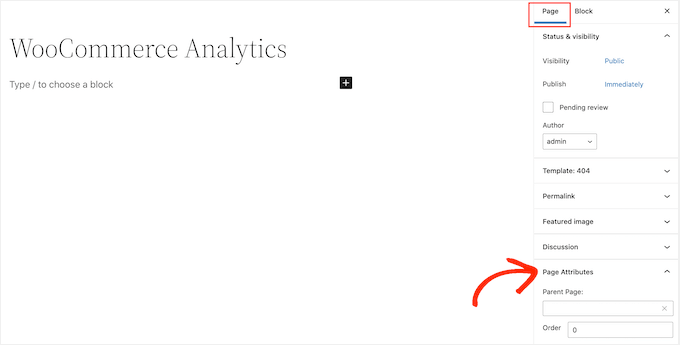
Now, let’s take a look at the ‘Parent Page’ field. It should be blank or say ‘Main Page (no parent)’, which means this is currently a top-level page.
To turn this page into a child page, simply open the ‘Parent’ dropdown. You can type in the box to search for the specific page you want to use as the parent.
You might also see an ‘Order’ box. This determines the order in which pages appear in your list, but you can leave it at 0 for now.
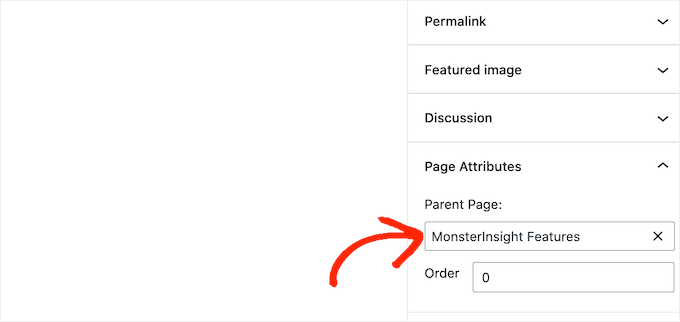
This will change your page URL structure to show the relationship, such as http://example.com/parent-page/child-page/.
After that, go ahead and save your changes by clicking on the ‘Update’ or ‘Publish’ button.
To create more child pages, simply repeat the process described above.
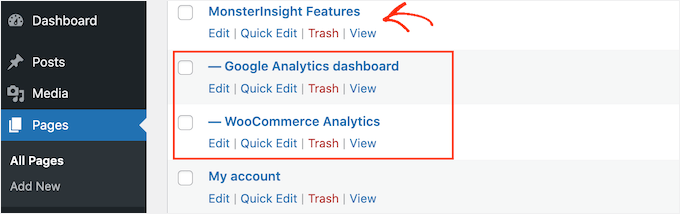
To see all of your child pages, go to Pages » All Pages. WordPress will show your child pages listed under their parent page, indented with a — prefix.
In the following image, you can see that ‘Google Analytics dashboard’ and ‘WooCommerce Analytics’ are child pages of ‘MonsterInsights Features.’
There you have it!
You’ve learned how to create a child page in WordPress.
Bonus Tip 💡: How to Display a List of Child Pages for a Parent Page
After creating some child pages, you may want to display a list of those child pages on the parent page. By allowing visitors to see all related content in one place, you help them navigate your site more easily.
An easy way to list child pages is to manually edit the parent page and add each link individually. However, this means you’ll have to update the parent page every time you add or remove a child page.
Wouldn’t it be more convenient if child pages automatically appeared as links on the parent page without the extra steps of manually updating them each time?
For more details, check out our guide for displaying a list of child pages for a parent page in WordPress.
FAQs: How to Create a Child Page in WordPress
Still have questions about how child pages work or what they mean for your site? Here are some common ones we hear from WordPress users.
What is a child page in WordPress?
A child page is a regular WordPress page that’s nested under a parent page. This creates a content hierarchy that’s great for organizing your site and improving navigation.
Why should I use child pages?
Child pages help keep your content organized and easier to explore. They’re especially useful when you have lots of related pages. Plus, they make managing your site simpler in the WordPress dashboard.
Can I have multiple levels of child pages?
Yes! You can nest child pages under other child pages. This can create a multi-level structure that’s perfect for in-depth content or documentation.
Will creating child pages affect my SEO?
Yes, and in a good way. A clear content structure helps search engines understand how your pages are related, which can improve your Wordpress site’s SEO and user experience.
How do I select a parent page for a new child page?
When editing the page in WordPress, you’ll want to look for the ‘Page Attributes’ section in the sidebar. From there, you can choose a parent page using the ‘Parent Page’ dropdown menu.
What happens if I delete a parent page?
If you delete a parent page, its child pages won’t be removed. Instead, they will automatically become regular top-level pages again.
However, this means their URL will change – the /parent-page/ part will disappear. This can break links to your content, so you may need to set up redirects.
Related Guides for Managing WordPress Pages and Posts
We hope this article has helped you learn how to create a child page in WordPress. If you found this helpful, you may also want to check out our other guides on:
- Most Useful WordPress Custom Post Types Tutorials
- How to Add Custom Post Status for Blog Posts in WordPress
- How to Split WordPress Posts into Multiple Pages
- How to Efficiently Manage Post Series in WordPress
- How to Create a Landing Page in WordPress
If you liked this article, then please subscribe to our YouTube Channel for WordPress video tutorials. You can also find us on Twitter and Facebook.




David Lim
So it is already clear how to make a child page. I thought something had to be done from the admin side for it to be good, but it seems like hadn’t.
Dennis Muthomi
Hi, I’d like to add something when using child pages: consider using breadcrumbs to further enhance navigation.
This is especially useful for deep hierarchies so users can see where they are in your site structure.
A SEO plugin like AIOSEO offer breadcrumb functionality that integrates with WordPress’s parent child page structure.
Mrteesurez
This is an insighful article, Creating child pages makes it easy to organize site contents effectively as child pages stays immediately below their parent page making it straight forward to manage pages.
I want to ask, can this be done to a custom post type ?
WPBeginner Support
As long as the custom post type has hierarchical enabled you would be able to do something similar with custom post types
Admin
Moinuddin Waheed
One of my client has asked me to make child pages for his website as he want to list medical colleges continent wise, like Asian Countries, European countries colleges and others.
This is very helpful guide as I will be making child pages for him for this purpose so that he can show all the colleges continent wise.
This is very helpful in case related things like features and then different child pages for each feature.
WPBeginner Support
Happy to hear our guide was helpful
Admin
Gaz
I want the subpage to have the same format URL as this guide ie: Sitename/subject/sub-page. If I use the above method will it automatically create this URL structure? If not how do I create this to get my subpage with its correct URL structure?
WPBeginner Support
You can use child pages for that permalink style and it should be in that organization, if you do it with posts you can use categories. For customizing the permalink structure, we would recommend taking a look at our article below:
https://www.wpbeginner.com/wp-tutorials/how-to-create-custom-permalinks-in-wordpress/
Admin
Ian Jackson
Why do you have to set the child page in the editor? Can’t you just create your page and then using Menu set it as a submenu? Is there a reason for having to assign a parent page in the editor that I’m missing?
Justine
Thank you. This was very useful to structure my blog like a website. I appreciate the free content.
WPBeginner Support
You’re welcome, glad our guide could assist
Admin
Jaime
This option seems to be gone now, or was it moved somewhere else? I can’t find it.
WPBeginner Support
In the block editor, it would be under the document settings under Page Attributes
Admin
Jaime
It’s no longer an option for me after updating to WordPress 5. I had it on 4.99 though
WPBeginner Support
You may want to try disabling your plugins to see if you have a possible plugin conflict that is preventing that section from appearing in the document settings.
Darien
Where has this feature gone now that the Guttenburg Block Editor is in use? Child Page no longer shows as an option under Page Attributes in this new editor. Does anyone have any tips on where it’s now located?
WPBeginner Support
From taking a look it should still be an option in page attributes for pages. Just to be sure, are you editing a post rather than a page with the most recent WordPress?
Admin
Aniela Lucian
Thank you for this very useful post! I tried for YEARS to figure out how may be possible to create a good structure for my website, and never knew what the hack is ‘child page’ in Wordpress (although I am new to make myself the website….). Your brief and very clear explanations make everything so clear and easy!
Thanks again for your wonderful work!