


Getting your WordPress blocks to be exactly the right size used to require custom CSS or complex workarounds.
We know because we have spent countless hours helping users with this exact problem. But thanks to recent WordPress updates, controlling block dimensions has become much simpler.
What surprises many people is that there are actually several built-in ways to adjust block sizes in WordPress. Through a lot of experimenting, we’ve identified the most reliable methods that work across different situations and themes.
In this guide, we will share the easiest ways to change block heights and widths in WordPress.
Why Change Block Height and Width in WordPress?
While the WordPress block editor makes it easy to add content, the default block sizes may not always fit the design you have in mind. Adjusting a block’s height and width is a simple way to get more control over your page’s appearance.
Here are a few key reasons why you might want to change a block’s size:
- Improve Visual Layout: You can create more balanced and professional-looking designs by controlling the exact size of your elements.
- Enhance Readability: Adjusting the width of text blocks can make your content easier to read, especially on wide screens.
- Ensure Responsiveness: Sizing blocks correctly helps your content look great on all devices, from desktops to mobile phones.
- Create Emphasis: Making a block larger or smaller can draw attention to important calls to action or key information.
That being said, let’s see how you can easily change block height and width in WordPress.
We will cover a few different methods, and you can use the quick links below to jump to the one you want to use:
Method 1: Change the Block Height and Width Using Block Settings
In this method, we will show you how to change a block’s height and width using WordPress’s default settings.
Currently, WordPress does not offer the same resizing options for all of the blocks. However, the block editor provides many ways to resize the height and width of different blocks.
Let’s start with the Image block in WordPress.
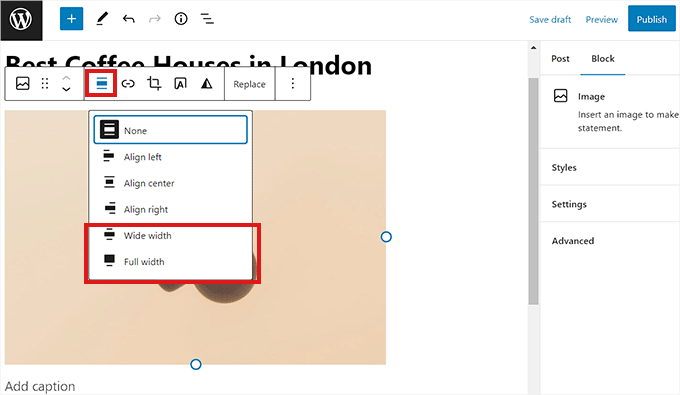
First, you can change the alignment of the Image block by clicking on the ‘Align’ button in the toolbar above the block.
Here, choosing the ‘Wide Width’ option will make the block the same width as the container. Or, the ‘Full Width’ alignment option will make the block the entire width of the page.
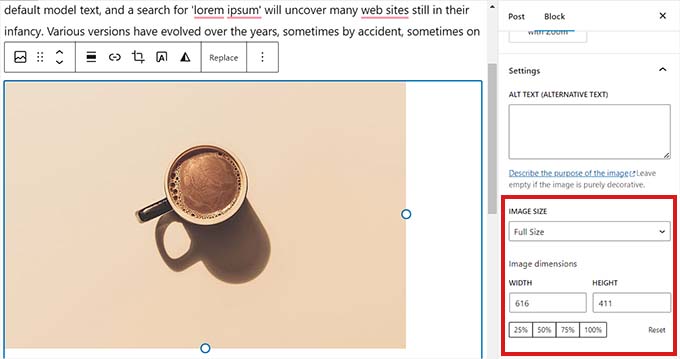
You can also resize a block by going to the ‘Block Settings’ panel on the right and scrolling down to the ‘Settings’ section. From here, you can resize a block from the ‘Image Size’ dropdown menu.
You can also adjust the block’s width and height by typing the preferred pixel size into the ‘Width’ and ‘Height’ boxes in the ‘Image dimensions’ section.
Below that, you can also adjust the block’s size by percentage.
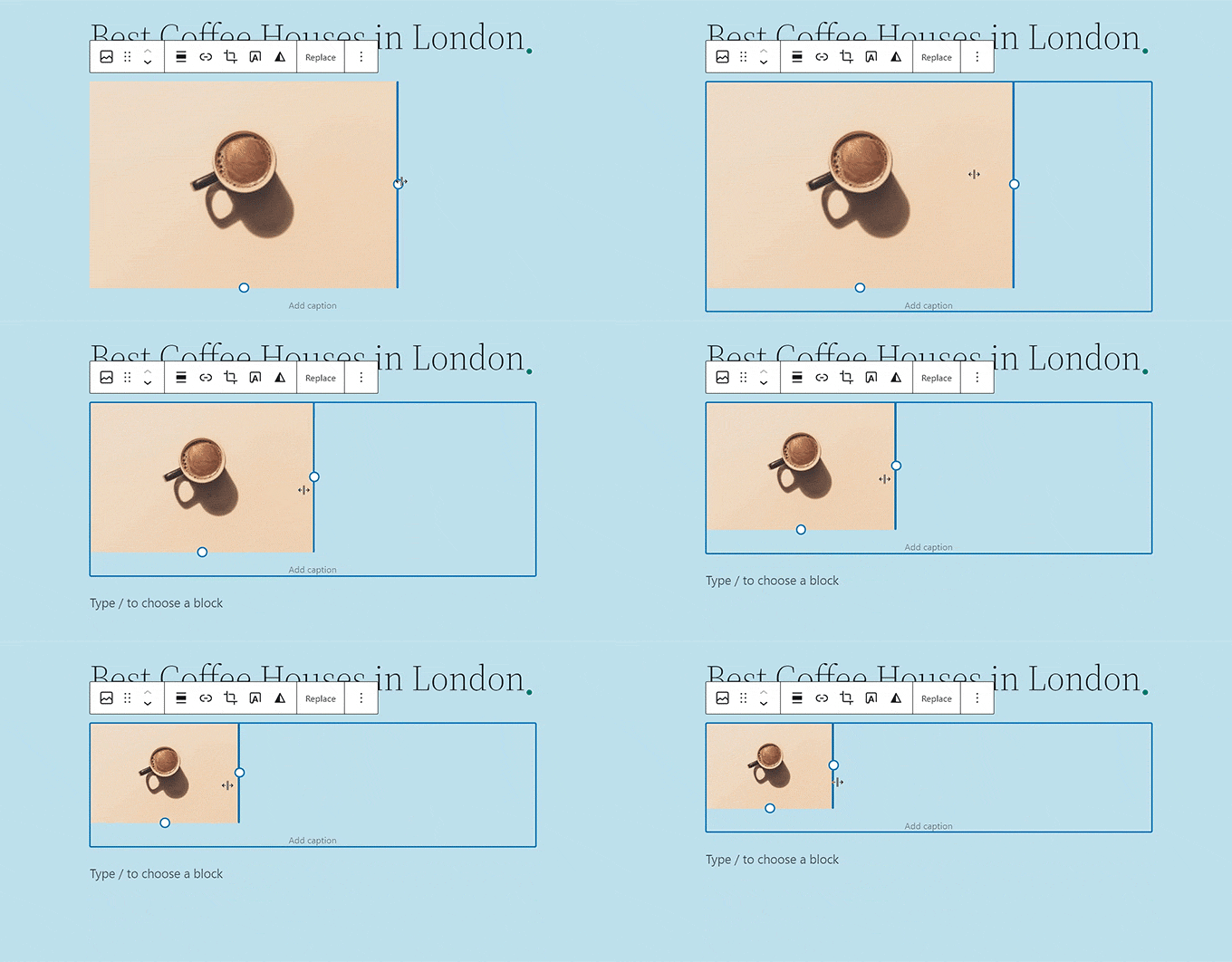
Another way to resize an Image block is to click on the image itself, which brings up a blue border with circular anchors.
Then, simply drag these anchors to change the height and width of the image block.
Once you are done, click on the ‘Update’ or ‘Publish’ button to store your settings.
Method 2: Change Block Width Using the Columns Block
If the block you want to resize does not have built-in size controls, like the Paragraph block, then this method is for you. It acts as a workaround by placing your block inside a container that you can control.
For this method, we will place our block inside the Columns block. It’s a container where you can add different blocks in each column. Then, you can resize those blocks by adjusting the height and width of the columns.
First, click on the ‘Add Block’ (+) button in the top left corner of the screen.
From here, locate and add the Columns block to the Gutenberg editor. Then, you will be asked to choose a variation.
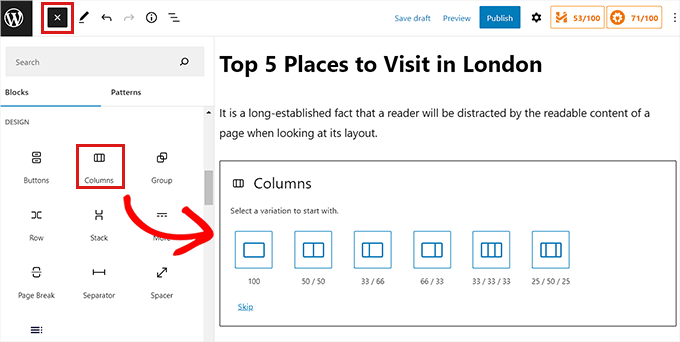
After that, the column layout will be displayed on the screen, and you can now add the block you want by clicking on the ‘Add Block (+)’ button inside a column.
Once the block has been added, you can control its width by adjusting the column it’s inside.
Simply select the column, and in the block settings panel on the right, you can change the column’s width in the ‘Settings’ section. This will in turn resize the block within it.
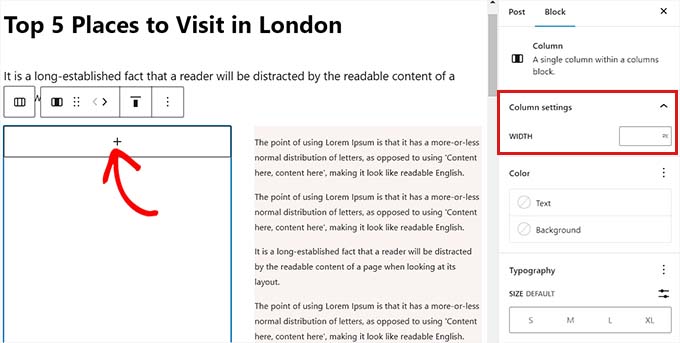
Once you are done, simply click the ‘Publish’ button to store your changes.
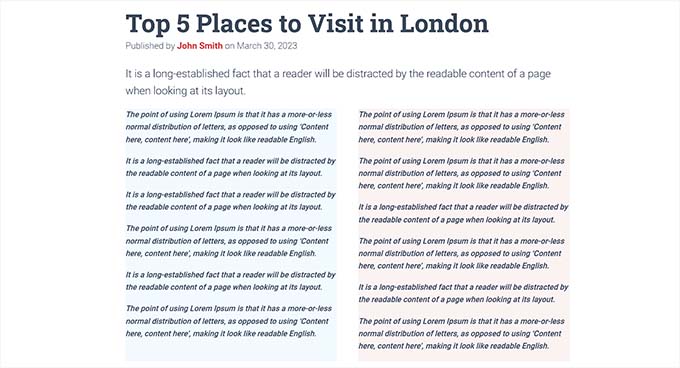
This is how the content looked on our demo website after resizing and aligning two paragraph blocks inside a two-column block.
Method 3: Change the Block Height and Width Using the Group Block
You can also adjust the width and height of blocks using the Group block. It allows you to group your desired blocks and style them together.
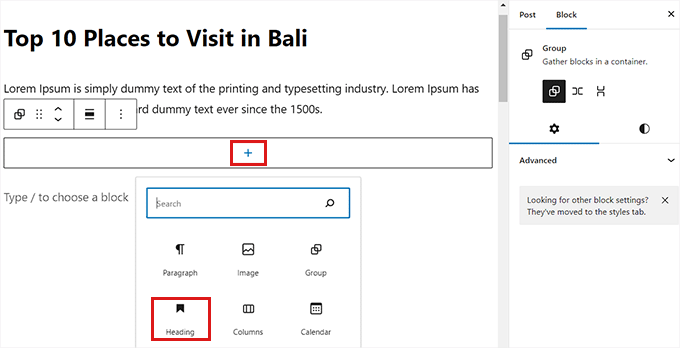
First, you must click on the ‘Add Block’ (+) button at the top. Next, locate and add the Group block to the content editor.
Once you do that, the Group block will display three different layout options. For this tutorial, we will use the ‘Group’ layout.
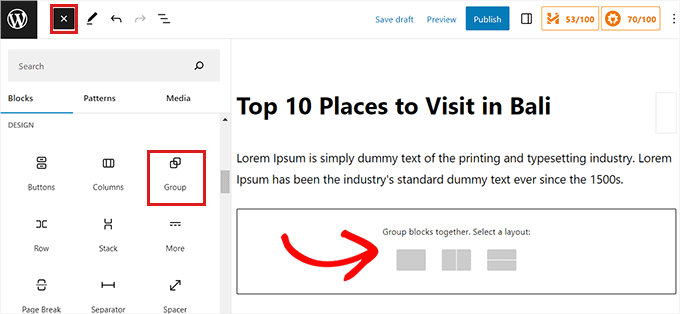
After that, the ‘Add Block’ button will be displayed on the screen. You can now add any block you want.
In this tutorial, we will add and resize a Heading block, a Paragraph block, and an Image block.
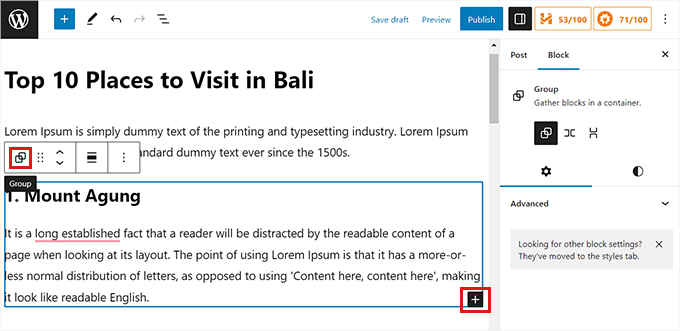
To add multiple blocks to the Group, click on the ‘Select Group’ button from the block toolbar.
Once the Group is selected, simply click on the ‘Add Block’ button (+) at the bottom.
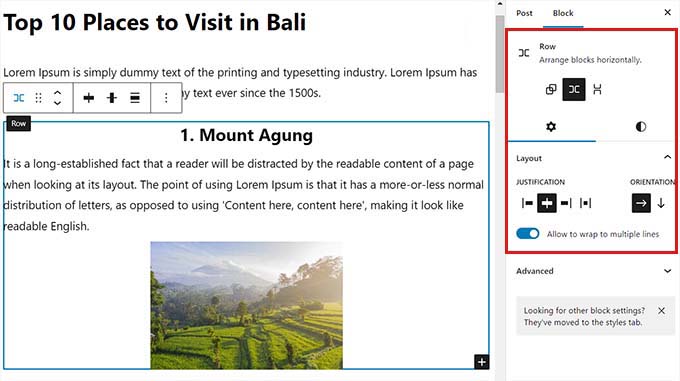
Once you do that, the block settings sidebar on the right will open. From here, you can easily adjust the layout, justification, and orientation of all the blocks.
Changing the layout will also change the different block sizes. You can configure these settings until you are happy with the result.
Once you are done, click on the ‘Update’ or ‘Publish’ button to store your settings.
This is how the Group block looked on our demo website.

Method 4: Change the Block Height Using the Cover Block
This resizing method is for you if you want to use the Cover block and set a specific minimum height for a section. It’s ideal for creating full-width banners or hero images that have text and other content on top.
First, click on the ‘Add Block’ (+) button at the top and find the Cover block.
Once you have done that, you will be asked to choose a color or upload an image from the WordPress media library. This image or color will be used as the background for the Cover block.
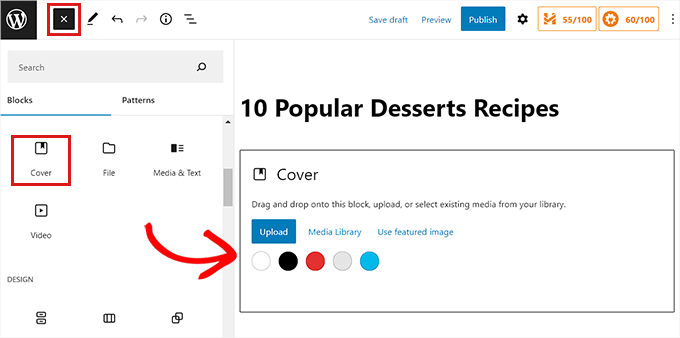
Next, simply drag and drop any block you want into the Cover block.
After that, you need to click on the Cover block to open up its block settings in the right column.
From here, scroll down to the ‘Dimensions’ panel, where you can adjust the height of the Cover block using pixels.
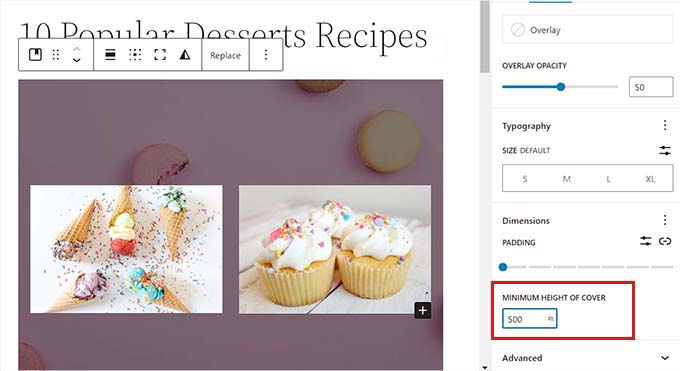
Finally, don’t forget to click on the ‘Save Changes’ button to store your settings.
For more detailed instructions on how to use the Cover block, you may want to see our beginner’s guide on Cover Image vs. Featured Image in the WordPress block editor.
Bonus: Create Beautiful Pages Using Advanced Blocks in SeedProd
You can easily create beautiful and aesthetically pleasing pages using the SeedProd plugin.
It is the best WordPress page builder on the market that lets you create landing pages using blocks, which are super easy to customize and resize according to your needs.
Several of our partner brands have used this tool to design their entire website, and their users have loved the fresh, modern look. To learn more, see our SeedProd review.
First, you will need to install and activate the SeedProd plugin. For more details, you can read our guide on how to install a WordPress plugin.
Note: SeedProd also offers a free version, but we will be using the premium plan for this tutorial.
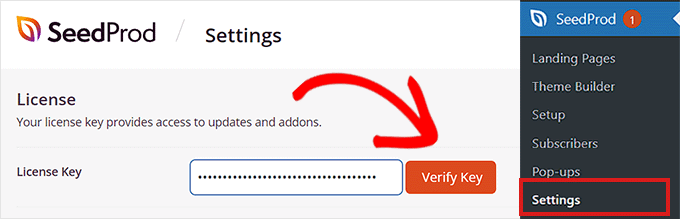
Upon activation, you must go to the SeedProd » Settings page from your WordPress dashboard and enter the license key in the ‘License Key’ box.
You can find the license key on your account page on the SeedProd website.
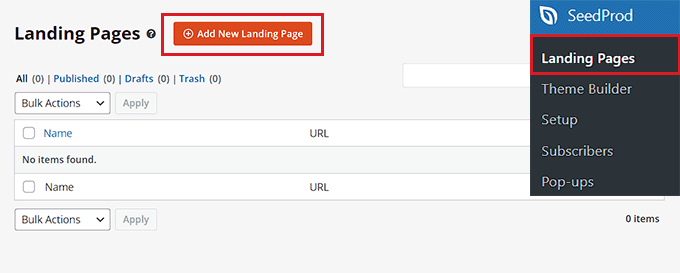
Next, visit the SeedProd » Landing Pages screen from the admin sidebar to start creating a landing page.
From here, just click on the ‘Add New Landing Page’ button.
You will now be taken to the ‘Choose a New Page Template’ screen. SeedProd offers many pre-made templates that you can pick from.
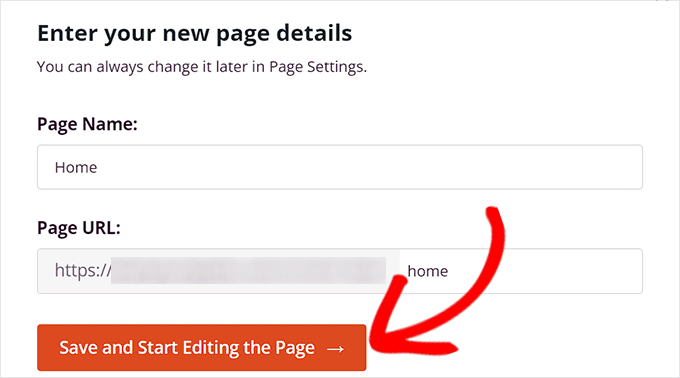
After you have selected a template, you will be asked to provide a name and URL for your landing page.
Upon adding these details, simply click on the ‘Save and Start Editing the Page’ button to continue.
This will launch SeedProd’s drag-and-drop page builder, where you can now start editing your page. For detailed instructions, see our guide on how to create a landing page with WordPress.
For this tutorial, we will be adding and resizing an Image block and a Button block.
First, you will need to drag the Image block from the block panel on the left and drop it anywhere you like on the page.
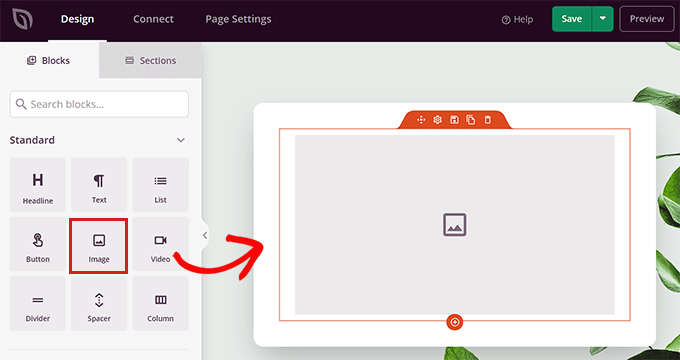
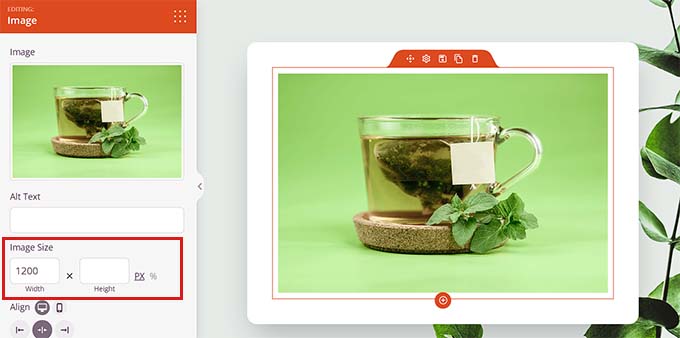
Next, click on the Image block to open its block settings in the left column. From here, you can upload an image from your media library.
Next, you can change the block’s height and width using pixels or percentages.
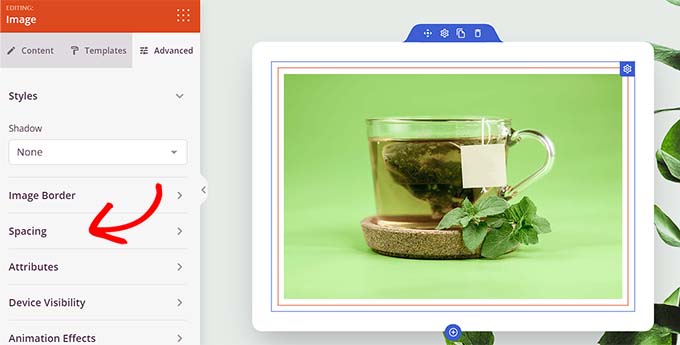
You can also adjust the image size and position by switching to the ‘Advanced’ tab at the top of the settings panel.
Then, just click on the Spacing panel to expand its settings.
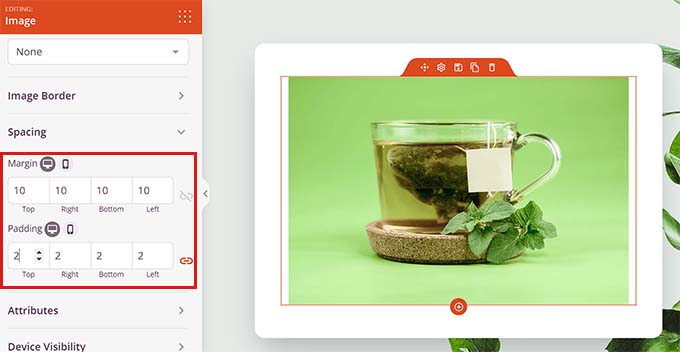
Here, simply add values to adjust the block’s margin and padding according to your needs.
You can adjust the margin and padding for the top, bottom, left, and right areas of the block.
With Seedprod, you can also add a Spacer block between two different blocks to put some space between them.
First, you will need to locate and add the ‘Spacer’ block from the left column. Then, click on it to open its settings.
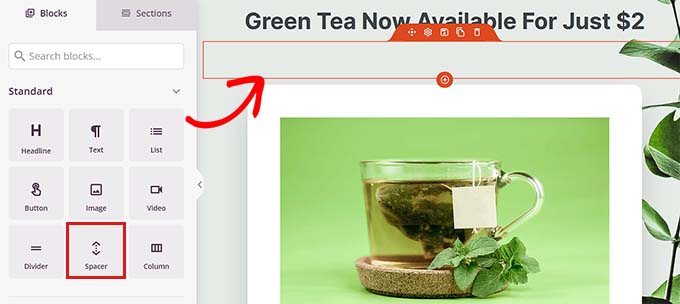
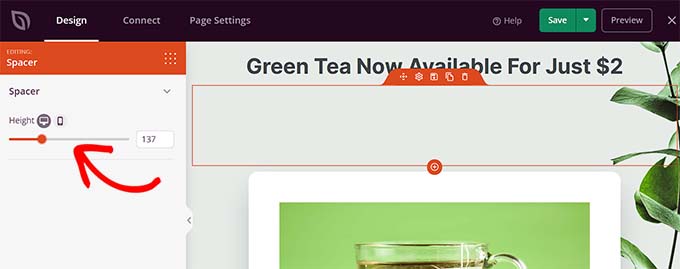
Now, you can control the height of the spacer using the ‘Height’ slider.
The spacer block can help you create a clutter-free website.
You can also change the width and height of other blocks in the same way, including the Video, Heading, and Button blocks.
Simply find the Button block in the left column and drag it onto your page.
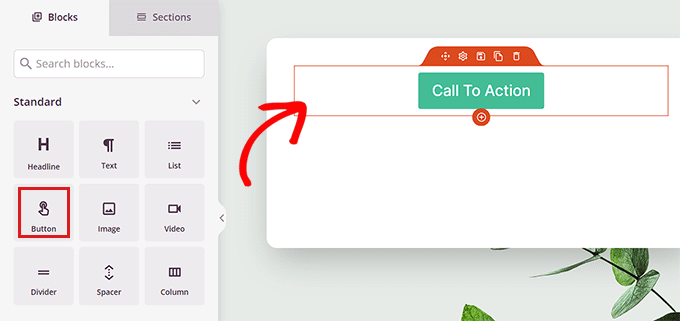
Next, you will need to click on the Button to open up its block settings.
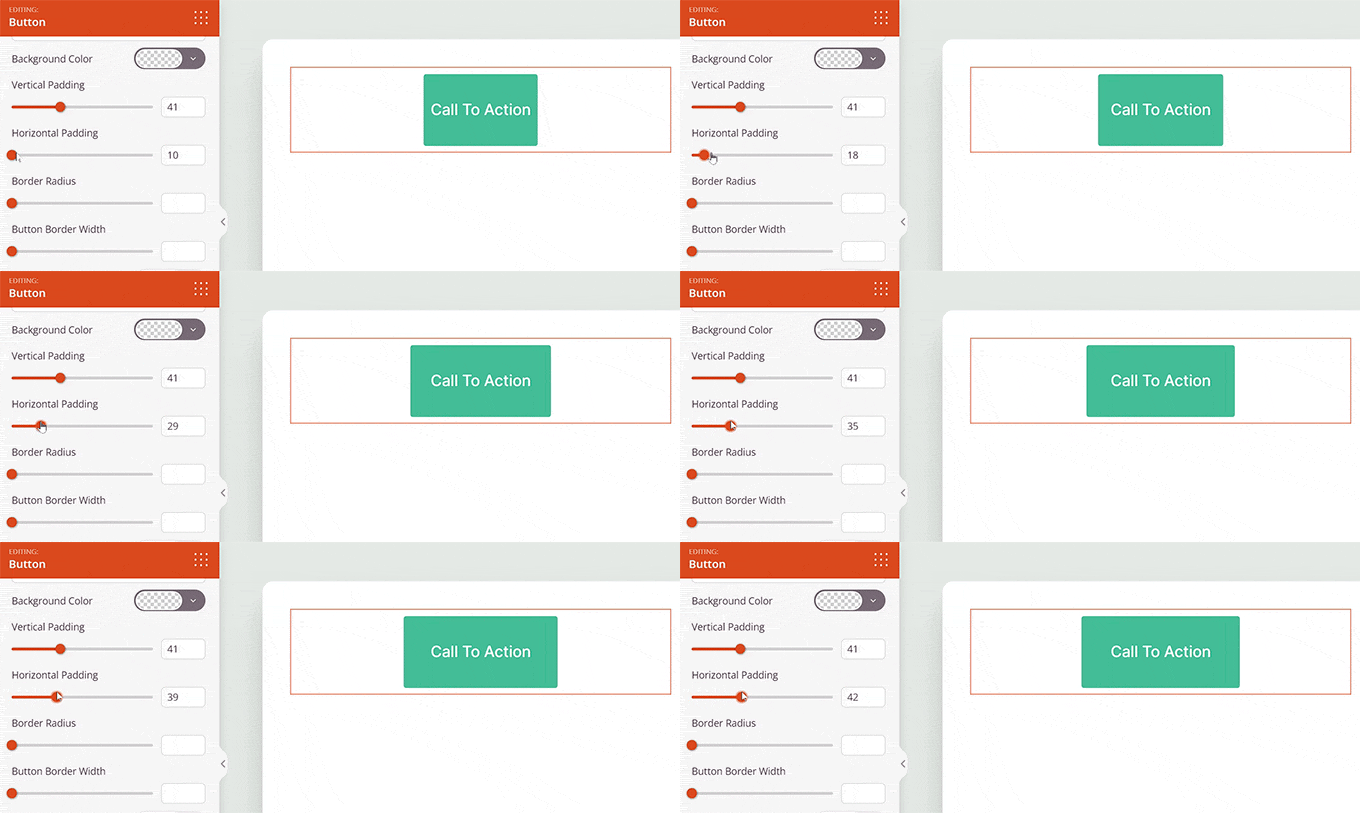
From here, switch to the ‘Advanced’ tab from the top. You can change the height of the block by dragging the ‘Vertical Padding’ slider.
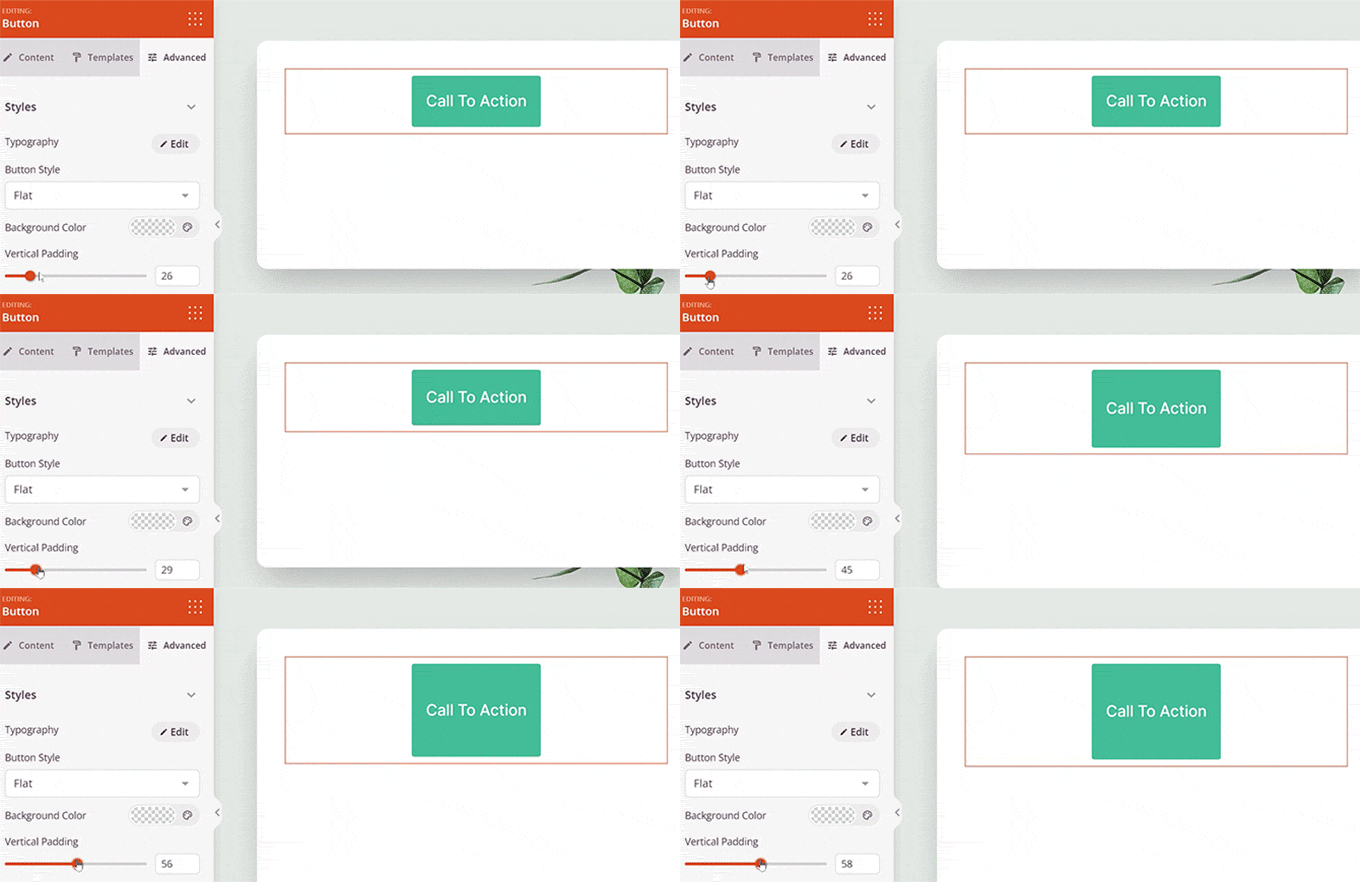
To change the width, drag the ‘Horizontal Padding’ slider in the left column.
Once you are done, don’t forget to click on the ‘Save’ button.
We hope this article helped you learn how to change block width and height in WordPress. You may also want to see our article on how to add and align images in the WordPress block editor and our top picks for the best Gutenberg-friendly WordPress themes.
If you liked this article, then please subscribe to our YouTube Channel for WordPress video tutorials. You can also find us on Twitter and Facebook.




Suman Sourabh
Amazing tips!! I have only used the 1st method till now. I will try the other methods from now on. Thank you so much!
WPBeginner Support
You’re welcome!
Admin