


You’ve just launched your beautiful WordPress site, spending hours getting everything perfect. But when you search for it on Google, it’s nowhere to be found.
The simple truth is that search engines don’t automatically find every new website, which can feel like opening a shop but forgetting to put a sign on the door.
Luckily, you don’t have to wait weeks or months for Google to notice you. From our experience helping thousands of website owners, getting your site properly listed is a quick process with the right steps.
This guide will walk you through exactly how to do it. We’ll show you how to check your settings and submit your site correctly to start attracting traffic in just a few days.
Why Getting Your Website Listed on Google Matters for Your Success
Google is where most people start when they’re looking for businesses, solutions, and content online. In our experience helping thousands of WordPress users, we’ve seen that Google typically accounts for 70-90% of most websites’ organic traffic.
Whether you’re starting a blog or launching your small business website to attract customers, being invisible on Google means missing out on your biggest opportunity for growth.
While Google can eventually discover your site on its own if you’re following WordPress SEO best practices, this process can take weeks or even months. We’ve seen brand new sites wait 2-3 months before appearing in search results naturally.
The good news? You can cut this waiting time down to just a few days with the right approach. Let’s show you exactly how to get your WordPress site listed on Google quickly and effectively.
Before You Start
Before you start, you will need to create a Google Search Console account.
You can easily set it up by following our step-by-step instructions on how to add your WordPress site to Google Search Console.
Step 1: Checking WordPress Settings for Search Engine Visibility
After you have set up your Search Console account, you need to make sure that your WordPress site is visible to search engines.
You can check this by going to the Settings » Reading page and scrolling down to the ‘Search Engine Visibility’ option.
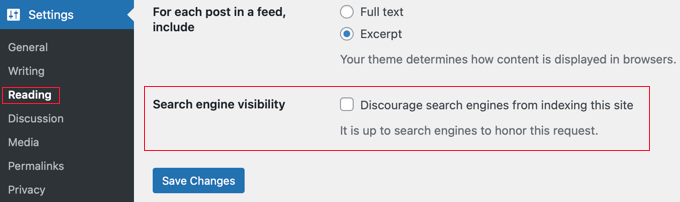
Make sure to remove the check mark from this option. This will allow search engines to crawl your website.
Don’t forget to click on the ‘Save Changes’ button to store your settings.
Step 2: Connecting Google Search Console With WordPress
The next thing you need to do is add your website to Google Search Console.
Google will offer two options: Domain or URL prefix. We highly recommend choosing the URL prefix method on the right. It’s much simpler for beginners because it doesn’t require technical changes to your domain’s DNS records.
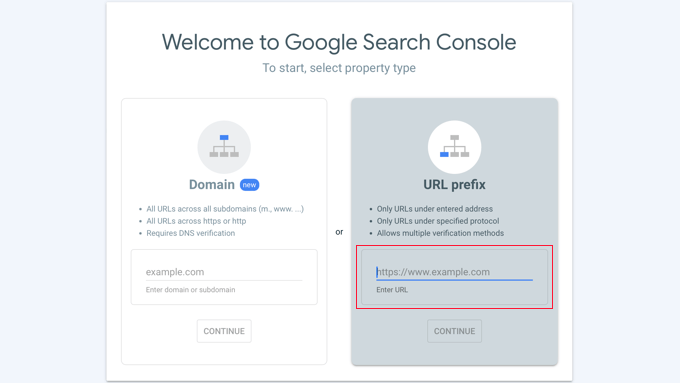
In the website field, you must add your full website URL. It is important to use exactly the same URL that you are seeing in your browser’s URL bar, including https and www or non-www.
Once you add the website URL, it will ask you to verify that you own the domain.
There are multiple methods that you can use to verify ownership. The easiest way is to click the arrow next to ‘Other verification methods’. This will give you a meta tag that you need to copy.
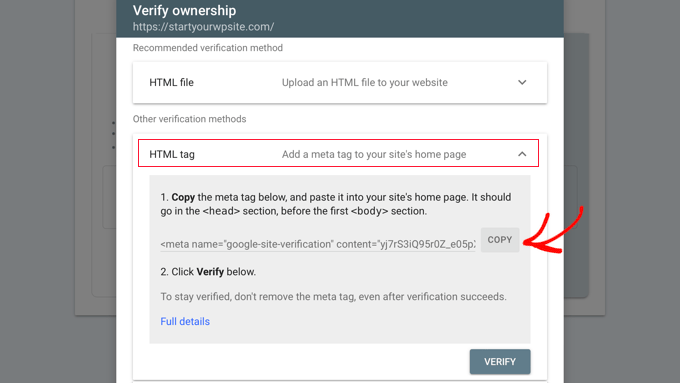
Next, you will need to install and activate the All in One SEO plugin on your WordPress site. For more details, see our step-by-step guide on how to install a WordPress plugin.
Upon activation, you will see a new item in your WordPress admin menu labeled All in One SEO.
Go ahead and click on the All in One SEO » General Settings menu, and then click the ‘Webmaster Tools’ tab at the top of the page.
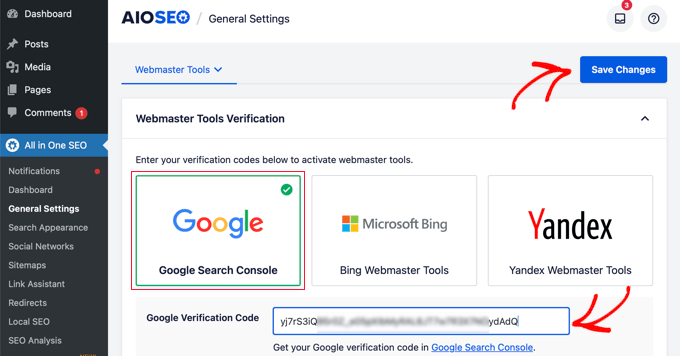
Next, you need to click on the ‘Google Search Console’ box and paste the verification code into the field that appears.
Once you are done, make sure you click the ‘Save Changes’ button at the top of the screen.
Now, you can go back to the Google Search Console account and click on the ‘Verify’ button. Your website ownership will be successfully verified.
If, for some reason, it doesn’t verify, then you need to clear the cache in WordPress.
Step 3: Setting Up XML Sitemaps
Once your site is verified, head over to All in One SEO » Sitemaps in your WordPress dashboard. This is where you can check on your sitemap settings.
By default, AIOSEO creates the sitemaps you need automatically.
Think of a sitemap as a map of your website for search engines. It lists all your important pages, making it super easy for Google to find and understand all of your content.
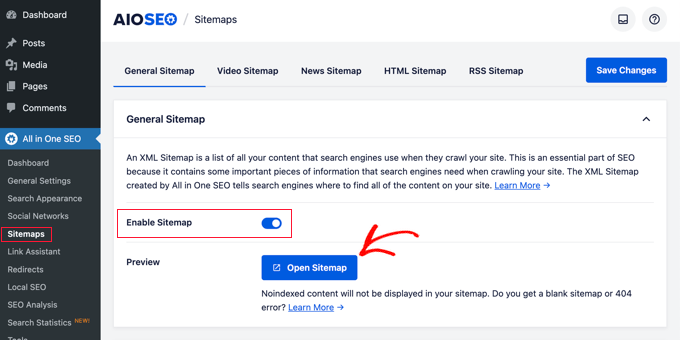
To view your sitemaps, click the ‘Open Sitemap’ button.
Alternatively, you can add ‘sitemap.xml’ to your website’s URL, such as www.example.com/sitemap.xml.
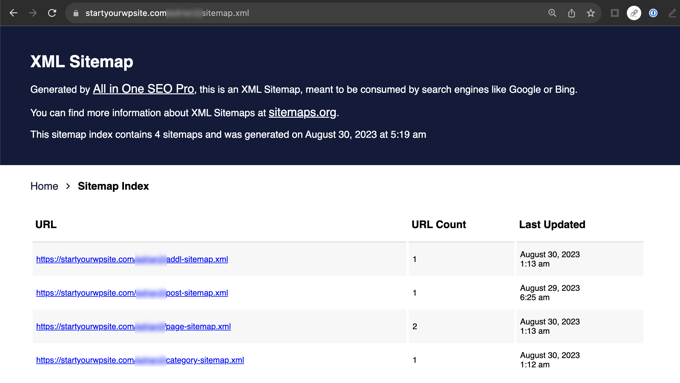
Next, you need to submit your sitemap to Google Search Console. Sitemaps help Google search bots easily find and index your new content.
Step 4: Submitting XML Sitemaps to Google Search Console
Simply log in to your Google Search Console account and select your website. After that, you will need to go to ‘Sitemaps’ on the left side of the screen.
In the ‘Add a new sitemap’ field, simply type sitemap.xml and click the ‘Submit’ button.
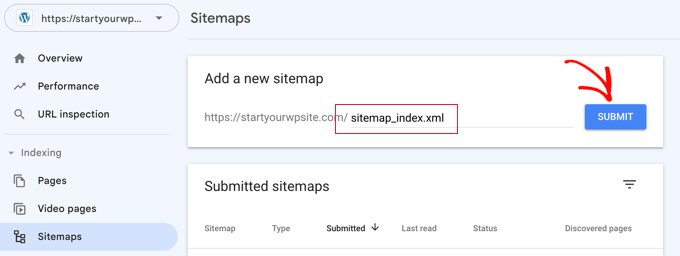
You may notice that after you submit it, Google shows the URL as sitemap_index.xml like in our screenshot. Don’t worry, this is completely normal. It just means Google found the main ‘index’ file for all your sitemaps, and everything is working perfectly. 👍
In the ‘Add a new sitemap’ field, simply type sitemap.xml and click the ‘Submit’ button.
Once you are done with these steps, you can visit your Google Search Console account to check your listings. Once Google has crawled and indexed your website, you will start seeing reports in the search console.
What’s Next? From Being Listed to Ranking Higher
An important factor that affects search rankings is website speed. Slower websites are bad for user experience and are often ranked lower than faster websites.
That’s why, once you get your website listed on Google, you should take a look at our guide on how to improve your website performance.
Frequently Asked Questions About Getting Listed on Google
We’ve helped thousands of users get their websites indexed, and over time we’ve noticed the same questions come up. Here are the answers to the most common questions we get asked.
1. How long does it take for my site to appear on Google after submitting a sitemap?
While there is no exact timeline, submitting a sitemap can significantly speed up the process. It can take anywhere from a few days to a few weeks for Google to crawl and index your site.
2. Why can’t I find my new website on Google?
The most common reason is that your site is brand new and Google hasn’t discovered it yet. Another frequent issue is that the ‘Discourage search engines from indexing this site’ setting is accidentally checked in your WordPress Reading settings.
3. Do I have to submit my website to Google?
Eventually, Google’s web crawlers will likely find your site on their own through links from other websites. However, manually submitting it through Google Search Console is the best way to make sure it gets found and indexed quickly.
4. How can I check if my site is indexed by Google?
The easiest way is to go to Google and type site:yourwebsite.com into the search bar, replacing ‘yourwebsite.com’ with your actual domain. If any of your pages appear in the results, then your site has been indexed.
5. Is getting indexed the same as ranking high?
No, they are two different things. Indexing simply means that Google knows your site exists and has added it to its database. Ranking refers to how high your site appears in the search results for specific keywords, which is influenced by SEO.
Additional Resources on Becoming More Visible on Google
We hope this article helped you get your WordPress site listed on Google. You may also want to see some other guides about how to become more visible on Google:
- How to Submit Your Website to Search Engines (Beginner’s Guide)
- How to Ask Google to Recrawl URLs of Your WordPress Site
- How to Get a Google Featured Snippet with Your WordPress Site
- How to Get Google Sitelinks for Your WordPress Site
- How to Appear in Google Answer Boxes with Your WordPress Site
- What Is Google Knowledge Panel + How to Claim It With WordPress
- How to Automatically Add WordPress Products in Google Shopping
- How to Get Your WordPress Site Into Google Discover
- How to Submit Your WordPress Site to Google News (Step by Step)
- How to Hide a WordPress Page From Google
If you liked this article, then please subscribe to our YouTube Channel for WordPress video tutorials. You can also find us on Twitter and Facebook.





Jiří Vaněk
I learned to follow these steps with my first blog, thanks to the tutorials on WPBeginner. Now, I apply them consistently to every new website I build. Even though I never know how quickly Google will pick up a new site on a new domain and start indexing it, I’ve noticed that it takes significantly less time now compared to my first blog (multiple times faster). With the first site, it took months because I didn’t know any of these methods to help the process. So I can confirm that it really works. BTW: I swear by AIO SEO. I use it on every site, not only because it’s one of the best SEO plugins, but it always ensures all the key settings are in place so I don’t forget anything.
Dennis Muthomi
One super quick question: How long does it typically take for Google to index a new site after following these steps?
thanks
WPBeginner Support
There is no guaranteed timeline at the moment sadly.
Admin
Jiří Vaněk
There’s no simple answer to that. Or actually, there is. It takes a different amount of time every time and depends on many factors. Even if you apply all the steps from this list, one website might take 14 days to get indexed in search results, while another might take significantly longer. You simply can’t determine a relevant time frame to rely on. I’ve tested this on several websites I’ve worked on, and despite following the same process and steps, the time it took for Google to start indexing each site was completely different. It’s more like a lottery with the algorithm than something you can predict in advance.
Moinuddin Waheed
i was trying to add one of my websites to add to Google search console and I was struggling to change in the DNS records.
it is good to see that we can add to Google search console even without changing the DNS records.
Adding all in one seo made the verification of the ownership of domain and adding sitemap part so easy.
WPBeginner Support
Happy to hear it helped
Admin
Mrteesurez
Yes, AIOSEO is indeed powerful, it was the one I also use on my site to get things setup so quickly. I recommend it to be the first plugin to install on a new website for a complete SEO solution.
Ankit
Hi Sir,
I recently created my blog and I am not able to see it on website. Also, I am not able to open webpage through my isp it throws an error of “DNS_PROBE_FINISHED_NXDOMAIN”. I tried fixing it to all the steps mentioned on google blogs. Not sure what to do.
WPBeginner Support
If you have not gone through our guide then you can find our guide below for that error:
https://www.wpbeginner.com/wp-tutorials/how-to-easily-fix-the-dns_probe_finished_nxdomain-error/
You may also want to try reaching out to your hosting provider and they can also try to assist.
Admin
Funrich
Hello, so I just created a wordpress site and I have done all the guidese you mentioned above, but when I typed on Google, I still cannot find my website
WPBeginner Support
If you just created your WordPress site, you need to give time for search engines to crawl your content as you cannot be listed before you have content to list unless you’re searching specifically for your site’s URL.
Admin
PV Ramakrishna
how to add rss feed in aioseo
WPBeginner Support
We would recommend taking a look at our guide below which covers this and a few other optimizations you can do for your RSS feed
https://www.wpbeginner.com/wp-tutorials/how-to-optimize-your-wordpress-rss-feed/
Admin
Michael Hodgson
You lost me at “Next, on your WordPress site you’ll need to install and activate the All in One SEO plugin.” My web site is on-line. Installing anything doesn’t mean anything.
WPBeginner Support
Plugins can still be installed on your WordPress site, we would recommend taking a look at our article below for how to add a plugin to your WordPress site:
https://www.wpbeginner.com/beginners-guide/step-by-step-guide-to-install-a-wordpress-plugin-for-beginners/
Admin
Mazidat
Thank you for the great information. I followed it and it was successful. Kudos to you WPBeginner.
WPBeginner Support
Glad this guide was helpful
Admin
Trip
Hello , Great article. I did all these steps, and 8,9 days later I still don’t see my website in search. Is it possible that Google still didn’t index my website?
WPBeginner Support
We do not have a specific timeframe that Google would crawl your site but you can search for your site using site:yoursite to see if your site is in search.
Admin
Amine
Good article, Thank you guys for the quality
WPBeginner Support
You’re welcome, glad you liked our article
Admin
Daniel
“See the XML Sitemap” takes me to a 404 page…..
WPBeginner Support
You may want to try resaving your permalinks for the most common solution to that error.
Admin
Pradip
I just wanna say thank you for this great article! It helped me to the point!
WPBeginner Support
Glad our article was helpful
Admin
Dave G
Great article, the steps are easy to follow even where the current Google settings pages don’t quite match the description. Thanks !
WPBeginner Support
You’re welcome, we try to keep the article up to date but Google does not always make it easy
Admin
Danish
You deserve a thanks!
WPBeginner Support
Thank you
Admin
saleha
This has been really helpful, thank you!
WPBeginner Support
You’re welcome, glad our guide could be helpful
Admin
Kathy B
Wow, good stuff! I’m a step above a WordPress novice, but this is great stuff to know. Thanks!
WPBeginner Support
You’re welcome, glad our article was helpful
Admin
franco
Hi, sorry, i don’t really get a couple of things.
I have a free-plan blog i use just to fool around and discover ho WP works.
The layout of the settings is different than described in this article and the blog is open by almost a month. Shoudn’t i be able to see it, already, in search engines results?
Being it a free-plan, i can’t install plugins, so no webaster tools for me yet.
So, how does it work? should i simply wait a bit more for the clawler to do its magic, or a free-plan simply is not predisposed to be SEO-compatible (in order to push for at least a basic-plan)?
WPBeginner Support
It could either be how valuable Google sees your content or Google could have not crawled your site yet, you would want to check with WordPress.com’s support for the limitations and recommendations for their free sites.
Admin
Lisa Meyers
We love your site and your the best place for information for beginners, especially the easy to follow videos you make. We have the opposite need we want to use a premade template, but we need people to have access to the site to view when needed to give us help on how it’s going. But we’re worried if google sees the site and all the pages it will hurt the site because of all the dummy content, until we replace it with our own. The site has been up for a while with the plain homepage from the initial install and has been indexed already as it is, with nothing on it so far. Thanks again for the excellent site and all the work you put into it to help others.
WPBeginner Support
You could set a landing page using the method in our article here: https://www.wpbeginner.com/beginners-guide/how-to-make-your-wordpress-blog-completely-private/
and give those who need access to the site a login
Admin
Mumtaz Ahmad
Just followed all steps in my site, let’s see the results.
Luis Arango
Thank you very much for the article, it has been very helpful to understand the importance of indexing our web pages in the Google search engine and how to run it.