


WordPress is known as the most popular website builder in the world. It powers over 43% of all websites on the internet. The main reason for that is because WordPress is easy to install which makes it simple for anyone to create a website.
All the best WordPress web hosting companies allow you to install WordPress with just few clicks. In most circumstances, installing WordPress is a simple process that takes less than five minutes to complete.
At WPBeginner, we’ve installed WordPress on thousands of websites using various methods across dozens of hosting companies.
In this tutorial, our goal is to offer a complete WordPress installation tutorial for beginners and advanced users alike, based on our experience.
For beginners, we’ll show you how to install WordPress on all top hosting platforms by using 1-click install scripts like Fantastico, Softaculous, and QuickInstall.
We’ll also explain how to install WordPress manually using FTP for our intermediate users.
Lastly, for our beginner developer and designers, we’ll show you how to install WordPress on a local computer (Windows, Mac, and Linux).
Apart from showing you how to install WordPress, we’ll also give you tips on things to do after you install WordPress.
Things You Need Before Installing WordPress
Before you install WordPress, first you will need a domain name and a good web hosting company that knows WordPress.
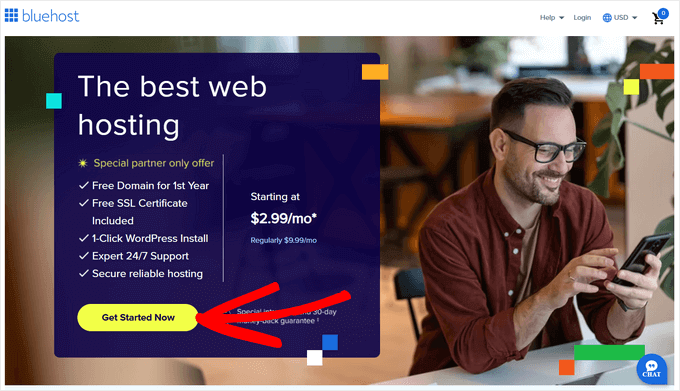
We highly recommend that you use Bluehost because they are one of the largest hosting companies in the world. They are also an officially recommended WordPress hosting provider.
Best of all, they will give you a free domain and a huge discount on their hosting plans (special for WPBeginner users). This means that you can get started for just $2.99 per month!
After choosing a hosting provider, you’re ready to install WordPress. Simply use the quick links below to jump straight to the method you want to use.
- How to Install WordPress on Bluehost
- How to Install WordPress on HostGator
- How to Install WordPress on SiteGround
- How to Install WordPress on WP Engine
- How to Install WordPress from cPanel
- How to Install WordPress using Softaculous
- How to Install WordPress using QuickInstall
- How to Install WordPress using Fantastico
- How to Install WordPress using FTP
- How to Install WordPress on your Computer
- How to Install WordPress in your Language
- How to Install a WordPress Multisite Network
- Things to do After Installing WordPress
How to Install WordPress on Bluehost
Bluehost is one of the largest hosting companies in the world. They know WordPress inside out and have the most beginner-friendly WordPress installation process.
Bluehost automatically installs WordPress on your domain name when you sign up.
To create a new WordPress website, simply click on the ‘My Sites’ tab in the Bluehost dashboard. Then click on the ‘Add Site’ button and select ‘Create New Site.’
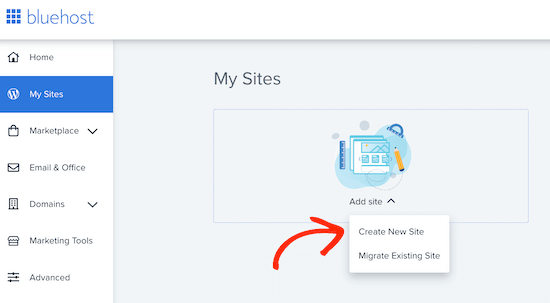
This will launch the Bluehost guided WordPress installation wizard.
First, it will ask you to provide a site title and, optionally, a tagline.
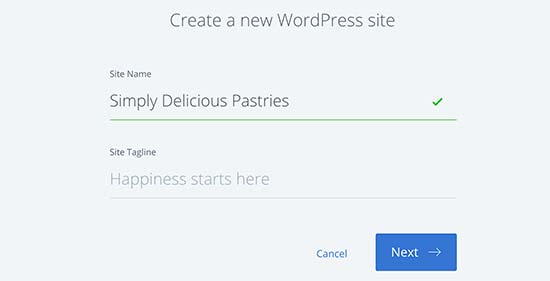
Click on the ‘Next’ button to continue.
After that, Bluehost will ask you to select a domain name and path for your website. If you have already purchased a domain name, then you can select it from the dropdown menu.
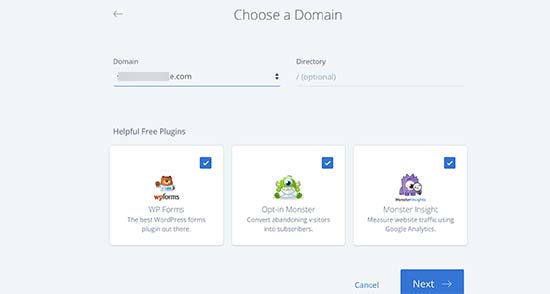
If you don’t have a domain name then you can purchase one by visiting the ‘Domains’ page inside your Bluehost dashboard.
After selecting a domain name, you can leave the directory path blank and let Bluehost choose it for you. The installer will also show a few must have WordPress plugins that you may want to install.
You can then click on the ‘Next’ button to continue.
The installer will set up your WordPress site, which may take a few moments. After that, you will see a success message with information about your new WordPress website.
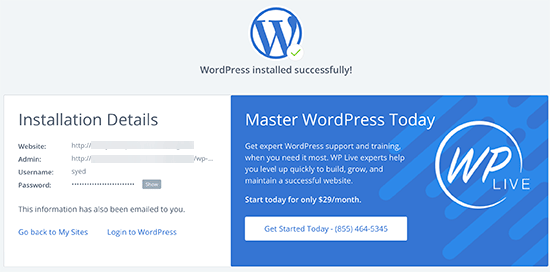
Bluehost will also send the information to your email address.
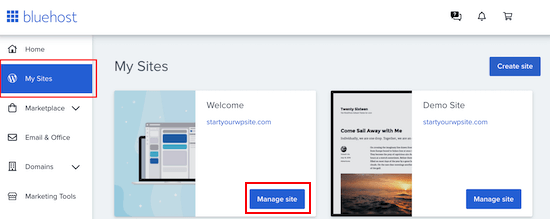
To log into your new site’s admin area, simply click on the ‘My Sites’ tab in the Bluehost dashboard. Then, find your site and click on its ‘Manage site’ button.
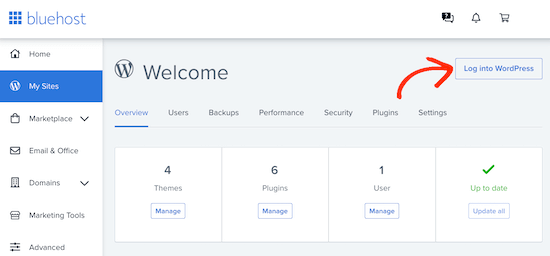
On the next screen, simply find the ‘Log into WordPress’ button.
This will take you to your site’s admin area.
Congratulations, you’ve now installed WordPress on your Bluehost hosting account.
How to Install WordPress on HostGator
HostGator is another popular shared WordPress hosting provider among beginners. They also make it super easy to install WordPress with just a few clicks.
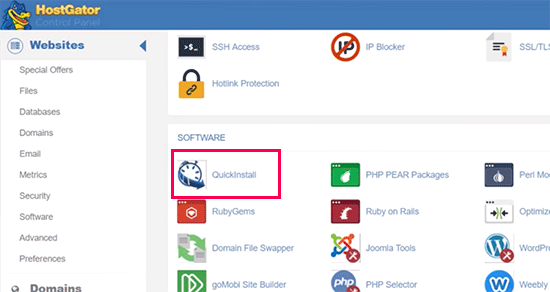
First, you need to log in to your HostGator hosting account’s dashboard. From here, you need to click on the ‘QuickInstall’ icon under the ‘Software’ section.
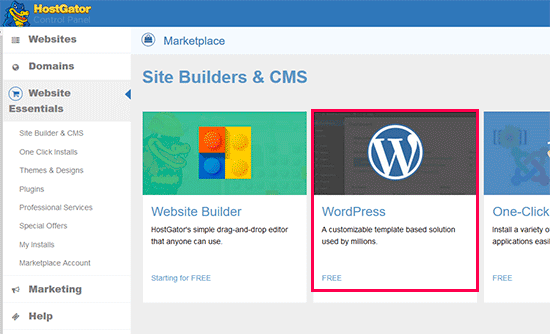
On the next screen, you need to click on ‘WordPress’.
This will launch the installer wizard.
Now, you will be asked to select the domain name where you want to install WordPress and enter a directory path.
Most beginners want to install WordPress in the root of their domain name (for example, wpbeginner.com). In that case, you need to leave the directory field blank.
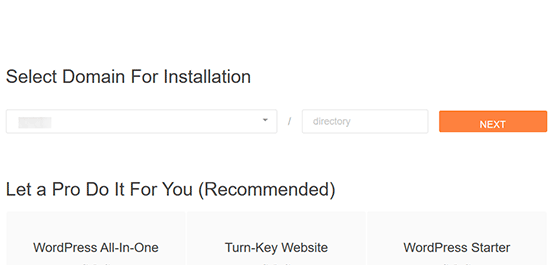
Click on the ‘Next’ button to continue.
The installer will now ask you to enter WordPress site details. You will need to provide a site title, admin username, first and last name, and an admin email address. Make sure that you have access to that email address because this is where you will get your WordPress password reset email.
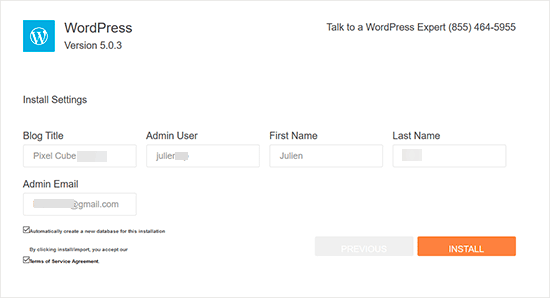
After entering all the information, click on the ‘Install’ button to continue.
The installer will now run in the background to install WordPress for you. Once finished, you will see a success message with your admin user name and password.
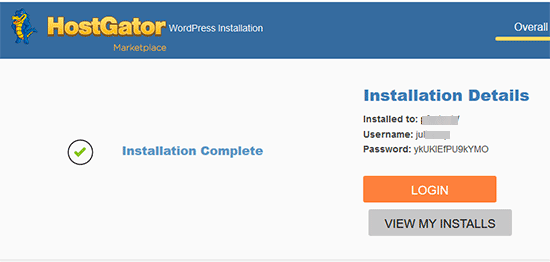
You can now click on the ‘Login’ button to access the WordPress admin area.
Congratulations, you have successfully installed WordPress on your HostGator account.
How to Install WordPress on SiteGround
SiteGround is a popular choice among WordPress beginners. They are known for their excellent WordPress support and highly optimized hosting plans.
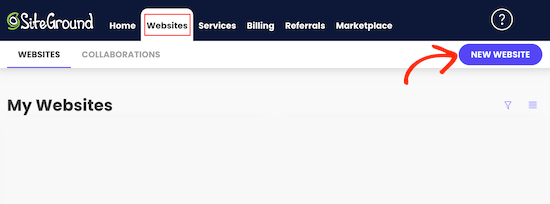
SiteGround makes it extremely easy to install WordPress from your hosting account. Simply log into the SiteGround hosting panel and then click on the ‘Websites’ tab to get started.
Next, go ahead and click on the ‘New Website’ button.
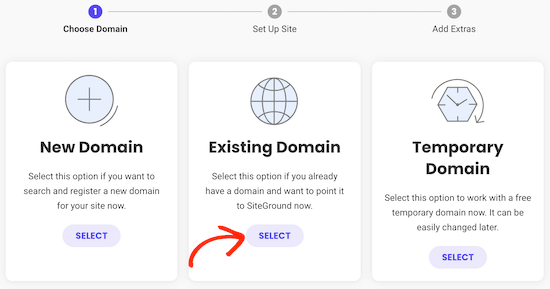
If you don’t have a domain yet, then you can click on ‘New Domain’ and search for a domain that you want to use.
To use a domain that you’ve already purchased, just click on ‘Existing Domain.’
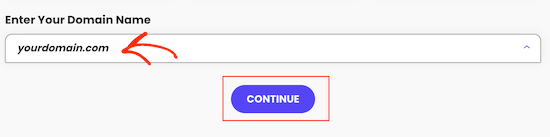
On the next screen, type in the domain that you want to use.
Then, go ahead and click on the ‘Continue’ button.
On the next screen, click on Start New Website.
You can now choose the software that you want to install. Since we want to use WordPress, go ahead and click on ‘WordPress.’
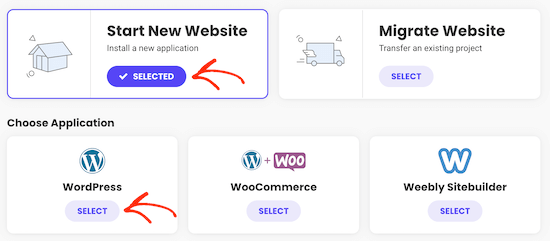
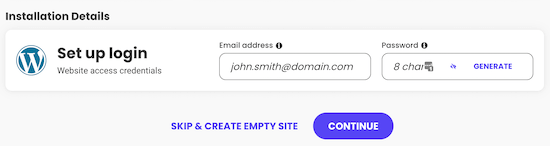
After that, type in the email address and password that you want to use for your WordPress admin account.
When you’re happy with the information you’ve entered, click on ‘Continue.’
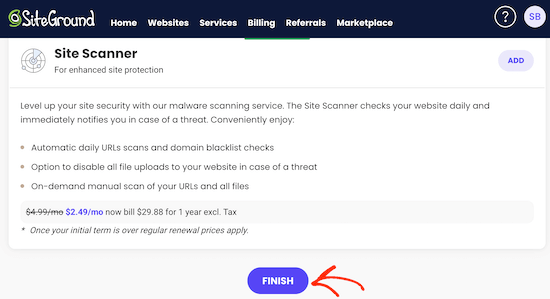
After that, you’ll have the option to add some extras to your account.
You can skip this step so simply scroll to the bottom of the screen and click on ‘Finish.’
SiteGround will now go ahead and create your site, which may take a few minutes.
When it’s finished, you can click on the ‘Log in Admin’ button.
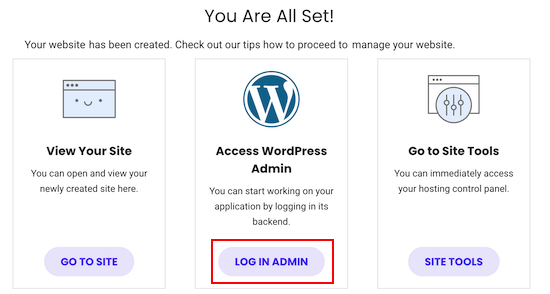
This opens a new tab where you can type in the admin username and password you just created and log into your new account.
The SiteGround website set up wizard will launch automatically and help you get started with WordPress. To continue, click on the ‘Start Now’ button.
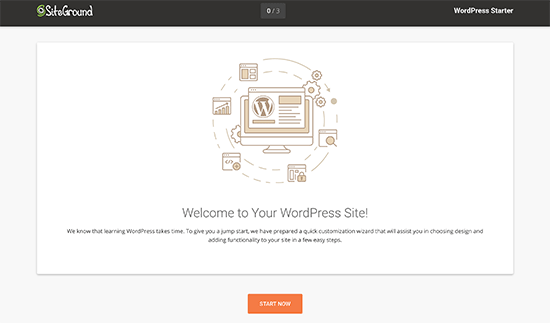
First, the starter wizard will ask you to choose a design for your WordPress site.
It will show you hand-picked design templates organized into various categories, such as fashion, health and fitness, and photography.

We recommend choosing a simple design that resembles how you want your finished site to look. Remember that each theme is customizable, so you can fine-tune it.
Next, you will be asked to choose the features you want to add to your site. SiteGround will automatically select ‘Contact Form’ because every website needs a contact form.
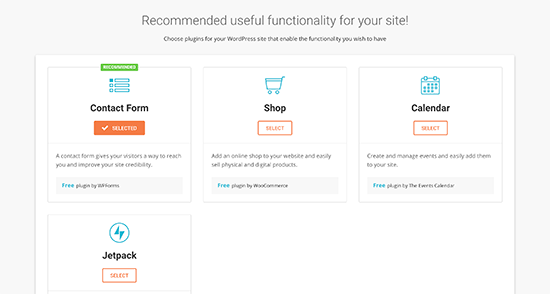
If you’re starting an online store, then you can select ‘Shop.’ Your other options are Calendar and Jetpack.
After selecting all the features you want to use, click on the ‘Next’ button to continue.
Now, you can add some marketing tools to help promote your site. SiteGround will install MonsterInsights for Google Analytics, AIOSEO for search engine optimization, and OptinMonster for lead generation.
All three tools can help grow your site, so we recommend selecting all of them.
Once you’ve done that, click on ‘Complete,’ and the starter wizard will finish the installation for you. After a few minutes, you will see a success message with a ‘Go to Dashboard’ button.
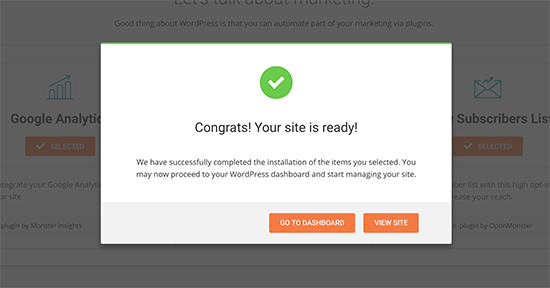
Simply click on the button to visit the WordPress admin dashboard.
Here, you’ll see different menus that you can use to create content, customize your site’s design, and start working on your website.
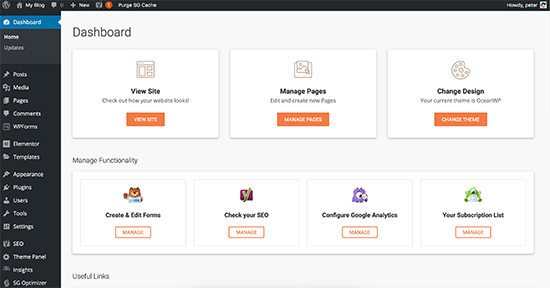
That’s all. You have successfully installed WordPress on your SiteGround hosting account.
How to Install WordPress on WP Engine
WP Engine is a popular managed WordPress hosting provider. A managed hosting account is basically a concierge service for your WordPress website.
They take care of managing your WordPress site updates, installation, and performance optimization while you focus on growing your business.
As a managed WordPress hosting company, WP Engine automatically installs WordPress when you sign up. Depending on your hosting plan, you can also create additional websites whenever you need them.
Simply log in to your WP Engine dashboard and visit the ‘Sites’ page. You will see a list of all your WordPress sites. Click on the ‘Create Site’ button to add a new WordPress install.
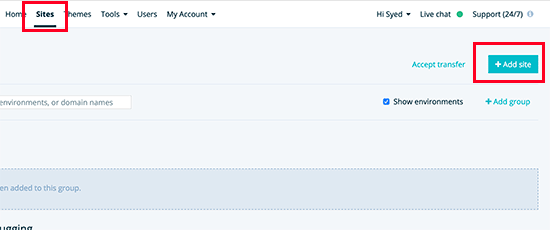
On the next screen, you will be asked to provide a name for your production environment.
Enter a name that helps you easily identify this website, and then click on the ‘Create Environment’ button.
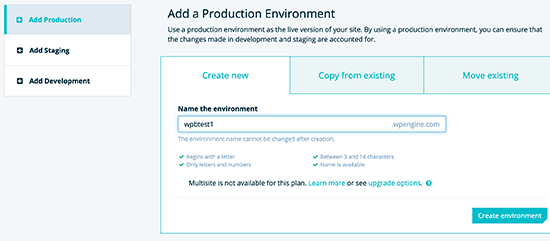
WP Engine will now install your WordPress environment. It will take some time for DNS changes to propagate.
After that you will be able to access the WordPress admin area by clicking on the link in the sidebar. You will also be able to see your login credentials on the same page.
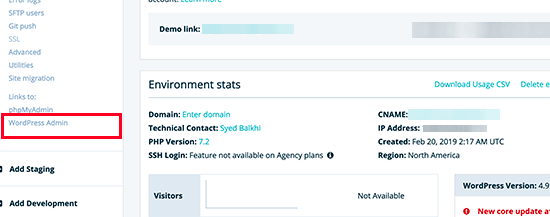
To add a domain to your website, you need to click on the add domain link. Since WP Engine is not a domain registrar, you will need to point your domain’s DNS settings to WP Engine.
To do this, you will need your site’s IP Address and CNAME. You can find this information on the overview page of your site.
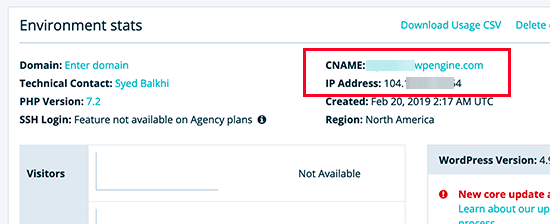
Now, we will show you how to enter this information in Network Solutions. The basic settings are the same for all domain registrars, and you just need to find the DNS settings.
Login to your Network Solutions account dashboard and click on the ‘Domains’ tab in the left column.
Then, go to your domain settings, scroll down to the ‘Advanced Tools’ section, and click on the ‘Manage’ link next to Advanced DNS Records.
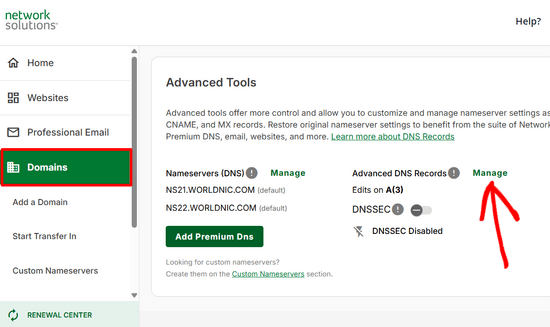
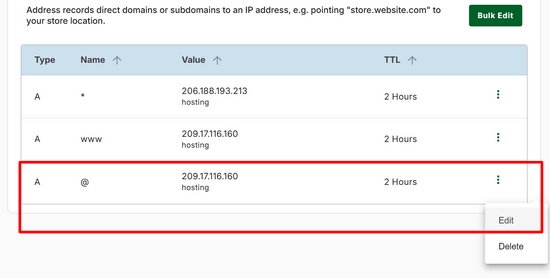
On the next screen, first, you need to change the A record with the @ sign as its name.
Click on the ‘Edit’ button to change its settings.
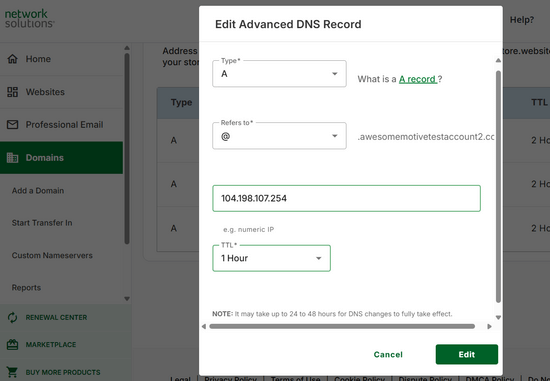
After that, you need to enter the IP address provided by WP Engine as this record’s value.
Then, click on the ‘Edit’ button to store your changes.
Next, you need to see if you have a CNAME record with www as its name. If you do, then you will need to edit that CNAME record.
Otherwise, go ahead and click on the ‘Add Record’ button.
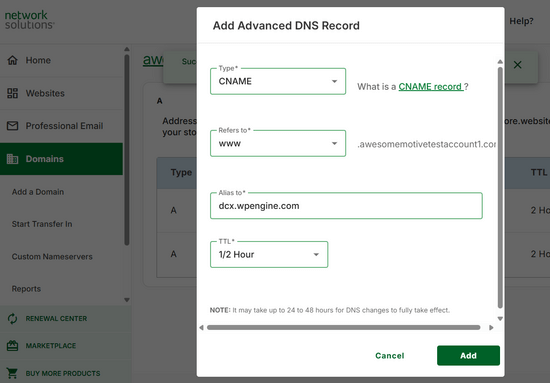
Add the CNAME subdomain provided by WPEngine in the Alias to field and then click on the ‘Add’ button.
That’s all. You have successfully pointed your domain name to your WordPress site hosted on WP Engine.
How to Install WordPress from cPanel
Cpanel is a popular software used by many web hosting companies. It provides website owners with a simple web-based interface to manage their hosting accounts.
It is a one-stop access to several useful utilities,s including auto-installer scripts that help you install WordPress.
Hosting companies select which auto-installer script they want to use. Generally, Softaculous, QuickInstall, and Fantastico are the most popular options.
We will show you how to install WordPress using all three auto-installers. You can follow the instructions based on the installer you see on your cPanel dashboard.
How to Install WordPress using Softaculous
Softaculous is a popular auto-installer script. It allows you to easily install popular web applications like WordPress with just a few clicks. Hosting companies like SiteGround and InMotion Hosting use Softaculous in their control panel.
Simply log in to your cPanel account and look for Softaculous or WordPress installer icon. You will find them under Auto Installers section.
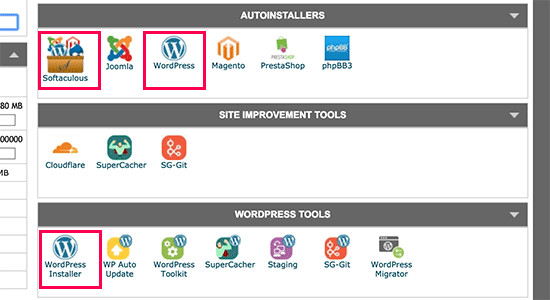
Clicking on any of these icons will launch Softaculous auto-installer for WordPress.
First, you will see an overview of WordPress. You need to click on the Install tab to continue.
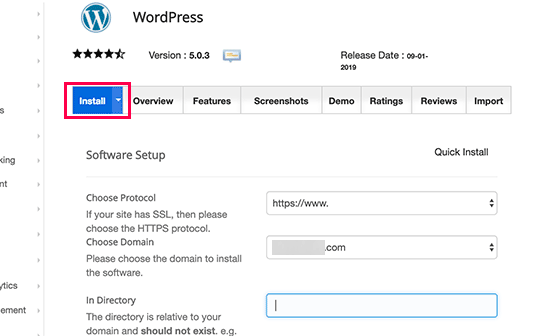
Softaculous will now ask you where you want to install WordPress. You need to choose http:// or http://www. as protocol.
If your site has SSL and HTTPS, then you can select https:// or https://www. as protocol.
After that, you need to choose the domain name where you want to install WordPress. Most users want to install WordPress in their domain’s root directory, like example.com. In that case, you need to make sure that the ‘In Directory’ field is blank.
Scroll down a little, and you will see the site settings section.
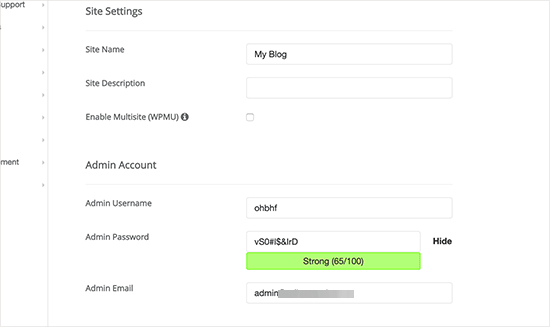
Under this section, first you need to provide a title and description for your WordPress site. Don’t worry you can easily change them from your WordPress admin area after installation.
Next, you need to choose an admin username, password, and email address. Softaculous will automatically fill in the username and password fields for you. It will use a non-dictionary word for username and a strong password.
You can change them if you want so that they are easy to remember for you. However, we strongly urge you to always use a strong password. See our guide on the best way to manage passwords for WordPress beginners to learn how you can manage strong passwords easily.
Make sure that you enter the correct email address in the admin email field. This is where WordPress will send notifications and password reset link if you ever forgot your password.
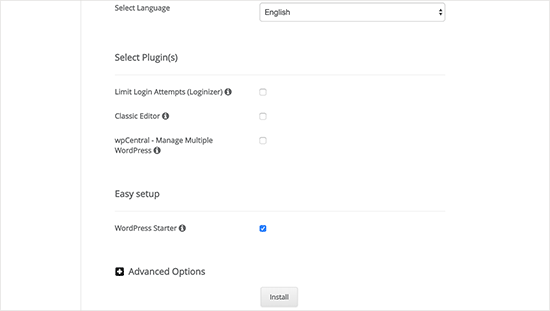
Rest of the options on the screen are optional. You can now click on the install button to run the installer.
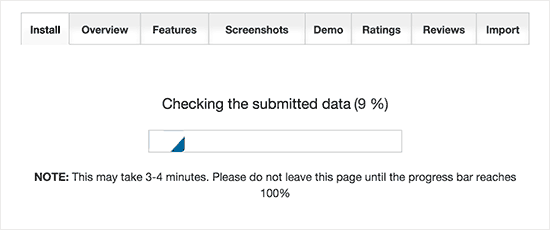
Softaculous will run the installer using the settings you provided. You will see a progress bar with installation status. It will take a couple of minutes.
Do not close the window until the progress bar reaches 100%; otherwise, this may affect your WordPress installation.
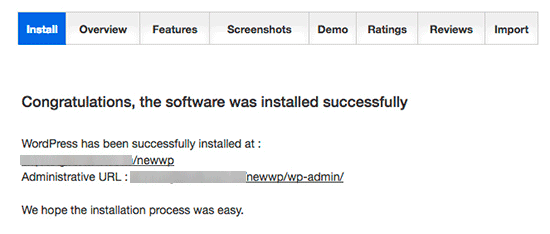
You will see a success message after the installation is finished.
It will also show you links to your website and to your WordPress admin area.
How to Install WordPress using QuickInstall
QuickInstall is another popular auto-installer used by many hosting companies like HostGator and others. We will be using HostGator’s cPanel dashboard in the screenshots here, but it wouldn’t be much different if you are using some other host that has QuickInstall.
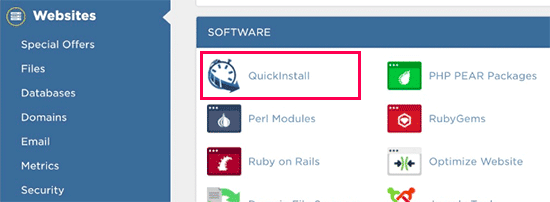
First, you need to log in to your hosting account’s cPanel dashboard. Scroll down to the Software section and then click on the QuickInstall icon.
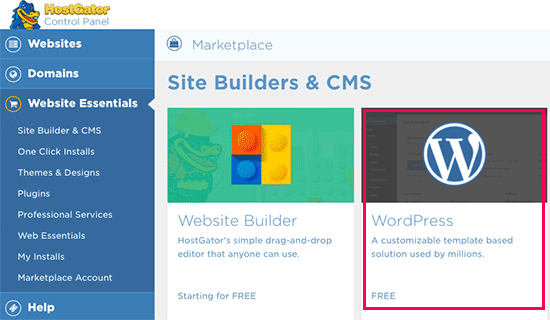
This will take you to the 1-Click Installers page on QuickInstall. You will see that it offers installations for the most popular web applications, including WordPress.
You need to click on WordPress to launch the WordPress installer.
The installer will now show you the WordPress overview. You will be asked to select your domain name from the drop-down menu.
Most beginners want to install WordPress on the root of their website, for example, wpbeginner.com. In that case, you need to leave the directory field blank.
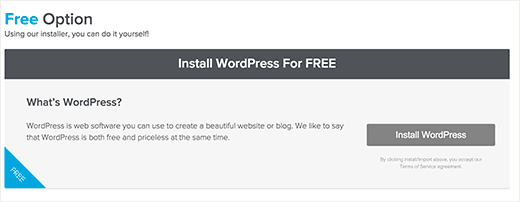
Now click on the next button to continue. The installer will now ask you to enter WordPress details like username, email address, and site title.
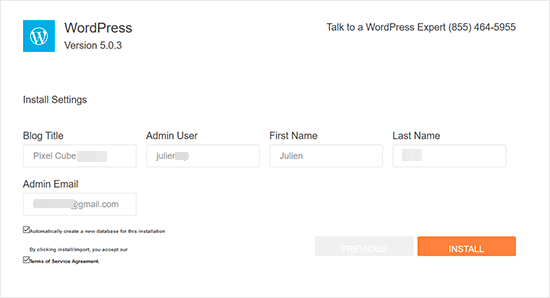
After filling in all the information, click on the Install button.
QuickInstall will now install WordPress for you. After that, you will see a success message with your login details like username and password.
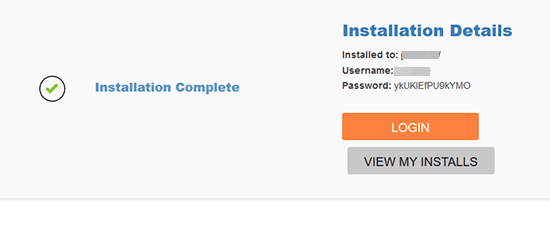
You can now click on the ‘Login’ button to enter the WordPress admin area.
That’s all. You have successfully installed WordPress using QuickInstall.
How to Install WordPress using Fantastico
Fantastico is an auto-installer script used by several WordPress hosting providers. It is similar to the other installer scripts in this guide and offers an easier way to quickly install WordPress.
First, log in to your cPanel dashboard and scroll down to the software and services section. There, you will find the Fantastico icon.
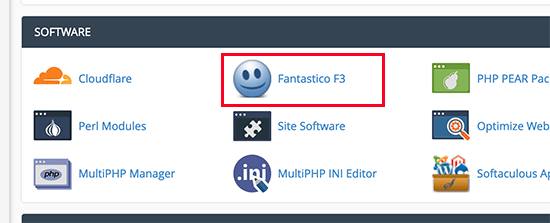
Clicking on the Fantastico icon will launch the auto-installer script.
Some hosting providers are still using an older version of Fantastico. In this tutorial we will be showing you screenshots from Fantastico F3 version.
If Fantastico on your host looks different, then don’t worry. Basic installation steps are the same, and you should be able to easily follow them.
On the main Fantastico screen, you will see a list of web applications on your left. You need to click on Blogs, and there you will find WordPress listed among many other applications.
Clicking on WordPress will show you an overview of the application with the ‘Install’ button.
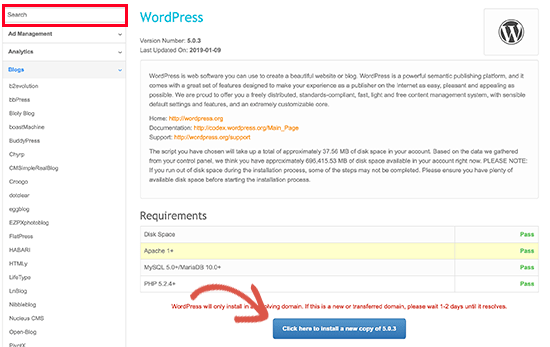
Simply click on the ‘Click here to install WordPress’ button to continue.
Fantastico auto-installer for WordPress will now ask you to fill in your installation settings. First, you need to choose the domain where you want to install WordPress.
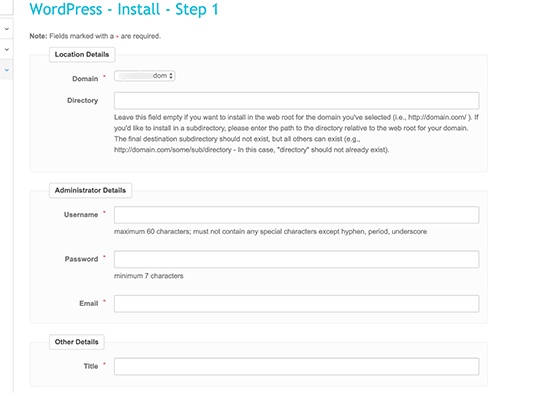
If you want to install WordPress in a sub-directory then you can enter the sub-directory name in the field below. Otherwise, make sure that this field is empty.
Under the ‘Administrator Details’ section, you need to provide admin user account information. Enter a username, password, and email address for your WordPress admin account.
Click on the Submit button to continue.
Fantastico will now install WordPress for you. Once it has finished installing WordPress, you will see a success message.
How to Install WordPress using FTP
Manually installing WordPress is also known as the famous 5 minute install. It requires a few added steps, and you will need an FTP client to manually install WordPress.
Take a look at our beginner’s guide on how to use FTP to upload WordPress files.
The first thing you need to do is download the latest version of WordPress.
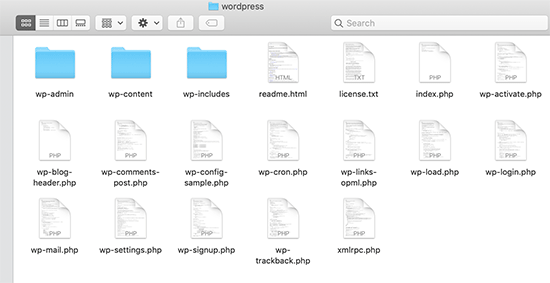
WordPress package comes as a Zip file. You need to unzip the file and inside it, you will find a WordPress folder. This folder contains all the WordPress files you need to upload to your web server.
Now, go ahead and connect the FTP client to your hosting server.
Once connected, use the FTP client to upload the WordPress files from your computer to your website server.
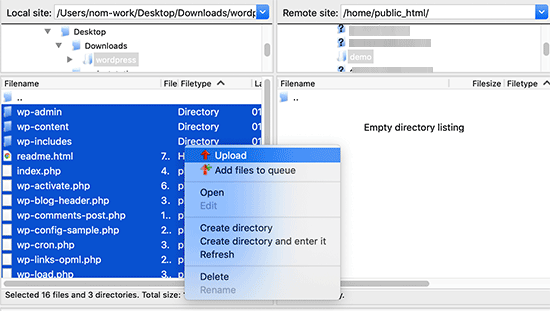
If you want to install WordPress on your root domain name (like example.com), then you need to upload WordPress files to your website’s root directory. Usually, this directory is called /public_html/.
On the other hand, If you want to install WordPress in a subfolder (like example.com/blog), then upload it in a folder /public_html/blog/.
Once you are done uploading WordPress, go to your hosting control panel to create a database. We will be showing you how to do that using the cPanel. If your hosting provider has a different control panel then you just need to look for MySQL databases. Rest of the settings will be quite similar.
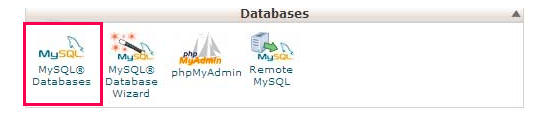
From your cPanel dashboard, click on the ‘MySQL Databases’ icon.
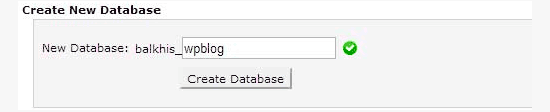
You will see a field to create a new database. Enter a name for your database, and click ‘Create Database’.
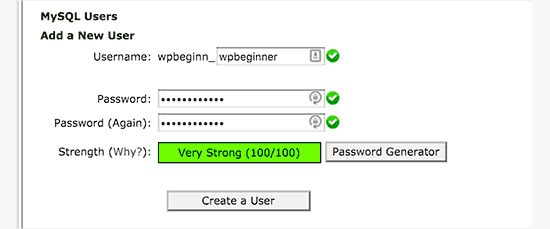
Now that you have created your database, MySQL still needs a username. This username will have access to perform actions on the database.
On the MySQL Databases page in your cPanel account, scroll down to MySQL Users section. Simply provide a username and password for your new user and click on the ‘Create a user’ button.
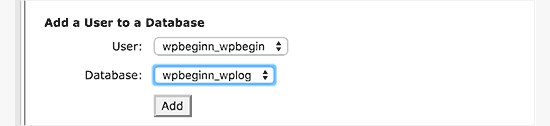
This new user still does not have access to the database you created earlier. For that, you will need to add the user to the database and give them permissions to perform all actions.
On the same MySQL Databases page in your cPanel account, scroll down to the ‘Add User to a Database’ section. Select the database user you created from the dropdown menu next to user, then select the database, and click on the add button.
You will now be asked for the privileges you want to allow this user. Select all privileges and click on the ‘Make changes’ button.
Your MySQL database and user are now ready, note down your database name and MySQL username and password. You will need that information later.
Simply go to the URL where you uploaded WordPress. If it is in the main domain, then enter your domain name in the browser window, like yoursite.com or www.yoursite.com.
You will see the language selection page. You can choose a language here so that the rest of the installation is displayed in your own language. You can also use English for now and then later change the language.
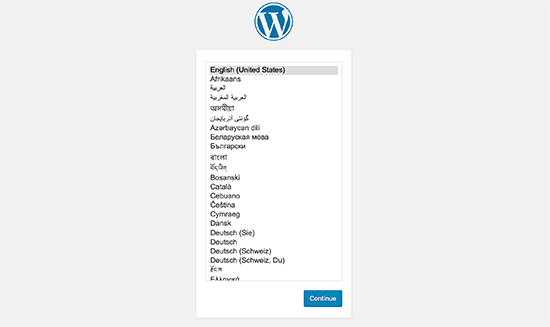
Click on the continue button to proceed.
You will now see some installation instructions. Basically, WordPress will now tell you that it will need your database name, password, and MySQL host information.
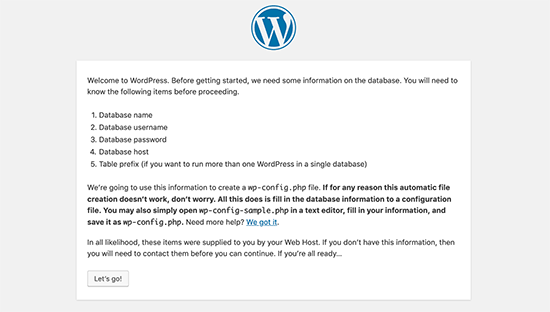
Click on the ‘Let’s go’ button to continue.
WordPress will now show you a form. You need to enter the database information you created earlier.
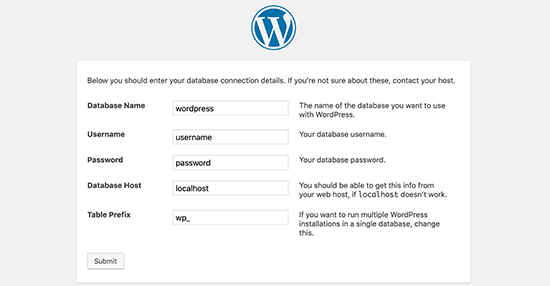
Fill in the information and then click on the ‘Submit’ button.
WordPress will connect to your database and show you a success message.
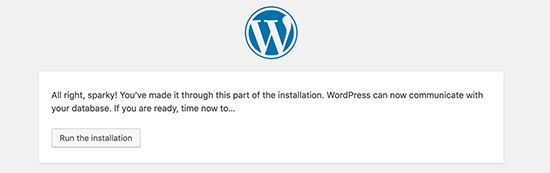
Click on the ‘Run the Install’ button to continue.
WordPress will now create tables in your database and then send you to the next step of the installation.
Now, you need to provide some information for WordPress to set up your site. This includesthe site title, username, password, and admin email address.
If you do not want your website to be visible to search engines, then you can check the box next to search engine visibility. Later, when you are ready, you can change this from WordPress settings. If you are unsure about what to do, then simply leave it unchecked.
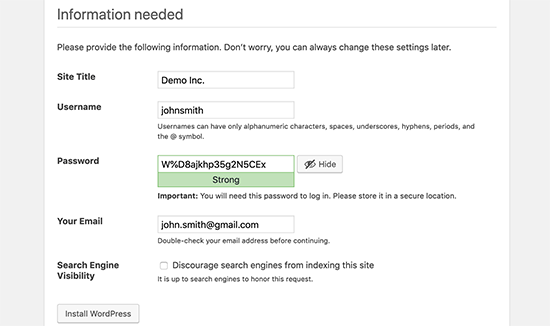
Click on the Install WordPress button to continue. WordPress will set up your website and finish the installation.
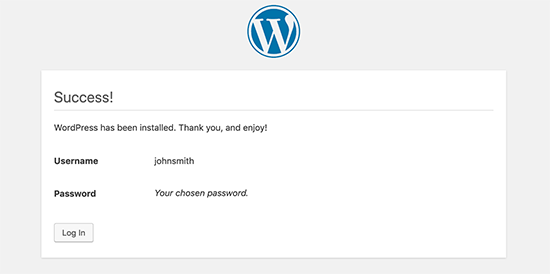
You will see a success message showing your username. You can now click on the Log in button to sign in to your WordPress site.
How to Install WordPress on your Computer
Many of our users ask if they can install WordPress on their local Windows, Mac, or Linux computers. The answer is yes, but most beginners don’t need to install WordPress locally.
A local website lives on your computer rather than the internet. This is perfect if you want a private place where you can build WordPress plugins and themes and test out different WordPress features.
If you want people to visit your blog, then you shouldn’t install WordPress on your computer. Instead, you need to buy web hosting and install WordPress using one of the methods we showed above.
With that being said, if you do want to create a private WordPress blog or website then we recommend using Local by Flywheel. This is a local web software that lets you install WordPress on your Windows, Mac, or Linux computer with a single click.
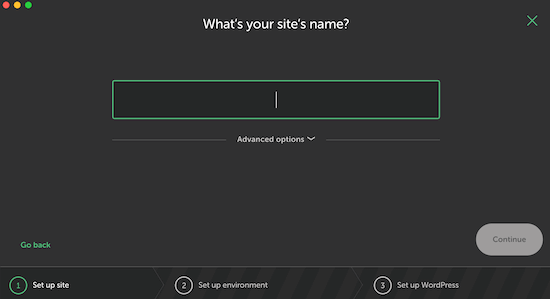
After installing WordPress locally, you’ll have access to the admin area, which works exactly the same as any WordPress website. From here, you can install WordPress plugins, change your theme, and try out different WordPress features.
At some point you may want to publish your local website to the internet, so other people can see it. The good news is that it’s easy to move WordPress from local server to a live site.
To learn more, see our guide on how to install WordPress locally on Windows or Mac.
How to Install WordPress in Your Language
Just like Windows, Mac, iPhone, and Android, you can use WordPress in your own language.
WordPress is available in many languages, including English, Spanish, French, Arabic, Korean, German, Hebrew, Hindi, Japanese, Vietnamese, Chinese (Han), Portuguese, and many others.
You can choose a language during the WordPress installation or change it by visiting Settings » General page in the WordPress admin area.
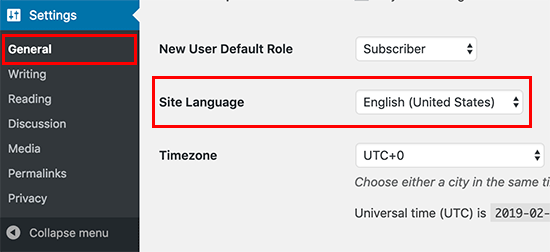
For more details, see our article on how to install WordPress in other languages.
WordPress is also used widely to create bilingual and multilingual websites. You can use a tool like Universally to automatically translate your entire WordPress website into any language.
See our tutorial on how to easily create a multilingual WordPress site with Universally.
How to Install a WordPress Multisite Network
WordPress comes with multisite functionality built-in. The multisite network allows you to create multiple WordPress sites using the same WordPress install. It can automatically create new sites on sub-domains or in sub-folders.
This makes sense for businesses, non-profits, and governments with sub-sites for different locations or regions. Many educational institutes also use WordPress multisite networks to allow students to create their own blogs.
The setup for a multisite is a bit complex, but we have created a complete step-by-step tutorial on how to install and setup WordPress multisite network.
Things to Do After Installing WordPress
Now that you have successfully installed WordPress, here are a few things to get started with your new WordPress site.
Choosing a Theme
The visual appearance of your WordPress-powered website is controlled by Themes. There are thousands of WordPress themes available for you to choose from. With so many choices, it can become a little confusing for beginners. This is why we have put together a guide on selecting the perfect theme for WordPress.

We regularly publish lists of WordPress themes that we like in our Showcase section. Following are some of our popular theme showcases.
- Best free WordPress blog themes
- Best WordPress Business themes
- Best minimalist WordPress themes for writers
- Best WordPress themes for photographers
Installing and Using WordPress Plugins
The real power of WordPress comes from the massive collection of plugins. They are like apps for your WordPress site, allowing you to extend functionality and add new features to your site.
There are more than 59,000 free plugins available in the WordPress plugin directory alone. More plugins are available from third party websites as paid plugins.
If you are wondering which plugins to install, then take a look at our expert pick of the essential WordPress plugins for all websites. You may also want to check out the plugins we are using on this site by looking at our WPBeginner’s Blueprint.
To get started, we think that these WordPress plugins as essential for any site:

Best WordPress SEO plugin to optimize your website for higher rankings and traffic
What we like: Easily set up proper WordPress SEO and optimize your site in under 10 minutes.
Paid plans start from $49.60/yr

Best analytics plugin to connect your WordPress site with Google Analytics
What we like: Track website activity and real-time stats right from the WordPress dashboard.
Paid plans start from $99.60/yr
Top form plugin to create contact forms, payment forms, and other forms
What we like: Drag-and-drop builder and 2,000+ templates to create effective forms in minutes.
Paid plans start from $49.50/yr
If you need more help, we have a beginner’s step-by-step guide on how to install WordPress plugins.
Start Learning WordPress
WordPress is the easiest-to-use CMS on the market. Millions of people from all over the world use it every day. However, from time to time, you may need a little help.
This is where WPBeginner can help. We are the largest free WordPress resource site in the world, regularly publishing tutorials and guides written specifically for bloggers and small businesses.
Here are some of the useful resources that you will find on WPBeginner (all of them are totally free).
- WPBeginner Blog – The central place for all our WordPress tutorials and guides.
- WPBeginner Dictionary – Our WordPress glossary is the best place to familiarize yourself with the WordPress lingo
- WPBeginner Videos – New WordPress users can start with these videos to master WordPress.
- WPBeginner on YouTube – Need more video instructions? Subscribe to our YouTube channel with more than 1 million subscribers and 56 Million+ views.
- WPBeginner Blueprint – Check out the plugins, tools, and services we use on WPBeginner.
- WPBeginner Deals – Exclusive discounts on WordPress products and services for WPBeginner users.
- WPBeginner Engage – a free Facebook group with over 98,000 other like-minded WordPress users and experts from our team.
Conclusion
We hope this WordPress installation tutorial helped you learn how to easily install WordPress. You may want to check out our guide on how to make a WordPress website with AI, or our list of the best WordPress admin dashboard plugins.
If you liked this article, then please subscribe to our YouTube Channel for WordPress video tutorials. You can also find us on Twitter and Facebook.

Samuel
wow, it is great to know that WordPress can be installed to offer multi site network, I have been wanting to do that but don’t really know how to go about it. I am following that link now. I am gratefull
Arslan Khan langah
Great article . very helpful thanks wpbeginner.com you are really amazing. Love and respect for you
WPBeginner Support
Glad you liked our article
Admin
Shobhit Sharma
Your guidance helped me a lot . I was able to install WP manually .Thank you .
Nitesh
I love ur website it is the best source of learning wordpress
WPBeginner Support
Glad you like our content
Admin
harsha
I am just a beginner is the necessary having purchased domain for Installing WordPress ?
waiting your for your answer
WPBeginner Support
You do not need to purchase a domain if your hosting provider offers a temporary domain but in the long run, you would want to have a domain.
Admin
myra
Hi,
Is this guide for wordpress.com or wordpress.org
WPBeginner Support
This guide is for WordPress.org sites
Admin
Abhishek
I am still not able to see the wordpress installation page despite following all the previous steps. I also installed wordpress from my bigrock panel, but no page for wordpress login appears.
WPBeginner Support
We would recommend reaching out to your hosting provider and they can normally assist with ensuring your domain is set up correctly.
Admin
Nurul
Hi, I’m learning to create website in wordpress. Ive connect my purchased domain to wordpress but when i try to view the site, it still on under construction page. Do you know any solution to this? Thanks!
WPBeginner Support
You may want to ensure your site does not have a plugin that is adding a coming soon page. If it does there is normally the option to remove that page in your admin area. If you cannot find the specific plugin then you can disable plugins under Plugins>Installed Plugins.
Admin
Ricky
Do you have any articles or info for moving your website from Wix to a Wordpress site?
WPBeginner Support
You would want to take a look at our article below:
https://www.wpbeginner.com/wp-tutorials/how-to-properly-switch-from-wix-to-wordpress-step-by-step/
Admin
Ricky Fletcher
Ok. I will take a look.
Thanks!
zeeshan
i have hosted my website using free hosting on my host.
i installed wordpress two times from single hosting account but from two different laptops.
now i have two different wordpress login credentials.
My question is how is it possible to install wordpress two times on the same server.
What is the connection between wordpress and individual website?
WPBeginner Support
Your hosting provider likely created a second installation folder for you to use.
WordPress is the software that helps you create your site.
Admin
Melissa Thompson
Hi – I am interested in rebuilding my site using Wordpress and hosting on Bluehost. My site is currently hosted on whois.com, using their Sitebuilder product.
Should I install Wordpress locally, build out my site, then install Wordpress on Bluehost, and then ftp the files from my local machine? How I would then redirect traffic from the old Whois site to the new Wordpress site on Bluehost?
Thanks!
WPBeginner Support
You could do that or you could change your hosts file to see your site on BlueHost, you would want to take a look at our article below for how to change hosts:
https://www.wpbeginner.com/wp-tutorials/how-to-move-wordpress-to-a-new-host-or-server-with-no-downtime/
Admin
Katie
Hi, really useful posts. Follewed everything to the t using sofalicious. I have read in a lot of places not to close the installation window before its complete however I left mine for a day running and it got to 95% and no further so I refreshed the page. I didn’t know what to do but now it says I have already installed it but I can’t find it anywhere. Do you know how I can go about finding it so I can delete it?
WPBeginner Support
You should be able to go to the domain you were installing the site on to view the site and you can force reset the password using our guide here: https://www.wpbeginner.com/beginners-guide/how-to-change-your-password-in-wordpress/
Admin
Noe
I have a domain in Google Domains but I can’t see any option to install Wordpress. org. . I had a look on the internet but I couldn’t find anything clear about this. Would you recommend me to install Wordpress on my laptop in this case? I am a completely begginer with this.
Any help would be appreciated.
Many thanks.
WPBeginner Support
While you have a domain, it sounds like you don’t have hosting, for a better understanding you would want to take a look at our guide here: https://www.wpbeginner.com/beginners-guide/whats-the-difference-between-domain-name-and-web-hosting-explained/
Admin
R Frank
I want to install Wordpress on my home computer. Do I need to install WAMP first and then Wordpress? Do I need any other programs, ie: My SQL etc…?
WPBeginner Support
Programs like WAMP handle MySQL, you would want to take a look at the section covering how to locally install your site with links to our guides for each method
Admin
Dalia abdallah
This is a best guide I have ever seen about WordPress installation
Thank you very much
You are the best
WPBeginner Support
You’re welcome, glad our guide was helpful
Admin
Sandy McLendon
Thank you. Now how do I use it?
WPBeginner Support
It would depend on what you wanted to do with your site, for getting started, you may want to take a look at our page here: https://www.wpbeginner.com/start-here/
Admin
Abhijeet Singh
You mention in the starting of the article that you’ll add how to install Wordpress on Linux but you’ve provided links only for Windows and Mac at the end.
Is there a separate article for Linux?
WPBeginner Support
Thank you for letting us know, you would want to take a look at XAMPP for a local installation: https://www.wpbeginner.com/wp-tutorials/how-to-create-a-local-wordpress-site-using-xampp/
Admin
Helen Cronin
All I can say is thank you. I stumbled across this post just as I was tearing my hair out because my installation wasn’t working. All fixed now and I know exactly what I was doing wrong. Thank you again. Top work!
WPBeginner Support
Glad our guide could help you
Admin
Kanika
Hey, it’s really a nice post. Thankew for this.
Actually, I am a beginner to WordPress. So, need help.
When installing WordPress through cpanel of SiteGround, Which plan of WordPress gets installed?
Is it required to buy any of the WordPress plans when installing WordPress through cpanel of SiteGround?
WPBeginner Support
You are creating a WordPress.org installation so you don’t need to pay for any plans beyond SiteGround’s hosting.
Admin
Muhammad Aatif
Sir, I want to reinstall wordpress on my hosting. Preiviously, I mistakenly Install wordpress in sub-directary file. Then blog was not showing on URL browse in google.com .. I want to know how to move files which should be in public_html , Not in sub-directary?
WPBeginner Support
For moving directories on your server you can follow the steps in our article here: https://www.wpbeginner.com/wp-tutorials/how-to-get-rid-of-wordpress-from-your-wordpress-site-url/
Admin
Jay
Hi, wpbeginner,
is there a course on how to use wpbeginner ????
I am lost already!!!!
WPBeginner Support
For a starting point, you would want to take a look at our page here:
https://www.wpbeginner.com/start-here/
Admin
Yassir Segujja
Hello, am new to WordPress and need your kind help. Have installed the website software successfully but it’s turns out in the admin area–the URL I was given won’t drop the WordPress prefix wp which in the end affects the settings in my permalinks window.
The website appears with this suffix wp at the end causing each one of the pages or links built thereafter to be equally affected. I need a standalone website name without this extension. Help please.
WPBeginner Support
From the sound of your error, you would want to take a look at our article here: https://www.wpbeginner.com/wp-tutorials/how-to-get-rid-of-wordpress-from-your-wordpress-site-url/
Admin
Hussein
Hi, can someone still install WordPress via ftp without going through the MySQL part in cpanel.
Thanks.
WPBeginner Support
WordPress would still need a database so if you are using that manual installation method, you would still need to set up a database through MySQL
Admin
Jacey
I have always used hostgator to host my wordpress sites, however it has been a few years since I’ve set up a new site. If I were to use the easy Wordpress installation offered by Hostgator, do I sacrifice any of the abilities I would have if I had installed it on my own? Thanks!
WPBeginner Support
No, you wouldn’t sacrifice anything using the easy install method of setting up WordPress.
Admin
Irfan Nurhamid
Hi, wpbeginner,

This is a very detailed tutorial. I like it so much.
Keep up the good work.
WPBeginner Support
Thank you
Admin
keana
Hi,
Thanks for the post!
I transferred my domain from Wix to Wordpress a month ago and although I can see that my domain is visible under domains at Wordpress, there is a constant error message from Wix that now appears on my site and it seems that I cannot get rid of it on Wordpress… Have you any idea how I can get rid of their error message and get on with my site??
It is causing a lot of problems…
Hoping to hear from you soon!
WPBeginner Support
You’re welcome, it would depend on the specific error message for possible causes and solutions
Admin
Martin
Hey,
This is a really great post. thank you so much sharing this article. it is really like. continue sharing…
WPBeginner Support
Thank you, we’ll certainly continue to post articles
Admin
Archana Pullela
So to start my blog – i first need to buy a domain on bluehost and then install Wordpress using MOJO Marketplace?
WPBeginner Support
BlueHost has recently added an auto installer so you no longer need to go through mojo marketplace to have them easily install WordPress for you. WordPress should be installed as you log into BlueHost for the first time now
Admin
john
I have a wordpress.com hosting that I want to migrate my website to wordpress.org.
I followed all of these instructions with INMOTIONHOSTING.com
However, my admin login (example.com/wp-admin/) goes to the admin for wordpress.com and not wordpress.org.
I am not sure how this happened. I tried to delete with INMOTIONHOSTING and reinstall again.
But it is still the wordpress.com. So I can’t migrate.
WPBeginner Support
Your domain is likely still pointing toward WordPress.com, you would want to either transfer your domain or point your nameservers to InMotion to see the site you have installed on your host
Admin
Stephanie
Hi, I have a duplicate copy of my website on a live server and one on my localhost.
I have made changes to the live site with regard to template modifications and disabling certain features. On the local server I have added new posts, and installed a form plugin and designed a new form.
All this without realizing I am working on both sites. Can I somehow merge the two without losing work that was done on the live and local sites?
WPBeginner Support
You would likely want to look into a plugin like Duplicator to move the theme and other settings to your local site and set that up how you want then move your local copy to your host with the method in our article: https://www.wpbeginner.com/wp-tutorials/how-to-move-wordpress-from-local-server-to-live-site/
Admin