


Adding registration dates to your WordPress user profiles is one of the simplest ways to make your site look more professional and established.
This small detail can build credibility and help your community members see the history behind your growing site. 📅
Most WordPress site owners don’t realize that this information is already available in their database – it just needs to be pulled out and displayed in the right places.
To help you with this, I’ve tested multiple methods to find the ones that work reliably and are easy to use.🔍
Here’s how to easily display user registration dates in WordPress. You can choose from one-click plugins or lightweight code snippets to quickly add the solution that fits your site.

💡Quick Answer: How to Show User Registration Date in WordPress
Here’s a quick breakdown to help you decide which method makes the most sense for your site:
- Method 1: Add Registration Date Column (Admins + Team Members) – Choose this if you only want admins and team members with dashboard access to see registration dates. The info will show up on the Users page inside WordPress, but regular users won’t see it.
- Method 2: Show Registration Date on User Profiles (Admins + Individual Users) – Pick this if you want both admins and users to see the join date. Admins can view it on any user profile, while each user can see their own date when they log into their profile page.
- Method 3: Display on the Front End (Public) – Go with this if you want registration dates visible to everyone, admins, members, and site visitors. This is handy for things like author bios, member directories, or community pages.
- Method 4: Show Registration Dates with MemberPress (Membership Sites & Communites) – Choose this if your membership site or community has a lot of members. MemberPress automatically shows registration dates for both admins and members, so you don’t have to add shortcodes for each user.
Why Is Showing User Registration Dates a Smart Idea? 🤔
Showing user registration dates helps both admins and members by making it easier to manage accounts, improve support, and build community trust. It’s a small detail that delivers big benefits.
For example, admins often need to:
- Identify new sign-ups for onboarding or welcome emails.
- Spot suspicious accounts by checking when they were created.
- Recognize loyal members during promotions or anniversary campaigns.
Without registration dates, you’re often left guessing about user history, which makes support and community management harder. When you do have this info, it’s a different story.
Your support team can respond faster, onboarding becomes smoother, and campaigns like loyalty rewards or anniversary discounts are easier to run. Overall, it makes your site more organized and user-friendly.
On the flip side, showing the date to users themselves has its own perks. It can give members a sense of pride and belonging — like a digital “join date badge” — and makes your community feel more established and trustworthy.
That’s why this simple detail is a smart upgrade that helps both admins and users at the same time.
The Best Places to Display User Registration Dates in WordPress
To make registration dates truly useful, you need to show them in the right places. Instead of displaying them everywhere, I recommend focusing on key areas where they add value without cluttering your layout.
Here are some of the best places to consider:
- User Profile Page: A personal touch for members to see when they joined, like a milestone.
- Users Page in the Dashboard: This is super helpful when you want to review new sign-ups or check older accounts without digging into the database.
- Member Directory or Community Pages: Perfect for membership sites or forums where showing join dates gives a sense of history and active participation.
- Author Bio or Public Profile: For multi-author blogs, this is a nice way to highlight how long an author has been contributing.
By placing registration dates in the right spots, you can make them meaningful for both admins and users, while keeping your site clean and easy to navigate.
Having said that, let’s see how to easily show registration date in WordPress. You can use these quick links to jump to the method you’re most interested in:
- Method 1: Add a Registration Date Column to the Users Page (For Admins and Team Members)
- Method 2: Show the Registration Date on User Profiles (For Admins and Users)
- Method 3: Display User Registration Dates on the Front End (For Visitors and Members)
- Method 4: Show Registration Dates with MemberPress (For Membership Sites and Online Communities)
- 🎁 Bonus: Allow Users to Invite Friends to Register in WordPress
- Frequently Asked Questions About Showing User Registration Dates in WordPress
Method 1: Add a Registration Date Column to the Users Page (For Admins and Team Members)
If you want a simple way to see when each user joined your site — and keep it visible only to you and team members who have access to the dashboard — then this method is for you.
By default, the Users page in the WordPress admin area doesn’t show registration dates. But with this method, you can add a new “Registration Date” column next to each user’s name.
Here’s why I like this approach:
- You can check join dates without opening individual profiles or digging into the database.
- It’s only visible to admins and team members with backend access, so regular users won’t see it.
- Setup is simple and straightforward. Once you add the column, registration dates are displayed automatically.
To get started, you’ll need to install and activate the Admin Columns plugin. For step by step instructions, see our tutorial on how to install a WordPress plugin.
After you activate the plugin, visit the Settings » Admin Columns page in your WordPress dashboard and select ‘Users’ from the dropdown menu.

When you do this, the settings page will reload, showing a list of all the default columns displayed on the Users page, such as Username, Name, Email, Role, and Posts.
From here, click the ‘+ Add Column button.’

This will open the settings panel for adding a new column to your section. First, select the type of field you want to add as a column.
You can do this by choosing ‘Registered’ from the ‘Type’ dropdown menu.

Next, you have to add a label for the column.
This label will be visible to everyone on your team who has access to the Users page, so I recommend using something clear like ‘User Registration Date.’
After that, choose a date format that works best for you, and click the ‘Update’ button to save your settings.

Now, visit the ‘Users’ page in your WordPress dashboard.
You’ll see that a new ‘User Registration Date’ column has been added to the end of each user row, showing the registration date for every account.
Keep in mind that this information is not visible to regular users, as they don’t have access to the Users page. Only you and your team members can view it.

If you’re interested in learning more about customizing these columns, check out our detailed tutorial on how to add and customize admin columns in WordPress.
Method 2: Show the Registration Date on User Profiles (For Admins and Users)
If you want users to see when they joined your site, adding the registration date to the user profile page is a great option.
This page is located in the WordPress backend under Users » Profile. Here all the user details like name, email, and role are displayed.
By default, WordPress doesn’t show the registration date here, but you can add it manually.
I recommend this approach because:
- Regular users can see their own join date when they view their profile.
- Admins can also see this info when managing user accounts.
- I’ve noticed this feature on many membership and online stores.
The traditional way to do this is by adding a custom code snippet to your theme’s functions.php file. However, I don’t recommend editing the file directly because even small errors can break your site.
Instead, I suggest using WPCode to add this code safely. We even have a full review of WPCode where we explain why we use it for adding custom code.
To begin, you’ll have to install and activate the WPCode plugin. If you need help with it, see our tutorial on how to install a WordPress plugin.
💡Note: WPCode has a free version that you can use for this tutorial. However, upgrading to the pro plan will give you access to features like a cloud library of code snippets, smart conditional logic, block snippets, and more.
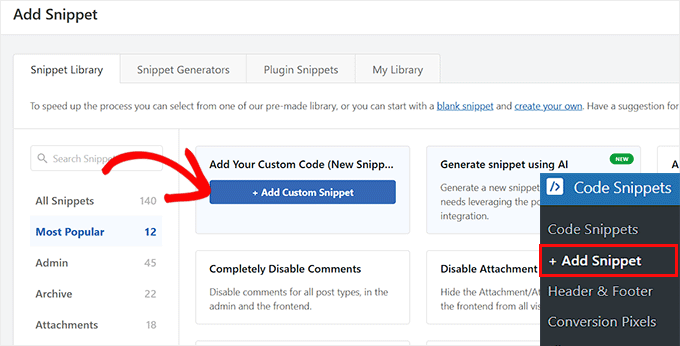
Once the plugin is activated, head over to the Code Snippets » + Add Snippet page from the admin sidebar and choose the ‘Create Custom Code Snippet’ option.
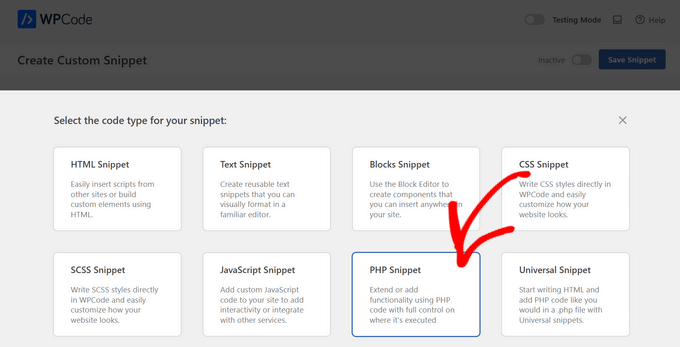
This will take you to a new screen where you’ll need to select ‘PHP Snippet’ as the code type.
Next, give your custom snippet a name. This name is only for your reference, so I recommend choosing something descriptive like ‘Add Registration Date in User Profile.’
It will help you easily identify it later if you need to edit or disable it.
Now, simply add the following custom code into the ‘Code Preview’ box.
This code will automatically add the registration date to the user profile page, making it easy for both you and your users to view.
/*
Plugin Name: Member Since
Plugin URI:  https://www.wpbeginner.com
Description: Adds registration date on edit user profile screen.
Version:     1.0
Author:      WPBeginner
*/


namespace ShowMemberSince;
add_action( 'plugins_loaded', 'ShowMemberSince\init' );
/**
 * Adding needed action hooks
*/
function init(){
  foreach( array( 'show_user_profile', 'edit_user_profile' ) as $hook )
        add_action( $hook, 'ShowMemberSince\add_custom_user_profile_fields', 10, 1 );
}
/**
 * Output table
 * @param object $user User object
 */
function add_custom_user_profile_fields( $user ){
    $table =
    '<h3>%1$s</h3>
    <table class="form-table">
        <tr>
            <th>
                %1$s
            </th>
            <td>
                <p>Member since: %2$s</p>
            </td>
        </tr>
    </table>';
    $udata = get_userdata( $user->ID );
    $registered = $udata->user_registered;
    printf(
        $table,
        'Registered',
        date( "d F Y", strtotime( $registered ) )
    );
}
Finally, scroll back to the top and toggle the ‘Inactive’ switch to ‘Active.’
Then, click the ‘Save Snippet’ button to store your settings.

Now, go to the ‘Users’ page from your WordPress dashboard.
If you’re an admin, you’ll see a list of all the users on your site. From here, click ‘Edit’ under any user’s name.

This will take you to a new screen with all the user details. Scroll down until you see the ‘Registered’ section. Here, you’ll find the date you’re looking for.
Meanwhile, if you’re a regular user, you can go to Users » Profile to access and manage your own profile settings.

That’s where you’ll find your registration date, including the month and year you joined.
Method 3: Display User Registration Dates on the Front End (For Visitors and Members)
This method is perfect if you want to display the join date for a specific user.
It gives you the flexibility to place a registration date in individual spots, like an author bio box or a featured member profile on a community page.
Unlike the first two methods, which are mainly for admins or backend users, this one makes the information visible on the front end of your site.
I like this approach because:
- It adds transparency, letting visitors see how long members have been part of the site.
- It can make author bios or member profiles look more complete and trustworthy.
- With a simple shortcode, you can add this feature anywhere on your site.
Note: Ensure your users have agreed to make their profile data public before displaying their registration date on the front end.
You can easily do this by adding custom code to your theme files, but I don’t suggest doing that directly since even a small error can break your site.
As in the previous method, I recommend using the WPCode plugin. It’s the safest way to add custom code to your site without editing theme files directly.
We also have a detailed WPCode review, where we explain more about our experience with it.
You can start by installing and activating the WPCode plugin. If you are unsure of how to do that, follow our beginner’s guide on installing a WordPress plugin.
💡Note: WPCode has a free version that you can use. However, I recommend upgrading to the pro plan since it unlocks powerful features like a cloud library of code snippets, smart conditional logic, and more.
Once the plugin is active, head over to the Code Snippets » + Add Snippet page and click the button under the ‘Add Your Custom Code (New Snippet)’ option.
You will be directed to a new screen, where you can choose ‘PHP Snippet’ as your code type.
Next, add a name for the code snippet that you’re about to add.
I recommend using something clear and descriptive like ‘Show User Registration Date on Your Website Frontend.’
This will make it easier for you to find the snippet if you ever want to edit, disable, or delete it.
Now, it’s time to add the following custom code into the ‘Code Preview’ box.
function wpb_user_registration_date($atts) {
    // Set default attributes
    $atts = shortcode_atts( array(
        'user' => ''
    ), $atts );

    $uname = sanitize_user( $atts['user'] );

    if ( !empty($uname) ) {
        $user = get_user_by( 'login', $uname );

        if ( $user === false ) {
            $message = 'Sorry, no such user found.';
        } else {
            $udata = get_userdata( $user->ID );
            $registered = $udata->user_registered;
            $message = 'Member since: ' . date( "d F Y", strtotime( $registered ) );
        }
    } else {
        $message = 'Please provide a username.';
    }

    return $message;
}

add_shortcode('membersince', 'wpb_user_registration_date');
This code will enable you to display the registration date of any user, member, or author on your website using a simple shortcode.
Next, toggle the ‘Inactive’ switch to ‘Active’. Then, click the ‘Save Snippet’ button to store your settings.

Now, you’re ready to add the shortcode to a post or page. Keep in mind that you’ll need to do this for each user, member, or author individually.
Simply open the page or post where you want to display a specific user’s registration date.
From here, simply add a new Paragraph block and paste the following shortcode into it. WordPress will automatically recognize it.
[membersince user="admin"]
Just be sure to replace ‘admin’ with the actual username of the person whose registration date you want to show.
You can find the correct username by going to the Users page in your WordPress dashboard; it is listed in the Username column

💡Pro Tip: Be sure to use the person’s username (their login name), not their display name. For example, you might use ‘jsmith99’ instead of ‘John Smith.’
The shortcode won’t work with display names that contain spaces.
Then click the ‘Update’ or ‘Publish’ button to save your changes.
Finally, visit your WordPress site to see the registration date in action. This will now be visible to anyone who visits your site — including visitors, members, and your team.

Method 4: Show Registration Dates with MemberPress (For Membership Sites and Online Communities)
If your site has many members, like a busy membership site or an online community for eLearning, then you’ll want an automated solution.
A true “set it and forget it” approach will automatically display join dates for all your members, so you don’t have to add shortcodes individually.
With MemberPress, this process is completely streamlined. The plugin shows registration dates for both admins and members easily. No coding required.
I like this approach because:
- Registration dates are automatically available for all members.
- Both admins and members can see when an account was created.
- It scales effortlessly, whether you have dozens or thousands of members.
At WPBeginner, we actually use MemberPress ourselves to offer free courses to our readers. I’ve also tested it in demo sites and found it to be super beginner-friendly while still being highly scalable.
If you want to dive deeper into its features, we’ve written a complete MemberPress review that you can check out.
To get started, you need to install and activate the MemberPress plugin. If you’ve never installed a plugin before, we’ve put together a guide on installing a WordPress plugin that will walk you through the process.
💡 Note: MemberPress doesn’t offer a free version, so you’ll need the Pro plan.
It includes everything you need for a fully functional membership site — subscription management, content restriction, member dashboards, and more.
Keep in mind that for this method to work, you’ll need to set up your entire membership website with MemberPress. That includes creating your registration and account pages.
The account page is especially important because it’s where your users will view their registration date.
The plugin creates this page by default during its setup wizard, and you can find it later by going to Pages » All Pages in your WordPress dashboard.
If you need help getting everything set up, you can take a look at our step-by-step guide to creating a membership site in WordPress.
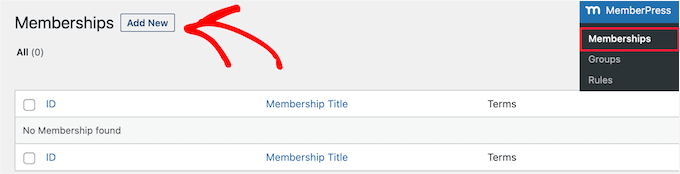
Once your site is ready and members start signing up, you can easily view their registration dates from the backend.
Just go to MemberPress » Members, and you’ll see a ‘Registered’ column that shows the join date for each user.
Remember that this information is only visible to you as the admin (and to any team members who have access to your WordPress dashboard).

If you want regular members, subscribers, or students to see their own registration date, MemberPress makes that simple too.
Just open the ‘Account’ page that you set up earlier in the WordPress block editor, and click the ‘Add Block’ button in the top-left corner.
Here, search for the ‘MemberPress Account Info’ block.

Once you’ve added it to the page, open the block’s settings in the panel on the right and choose ‘user_registered’ from the dropdown menu.
After that, click the ‘Save’ button at the top to store your changes.

Now, whenever members visit their account page, they’ll automatically see their registration date displayed.
The best part is that you only need to set this up once. MemberPress will dynamically pull the correct registration date for each user moving forward.

🎁 Bonus: Allow Users to Invite Friends to Register in WordPress
Once you’ve added user registration dates, you might start wondering about other ways to grow your community.
One feature I’ve seen work well is allowing your users to invite their friends to join your site.
This works like word-of-mouth marketing, which I’ve found to be one of the most effective ways to grow a user base.
When people invite their friends, it creates social proof and makes your site feel more welcoming and credible.
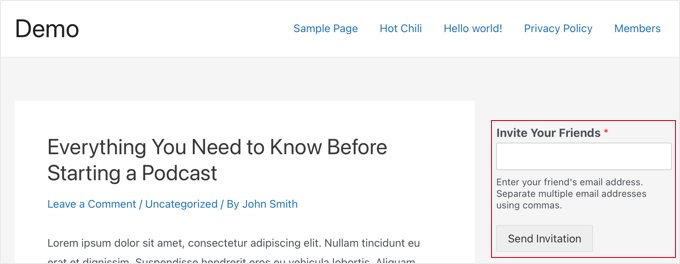
The easiest way to add this feature is by using WPForms. It lets you create a simple invitation form where users can directly invite their friends.
We use the plugin all the time at WPBeginner to create different forms, and we’ve found it super reliable and beginner-friendly.
If you’re curious, we also have a detailed WPForms review where we share more about why we recommend it.
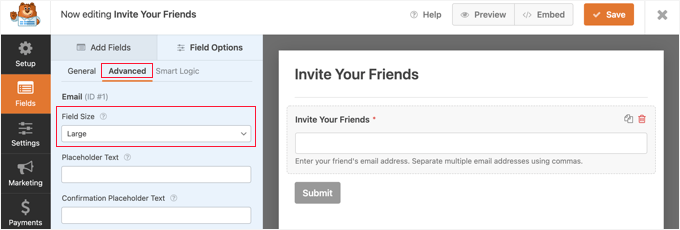
To set up an invitation form on your own site, you can follow our step by step tutorial on how to allow users to invite their friends to register in WordPress.
Frequently Asked Questions About Showing User Registration Dates in WordPress
Here are some questions that are frequently asked by our readers about showing the registration date in WordPress:
Will adding this registration date feature slow down my site?
Adding registration dates won’t slow down your site if you do it correctly.
WordPress already keeps track of when each user registered, so showing that date is just like looking up an existing note. It doesn’t take much time or resources.
Most of the time, users are already loaded on the admin list or front-end page, so adding this extra piece of information has almost no impact on performance.
If you’re using advanced methods to sort or filter users by registration date, it might add a tiny bit of extra work. But it’s hardly noticeable unless your site has thousands of users.
Do I need to modify the theme’s functions.php file to add registration dates?
You don’t need to touch your theme’s functions.php file to make this work, which is a big relief for most site owners.
While adding code directly to functions.php is possible, I usually avoid it because even a tiny mistake can cause errors or break your site.
A better approach is to use a plugin like WPCode to insert custom snippets. This method is safer, easier to manage, and works even if you switch themes. To get started, see our tutorial on how to add custom code in WordPress.
I hope this article helped you show the user registration date in WordPress. You may also want to see our tutorial on how to add additional user profile fields in WordPress registration and our beginner’s guide to WordPress user roles and permissions.
If you liked this article, then please subscribe to our YouTube Channel for WordPress video tutorials. You can also find us on Twitter and Facebook.




Tom
Hello Nice code thank you but is it possible with the shortcode to show the register date of the user which actually logged in?
WPBeginner Support
For tracking user activity like logins, you would want to use a plugin like one in our article below:
https://www.wpbeginner.com/plugins/how-to-monitor-user-activity-in-wordpress-with-simple-history/
Admin
joody
this code still works today 2021-12-7, great!
WPBeginner Support
Glad the code still works!
Admin
Ralph
TYPO: There is one typo in the code in method 3 that results in the error of date always showing the same value: On line 37 is
$udata = get_userdata( $user-ID );while it should be:
$udata = get_userdata( $user->ID );(Notice the arrow instead of the dash)
WPBeginner Support
Thanks for pointing that out, the typo should be fixed
Admin
Dave S
Great post! I installed the plug in and now I can see when my customers subscribed to my site!!
WPBeginner Support
Thank you, glad our recommendation could help
Admin
chergui djaouida
please i need to introduce the date of registration of a user in a php code not by a shortcode how to do?
Isabelle Laplante
«Showing Registration Date Field in User Profile» costum Plugin works but do not show the real date… For every users, the added information is«Member since: Jun 2015» … Wich is not the case… Can you help?
WPBeginner Support
The code converts date into relative date. If you want to show proper date then change the line:
1-click Use in WordPress
with this
1-click Use in WordPress
Admin
Jody Hockley
Hi,
Thanks for the plugin, nice easy fix for a simple problem.
I have just used the second option to show in the User profile page. However it only show month and year, not the day. How would I alter the plugin code to show the day too?
Thanks for your help, much appreciated
Jody
Gerard
Very nice :).
I needed only first code snippet (which works).
Just one little note: on line 37 you should make it ‘$user->ID” you forgot the ‘>’, else it shows notices when debuggin.
Thank you.
Davis
Admin Columns plugin developer requires $60US to sort by registration date. If you are a site manager, find a better solution. WP should include this ultra-basic functionality in all WP installs.
Hemang Rindani
Insightful article. WordPress is the most user friendly CMS that can create complex websites with very less or no technical knowledge. It comes with rich set of modules and plugins that can transform your digital dream into a reality. However, it is important to identify the secured and authenticated tools for your WordPress website to improve the overall website security. WP is capable of handling multiple sites with multiple users which has been a requirement of big organizations. WP provides some great features to manage user accounts and prevent the website from unauthorized access using certain plugins with your website. There are also tools to enhance the user experience like the one described in the article to provide a great personal feel to the user.
Thanks for the article.
Patrick Catthoor
This looked like a feature I could use for my website. So, I tried all 3 methods.
Method 1 works like a charm, but both methods 2 and 3 always provide the same date: 01 January 1970. Something must be wrong, but I couldn’t figure out what.
Any ideas?
Celito C. Macachor
I realize this is an old issue, but I just came across this article after a recent search. Great, insightful articles, but I have the same concern as Patrick’s. In the all users list, the registration date is correct. While it is not critical, only one date (July 2016) is shown for all users in the Member since field. Has this issue been resolved? Thanks for any updated information.