


Do you want to learn how to password-protect your WordPress admin directory?
Adding another layer of password protection to your WordPress admin directory can be a great way to improve your WordPress security.
In this article, you will learn how you can password-protect your wp-admin directory easily.
Why Password Protect Your WordPress Admin Directory?
By password-protecting your WordPress admin directory, you add an extra layer of security to the most important entry point to your WordPress website.
Your WordPress admin dashboard is the central hub of your site. It’s where you’ll publish posts and pages, customize your theme, install WordPress plugins, and more.
Often, when hackers try to get into your website, they’ll do it through the wp-admin screen using a brute force attack.
You can help protect your website against potential attacks by using security measures such as a strong password and limiting login attempts.
To be even more secure, you can also password-protect the wp-admin directory. Then, when someone attempts to access your admin area, they’ll need to enter a username and password before they ever make it to the WordPress login page.
With that said, let’s take a look at how you can password-protect your WordPress admin directory step by step.
The first method is recommended for most users, and you can use the quick links below to jump straight to the method you want to use:
Video Tutorial
If you’d prefer written instructions, then just keep reading.
Method 1: Password-Protect wp-admin Using Directory Privacy (Recommended)
The easiest way to password-protect your WordPress admin directory is by using your WordPress hosting provider’s Directory Privacy app.
First, you need to log in to your hosting account dashboard and click on the ‘Directory Privacy’ option in the Files section of your website’s cPanel dashboard.
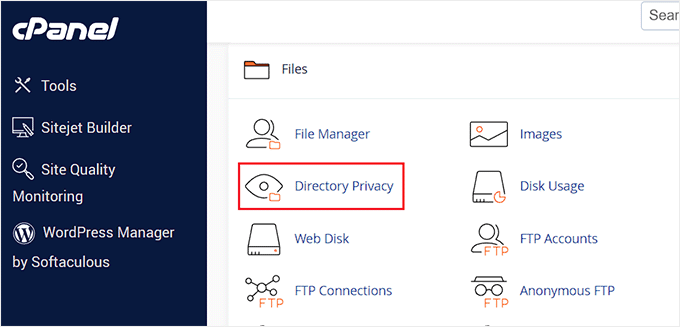
Note: Most web hosts using cPanel, like Bluehost, will have similar steps. However, your dashboard might be slightly different from our screenshots, depending on your hosting provider.
This brings you to a screen that lists all of the different directories on your server. You need to find the folder that contains your website files.
For most website owners, this can be found by clicking on the ‘public_html’ folder.
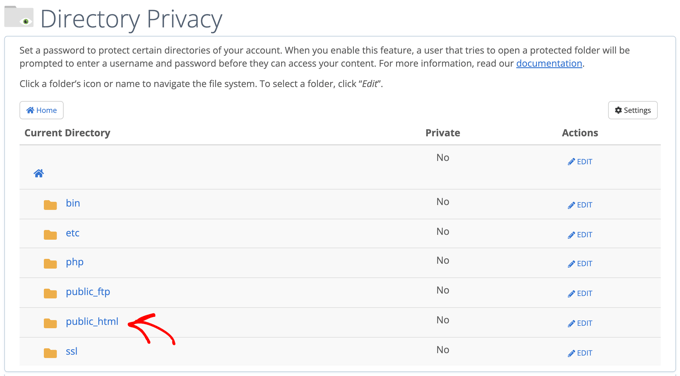
This brings up all of the website files you’ve installed on your server.
Next, you’ll need to click on the folder with your website’s domain name.
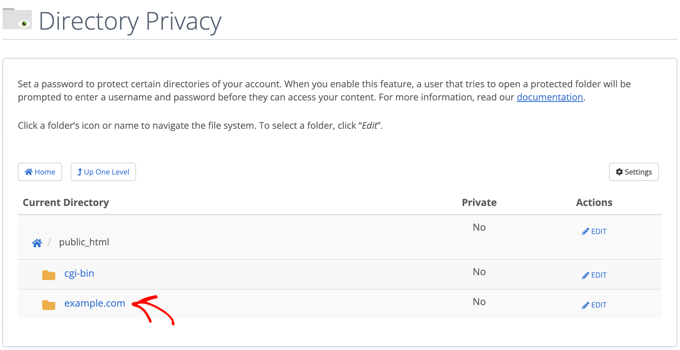
In that folder, you’ll see a wp-admin folder.
Instead of clicking the folder name, you’ll need to click the ‘Edit’ button next to that folder.
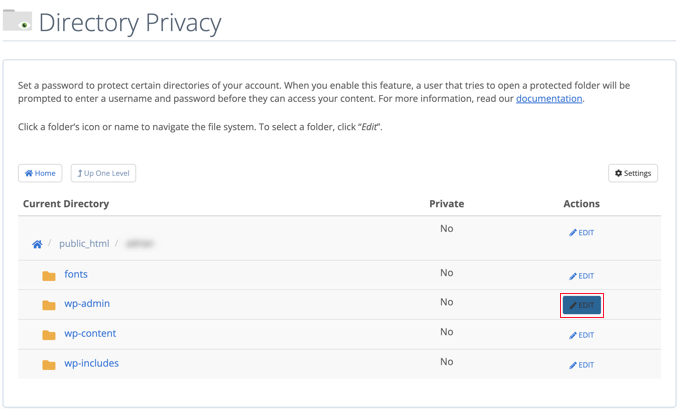
This brings you to a screen where you can turn on password protection.
Simply check the box that says ‘Password protect this directory’. If you like, you can also give your directory a name like ‘Admin Area’ to help you remember.
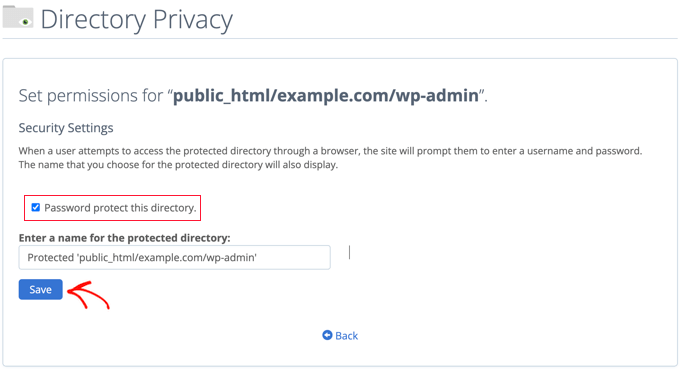
Once you’ve done that, you’ll need to click the ‘Save’ button.
This will take you to a page where the confirmation message will appear.
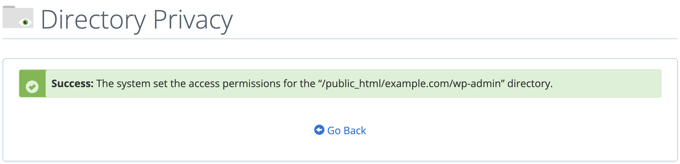
Now, you’ll need to click the ‘Go Back’ button, and you’ll be taken to a screen where you can create a user that will be able to access this directory.
You will be asked to enter a username and password and then confirm the password. Make sure to note your username and password in a safe place, such as a password manager app.
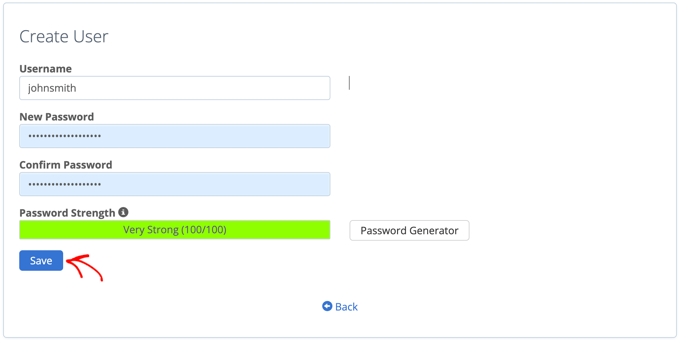
Make sure you click the ‘Save’ button when you’ve done that.
Now, when someone tries to access your wp-admin directory, they will be prompted to enter the username and password you created above.
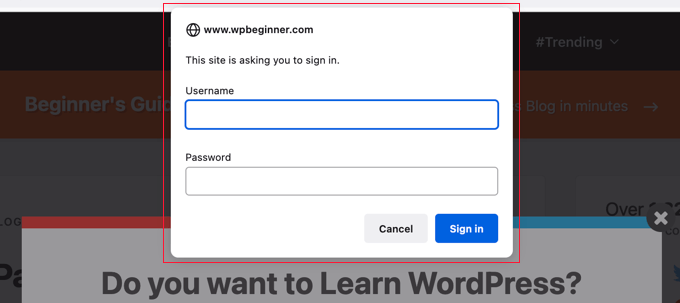
Method 2: Password-Protect wp-admin Using Code
You can also password-protect your WordPress admin directory manually. To do this, you’ll need to create two files called .htpasswd and .htaccess.
Note: Adding any code to your WordPress site can be dangerous. Even a small mistake can cause major errors on your website. We only recommend this method for advanced users.
Creating the .htaccess File
First, open up your preferred text editor and name the new file .htaccess.
After that, you need to copy the following code snippet and add it to the file:
AuthName "Admins Only"
AuthUserFile /home/user/public_html/example.com/wp-admin/.htpasswd
AuthGroupFile /dev/null
AuthType basic
require user yourusername
Make sure you change the ‘AuthUserFile’ path to the location where you’ll upload the .htpasswd file and change ‘yourusername’ to the username you want to use to log in.
Don’t forget to save the file when you are finished.
Creating the .htpasswd File
Once you’ve done that, you need to create a .htpasswd file.
To do this, open up a text editor and create a file called .htpasswd. This file will list your username along with your password in an encrypted format.
The easiest way to generate the encrypted password is with a htpasswd generator.
Simply enter your username and password, select the encryption format, and click the ‘Create .htpasswd file’ button.
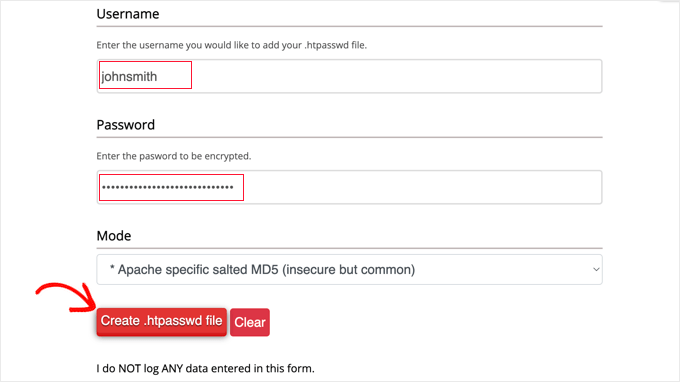
The htpasswd generator will display a line of text that you need to paste into your .htpasswd file. Make sure you save the file once you’ve done that.
Uploading .htaccess and .htpasswd to the wp-admin Directory
The last step is to upload both of the files you created to your website’s wp-admin folder.
You will need to connect to your WordPress hosting account using an FTP client or the online file manager tool provided by your hosting provider. For more details, see our beginner’s guide on how to use FTP to upload files to WordPress.
For this tutorial, we will use FileZilla because it’s free and works on both Mac and Windows.
Once you have connected to your website, you will see the files on your computer in the left window and the files on your website on the right. On the left, you need to navigate to the location where you saved the .htaccess and .htpasswd files.
Then, on the right, you need to go to the wp-admin directory for the website you wish to protect. Most users will need to double-click the public_html folder, then the folder with their domain name, then the wp-admin folder.
Now, you can select the two files on the left and click ‘Upload’ from the right-click menu or simply drag the files onto the left window.
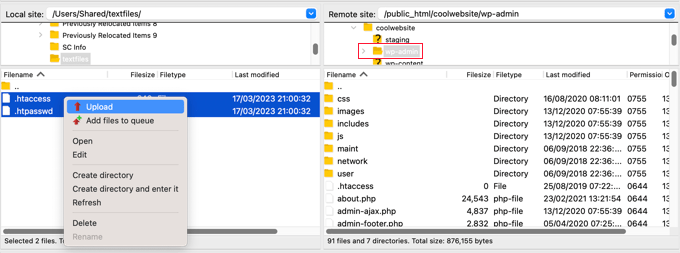
Now, your ‘wp-admin’ directory will be password protected.
Troubleshooting wp-admin Password Protection
Depending on how your server and website are set up, there’s a chance you might run into WordPress errors. These errors can be fixed by carefully adding code to your .htaccess file.
Note: This is the .htaccess file located in your main website folder, not the one you uploaded to the ‘wp-admin’ folder. If you are having trouble finding it, then see our guide on why you can’t find .htaccess and how to locate it.
Fixing the Ajax Not Working Error
One of the most common errors is that Ajax functionality may stop working on the front end of your site. If you have WordPress plugins that require Ajax, such as live Ajax search or Ajax contact forms, then you will notice that these plugins won’t work anymore.
To fix this, simply add the following code to the .htaccess file that’s located in your wp-admin folder:
<Files admin-ajax.php>
    Order allow,deny
    Allow from all
    Satisfy any
</Files>
Fixing the 404 Error and Too Many Redirects Error
Two other errors you might run into are the 404 error and the too many redirects error.
The simplest way to fix them is to open up your main .htaccess file located in your website directory and add the following line of code before the WordPress rules:
ErrorDocument 401 default
Bonus: Best WordPress Guides for wp-admin Security
Now that you know how to password-protect your wp-admin directory, you may like to see these guides on making your admin area more secure:
- How to Restrict WordPress Admin Access by IP Address
- Vital Tips to Protect Your WordPress Admin Area (Updated)
- How to Add a Custom Login URL in WordPress (Step by Step)
- How and Why You Should Limit Login Attempts in WordPress
- How to Add Two-Factor Authentication in WordPress (Free Method)
- How to Add Security Questions to the WordPress Login Screen
- How to Force Users to Change Passwords in WordPress – Expire Password
- How to Reset Passwords for All Users in WordPress
We hope this article helped you learn how to password-protect your WordPress admin (wp-admin) directory. You may also want to see our guide on how to get a free email domain and our expert picks of the best email marketing services for small businesses.
If you liked this article, then please subscribe to our YouTube Channel for WordPress video tutorials. You can also find us on Twitter and Facebook.





Syed Balkhi says
Hey WPBeginner readers,
Did you know you can win exciting prizes by commenting on WPBeginner?
Every month, our top blog commenters will win HUGE rewards, including premium WordPress plugin licenses and cash prizes.
You can get more details about the contest from here.
Start sharing your thoughts below to stand a chance to win!
Mrteesurez says
Thanks. I found it helpful.
I want to ask if the methods are all offering the same level of security, I would prefer and recommend to stick to the first method as it seems easy and straight forward.
Or is there any one that is better than the other ??
WPBeginner Support says
These are different methods to achieve the same result so it would depend on your preference for which one you would use.
Admin
Mark says
Is there anyway for hackers to gain access to this password and even change it, like in phpMyAdmin ?
WPBeginner Support says
They would need access to your hosting provider or site files for this guide.
Admin
Salman says
I have changed my login URL using the “WPS Hide Login” plugin. Lets say the previous URL ended in wp-admin/ and the new URL ends in hidden/ now how can I password protect this new URL?
WPBeginner Support says
It would depend on what method you are using and how you changed the URL, as long as there is a file/folder in the new location you should be able to select that folder or change the path on line 2 of the htaccess method
Admin
Jiří Vaněk says
WPShide doesn’t create a new folder, I use that too. The wp-admin folder is still on the server and functional. So if you use WPSHide, secure the wp-admin folder exactly the same.
Jiří Vaněk says
A good practice is also to rename the WordPress administration URL and choose a different administrator username than ‘admin.’ Changing the URL makes it harder for attackers to locate the administration, and not using ‘admin’ as the administrator reduces the risk of a successful brute force attack.
WPBeginner Support says
Having a username other than admin is definitely recommended but for changing the wp-admin url is not always recommended as that can cause trouble with some plugins as well as make troubleshooting more difficult.
Admin
Jose says
Ajax fix worked fine. Thanks a lot for this.
WPBeginner Support says
Glad our article could help
Admin
Umer Yaseen says
What if someone accesses our WordPress admin directory by entering mywebsite.com/wp-login.php instead of mywebsite.com/wp-admin. This method only protects wp-admin and not protects wp-login.php. So how it is useful?
WPBeginner Support says
This would show the same prompt for users trying to log in using the wp-login.php
Admin
nadia says
you are the best. thanks for thousand time like allways.
WPBeginner Support says
Glad you’ve found our content helpful
Admin
Lordemmaculate says
I want to do this but my server is Nginx not Apache so I can’t use .htaccess
WPBeginner Support says
We’ll see if we can add a method for that type of server when we update this article
Admin
Rajah says
The first method through cPanel worked like a charm. However, when I logout again from WP and login again it doesn’t ask again for the directory password. Is it meant to ask only once?
WPBeginner Support says
Your cookies/cache will remember the login information. Normally the next time you start up your computer it will require you to log in again.
Admin
Webo says
Very good, Thank you…
WPBeginner Support says
You’re welcome
Admin
Izzy says
The “Password Protect Directories” is not on my cPanel under “securitiy”, so I tried the manual way, but it doesn’t seem to work as it doesn’t ask for login when I open wp-admin…
WPBeginner Support says
If you reach out to your hosting provider they should be able to assist and take a look if there’s any reason it wouldn’t be working.
Admin
Ahsan Ali says
Thanks for your efforts!
I used cpanel method it works fine but the problem is that the password prompt appearing on every page of my website!
What i have to do so that it appear only at wp-admin page?
WPBeginner Support says
It sounds like you may have password protected your public_html folder instead of the wp-admin folder. You would want to remove the current protection and attempt to set it up again
Admin
Onyenucheya Somto says
please where can I find my main WordPress .htaccess file
WPBeginner Support says
That would be where your WordPress folders are, you could either use FTP or your host’s file manager if they have one to get to your WordPress files.
Admin
CHHRIS says
Please this settings works fine for me, but my problem is that am using woocommerce and yith woocoomerce my account page, so when ever users login to their my-account area they are often prompted to put the login details for my protected admin, how can i fix this?
WPBeginner Support says
For that, you would want to remove this protection unless you wanted to give each user a login for the httpassword
Admin
Jose says
My wp-admin login page is broken after use that code.
I set the ajax fixit, but, still broken.
WPBeginner Support says
It would depend on the specific error you are running into when trying to get to your admin area for how to solve the problem
Admin
Rahul Yogi says
Hy buddy, i had tried cpanel method which doesnt work for me but manual method work as shown above.
But i have one problem after going example.com/admin, i have to enter directory username and password but after after entering nothing happens means it does not redirect me to dashboard or anywhere. Just same page — shoing waiting for connection for example.com and get error too many redirect.
WPBeginner Support says
You may want to try the recommendations in our article: https://www.wpbeginner.com/wp-tutorials/how-to-fix-error-too-many-redirects-issue-in-wordpress/
for the twoo many redirects, another option would be to make sure you fix the ajax issue using the method at the bottom of this article
Admin
Rahul Yogi says
Thanks buddy, everything is working fine.
WPBeginner Support says
Glad to hear
Brian says
Wow,
You are a legend! Spent like 2hrs jumping from site to site to get this working… First site that mentioned the ErrorDocument 401 default. Works like a charm now
Thanks
WPBeginner Support says
Glad our guide could help
Admin
Deb says
Thanks so much – this is the first place I have found with all 3 bits of code that was needed – (I had the redirect problem). The code worked like a charm. I now have an extra layer of protection without adding another potentially vulnerable plugin.
WPBeginner Support says
Glad our article could help
Admin
Garry says
All I get after adding the above code in a .htacess file on /wp-admin folder is 500 internal server error.
WPBeginner Support says
If the htaccess method is not working you could remove the code and then use the cpanel method for password protecting the directory
Admin
Colleen says
I did this, followed the link for the error message and for some reason I don’t have a .htaccess file!
WPBeginner Support says
The .htaccess by default is a hidden file, are you showing hidden files? https://www.wpbeginner.com/beginners-guide/why-you-cant-find-htaccess-file-on-your-wordpress-site/
Admin
Samwel says
I followed the steps but i now can’t log in . It says “The server encountered an internal error or misconfiguration and was unable to complete your request.”
even on refreshing the page the pop up to key in password does not re-appear help out
WPBeginner Support says
or resolving that error, you would want to take a look at our article here: https://www.wpbeginner.com/wp-tutorials/how-to-fix-the-internal-server-error-in-wordpress/
Admin
maria hag says
hi,
i bought new name and i change the name of website and than save it . now i cant login to admin. it show me 404 erorr
how can i change it
please advise
WPBeginner Support says
You would want to reach out to your hosting provider and they should be able to help you have your new domain point toward where your site is currently
Admin
taher says
I have activated password protection to wordpress directory via c-panel but wordfence is unable to scan my site. Due to ajax issue.
I tried fixing it by updating my wp-admin/.htaccess file with the provided code by you but wordfence is still unable to start a scan. What do you suggest?
WPBeginner Support says
You may want to ensure your caching is cleared and if that error continues, reach out to Wordfence about their plugin
Admin
Amit Mukherjee says
Enabling password protection of the wp-admin directory prevents me as logging in as the administrator. I get a page not found error. I cannot get to the login page. If I remove the password protection, I can login.
What should I do. I am setting up a WordPress website for the first time.
WPBeginner Support says
Hi Amit,
Yes you can remove password protection at anytime.
Admin
mary-anne J. says
So how do you undo the password protect using the cPanel ..that is, I want to remove my password protection for the wp-admin directory
Keri says
I followed the instructions to add the password protection using c_panel.
It works fine in IE 11 but doesn’t work in: Edge; Firefox; Chrome; or Opera.
Any ideas?
WPBeginner Support says
Hi Keri,
Please review your settings in cPanel to make sure you didn’t miss anything.
Admin
Keri says
I’m not sure what I missed, given that it worked in IE but not in the other browsers. I deleted the user to whom I had given access and added the same user back in and, “Voila!”, all is good.
Valentin says
> Upload this file outside your /public_html/ directory.
Good advice—more generally: outside your DocRoot.
> A good path would be: home/user/.htpasswds/public_html/wp-admin/passwd/
That, however, doesn’t seem to be outside your DocRoot
Amigan says
How could we integrate this solution on IIs?
Thanks in advance for your help!
pawan singh says
hi syed, i followed your tutorial as i do always whenever i find a problem but i am facing this error continiously.
ERROR –
“401
Unauthorized
Proper authorization is required to access this resource!”
1. I made htpassword file properly with user name and password.
2. Edited main .htaccess file with proper code.
3. Implemented this line in .htaccess file on topas first line
ErrorDocument 401 default
4. Add AJAX functionality code
After doing all this i see additional popup box which need login details for wp-admin. – Success here
But i’m not able to access my home page like example.com. popupbox appears again without calling /wp-admin. Please tell how to remove this 401 Error. I see that many bloggers asked this issue in comment section, but you didn’t reply. I hope you will soon address the problem.
WPBeginner Support says
Hello Pawan,
This could be because the password your entered is incorrect or your server couldn’t find the .htpasswds file. We will recommend you to retrace your steps to figure out what went wrong.
Admin
Robbiegod says
I am seeing the same issue. On subpages on my site, when I have my /wp-admin/ .htaccess password protecting my site, I get the user/pass pop-up box on pages on the front end.
The temporary solution was to just remove the htaccess file from wp-admin. Now i am trying to put it back, so I’ll see what i can come up with and post back if i figure it out.
Arinze Ifeanyi says
Thank you for this. I worked really well especially that line “ErrorDocument 401 default” that prevented it from giving 404 error. I really dont miss tweet from you. My question now is, how can someone remove the password? And again, will the password be required upon users registration via a custom registration page?
Rony Ahamed says
after using this method now when i try to go in wp-admin its says me maintenance mood ( this mode is on in my wp dashboard ) .. so how can i use it ?
Adrian says
Do you have a method using IIS? I’ll be glad if you have. I’m very new to WordPress running in IIS server.
pawan says
hi how to change my cpanel default url like “www.example.com/cpanel” to “www.example.com/customized”
there is nothing on the internet about this topic.
Edgar says
Hi my dear friends I have a problem. I want to make double autentification on my wordpress.But there is conflict in wordpress htacsess between wp default rules and this code:
AuthType Basic
AuthName “Password Protected”
AuthUserFile path/to/.htpasswd
Require valid-user
Satisfy All
I get error like 500 or error “this page is wrong”, but after delating wp default rules my code work.There is some conflict between wp code and my code! Can anyone take solution!
Aurangzeb says
A very nice approach, but I also suggest to go secure with https, because no matter how protected the admin panel is, with passwords, the passwords itself are not secure if it’s not https.
Daljit Singh says
Hey guys, my issue is related to this post but it is little different too.
I need to password protect my wp-content folder in my hosting.
I called my godaddy hosting and they said that it is not possible.
But i need to password protect it.
Can someone help me out please?
Akhil says
Password Protecting WordPress Admin with Permalink “Post Name” gives error error login page( Redirect too many times). How to solve?
ianx says
Hello sir,
its mean “Basic Authentication” ?
how do i using on newest Nginx?
Harmony A-E says
Can I do this for my wp-login?
The wp-admin is password protected and gives out a 401 if some tries to exit the pop-up (so 0 access without the 1st password).
But my wp-login allows access to a disfigured wp-login page if someone exits out of the pop-up.
Fabio says
Works fine in my blog. Thanks.
Frank says
That’s a great article.
However, I’d like to ask you how can I track the who visits the page (IP, etc) even though if they don’t type any username or password or type wrong ones. I can’t seem to find a way to do that.
Please let me know.
Thanks!
WPBeginner Support says
Hey Frank,
Check out our guide on how to monitor user activity in WordPress.
Admin
Frank says
Thanks for the reply.
I installed the Simple History plugin you recommend but it does not seem to track the http authentication either.
Any ideas?
WPBeginner Support says
Hi Frank,
Sorry for misunderstanding your question. You can track http authentication in your server logs. However, usually these logs contain all access and errors to your website. Some website hosts offer apps in cPanel that make it easier to browse those logs. On some hosting environments you can even create custom log files of your own.
Deivamoorthy says
Thanks for this article. It is really helped me lot save the login form anonymous person. But, i have an issue on my site. Whenever the user visits and entering to the single post page it asks the user enter the username password, Even though they have didn’t accessed the wp -admin. it happens only in Mozilla browser. How to solve this?
Toan says
I has finished setting protect password for wp-admin folder. But i can not registered new account for guest. Because it apperance pop-up login require username/password.
WPBeginner Support says
Yes, you will have to either share the username password with the guest, or disable password protection.
Admin
paras arora says
sir actually i have changed my admin directory from example.com/wp-admin to example.com/abcde …how to password protect it now
WPBeginner Support says
Just password protect abcde directory instead of wp-admin.
Admin
Clecio says
Thank you !
Sarah says
Thanks for this valuable info.I have question I want to setup limit login Attempts if users fails 1st time then try after 24 hrs latter how to I make this on cpanel?
RJ says
Hi there I do password protect my wp-admin directory and I did add that code to my htaccess …but…it is still asking for authorization.
Any suggestions?
Sacha says
Thanks for the tip!
dipesh says
i dont ve set password for wp-admin folder but still it shows authorization dialog .
how to solve the issue,
Fabio says
Hello, after the first login in wp-admin I got 500 “Internal Server Error”…
Fabio
Fabio says
Solved, the problem was in server configuration
Gaurav Agrawal says
Hi, I am also facing the same problem. May I know what are the changes that have to be done in server configuration?
Please let me know as soon as possible.