


Moving your custom domain Blogger blog to WordPress doesn’t have to mean losing your Google rankings or breaking your old links. Your domain can stay the same, and your content can move with you.
But there’s one mistake that beginners often make that can turn a smooth migration into a disaster: pointing your domain at WordPress too early. Do that before importing your content, and visitors could land on an empty site while your Blogger blog disappears.
In this guide, I’ll show you how to move your custom domain Blogger blog to WordPress, preserve your SEO, and keep your site online throughout the process.
Quick Summary: Build the WordPress site on a temporary address, import your posts from Blogger, and only then point your domain to the new host. Blogger stays live until WordPress is ready, and every old URL redirects to its new home.
Estimated time: 1 to 2 hours of work, plus the DNS wait.
Tools: BtW Importer, WPCode, and 404 to 301, all free.
Cost: WordPress hosting. The domain you already own comes with you.
📍Note: This guide is for Blogger blogs that use their own address, such as yourblog.com, instead of the free yourblog.blogspot.com. Keeping that domain is what makes the steps different. If your blog still runs on a blogspot.com address, see our guide on how to switch from Blogger to WordPress instead.
Most people reading this have already decided to leave Blogger. If you are still weighing it up, see our comparison of WordPress vs Blogger.
Here are the steps I will cover in this guide:
- Step 1: Back Up Your Blogger Content
- Step 2: Set Up WordPress Hosting and Install WordPress
- Step 3: Import Your Blogger Content into WordPress
- Step 4: Set Up Permalinks and Fix Mismatched URLs
- Step 5: Point Your Domain to WordPress (Update DNS)
- Step 6: Remove the Custom Domain in Blogger
- Step 7: Set Up Feed Redirects
- Step 8: Verify the Move in Google Search Console
- Additional Resources for Your New WordPress Site
Step 1: Back Up Your Blogger Content
Start with a backup. The file Blogger gives you is also the file you will import into WordPress in Step 3.
Log in to Blogger, pick your blog, and click ‘Settings’ in the left menu. Scroll down to ‘Manage blog’, click ‘Back up content’, and then click ‘Download’.
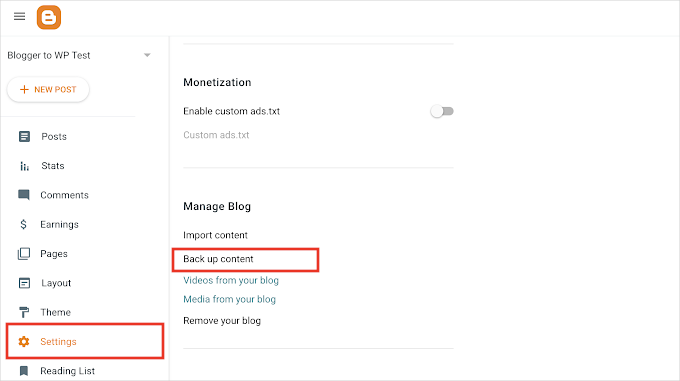
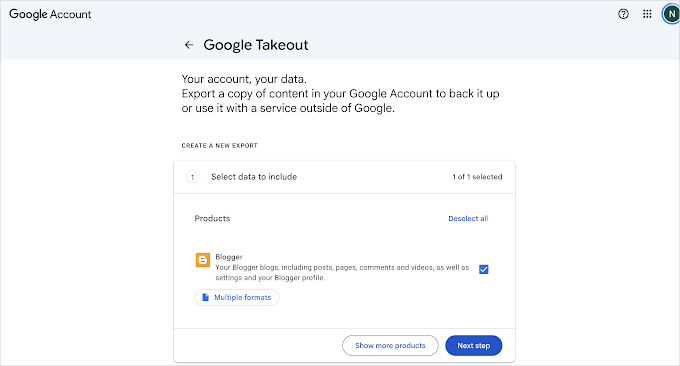
The Download button now opens Google Takeout, Google’s tool for downloading your data, with Blogger already selected.
Click ‘Next step’, keep the default settings, and click ‘Create export’. Google emails you a download link within a few minutes for a small blog.
Unzip the file and open Takeout » Blogger » Blogs » your blog’s name. The file you need is feed.atom, which holds your posts, pages, and comments. Keep the whole archive somewhere safe, because the Albums folder inside it holds every image you ever uploaded to Blogger.
Note: Leave your Blogger blog exactly as it is for now. Your readers keep using it until your WordPress site is ready in Step 5.
Step 2: Set Up WordPress Hosting and Install WordPress
Next, your new site needs a home. This guide is for self-hosted WordPress.org, not WordPress.com. If you are not sure about the difference, see our comparison of WordPress.com vs WordPress.org.
In order to build a WordPress site, you’ll have to host it with a WordPress hosting provider. You can choose any WordPress hosting provider that you want, like Bluehost or Hostinger. Both are officially recommended WordPress hosting providers.
When the hosting signup form asks for a domain, choose the option to use a domain you already own. Then enter the address of your Blogger blog.
Install WordPress on a Temporary Address
Your domain still points to Blogger, which means you cannot open the new site at yourdomain.com yet. Most hosts give every new site a temporary address, something like yoursite.hostname.com, in the welcome email or hosting dashboard.
Run the one-click installer and log in through that temporary address. If you need help, see our guide on how to install WordPress.
This is what keeps your downtime at zero. You import everything and check every post here while Blogger keeps serving your readers, then switch the domain over in one move.
Step 3: Import Your Blogger Content into WordPress
WordPress has a built-in Blogger importer under Tools » Import, but it no longer works. Google changed the export format in July 2025, and a bug ticket has been open on WordPress Trac since November 2025 with no fix.
That is why I recommend the free BtW Importer plugin instead. It supports the latest Blogger export format, has no limit on the number of posts you can import, and brings over your posts, pages, categories, and images. It also preserves your old Blogger URLs and automatically redirects them to their new WordPress URLs.
With that said, it won’t migrate the comments you receive on your Blogger blog. If you want to import the comments as well, then you’ll have to install the Blogger Importer Extended plugin instead of BtW Importer. Its free version only moves 20 posts, and you need a paid license to import everything. Pick one plugin, because running both imports every post twice.
We’ll be using the BtW Importer plugin for this tutorial.
First, install and activate BtW Importer. If you need help, see our guide on how to install a WordPress plugin.
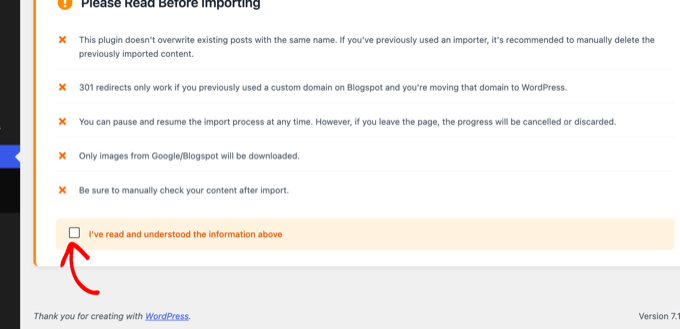
Then click the new ‘BtW Importer’ menu item and read the short notice at the top. Check the ‘I’ve read and understood the information above’ box.
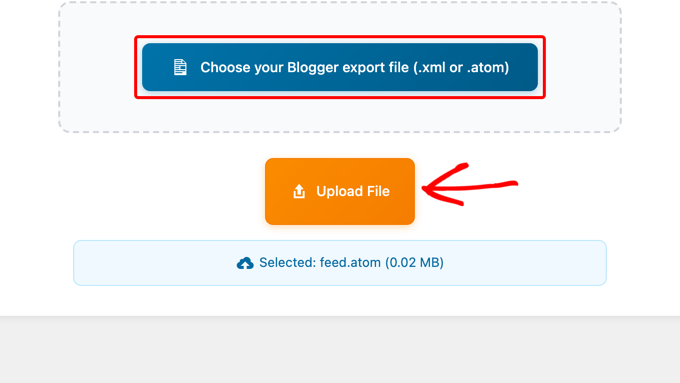
Next, click ‘Choose your Blogger export file’, pick feed.atom, and click ‘Upload File’.
Once the upload finishes, click ‘Extract Data’. The plugin reads the file and counts your posts and pages.
You are now ready to import. Leave the batch size on ‘Recommended’ and click ‘Start’.
The ‘Advanced Options’ panel can keep the original Blogger author for each post. Its experimental option to convert posts into WordPress blocks is best left unchecked, because you can convert posts later in the editor.
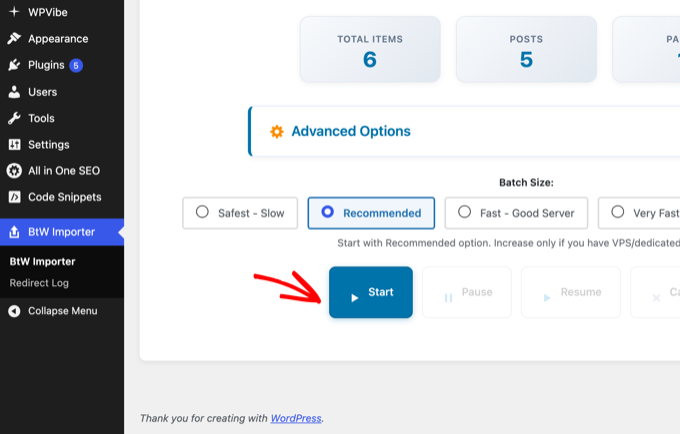
The import took a few seconds on our test blog. A blog with hundreds of posts and images takes a few minutes, and the progress bar shows where it is.
When it finishes, open Posts » All Posts and check a few posts with images. Every post keeps its original publish date.
Note: If Takeout split your export into several .zip files, import each feed.atom one after another. The plugin never overwrites existing posts, which means importing the same file twice creates duplicates.
Step 4: Set Up Permalinks and Fix Mismatched URLs
Now that your content is in, let’s make sure the old links still work. Blogger post URLs look like yourdomain.com/2024/05/post-title.html, while WordPress uses yourdomain.com/post-title/. You’ll have to redirect that old URL to the correct post on your new site in WordPress.
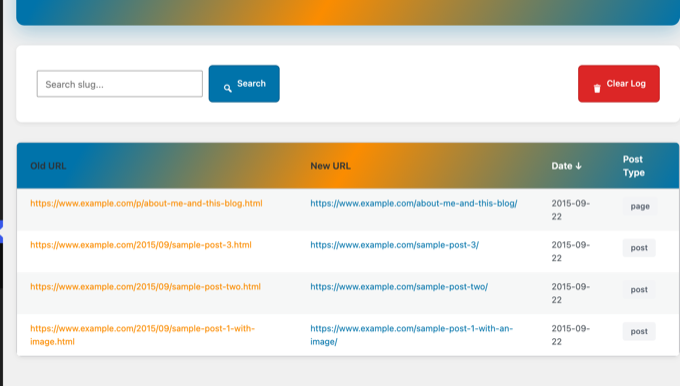
BtW Importer handles this automatically. It saves the original Blogger URL for every imported post and page, then redirects visitors from those old URLs to their corresponding WordPress URLs using a 301 redirect. This also helps search engines transfer the SEO value of your old URLs to the new ones.
You can see the full list under BtW Importer » Redirect Log.
For this to work, keep WordPress’s default permalink setting. Go to Settings » Permalinks, select ‘Post name’, and click ‘Save Changes’.
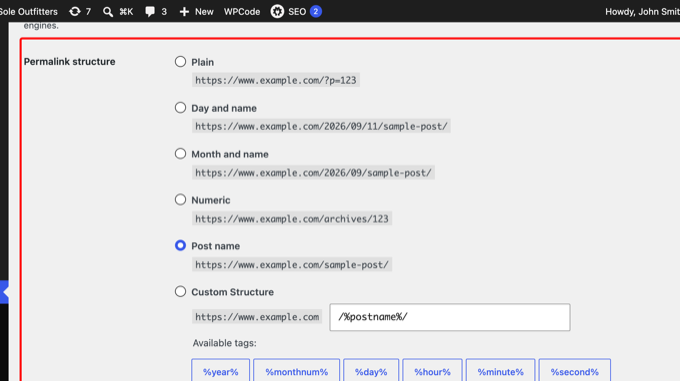
Do not use a custom permalink structure that copies Blogger’s .html URLs. If the WordPress URL is identical to the old one, the plugin’s redirect points the page at itself and the post never loads.
WordPress also builds slugs from the full title while Blogger shortened them, and in our test /2015/09/sample-post-1-with-image.html became /sample-post-1-with-an-image/.
There’s one more type of old Blogger URL you need to handle. Blogger added ?m=1 to URLs when serving mobile versions of your pages, and Google may have indexed those URLs.
WordPress uses the m parameter for date-based queries. So when someone visits an old Blogger URL like yourdomain.com/post-title.html?m=1, WordPress may interpret it incorrectly and show a 404 error.
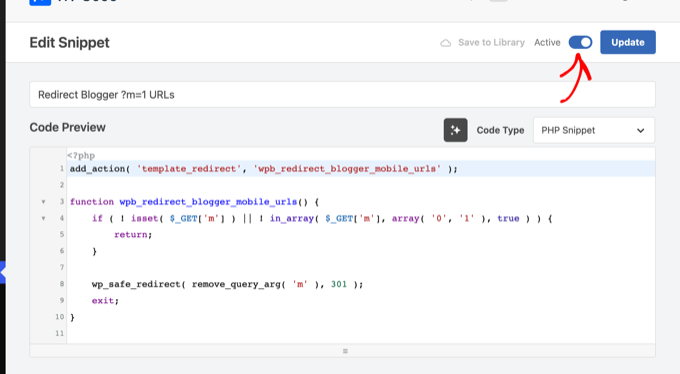
The following snippet removes the ?m=1 parameter and redirects visitors to the clean URL, helping your old Blogger links continue to work:
add_action( 'template_redirect', 'wpb_redirect_blogger_mobile_urls' );

function wpb_redirect_blogger_mobile_urls() {
	if ( ! isset( $_GET['m'] ) || ! in_array( $_GET['m'], array( '0', '1' ), true ) ) {
		return;
	}

	wp_safe_redirect( remove_query_arg( 'm' ), 301 );
	exit;
}
The easiest way to add the code snippet to WordPress is with the free WPCode plugin. Install the plugin and then go to the Code Snippets » + Add Snippet page.
Choose ‘Add Your Custom Code (New Snippet)’ and pick ‘PHP Snippet’. Then, paste the code, and switch it to ‘Active’. Our guide on adding custom code in WordPress has the details.
Some URLs will never have a match, such as Blogger’s label and search pages or a post you renamed.
To properly redirect those pages, install the free 404 to 301 plugin. It also logs every 404 error on your site, which is how you find the old URLs you missed. Then it lets you redirect each one in a few clicks.
Note: Right after activating it, go to 404 to 301 » Settings and turn off ‘Enable default 404 redirect’.
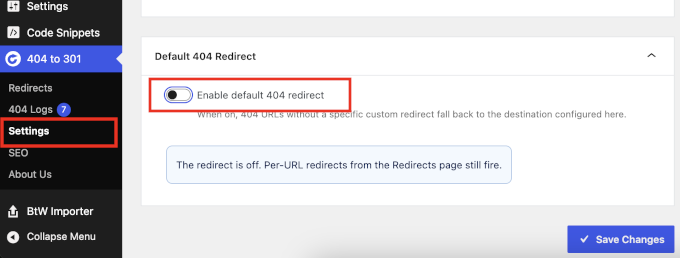
The plugin ships with this setting on. It sends every unknown URL to your homepage before BtW Importer gets a chance to redirect it. In our test, every old post URL went to the homepage until we switched it off.
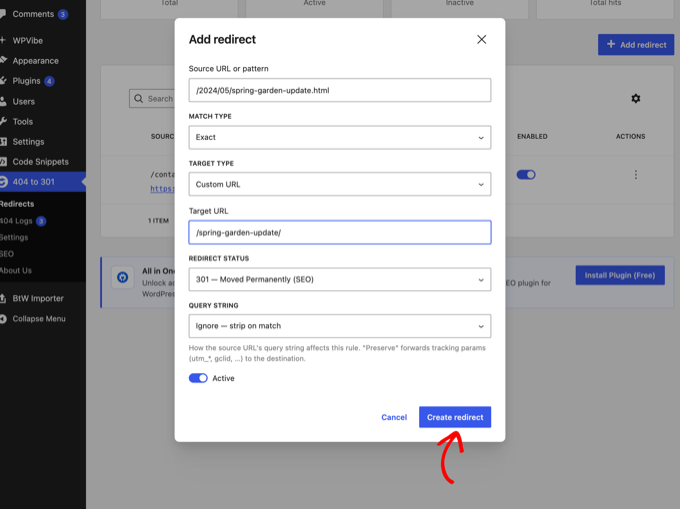
Go to 404 to 301 » Redirects and click ‘Add redirect’. Enter the old Blogger path as the source URL and the new post as the target, then click ‘Create redirect’. Our guide on how to track 404 pages and redirect them in WordPress covers the plugin in detail.
Once your domain points to WordPress in Step 5, test a few old Blogger URLs in your browser, including one ending in ?m=1. Each should land on the matching post.
Step 5: Point Your Domain to WordPress (Update DNS)
Your content is in and the redirects are ready, which means it is time to point the domain at the new site.
DNS (Domain Name System) is the internet’s address book. Right now your domain’s entry sends visitors to Blogger, and you will change it to send them to your WordPress host.
The simplest way is to change your domain’s nameservers. Your host lists two or more of them in the welcome email or hosting dashboard, and they look like this:
ns1.yourhost.com
ns2.yourhost.com
Note: If you use this domain for email, such as Google Workspace, write down your MX records first. Add them again in your host’s DNS settings right after the switch. Otherwise your email stops arriving.
Where you make the change depends on your registrar, the company you bought the domain from. Below I cover the two that most Blogger owners use. For any other registrar, see our guide on how to change domain nameservers.
Updating Nameservers in Squarespace Domains
If you bought your domain through Blogger’s own ‘Buy a domain’ option, your registrar was Google Domains. Google sold that business to Squarespace, which took over every Google Domains customer by 2024. Your domain now lives in Squarespace Domains even if you never created a Squarespace account.
Go to account.squarespace.com/domains, sign in with the Google account you use for Blogger, and click your domain.
Click ‘DNS’, then ‘Domain Nameservers’, then ‘Use Custom Nameservers’. Squarespace asks for your password and may ask you to turn off DNSSEC. Click ‘Continue’.
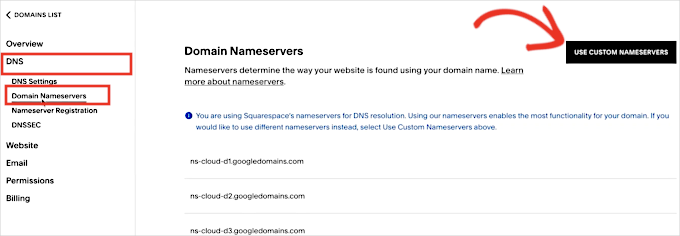
Enter your host’s nameservers in the ‘Nameserver 1’ and ‘Nameserver 2’ fields and click ‘Save’.
Updating Nameservers in GoDaddy
If GoDaddy is your registrar, sign in, open your Domain Portfolio, and click the domain to open its ‘Domain Settings’ page.
Next, click on ‘DNS’ and then switch to the ‘Nameservers’ tab.
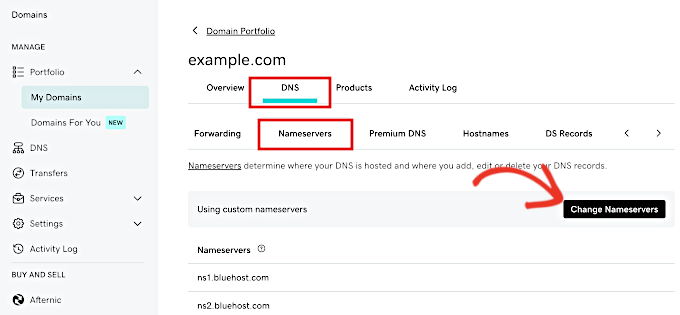
Then click ‘Change Nameservers’, enter the nameservers your host provided, and save.
Note: Registrar dashboards change their design often. If your screen looks different, look for ‘DNS’, ‘Nameservers’, or ‘Manage Nameservers’. The steps are the same.
Nameserver changes usually take effect within an hour but can take up to 48 hours everywhere.
Switching WordPress to Your Domain
Now, your WordPress installation still thinks it lives at the temporary address. Once your domain starts loading from the new host, tell WordPress its real address.
Many hosts have a ‘change domain’ or ‘assign domain’ tool in the dashboard. It does this in one click and sets up the free SSL certificate at the same time. For example, here is how Hostinger asks you to connect a domain name.
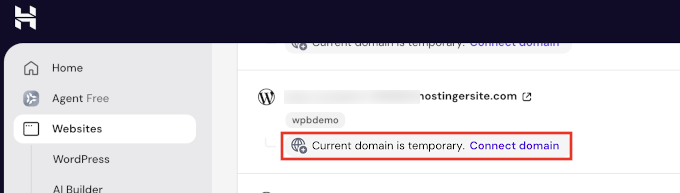
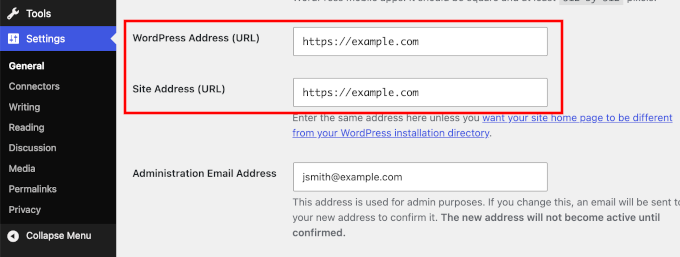
If your hosting provider does not offer a similar tool, then log in to WordPress and go to Settings » General.
From here, change both ‘WordPress Address (URL)’ and ‘Site Address (URL)’ to your domain, starting with https://. Click ‘Save Changes’ and log in again at the new address.
The images you imported still use the temporary address inside your posts.
Run a search-and-replace from the old address to your domain to fix them all at once. Our guide on how to find and replace text in your WordPress database shows how. If the change locks you out, our tutorial on changing your WordPress site URLs covers the fix.
Step 6: Remove the Custom Domain in Blogger
Wait until your domain loads the WordPress site for you. You can use a DNS propagation checker tool to see if it has started pointing to your host.
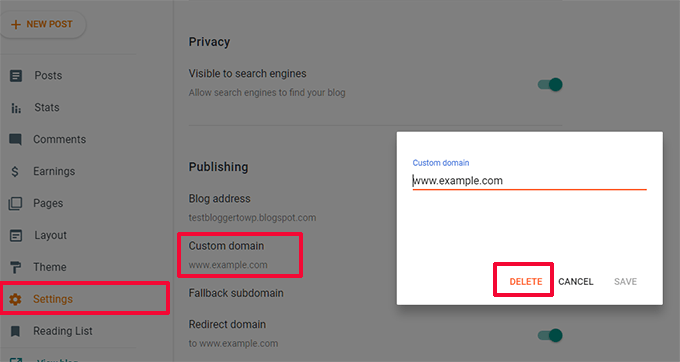
Next, log in to Blogger, open ‘Settings’, and click your custom domain under ‘Publishing’.
Click ‘Delete’ in the box that opens and confirm.
This only disconnects Blogger from your domain. Your posts stay in your Blogger account.
There is one side effect. As soon as you remove the custom domain, your old yourblog.blogspot.com address starts working again and shows every post you moved. That is a full duplicate of your new site on a Google-owned domain.
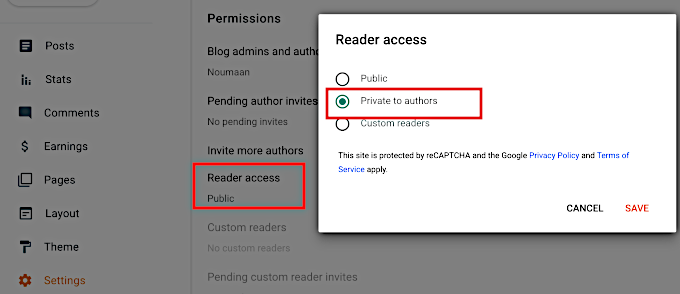
To prevent that, scroll to ‘Permissions’ on the same Settings page, click ‘Reader access’, select ‘Private to authors’, and click ‘Save’. Your Blogger blog stays in your account as a private backup that nobody else can read. I do not recommend deleting it.
Step 7: Set Up Feed Redirects
Your domain now loads WordPress, but readers subscribed to your Blogger RSS feed will stop receiving updates unless you redirect the old feed URLs to your new WordPress feed.
You already have everything you need for this. The 404 to 301 plugin from Step 4 can redirect the old feed addresses too.
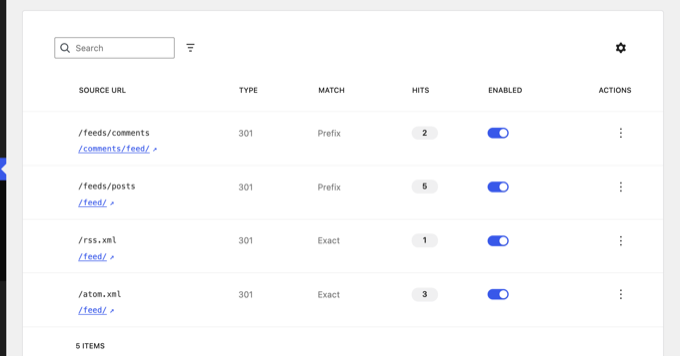
Go to 404 to 301 » Redirects and click ‘Add redirect’. Add these four rules one at a time, choosing the match type shown, and click ‘Create redirect’ after each one:
- Source
/atom.xml, match type Exact, target/feed/ - Source
/rss.xml, match type Exact, target/feed/ - Source
/feeds/posts, match type Prefix, target/feed/ - Source
/feeds/comments, match type Prefix, target/comments/feed/
The two Prefix rules catch every variation Blogger used, such as /feeds/posts/default?alt=rss or /feeds/posts/summary. Your list should look like this when you are done:
To test it, open yourdomain.com/feeds/posts/default in your browser. It should redirect you to yourdomain.com/feed/.
Step 8: Verify the Move in Google Search Console
The question I hear most often from our readers is whether you need to tell Google about the move. You do not. The Change of Address tool is only for moving to a different domain.
Since your domain name stays the same, Google treats this as a hosting change and continues crawling your existing URLs. You don’t need to submit a change-of-address request. Google’s own guidance on changing your hosting says the same.
Four things are still worth doing in Google Search Console during the first week.
1. Re-verify your site. Blogger verified your blog with Search Console automatically through your Google account, and that link breaks once the blog leaves Blogger.
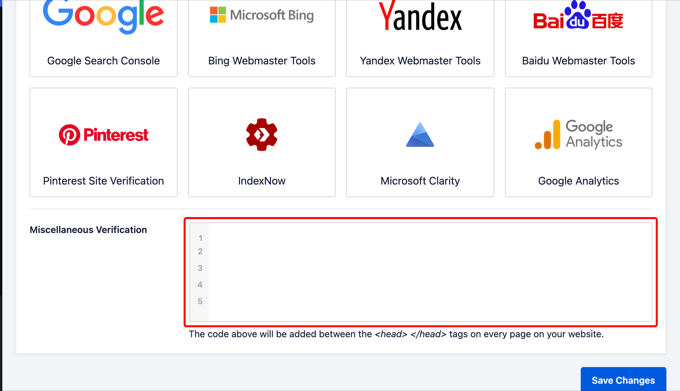
If you’re using a free SEO plugin like AIOSEO, verifying your site with Search Console is easy. In Search Console, go to Settings » Ownership verification, choose ‘HTML tag’, and copy the tag.
Then in WordPress, go to All in One SEO » General Settings and open the ‘Webmaster Tools’ tab. Paste the tag into the ‘Miscellaneous Verification’ box and save. This box is in the free version.
2. Submit your sitemap. You’ll have to submit your new sitemap URL to Google Search Console. While WordPress comes with a sitemap by default, it’s recommended to create a custom sitemap with an SEO plugin. For example, here’s the sitemap URL that the AIOSEO plugin generates: yourdomain.com/sitemap.xml
Copy it and submit it to Google Search Console. Take a look at our guide on WordPress sitemaps for more details.
3. Check your top posts. Open the ‘Performance’ report, note your five most visited old URLs, and paste each one into the URL Inspection tool. Each should show a redirect to the new WordPress URL.
4. Watch the Pages report. For the first week, open ‘Pages’ under ‘Indexing’ every day or two and look at the ‘Not found (404)’ list. Any old Blogger URL there needs a redirect from Step 4.
Small ranking changes for a couple of weeks are normal after any hosting change.
Additional Resources for Your New WordPress Site
Your WordPress site will not look like your Blogger blog at first, and that is normal. Themes control the design in WordPress. Our handpicked guide on the best WordPress themes will help you find one close to your old layout.
Here are the guides I recommend reading next:
- Ultimate WordPress SEO Guide for Beginners – Set up the SEO settings in WordPress to ensure your site drives organic traffic.
- Essential WordPress Plugins – The handful of plugins every new WordPress site should have.
- How to Increase Your Blog Traffic – The strategies we use to grow our own audience.
I hope this article helped you move your custom domain Blogger blog to WordPress.
If you liked this article, then please subscribe to our YouTube Channel for WordPress video tutorials. You can also find us on Twitter and Facebook.


Dayo Olobayo
Thanks for yet another well-written article. One thing I would add to this is the importance of backing up your Blogger blog before making the move. It’s always better to be safe than sorry.
Jiří Vaněk
Hello, we tried to move the articles from blogger to wordpress, but there was a problem with the image, which does not have the original quality. They are smaller and clickable. Only then will it be displayed in full size but on a new page. Where is the error? Can someone help?
WPBeginner Support
Your theme may have different image dimensions than what you were using previously, you could try regenerating the images using our guide below to fix their dimensions:
https://www.wpbeginner.com/plugins/regenerate-thumbnails-new-image-sizes-wordpress/
Admin
Jiří Vaněk
Thanks for the advice and I’ll check out the article. I was already a bit worried that I would have to manually edit everything, which is a nightmare for me considering the number of images.
Ahmed robi
I already have AdSense on my custom domain blogger site. now I can move it to WordPress without losing adsense approval. Thank You.
Aman Pathak
I want to migrate from blogger to wordpress with custom domain.
I found this post really helpful. But i have a query –
I want to migrate blogger blog to wordpress blog on another domain and after setting up wordpress. I will replace new domian of wordpress website with old domain which i used in blogger.
Is it possible or not.
WPBeginner Support
That would be possible and it would depend on your hosting provider for the steps involved in the domain changes and if a temporary domain is available.
Admin
Aman Pathak
Hello WP-Begginer, I want to migrate my blog to wordpress. But I have a doubt. In blogger custom domain consits www in url but how can i assure that Wordpress blog also consists www in url.
WPBeginner Support
Depending on your host, when you first install the site you can ensure the site has www in your URL or not depending on your personal preference.
Admin
Justine
Thank you for this really easy to follow instructions. I’m a beginner blogger and it made the process really easy.
WPBeginner Support
Glad we could make the process easier
Admin
Frederick
“If you have a custom domain Blogger blog, and you want to move it to WordPress, then this tutorial is for you.”
I have a custom google domain registered via Blogger, and I want to move to WP, can I still rely on this tutorial? Thanks
WPBeginner Support
Yes, you can
Admin
viktorokiro
Really informative post for them those are searching for custom domain on blogger, This is really helpful for everyone and for beginners also. Keep giving updates.
WPBeginner Support
Thank you, glad our tutorial could be helpful
Admin
Zaman
I used a custom domain in blogger. Then I moved to Wordpress. After doing all processing my permalink like ‘example.com/2019/02/how-to.html’.
But when I changed my permalink to example.com/sample-post
then It changed into ‘example.com/how-to’.
I would like to keep my permalink like ‘example.com/how-to’.
Now, what should I do for not losing Google SEO…??
WPBeginner Support
For that, you would need to set up redirects from the old url structure to the new structure for the links to continue working: https://www.wpbeginner.com/beginners-guide/beginners-guide-to-creating-redirects-in-wordpress/
Admin
Billa Singh
Thank you so much for this tips and knowledge about Wordpress, i have also a site in Wordpress and with this blog, I will complete my work now thanks a lot.
WPBeginner Support
Glad our content can help
Admin
Adam Muiz
Can i chane permalink to /author/post-name/
how do I redirect to that url
thanks
WPBeginner Support
If you wanted to change your permalinks then you would want to take a look at our permalink article here: https://www.wpbeginner.com/wp-tutorials/how-to-create-custom-permalinks-in-wordpress/
However, without creating redirects, it will cause issues with previous links on your site.
Admin
Manish
I recently moved from blogger to wordpress and now I am facing a really big problem. I have custom links for all the posts in my blogger blog and now the urls have changed in wordpress. So, how am I going to fix this issue? Please help me asap.
WPBeginner Support
You likely did not update your permalink settings to the Blogger setup we recommended. Under step 7 you would want to take a look at that recommendation.
Admin
TECH MAHATO
Thanks for sharing Great Article.I am using these websites regularly beacause Great information.
Jeba
I have more than 14000 posts. It is big file of 145 MB. Then how will I do it? What will be the moving time. If it is removed from blogger, then is there any downtime? Will my site loose rank? Can I copy abc.com on blogger custom domain to xyz.com on WordPress press? and then set back to abc.com on the same hosting? Pls guide me.
Nabita
what to do for google adsense and how to show google ad on new website (moved from blogger to wordpress which have custom domain) .
reverification of google adsense for new website or anything else
Thanks in advance
Usama Munir
Hi, I have a blog on blogspot with 200 + post. Recently I have purchased the domain from godaddy and hosting from hostgator. Hostgator sent me an email with username and password. There is no any option of cpanel login. I have purchased the wordpress hosting plan. Now on my hostgator profile, it says that wordpress installed. But when I try to login admin panel. It says no page found.
I want to migrate my blog from blogger to wordpress blog but don’t know what to do with that domain or How can i shift.
Looking forward to your positive response.
Anupam
Thanks for this valuable and clear guide.
But still I have couple of questions:-
1. why This Importer is only importing my blogger site posts not the static Pages.
2. Blogger site Posts urls are pointing perfectly to respective WordPress permalink urls but why the static page url (bloggerexample.com/p/pageurl) is not redirecting to WordPress concern urls (wordpressexample.com/pageurl) ? I have more then 100 static pages on my blogger site so I think using a redirection plugin is not a good idea.
2. how to perfectly mapping these static blogger pages urls to respective WordPress pages url in bulk?
Thanks in advance.
Favour
Please If registering for the bluehost web hosting where do you start, is it with the new domain or I already have domain options?
2. When or how do you know the DNS setting has fully propagated?
Please help with an explicit directions on the 1 and 2 steps
WPBeginner Support
Hey Favour,
If you already have a custom domain name (example: wpbeginner.com), then please select that option. IF you don’t already have a domain name then start with a new domain name.
There are online tools that you can use to check if DNS has propagated. However, the easiest way to check it is by simply typing your url in a new browser window.
Admin
Favour
Hi, please can you help me move from blogspot to wordpess, cos I don’t want to be stuck in the process?
Modupre Modupe
Why can’t I use godaddy domain name on wordpress without new billings attached.
Himanshu Pandey
I have a blogger blog on a custom sub-domain http://www.blog.example.com.
I wish to move my blogger blog to Wordpress on the same root domain http://www.example.com. May I do so?
OR, I’ve to install Wordpress on thecustom sub-domain http://www.blog.example.com, where my blogger blog is already being redirected.
And If I am able to install wordpress on http://www.example.com then how can I manage my http://www.blog.example.com ‘Blogger’ blog to redirect my new wordpress site.
Please help me and oblige.
Thanks.
Kristin
Will this still allow viewing on my Blogger site until my Wordpress site goes live? Or does it transfer the domain immediately since we are altering on GoDaddy.
WPBeginner Support
It will start pointing to your new WordPress site as soon as Namserver changes are propagated across internet.
Admin
divya
I’ve been trying to import my custom domain blogger to wordpress for a while now. I changed the DNS and took away the redirect. It’s still not working. Is there anything else I could try to get the job done.
Thank you in advance.
Prof Bhagwan Deen
I was searching for about one week on net to solve the problem i facing to move my custom domain blogger blog to WP but I could not get solution. This is only wpbeginner.com to help me on the problem. Now I have decided to move. Thanks.
ilayaraja
Dear sir, i migrated my custom domain blog to wordpress. but images are not imported from blogspot to wordpress. only post texts and links are migrated. How can i import my post images? please give a solution.
Joanne De Leon
Hi, My blogger site is still using the .blogspot.com, meaning I haven’t setup a 3rd party URL and my blog has not yet been ranked with only less than 20 posts and only a couple of static pages, can I just simply copy the content and delete the blogger so I could use Wordpress and a different domain name coz right now and I don’t know what has gotten into me that I used the pronunciation for the actual word.
WPBeginner Support
We believe that you should still set 301 redirect so that search engines don’t panelize your new WordPress site for duplicate content.
Admin
Imran
Blogger Importer is not working. What should I do now? Is there any other way to import blogger post without losing traffic?
Jesse Stay
This was helpful. However, my Blogger blog truncates the post names if they’re too long. Is there a way to set the permalink to respect the Blogger title truncation?
Eliana Silva
Hello. I’m moving my blog to wordpress and this is so helpful… However, I have a couple of questions:
1. Do you need to have your domain active for a month before the change? My log is under one domain (which is expiring) but the new one will be under another (That I bought this week). Since I wouldn’t like to have a “down blog” I would like to know if I can add the domain to my blog right before transfer and then transfer it. Hope it makes sense.
2. Where do I find my new WordPress hosts nameservers? I’m lost.
Thank you so mych
WPBeginner Support
You can point your old blog to the new blog by updating its name server or DNS settings. You will need to point it to your new domain name.
Admin
Eliana Silva
Thank you so much!
One more thing… when I try to import my blog, it says the maximum file size is 2MB (which is too low. My blog file has 9mb.) Is there a way for me to increase this number?
Thank you!
Jericho
What if I changed to Permalinks to Post name what will happen? One of the reasons why I want to migrate to WordPress is because I want to get rid of dates in blogger URL. Can you give options? Is it possible to set Permalinks to Post name without losing traffic or search engine rankings?
Lene
Thank you very much for this useful information. I would like to know the same as Jericho. Once I have imported my Blogger content to Wordpress, can I then change the Permalinks to Posts name without loosing search engine rankings?
Ali
Thank You so much.
Bless
Thanks so much.
..Pls in case u re having AdSense codes on ur blogspot before switching in fr a custom domain and nw changing to WordPress with ur new domain, pls ll AdSense deactivate ur acct or it ll still be the same….
my site name.xyzloversbrain.blogspot.com
Adrienne
Totally needed this about 6 months ago. Oh well…. But i will save this for another time.