


Are you looking for a social media cheat sheet that you can follow to quickly set up social media profiles the right way?
If you are serious about your website or blog, then you simply can’t ignore social media. The problem is that each platform has different requirements for cover photos, profile images, article covers, and more. This makes it quite overwhelming for new users to get started.
In this article, we will share our ultimate social media cheat sheet for WordPress.
Why Do You Need a Social Media Cheat Sheet for WordPress?
If you have been running social media profiles for your WordPress blog or website, then you would notice that each platform has different requirements.
For example, Facebook has specific requirements for image sizes while Pinterest needs totally different proportions.
It can be difficult to remember all that information when creating social media images for your articles or profile.
A cheat sheet helps you quickly look up all these options. It will also ensure that you don’t miss anything important when creating a social media profile or publishing a new article on your WordPress website.
That being said, let’s get started with our ultimate social media cheat sheet for WordPress users. Here is a quick overview of the things we will cover in this article:
Choosing Your Social Media Platforms
There are so many social media websites, but not all of them are helpful in growing your business or bringing traffic to your website.
Apart from bigger sites like Facebook and Twitter, you can choose platforms that work best with your website’s target audience and niche.
For example, if you run a fashion blog, then you may want to use Instagram to promote your content.
A food and recipe blog may want to focus on YouTube and Yummly.
Home decor or DIY websites may find Pinterest helpful in finding the right audience.
Choosing the right platforms for your target audience will help you create an effective social media marketing strategy to grow your business.
Social Media Image Sizes Checklist
To promote your blog or business on social media, you will need to set up profiles, upload your website logo and a cover photo, and create images to accompany your articles and links.
You can see our article on how to easily create images for your WordPress blog to learn how to make beautiful images without hiring a graphic designer.
Now the problem is that each social media platform has specific requirements for these images. Not using the right size would make your images look skewed or stretched.
Here is our quick cheat sheet for social media image sizes that you can use when creating images for your social accounts.
- Facebook image sizes
- Twitter image sizes
- Instagram image sizes
- YouTube image sizes
- Pinterest image sizes
- LinkedIn image sizes
Facebook Image Sizes
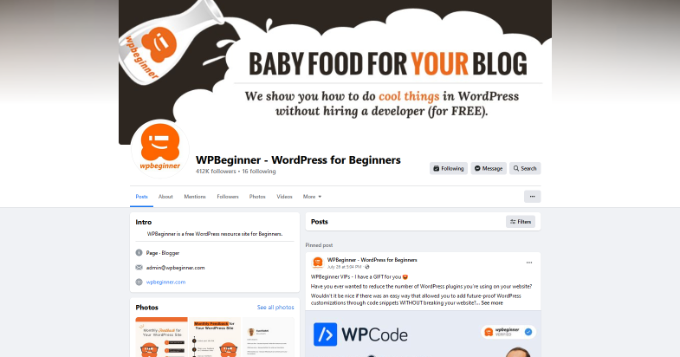
Facebook has specific recommendations for images to be used in different areas.
Cover image: Cover images will look best at 851 x 315 pixels and should be less than 100 KB in file size. They can be in JPEG or PNG file format. You can create a larger image while maintaining the same aspect ratio, and Facebook will automatically create smaller sizes to display on mobile devices.
Profile image: A square image of at least 170 x 170 pixels. For business pages, this is where you would ideally display your custom logo. This image will be cropped to display as a circle.
Shared Image: 1200 x 630 pixels. This image will be displayed on your page with a maximum width of 470 pixels and in the feed maximum width of 600 pixels.
Group cover image: 1640 x 856 pixels.
Twitter Image Sizes
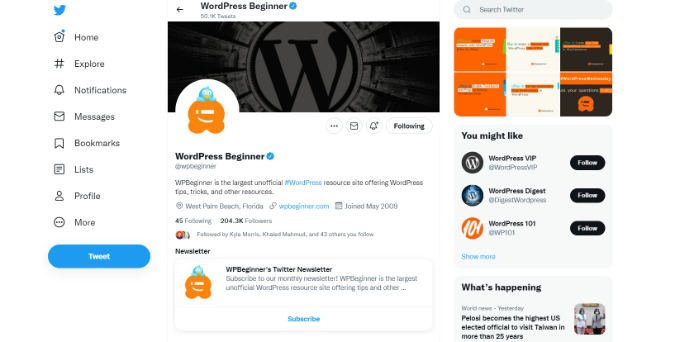
Twitter is the internet’s conversation hub. Following are the recommended image sizes for Twitter to make your profile more engaging and professional.
Header image: 1500 x 500 pixels. This full-width image appears as the cover image of your Twitter profile page.
Profile image: 400 x 400 pixels. This square image is cropped to be displayed in a circular format. Twitter allows you to upload JPG, PNG, and GIF formats with a maximum file size of 2MB.
In-stream image: 1600 x 900 pixels. This image is displayed when you share an article, retweet, embed a tweet, upload images, and more. If you are already using Twitter Cards then Twitter will be able to pick the correct image to display with your article description and title.
Instagram Image Sizes
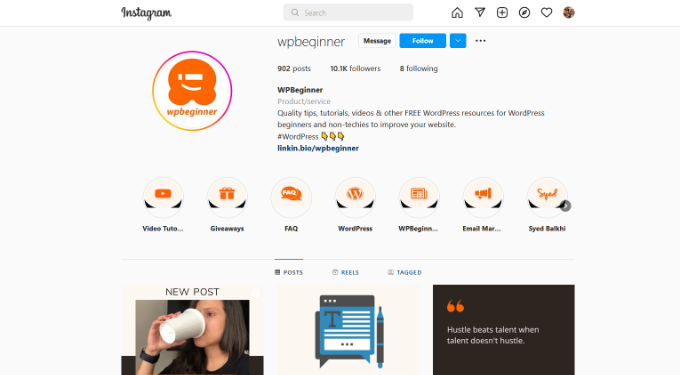
Instagram’s main content is already in a visual format. If you are uploading photos directly from your phone using the Instagram app, then it will automatically take care of appropriate image sizes for you.
For other uploads, you can follow these Instagram image size recommendations for the best results.
Profile image: 320 x 320 pixels. You can use larger image dimensions as long as it is a square image.
Image thumbnail: 161 x 161 pixels. This image is displayed as your thumbnail for your photos.
Shared photos: 1080 x 1080 pixels. You can use a higher-resolution image as long as it is a square image.
Shared videos: 1080 pixels wide.
Instagram Stories: 1080 x 1920 pixels. File size cannot exceed more than 4 GB which is quite a lot for a high-quality video.
YouTube Image Sizes
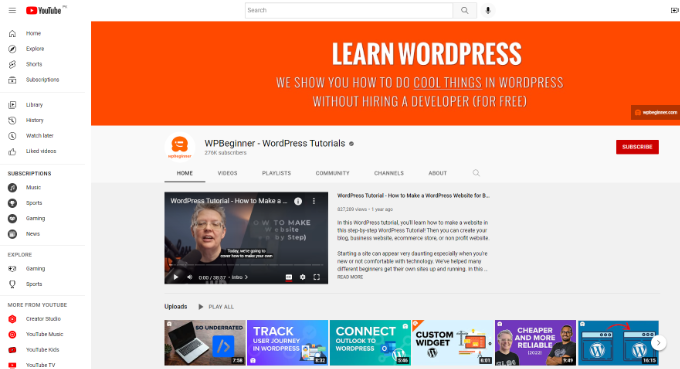
YouTube is not only the second most popular social media platform, with around 2.5 billion users worldwide, it’s also the second most popular search engine. Your YouTube channel image, cover image, and video thumbnails are crucial in getting more views for your videos.
YouTube Channel cover image: 2560 x 1440 pixels. You need to make sure that the image is horizontally centered so that it looks good on mobile devices where YouTube may crop the image to fit the user’s screen size.
Channel icon: 800 x 800 pixels. This image is displayed as your channel icon and may sometimes be cropped as a circular image.
Video thumbnail: 1280 x 720 pixels. Ask any YouTube creator and they will tell you that the video thumbnail is the most important part of video optimization on YouTube. This is what YouTube users will see on their homepage, in search, and in other areas. A highly optimized video thumbnail helps you get more views and grow your channel.
Pinterest Image Sizes
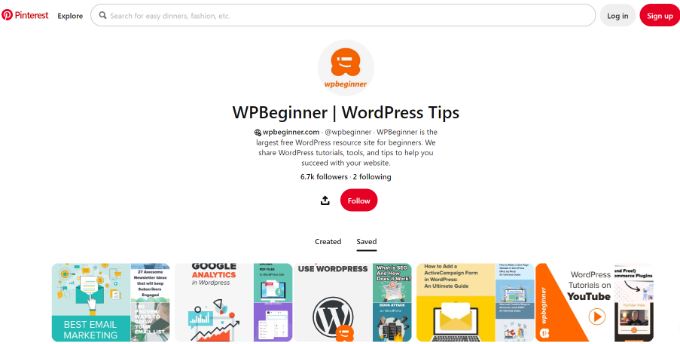
Pinterest is a visual social sharing platform, which means images play the most significant role in growing your Pinterest following.
Profile image: 165 x 165 pixels. You can upload a higher-resolution image with a maximum file size of 10 MB.
Profile cover: 800 x 450 pixels. Select a board to feature as your profile’s cover. Pinterest will automatically fetch pins from that board to create your profile cover.
Board cover image: 600 x 600 pixels. Pinterest allows you to choose the cover image from the pins you have saved for that board.
Pinned image preview: 236 pixels wide. Pinterest automatically scales your pins to fit their grid. For best results, you need to upload the images with an aspect ratio of 2:3 to 1:3.5.
LinkedIn Image Sizes
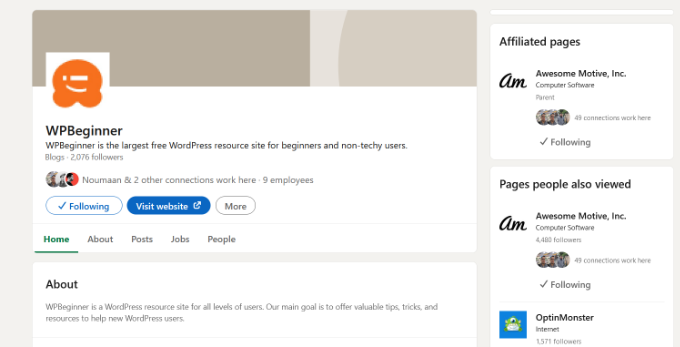
LinkedIn can be a great source of traffic, connections, and building a brand image. It is a social networking platform for professionals and businesses, which makes it a powerful tool to help you grow your business.
Personal profile image: A square of at least 400 x 400 pixels with a maximum image file size of 8 MB.
Banner image for personal profile: 1584 x 396 pixels with a maximum file size of 8 MB.
Company cover image: 1128 x 191 pixels.
Shared image: 1200 x 627 pixels.
Company profile/logo image: 300 x 300 pixels or higher resolution image with a 1:1 aspect ratio.
Setting Up Social Media Optimization in WordPress
Now that you have learned about proper social media image sizes, the next step is to make sure that your WordPress site is optimized for social media.
The most important aspect of this optimization is to set up the automatic inclusion of Open Graph metadata. Open Graph metadata is a technology that allows you to include additional information to your web pages that social media and search engines need.
First, you need to install and activate the All in One SEO plugin. For more details, see our step-by-step guide on how to install a WordPress plugin.
AIOSEO is the best WordPress SEO plugin that helps you get more traffic from search engines. It is also a complete website optimization tool including support for social media platforms as well.
Upon activation, you need to visit All in One SEO » Social Networks page. From here, you need to first add your social media profile URLs under the ‘Social Profiles’ tab.
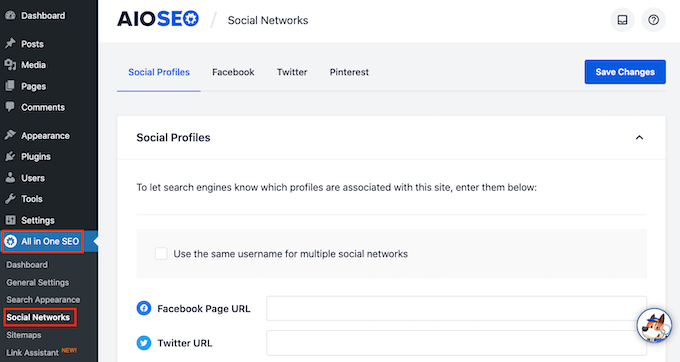
You don’t need to add all URLs, you can simply skip the social media websites where you don’t have a profile.
Next, you need to switch to the Facebook tab. From here you can see that AIOSEO enables Open Graph metadata by default.
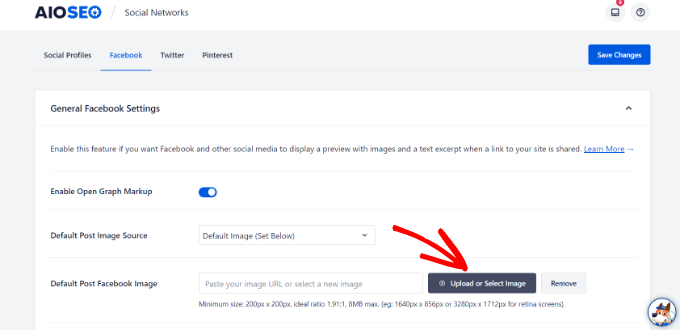
Below that you need to provide a default post Facebook image for your website’s front page. The image you provide here will be displayed when someone shares your website’s front page or root URL on Facebook.
Next, switch to the Twitter tab. Here you can choose the default card display for your website.
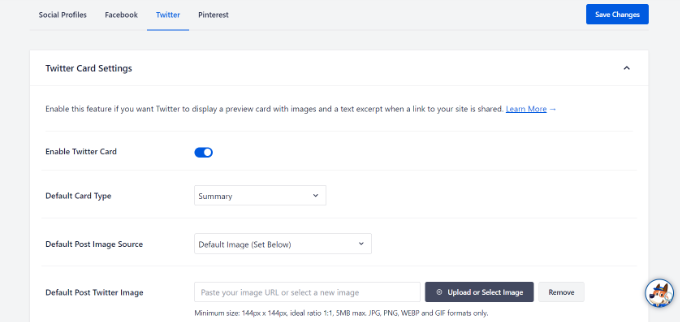
A ‘summary with large image’ option will display your Twitter share image with a summary of your article.
You can now switch to the Pinterest tab. From here you can add the Pinterest confirmation tag to your website.
You can click on the link on the screen to claim your website and get the confirmation code. For more details, you can see our guide on how to verify your WordPress site on Pinterest.
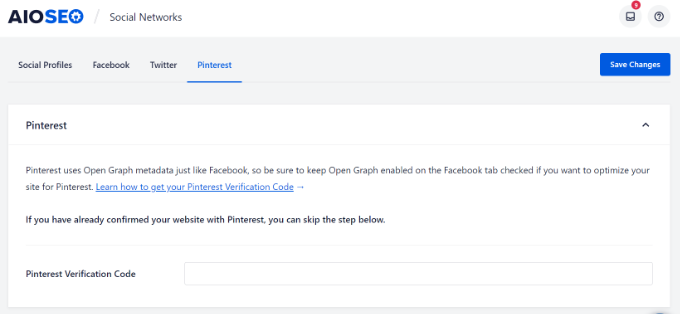
Don’t forget to click on the ‘Save Changes’ button to store your settings.
Social Media Settings for WordPress Posts and Pages
Just like the SEO settings for posts and pages, you can also optimize them for social media websites.
AIOSEO plugin allows you to easily set social options for your individual posts and pages.
Simply edit the blog post or page you want to optimize, and then scroll down to ‘AIOSEO Settings’ section below the editor.
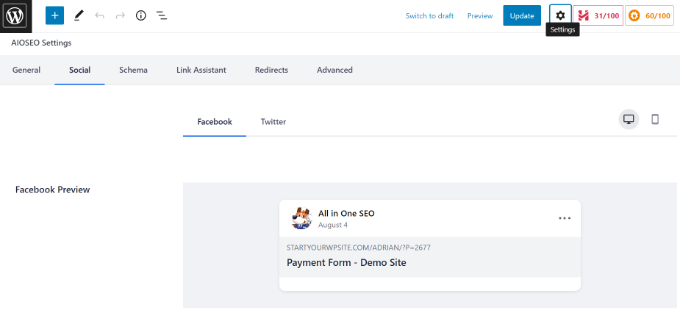
Switch to the ‘Social’ tab and you can upload a custom title and description as well as an image for Facebook and Twitter shares. You can also see a preview of what your post will look like when shared on social media.
After that, you can click on ‘Publish’ or ‘Update’ to save your post or page.
Adding Social Sharing Buttons to Your Website
The easiest way to promote your website on social media is by encouraging your users to share your content. This can be achieved by adding social sharing buttons to your blog posts and pages.
First, you need to install and activate the Shared Counts plugin. For more details, see our step-by-step guide on how to install a WordPress plugin.
Shared Counts is the best social media plugin for WordPress. It allows you to easily add social sharing buttons to your WordPress blog posts.
Upon activation, simply head over to the Settings » Shared Counts page to configure plugin options.
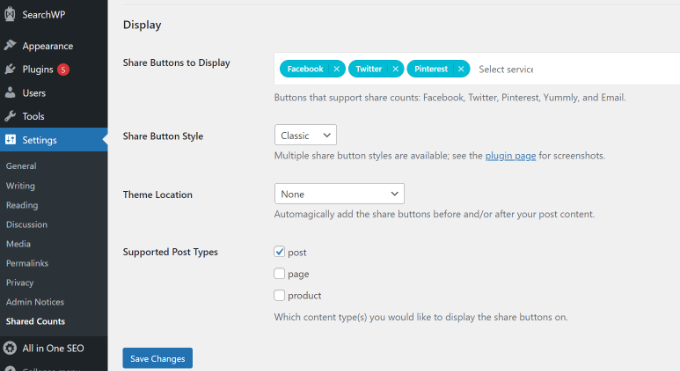
From here you need to scroll down to the ‘Display’ section and select the social media websites you want to display in the ‘Share Buttons to Display’ field.
After that, you can choose a button style and location where you want to display the buttons.
Don’t forget to click on the ‘Save Changes’ button to store your settings.
You can now visit any post on your website to see social sharing buttons in action.
For more detailed instructions, see our guide on how to add social share buttons in WordPress.
Setting Up Automated Social Sharing in WordPress
Social media platforms are great for building a following and bringing more traffic to your website. However, it can become quite time-consuming to share content across different platforms and engage with your audience.
Luckily, there are several online tools that you can use to automate the process.
- Uncanny Automator is the best WordPress automation plugin that lets you connect your social media profiles with WordPress. Using the plugin, you can automatically share new blog posts on Facebook, Tweet them on Twitter, and share them on Instagram.
- Smash Balloon is the best social media feeds plugin for WordPress, and it allows you to create custom feeds on your WordPress site. You can easily embed posts from Instagram, Facebook, Twitter, TikTok, and YouTube on your site to boost engagement, increase social followers, and build trust with users.
- Revive Old Posts allows you to automatically re-share old blog posts to your social media profiles at regular intervals. Learn more in our tutorial on how to automatically share your old WordPress posts.
- Buffer is a platform that lets you set up a queue of social media updates and publish them on your preferred schedule.
- MonsterInsights helps you easily track social media traffic using Google Analytics. This helps you learn how your posts are performing on social media websites. For details, see this guide on how to track social media traffic with Google Analytics.
We hope this social media cheat sheet for WordPress helped you improve your social media marketing strategy. You may also want to see our guide on how to start your own podcast and our expert pick of the best email marketing services.
If you liked this article, then please subscribe to our YouTube Channel for WordPress video tutorials. You can also find us on Twitter and Facebook.





Syed Balkhi says
Hey WPBeginner readers,
Did you know you can win exciting prizes by commenting on WPBeginner?
Every month, our top blog commenters will win HUGE rewards, including premium WordPress plugin licenses and cash prizes.
You can get more details about the contest from here.
Start sharing your thoughts below to stand a chance to win!
Ceri says
Really useful thank you
WPBeginner Support says
You’re welcome, glad our guide was helpful
Admin
Sharon Dreyer says
Thank you! I will be saving this one for future reference
WPBeginner Support says
You’re welcome, glad our article was helpful
Admin
Benita says
This is such a great overview! I love your articles-always helpful, not too long or too “techie!”
WPBeginner Support says
Glad our guides are helpful
Admin
Louis says
Wow, this is just what I need for my new website, great timing!
WPBeginner Support says
Glad our guide was helpful
Admin
Kari says
wonderful!! amazing article thanks you for sharing.. Lots of valuable informations!!!
WPBeginner Support says
You’re welcome, glad you found our content helpful
Admin
Kevin Gay says
This was helpful at the right time. I have already made some adjustments to my website with these suggestions provided. Thanks.
WPBeginner Support says
Glad our cheat sheet was helpful
Admin
Adrianne says
This info is going to so helpful for my social media promotion for my blog. Thanks so much for providing relevant and up to date content. It really makes a difference. Cheers!
WPBeginner Support says
Glad you like our content and that it’s helpful for you
Admin
Phaevourgbemi says
Wow…Really helps
Looking forward to make use of these tips soonest for a site change.
WPBeginner Support says
Glad you found our content helpful
Admin
Eldad says
super helpful !
WPBeginner Support says
Thank you
Admin
Olospo says
Really useful article thanks.
Craig Wann says
Great! Thanks!
Michael Clayton says
Thanks for putting together this little resource. Really helpful.
joyoge bookmark says
wow this is very helpful post, thank you so much..