


Do you want to add infinite scroll to your WordPress blog?
Infinite scroll automatically loads the content from your next page so that visitors don’t have to click on pagination links or the load more button at the bottom of the page.
In this article, we will show you how to easily add infinite scroll on your WordPress blog, step by step.
Why Add Infinite Scroll to Your WordPress Site?
Infinite scroll is a web design trend that uses AJAX page load technology to automatically load the next page of content and show it at the end of the current page. It can make it easier and more enjoyable for visitors to browse through your content.
Instead of clicking on links to see more, infinite scroll loads new content automatically as users scroll down. This smoother experience can keep people on your site longer and may increase your pageviews.
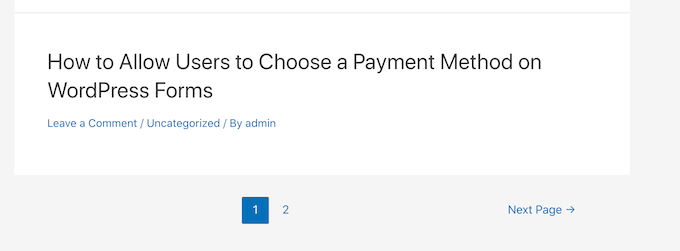
That said, infinite scroll might not be the best choice for every type of website, such as web directories where each page is a different letter of the alphabet. If you use infinite scroll, then you also can’t show a footer on your WordPress blog.
Also, infinite scroll could put extra strain on your server. So, if you want to try it, it’s a good idea to optimize your WordPress website performance.
With that being said, let’s have a look at how to add infinite scroll to your WordPress website. You can use these quick links to skip to a specific method:
Method 1: Adding Infinite Scroll With Catch Infinite Scroll (Recommended)
During our testing and research, we found the best way to add infinite scrolling is with the Catch Infinite Scroll plugin. Besides being simple to use, it also allows you to customize how the infinite scroll behaves.
The first thing you need to do is install and activate the Catch Infinite Scroll plugin. For more details, see our step-by-step guide on how to install a WordPress plugin.
Upon activation, you will see a new menu item labeled ‘Catch Infinite Scroll’ in your WordPress dashboard. Simply give it a click to configure the plugin settings.
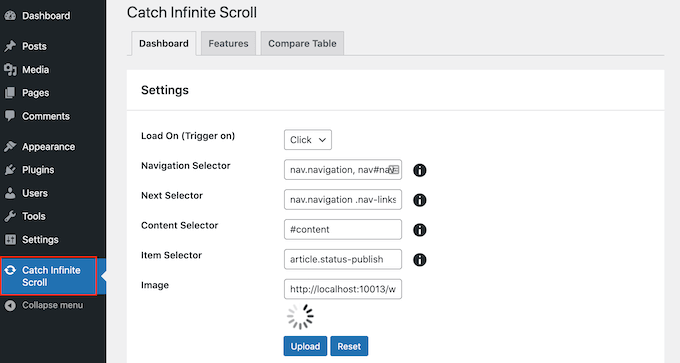
We want to trigger infinite scroll when the user starts scrolling down the page.
With that in mind, open the ‘Load On’ dropdown and choose ‘Scroll.’
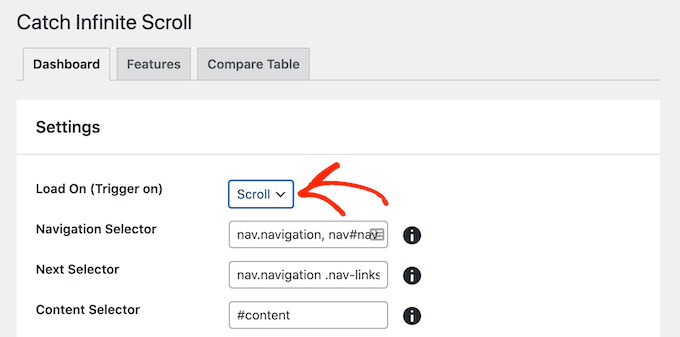
If you choose ‘Click,’ then Catch Infinite Scroll will show a ‘Load More’ button instead.
Next, you can customize the navigation selector, next selector, content selector, and item selector. The default settings work quite well, so you don’t need to make any changes.
The ‘Image’ section shows the content loader icon that Infinite Scroll will show when it’s loading content.
By default, it uses a loader GIF image, but you can change this if you want. Simply click on ‘Upload’ and then either choose an image from the media library or upload a new file.
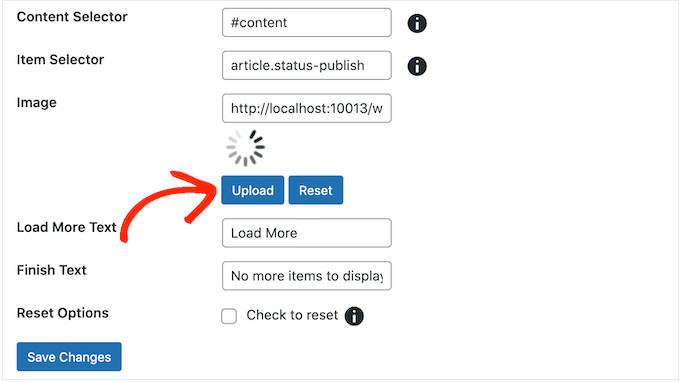
When you are happy with how infinite scrolling is set up, click on the ‘Save Changes’ button to store your changes.
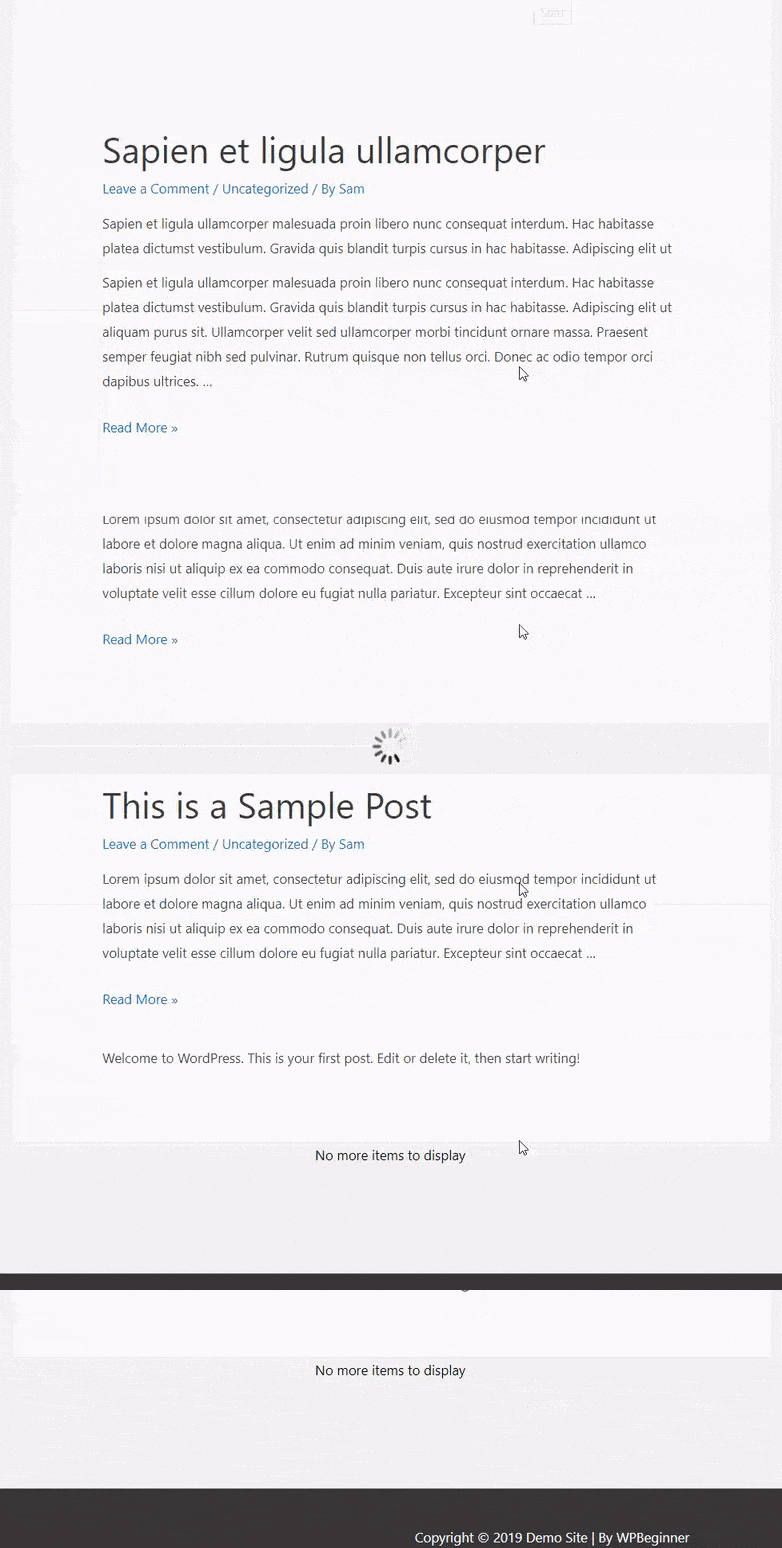
Now, if you visit your WordPress website, then you will see the infinite scrolling in action.
Method 2: Adding Infinite Scroll With YITH Infinite Scrolling (Easy)
If you are looking for a simple alternative with no settings to configure, then you may want to try YITH Infinite Scrolling.
This plugin works out of the box, so you can simply install and activate it to add infinite scrolling to your WordPress website. For more details, see our step-by-step guide on how to install a WordPress plugin.
Upon activation, you can visit your website to see the new infinite scroll feature in action.
If you want to tweak the infinite scroll, then you will find a few simple settings by going to YITH » Infinite Scrolling in your WordPress dashboard.
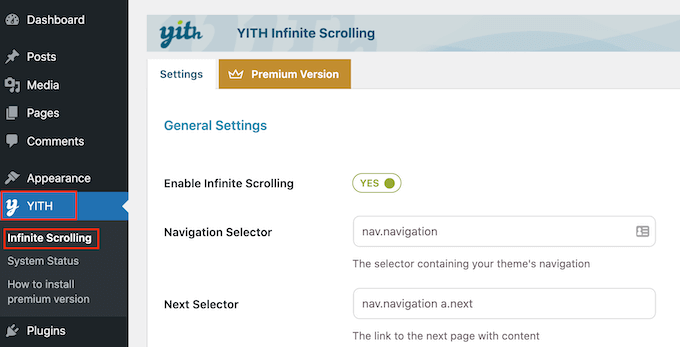
Here, you can enable and disable infinite scrolling.
You can also change the image or GIF that YITH shows when it’s loading content. Simply scroll to the ‘Loading Image’ section and then click on ‘Upload.’
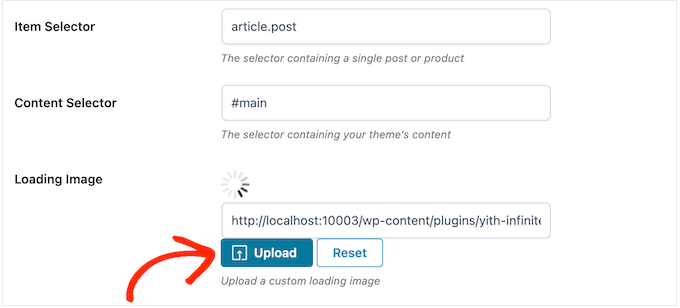
Then, either choose an image from the WordPress media library or upload a new image from your computer.
Method 3: Adding Infinite Scroll With Ajax Load More (Advanced)
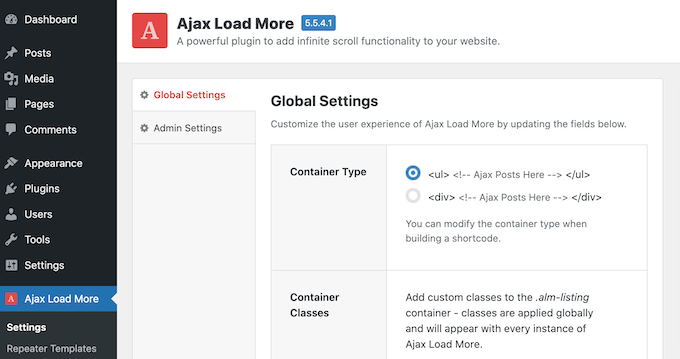
Ajax Load More has an advanced interface with lots of different options, including a repeater template, shortcode builder, and WordPress queries.
The plugin also offers more customization settings, including many page loading icon styles and button styles.
With that in mind, it has a steeper learning curve and isn’t recommended for beginners. However, it does give more advanced users complete control over their website’s infinite scroll.
For a detailed guide, you can see our tutorial on creating a load more posts button in WordPress using the Ajax Load More plugin.
Adding Infinite Scroll in WordPress: FAQs
Do you still have questions about adding infinite scroll to your WordPress website? Let’s discuss some frequently asked questions about this design feature.
Is infinite scroll good or bad?
Infinite scroll has its pros and cons. It’s great for websites like social media, blogs, and news sites where users enjoy browsing through a variety of content. However, for goal-oriented sites like eCommerce, it can be frustrating for users trying to find specific items.
Does infinite scroll improve performance?
Infinite scroll can make it easier for users to access more content quickly, especially on mobile devices where scrolling is natural.
However, without proper optimization, it can slow down page loading times, especially with large media files. That’s why it’s a good idea to follow the best website speed and performance practices.
Is infinite scroll bad for SEO?
Without proper optimization, infinite scroll can be bad for WordPress SEO. Search engines may not index all the content since they don’t automatically scroll down.
But there are ways to optimize it for better SEO. You can add a load more button using AJAX so that search engines recognize additional material, use schema markup to clarify your content for search engines, and preload links to upcoming content.
Is infinite scroll better than pagination?
Whether infinite scroll is better than pagination depends on what works best for your website and users. Infinite scroll offers a seamless experience, while pagination provides a clearer structure. Both have their advantages, so choose based on your content and audience preferences.
We hope this tutorial helped you learn how to add infinite scroll to your WordPress site. You may also want to learn how to increase your blog traffic or check out our expert picks for the must-have WordPress plugins to grow your website.
If you liked this article, then please subscribe to our YouTube Channel for WordPress video tutorials. You can also find us on Twitter and Facebook.





Syed Balkhi says
Hey WPBeginner readers,
Did you know you can win exciting prizes by commenting on WPBeginner?
Every month, our top blog commenters will win HUGE rewards, including premium WordPress plugin licenses and cash prizes.
You can get more details about the contest from here.
Start sharing your thoughts below to stand a chance to win!
Jiří Vaněk says
How does the search bot behave with infinite scrolling? Can it load the site content, does it only load the first page and skip the rest of the content? I’m interested in this for SEO reasons.
WPBeginner Support says
Search plugins would normally scan all of your content but it would depend on the infinite scroll solution for how it would interact with your search in terms of displaying the results.
Admin
Jiří Vaněk says
Ok, thanks for the explanation. It’s probably best to try it to track the results in GSC.
Anant says
Can i use Catch Infinite Scroll in pages as well ?
WPBeginner Support says
Unless we hear otherwise, the plugin does have an option for loading on pages.
Admin
Ben says
Hi, When using infinite scroll and the user clicks on a post the back button takes them to the top of the list rather than where they were before.
Is there a fix for this?
WPBeginner Support says
Not at this time, you would want to reach out to the plugin’s support for the possibility to add that feature in the future.
Admin
Abuel says
Hello!
I want to ask on how can i activate infinite scrolling on my blog page that i created using elementor?
Thank you.
WPBeginner Support says
You would want to reach out to elementor’s support for that question as elementor’s settings would be the ones your site follows.
Admin
Steve says
This article is helpful. It’s unclear though how to add content to the scroll. I’d appreciate an explanation.
WPBeginner Support says
The scroll would show the next few posts on your site automatically
Admin
Astro says
How can I apply infinity scrolling to posts on a particular category only?
WPBeginner Support says
You would want to check with the support for the plugin you are using for if that is an option or if they have a recommended method for setting that up.
Admin
Max says
Hi, great post as usual! Is there also a solution to implement a sorting by a category or a tag that the user can choose like in the Neil Patel’s blog listing page?! Thank you in advance.
WPBeginner Support says
For the ability to filter your posts by category, you would want to take a look at our guide here: https://www.wpbeginner.com/plugins/how-to-let-users-filter-posts-and-pages-in-wordpress/
Admin
Fman says
Hi there wpbeginner!
I would like to add infinite scroll to related products on my woocommerce site, how do we do that ?
WPBeginner Support says
You would want to reach out to the plugin’s support for how to set that up.
Admin
Lakmal says
Hi
Thank you for your article and i need to know is it can be use for woocommerce sites?
Regards
Lakmal
WPBeginner Support says
Unless we hear otherwise, it should work for a WooCommerce site
Admin
Bruce Pang says
Good article. It’s very useful for a fresh man like me. Thank you very much.
WPBeginner Support says
Thank you, glad our article could be helpful
Admin