


Limit Login Attempts is a handy plugin that helps protect your WordPress website by blocking repeated failed logins. It’s one of the simplest ways to keep hackers out. 🔒
But what if you type in your own password wrong too many times?
Instead of hackers, you’re the one who gets locked out and can’t reach your WordPress dashboard. We’ve seen this happen to many people, so you’re definitely not alone.
The good news is there’s an easy fix.
In this guide, we’ll show you how to unblock Limit Login Attempts in WordPress so you can get back into your site without any hassle. 🔓
Why Are You Locked Out of Your Own WordPress Site?
The Limit Login Attempts Reloaded plugin is a key security tool for WordPress. It protects your site from brute-force attacks by restricting how many times someone can try to log in.
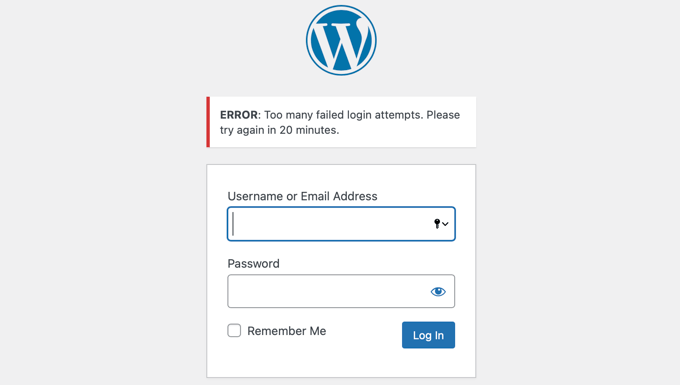
However, if you make too many incorrect attempts at your own password, the plugin will lock you out of your own WordPress admin area.
At WPBeginner, we always recommend following security best practices to reduce the risk of hacking. Installing this plugin is a simple way to block attackers trying to guess your login credentials.
However, even the best of us have an off day. You might mistype your password, especially if you recently changed it or didn’t realize the caps lock was on.
To regain access, you’ll need to temporarily unblock the limit login attempts feature.
We will show you two ways:
Method 1: Unblocking Limit Login Attempts Using FTP
The easiest solution for beginners is to simply delete the Limit Login Attempts Reloaded folder and then reinstall the plugin later once you can log in.
For this method, you will need to either use an FTP client or the file manager option in your WordPress hosting control panel.
If you haven’t used FTP before, then you may want to see our guide on how to use FTP to upload files to WordPress.
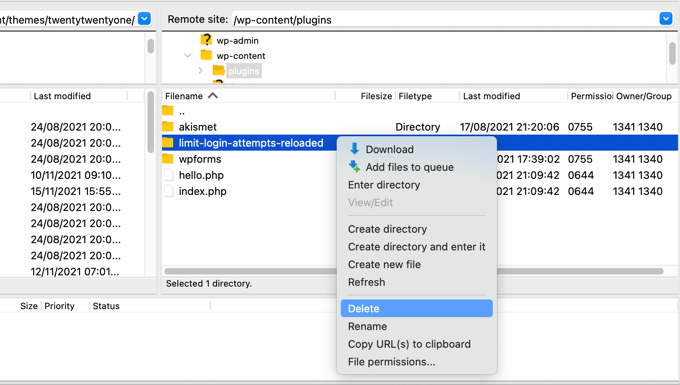
You need to access your site using your FTP client or file manager and then go to the /wp-content/plugins/ folder.
Once you are there, simply delete the limit-login-attempts-reloaded plugin folder.
You can now log in to your WordPress admin area.
When you are ready, don’t forget to reinstall and activate the Limit Login Attempts Reloaded plugin. For more details, see our step-by-step guide on how to install a WordPress plugin.
Method 2: Unblocking Limit Login Attempts Using MySQL
While Method 1 is simpler, advanced users who are familiar with MySQL and phpMyAdmin might like to clear the Limit Login Attempts Reloaded lockout using a SQL query.
Important: This method involves editing your WordPress database directly. A mistake could break your site, so we strongly recommend you make a full backup of your WordPress database before proceeding.
First, you will need to log in to your web hosting dashboard and click the ‘phpMyAdmin’ icon under the Databases section.
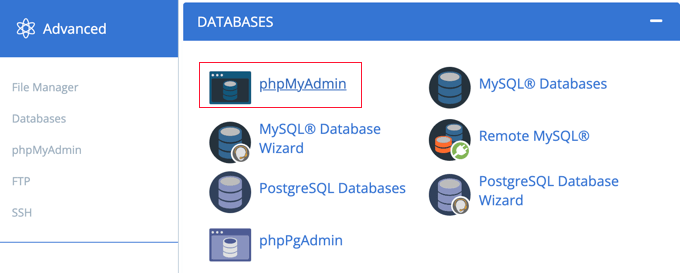
This will launch phpMyAdmin in a new browser window. You will need to select your WordPress database if it is not already selected.
After that, you should click on the ‘SQL’ tab and paste the following query:
UPDATE wp_options SET option_value = '' WHERE option_name = 'limit_login_lockouts' LIMIT 1;
This query assumes you are using the default’ wp_’ database prefix.
If you changed your database prefix, then you will need to update the query with the correct prefix.
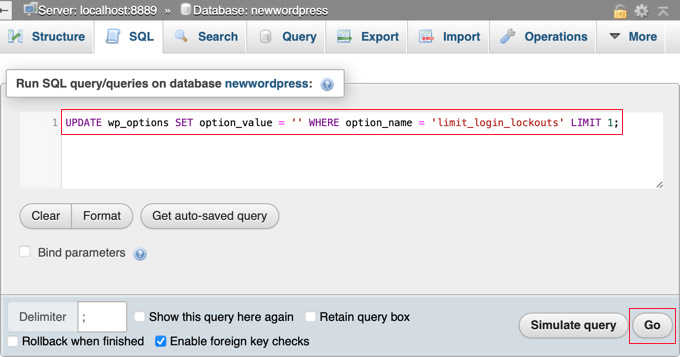
Having done that, you need to click the ‘Go’ button at the bottom right of the screen to run the query.
You will be shown a message confirming that the query was successful.

The number of unsuccessful retries has been reset, and you can now log in to your WordPress admin area.
Alternatively, you can unblock just your own IP address. This is useful if you suspect your site is under a brute-force attack and you only want to grant yourself access while keeping other malicious IPs locked out.
To do this, run the following query instead:
UPDATE wp_options SET option_value = REPLACE(option_value, '111.222.111.222', '') WHERE option_name = 'limit_login_lockouts' LIMIT 1;
Make sure to update the query with your actual IP address instead of ‘111.222.111.222’. You can find it by navigating to WhatIsMyIP.com in your web browser.
Frequently Asked Questions About Unblocking Limit Login Attempts Reloaded
Here are some questions that our readers frequently ask about unblocking the Limit Login Attempts Reloaded plugin:
Is it safe to delete a plugin folder via FTP?
Yes, it’s completely safe. Deleting the plugin’s folder through FTP or a file manager only deactivates it and won’t touch your site’s content. You can reinstall it later once you log back in.
What happens after I reinstall the Limit Login Attempts plugin?
When you reinstall the plugin, it will activate with its default settings. This means any custom settings or lockout logs you had before will be cleared.
How can I find my IP address?
An easy way to find your public IP address is by visiting a website like WhatIsMyIP.com. The site will display your IP address, which you can then use for the SQL query method.
We hope this tutorial helped you learn how to unblock Limit Login Attempts in WordPress. You may also want to see our guide on how to easily and securely manage passwords so you don’t forget yours again, or our expert pick of the best WordPress login page plugins.
If you liked this article, then please subscribe to our YouTube Channel for WordPress video tutorials. You can also find us on Twitter and Facebook.




harpreet singh
I have the Loginizer plugin and apparently it was that doing it. I deactivated it
WPBeginner Support
Thanks for sharing what was causing the issue for you should anyone else run into the same problem
Admin
Salahuddin
Thank you this worked great, now I just need to find out why it wont take my password and tells me my email for lost password is wrong despite knowing 100% positive its the right one lol
WPBeginner Support
If you’re locked out of your admin area for any reason, we would recommend going through our article below which covers many of the ways to fix the issue
https://www.wpbeginner.com/wp-tutorials/locked-out-of-wordpress-admin/
Admin
Alastair
Lifesaver! Many thanks
WPBeginner Support
Glad our guide was helpful!
Admin
Mike
Hi,
With the SQL solution to being locked out of the admin login page, after I put in what you suggest it comes up with error -#1146 – Table ‘zpcgqplm_wp458.wp_options’ doesn’t exist – what should I do now?
WPBeginner Support
You would want to ensure you are editing the database with your WordPress information in it. That error means that your WordPress information is not in the database you are trying to edit.
Admin
Annie Henson
Thank You so much guys You saved me a lot of hours.
WPBeginner Support
You’re welcome, glad our guide could help
Admin
voku
Thanks for this basic blog posts … this is really helpful content.
WPBeginner Support
Glad our content could be helpful
Admin
Dave
Great advice on deleting the plugin folder. It works! If the prospect of deleting that folders concerns you, you can also simply rename the file from the file manager. This disables the plugin without deleting. Once logged into WP change the name back and you should be good to go.
Sachi Knight
Thank you! The SQL query worked a treat. Saved me being locked out of my own Site for 48 hours, lol. Chrome occasionally messes up passwords, and I have a 1-chance login. (at least I know it works. )
)
scott
Thank you this worked great, now I just need to find out why it wont take my password and tells me my email for lost password is wrong despite knowing 100% positive its the right one lol
Colleen
Mine locked me out and says my password is wrong. This is just crazy. Many are having this problem.
WPBeginner Support
Hi Colleen,
You can deactivate all WordPress plugins to regain access to your website.
Admin
Muntazir Abbas
My wordpress site is locked some time for 1 hour or 3 min, how can i solve this problem??
WPBeginner Support
Hi Muntazir,
Do you see an error when you are locked out?
Admin
Russell Symonds
Thank you! I am grateful for this perfectly ingenious and straightforward information which has saved me from what would otherwise have been a catastrophe.
Leon
I did it via file manager but im still loked out. please help
Robin
The most helpful and straightforward. Thank you!
Megan
Is there another plugin you recommend to limit login attempts now? Limit Login Attempts says it hasn’t been updated in over 2 years.
Editorial Staff
Yes we recommend using Login Lockdown — does the same thing and it’s up to date.
https://wordpress.org/plugins/login-lockdown/
Admin
Howard Lee Harkness
Seems to me that the best solution for the self-lockout problem is prevention. I use LastPass to generate and track secure passwords (there are other utilities that may be just as good or even better, but I like LastPass/XMarks).
So far (more than 2 years of using Limit Login Attempts), I have never locked myself out of any of my admin accounts.
Techerhut
Hi Syed,
Great Tutorial.
The first one is easier. But one should know every possible way of doing a thing. The second one – using MYSQL Query is new for me and I learned it from here.
Thanks for the posting this.
~Sumit