


You finally get a new lead through your WordPress contact form… but the message never shows up in your inbox. It’s frustrating, and worse, it can cost your business real opportunities.
That’s because relying only on email notifications is risky.
A strict spam filter or an accidental delete can make important messages disappear before you even see them.
By saving form submissions directly in your WordPress database, you’ll always have a backup copy, and it makes managing entries much easier.
In this guide, we’ll show you exactly how to store your contact form data safely, so you never lose another message. 🗃️

Why Store Contact Form Data in the WordPress Database?
Storing your WordPress contact form data in the database ensures you always have a reliable, organized, and secure record of every submission – no matter what happens to your emails.
Here are some of the key benefits:
- Reliable Backup: Emails can get lost, deleted, or caught by spam filters. With database storage, you can always access every submission right in your WordPress dashboard.
- Easy Management: You have one central place to see all submissions, making it simple to track leads, reply to inquiries, and organize follow-ups.
- Data Export and Analysis: Want to spot trends over time or export entries to a customer relationship management (CRM) or spreadsheet? Database storage makes it easy to download all your form data whenever you need it.
- Better Security and Privacy: Keeping submissions on your website, protected by your login and security measures, can be safer than relying solely on your email account.
In short, having a safe, organized, and easily accessible record of all your contact form submissions saves time, reduces stress, and ensures you never miss a valuable opportunity.
Contact Forms and the WordPress Database (Behind the Scenes)
When a visitor submits their details in a contact form on your WordPress site, the most prominent visible action that you, as a website owner, will see is an email notification in your inbox. It contains all the details that a specific visitor submitted.
However, behind the scenes, most WordPress form plugins will also store this data in your WordPress database.
A WordPress database is a system for storing and fetching data in an organized way. It allows plugin developers to manage data in a programmable way.
As a user, if you wanted to display the data in your WordPress database, then you would need to log in to your WordPress hosting account and open the phpMyAdmin tool.
For example, if you are using Bluehost, then the link to phpMyAdmin is located in the panel on your left. Simply go to Advanced » phpMyAdmin from your Bluehost dashboard.
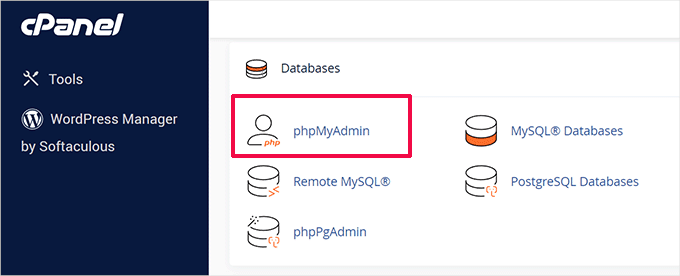
Once you are in phpMyAdmin, you need to select your WordPress database, then click on the database table of your respective WordPress form plugin.
Since we use WPForms, this is our form table: wp_wpforms_entries.

Once you have clicked on the table, you will find all your form entries stored in the ‘fields’ column.
As you can see, this is not the most user-friendly way to view your data.

This is why premium form plugins include a user-friendly entry management interface inside your WordPress dashboard, making it easy to view and organize submissions.
All contact form data is still stored in your WordPress database, but you can view it in a user-friendly interface like your WordPress admin instead of the screenshot above.
Let’s see how you can easily manage your form entries in WordPress. Here are all the topics we’ll cover in this guide:
How to Manage Contact Form Entries in WordPress
For this tutorial, we will be using WPForms. It is the best WordPress contact form plugin that helps you manage your form entries with ease.
However, a similar process exists for other popular WordPress form plugins, including Formidable Forms.
📝 Note: We use WPForms across our sites to display our contact form, annual reader surveys, and more. See our complete WPForms review for more insights about the plugin.
First, you will need to create a contact form with WPForms. If you need instructions for this, then you can follow our step-by-step guide on how to create a contact form in WordPress.
After you have added the contact form to your WordPress website, you need to go ahead and make a test entry submission. Here is an example of our simple contact form:

Once you have filled it out with sample information, click on ‘Submit.’
This will cause two things to happen. First, it will send you, the site admin, an email with all the information from the form.
Second, it will store the contact form data in your WordPress database that you can view by going to WPForms » Entries in the WordPress admin area.
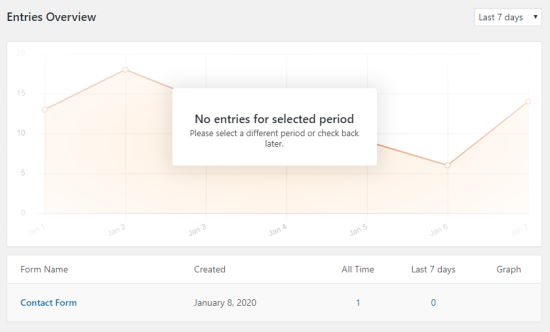
On this screen, you will see different forms and their entries.
You can click on your form’s name or on the entry count to view all submissions for that form.
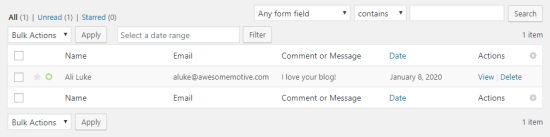
The entry management screen allows you to star (favorite) entries in the table, mark them as read, or even delete them.
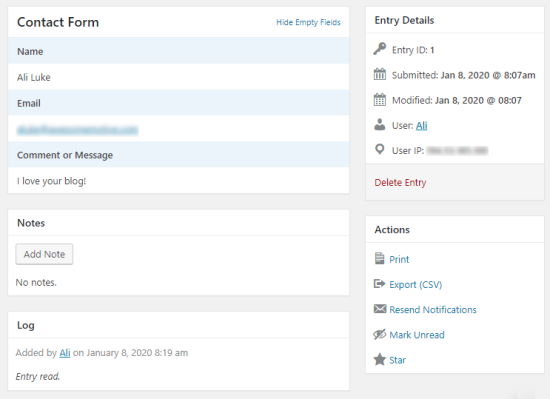
You can click on the ‘View’ link next to the entry item to see more details, such as the date of submission, other contact form fields, and more.
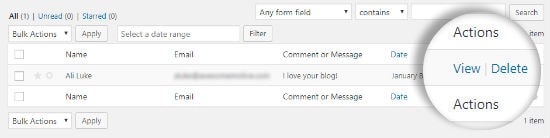
On the WPForms ‘Entry Details’ page, you can add notes about the contact form entry, print or export it, star it, and more.
As a user, this interface is more user-friendly compared to viewing the contact form data stored in a WordPress database.
Now that you know about forms and databases, let’s see how you can save space by preventing form entries from being stored.
Bonus Tip: Stop Saving Form Data in WordPress Database
In some cases, you may not want to store your contact form data in a WordPress database. WPForms also allows you to do that.
All you need to do is edit the WordPress form, and it will open the WPForms form builder.
You need to go to the Settings » General tab inside the builder and scroll to the bottom. Next, make sure to check the box labeled ‘Disable storing entry information in WordPress.’
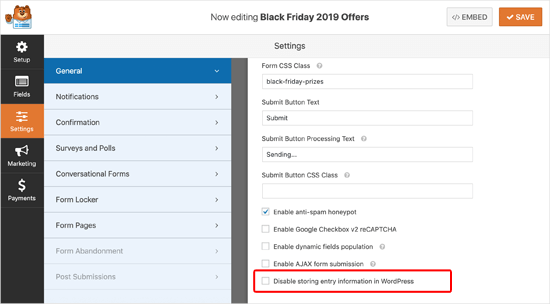
After that, simply click on the ‘Save’ button, and you are done.
It’s very important to submit a test entry afterward to ensure you still receive email notifications. With this setting enabled, the entry is not stored in your database – your only record will be the email notification.
If you are running into the WordPress not sending email issue, then you will need to install and activate the WP Mail SMTP plugin.
WP Mail SMTP helps fix email delivery issues by connecting WordPress with a reliable SMTP provider, like Amazon SES, SendGrid, and more, ensuring your messages don’t end up in spam or get lost.
FAQ: Save Contact Form Data in the WordPress Database
Saving form submissions in your database makes it easy to view, manage, and export them whenever you need. Here are some common questions, answered, on that topic:
Can you save form data automatically?
Yes! Most WordPress form plugins can save submissions automatically to your site’s database, so you don’t have to copy them manually.
What is the best way to store form data?
The easiest and most reliable way is to use a contact form plugin that saves entries directly in your WordPress database, with an entry management feature. This way, you can view, export, or manage submissions as needed.
How can I save form data without a plugin?
You can do it with custom code by creating a database table and adding a function to store form submissions. It’s more technical, but possible if you prefer not to use a plugin.
How do you save a form in WordPress?
Create your form using a plugin that stores submissions in the database (like WPForms). Once published, most plugins will automatically save each submission for you to view in your WordPress dashboard.
Video Tutorial: Save Contact Form Data in the WordPress Database
Learning by watching? Here’s our video tutorial on how to save contact form data in the WordPress database:
Extra Resources to Improve Your WordPress Forms
We hope this article helped you learn how to save contact form data in the WordPress database.
You may also want to see our guides on:
- How to Create Multilingual Forms in WordPress
- Ways to Use Conditional Logic in WordPress Forms
- How to Customize and Style Your WordPress Forms (Easy Methods)
- How to Add Image Choices in WordPress Forms (and Boost Engagement)
- How to Create Conversational Forms in WordPress (Typeform Alternative)
- Ultimate Guide to Using WordPress Forms
If you liked this article, then please subscribe to our YouTube Channel for WordPress video tutorials. You can also find us on Twitter and Facebook.



Jiří Vaněk
This is exactly the reason why I switched to the paid version of WPForms. Because I can see all the forms nicely in the WP administration. WPForms is a great plugin and the paid version is a joy to work with.