


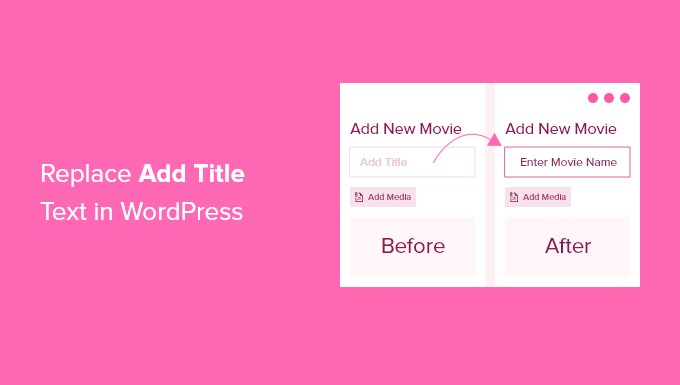
The default “Add Title” text in WordPress doesn’t do much to inspire better headlines. It’s just a placeholder, making it easy to ignore and not very helpful if you want consistent, high-quality content.
Customizing that text can give your writers a clearer idea of what you expect, whether that’s adding keywords, keeping titles short, or matching a specific style.
It’s a small change that can make your content creation process smoother and your dashboard feel more professional.
In this guide, we’ll show you how to replace the default “Add Title” placeholder in WordPress with your own custom message, step by step.
💡Quick Answer: How to Replace the Title Placeholder Text
To replace the “Add Title” placeholder text in WordPress, you need to add a custom code snippet to your theme. We recommend using the WPCode plugin to do this safely without breaking your site.
When and Why You Need to Replace Title Placeholder Text
When creating a new post, the default ‘Add title’ text is a helpful prompt. It lets you and your authors know exactly where to start.
However, if you are using custom post types, generic text isn’t very useful. It is better to change the text to match your specific content needs.
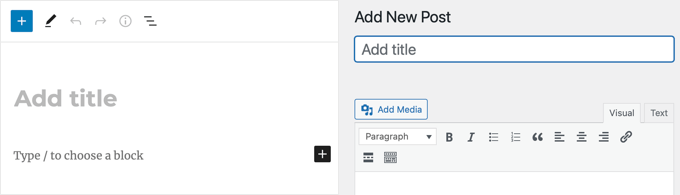
For example, let’s say you created a custom post type for personal profiles. You can instruct users to enter a name by changing the placeholder text to ‘Enter Person Name’.
Or if you have created a custom post type for a movie database, then a more helpful placeholder text might be ‘Enter movie name with release year’.
With that being said, let’s have a look at how to replace the ‘Add title’ text in WordPress.
Replacing The Title Placeholder Text in WordPress
To replace the title placeholder text in WordPress, you’ll need to add code to your WordPress theme’s functions.php file.
However, that can be dangerous because even the smallest error can break your website. That is why we recommend using WPCode.
After thorough testing, we have concluded that it is the safest and easiest way to add custom code to your website. Plus, it is super easy to use. If you want to find out more about our experience, then take a look at our WPCode review.
First, you have to install and activate the WPCode plugin. For details, see our tutorial on how to install a WordPress plugin.
Note: WPCode has a free version that you can use for this tutorial. However, upgrading to the pro plan will give you access to a cloud library of code snippets, smart conditional logic, block snippets, and more.
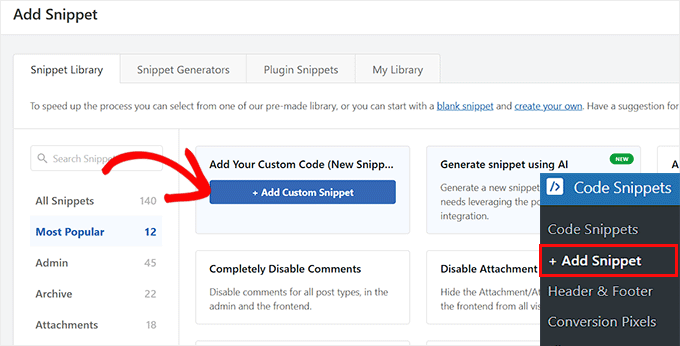
Upon activation, visit the Code Snippets » + Add Snippet page from the WordPress dashboard and choose the ‘Add Your Custom Code (New Snippet)’ option.
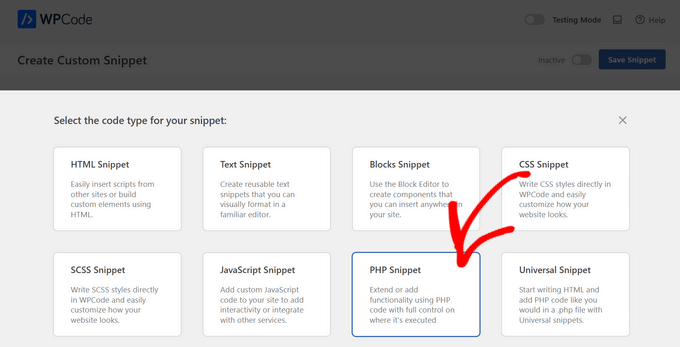
This will take you to a new screen where you have to select ‘PHP Snippet’ as your code type.
Then, add a name for the code snippet that you are about to add.
This name will only be for your identification, so we recommend choosing something concise and descriptive, like ‘Replace The Title Placeholder Text in WordPress.’
This will help you quickly find the snippet if you ever want to edit, disable, or delete it.
After that, add the following code to the ‘Code Preview’ box:
function wpb_change_title_text( $title ){
     $screen = get_current_screen();

     if  ( 'movie' == $screen->post_type ) {
          $title = 'Enter movie name with release year';
     }

     return $title;
}

add_filter( 'enter_title_here', 'wpb_change_title_text' );
Don’t forget to replace ‘movie’ with your own custom post type and the text ‘Enter movie name with release year’ with your custom text.
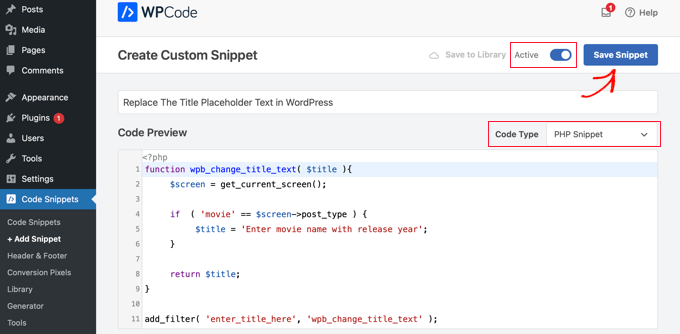
Finally, toggle the ‘Inactive’ switch to ‘Active’ and click the ‘Save Snippet’ button to store your settings.
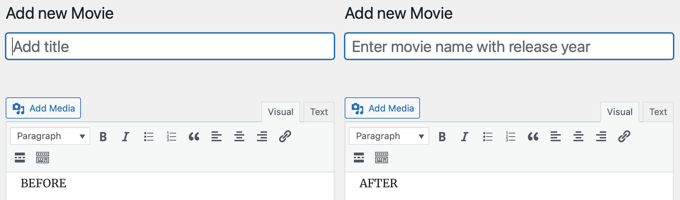
This code will now change the placeholder text for the custom post type ‘movie’ when using the block editor.

Notice in the screenshot above that the ‘Add title’ placeholder has been replaced with ‘Enter movie name with release year’ when creating a new Movie post type.
The best thing is that the same code snippet will also work if you are using the classic WordPress editor.
How Does This Code Snippet Work?
Let us explain the code. First, we created a function wpb_change_title_text. Inside the function, we added a check to see if the user is on a particular custom post type screen.
When it detects that a user is on the custom post type screen, it will return our custom title text. After that, we simply hooked our function to the enter_title_here filter, which allows you to change the default title text.
That’s all. You can now create a new entry in your custom post type, and you will see your own custom placeholder text in the title field.
Frequently Asked Questions About Replacing the Title Placeholder Text in WordPress
Here are some questions that our readers have frequently asked about replacing the title placeholder text in WordPress:
How to change site title text in WordPress?
To change your main website name, go to Settings » General in your dashboard and edit the “Site Title” field.
How do I change the search placeholder text in WordPress?
You can change the search bar text by adding a code snippet to your theme using the get_search_form filter. Alternatively, you can use the SearchWP plugin to customize your search form text without writing any code.
How to replace selected text?
To replace specific words across your entire website, we recommend using the Search & Replace Everything plugin. If you only need to change text in a single post, simply open the editor and overwrite the text directly.
How to edit title text in WordPress?
Navigate to the Posts or Pages menu in your dashboard and click the “Edit” link under the item you want to update. Click directly on the large title text at the top of the screen to make your changes, then click the “Update” button.
Expert Guides for Using Titles in WordPress
We hope this tutorial helped you learn how to replace the ‘Enter title here’ or ‘Add title’ placeholder text in WordPress.
You may also want to see some other articles related to WordPress titles:
- SEO Title vs H1 Post Title in WordPress: What’s the Difference?
- How to Properly Use Heading Tags in WordPress (H1-H6 Explained)
- How to Automatically Truncate Blog Post Titles in WordPress
- How to Split Post or Page Title in WordPress
- How to Hide the Title for Selective WordPress Posts and Pages
- How to Add Sponsored Post Prefix to Post Title in WordPress
- How to Use Headline Analyzer in WordPress to Improve SEO Titles
- How to Create a List of Forbidden Words for WordPress Titles
- How to Prevent Duplicate Post Titles in WordPress
- How to Add Subtitle for Posts and Pages in WordPress (Step by Step)
If you liked this article, then please subscribe to our YouTube Channel for WordPress video tutorials. You can also find us on Twitter and Facebook.





raju
Really.. great tutorial. It has helpmed a lot. I have small question. how to change “Title” column to my “custom colomn” in custom post type list and i want to give edit option for that custom column as like “title”. I have been to google about this, it has been found that, by default “Title” comes with “Edit, Trash” etc links. but I want to change “title” to custom column with same edit, trash columns. Thanks in advance.
Max
This is great.
I always wondered if this was possible.
Is there a plugin that can do this?
WPBeginner Staff
You can call PHP scripts by using PHP include, require and require_once functions.
Mike
This is pretty easy to fix, nice one.
I have a quick question regarding the functions.php. I’ve seen people adding functions in separate .php files in their “inc” folder of their theme. To this day I’m unsure on how to link these other files into the functions.php. Any idea?
Davide De Maestri
Great! Easy, but really nice usability fix for dummy clients ^^! Thank you guys
Daron Spence
Very nice! I was just contemplating how to do this for a plugin before I went to bed last night. You guys just made my day a lot better!