


Ever noticed how some online stores seem to have the perfect balance – customers buy just the right amounts, popular items stay in stock longer, and everything runs smoothly?
That’s not luck. It’s smart quantity management at work.
Setting purchase limits might seem like a small detail, but it’s actually one of the most effective ways to improve your store’s performance. The right quantity rules can prevent stock outages, encourage better buying patterns, and even make your products feel more valuable.
We’ve watched numerous store owners transform their businesses simply by getting their quantity settings right.
Today, we’ll walk you through everything you need to know about limiting purchase quantities in WordPress. From basic settings to advanced strategies, you’ll discover proven methods that work for any type of online store.
💡Quick Answer: 3 Ways to Limit Purchase Quantity
If you are looking for the quick answer, here are the three best methods to limit purchase quantities based on your needs:
- Method 1: WooCommerce (Min/Max Quantities) – Best for full online stores that need to set specific minimum or maximum limits per order.
- Method 2: WP Simple Pay – Best for selling event tickets or services via simple payment forms without a shopping cart.
- Method 3: Easy Digital Downloads – Best for selling limited-stock digital items like software or ebooks.
Why Limit Purchase Quantity in WordPress?
Stock management can make or break your store’s reputation. Limiting purchase quantities makes sure that all customers will receive their orders and you never sell a product that isn’t in stock.
You ensure a more even distribution of your products by setting a cap on how many units a customer can purchase at once. This way, more customers get a chance to buy what they want, you avoid going out of stock, and you maintain a fair shopping environment.
It’s all about balancing the scales to keep your store running smoothly and your customers happy.
Without this limit, you risk a few big buyers dominating your sales, which can lead to frustrated customers who miss out and might not return. It also helps you manage your inventory better and prevents anyone from not getting the products they want.
That said, let’s take a look at how to limit purchase quantity in WordPress. We’ll cover three ways to do it, and you can use the quick links below to jump to the method you want to use:
- Method 1: Limiting Purchase Quantity in WordPress With WooCommerce
- Method 2: Limiting Purchase Quantity in WordPress With WP Simple Pay
- Method 3: Limiting Purchase Quantity in WordPress With Easy Digital Downloads
- 🛒 Bonus Tip: Ways to Increase Your Online Store Sales
- Frequently Asked Questions About Limiting Product Quantity
Method 1: Limiting Purchase Quantity in WordPress With WooCommerce
Chances are, if you are researching how to limit purchase quantity in WordPress, then you have an online store.
Most store owners who sell physical products need to restrict the quantity to avoid out-of-stock purchases.
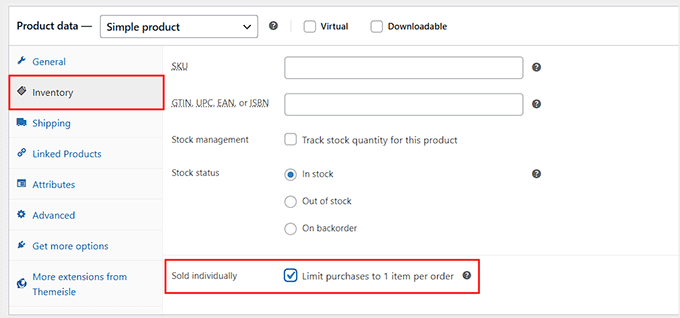
If you simply want to restrict customers to buying one item per order, WooCommerce has a built-in ‘Sold Individually’ feature for free. You can find this in the Inventory tab of your product data.
However, if you want to set specific limits, like allowing a minimum of 2 or a maximum of 5 items, you will need the Min/Max Quantities extension.
For this tutorial, we will use the extension to show you how to set those specific rules. If you need help installing WooCommerce, then please see our ultimate WooCommerce tutorial.
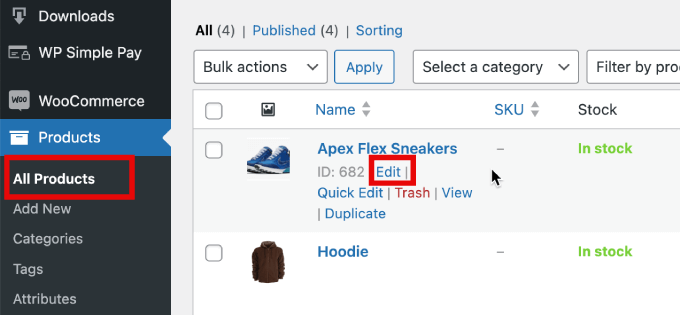
Then, go to Products » All Products. From here, you need to click ‘Edit’ under the product to which you want to add restrictions.
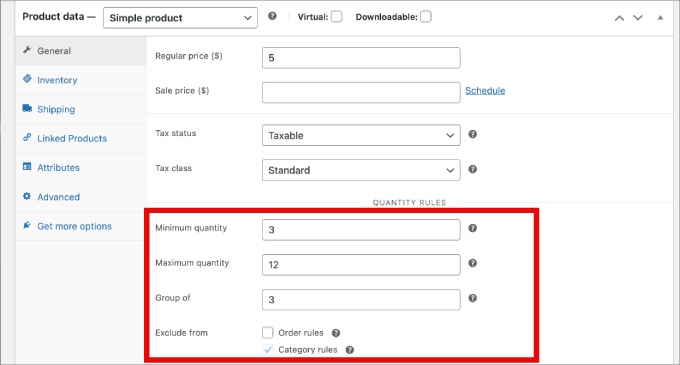
From here, scroll down to the Product Data section. In the General tab, you’ll see the option to enter the minimum and maximum quantities.
The ‘Group of’ field allows you to force customers to buy in specific bundles. For example, you can require them to buy items in packs of 5 or 10.
From here, all you have to do is save the product, and the purchase limit will be in effect!
Method 2: Limiting Purchase Quantity in WordPress With WP Simple Pay
If you don’t have a complete eCommerce store, then WP Simple Pay is the best solution for selling products in WordPress.
WP Simple Pay is the best Stripe payments plugin that allows you to accept one-time and recurring payments without setting up a shopping cart. We have thoroughly tested it in a demo environment and found it scalable and reliable.
To learn more about our insights, you can check out our WP Simple Pay review.
For example, here’s a few use cases where WP Simple Pay could be helpful for limiting purchase quantity:
- Event tickets: You can automatically close your registration form once you reach your venue’s capacity. This prevents overselling tickets effectively.
- Service bookings: You can use WP Simple Pay for appointment bookings like consultations. Limiting the total number of bookings ensures you don’t overbook your schedule.
- Membership fees: When selling memberships, you can limit the total number of signups to keep your community exclusive or manageable.
You will first need to install and activate the WP Simple Pay plugin. For more details, please see our guide on how to install a WordPress plugin.
Note: WP Simple Pay also has a free version. However, you will need the Pro plan to unlock the purchase restrictions feature.
Once activated, you’ll be taken to the setup wizard. This wizard guides you through the process of integrating Stripe, making it easy to connect your Stripe account with your site.
Click on ‘Let’s Get Started’ to begin.
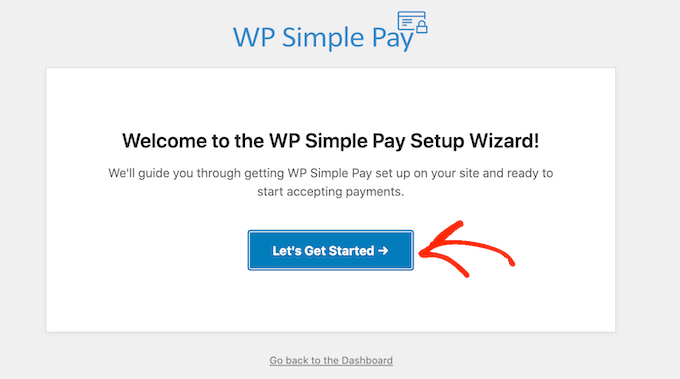
Continue with the setup wizard to link your WordPress site to Stripe.
You then need to click ‘Connect with Stripe.’
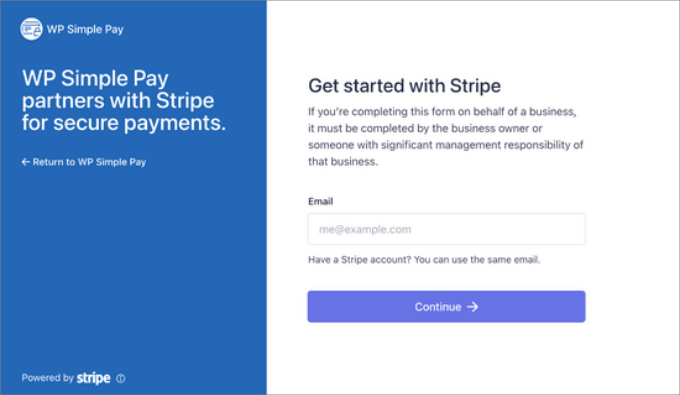
Next, you’ll need to create a new Stripe account or connect an existing one to your site.
All you will have to do is type in your email and password for your Stripe account.
From here, you can select your account and hit ‘Connect.’
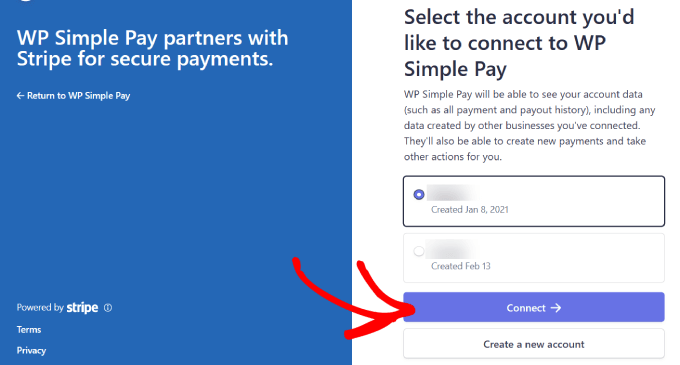
Once you’ve successfully connected Stripe to your site, it’s time to create an order form and set purchase quantity limits for your products.
You’ll go to WP Simple Pay » Add New. From there, you’ll see a variety of pre-built templates to choose from.
While this works for any form template, we will use the payment form template for this tutorial.
Hover over ‘Payment Form’ and click ‘Use Template.’
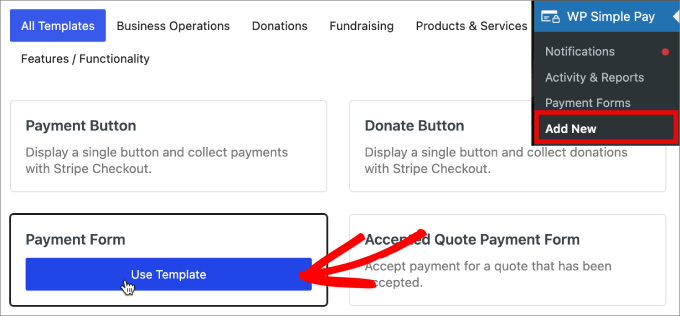
After choosing your preferred form template, you will be directed to the General settings page, where you can tailor your payment form to your needs.
This is where you can adjust the title, description, and form type to meet your specific needs.
If you prefer to host the payment form on your own site, select ‘On-site payment form’ under Type. Alternatively, if you want to host the form on Stripe’s checkout page, then choose ‘Off-site Stripe checkout.’
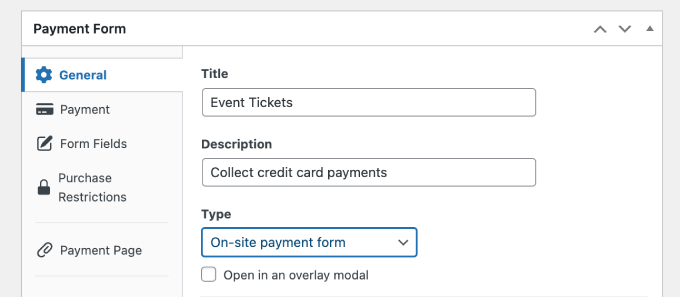
Next, click on the ‘Payment’ tab, where you can configure Price Options. Here, you can offer multiple price options within a single form.
By default, you’ll see one price option set at $10.
For this tutorial, we’re adding two price options, which we will label as “Premium Access” and “Standard Access.”
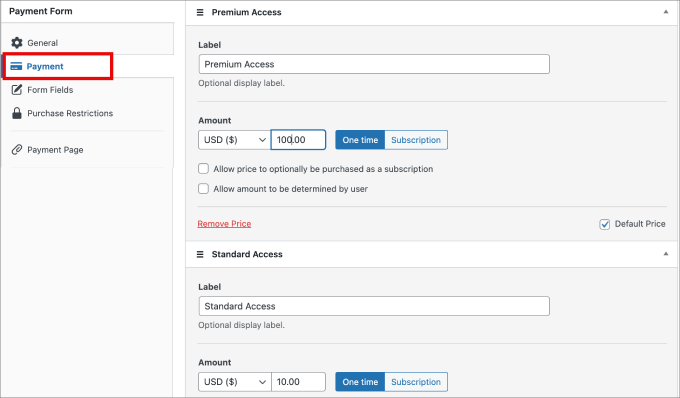
In this case, Premium Access is our top-tier product with very limited availability and a price of $100, while Standard Access is our most affordable option at $10.
Next, let’s set limits on the purchase quantities for the price options we have added.
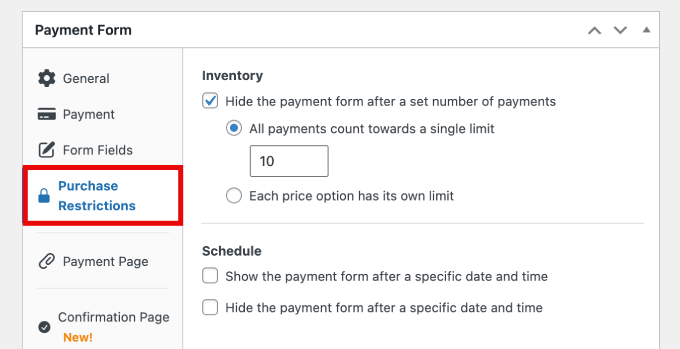
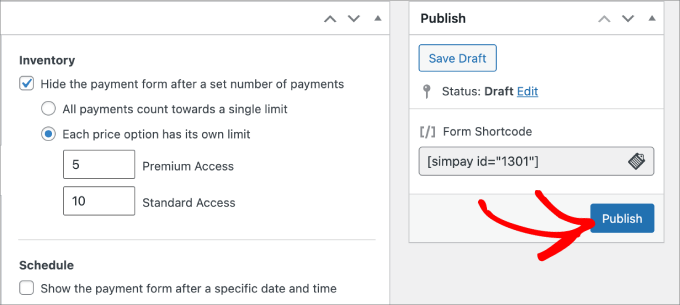
To do this, click on ‘Purchase Restrictions’ on the left. Under ‘Inventory,’ you’ll be able to create the purchase limit.
WP Simple Pay offers two ways to restrict purchases. You can either set a default limit for all price options on your Stripe payment form or configure separate limits for each price option.
In this example, we’ve set a restriction of 10 for all ticket purchases.
You can also configure a specific limit for each price. Just select ‘Each price option has its own limit’ and set the purchase limit for each option.
So here, we’ve limited the Premium Access to 5 and the Standard Access to 10.
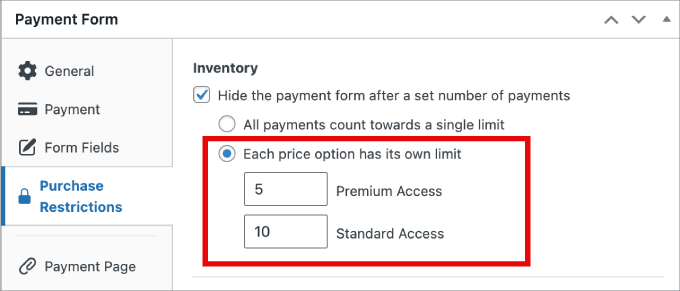
Once a product’s purchase limit has been reached, customers won’t be able to buy it.
Now, if your payment form is ready to go, you can hit the ‘Publish’ button on the right side of the screen.
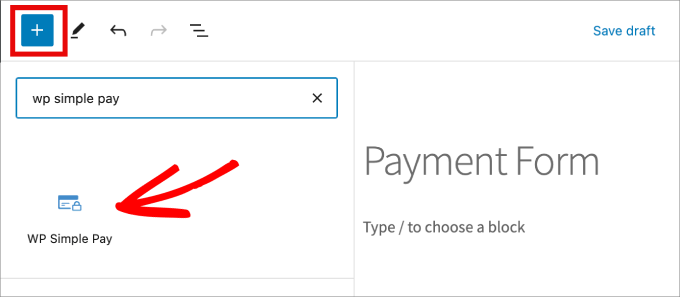
All that is left to do is add your new payment form to your website. To embed the form, navigate to the post or page where you want to publish it.
Click on the + icon and then add the WP Simple Pay block.
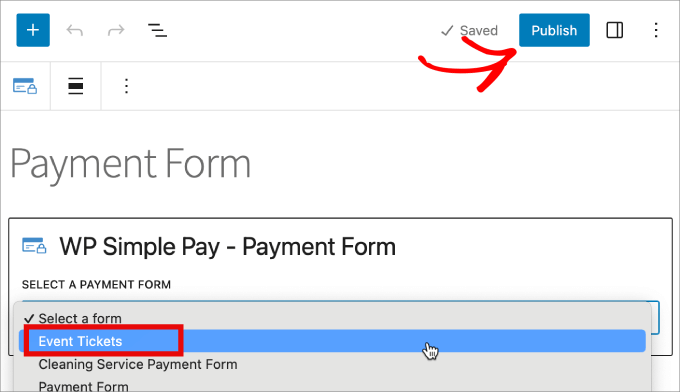
Next, just select the payment form you’ve created. The form should appear in the block editor.
Finally, just click ‘Publish.’
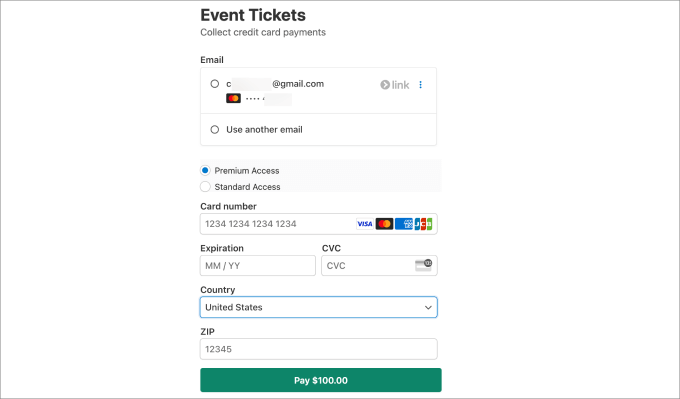
Finally, you’ll want to preview the form to see how it looks on the front end.
You can even make a test payment to make sure the restriction works as intended.
Method 3: Limiting Purchase Quantity in WordPress With Easy Digital Downloads
Generally, digital products don’t require stock control. However, for selling virtual tickets or limited edition items, setting a total purchase limit is very useful.
Adding a limit can also create scarcity and encourage users to buy faster.
If you sell digital products like eBooks or software, then you’ll want to use Easy Digital Downloads. The good news is that the core Easy Digital Downloads plugin includes built-in inventory tracking. You don’t need any extra extensions to prevent overselling your digital items.
Several of our partner brands are currently using it to sell their plugins, and have reported a positive experience. To learn more, see our Easy Digital Downloads review.
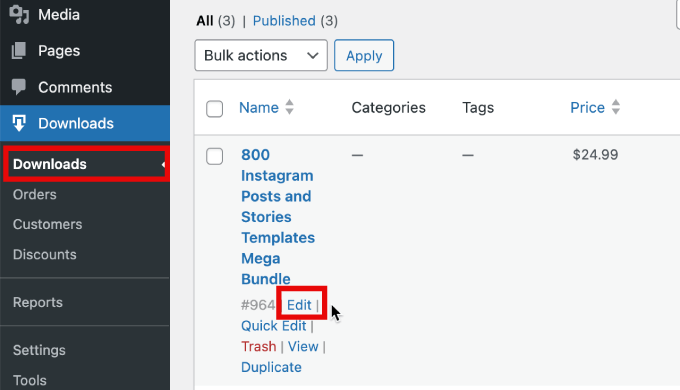
To set this up, go to the Downloads » Downloads page and click ‘Edit’ on the digital product you want to update.
If you haven’t created a digital product yet, then just follow our beginner’s guide on how to sell digital downloads on WordPress.
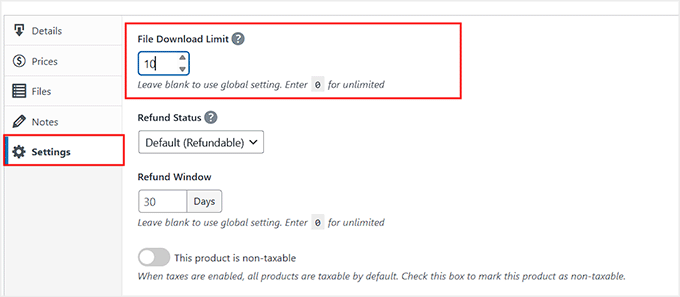
Next, scroll down to the Download Details section and switch to the ‘Settings’ tab from the left.
Here, you can enter the total number of copies available for purchase in the ‘File Download Limit’ field.
If you leave the number at 0, customers can purchase an unlimited quantity. But if you set it at -1, the product will be marked as sold out.
Then, simply update your digital product page.
There you have it! You now have three methods for restricting the purchase quantity, and you can use the preferred solution based on your needs.
🛒 Bonus Tip: Ways to Increase Your Online Store Sales
Now that you’ve learned how to limit purchase quantities, it’s time to focus on maximizing your sales potential.
Running an online store is not just about managing stock; it’s also about growing your sales efficiently. Here are some actionable tips to boost your sales:
- 🚀 Improve Site Performance: Speed is critical! Use caching plugins like WP Rocket to improve load times. We have tested the tool and found it incredibly effective for boosting store performance.
- 🔍 Set Up Store SEO: Search engines are a massive traffic source. With plugins like AIOSEO (used on all our sites), easily optimize your pages for better visibility.
- ✉️ Set Up Email Marketing: Use Constant Contact to reach customers directly in their inbox, keeping them informed about new products and promotions.
- 🔔 Boost Conversions with Push Notifications: Use PushEngage to send timely updates to your users, increasing engagement and sales.
- 👥 Use Social Persuasion to Increase Sales: Leverage tools like TrustPulse to showcase real customer activity, creating FOMO and encouraging others to buy.
For a comprehensive approach and to read all the tips, check out the full article on ways to increase WooCommerce sales.
Frequently Asked Questions About Limiting Product Quantity
Here are some questions that our readers have frequently asked about limiting product quantity on their websites:
Can WooCommerce handle thousands of products?
Yes, WooCommerce can easily handle thousands of products or even more. However, the software itself isn’t the limit; your website’s speed depends on your server. To run a large store smoothly, you will need a high-performance WordPress hosting provider like SiteGround.
Does WordPress have a storage limit?
No, the WordPress software itself does not have a specific file or storage limit. Any limits on how many images or products you can upload are determined entirely by your web hosting plan’s disk space allowance.
How do I set a minimum order quantity?
To set a minimum order quantity in WooCommerce, you must install an extension like Min/Max Quantities. By default, WooCommerce does not have a setting to enforce minimums, but this plugin allows you to define a required number of items before a customer can check out.
Is WooCommerce better than Shopify?
We believe WooCommerce is the better choice because it gives you full ownership of your store and does not charge extra transaction fees.
While Shopify is a hosted platform that is easy to start, WooCommerce offers significantly more flexibility and lower costs as your business grows. For more information, you may want to see our comparison on WooCommerce vs. Shopify.
What is the maximum order quantity?
Maximum order quantity is a rule you set to restrict the number of items a single customer can purchase in one order. This strategy is commonly used to prevent stock hoarding, stop bots from buying out inventory, and ensure fair access to limited-edition products.
We hope this article helped you learn how to limit purchase quantity in WordPress. You may also want to see our expert pick of the best WooCommerce plugins for your store or our tutorial on how to prevent overselling out of stock items in WordPress.
If you liked this article, then please subscribe to our YouTube Channel for WordPress video tutorials. You can also find us on Twitter and Facebook.


Dennis Muthomi
Well, as someone who has implemented purchase limits in my own WooCommerce store, I can attest to the importance of this feature.
One additional tip I’d like to share is to communicate these limits clearly to customers. Adding a note near the “Add to Cart” button explaining the purchase limit helps manage customer expectations and reduces support inquiries.
The section on WP Simple Pay caught my attention, as I hadn’t considered using it for limiting event ticket purchases. This could be a game-changer for small businesses or organizations running events without a full e-commerce setup.
Thank you SO MUCH for the comprehensive breakdown!
Jiří Vaněk
Thank you for the perfectly explained article. I was particularly interested in setting limits for digital products, which don’t have a physical quantity but where we needed to restrict the number of items per customer to prevent illegal reselling. Specifically, this was about tickets for an event with a limited number of attendees, and there was high demand. This article completely met my expectations, and the implementation is not overly complex. That’s why I really enjoy using WooCommerce in this regard—every problem usually has a relatively simple solution.
Mrteesurez
You’ve highlighted some crucial points about stock management. Setting purchase limits not only ensures that your customers receive their orders but also helps prevent stockouts, which can damage your store’s reputation. In my experience, implementing quantity caps has also helped in managing high-demand products during peak sales periods. This strategy ensures that more customers can access popular items, leading to increased customer satisfaction and repeat business. Additionally, it helps in balancing inventory levels, reducing the risk of overselling, and maintaining a positive customer experience.
Kzain
thank you so much for this helpful guide I wanted something like this to Limit my digital download purchases like Etsy, is there any way to show the only left quantity for customers to know
WPBeginner Support
To set that up you would need to set up inventory management. We cover more in our article below:
https://www.wpbeginner.com/beginners-guide/how-to-prevent-overselling-out-of-stock-items-in-wordpress/
Admin
Muhammad Dilawar
Thank you for showing a great way to limit product stock on Woocommerce WordPress store. It is really helpful when it comes to limit viral products and everyone has an equal right to buy. This seems like an ethical practice that must be applied to Woocommerce stores to stop reselling and price-gouging.
WPBeginner Support
You’re welcome!
Admin