


There’s nothing quite as frustrating as clicking on a post you know exists—only to land on a 404 error page. We’ve run into this issue more than once, and it can feel confusing when nothing seems obviously broken.
The good news? In most cases, you can fix it in under a minute. Just go to Settings » Permalinks and click ‘Save Changes’—that simple step resolves the issue for the majority of WordPress sites.
If that doesn’t work, don’t worry. We’ve put together a step-by-step guide covering every common cause… from plugin conflicts to .htaccess issues so you can get your posts back online fast.
Why Are My WordPress Posts Returning a 404 Error?
A 404 error means the server couldn’t find the page you requested—even though it may exist in your WordPress dashboard. This disconnect usually happens because something has broken the link between your post’s URL and its actual content.
Here are the most common reasons your posts might show a 404 “Page Not Found” error:
- Plugin or theme conflicts: Some plugins or themes can interfere with how WordPress handles permalinks. This can lead to broken links and 404 errors on posts that were working fine before.
- Custom code issues: If you’ve added custom code to your site, even a small error can affect permalinks or cause conflicts that result in 404 errors.
- Problems with your .htaccess file: The .htaccess file controls how WordPress structures URLs. If this file is corrupted, missing, or misconfigured, your posts and pages may return 404 errors.
How to Find All WordPress Posts With 404 Errors
Before jumping into fixes, it helps to know if this error affects just one post or many. Understanding the scope makes it easier to choose the right solution.
We recommend using Google Search Console. If you haven’t set it up yet, see our guide on how to add your WordPress site to Google Search Console.
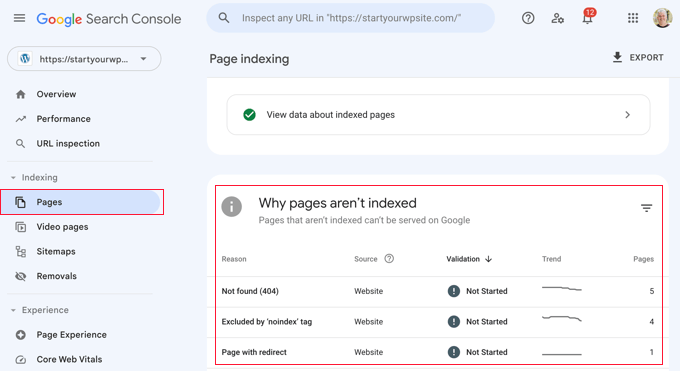
Once the Google bot has crawled your site, Search Console will show you detailed reports—including any 404 errors it finds.
To see which posts are returning errors, log in to your Search Console dashboard. Navigate to the ‘Pages’ report, and you’ll find a list of all flagged URLs.
For more help, check out our tips for using Google Search Console to grow website traffic, which includes advice on fixing 404 errors.
Now, let’s look at how to fix WordPress posts returning 404 errors. You can use the links below to jump to a specific method:
- Method 1: Check for Plugin or Theme Conflicts and Custom Code Issues
- Method 2: Fix Your Permalink Settings
- Method 3: Update the WordPress .htaccess File
- Method 4: Contact Your Hosting Provider
- Method 5: Enable mod-rewrite (Local WordPress Installation)
- Frequently Asked Questions About WordPress 404 Errors
- 🎁 Bonus: Additional Guide on Handing 404 Errors
Method 1: Check for Plugin or Theme Conflicts and Custom Code Issues
Plugins, themes, or custom code can sometimes interfere with permalinks and cause 404 errors. We’ve run into this ourselves when testing tools on our demo sites.
When we troubleshoot, we use a staging environment to safely deactivate plugins one by one. This helps us isolate the problem without affecting the live site.
To try this yourself, start by temporarily deactivating all your plugins. Then reactivate them one at a time, checking after each one to see if the 404 error returns.
If the error appears after activating a specific plugin, that’s likely the cause. You can search for solutions related to that plugin or contact the developer for support.
Your WordPress theme could also be the issue.
To check, temporarily switch to a default WordPress theme like Twenty Twenty-Three or Twenty Twenty-Four. Go to Appearance » Themes and click ‘Activate’ on a default theme.
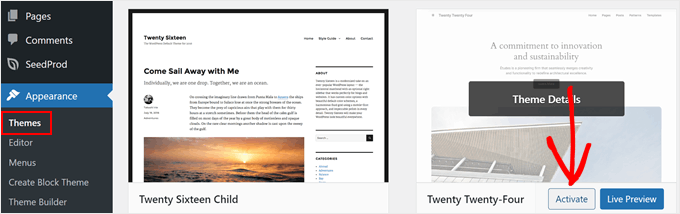
If the 404 error goes away with a default theme, your original theme is probably causing the conflict. You can troubleshoot it further or consider switching to a different theme.
For recommendations, check out our expert pick of the most popular WordPress themes.
If you’ve recently added code snippets to your website, review them carefully. Even small mistakes can cause 404 errors.
We recommend using the WPCode plugin for adding custom code. It lets you insert snippets without editing theme files directly, which reduces the risk of breaking your site.
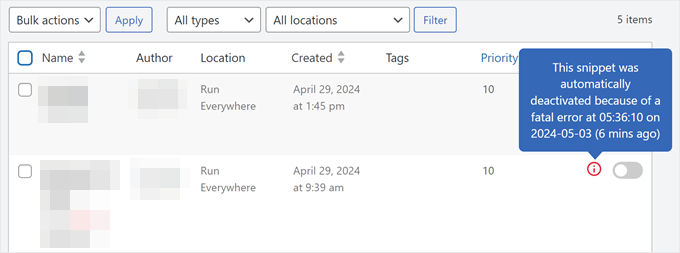
WPCode also detects errors automatically. If something goes wrong, it deactivates the snippet and alerts you. You can even use testing mode to check your code before pushing it live.
If none of these steps fix the issue, move on to the next method where we’ll troubleshoot your permalink settings.
Method 2: Fix Your Permalink Settings
WordPress posts often return 404 errors because of problems with rewrite rules in your .htaccess file. In most cases, you can fix this by simply resaving your permalink settings.
Go to Settings » Permalinks in your WordPress admin and click the ‘Save Changes’ button.
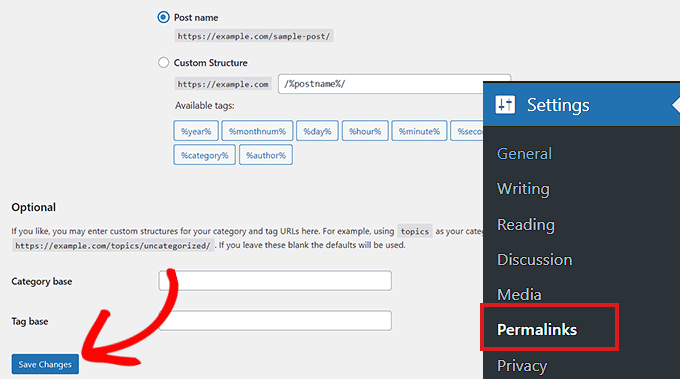
You don’t need to change anything. Just clicking ‘Save Changes’ flushes the rewrite rules (meaning WordPress regenerates the URL routing instructions that tell your server where each post lives).
This simple step fixes the 404 error for most WordPress sites. If it doesn’t work for you, you may need to update your .htaccess file manually.
Method 3: Update the WordPress .htaccess File
Before making any changes, we recommend backing up your WordPress site and your .htaccess file. If something goes wrong, you can easily restore the original.
You’ll need to connect to your server using an FTP client like FileZilla, or use the File Manager in your hosting control panel.
Next, find the .htaccess file (a hidden configuration file that controls how your server handles URLs) in your site’s root folder. This is the same directory that contains folders like /wp-content/ and /wp-includes/.
Right-click on the file and select ‘File permissions’ or ‘Change permissions’ from your FTP client.
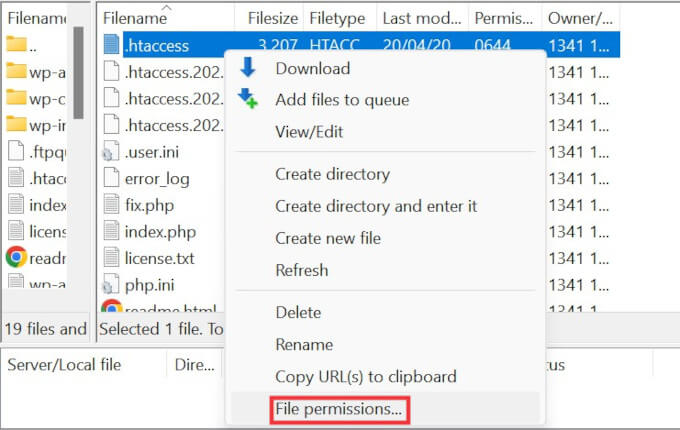
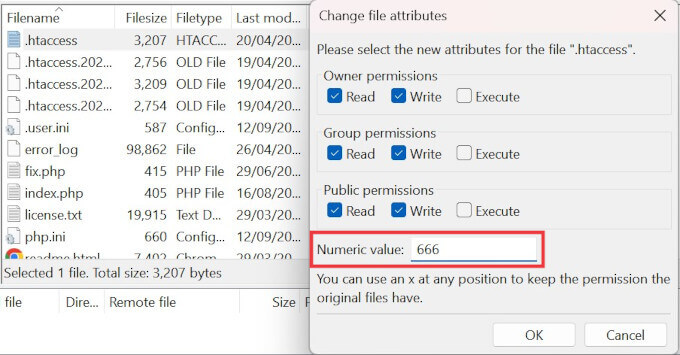
If WordPress couldn’t write to the file before, try changing the permissions temporarily to 666 to make it writable.
Important: Permission 666 means anyone can read and write to the file, which is a security risk. Only use this setting temporarily and change it back immediately after you’re done.
Now, return to your WordPress admin and resave your permalink settings (Settings » Permalinks » Save Changes). This lets WordPress regenerate a proper .htaccess file.
Once that’s done, go back to your FTP client and change the file permissions to 644. This setting allows WordPress to read the file while protecting it from unauthorized changes.
Alternatively, you can edit the .htaccess file manually.
Right-click on the .htaccess file and select the View/Edit option.
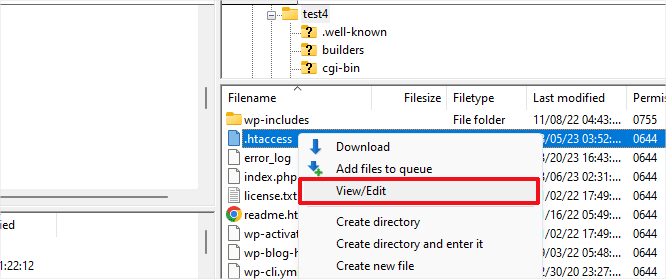
The file will open in a plain text editor like Notepad or TextEdit.
Add the following default WordPress rewrite rules:
# BEGIN WordPress
<IfModule mod_rewrite.c>
RewriteEngine On
RewriteBase /
RewriteRule ^index\.php$ - [L]
RewriteCond %{REQUEST_FILENAME} !-f
RewriteCond %{REQUEST_FILENAME} !-d
RewriteRule . /index.php [L]
</IfModule>
# END WordPress
Save the file and upload it back to your server. Then check if your posts are loading correctly.
Method 4: Contact Your Hosting Provider
If none of the solutions above have fixed the 404 error, we recommend contacting your WordPress hosting provider.
There may be a server-side issue on their end, or they can help you troubleshoot the problem further. In our experience, good hosting support teams can often spot configuration issues that are easy to miss.
For tips on getting help, see our guide on how to properly ask for WordPress support and get it.
Method 5: Enable mod-rewrite (Local WordPress Installation)
If you’re running WordPress on a local server for testing, you’ll need to enable mod_rewrite in your Apache configuration. This applies to MAMP, WAMP, or XAMPP setups.
Enabling mod_rewrite allows WordPress to generate clean URLs and prevents 404 errors on your local posts and pages.
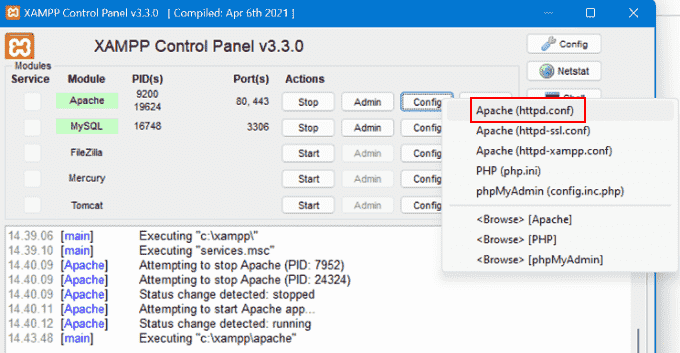
The steps vary by platform. If you’re using XAMPP, open the control panel and click the ‘Config’ button in the Actions column. Then select ‘Apache (httpd.conf)’.
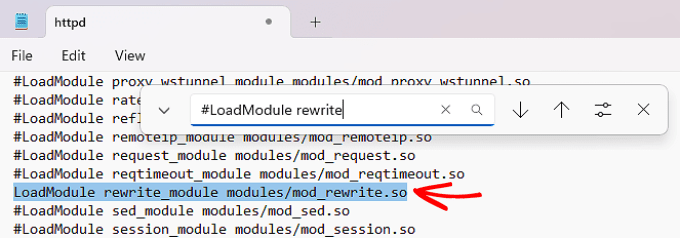
Find this line: #LoadModule rewrite_module modules/mod_rewrite.so
Remove the ‘#’ at the beginning to uncomment it. This enables the mod_rewrite module.
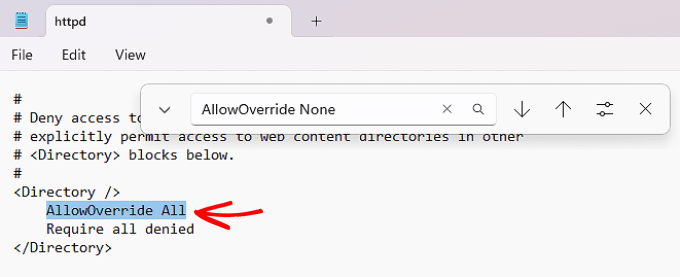
Next, look for lines that say AllowOverride None and change them to AllowOverride All. This tells Apache to allow .htaccess files to control URL routing.
You’ll typically find these inside <Directory> blocks, especially the one pointing to your site’s folder (like htdocs in XAMPP). For local testing, it’s usually safe to apply this change wherever you see it.
Save the httpd.conf file and close it. In the XAMPP control panel, click ‘Stop’ on the Apache module, then click ‘Start’ again to restart it.
Now go back to your WordPress admin dashboard and check if your permalinks are working.
Video Tutorial
If you prefer visual instructions, watch the video below.
Frequently Asked Questions About WordPress 404 Errors
Running into 404 errors on your WordPress site can be confusing. Here are answers to common questions that can help you troubleshoot more effectively.
Why am I getting a 404 error on my WordPress posts?
A 404 error on WordPress posts usually means the server can’t find the page at the requested URL. This can happen due to broken permalinks, a corrupted .htaccess file, deleted posts, or a plugin/theme conflict that changes how URLs are handled.
How do I fix a 404 error in WordPress?
The fastest way to fix a WordPress 404 error is to resave your permalink settings. Go to Settings » Permalinks and click ‘Save Changes’. If that doesn’t work, check your .htaccess file, disable plugins, or switch to a default theme to rule out conflicts.
How can I find all 404 errors on my WordPress site?
Google Search Console is the best way to find 404 errors on your WordPress site. It shows you a list of all 404 errors that Googlebot encounters. You can also use plugins like Broken Link Checker to spot broken links and missing pages.
What does the .htaccess file do in WordPress?
The .htaccess file in WordPress is a configuration file that controls how URLs are processed. WordPress uses it to manage permalink structure and route URLs to the correct content. If this file is missing or corrupted, your URLs may stop working correctly.
How do I safely edit the .htaccess file?
You can safely edit the .htaccess file using an FTP client or your hosting file manager. Always create a backup first. After editing, make sure the permissions are set to 644 so it stays readable and secure.
Why do my WordPress category or tag pages show 404 errors?
WordPress category or tag pages may show 404 errors if your theme doesn’t support archive templates or if permalink settings are misconfigured. Resaving permalinks and checking your theme’s archive support can usually fix this issue.
How do I fix 404 errors for custom post types?
To fix 404 errors for custom post types, go to Settings » Permalinks and click ‘Save Changes’ to refresh rewrite rules. Also check that your custom post type is registered with the correct rewrite settings and has archive support if needed.
Can I redirect 404 pages to my homepage or another page?
Yes, you can redirect WordPress 404 pages using plugins like Redirection. This lets you create 301 redirects from old or broken URLs to new ones. You can also create a custom 404 page to guide users back to useful content.
🎁 Bonus: Additional Guide on Handing 404 Errors
Here are more resources we’ve put together to help you manage 404 errors and other common WordPress issues:
- How to Improve Your 404 Page Template in WordPress (2 Ways)
- Best WordPress 404 Error Page Design Examples
- Best Free 404 Redirect Plugins for WordPress
- How to Get Email Alerts for 404 Errors in WordPress
We hope this article helped you fix WordPress posts returning 404 errors. You may also want to see our guide to the most common WordPress errors and how to fix them, along with our expert picks for the best WordPress plugins to grow your site.
If you liked this article, then please subscribe to our YouTube Channel for WordPress video tutorials. You can also find us on Twitter and Facebook.


taher
My problem is a little different i do have access to my wp-admin, But i am unable to access to any page within wordpress, including dashboard or settings and re-directed to 404-error page. I have disabled cloudfare, but the problem persists.
WPBeginner Support
If the method in this article is not working you may want to try the general troubleshooting steps in:
https://www.wpbeginner.com/beginners-guide/beginners-guide-to-troubleshooting-wordpress-errors-step-by-step/
to see if it is due to a specific plugin or theme.
Admin
sikkandhar
great help, by just changing theme of wordpress, my 404 errors solved,
thank you for simple and great idea.
WPBeginner Support
Glad our guide could help
Admin
Oswaldo
Thanks for this amazing solution. I have a membership site and when i looked up to my mail this morning i have a lot of users that wrote that the cant access to the page because is showing the 404 error message and in fact this was happening, i didint know what to do, i thought it was some plugin or some function i put the night before….
Then i found this post, i saved again the permalinks as shown in this post and WORKED!!!
but i am not happy yet, i want to know why happened this problem? so this wont repeat again because all night while i was sleeping this problem happened
please can you tell us, why happened this problem, so we can avoid this?
Thank you
WPBeginner Support
Sadly, it is difficult to say the root cause. It could have been an update from the host’s end or something on your site could have updated your permalinks incorrectly as some possibilities.
Admin
Lina Jin
I checked .htaccess and permalink settings too but its still not working.
In pages, I can see only some pages and others show errors.
‘Trying to get property ‘post_author of non-object in C:\xampp\htdocs\aaa\wp-admin\incldues\class-wp-posts-list-table.php on lline 1180’
So the page links are not working and after login, the homepage is automatically redirected to wp-admin and dashboard shows nothing.
Can you help me with this?
WPBeginner Support
You would want to start with the general troubleshooting steps in: https://www.wpbeginner.com/beginners-guide/beginners-guide-to-troubleshooting-wordpress-errors-step-by-step/
You could also try updating your WordPress files using the method in: https://www.wpbeginner.com/wp-tutorials/how-to-manually-update-wordpress-using-ftp/
Admin
Harry
Thank you for this tutorial, solved my problem.
WPBeginner Support
Glad our article could help
Admin
kaleab
i had the same problem geting 404 error in post.php …it was frustrating but the only thing worked form me was change the the theme..and change it again…it worked for me………..
WPBeginner Support
Thanks for sharing what worked for you
Admin
TrigienIT
i had the same issue. tried the options above but they did not work until I also changed the theme to another, then reverted back to the normal theme.
José
None of the solutions worked for me. I can only acces to my home page, any other link like pages & post are not working. The update that caused this was the 5.0.3
WPBeginner Support
To ensure this is not a conflict with a theme or plugin you would want to take a look at this article for steps to try: https://www.wpbeginner.com/beginners-guide/beginners-guide-to-troubleshooting-wordpress-errors-step-by-step/
Admin
Nikki S
Wheew! This DID work for me. All I had to do was hit the Save button. So thankful for the article.
I just updated to WP 5.0.2 yesterday from 4.9.8. Could that have been the cause? It seems to run fine yesterday.
WPBeginner Support
As with any technology, there are many possible reasons. It could have been the update, a hiccup with the host, or another unknown reason.
Admin
Anjalai
am working in wordpress admin suddendly it showing 404 error message. so what am to do and i am beginner for wordpress
WPBeginner Support
You would want to follow the steps in this article and should none of them work, reach out to your hosting provider and they should be able to assist.
Admin
Okan
Thanks thanks thanks. You are the man!
Mike
Thank you so much. It worked. My site is fully back online. Thank you.
WPBeginner Support
Glad you found it helpful
Admin
RKapunan
Thank you so much. My links are back!
Jennifer Nelson
Thank you!!!!
Daniel S
I have tried all the suggestions from the article and some from comments.
Then I contacted my hosting company and it turned up that their ModSecurity module on the server blocked POST requests with “+src=” string in it.
It could be different rule for you but if everything else fails try asking your hosting company to check if any request was blocked at the server level.
zak
thank you so much you are amazing, i love you so much, you are great, i searched a lot of pages and no one knows and teaches like you. you are awesome.
Thank you Thank you Thank you
Matzi
Thank you. It worked perfectly.
jay
this is happening to our site almost monthly and the only way to fix is to reset the permalinks in wp dashboard. debug log file is clean so i dont have any clue where to start fixing. any one having the same problem?
Ronny
I have the same problem! but I do not know where the problem comes from? does anyone know how to solve it?
Musab
Thaaanks many thanks
Arlene
My world was torn apart when I received this 404 error. Thank you WPBeginner for this helpful guide.
Jerry Bordadora
Thank you!! You save my me bro
Toyin
My issue has to do with the next page. I reduced the number of posts showing on my home page from 10 to 5, and when I click on the next page, it’s coming up with the 404 page not found
Aram
Hello! Thank You for interesting article! I have a little different problem. I want to redirect my 404 page to another, accurate and beautiful page. And normaly use plugins or template possibilities for that. But one of my sites, where there is the same template that I usually work with, the 404 page does not exist at all. Whatever I do. I get error telling that The requested document was not found on this server.
WPBeginner Support
Hi Aram,
Try updating your permalink structure. Simply visit Settings » Permalinks and then click on the save changes button without changing anything.
Admin
Ann-Jeanette
I cannot put in words how grateful I am for this exact article. THANK YOU
behdad
extremely helpful thanks
Renan
Works like a charm!
Morcio
It works, thanks THAAANKS a lot!!
Zihad
Thanks for such an easy solution.
Okereke Divine
This article is actually very very helpful.
But my problem seems to be different. Please WPBEGINNER, you guys should please and please help me…
I have tried the methods above but its not working. though my problem is kindoff different.
My problem is:
Sometimes, When I try to update my previous post or make a new post.., it redirects me to “404 error. Please and please help me.
WPBeginner Support
Hi Okereke,
Please try these steps. Go to Settings > Writing page and under the update services section delete any URLs in the box (Normally you will only see one URL rpc.pingomatic.com). Now click on the Save changes button to store your settings.
Try editing a post to see if this resolved your issue. If it didn’t then, please try steps in our WordPress troubleshooting guide.
Admin
Lisa Cox
This article saved me so much time….I was ready to scrap the whole thing and re-do the blog from the start because I thought I had made an irreversible mistake. Two clicks everything is fixed – THANK YOU! Sorry, I didn’t mean to sound like Dr. Suess. Enjoy your day!
Daulat khan
Hi! This article was helpful but when i put my site on google search bar ex, ac-universal.com/wp-admin an error 404 found how can i enter into my word press.
Guied ne thanks
WPBeginner Support
Hi Daulat Khan,
Have you tried the .htaccess method described in the article?
Admin
Mark Wayda
Just wanted to say thanks. Simple and effective fix for a problem that had been perplexing me for a few days!
joseph
thank you, this was very helpful
Khulu
Thank you Tom
Your solution works perfectly!!!!
Ash
Thanks. Your instructions worked 100%. It was driving me crazy.
Okereke Divine
Though my problem was that if i try to update my post., it redirects me to 404page.
I followed your instructions and it worked perfectly!
Collins
I can’t access my home page.
It keep saying 404 not found whenever i go to my url
Fernando Njaria
Thank you so much, had me going crazy with the 404 error, but after saving changes to the permalinks settings it worked!
Ibrahim Shabbir
I Cannot Even Access My Admin Page
Doni
That is my problem also. I can access my home page and one of the two top-nav pages, but I can’t access the second page, and I can’t get to /wp-login or /wp-admin.
Paulo
Awesome… saved my life, thank you
Tom
Great tips – for some reason, this didn’t completely fix my issue as AllowOverride was set to ‘None’ in my httpd.conf file
Should anybody else run into the issues, simply edit your Apache2 httpd.conf file located in one of these locations: /etc/apache2/httpd.conf. /etc/apache2/apache2.conf.
Look for:
Options Indexes FollowSymLinks
AllowOverride None
Require all granted
And replace with:
Options Indexes FollowSymLinks
AllowOverride All
Require all granted
Hope this helps somebody!
Clinton
Thank you Tom,
I deployed a new site with Google One Click Deploy and missed some instructions about setting the AllowOverride All for the docroot directory. Your reply along with this article helped me get this working again. With AllowOverride set to None .htaccess files are ignored, so the directives to use make permalinks work, fail. In my case the config that I needed to edit was /etc/apache2/sites-available/wordpress.conf which had the directory of the wordpress install with the AllowOverride None set.
My Real Name
Thank you sir. You are my hero right now. I looked at so many sites and not a single one of them mentioned this. It wasn’t even obvious from the apache manual, to the extent that I read that.
Dipak Vasava
Thank You very, problem solved. its working code.
Simran
Thanks a lot..nothing to say. It really helped me. You done a great work..Thank you so much
Lagz
Worked like a charm, Thanks!
Contact form 7 Ajax was not working, giving me the feedback 404 error in console log.
I did not suspect rewriting rules until I read this.
Saving the permalink settings did the job!
Thank you
Favour
am confused, at the .htacess what I saw there was 0644 not 660, how do I go about it.
JP
Thank you for posting this- it saved me a ton of time- Cheers!
prabhat pandit
very helpful information for me
Richard
Thank you very much!!
Prabhat
thank you very much. for a moment i felt all my work is gone. you saved me
Sonja
Thank you!!! This was an awesome guide. Made my evening a lot better!
eriab nsereko
Thx WPB team, it worked like charm and that’s why I really love this mighty site!