


There’s nothing quite as frustrating as clicking on a post you know exists—only to land on a 404 error page. We’ve run into this issue more than once, and it can feel confusing when nothing seems obviously broken.
The good news? In most cases, you can fix it in under a minute. Just go to Settings » Permalinks and click ‘Save Changes’—that simple step resolves the issue for the majority of WordPress sites.
If that doesn’t work, don’t worry. We’ve put together a step-by-step guide covering every common cause… from plugin conflicts to .htaccess issues so you can get your posts back online fast.
Why Are My WordPress Posts Returning a 404 Error?
A 404 error means the server couldn’t find the page you requested—even though it may exist in your WordPress dashboard. This disconnect usually happens because something has broken the link between your post’s URL and its actual content.
Here are the most common reasons your posts might show a 404 “Page Not Found” error:
- Plugin or theme conflicts: Some plugins or themes can interfere with how WordPress handles permalinks. This can lead to broken links and 404 errors on posts that were working fine before.
- Custom code issues: If you’ve added custom code to your site, even a small error can affect permalinks or cause conflicts that result in 404 errors.
- Problems with your .htaccess file: The .htaccess file controls how WordPress structures URLs. If this file is corrupted, missing, or misconfigured, your posts and pages may return 404 errors.
How to Find All WordPress Posts With 404 Errors
Before jumping into fixes, it helps to know if this error affects just one post or many. Understanding the scope makes it easier to choose the right solution.
We recommend using Google Search Console. If you haven’t set it up yet, see our guide on how to add your WordPress site to Google Search Console.
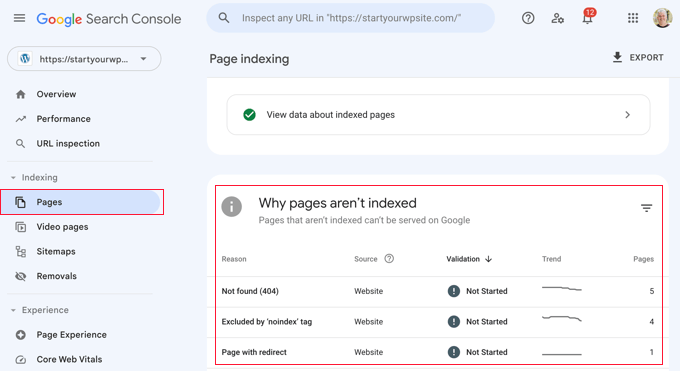
Once the Google bot has crawled your site, Search Console will show you detailed reports—including any 404 errors it finds.
To see which posts are returning errors, log in to your Search Console dashboard. Navigate to the ‘Pages’ report, and you’ll find a list of all flagged URLs.
For more help, check out our tips for using Google Search Console to grow website traffic, which includes advice on fixing 404 errors.
Now, let’s look at how to fix WordPress posts returning 404 errors. You can use the links below to jump to a specific method:
- Method 1: Check for Plugin or Theme Conflicts and Custom Code Issues
- Method 2: Fix Your Permalink Settings
- Method 3: Update the WordPress .htaccess File
- Method 4: Contact Your Hosting Provider
- Method 5: Enable mod-rewrite (Local WordPress Installation)
- Frequently Asked Questions About WordPress 404 Errors
- 🎁 Bonus: Additional Guide on Handing 404 Errors
Method 1: Check for Plugin or Theme Conflicts and Custom Code Issues
Plugins, themes, or custom code can sometimes interfere with permalinks and cause 404 errors. We’ve run into this ourselves when testing tools on our demo sites.
When we troubleshoot, we use a staging environment to safely deactivate plugins one by one. This helps us isolate the problem without affecting the live site.
To try this yourself, start by temporarily deactivating all your plugins. Then reactivate them one at a time, checking after each one to see if the 404 error returns.
If the error appears after activating a specific plugin, that’s likely the cause. You can search for solutions related to that plugin or contact the developer for support.
Your WordPress theme could also be the issue.
To check, temporarily switch to a default WordPress theme like Twenty Twenty-Three or Twenty Twenty-Four. Go to Appearance » Themes and click ‘Activate’ on a default theme.
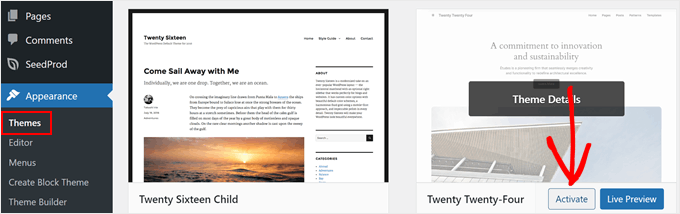
If the 404 error goes away with a default theme, your original theme is probably causing the conflict. You can troubleshoot it further or consider switching to a different theme.
For recommendations, check out our expert pick of the most popular WordPress themes.
If you’ve recently added code snippets to your website, review them carefully. Even small mistakes can cause 404 errors.
We recommend using the WPCode plugin for adding custom code. It lets you insert snippets without editing theme files directly, which reduces the risk of breaking your site.
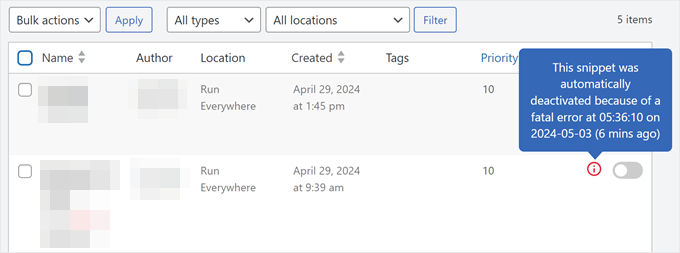
WPCode also detects errors automatically. If something goes wrong, it deactivates the snippet and alerts you. You can even use testing mode to check your code before pushing it live.
If none of these steps fix the issue, move on to the next method where we’ll troubleshoot your permalink settings.
Method 2: Fix Your Permalink Settings
WordPress posts often return 404 errors because of problems with rewrite rules in your .htaccess file. In most cases, you can fix this by simply resaving your permalink settings.
Go to Settings » Permalinks in your WordPress admin and click the ‘Save Changes’ button.
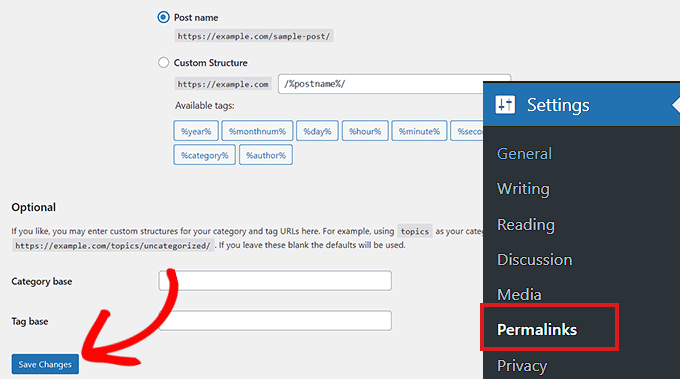
You don’t need to change anything. Just clicking ‘Save Changes’ flushes the rewrite rules (meaning WordPress regenerates the URL routing instructions that tell your server where each post lives).
This simple step fixes the 404 error for most WordPress sites. If it doesn’t work for you, you may need to update your .htaccess file manually.
Method 3: Update the WordPress .htaccess File
Before making any changes, we recommend backing up your WordPress site and your .htaccess file. If something goes wrong, you can easily restore the original.
You’ll need to connect to your server using an FTP client like FileZilla, or use the File Manager in your hosting control panel.
Next, find the .htaccess file (a hidden configuration file that controls how your server handles URLs) in your site’s root folder. This is the same directory that contains folders like /wp-content/ and /wp-includes/.
Right-click on the file and select ‘File permissions’ or ‘Change permissions’ from your FTP client.
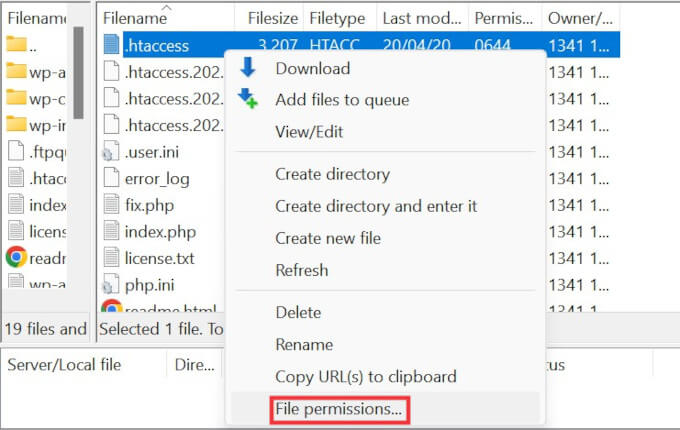
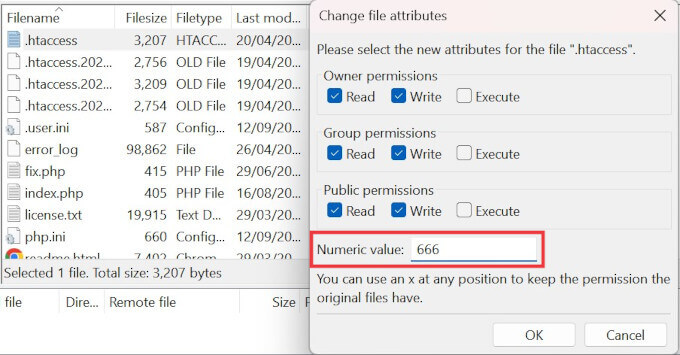
If WordPress couldn’t write to the file before, try changing the permissions temporarily to 666 to make it writable.
Important: Permission 666 means anyone can read and write to the file, which is a security risk. Only use this setting temporarily and change it back immediately after you’re done.
Now, return to your WordPress admin and resave your permalink settings (Settings » Permalinks » Save Changes). This lets WordPress regenerate a proper .htaccess file.
Once that’s done, go back to your FTP client and change the file permissions to 644. This setting allows WordPress to read the file while protecting it from unauthorized changes.
Alternatively, you can edit the .htaccess file manually.
Right-click on the .htaccess file and select the View/Edit option.
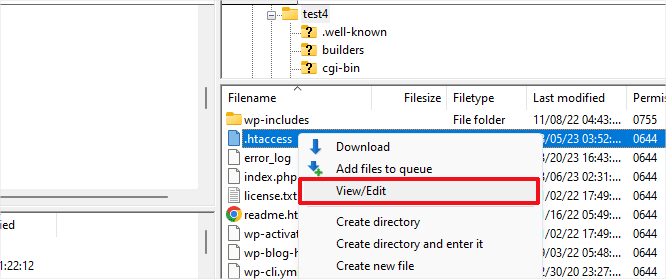
The file will open in a plain text editor like Notepad or TextEdit.
Add the following default WordPress rewrite rules:
# BEGIN WordPress
<IfModule mod_rewrite.c>
RewriteEngine On
RewriteBase /
RewriteRule ^index\.php$ - [L]
RewriteCond %{REQUEST_FILENAME} !-f
RewriteCond %{REQUEST_FILENAME} !-d
RewriteRule . /index.php [L]
</IfModule>
# END WordPress
Save the file and upload it back to your server. Then check if your posts are loading correctly.
Method 4: Contact Your Hosting Provider
If none of the solutions above have fixed the 404 error, we recommend contacting your WordPress hosting provider.
There may be a server-side issue on their end, or they can help you troubleshoot the problem further. In our experience, good hosting support teams can often spot configuration issues that are easy to miss.
For tips on getting help, see our guide on how to properly ask for WordPress support and get it.
Method 5: Enable mod-rewrite (Local WordPress Installation)
If you’re running WordPress on a local server for testing, you’ll need to enable mod_rewrite in your Apache configuration. This applies to MAMP, WAMP, or XAMPP setups.
Enabling mod_rewrite allows WordPress to generate clean URLs and prevents 404 errors on your local posts and pages.
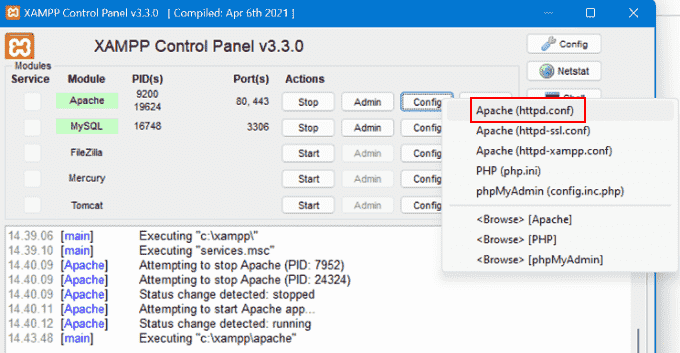
The steps vary by platform. If you’re using XAMPP, open the control panel and click the ‘Config’ button in the Actions column. Then select ‘Apache (httpd.conf)’.
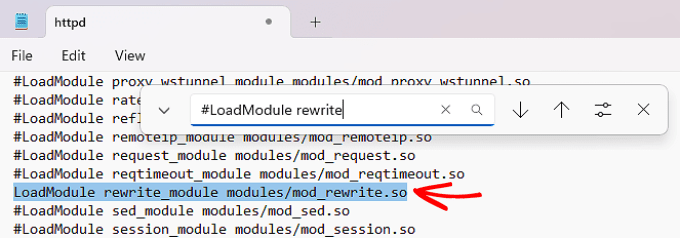
Find this line: #LoadModule rewrite_module modules/mod_rewrite.so
Remove the ‘#’ at the beginning to uncomment it. This enables the mod_rewrite module.
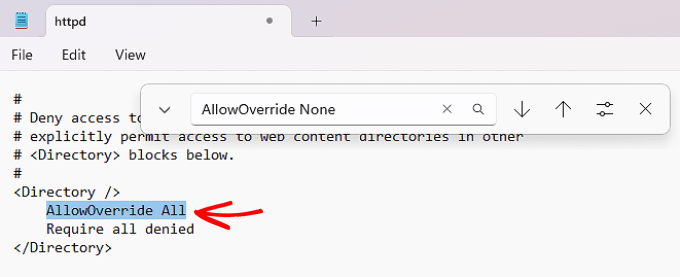
Next, look for lines that say AllowOverride None and change them to AllowOverride All. This tells Apache to allow .htaccess files to control URL routing.
You’ll typically find these inside <Directory> blocks, especially the one pointing to your site’s folder (like htdocs in XAMPP). For local testing, it’s usually safe to apply this change wherever you see it.
Save the httpd.conf file and close it. In the XAMPP control panel, click ‘Stop’ on the Apache module, then click ‘Start’ again to restart it.
Now go back to your WordPress admin dashboard and check if your permalinks are working.
Video Tutorial
If you prefer visual instructions, watch the video below.
Frequently Asked Questions About WordPress 404 Errors
Running into 404 errors on your WordPress site can be confusing. Here are answers to common questions that can help you troubleshoot more effectively.
Why am I getting a 404 error on my WordPress posts?
A 404 error on WordPress posts usually means the server can’t find the page at the requested URL. This can happen due to broken permalinks, a corrupted .htaccess file, deleted posts, or a plugin/theme conflict that changes how URLs are handled.
How do I fix a 404 error in WordPress?
The fastest way to fix a WordPress 404 error is to resave your permalink settings. Go to Settings » Permalinks and click ‘Save Changes’. If that doesn’t work, check your .htaccess file, disable plugins, or switch to a default theme to rule out conflicts.
How can I find all 404 errors on my WordPress site?
Google Search Console is the best way to find 404 errors on your WordPress site. It shows you a list of all 404 errors that Googlebot encounters. You can also use plugins like Broken Link Checker to spot broken links and missing pages.
What does the .htaccess file do in WordPress?
The .htaccess file in WordPress is a configuration file that controls how URLs are processed. WordPress uses it to manage permalink structure and route URLs to the correct content. If this file is missing or corrupted, your URLs may stop working correctly.
How do I safely edit the .htaccess file?
You can safely edit the .htaccess file using an FTP client or your hosting file manager. Always create a backup first. After editing, make sure the permissions are set to 644 so it stays readable and secure.
Why do my WordPress category or tag pages show 404 errors?
WordPress category or tag pages may show 404 errors if your theme doesn’t support archive templates or if permalink settings are misconfigured. Resaving permalinks and checking your theme’s archive support can usually fix this issue.
How do I fix 404 errors for custom post types?
To fix 404 errors for custom post types, go to Settings » Permalinks and click ‘Save Changes’ to refresh rewrite rules. Also check that your custom post type is registered with the correct rewrite settings and has archive support if needed.
Can I redirect 404 pages to my homepage or another page?
Yes, you can redirect WordPress 404 pages using plugins like Redirection. This lets you create 301 redirects from old or broken URLs to new ones. You can also create a custom 404 page to guide users back to useful content.
🎁 Bonus: Additional Guide on Handing 404 Errors
Here are more resources we’ve put together to help you manage 404 errors and other common WordPress issues:
- How to Improve Your 404 Page Template in WordPress (2 Ways)
- Best WordPress 404 Error Page Design Examples
- Best Free 404 Redirect Plugins for WordPress
- How to Get Email Alerts for 404 Errors in WordPress
We hope this article helped you fix WordPress posts returning 404 errors. You may also want to see our guide to the most common WordPress errors and how to fix them, along with our expert picks for the best WordPress plugins to grow your site.
If you liked this article, then please subscribe to our YouTube Channel for WordPress video tutorials. You can also find us on Twitter and Facebook.


Rj
thanks man u saved my life
Phannipha
Thank you for very useful sharing. Just only one click can solve the problem:)
Ehiz Mikey
A million thanks Syed. I was stuck here for a couple of weeks. A fix indeed.
Kaycee
Hi. Really nice article.
I had a 500 internal server error issue with my site when I tried using the W3 Total Cache plugin.
To fix this, I renamed the .htaccess file to .htaccessbak. After doing this, I noticed that the 500 error cleared but then I got a 404 error! All the links and pages on my site returned a 404.
On the All Pages section, I see a link that says “Purge from cache”
Please what do I do to clear this issue?
Stanley
You’re a life saver, worked for me.
Really grateful,
Thank you
syed
thanks it works for me….
Christian Fraunholz
but why is that happening and how to fix it forever?
Karma
I tried to follow your direction in fixing my problem, it took for about a day, but I didn’t find the good result.
Then I gave up and contacted my hosting. And it fixed only in 5 minutes. Lol the problem came from the hosting…
Mark Kay
By careful with post variables names. I had a contact form with an input field called “name”, that caused WordPress to show the 404 page. Took me a long time to figure out the problem. I fixed it be changing the field name from “name” to “your-name”.
Ivan
thanks you saved my life.
Ramzan
My problem is that I m going to wp adminin
And want to edit post it is not going in edit mode of post and page gives me error page not found 404 but my site and its pages are opening well in browser
Plz guide me I can solve this problem
Ben
Samo rpoblem here. Cannot edit the existing posts or add new one. I get 404 for both
Sunit
Hi, I have tried following the above steps but my issue is this: when I visit my website directly by putting typing the url, then it works fine. But, when i type in my site url in google search box and then click on the link from the search results, I get the 404 error or message saying “your connection is not private”.
My website is http://www.example.com but google search result shows it as https://example.com/
So not sure what the issue is. I used to have wordpress.com but now I am dong self-host using HG.
Any help will be appreciated.
Thanks
WPBeginner Support
www is considered a subdomain of a domain. So basically a site with www and without www will be considered two different sites by search engines. Go to Settings > General page to change your site URL from http://www.example.com to just example.com.
WordPress.com enabled https for all custom domains on WordPress.com. This means Google had already crawled your website with https in the URL. You can install free https using Let’s Encrypt.
Admin
Paul Nicholson
Great worked for me thanks!!
Shashdhar S
Thanks a lot , the second option worked for me ….. Thank you so muich
eliana
Just THANK YOU!
eli
WPBeginner Support
You are welcome Don’t forget to follow us on Twitter for more WordPress tips.
Admin
Michaela
hi, I tried first solution, nothing happened. I wanted to try the second, but I cannot find the .htaccess file. Not in FTP, not even in my WP online editor. I had this issue today for the first time. I use WPML plugin, until now everything went without problem, but today my translated post in English throws this 404 Error. Any idea what shall I do if I cannot locate the .htaccess file?
Thanks!
Michaela
I noticed one thing. The post in the editor shows me the following link:
example.com/2016/09/15/where-eat-in-barcelona/?lang=en
but when I click to see the post, or from any RSS feed click on the published post, the link showing 404 error is as follows:
example.com/?p=11409&lang=en
WPBeginner Support
Please take a look at our guide on why you can’t find .htaccess file on your WordPress site.
Admin
Shirish Dhungel
Well thanks! I remember, that WP Super Cache official stated to remove rewrite code from .htaccess. After that, my posts redirected to 404. Thanks to you, now my site is perfectly fine.
Muhammad Nasir
Thanks it worked for me, thank you so much.
Akhelesh
Do I have to remove the code snippet I added to htacces file after my problem has been solved?
Jessica
Can someone contact me please? I am so new to these I don’t even know what a FTP server is…
WPBeginner Support
Please see our guide on using FTP.
Admin
Rohan khamkar
Sir, when I post a new post it gives me error that 404 page not found. Previously everything was fine but when I add a new user and give him a role of administrator from that time I can’t post new post. Any solution Please. Thank you in advance.
WPBeginner Support
You should never give administrator role to a user you don’t trust. You can always change back their role by going to Users page and then clicking on the Edit link below the user that you want to change. After that you check your site’s permalink structure. See if they installed any new plugin and if they did, then deactivate that plugin.
Admin
Shivani Sehdev
Wow……….. Solved a long ago problem .
Thanks A lot.
R Donahoo
Didn’t work on my apache server. Had an additional step to allow mod_rewrite to actually work. Edit your httpd.conf file and add ‘Allowoverride all’. For example:
DocumentRoot /var/www
find the section that sets up the directory options, such as:
Options Indexes FollowSymLinks MultiViews
Order allow,deny
allow from all
add Allowoverride all
Options Indexes FollowSymLinks MultiViews
AllowOverride all
Order allow,deny
allow from all
save and restart the web server to re-read the updated configuration.
All was well after that.
Thanks for your useful post moving me into the right direction.
Arnaud
forgot about htis #yaDaMan
Ben
Didn’t work for me either
Where can I find this file you are talking about
aderele olutayo samuel
this worked. …. Thanks
Eva
I found the some problem. However, I could not log in to the admin page. Could you give solution to mitigate this problem?
Rodrick Green
This was very easy and very helpful. THANKS A LOT!!!
B Pandey
thanks for your usefull tip. It worked for me on my website. Thanks a lot
sheldon
Thank you .
It worked for me
Rachit Sharma
but not working for me when i updated permalink with post name and change .htcces file but not worked. any other solution for that.
Ahsan
Wowww Thank you so much, that was really helpful.
In my case it was WAMP server, after turning on “rewrite module” in apache, my problem was solved.
Thanks.
Kailash
Wow – this still works. Done a search on google and found articles in wordpress but this was by far the simple-est and bang it works.
Thanks a mill – saved me a heap of time
WPBeginner Support
Glad you found it helpful.
Admin
Shawn Ritch
Hello and thanks for all the useful tips. Unfortunately, this tip didn’t work for me. I re-saved my permalinks in WordPress settings (didn’t work) so then I tried your next method and it didn’t work either. I’m thinking the reason for this is because I have different permissions. My original permission is 644. When I change permission to 660 none of my pages work so I believe the 666 permission is wrong as well. I’m using a Go Daddy server if that helps any :/
I’m at a loss and have no idea what to do from here. However, I can’t afford to have pages that don’t work. Any suggestions would be greatly appreciated.
Thanks
Shawn Ritch
Kevin Garcia
I tried this and it didn’t help me!!! My whole website crashed and had to restore it!!
Hannah Brown
Thanks, yours was the only place that told me HOW to fix my broken links! You’re the best
WPBeginner Support
Glad you found it helpful.
Admin
Kunal Yande
Thanks !!
You save my so much time….
Chris
How do I fix the issue when I upload a new plugin and then my categories, not posts, become 404?
Bob
This is great advice. I thought I was going to have to take a deep dive, but two clicks and I’m GTG. Thanks!
Ronn Reason
hi
i keep getting this message with my email account;
Error Oops… a server error occurred and your email was not saved. (#404)
Please advise ASAP
Gabo
O.O
I can’t belive this …. it works, thanks !!!!!
Steve
I had this problem after moving sites to a new server. Default Permalinks worked, but not the settings I was using.
I needed the apache server to “Allow Override” for the htaccess file to take effect.
Vivek
Hi,
I need a little help regarding 404 error.
I am getting 404 error in my Page 2 section.
I have googled a couple of times. but did not get the solution.
Could you please tell me what is the reason for it?
Rudy
My site links will work ONLY after I’ve VIEWED the permalink settings, without any changes, and Voila! The links work again. What is causing this and how can I program this instead of having to log in?
I’ve tried the following commands in WP-CLI to no avail:
wp rewrite flush –hard –path=c:\xampp\htdocs\mywordpress
wp cache flush –path=c:\xampp\htdocs\mywordpress
Amit Schandillia
This saved my life!!!!!
Patrick
Thanks man, just pressing the “Save changes” on the permalink-settings page did it for me! Cheers!
Amanda
Hi there,
About an hour ago I was able to remedy a pesky ‘500 Internal Service Error’ by following your sage advice and renaming the .htaccess file to .htaccess_old. I was immediately able to access my wp-admin area–and I thought–get going again.
Unfortunately, something happened which rendered all of my other pages unfindable; each kicking a 404 error.
I attempted the steps you provided above, but to no avail. Might you have any further suggestions?
Thank you.
Jessa
You guys are awesome, this was easy and fast. You guys save me a trouble!
mehdi
why i coudl not see my post?
after I send a post my preveous posts appear.
it made me crazy please remove previous post
…
I found a solution to my problem and will say in next post
mehdi
Hello agin
thank you for this useful article/ I found a bug in wordpress in rtl language in displaying permalink
I read your article and encourage to solve the problem with your contribute.
——————————————
my problem in detail:
1-I created a mysql database(in utf8 general ci)
2-I installed last wordpress versin(locally) and install my theme(multiup v 1.2 from themeforst)
3-Next I did import demo as whele.
in the theme admin panel exixst category portfolio (in this section we create our category with name and slug) then in all post under portfolio section we can create our posts and determine category of post from portfolio category) finally in homepage we have a section that shows portfolio post in category(with their picture)
In english slug and name the category of portfolio show well but when i change category in portfolio category( slug) into rtl language the category in homepage canvert into charachter like base 64(I think that my slug convert into ansi ie each character convert into 6 charachter)
How I can overcome my problem?I think I must avoid change slug or show slug into utf8 or unicode . I am beginer in wpordpress , If I khnew wordpress more I could solve this simple problem .Any one with khnowledge of handling hoock and filter and plugin and wordpress can solve this permalink problem . I sure I will solve this problem with your help.
———————————-
I tried the second way you offer (that phpmyadmin in utf8generalci) but it doee not work for me.
before thansk a lot for helping me.I followed your posts regularly .
……………………………….
1- first I did the trick in above article (this is so good but didnot solve my problem)
2-
mehdi
hello
thanks to contribute you knowledge to others .my english is not well.excuse me.
I download a wordpress theme with portfolio link in admin panel that in porftoli section we can define some category with name and slug . in post we can determine category from portfolio.
in homepage we can display post in portfolio category! all thing is ok but wen i chang name and slug into rtl language the title of a group in home page shows like this %d8%a8%d8%b1%d9%86%d8%af%d8%b3%d8%a7%d8%b2%db%8c
i did your solution in this topic and that another topic(How To Enable Custom Permalinks) but not woks for my problem!
WPBeginner Support
This could happen if your WordPress database is not using UTF-8 character encoding. Please make sure that your database is using utf8_general_ci as collation. You can check that using phpMyAdmin from cpanel. Before you make any changes to your database, please create a complete WordPress backup first.
Admin
Atula Gupta
Thank you so much for fixing my problem in seconds! I was panicking about all my posts giving this error and this solution was so simple! Thanks again.
Sammy
Thank you, thank you! This was making me crazy and you just helped me fix it in 2 seconds. High five.