


Your WordPress site is failing to send emails. Contact form submissions vanish. Password reset emails never arrive, and important notifications disappear into the void.
You’re not alone. The fix is simple: use SMTP (Simple Mail Transfer Protocol) instead of WordPress’s default email method. SMTP authenticates your emails so they actually reach the inbox instead of getting blocked or marked as spam.
We’ve used WP Mail SMTP on WPBeginner for years to handle all our email delivery. It connects WordPress to trusted email services like SendLayer, so every contact form submission and notification reaches its destination.
In this guide, we’ll show you exactly what causes WordPress email problems and how to fix them step by step.
Why You’re Not Getting Emails From Your WordPress Site
The most common reason for missing emails is that your WordPress hosting server isn’t properly configured to use the PHP mail() function. This is WordPress’s built-in method for sending emails, and it doesn’t include any verification that you are who you say you are.
Even when your hosting is configured correctly, there’s another problem. Email providers like Gmail use spam filters that check whether an email actually comes from the address it claims to be from.
Emails sent by WordPress websites often fail this check.
This means when an email goes out from your WordPress site (from a contact form plugin, admin notification, or password reset), it may not even make it to the recipient’s spam folder. It just disappears.
This is why we recommend not using WordPress to send your email newsletter.
It’s also why we recommend everyone use SMTP for sending emails in WordPress.
What Is SMTP?
SMTP stands for Simple Mail Transfer Protocol. It’s the industry standard for sending emails across the internet.
Think of it like the difference between dropping an unsigned letter in a random mailbox versus sending certified mail through the post office. The PHP mail() function is that unsigned letter. SMTP is the certified mail with proper identification and tracking.
SMTP uses proper authentication, which means it proves to email providers that your emails are legitimate. This leads to much higher email deliverability.
The WP Mail SMTP plugin configures your WordPress site to send emails using SMTP instead of the PHP mail() function.
You can use it to connect with any popular SMTP service like SendLayer, Brevo (formerly Sendinblue), Gmail (Google Workspace), Amazon SES, and more.
You can read our WP Mail SMTP review for more details about the plugin.
With that said, let’s look at how to fix the WordPress not sending email issue. You can use the quick links below to navigate through this article:
Alternative: If you use WooCommerce and your order emails aren’t being delivered, then read our guide on how to fix WooCommerce not sending order email issue instead.
Step 1: Install the WP Mail SMTP Plugin
Whatever SMTP service you choose, you’ll need the WP Mail SMTP plugin installed on your site. This switches WordPress from using the built-in PHP mail() function to your SMTP service.
We use WP Mail SMTP on WPBeginner and all our partner sites to ensure every email is delivered reliably.
First, install and activate the WP Mail SMTP plugin. If you’re not sure how, see our step-by-step guide on how to install a WordPress plugin.
Next, click on ‘WP Mail SMTP’ in your WordPress dashboard to configure the plugin settings.
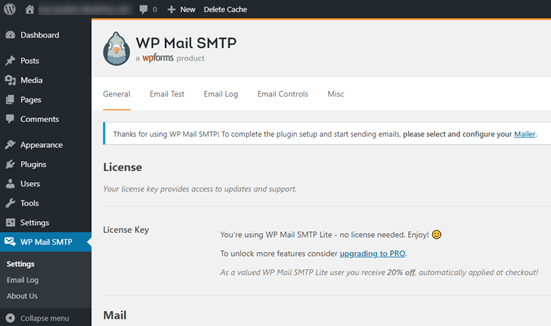
You’ll need to start by entering the name and business email address you want your site’s emails to come from.
Make sure you use the same email address here that you’ll be using for your SMTP mailing service.
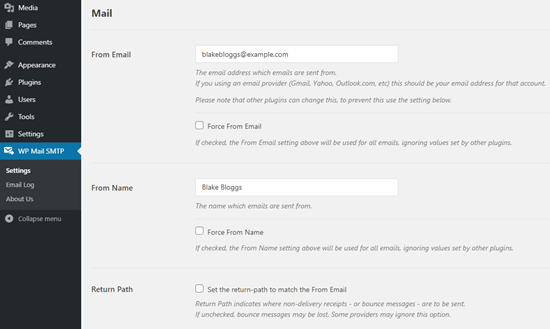
You can choose to force emails to use this name and email address, even if other plugins like WPForms have different settings. WP Mail SMTP will override the settings of other plugins.
After that, you need to choose an SMTP mailing service for your site. For this tutorial, we’re going to set up SMTP using SendLayer.
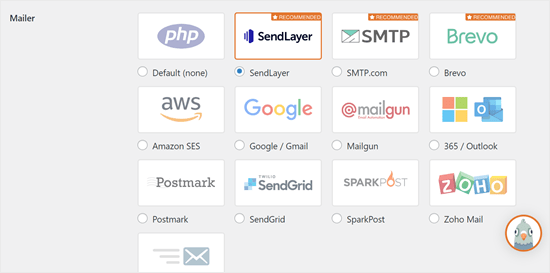
To finish setting up WP Mail SMTP, you’ll need to create an account with SendLayer. We’ll do that next, then come back to finalize the setup, so keep this tab open.
Step 2: Set Up Your SMTP Mailing Service
SendLayer is a reliable email delivery service built specifically for transactional emails. These are the automated emails your site sends, like form submissions, order confirmations, and password resets.
You can use SendLayer to send up to 200 emails for free. That’s more than enough for most small websites to get started.
These could be emails from your contact form, new user account details, password recovery emails, or any other emails sent through your WordPress site.
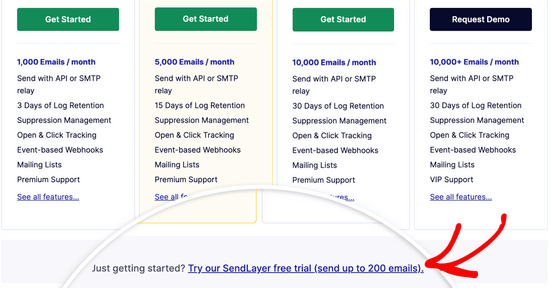
First, go to the SendLayer website to create an account. On the Pricing page, click on the ‘Try our SendLayer free trial (send up to 200 emails)’ link to set up your account.
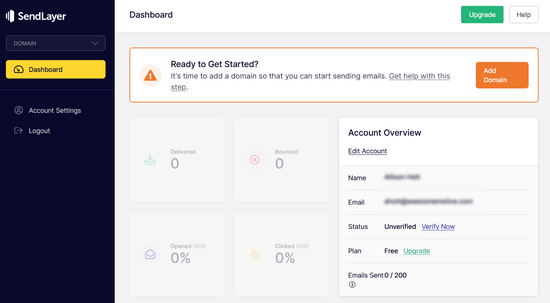
Once you’ve created an account, you’ll see your SendLayer dashboard.
Now that you have a SendLayer account, let’s connect your email provider with WordPress.
Step 3: Connect Your WordPress Website with SendLayer
Before you can send emails with SendLayer, you need to authorize your domain.
This proves to email servers that you’re the confirmed owner of your sending domain and that your emails come from a legitimate source.
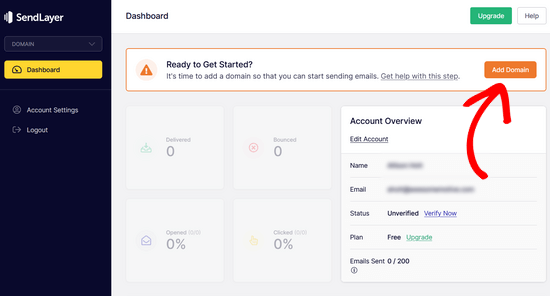
To authorize your domain, click the orange ‘Add Domain’ button from the SendLayer dashboard.
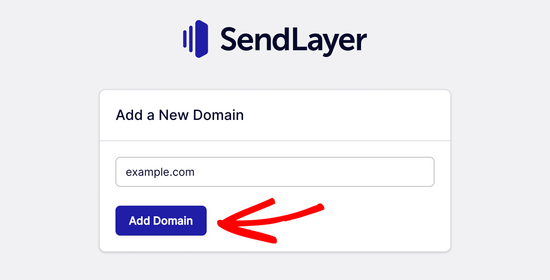
On the next page, type your domain name into the field provided.
Then, click on the ‘Add Domain’ button.
Note: With other mailing services like Brevo (formerly Sendinblue), you need to set up a subdomain for your website first. But SendLayer will automatically add the subdomain to the sender domain’s DNS records.
So, you don’t need to add an extra subdomain when registering the domain.
Once you’ve added your domain, SendLayer will show you 5 DNS records to add to your domain’s settings.
DNS records (Domain Name System records) are settings that connect your domain name to various services. These specific records verify that you own the domain and authorize SendLayer to send emails on your behalf.
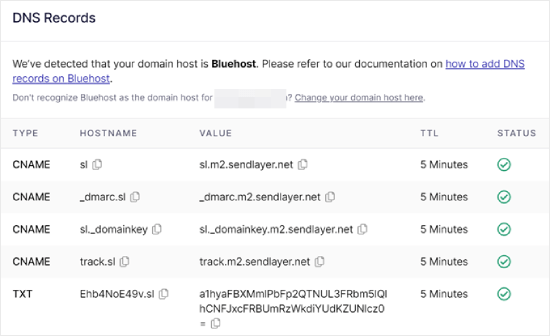
Don’t worry if this looks complicated. You’re simply copying and pasting text from one place to another, and we’ll walk you through every step.
For this tutorial, we’ll demonstrate using a hosting account on Bluehost.
If you use other hosting companies or if your DNS is managed at a domain registrar like Network Solutions, GoDaddy, or Namecheap, just follow their respective instructions.
You can also read our guide on how to set up WP Mail SMTP with any host.
First, open up a new browser tab and log in to your WordPress hosting account. Then, find your domain’s DNS records.
In Bluehost, you do this by going to ‘Domains.’ Then, click ‘Settings’ next to the domain you’d like to connect with SendLayer.
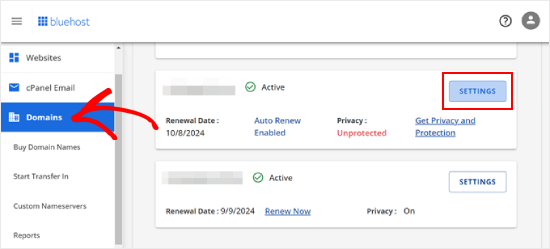
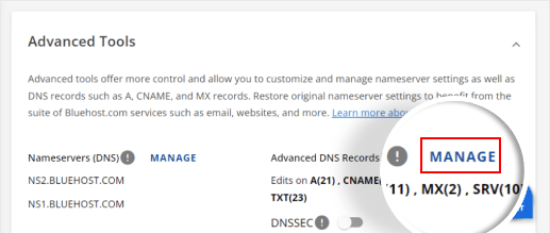
On the next page, scroll down to the ‘Advanced Tools’ section.
After that, click the ‘Manage’ button next to Advanced DNS Records.
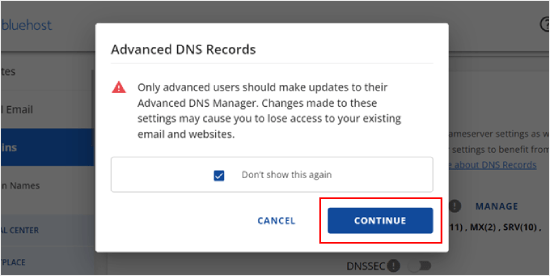
You’ll see a warning message saying that DNS records should be edited by an advanced user. Don’t worry about this message. The process is straightforward.
Go ahead and click ‘Continue’ to proceed.
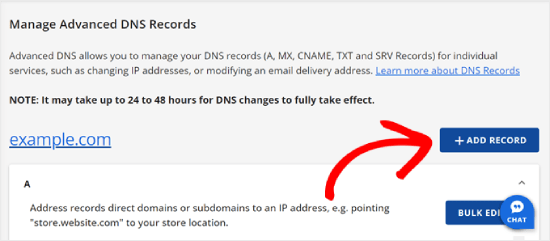
You’ll now arrive at the Manage Advanced DNS Records page.
To start, click the ‘+ Add Record’ button.
Now, let’s add the DNS records provided by SendLayer.
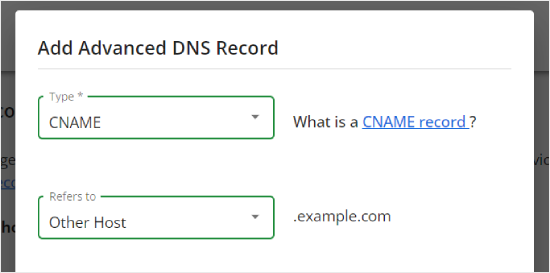
First, select the type of DNS record. In this case, we’ll use CNAME for the first record.
In the ‘Refers to’ section, click ‘Other Host.’ You’ll pick the same option for all of your DNS records later.
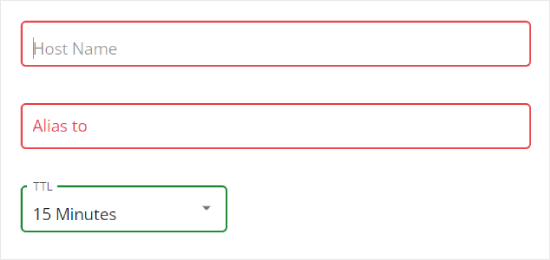
Scrolling down, you’ll see three fields: Host Name, Alias, and TTL.
Fill in the Host Name with the value from SendLayer’s ‘Hostname’ column. Fill in the Alias with the value from SendLayer’s ‘Value’ column. For TTL, you can leave it at 15 minutes.
The screenshot below shows what our screen looked like when we added our first CNAME record.
Once you’re done, click ‘Add.’
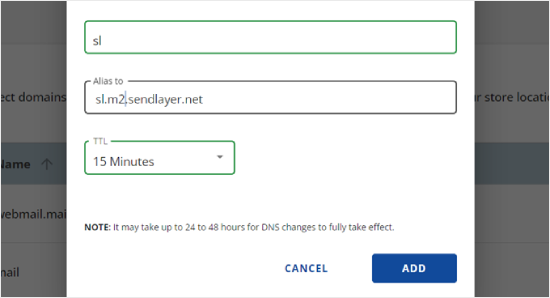
Repeat these steps for all of the DNS records (both CNAME and TXT).
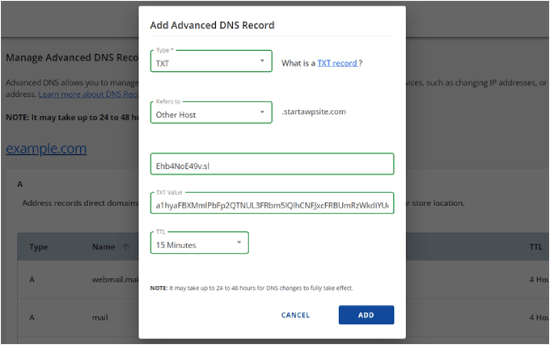
When adding the TXT record, paste the ‘Hostname’ value from SendLayer into the ‘Host Name’ field and the ‘Value’ into the ‘TXT Value’ field.
Here’s what it looks like:
After you’ve added your records, go back to SendLayer and check the box next to ‘I have added these DNS records and am ready to proceed.’
Then, hit the ‘Verify DNS Records’ button.
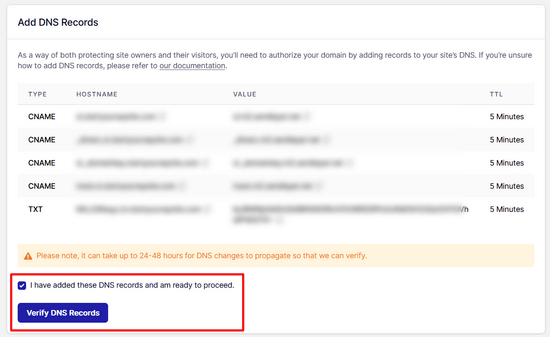
It may take 24-48 hours before SendLayer can verify your records. In our experience, it took several hours.
If nothing happens when you click that button, the records can’t be verified yet. You can check again later by going to ‘Settings’ and navigating to the ‘DNS Records & Settings’ tab from your SendLayer dashboard.
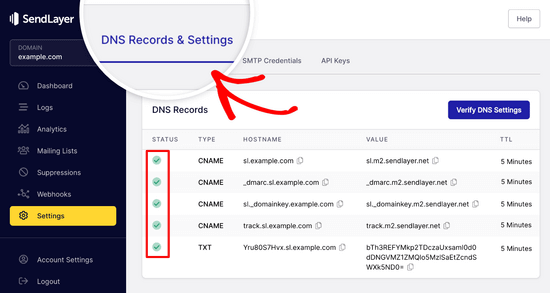
Here, you’ll find a list of all your DNS records in one place. Once your domain has been successfully authorized, you’ll see green checkmarks next to each DNS record in the ‘Status’ column.
You can keep going with this tutorial while you wait for the authorization to complete.
Step 4: Finish Setting Up WP Mail SMTP to Use SendLayer
Let’s finish the setup. First, go to your SendLayer account to find your API key.
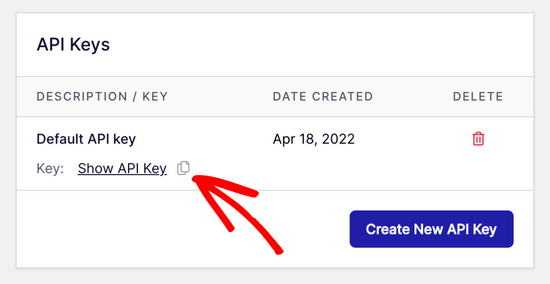
From the SendLayer dashboard, go to Settings » API Keys. Here, you’ll see a default API key that was generated when you authorized your domain in SendLayer.
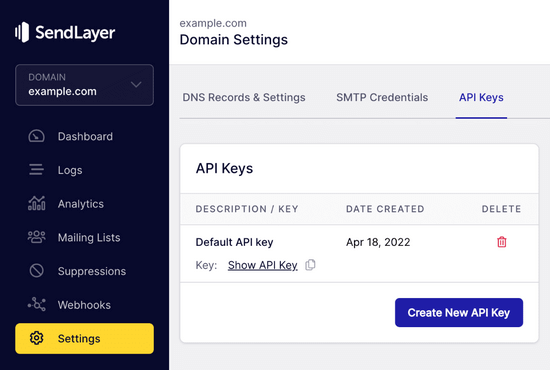
Copy the API key from this page by clicking on the copy icon.
Like so:
With that done, head back to your WP Mail SMTP setup wizard tab.
Then, paste the API key where appropriate.

Congratulations! You’ve now set everything up. The final step is to send a test email to make sure everything works.
Go to WP Mail SMTP » Tools. In the ‘Email Test’ tab, enter an email address to send a test to. This will default to the site’s admin email. Click ‘Send Email.’
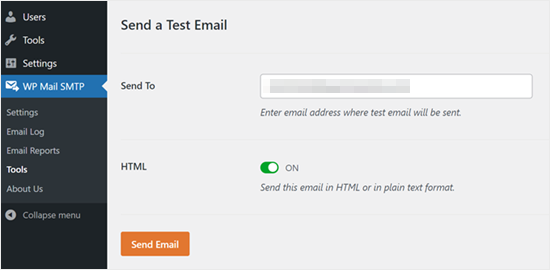
You should see the message ‘Test HTML email was sent successfully!’
Check your inbox to see whether it arrived. It’ll look like this:
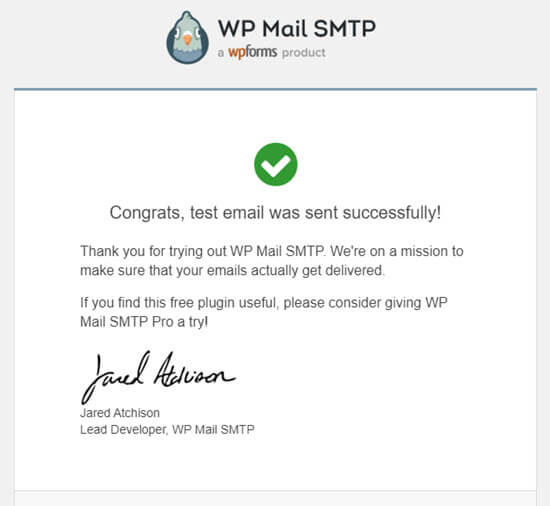
Note: If your SendLayer account isn’t yet activated, you’ll get the message: [permission_denied]: Unable to send email. Your SMTP account is not yet activated.
Alternative Ways to Fixing the WordPress Not Sending Email Issue
As you can see from the WP Mail SMTP plugin’s list of mailer options, you don’t have to use SendLayer. While it’s our top free recommendation, there are other options, including Microsoft 365, Gmail (Google Workspace), Amazon SES, and more.
Using Gmail or Google Workspace With WP Mail SMTP to Fix WordPress Emails
If you have a Gmail account, you can use it to send your emails. You won’t need to enter your email login details in WordPress when using the WP Mail SMTP plugin.
To use Gmail or Google Workspace, set up WP Mail SMTP as shown above, then click the ‘Google / Gmail’ option for your mailer.
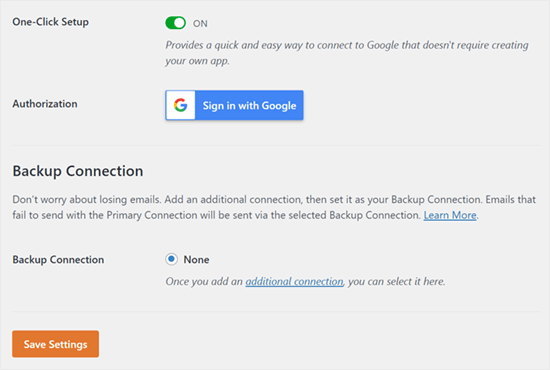
Next, you can configure the mailer settings using WP Mail SMTP’s one-click setup.
This method doesn’t require you to create your own app, which makes it much easier. You only need to sign in to your Gmail account and click ‘Save Settings.’
There are a couple of drawbacks to using your professional Gmail or Google Workspace, however.
One is that if you change the email address in the future, you’ll need to go through the entire process again. This includes creating a new web application.
Using Microsoft 365 With WP Mail SMTP to Fix WordPress Emails
If you use Microsoft Office 365 or Outlook for your regular email account, you can also use that to send out emails through WordPress.
However, this option involves a more complex setup process. You’ll need to set up WP Mail SMTP as above, then click the ‘365 / Outlook’ option when choosing your SMTP mailer. You also need to register an app in Microsoft Azure to complete the required fields.
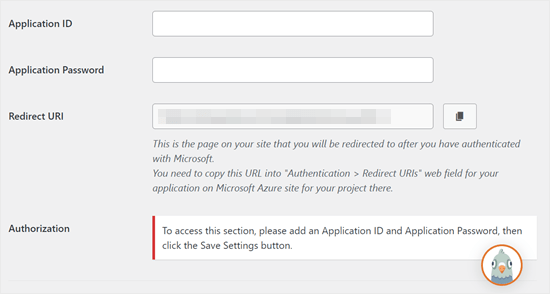
For more details, see the detailed guide on how to set up Outlook with WP Mail SMTP.
Using Amazon SES with WP Mail SMTP to Fix WordPress Emails
The Amazon AWS platform has a Simple Email Service (SES) that you can use to fix the WordPress email issue.
The best part about Amazon is that it lets you send up to 62,000 emails every month for free. The downside is that the setup is more challenging for beginners, which is why we don’t recommend it as our preferred option.
But as you can imagine, a lot of professionals and experts use Amazon SES for their WordPress email SMTP service, so we couldn’t write an article without mentioning it.
If you’re interested in setting up Amazon SES with WordPress, see the full instructions on how to set up Amazon SES with WordPress.
Whatever mailer you decide to use, always remember to use the ‘Test Email’ feature to make sure emails are being sent successfully.
Make sure to check your inbox as well and confirm that you received the test email.
Frequently Asked Questions About Sending WordPress Emails
Here are some common questions we get about WordPress email issues.
Why are my WordPress emails going to spam?
WordPress emails go to spam because they’re sent using the PHP mail() function, which doesn’t include authentication. Email providers like Gmail can’t verify that the emails actually come from your domain, so they flag them as suspicious. Using SMTP with proper authentication solves this problem.
Is WP Mail SMTP free?
Yes, WP Mail SMTP has a free version available on WordPress.org that works with most SMTP services. There’s also a Pro version with additional features like email logging, tracking, and backup connections.
What’s the best SMTP service for beginners?
We recommend SendLayer for beginners because it offers a free tier (200 emails), has a simple setup process, and is designed specifically for transactional emails. Gmail is another good option if you already have a Google account.
How do I know if my WordPress emails are working?
After setting up WP Mail SMTP, go to WP Mail SMTP » Tools in your WordPress dashboard. Use the Email Test feature to send a test email to yourself. If you receive it in your inbox (not spam), your emails are working correctly.
Video Tutorial
If you prefer visual instructions, check out this video:
Experiencing Other WordPress Errors? Check Out These Guides
WordPress isn’t perfect, and you may encounter some common errors from time to time.
Here are some tutorials you can check out to solve them:
- How to Fix Add Media Button Not Working in WordPress
- How to Fix Image Upload Issue in WordPress (Step by Step)
- How to Fix the Mixed Content Error in WordPress (Step by Step)
- How to Fix WordPress Posts Returning 404 Error (Step by Step)
- How to Fix the “WordPress Database Error Disk Full” Error
- How to Fix the Error Establishing a Database Connection in WordPress
- How to Fix “Sorry, This File Type Is Not Permitted for Security Reasons” Error in WordPress
- How to Fix the 502 Bad Gateway Error in WordPress
- How to Fix WordPress Search Not Working
- WordPress Form Does Not Work: 7 Troubleshooting Tips
We hope this article helped you learn how to fix the WordPress not sending email issue. You may also want to see our list of the most common WordPress block editor problems or our picks of the best WooCommerce email customizer plugins.
If you liked this article, then please subscribe to our YouTube Channel for WordPress video tutorials. You can also find us on Twitter and Facebook.


Holly Moloney
Maybe this is a dumb question, but why does this happen out of the blue?
We’ve had no issues on our website with emails for the entire 10 years that it’s been up and running, then all of a sudden two days ago we stopped receiving notification emails from our contact form.
I can understand why things may not work properly when a site is initially set up, but what would cause this issue to happen suddenly when nothing has changed?
WPBeginner Support
With email providers it is hard to say a specific reason as their requirements change over time as part of their spam protection measures.
Admin
Orphicpixel
SPF and DKIM records solves my email issue
WPBeginner Support
Thank you for sharing what worked for you
Admin
Samuel
Thank you so much for this tutorial, I am configuring a contact form on a new website and I discovered that Word Press is not sending the necessary feedback mail in the process of testing and the method here fixed the issues. Thanks WP Beginner.
I want to ask is there a method that involve not the use of plugin to send mail, I mean may be a setting we can tweak either on the server or on Word Press itself that will let php maill function send mail. ?
WPBeginner Support
We do not have a recommended method for doing this without a plugin due to the complexity involved.
Admin
Samuel
Thanks so much for your response, I can now focus solely on the WP Mail SMTP solution discussed here.