


Your WordPress site is failing to send emails. Contact form submissions vanish. Password reset emails never arrive, and important notifications disappear into the void.
You’re not alone. The fix is simple: use SMTP (Simple Mail Transfer Protocol) instead of WordPress’s default email method. SMTP authenticates your emails so they actually reach the inbox instead of getting blocked or marked as spam.
We’ve used WP Mail SMTP on WPBeginner for years to handle all our email delivery. It connects WordPress to trusted email services like SendLayer, so every contact form submission and notification reaches its destination.
In this guide, we’ll show you exactly what causes WordPress email problems and how to fix them step by step.
Why You’re Not Getting Emails From Your WordPress Site
The most common reason for missing emails is that your WordPress hosting server isn’t properly configured to use the PHP mail() function. This is WordPress’s built-in method for sending emails, and it doesn’t include any verification that you are who you say you are.
Even when your hosting is configured correctly, there’s another problem. Email providers like Gmail use spam filters that check whether an email actually comes from the address it claims to be from.
Emails sent by WordPress websites often fail this check.
This means when an email goes out from your WordPress site (from a contact form plugin, admin notification, or password reset), it may not even make it to the recipient’s spam folder. It just disappears.
This is why we recommend not using WordPress to send your email newsletter.
It’s also why we recommend everyone use SMTP for sending emails in WordPress.
What Is SMTP?
SMTP stands for Simple Mail Transfer Protocol. It’s the industry standard for sending emails across the internet.
Think of it like the difference between dropping an unsigned letter in a random mailbox versus sending certified mail through the post office. The PHP mail() function is that unsigned letter. SMTP is the certified mail with proper identification and tracking.
SMTP uses proper authentication, which means it proves to email providers that your emails are legitimate. This leads to much higher email deliverability.
The WP Mail SMTP plugin configures your WordPress site to send emails using SMTP instead of the PHP mail() function.
You can use it to connect with any popular SMTP service like SendLayer, Brevo (formerly Sendinblue), Gmail (Google Workspace), Amazon SES, and more.
You can read our WP Mail SMTP review for more details about the plugin.
With that said, let’s look at how to fix the WordPress not sending email issue. You can use the quick links below to navigate through this article:
Alternative: If you use WooCommerce and your order emails aren’t being delivered, then read our guide on how to fix WooCommerce not sending order email issue instead.
Step 1: Install the WP Mail SMTP Plugin
Whatever SMTP service you choose, you’ll need the WP Mail SMTP plugin installed on your site. This switches WordPress from using the built-in PHP mail() function to your SMTP service.
We use WP Mail SMTP on WPBeginner and all our partner sites to ensure every email is delivered reliably.
First, install and activate the WP Mail SMTP plugin. If you’re not sure how, see our step-by-step guide on how to install a WordPress plugin.
Next, click on ‘WP Mail SMTP’ in your WordPress dashboard to configure the plugin settings.
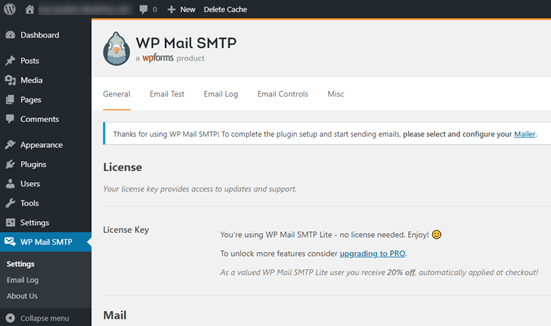
You’ll need to start by entering the name and business email address you want your site’s emails to come from.
Make sure you use the same email address here that you’ll be using for your SMTP mailing service.
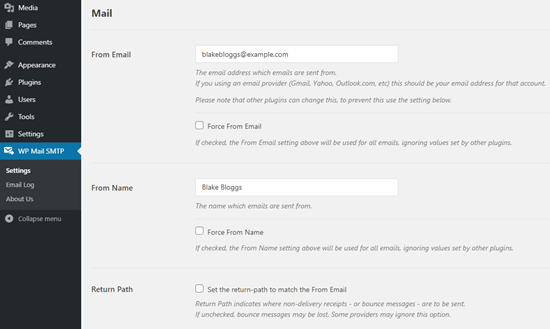
You can choose to force emails to use this name and email address, even if other plugins like WPForms have different settings. WP Mail SMTP will override the settings of other plugins.
After that, you need to choose an SMTP mailing service for your site. For this tutorial, we’re going to set up SMTP using SendLayer.
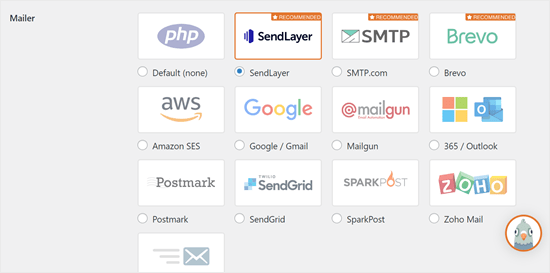
To finish setting up WP Mail SMTP, you’ll need to create an account with SendLayer. We’ll do that next, then come back to finalize the setup, so keep this tab open.
Step 2: Set Up Your SMTP Mailing Service
SendLayer is a reliable email delivery service built specifically for transactional emails. These are the automated emails your site sends, like form submissions, order confirmations, and password resets.
You can use SendLayer to send up to 200 emails for free. That’s more than enough for most small websites to get started.
These could be emails from your contact form, new user account details, password recovery emails, or any other emails sent through your WordPress site.
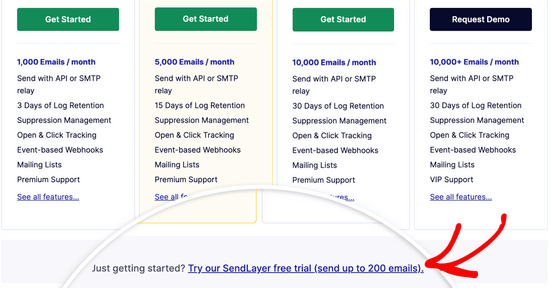
First, go to the SendLayer website to create an account. On the Pricing page, click on the ‘Try our SendLayer free trial (send up to 200 emails)’ link to set up your account.
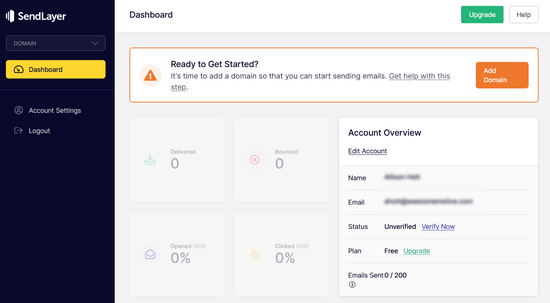
Once you’ve created an account, you’ll see your SendLayer dashboard.
Now that you have a SendLayer account, let’s connect your email provider with WordPress.
Step 3: Connect Your WordPress Website with SendLayer
Before you can send emails with SendLayer, you need to authorize your domain.
This proves to email servers that you’re the confirmed owner of your sending domain and that your emails come from a legitimate source.
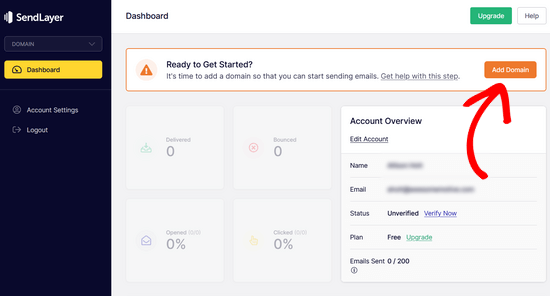
To authorize your domain, click the orange ‘Add Domain’ button from the SendLayer dashboard.
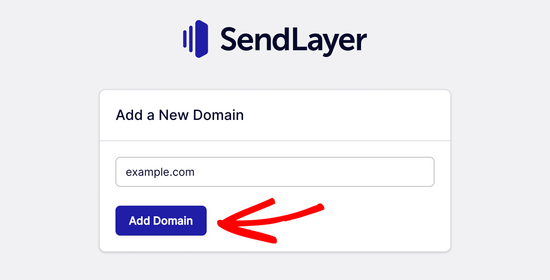
On the next page, type your domain name into the field provided.
Then, click on the ‘Add Domain’ button.
Note: With other mailing services like Brevo (formerly Sendinblue), you need to set up a subdomain for your website first. But SendLayer will automatically add the subdomain to the sender domain’s DNS records.
So, you don’t need to add an extra subdomain when registering the domain.
Once you’ve added your domain, SendLayer will show you 5 DNS records to add to your domain’s settings.
DNS records (Domain Name System records) are settings that connect your domain name to various services. These specific records verify that you own the domain and authorize SendLayer to send emails on your behalf.
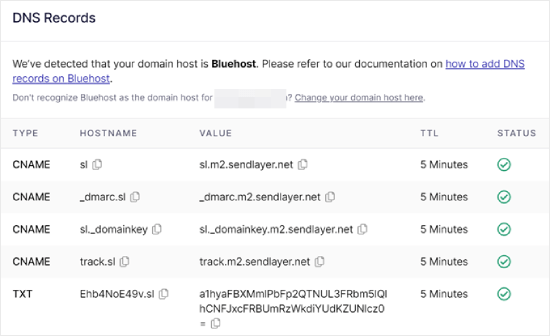
Don’t worry if this looks complicated. You’re simply copying and pasting text from one place to another, and we’ll walk you through every step.
For this tutorial, we’ll demonstrate using a hosting account on Bluehost.
If you use other hosting companies or if your DNS is managed at a domain registrar like Network Solutions, GoDaddy, or Namecheap, just follow their respective instructions.
You can also read our guide on how to set up WP Mail SMTP with any host.
First, open up a new browser tab and log in to your WordPress hosting account. Then, find your domain’s DNS records.
In Bluehost, you do this by going to ‘Domains.’ Then, click ‘Settings’ next to the domain you’d like to connect with SendLayer.
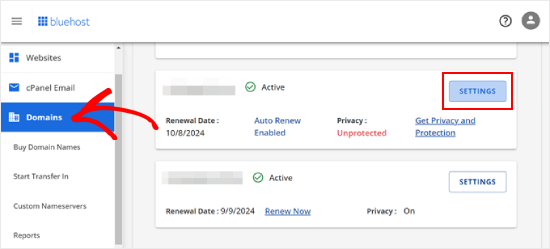
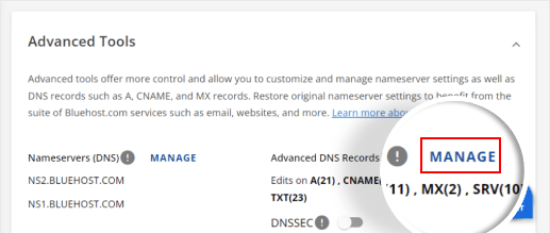
On the next page, scroll down to the ‘Advanced Tools’ section.
After that, click the ‘Manage’ button next to Advanced DNS Records.
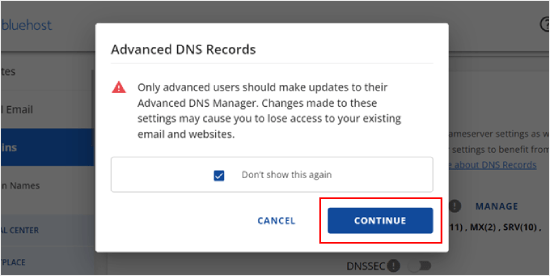
You’ll see a warning message saying that DNS records should be edited by an advanced user. Don’t worry about this message. The process is straightforward.
Go ahead and click ‘Continue’ to proceed.
You’ll now arrive at the Manage Advanced DNS Records page.
To start, click the ‘+ Add Record’ button.
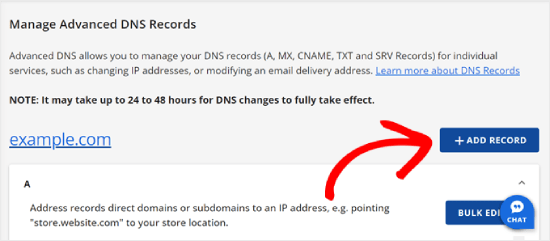
Now, let’s add the DNS records provided by SendLayer.
First, select the type of DNS record. In this case, we’ll use CNAME for the first record.
In the ‘Refers to’ section, click ‘Other Host.’ You’ll pick the same option for all of your DNS records later.
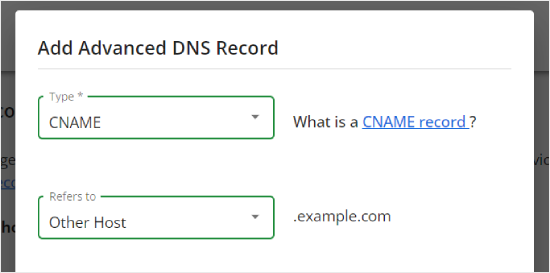
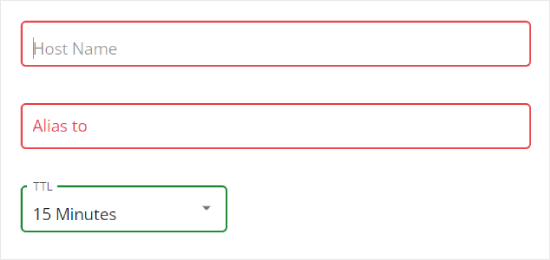
Scrolling down, you’ll see three fields: Host Name, Alias, and TTL.
Fill in the Host Name with the value from SendLayer’s ‘Hostname’ column. Fill in the Alias with the value from SendLayer’s ‘Value’ column. For TTL, you can leave it at 15 minutes.
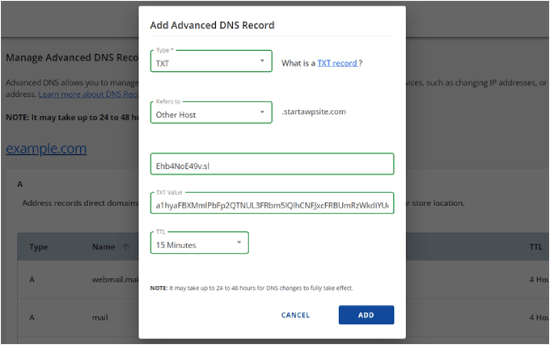
The screenshot below shows what our screen looked like when we added our first CNAME record.
Once you’re done, click ‘Add.’
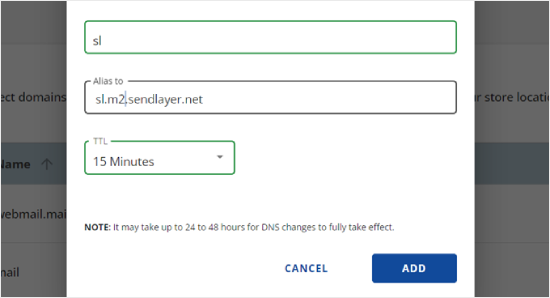
Repeat these steps for all of the DNS records (both CNAME and TXT).
When adding the TXT record, paste the ‘Hostname’ value from SendLayer into the ‘Host Name’ field and the ‘Value’ into the ‘TXT Value’ field.
Here’s what it looks like:
After you’ve added your records, go back to SendLayer and check the box next to ‘I have added these DNS records and am ready to proceed.’
Then, hit the ‘Verify DNS Records’ button.
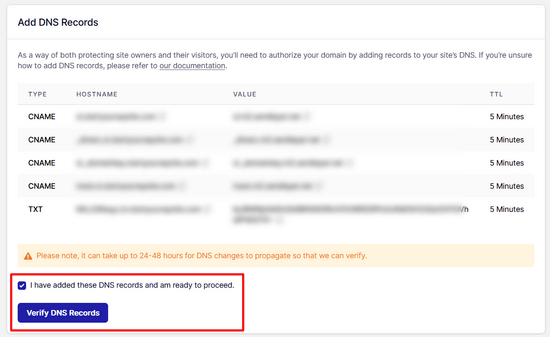
It may take 24-48 hours before SendLayer can verify your records. In our experience, it took several hours.
If nothing happens when you click that button, the records can’t be verified yet. You can check again later by going to ‘Settings’ and navigating to the ‘DNS Records & Settings’ tab from your SendLayer dashboard.
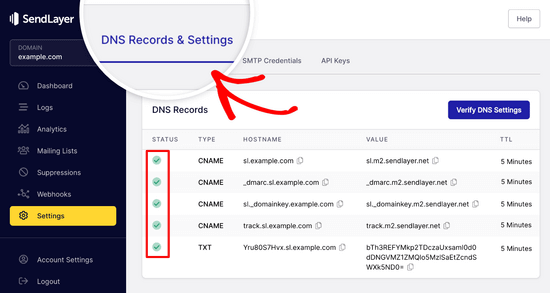
Here, you’ll find a list of all your DNS records in one place. Once your domain has been successfully authorized, you’ll see green checkmarks next to each DNS record in the ‘Status’ column.
You can keep going with this tutorial while you wait for the authorization to complete.
Step 4: Finish Setting Up WP Mail SMTP to Use SendLayer
Let’s finish the setup. First, go to your SendLayer account to find your API key.
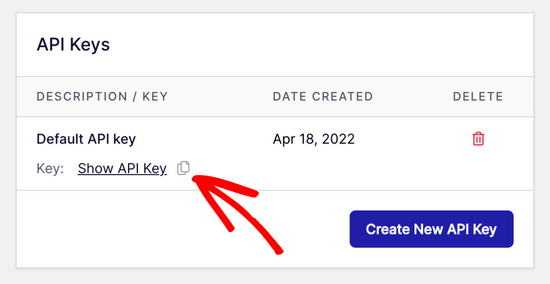
From the SendLayer dashboard, go to Settings » API Keys. Here, you’ll see a default API key that was generated when you authorized your domain in SendLayer.
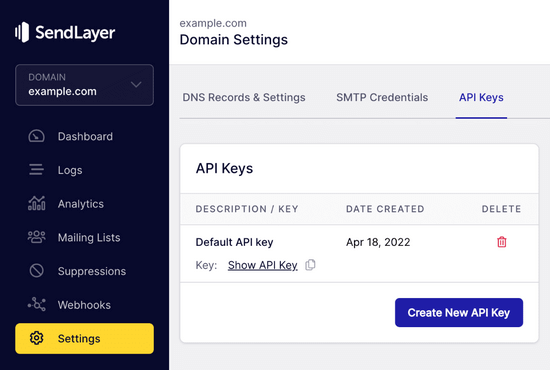
Copy the API key from this page by clicking on the copy icon.
Like so:
With that done, head back to your WP Mail SMTP setup wizard tab.
Then, paste the API key where appropriate.

Congratulations! You’ve now set everything up. The final step is to send a test email to make sure everything works.
Go to WP Mail SMTP » Tools. In the ‘Email Test’ tab, enter an email address to send a test to. This will default to the site’s admin email. Click ‘Send Email.’
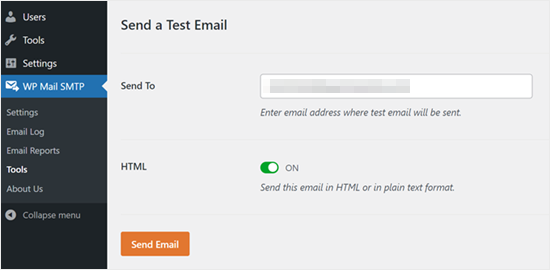
You should see the message ‘Test HTML email was sent successfully!’
Check your inbox to see whether it arrived. It’ll look like this:
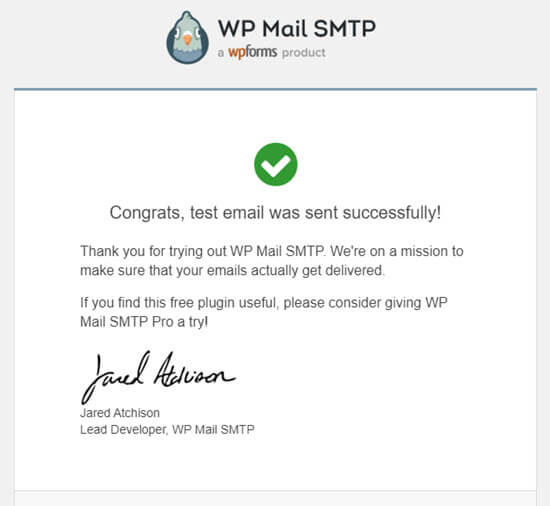
Note: If your SendLayer account isn’t yet activated, you’ll get the message: [permission_denied]: Unable to send email. Your SMTP account is not yet activated.
Alternative Ways to Fixing the WordPress Not Sending Email Issue
As you can see from the WP Mail SMTP plugin’s list of mailer options, you don’t have to use SendLayer. While it’s our top free recommendation, there are other options, including Microsoft 365, Gmail (Google Workspace), Amazon SES, and more.
Using Gmail or Google Workspace With WP Mail SMTP to Fix WordPress Emails
If you have a Gmail account, you can use it to send your emails. You won’t need to enter your email login details in WordPress when using the WP Mail SMTP plugin.
To use Gmail or Google Workspace, set up WP Mail SMTP as shown above, then click the ‘Google / Gmail’ option for your mailer.
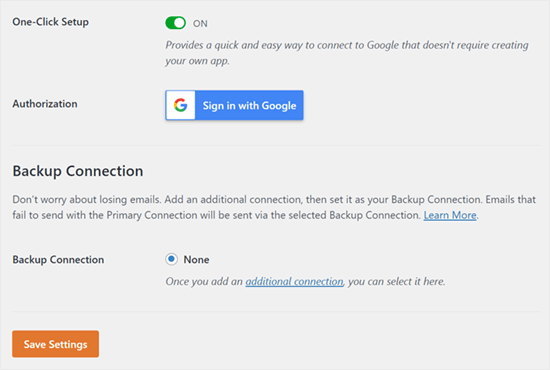
Next, you can configure the mailer settings using WP Mail SMTP’s one-click setup.
This method doesn’t require you to create your own app, which makes it much easier. You only need to sign in to your Gmail account and click ‘Save Settings.’
There are a couple of drawbacks to using your professional Gmail or Google Workspace, however.
One is that if you change the email address in the future, you’ll need to go through the entire process again. This includes creating a new web application.
Using Microsoft 365 With WP Mail SMTP to Fix WordPress Emails
If you use Microsoft Office 365 or Outlook for your regular email account, you can also use that to send out emails through WordPress.
However, this option involves a more complex setup process. You’ll need to set up WP Mail SMTP as above, then click the ‘365 / Outlook’ option when choosing your SMTP mailer. You also need to register an app in Microsoft Azure to complete the required fields.
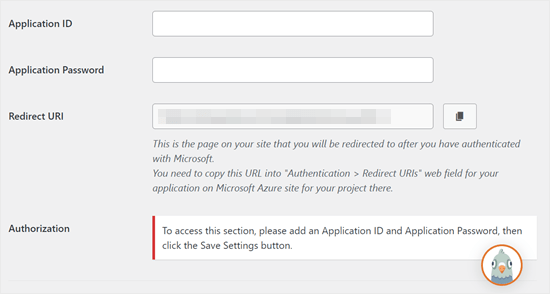
For more details, see the detailed guide on how to set up Outlook with WP Mail SMTP.
Using Amazon SES with WP Mail SMTP to Fix WordPress Emails
The Amazon AWS platform has a Simple Email Service (SES) that you can use to fix the WordPress email issue.
The best part about Amazon is that it lets you send up to 62,000 emails every month for free. The downside is that the setup is more challenging for beginners, which is why we don’t recommend it as our preferred option.
But as you can imagine, a lot of professionals and experts use Amazon SES for their WordPress email SMTP service, so we couldn’t write an article without mentioning it.
If you’re interested in setting up Amazon SES with WordPress, see the full instructions on how to set up Amazon SES with WordPress.
Whatever mailer you decide to use, always remember to use the ‘Test Email’ feature to make sure emails are being sent successfully.
Make sure to check your inbox as well and confirm that you received the test email.
Frequently Asked Questions About Sending WordPress Emails
Here are some common questions we get about WordPress email issues.
Why are my WordPress emails going to spam?
WordPress emails go to spam because they’re sent using the PHP mail() function, which doesn’t include authentication. Email providers like Gmail can’t verify that the emails actually come from your domain, so they flag them as suspicious. Using SMTP with proper authentication solves this problem.
Is WP Mail SMTP free?
Yes, WP Mail SMTP has a free version available on WordPress.org that works with most SMTP services. There’s also a Pro version with additional features like email logging, tracking, and backup connections.
What’s the best SMTP service for beginners?
We recommend SendLayer for beginners because it offers a free tier (200 emails), has a simple setup process, and is designed specifically for transactional emails. Gmail is another good option if you already have a Google account.
How do I know if my WordPress emails are working?
After setting up WP Mail SMTP, go to WP Mail SMTP » Tools in your WordPress dashboard. Use the Email Test feature to send a test email to yourself. If you receive it in your inbox (not spam), your emails are working correctly.
Video Tutorial
If you prefer visual instructions, check out this video:
Experiencing Other WordPress Errors? Check Out These Guides
WordPress isn’t perfect, and you may encounter some common errors from time to time.
Here are some tutorials you can check out to solve them:
- How to Fix Add Media Button Not Working in WordPress
- How to Fix Image Upload Issue in WordPress (Step by Step)
- How to Fix the Mixed Content Error in WordPress (Step by Step)
- How to Fix WordPress Posts Returning 404 Error (Step by Step)
- How to Fix the “WordPress Database Error Disk Full” Error
- How to Fix the Error Establishing a Database Connection in WordPress
- How to Fix “Sorry, This File Type Is Not Permitted for Security Reasons” Error in WordPress
- How to Fix the 502 Bad Gateway Error in WordPress
- How to Fix WordPress Search Not Working
- WordPress Form Does Not Work: 7 Troubleshooting Tips
We hope this article helped you learn how to fix the WordPress not sending email issue. You may also want to see our list of the most common WordPress block editor problems or our picks of the best WooCommerce email customizer plugins.
If you liked this article, then please subscribe to our YouTube Channel for WordPress video tutorials. You can also find us on Twitter and Facebook.




Will
My problem is that wordpress won’t send emails to or from an address that is coming from my domain name. E.g. @domain.com. But it will send from any other email address type.
Md Sajid
i successfully setup my site, and it is working very well.
thanks for this nice and working tutorial..
i used gmail api first method..
SORRY FOR MY BAD ENGLISH
idayat
hello, please does anyone know how can stop WordPress from sending automatic emails to blog subscribers, i want to use MailChimp but it seems i have to first disable WordPress. thank you
Lyndsay
Great instructions! Clear, easy to follow and they work!
Iman
Thank you so much. You have tutorial helped me fix my email problem . this was one of the best tutorials I have ever seen. every step is very well explained.
alex
Hi, I have installed SMTP – I think right.. but I’m still not receiving emails from the contact form. I’m also not getting new order notifications. can someone please help me?
Sagar Awal
check spam mail.
Nifemi
I’ve completed all the steps using mailgun but when I try to send a test email to my other webmails in that same domain, they never get delivered. However it works pretty well with other emails such as gmail.
Any idea about what might be causing this issue?
WPBeginner Support
Hi Nifemi,
Please contact Mailgun support they would be able to help you troubleshoot this.
Admin
Ron
Is there a way to find the emails that were sent and you did not receive because of this issue?
WPBeginner Support
Hi Ron,
Default WordPress notification emails are not stored in the database. However, if you are using a plugin which stores entries in the database then you may be able to see them.
Admin
Daniel Koo
Instead of the Success! message, I get an error like this:
——–
Not Acceptable!
An appropriate representation of the requested resource could not be found on this server. This error was generated by Mod_Security.
——-
What is the problem?
Colin
I’m having the exact same problem. The answer appears to lie in complicated CSS maneuvers that I hate.
Abhishek Kumar
Thank you so much for useful tutorials.
Anthony
Thank a lot. i followed your method 1 and it worked perfectly!
Michael Zorko
So…this used to be my go to app. Found a similar help video from you guys a while back. Loved Mailgun – then they started changing their policy. Now, it only works for verified email addresses..unless…you put a credit card on file.
Jack Hernandez
I’ve been having problems with admin and users (and new users) not receiving automatic notifications.
Will this also solve that issue?
Thanks
WPBeginner Support
Hi Jack,
Yes, it would. Missing notifications are almost always caused by email issues in WordPress.
Admin
Chloe
Hi,
I’m confused in the step of opening the cPanel in the hosting account. What is the hosting account? Is it found in WordPress? Thanks
WPBeginner Support
Hi Chloe,
Seems like you are using WordPress.com. Please see our guide on the difference between self hosted WordPress.org vs free WordPress.com blog.
Admin
Owen
I was having the exact same problem with e-mails not sending and these instructions were v useful. I have now fully resolved the issue – thank you very much
WPBeginner Support
Hi Owen,
We are glad you found the instructions helpful You may also want to subscribe to our YouTube Channel for WordPress video tutorials.
Admin
Amol
Hello,
Thank you for the topic. It helped me a lot and fixed the issue I was struggling with for last 3 days.
Regards,
Amol
Fred
I started to use the video guide and the first step was to set up a mailgun account. I created a password and clicked the verification link in my email to complete the account. However they then wanted to text me a confirmation code to a cell phone as a second verification. I only own a landline not a cell phone and there was no workaround so it is impossible for me to use mailgun. I realize most people these days have cell phones but it seems stupid they would not allow signup via computer (or via a voice code over the phone).
Fernán
Thank you so much! I just had some changes regarding domain settings, and this pointed me in the right way.
Pankaj Kumar
Hi, If i am using Zoho mail for example.com for email.
Can i still use mail1.example.com and configure mx record?
Will it work or stops my email account created on zoho mail for example.com
Melinda Thome
This worked perfectly, and solved all my Wordpress email sending issues. Thank you!!
Melinda
Leo
My wordpress send emails, but, this emails Go to Spam folder… I need a soluction. I try using codes from functions.php but does not work. My solution was install Mail Bank plugin but, I dont want this plugin. I want a simple soluction.
casey
hello! I am having issues with my Contact page, we are not receiving new contact information in our CRM site. Can you please guide me to fix the issue?
Doron
Hey
Thanks for the great tutorial. I’m getting
“Mailgun HTTP API Test Failure; status “Free accounts are for test purposes only. Please upgrade or add the address to authorized recipients in Account Settings.”
Do you know why or how to resolve?
(Added an “authorized user” to my acount)
Alex Cramer
I’m having the same problem. I also don’t understand how to get to the cPanel. What am I missing?
Lawrence Ip
Ah! When in doubt add this TXT Record. @ v=spf1 include:_spf.google.com ~all
That is, this works for Namecheap (and most likely others) when Gmail is enabled. Enjoy!
Aaron Williams
I am having the problem that the wp_mail() function is not showing up in our functions.php document. If I read the documentation correctly, that means Gmail SMTP plugin still won’t work because it uses that function still. Every time I have tried to add the wp_mail() function it has resulted in a fatal error that kills the website and I have to remote into our server to delete the code to get the page working again. Any ideas?
WPBeginner Support
Hey Aaron,
wp_mail function resides in the core WordPress files, so you will not find it in your theme’s functions.php file. Since it is already part of the core, you do not need to add it. Try installing Gmail SMTP plugin, and it should work.
Admin
Clare
Hi there, so happy to have found this tutorial! Can anyone tell me if you need to use a subdomain to setup Mailgun? We have set this up using our root domain and are having some issues and I am wondering if this could be why. Any advice would be appreciated! Thanks, Clare.
Michael Halbrook
It can cause problems if you set it up with out one from what I’ve been reading, because if you set up the MX records for MailGun with your current e-mail address it can be problematic.
Michael Tillman
Great tutorial. I have to say the narrator has a really nice voice, nice and pleasant.
Eric
Using Mailgun worked like a charm. Thanks!
John F
will this fix conformation email not sending?
Callan
Hi,
I think I found an easy workaround for this problem. When setting up form fields, instead of using the generic email field I just use a different type of field and mark it as a “required” field. That way people will know that it is a required field and still provide you with a valid email address.
I have just had the same problem with all of a sudden Wordpress not sending me mail from anyone who has a gmail address. I’ve changed the field types and am again receiving emails from submitted forms.
I’d be interested to see if anyone else would try to see if this works.
Steve
First off…very informative article…including the YouTube video on setting up the Google Apps for Work. So thank you for that!
A couple questions:
I use Mad Mimi for my email marketing…and they sent the below article out a while ago telling Gmail users to not use Gmail addresses for sending out Mad Mimi email campaigns (which is what I used to do), but instead to use a custom domain. So that’s what I did. I set up a custom “name@domain.com” address and have been using that. If I want to use the exact same “name@domain.com” address for the Google Apps for Work setup to receive notifications from my Wordpress site…will this mess up stuff with the Mad Mimi emails?
Additionally, I currently have my personal Gmail setup to be able to send and receive email from the “name@domain.com” address…so how is that effected as well? Do I need to delete that stuff out of there if I go with this Google Apps for Work option to fix my issue with not receiving my Wordpress notification emails?
Thank you so much in advance for any clarification on this.
Sacha Doucet
The article and video were super helpful! Thank you!!
WPBeginner Support
Hey Sacha,
Glad you found it useful. You may also want to subscribe to our YouTube Channel for more WordPress video tutorials.
Admin
Amy
Just wanted to say – thank you so much for this article! Has helped me fix my forms not sure what the issue was before, if it was the server or what – but the mailgun solution worked perfectly for me.
Akinola King
Thanks for this article.
David
Great article! Thank you for sharing!
1) Why does the mailgun HTTP API not require a username and password like the SMTP solution does? Is it because mailgun is verifying at the DNS level (with its SPF and domain key records) and with the API — so this setup removed the need for the SMTP credentials?
2) Am I correct that these sending issues (being rejected by Google or Yahoo’s mail servers) are mostly because people are trying to send email from their WP installations but are using a personalAccount@aol.com to send email from a WP install at example.com?
3) Would mailgun allow someone to send email as personalAccount@aol.com even though the mail is coming from the WP install at example.com
Thanks for your help!
Shaun Lawson
Thank you so much for these great instructions.
Worked for me first time.
Shaun
Lucas Shepherd
Postman SMTP fixed my wordpress email after trying everything everyone told me to try.
Doug
Thanks for pointing me to Postman SMTP. I too had tried several setups to no avail.
Jerry
Thanks Lucas, Me too!
Postman SMTP solved all my email woes.. I’ve been trying to test mail function on Wordpress installed on localhost under Xampp for a day or two.
I’m brand new to Wordpress and I’m learning that the secret to a happy life is getting the right Plugin.. recommendations are invaluable.
meenakshi
My cpanel is not showing Advanced DNS Zone edittor in Domain section . Wha shoud I do?
WPBeginner Support
You can try DNS Zone Editor or ask your hosting provider for help.
Admin
Mabel
I need help. I have successfully installed mailgun using your videio How to Fix WordPress Not Sending Email Issue, but my email notifications still do not send. Do I have to enter some code into each email template? I have no idea what I am doing.
bobby
You should really warn people about changing the mx records. It ruined my incoming mail for 5 hours and i had to change them back.
Bobby
I set this all up and never got an activation email from Mailgun. Pretty pathetic that an email smtp service can’t even figure out their own account activation system through….ugh….email.
I sent a support ticket in. Now, because I changed the settings on my hosting, NONE OF MY EMAIL IS WORKING. I have tried three different emails to activate the account, and none have gotten the activation email.
Luke Cavanagh
SendGrid is the best option now, the free plan covers up to 12,000 emails a month.
https://wordpress.org/plugins/sendgrid-email-delivery-simplified/
Marco Floriano
Amazing video, amazing tutorial. Nice solution. Perfect! Mailgun is amazing, thanks a ton guys!
Ademide
Thank you for tutorials. I couldn’t proceed because I was having the following error “Your account is temporarily disabled. Business Verification Please contact support to resolve”. I have raised two tickets already, it doesn’t seem to be helping. Any idea what I need to do to get this resolved?
WPBeginner Support
Mailgun has internal checks in place which may sometimes flag an innocent account as suspicious. You simply need to contact their support, they will ask you a few questions about your email usage and will unlock your account.
Admin
Wout
Oh man thank you so much for this! You’re lifesavers! Mails from my wp-site used to end up in Spam, now they reach the inbox with no problems… One thing worth mentioning may be that the domain you set up in Mailgun doesn’t show up in WP mails to users/customers, so you don’t have to use a matching domain for your site. You can setup mail1.example.com in Mailgun for your WordPress site anotherexample.com and it works.
WPBeginner Support
It works, but to ensure maximum delivery in the long run, it is recommended to use the same domain as your website.
Admin
Wout
Actually I still had some issues after testing, and decided to install sendgrid plugin, and that was easier to setup and works like a charm…
Lavish
My domain name is attached to Google Apps emails, I don’t want to mess up things. Can I instead use .org version of my domain name. I have .org and it is just parked (redirecting to .com) unused.
Thanks
Luke Cavanagh
Just make it easy and use SendGrid. You just create a general API and then add it into the settings of the SendGrid plugin on the site you need to use it on.
Michael Story
Hi you mention needing the shortcode for later in the video, where do you use the shortcode? Does it replace gravity forms?
Bill Frankell
Oh man, where were you last week with this? I spent four days of vacation working all this out on my own.
However I do not see my problem listed, which was using Yahoo mail.
Been a yahoo user since 2000 so hated to give way but finally set up new gmail accounts on all my websites which changed everything. I now have those accounts all forwarding to Yahoo, each with a note in the from address telling me their source.
There may have been a way to make Yahoo work, but I didn’t find it and finally gave up. This is a better setup because it lets me set up separate mailing lists and work with mail chimp and sumo me. So far in the last week we have collected over a hundred new members on one site, the difference is that now I get to see each one as it comes in, can delete my yahoo notice and still have the record on Gmail archives.
Having said all this, this page is being bookmarked for future reference. Thanks, it was almost timely.
amit
Sending WordPress Emails Using Gmail SMTP Servers. is it free feature
WPBeginner Support
There are both free and paid options. The free option is less reliable than the paid option.
Admin