


“Sorry, you are not allowed to access this page” is one of the most common errors that WordPress users run into.
This message usually pops up when your user role doesn’t have permission to view a page in the WordPress dashboard. But sometimes, it shows up even when you should have access.
We’ve dealt with this before and know it can be confusing and annoying, especially if you’re the site owner or an admin.
In this guide, we’ll walk you through the steps we use to troubleshoot this error on our own websites.
⚡ Quick Summary:
This error is usually caused by a permission mismatch or a security setting. The top 3 fixes are:
- Checking User Roles
- Resetting the .htaccess File
- Correcting File Permissions
What Causes the “Sorry, You Are Not Allowed to Access This Page” Error in WordPress?
We’ve seen this error pop up occasionally on our sites and also while helping readers troubleshoot their sites. It usually happens when your WordPress User Role (the permissions assigned to your specific account) doesn’t have authorization to access a specific area of the admin dashboard.
For example, an author can only edit their own posts. If someone sends them a direct link to edit another author’s post, they’ll see the “Sorry, you are not allowed to access this page” message.
But here’s the tricky part: sometimes, the error shows up even when you should have access. That’s when it gets frustrating.
If you’re not the site owner or an administrator, you’ll need to contact someone who is. They can explain why you don’t have access or update your user role if needed.
If you are the site owner or admin, and you still see the error when logging in, then something has gone wrong behind the scenes — usually with user permissions or a recent update.
It could be caused by a failed WordPress update, a broken plugin, a theme conflict, or a server configuration issue involving File Permissions (the server-level rules that determine who can read, write, or execute files).
The frustrating part is that you won’t be able to fix this from inside the WordPress dashboard. You’ll need to use FTP or access your database directly.
That can be intimidating if you’re new to WordPress, and making the wrong change can cause bigger problems. So before doing anything, we strongly recommend creating a full backup of your website.
And if you’d rather not touch the files yourself, try reaching out to your hosting provider. They may be able to help you fix it faster.
That being said, here are some solutions you can follow to troubleshoot and fix the “Sorry, you are not allowed to access this page” error in WordPress:
- Check You Have the Correct WordPress Role
- Check for a Corrupt .htaccess File
- Check for Incorrect File Permissions
- Activate the Default Theme Using FTP
- Deactivate All Plugins
- Check Your WordPress Error Logs
- Update to the Latest PHP Version
- Restore Your Most Recent Backup
- Check and Change Your Database Prefix
- Contact Your Hosting Provider
- Video Tutorial
- Learn More Ways to Solve Common WordPress Errors
1. Check You Have the Correct WordPress Role
If you can log in to the WordPress admin dashboard but can’t access specific pages, your WordPress user role might have been changed, and you are no longer an admin.
Note: If you cannot access the ‘Users’ menu at all, skip to the next step. You can also use phpMyAdmin to manually reset permissions if you are completely locked out.
From the WordPress dashboard, you can see your user role by following these steps:
- Navigate to Users » All Users in your sidebar.
- Locate your username in the list.
- Look at the Role column to ensure it says “Administrator.”
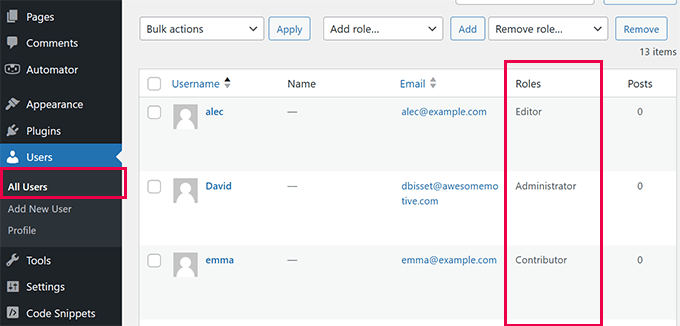
If you don’t have access to the Users page, this means you are not an administrator.
If you or someone else accidentally deleted your administrator account or changed your user role, then you can add a new admin user with phpMyAdmin.
2. Check for a Corrupt .htaccess File
If you have an admin user role and are still seeing “Sorry, you are not allowed to access this page” on the front end, the cause could be a corrupt .htaccess file. We can check this by renaming the file.
You will need to use an FTP client like FileZilla or the file manager feature in your WordPress hosting account. If you haven’t used FTP before, then you may want to see our guide on how to use FTP to upload files to WordPress.
- Connect to your website using your FTP client.
- Navigate to the root folder (often named public_html).
- Find the file named
.htaccess. - Right-click the file and rename it to
.htaccess.old.
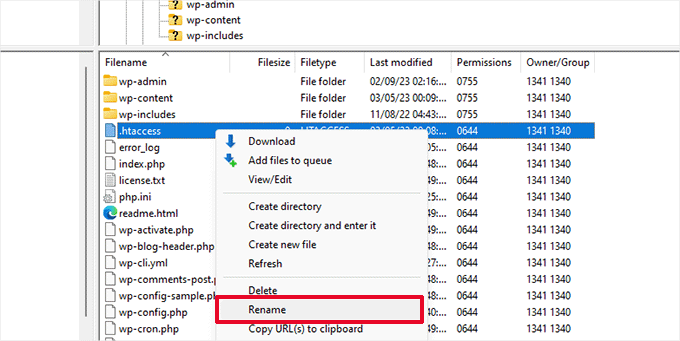
If you cannot find your .htaccess file, then see our guide on how to find .htaccess in WordPress.
Once you have renamed the file, try logging in to your WordPress site to see if that has fixed the problem. If it hasn’t, then rename it back to .htaccess and move on to the next step.
If you can log in, then you have fixed the problem. The next step is to generate a new .htaccess file. To do that, navigate to the Settings » Permalinks page in WordPress.
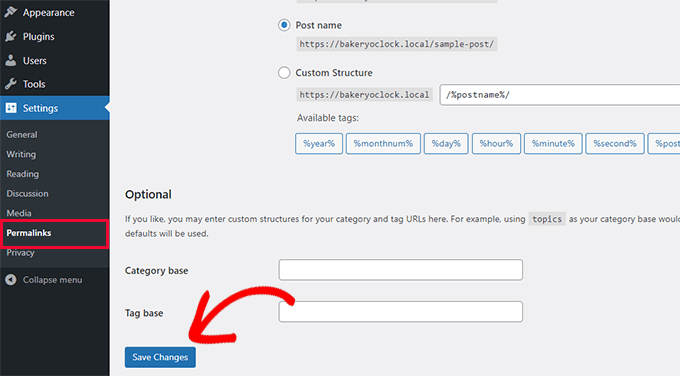
Simply click on the Save Changes button at the bottom of the page, and WordPress will generate a fresh .htaccess file.
3. Check for Incorrect File Permissions
While you have your FTP client open, we will check to make sure there isn’t a problem with your file permissions. File permissions control who can access files and folders on your website.
The following settings are recommended for most users:
- 755 for all folders and sub-folders.
- 644 for all files.
Here is how to apply these settings properly using FTP:
- Navigate to your root folder and select the
wp-admin,wp-content, andwp-includesfolders. - Right-click and select ‘File permissions…’.
- Enter 755 in the numeric value field.
- Check ‘Recurse into subdirectories’ and select ‘Apply to directories only’.
- Click OK to apply changes.
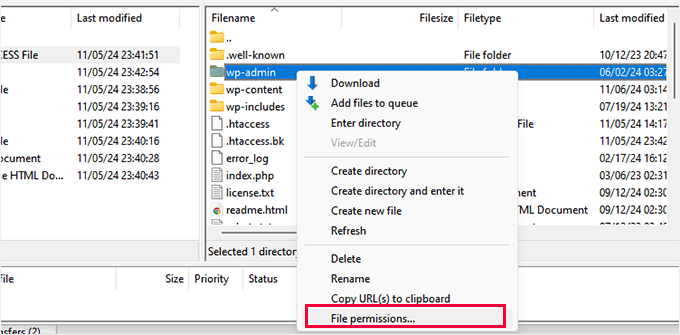
This will bring up the file permissions dialog box.
Now, you need to enter 755 in the numeric value field. After that, you can click on the ‘Recurse into subdirectories’ checkbox and then select the ‘Apply to directories only’ option.
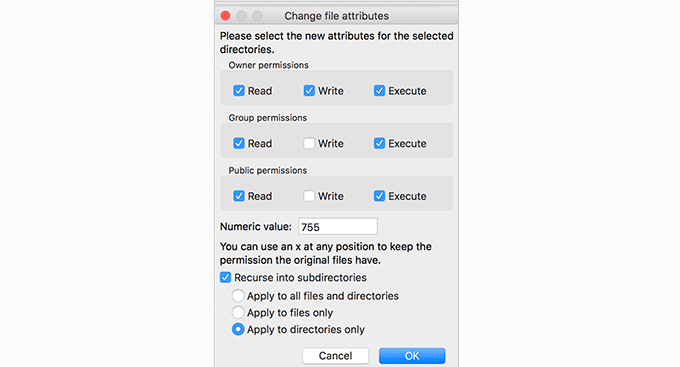
Click on the ‘OK’ button to continue. Your FTP client will start setting file permissions to folders and sub-folders. You will need to wait for it to finish.
Next, select all files and folders in the root folder of your WordPress site, then right-click to open the file permissions dialog.
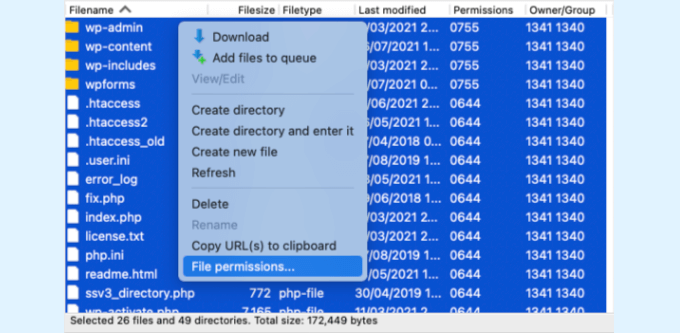
The file permissions dialog box will appear.
Enter 644 in the numeric value and click ‘OK’ to continue.
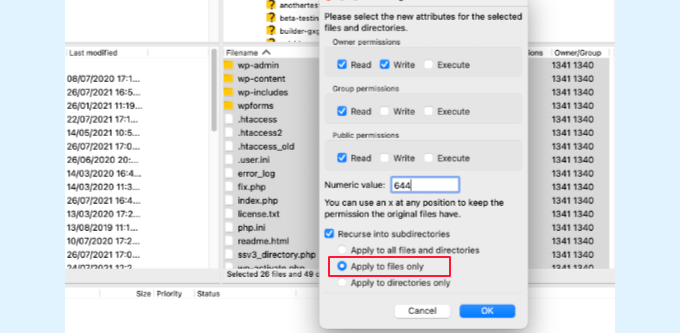
Your FTP client will now start setting file permissions for all files on your WordPress site.
Once you have done this, try logging in to your WordPress website again. If you are successful, then you’ve fixed the problem. If not, then move on to the next step.
4. Activate the Default Theme Using FTP
The next solution requires checking if your active WordPress theme could be causing this issue.
You’ll need to connect to your website using an FTP client or your web hosting provider’s file manager. Then, navigate to the wp-content folder.
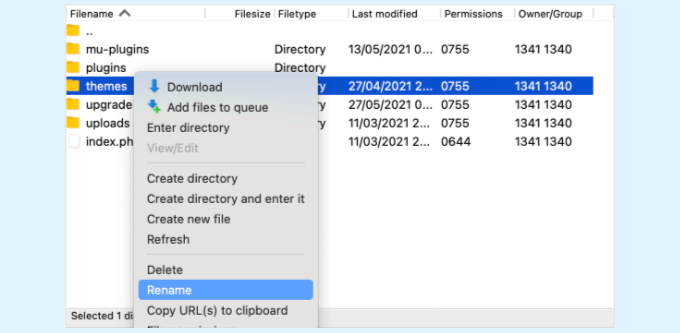
Once there, you will see a folder called themes. This is where WordPress stores all themes installed on your website.
To safely troubleshoot this, follow these steps to force WordPress to switch to a default theme:
- Open the
themesfolder. - Locate the folder for your current active theme (e.g.,
astraordivi). - Right-click that specific folder and rename it to something like
astra.deactivate.
This will activate the default WordPress theme (like Twenty Twenty-Four). Now, try to log in to your WordPress site to see if this has fixed the problem.
If you still receive the “Sorry, you are not allowed to access this page” error, then the problem isn’t caused by a theme. You need to rename your theme folder back to its original name and move on to the next step.
If you can log in, then the previous active theme caused the problem, and you can start to troubleshoot. You could try using a different theme or reinstall the same theme and carefully configure it.
However, if the error returns, then report it to the theme author. They may be able to help you solve the problem or fix a bug in the theme.
5. Deactivate All Plugins
The next solution is to check whether a faulty WordPress plugin is causing the error. We will do that by temporarily deactivating all plugins.
If you are not sure how to do that without accessing the WordPress admin area, don’t worry. You can do this easily via FTP:
- Navigate to the
wp-contentfolder using your FTP client. - Find the folder named
plugins. - Rename the folder to
plugins.deactivate.
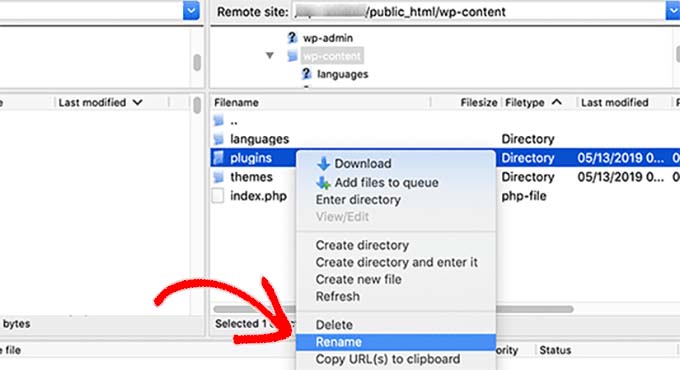
This will instantly deactivate all installed plugins. If you can now log in to your dashboard, you know one of the plugins was the culprit. Rename the folder back to plugins and then activate them one by one to find the issue.
6. Check Your WordPress Error Logs
You may be able to check an error log for clues about what went wrong. Your web hosting provider might be keeping logs, or you may have previously set WordPress up to keep them.
You can often find a debug.log file inside your wp-content folder if debugging is enabled. If not, you can enable it by adding code to your wp-config.php file.
For more details, check our guide on how to set up WordPress error logs or contact your hosting provider.
7. Update to the Latest PHP Version
If your WordPress site is running an outdated version of PHP, then it may be causing problems. Upgrading to the latest version may be helpful.
You can typically update your PHP version directly from your hosting control panel (such as cPanel or hPanel) under the “PHP Configuration” or “MultiPHP Manager” section.
For more information, check our guide on how to update your PHP version in WordPress or contact your hosting provider.
8. Restore Your Most Recent Backup
If you have made a recent backup of your WordPress website, then restoring it to an earlier version is likely to fix the “Sorry, you are not allowed to access this page” error.
The problem is that you will lose any changes to your settings and content made after the backup. This is why we always recommend using a reliable backup plugin like Duplicator, which makes restoring your site easy.
For more information, check our beginner’s guide on how to restore WordPress from backup.
9. Check and Change Your Database Prefix
If you previously decided to change your database table prefix in the wp-config.php file, then there’s a chance that there is a discrepancy between your database prefix and your WordPress database.
This happens because your user role capabilities are stored in the database with a specific prefix (usually wp_ by default).
If the prefix in your config file doesn’t match the one in your database tables, WordPress effectively loses track of your administrator privileges, causing the “Sorry, you are not allowed to access this page” error.
The solution to this is to check your database via phpMyAdmin and see if the database table names have the prefix value set in your wp-config.php file.
To do this, you can check out our guide on how to change the WordPress database prefix.
10. Contact Your Hosting Provider
If you are unable to fix the error on your own, then you should contact your WordPress hosting company to see if there is anything that they can do.
Many providers offer excellent technical support and may be able to solve the problem for you. For instance, companies like SiteGround and HostGator have support teams experienced with these specific WordPress errors.
When you contact them, ask them to check the server error logs specifically for 403 Forbidden errors or permission denials. This will help them identify the exact file causing the issue.
For the best results, make sure to check our guide on how to properly ask for WordPress support and get it.
Video Tutorial
If you prefer video instructions, then just watch this video:
Learn More Ways to Solve Common WordPress Errors
Experiencing other WordPress errors? Check out the guides below to solve them:
- How to Fix the WordPress White Screen of Death (Step by Step)
- How to Fix the 500 Internal Server Error in WordPress
- How to Fix ‘Cookies Are Blocked Due to Unexpected Output’ Error in WordPress
- How to Fix Briefly Unavailable for Scheduled Maintenance Error in WordPress
- How to Fix “PHP Missing MySQL Extension” Error in WordPress
- How to Fix the Error Establishing a Database Connection in WordPress
- How to Fix “Are You Sure You Want to Do This?” Error in WordPress
We hope this tutorial helped you learn how to fix the “Sorry, you are not allowed to access this page” error in WordPress. You may also want to bookmark our ultimate guide on how to fix the 403 forbidden error or how to secure your WordPress website.
If you liked this article, then please subscribe to our YouTube Channel for WordPress video tutorials. You can also find us on Twitter and Facebook.


Kzain
I sometimes get this error i wanted to ask about the PHP Version my hosting provides PHP Version
8.2 version but by default it’s set to a different version 8.0 so I changed the PHP version to the latest because after the new WordPress version
Mark K
Also found an issue with a plugin that had a setting page that caused this “error” when the constant DISALLOW_FILE_MODS was true e.g. define( ‘DISALLOW_FILE_MODS’, true );
WPBeginner Support
Thank you for sharing another possible reason for this error
Admin
Rob Mahan
My website had been hacked, probably due to a weak login password. After I cleaned out all the bad posts, the site seemed functional, but I was experiencing the “Sorry, You Are Not Allowed to Access This Page” error when I tried to updated the WordPress version. Also, I could not delete unused themes or plugins. I tried everything in this article, all to no avail.
I finally found these two lines which apparently had been added to my wp-config.php file. Once I deleted them, full administrative functionality was restored.
define(‘DISALLOW_FILE_EDIT’,true);
define(‘DISALLOW_FILE_MODS’,true);
WPBeginner Support
Thank you for sharing this in case other users run into the same issue!
Admin
Kimberly
That worked! Thanks.