


Ever notice how you end up recreating the same Gutenberg block layouts over and over?
You know the ones – that perfect call-to-action section, your go-to testimonial layout, or that product showcase that actually converts visitors.
When you’re managing multiple WordPress sites, this becomes even more time-consuming. But there’s actually a much smarter way to handle this.
WordPress has a built-in feature that lets you import/export any block or group of blocks and reuse them instantly across different websites. It’s like having your own personal design library that travels with you everywhere.
After managing dozens of WordPress sites, we’ve learned that this simple 2-step process can completely transform how you work.
In this guide, we’ll show you how to easily import/export your Gutenberg blocks and keep your designs consistent across all your sites.
Here’s a quick overview of what we’ll cover in this guide:
- Why Import and Export WordPress Patterns?
- How to Import / Export Your WordPress Gutenberg Blocks
- Method 1: Import/Export Blocks With a Classic Theme
- Method 2: Import/Export Blocks With a Block Theme
- Frequently Asked Questions About Importing/Exporting Gutenberg Blocks
- Additional Resources on WordPress Blocks
Why Import and Export WordPress Patterns?
The WordPress block editor is great for creating unique layouts. For example, you might design a custom call to action with a special button and color scheme.
If you plan to use a design again, you can save it as a pattern. It’s important to know there are two types: synced and unsynced.
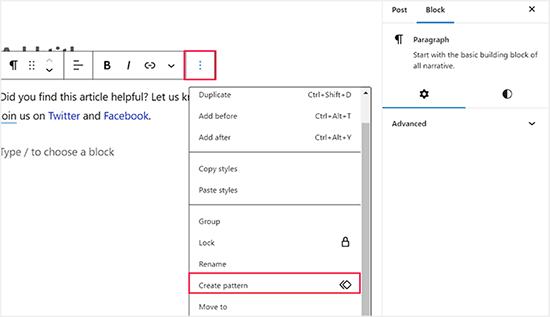
Unsynced pattern: Once an unsynced pattern is inserted into a page or post, it functions as a regular set of blocks. Any edits made to that specific instance will not affect other instances of the same pattern elsewhere on your site.
Synced pattern (formerly known as a reusable block): When you edit a synced pattern, the changes are automatically applied to every instance of that pattern across your entire website.
The best part is that you can export any of these patterns for use on other WordPress sites. This can save you a huge amount of time if you manage multiple websites or build sites for clients.
With that being said, let’s see how you can import / export Gutenberg WordPress blocks.
How to Import / Export Your WordPress Gutenberg Blocks
First, you’ll need to save the content you want to move as a pattern.
Once you have saved your pattern, the steps for importing and exporting will depend on whether you are using a classic theme or a modern block theme.
We’ll cover both methods below, starting with the process for classic themes.
Method 1: Import/Export Blocks With a Classic Theme
When using a classic theme, you can manage your patterns from a special screen, but you access it through the post editor.
Exporting Blocks with a Classic Theme
First, open any post or page.
In the top-right corner, click the three-dot menu icon and select ‘Manage patterns’ from the dropdown.

This will take you to the pattern management screen, where you’ll see a list of all your created patterns.
Hover over the pattern you want to export and click the ‘Export as JSON’ link that appears.
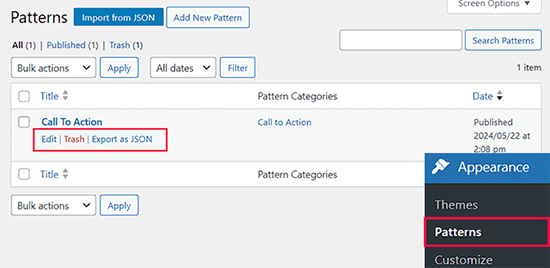
WordPress will immediately download the pattern to your computer as a JSON file.
Importing Blocks with a Classic Theme
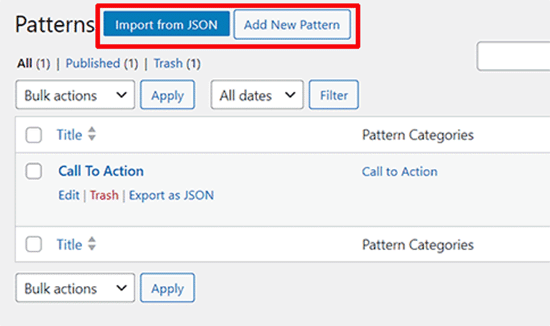
To import a pattern on your new site, follow the same steps to get to the ‘Manage patterns’ screen. At the top of the page, click the ‘Import from JSON’ button.
In the popup window, click ‘Choose File’ and select the JSON file you downloaded earlier. Click ‘Import’ to finish, and your pattern will be ready to use.
Method 2: Import/Export Blocks With a Block Theme
If you are using a block theme, the process is a bit different because you’ll be using the Full Site Editor.
Exporting Blocks with a Block Theme
To start, go to Appearance » Editor from the WordPress admin sidebar.
Inside the editor, select ‘Patterns’ from the left-hand menu. This will take you to the pattern management area for your site.
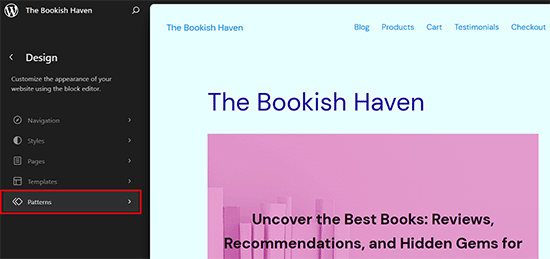
Next to the ‘Patterns’ heading, click the three-dot menu icon and then choose ‘Export as JSON’.
This will download a single JSON file containing all of your custom patterns.
Importing Blocks with a Block Theme
Now, to import these blocks into another website using the full site editor, open the FSE and head to the ‘Patterns’ tab.
Then, click the ‘Add New Pattern’ button. This will open a dropdown menu from where you can select that ‘Import Pattern From JSON’ button.
Go ahead and choose your downloaded file to import the blocks.
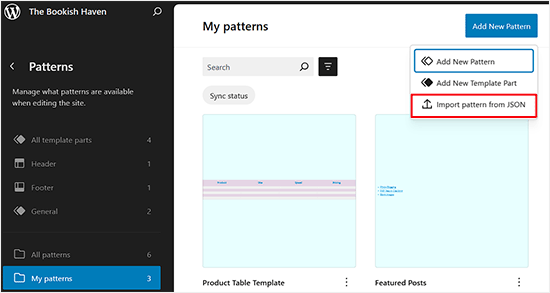
With that done, you can use the imported pattern on your WordPress website easily.
Frequently Asked Questions About Importing/Exporting Gutenberg Blocks
You might still have some questions about the process. To help you out, we’ve created a list of some of the most commonly asked questions about importing and exporting blocks in WordPress.
What is a JSON file?
JSON stands for JavaScript Object Notation. It’s a simple, text-based format for storing and transporting data.
In this case, the JSON file acts like a blueprint that tells WordPress how to reconstruct your block, including its content, formatting, and settings.
Does this method also import images and media files?
No, the export process only saves the block’s structure and text content. It does not export the actual image or media files used within the block.
You will need to manually upload those media files to the new site’s media library for the imported blocks to display correctly.
Can I import blocks that require a specific plugin?
Yes, you can. However, the imported block will only work if the new website has the same plugin installed and activated.
For example, if you export a form block from WPForms, the new site must also have WPForms installed to render that form.
How can I move my entire website, not just blocks?
Importing and exporting blocks is great for individual pieces of content. But if you need to move an entire website, a migration plugin is a much better solution
We recommend using a plugin like Duplicator. It allows you to easily clone and move your entire WordPress site, including all your content, plugins, and themes, to a new location.
Additional Resources on WordPress Blocks
Here are some more useful guides on using and managing WordPress blocks:
- How to Use the WordPress Block Editor (Gutenberg Tutorial)
- How to Create a Custom WordPress Block (Easy Way)
- Best Gutenberg Blocks Plugins for WordPress (Super Useful)
- How to Bulk Convert Classic Blocks to Gutenberg in WordPress
- Best Gutenberg-Friendly WordPress Themes
- Ultimate Blocks Review: Is It the Right Blocks Plugin for You?
We hope this article helped you learn how to import/export your WordPress Gutenberg blocks to use on other websites. You may also want to see our guide on how to remove a block in WordPress and padding vs margin comparison.
If you liked this article, then please subscribe to our YouTube Channel for WordPress video tutorials. You can also find us on Twitter and Facebook.




Birgit Pauli-Haack
Last summer, “Reusable blocks” have been renamed as “Synced Patterns”
WPBeginner Support
Thank you for sharing this while we work on updating our articles
Admin
Dennis Muthomi
Thank you for this clear, straightforward article.
I had always ignored the “Export as JSON” option, because I thought it was made for developers.
After reading your post, I now understand how this feature lets me easily reuse blocks across different WordPress sites.
WPBeginner Support
Glad our guide was helpful!
Admin
Dennis Muthomi
And how can I import element blocks on page builders like SeedProd?
WPBeginner Support
You would need to check with the support for the specific page builder for if they allow you to import blocks from this method.
Thomas
Exactly where IS the ‘Block Management Screen?” I can’t find it anywhere.
WPBeginner Support
It should be visible when you click the + icon to add a new block.
Admin
Alan
Hello,
Great information. Thanks for sharing.
I have a question…
Is it possible to export an entire page made up of many blocks? I can do this in Elementor and use this feature all the time.
Thanks in advance
WPBeginner Support
You could export a page using Tools>Export and import it on to a new site if that’s what you mean.
Admin