


Finding a strange PHP file in your WordPress uploads folder can be alarming. We know this feeling well because we’ve helped hundreds of users who’ve discovered the same issue.
This often points to a security gap that many people overlook. Hackers can abuse writeable directories to upload malicious scripts that give them backdoor access to your website.
The good news is that there’s a simple way to block one of their favorite attack methods. By disabling PHP execution in specific folders, you make your site a much harder target.
We’ll show you exactly how to do this step-by-step. Let’s walk through how to add this important layer of security to your WordPress site.
Why Disable PHP Execution in Certain WordPress Directories?
By default, WordPress makes certain directories writeable so that you and other authorized users on your website can easily upload themes, plugins, images, and videos to your website.
However, this capability can be abused if it gets into the wrong hands, such as hackers who can use it to upload backdoor access files or malware to your WordPress website.
These malicious files are often disguised as core WordPress files. They are mostly written in PHP and can run in the background to gain full access to every aspect of your website.
Sounds scary, right?
Don’t worry. There is an easy fix for that. Simply disable PHP execution in certain directories where you don’t need it. By doing so, no PHP files will run inside those directories.
Let’s take a look at how to improve WordPress security by disabling PHP execution using the .htaccess file.
Disabling PHP Execution in Certain WordPress Directories Using .htaccess File
Most WordPress sites have an .htaccess file in the root folder. This is a configuration file used by Apache, one of the most popular types of web server software. (If your host uses a different server like Nginx, don’t worry, we cover that in the FAQ section below.)
This powerful configuration file is used to password-protect the admin area, disable directory browsing, generate an SEO-friendly URL structure, and more.
By default, the .htaccess file is located in your WordPress website’s root folder, but you can also create and use additional .htaccess files inside your inner WordPress directories.
To protect your website from backdoor access files, you need to create a .htaccess file and upload it to your site’s /wp-includes and /wp-content/uploads directories. Protecting the /wp-content/uploads folder is especially important, as this is the most common place for hackers to try and place malicious scripts.
Simply create a new file on your computer using a text editor like Notepad (on Windows) or TextEdit (on Mac). Next, save the empty file with the name .htaccess
Now, copy and paste the following code into your .htaccess file:
<Files *.php>
  Require all denied
</Files>
This code tells your server to block any attempt to directly run a file that ends with .php from inside this folder. Once you have pasted the code, save the file.
Next, you must upload this file to the /wp-includes and /wp-content/uploads folders on your WordPress hosting server.
You can upload it using an FTP client or the File Manager app in your hosting account’s cPanel dashboard.
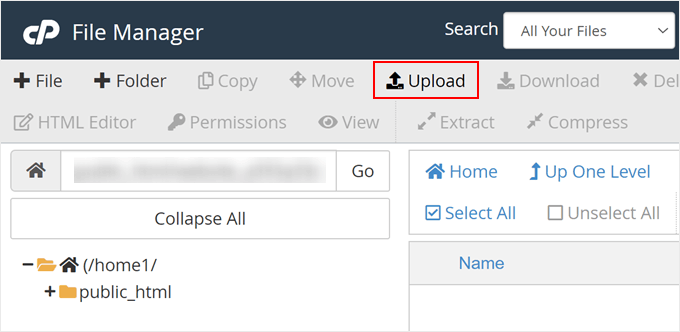
Once the .htaccess file with the above code is added, it will stop any PHP scripts from running in these directories.
Checking for Backdoors in WordPress Using Sucuri
Using this .htaccess trick helps you harden your WordPress security, but it will not fix a WordPress site that has already been hacked.
Backdoors are cleverly disguised and can already be hidden in plain sight.
If you want to check for possible backdoors on your website, then you need to activate Sucuri on your website.

Sucuri is the best WordPress security plugin on the market. It scans your website for possible threats, suspicious code, malware, and vulnerabilities.
It also effectively blocks most hacking attempts from even reaching your website by adding a firewall between your site and suspicious traffic.
Most importantly, if your WordPress site gets hacked, then it will clean it up for you. To learn more, you can read our Sucuri review because we have been using their service for years.
You can learn more in our guide on finding and fixing backdoors in a hacked WordPress site.
Frequently Asked Questions About Disabling PHP Execution
Here are some of the most common questions we get asked about hardening WordPress security by disabling PHP execution in certain directories.
1. What is an .htaccess file and where is it located?
The .htaccess file is a server configuration file used by Apache web servers. In WordPress, it controls things like your website’s URL structure and can be used to add security rules. You can typically find it in the main root folder of your WordPress installation.
2. Will disabling PHP execution in the uploads folder break my website?
No, this security measure should not affect the normal operation of your website. The wp-content/uploads and wp-includes directories are not meant to contain PHP files that run directly. Your themes and plugins keep their necessary files in separate folders where PHP execution is still allowed.
3. Is this .htaccess trick enough to completely secure my site?
While this is an effective and important security step, it is just one part of a full security plan. A complete strategy should also include using a WordPress security plugin, keeping all your themes and plugins updated, and enforcing strong passwords for all users.
4. What if my web host uses Nginx instead of Apache?
The .htaccess file only works on Apache web servers. If your hosting provider uses Nginx, you will need to add a different rule to your server’s configuration file to achieve the same result. We recommend contacting your host’s support team for help with the correct code for their platform.
What should I do if I get an error after adding the .htaccess file?
In very rare cases, you might see a ‘500 Internal Server Error’ after uploading the file. This usually means your web host is using an older version of the Apache server software.
If this happens, simply open your .htaccess file and replace the code you added with the following snippet instead:
<Files *.php>
  deny from all
</Files>
Save the file and re-upload it. This older version of the code does the same thing but is compatible with outdated servers.
Expert Guides on How to Improve WordPress Security
We hope this article helped you learn how to disable PHP execution in certain WordPress directories to harden your website security. You might also want to learn some other security techniques. Here are some of our best guides on improving WordPress security:
- The Ultimate WordPress Security Guide (Step by Step)
- How to Perform a WordPress Security Audit (Complete Checklist)
- How to Scan Your WordPress Site for Potentially Malicious Code
- Best WordPress Security Scanners for Detecting Malware and Hacks
- How to Find and Remove Spam Link Injection in WordPress
- How to Add Two-Factor Authentication in WordPress (Free Method)
- How to Add Security Questions to the WordPress Login Screen
- What, Why, and Hows of WordPress Security Keys
If you liked this article, then please subscribe to our YouTube Channel for WordPress video tutorials. You can also find us on Twitter and Facebook.


tom
regarding disabling php executions in wp-includes folder to prevent any backdoor code from executing etc – but there seem to be many many php files in that folder for ex: admin-bar.php or author-template.php to name a few that seem important to be able to execute and I wonder whether placing htaccess file into that folder wont stop those files from executing and possible disrupt wordpress core features? btw thanks for many nice articles on your website
WPBeginner Support
Unless you have a specific plugin that adds functionality to the files then there shouldn’t be an issue preventing PHP execution in the folders.
Admin
tom
Thanks for ur response. my set up is simply: astra/spectra, malcare and all in one seo, in that case i will place .htaccess into wp-includes as well. Thanks again for many great articles
Mrteesurez
I see this as a great form of securing a website by disabling PHP execution in folders. According to this article, only two directories are secured, what of others ? Have they secured naturally or hackers don’t need it during the attempt ?
WPBeginner Support
Other sections of your site’s files normally require stricter access or have php files that are required to work for your site to work.
Admin
Jiří Vaněk
Thanks for these safety tips. I have created an htaccess file and will upload it to FTP. I have a website on my own server, so the question of security is entirely up to me. Thanks for the next step in making my WordPress a little more secure again.
Unarine Leo Netshifhefhe
I also have this alert on my Updraft plugin where backups are not happening can this be due to htaccess?
“Backup directory could not be created…
The folder exists, but your webserver does not have permission to write to it. You will need to consult with your web hosting provider to find out how to set permissions for a WordPress plugin to write to the directory. (wp-content/updraft)”
WPBeginner Support
That looks to be a file/folder permissions issue, you would want to reach out to your hosting provider and they can help, you can also take a look at our guide below:
https://www.wpbeginner.com/beginners-guide/how-to-fix-file-and-folder-permissions-error-in-wordpress/
Admin
Brian Prom
FYI: you have a typo in your code snippet for the .htaccess snippet.
Using your code snippet as is (without the closing /) breaks image loading.
WPBeginner Support
Thank you for pointing that out, our code should be fixed
Admin
Vitor Gonçlaves
I’ve found some .php files in the uploads folder created by plugins. Can I assume this won’t cause a problem, or do I have to analyse each plugin individually?
WPBeginner Support
If you reach out to your plugins they can let you know the specifics for those files.
Admin
nirbo
Thanks for the information
WPBeginner Support
You’re welcome
Admin
cliff denney
thank you very much
WPBeginner Support
You’re welcome
Admin
Suman Samanta
Great writing! You have a flair for informational writing. Your content has impressed me beyond words. I have a lot of admiration for your writing. Thank you for all your valuable input on this topic.
WPBeginner Support
Thank you, glad you enjoy our writing
Admin
Thato
Guys i think i have messed up my htaccess file, my website is completely not displaying images
WPBeginner Support
Hey Thato,
You can download your .htaccess file to your computer as a backup and then delete it from your website. Go to WordPress admin area Settings » Permalinks and click on the save changes button. This should regenerate your .htaccess file.
Admin
Shawn Rebelo
Do not do wp-content.
Do wp-content/uploads.
And this:
order allow,deny
deny from all
May very on servers.
Hardik
Does it affect the uploads file to upload on webpages?
I found that after uploading this htaccess file to the folder many of images from many posts are not displaying.
Chuck Cochems
Yeah, denying access to php files in the includes directory breaks the site because including actually obeys .htaccess restrictions.
But the restriction on the uploads directory is very smart, and this should be there .BY DEFAULT in the uploads directory, and there’s no good reason for it not to be present.
Stan
What’s the method for IIS servers?
Thanks,
KOnnie
ZOMG! can’t you just disable write access to /wp-includes folder?
Why fight with consequences when you can prevent the cause?
Jonathan Hodgson
Wouldn’t this stop wordpresss being able to update the files in core updates?
Jeff Wigal
You can also put this in your Apache virtualhost, which will accomplish the same thing:
Order allow,deny
Deny from all
anton
how to implement this code if we have combination of lower case and upper case on file extention for example on.php on my website its work but it s not working if the file named with.PHp ,.PHP .PhP or combination of them,the backdoor script still executed
Thank you
Timothée Moulin
You can put this in your .htaccess file
Order Deny,Allow
Deny from All
Shams
Hi Syed,
Thanks for such an informative post and in fact it provides a great solution for saving WordPress from hackers.
Vladimir
Hi!
I followed all your instructions in this article, but Its not working…
Thanks
Aurélien Debord
A so useful post with such good and quick tips.
Thanks
Ramon
I created an .htaccess file in the wp-includes folder. Site looked oke but my WYSIWYG editor in the admin pages wasn’t working. Had to remove the .htaccess file again. (WP 3.9.1)
Wes
I also found my wp-includes folder full of php files and I can’t see how using that .htaccess file in there wouldn’t break something. I did use it in the uploads dir.
Editorial Staff
It does break it sometimes (depending on the plugin you are using), but not all the time.
Admin
Red
forgive my bad english…
i followed all your instructions in this article, but when i go my dashboard to add a newpost, my post section was messed up. … i suspect the .htaccess was the problem.
when i deleted it, the post was fine.
Editorial Staff
Which directory did you upload the .htaccess file that caused this issue?
Admin
Chris
I added the .htaccess file to my wp-includes and didn’t have any problems. Thanks a lot of the tips.
Brad
I tried this in my /wp-includes/ directory, which is full of php files. Of course I could no longer access the site. Did you really mean to include the includes directory for use with the .htaccess file?
Did you maybe mean /wp-includes/images ?
Editorial Staff
Nope. We meant /wp-includes/ folder. We have this on our wp-includes folder. If for some reason it is breaking your site, then delete the .htaccess file from your wp-includes folder.
Admin
Brad
Strange, my wp-includes folder has over 90 php files in it. And it does break the site. I took it back out immediately.
But I did put it in the /wp-content/uploads/ folder and its works just fine there. Thanks for responding
Alfred
Putting an htaccess file denying access to php files in a directory full of php files does seem rather odd. I assume it’s because these files are normally only included, not executed directly. If that’s true, wouldn’t it be better to just deny access to the entire directory?