


When we first started managing WordPress sites for clients, dealing with comment spam was a daily headache.
By default, WordPress lets users include certain HTML tags in their comments, like <a>, <em>, and <strong>. While these tags can be helpful, spammers often misuse them to add links and formatting, turning discussions into a cluttered mess of unwanted promotions.
We’ve tried many ways to block spam, but one of the easiest and most effective methods is to simply turn off HTML in comments. This quick change helps reduce spam right away while still allowing real visitors to join the conversation.
In this guide, we’ll show you how to disable HTML in WordPress comments without writing any code. Don’t worry about anything technical — it’s an easy fix you can set up in just a few clicks! 🛠️
Why Should You Disable HTML in WordPress Comments?
When people post comments, they can add links, bold text, italics, and other elements to their message. This sounds harmless, but it’s not always a good thing.
Allowing HTML means users can format their comments, but it also leaves the door open for abuse. Bots and scripts are often programmed to post comment spam using HTML tags, making the comments section messy and unsafe.
So, disabling HTML can help block these unwanted posts and keep your site secure.
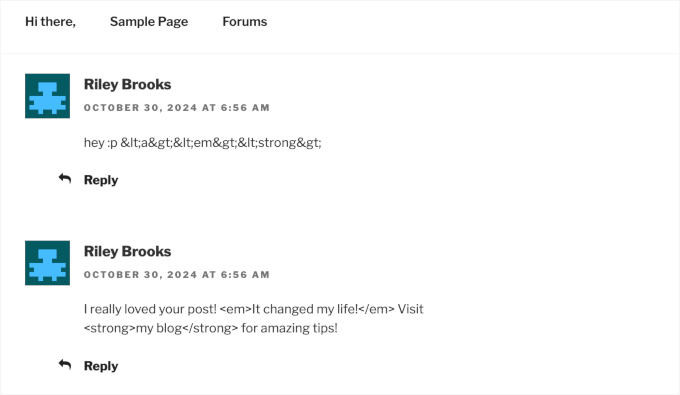
This means that someone can still post something like:
I really loved your post! <em>It changed my life!</em> Visit <strong>my blog</strong> for amazing tips!
Or a very random string like this:
<a><em><strong>
The comment will still show up, but the HTML tags will not be functional.
This simple feature gives you more control over the type of content shared on your WordPress website. It also makes managing your site easier and keeps your readers safe from unwanted or harmful comments.
Now, let’s see how you can disable HTML in WordPress comments. Here are all the topics we’ll cover in this guide:
Disabling HTML in WordPress Comments
Typically, people will tell you that the method for disabling HTML in WordPress comments involves a bit of coding. They say you’ll need to open your theme’s functions.php file and add a custom code snippet.
However, this isn’t the most beginner-friendly method, and you risk breaking your site by modifying your functions.php file.
That’s why we recommend using WPCode, the best code snippet plugin for WordPress.

WPCode lets you safely add custom CSS, PHP, HTML, and more to WordPress. You can simply paste a snippet into its editor and activate it with one click.
Some of our partner brands use WPCode to add and manage custom code snippets on their websites. We’ve seen how it streamlines our workflow, and you can learn more about how it works in our complete WPCode review.
So, let’s install and activate the WPCode plugin. You can start out with the free version, as it supports custom code snippets. If you need help, then you can follow our guide on how to install a WordPress plugin.
📝 Note: WPCode Pro comes with more features. So, if you like the plugin, then you might want to upgrade to the premium version. It includes a library of 100+ ready-made snippets, like disabling comments and disabling attachment pages.
In addition, you can also get access to the complete revision history for all your snippets and the ability to schedule your code.
Upon activation, you’ll want to head over to Code Snippets » + Add Snippet.
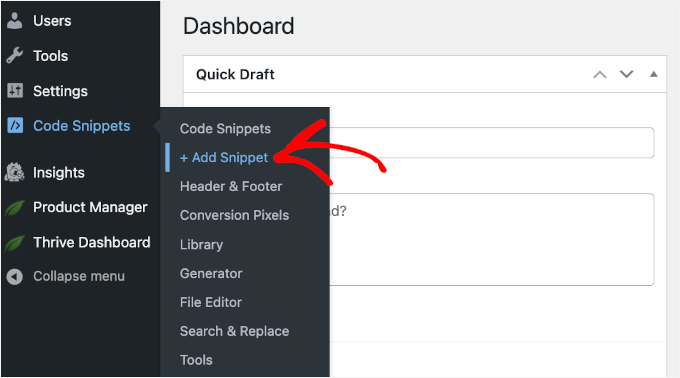
This will take you to the code snippet library.
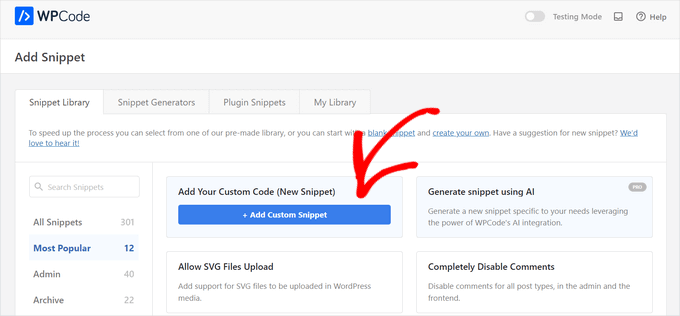
Since we’re going to use a custom snippet, you can hover over the ‘Add Your Custom Code (New Snippet)’ and click the ‘+ Add Custom Snippet’ button.
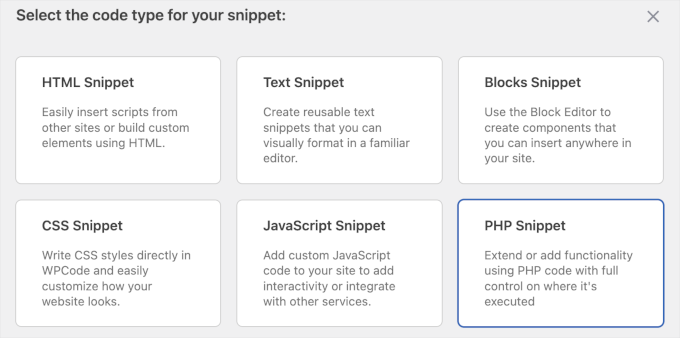
On the next screen, WPCode will ask you to choose a code type.
In this case, you’ll want to choose ‘PHP Snippet’.
Simply click on the relevant box to select the PHP code type.
You should now arrive at the code editor.
From here, you can first add a title for your custom code snippet. Let’s make sure you use a clear name, as it will help keep everything organized. For example, we are using ‘Disable HTML in Comments.’
Next up, in the ‘Code Preview’ box, you can add the following custom code snippet. This code uses a simple PHP function to convert any HTML tags into plain text, so the browser will display them instead of executing them:
add_filter( 'preprocess_comment', function( $comment_data ) {
    $comment_data['comment_content'] = htmlspecialchars( $comment_data['comment_content'] );
    return $comment_data;
} );
Here’s what it looks like in the editor:

From here, all you have to do is run the code.
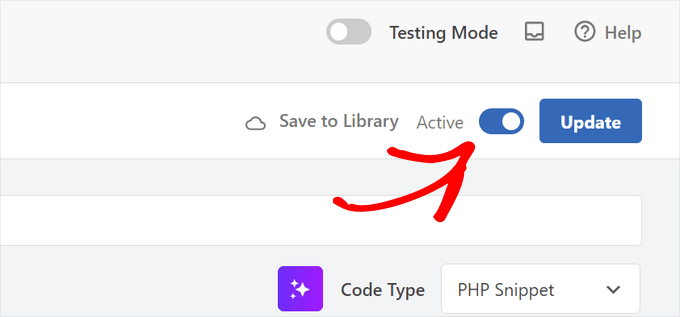
To do this, you can switch the toggle from ‘Inactive’ to ‘Active’ and click the ‘Save Snippet’ or ‘Update’ button.
And that’s it!
Now, you can test commenting on your own blog post using HTML tags and see how it appears on the front end.
Here’s what it looks like on our demo site:
💡 Pro Tip: Why use a plugin like WPCode instead of editing your theme’s functions.php file directly? Any custom code added to functions.php can be erased when you update your theme.
WPCode keeps your snippets safe and separate, so they continue working no matter how many times you update your theme or plugins.
Bonus Tip: Disabling Auto-Linking of URLs in WordPress Comments
If you want to boost your site’s security even further, then it’s a good idea to disable auto-linking of URLs in WordPress comments.
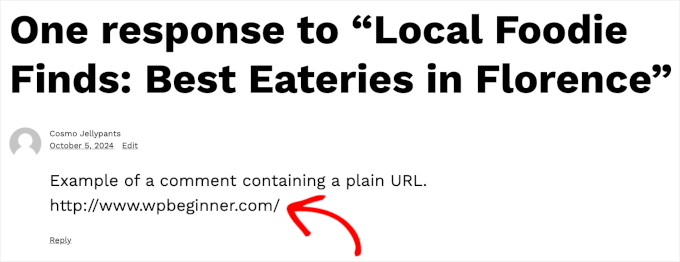
WordPress automatically converts text URLs in comments into clickable links. This auto-linking doesn’t change your database but is displayed in the admin area and comments section.
While some commenters may have genuine reasons for pasting links, some others might have malicious intent with their direct URLs.
Spammy URLs can pose security risks. Some of these links might lead to harmful sites or scams, which could compromise your visitors’ safety.
By keeping your comment section clean and free of these direct URLs, you help ensure a better user experience for everyone on your site.
The good news is that you can use WPCode to do this easily and safely. For step-by-step instructions, you can see our guide on how to disable auto-linking of URLs in WordPress comments.
FAQs: Disabling HTML in WordPress Comments
Will disabling HTML in comments affect existing comments?
No, this code only affects new comments. Old comments with HTML will stay intact unless you edit them manually.
Is it safe to use WPCode?
Yes. It’s safer than editing functions.php because it prevents errors that can break your site.
Can I re-enable HTML later?
Yes, just deactivate or delete the snippet in WPCode.
Additional Resources: Improve Your WordPress Comments
We hope this article has helped you learn how to disable HTML in WordPress comments. Next up, you might want to explore our other guides on:
- Best Plugins to Improve WordPress Comments
- How to Highlight Author’s Comments in WordPress
- How to Display the Most Commented Posts in WordPress
- How to Allow Users to Edit Their Comments in WordPress
- How to Make Blog Post Comments Searchable in WordPress
If you liked this article, then please subscribe to our YouTube Channel for WordPress video tutorials. You can also find us on Twitter and Facebook.





Gwyneth Llewelyn
Unfortunately, the Peter’s Literal Comments plugin is not active any longer; it has been updated last in 2015, and may not even work on recent versions any more. You might need to recommend a different plugin instead…
WPBeginner Support
Thank you for letting us know that the plugin is not active a the moment. When we look at updating the article we will look for an alternative
Admin
KM Shariful
What html codes I can use in comment box of wordpress site as a visitor?
WPBeginner Support
Hi,
You can use the following HTML tags in comments by default.
<a href="" title=""> <abbr title=""> <acronym title=""> <b> <blockquote cite=""> <cite> <code> <del datetime=""> <em> <i> <q cite=""> <s> <strike> <strong>Admin
San Solanki
Very well written article, i always follow your blog for all my wordpress problems thnks
Ekesmall
Is not working here………anyway round??
Sandile Nxumalo
After all these years, this still works. Thanks
carlo
Dude, you forgot the closing tag }
WPBeginner Support
Thanks for pointing out, we have fixed the code snippet.
Admin
anshu
there are lots of commnts on my every blog post … how to disable HTML hyperlink so that i can prevent my blog post from spam
falvarez
I think that something is missing. You should add your function plc_comment_display() to the filter stack like this:
add_filter(‘comment_text’, ‘plc_comment_display’);
Regards.
johnroypaul
Brilliant article thanks! Seems to work perfectly well with the latest versions of wordpress as well (3.3) Made the code a lot cleaner as mentioned and seems to have made life easier when trying to implement the comments form into side areas ect. (Had a nightmare with previous use of the normal code)
wordpress hosting
The more mature you are, the harder at risk you are for getting something undesirable happen to you while overseas. Thanks for revealing your suggestions on this blog.You have good grapes on wordpress thanks for making my problem so easy .
Kamal
Great, by this way one can ensure that nobody drops links in the comment box. I really hate to see people doing that unnecessarily.
shoaib hussain
Nice piece of code,but if you happen to use thesis like I am,only needs to check a radio button and the html code vanishes.
Editorial Staff
Yes you are right, but we are not supporting Thesis on this site because it is not compatible with the GPL License.
Admin
Cruz3N
Its confused me Bro, but i make some simple plugin that allow you to replace with > ;
<?php
/*
Plugin Name: Filter Comments
Plugin URI: http://cruzenaldo.com/plugin-sederhana-filter-komentar/
Description: Plugin sederhana untuk melakukan filterisasi terhadap komentar dan mencegah user menginput tag – tag HTML
Author: Cruz3N
Author URI: http://www.cruzenaldo.com/
Version: 1.0
*/
function my_function ($text) {
$text = str_replace('’, ‘> ;’, $text);
return $text;
}
add_filter(‘comment_text’, ‘my_function’);
?>
You can modification that better… Hope usefull
Download here
http://www.box.net/shared/rgb4lmt5uy
And this is my ugly blog :p
http://cruzenaldo.com/
Best Regard
Cruz3N
Infographiste
Thank you for the useful tuto and easy to follow. I’ve found another one explaining how to disable HTML but was to hard and badly explained, anyway thanks again and have a great week end
michelle
this great and should help to block out loads of spam thanks
Blogger Pemula
Thanks for the Great Tips.
Is it affecting commentluv plugin?
Editorial Staff
Haven’t tried yet, but don’t think it should.
Admin
Ms. Freeman
This will be of great help from those spam bots that try to leave comments with twenty or so links…LOL:) Thanks
Jad Limcaco
Thanks! Didn’t know how to do this before.