


A plain, clunky WordPress form can make even the best-designed website feel unfinished and look completely out of place.
The worst part? Visitors might feel unsure about filling it out if it doesn’t match the rest of your site.
Throughout our journey running a WordPress blog, we’ve learned that well-designed, branded forms can make a big difference.
In fact, when we matched our forms to our site’s colors and layout, we saw a huge increase in form submissions.
In this guide, we’ll show you two simple but powerful ways to customize and style your WordPress forms, so they not only look great but also perform better. 🚀
📚 Summary: Customizing your WordPress forms helps them match your site’s branding and makes them more trustworthy for your visitors. In this guide, we will show you how to style your forms using the built-in WPForms settings or by adding custom CSS with the WPCode plugin.
Why Customize and Style Your WordPress Forms?
Customizing your WordPress forms helps them match your brand, which builds trust and can significantly increase your form conversion rates. By styling your forms, you make them more visually appealing and easier for your visitors to navigate.
For example, if you add a registration form to your website using a user-registration form plugin, then you will see that its layout is a bit boring. This can fail to capture your visitor’s attention and even discourage them from filling out the form.

Customizing your forms can make them more attractive by matching them to your WordPress theme and branding.
This can lead to more conversions because styled WordPress forms are easier to navigate and can encourage more users to fill them in.

Styled forms can also increase your brand awareness among users. For instance, you can use your website logo and signature company colors to make your form more memorable and effective.
Now, we’ll show you how to easily customize and style your WordPress forms, step by step.
We will cover two methods in this post, and you can use the quick links below to jump to the one you want to use:
- Method 1: How to Customize and Style WordPress Forms With WPForms (Code-Free Method)
- Method 2: How to Style WordPress Forms With CSS (Advanced Customization)
- Bonus Tip 🧑💻: How to Easily Create Custom Website Pages
- FAQs About Customizing and Styling WordPress Forms
- More Guides to Using Forms in WordPress
Let’s get started!
Method 1: How to Customize and Style WordPress Forms With WPForms (Code-Free Method)
WPForms is the best WordPress contact form plugin with a drag-and-drop builder. It offers 2,000+ pre-made themes and built-in customization options for code-free form styling, plus AI tools for form creation.
We use WPForms on WPBeginner for contact forms, website migrations, and our annual survey. To read more about our experience, see our complete WPForms review.

Step 1. Install and Activate the WPForms Plugin
First, let’s sign up for a WPForms account.
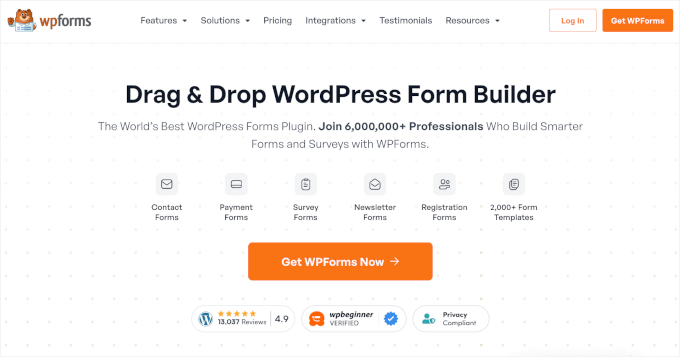
On their website, click the ‘Get WPForms Now’ button, pick a plan, and follow the on-screen instructions to complete registration.
📝 Note: WPForms also has a free version, but the pre-made themes and advanced customization options demonstrated in this guide require the WPForms Pro version.
Now, you need to install and activate the WPForms plugin.
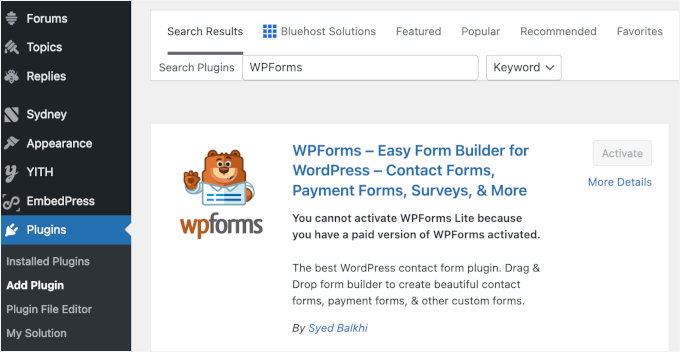
In your WordPress admin area, head over to Plugins » Add Plugin.

On the next screen, you can use the search bar to quickly find the WPForms plugin.
Click ‘Install Now’ and then ‘Activate’ to enable it on your WordPress site.
For detailed instructions, see our step-by-step guide on how to install a WordPress plugin.
If you are using the Pro version, then visit the WPForms » Settings page in the WordPress admin sidebar to enter your license key upon activation.
You can find this information in your account on the WPForms website.
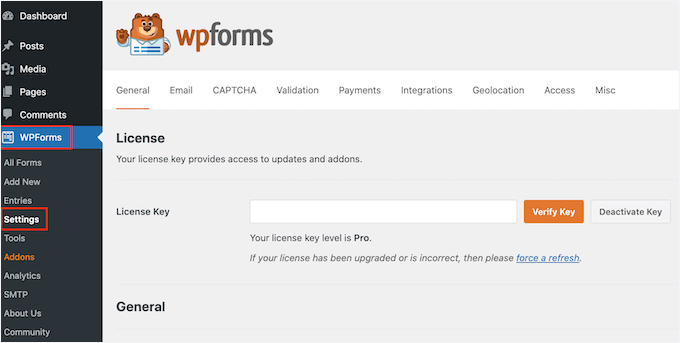
Next, go to WPForms » Settings in your admin dashboard and verify that the ‘Use Modern Markup’ checkbox is selected.
You must enable Modern Markup to unlock the advanced design settings and customization options within the WordPress block editor.
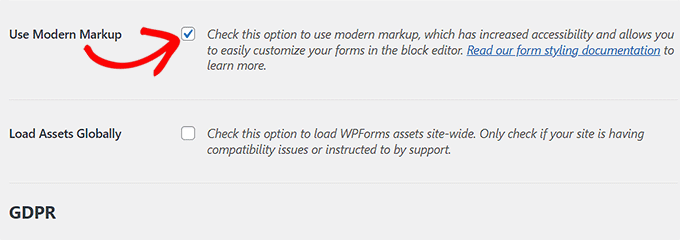
Don’t forget to click the ‘Save Changes’ button to store your settings.
Step 2. Create Your WordPress Form
From here, let’s head over to the WPForms » Add New screen from the WordPress admin dashboard to create your form.
This will take you to the ‘Setup’ page, where you can start by typing a name for your form.
After that, you can pick any form template that you want, hover over it, and click the ‘Use Template’ button under it. For this tutorial, we will be creating and adding a simple contact form to our website.
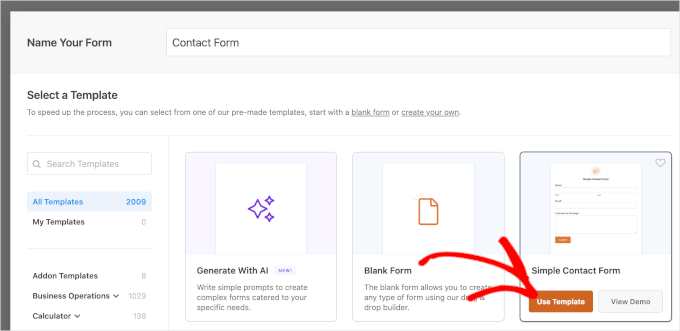
This will launch the template in the WPForms form builder, where you will see a form preview on the right and form fields in the left column.
From here, you can drag and drop any form field of your choice to the form according to your liking. You can also rearrange or delete fields.
For detailed instructions, see our tutorial on how to create a contact form in WordPress.
Expert Tip: Because this form collects visitor data like email addresses and names, you must disclose this in your Privacy Policy to stay GDPR compliant.
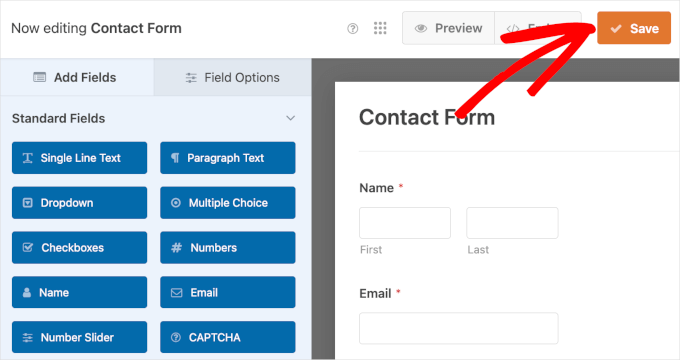
Once you are done with your form, simply click the ‘Save’ button at the top to exit the form builder.
Step 3. Customize Your Form Design with WPForms Themes
You’re now ready to add your form to the block editor and customize it. Let’s click the ‘Embed’ button inside the form builder.

This will open the embed wizard, where you can choose one of the following options:
- Select an existing page – Pick a page on your WordPress site and add the form using the WPForms block.
- Create a new page – This automatically adds the form to a new page.
For this guide, we’ll choose ‘Create New Page.’

Next, let’s add a name for the new page, for example, ‘Contact Us.’
Go ahead and click on ‘Let’s Go!’ when you’re done here.

This will open the page editor with your form already embedded.
For details, see our guide on how to embed forms in WordPress.
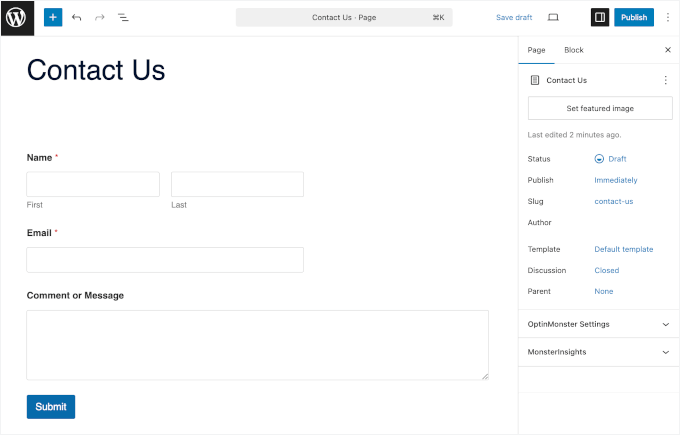
Now that you’ve added the form, it’s time to customize and style it.
To do this, you must open the block panel on the right side of the screen and scroll down to the ‘Themes’ section.
From here, you can choose from a library of 40+ pre-designed themes to instantly give your form a beautiful look.
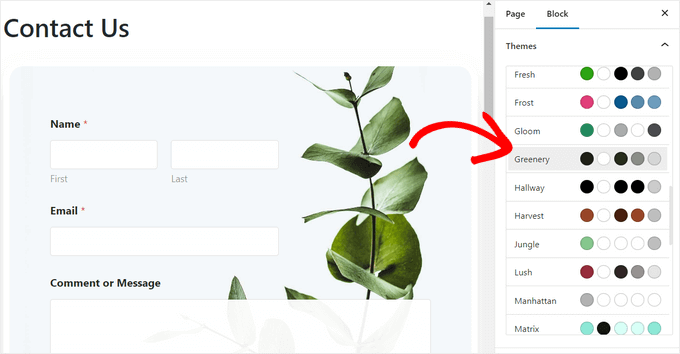
Next, you can scroll down to the ‘Field Styles’ section to customize your form further.
You can select the size of your form fields from the dropdown menu and even set their border size and radius.
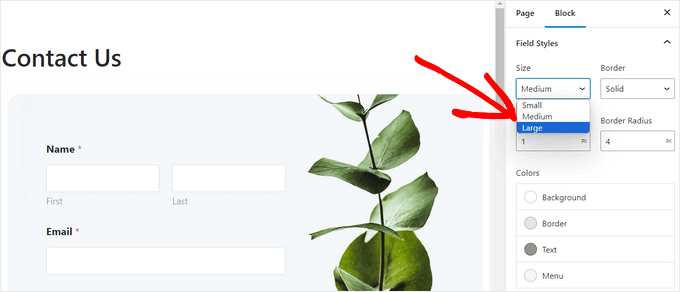
Next, you can change the background, text, and border color of the form fields by using the color picker tool.
Here, you can use your brand’s signature colors or other colors that are used on the rest of your WordPress blog to create a visually appealing form.
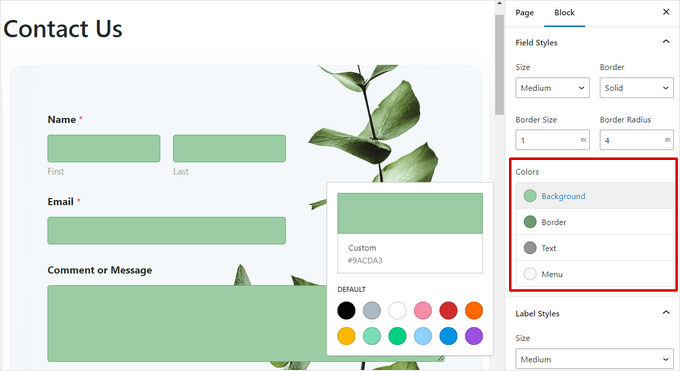
Once you’ve done that, scroll down to the ‘Label Styles’ section, where you can select the font size of the labels from the dropdown menu.
After that, you can also change the font color of the field labels, sub-labels, and error messages that will be displayed in your form.
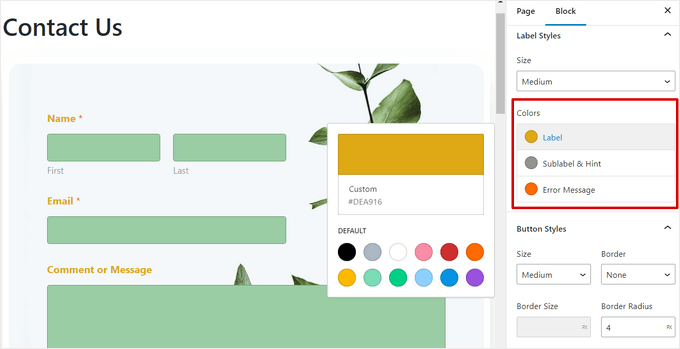
To customize the button in your form, scroll down to the ‘Button Styles’ section and select its size from the dropdown menu.
You can also set a border radius and change the background and text color of the form’s submit button.
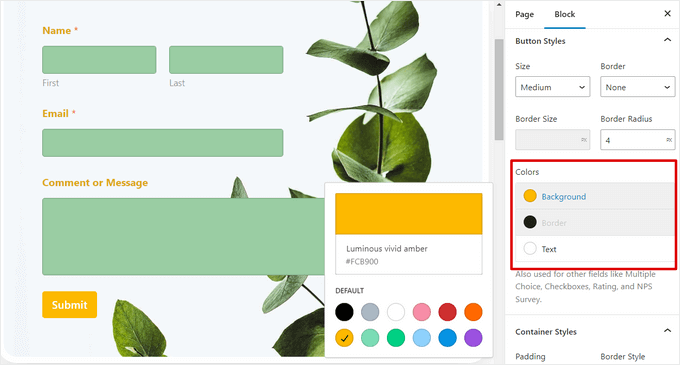
Once you’ve finished customizing the form, simply click the ‘Update’ or ‘Publish’ button at the top to store your settings.
Now, you can visit your WordPress site to view the styled form in action.

Method 2: How to Style WordPress Forms With CSS (Advanced Customization)
If you don’t want to use the customization options offered by WPForms or you want to apply different customizations with CSS, then you can also use a custom CSS snippet.
Step 1. Create Your Form Using WPForms
To start, you will need to create a form using WPForms. It is the best WordPress contact form plugin with a drag-and-drop builder, offering 2,000+ templates to help you quickly create contact forms, file upload forms, registration forms, and RSVP forms.
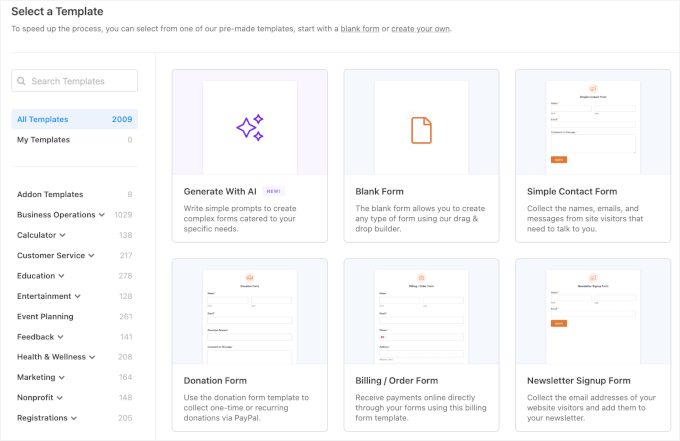
For detailed instructions, you can see our tutorial on how to create a contact form in WordPress or see method 1.
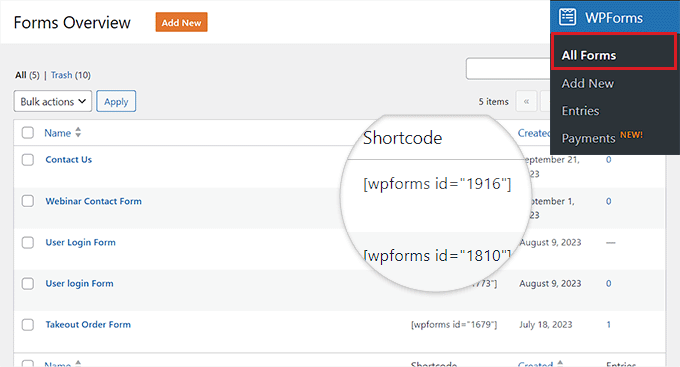
Once you’ve done that, let’s get your form ID – you’ll need it for your custom code snippet.
To do this, visit the WPForms » All Forms page in the WordPress dashboard and copy the WPForms ID number of the form that you want to style.
Step 2. Install and Activate WPCode
WPCode is the safest and easiest WordPress code snippets plugin for adding custom CSS to style forms. It features smart code validation to prevent errors and offers a ready-made snippets library for WordPress customization.
We use WPCode on WPBeginner to add and manage custom code snippets across our business websites. To read more about our experience, see our complete WPCode review.
First, you can create a WPCode account. On the WPCode website, click the ‘Get WPCode Now’ button, select a plan, and follow the on-screen instructions to sign up.

📝 Note: WPCode has a free version that you can use for this tutorial. However, if you need advanced code scheduling or full revision history access, you’ll need WPCode Pro.
Now, let’s install and activate the WPCode plugin.
In your WordPress admin dashboard, go to Plugins » Add Plugin.
Next, you can use the search box to quickly find the WPCode plugin.
When you see it, click the ‘Install Now’ button and ‘Activate.’
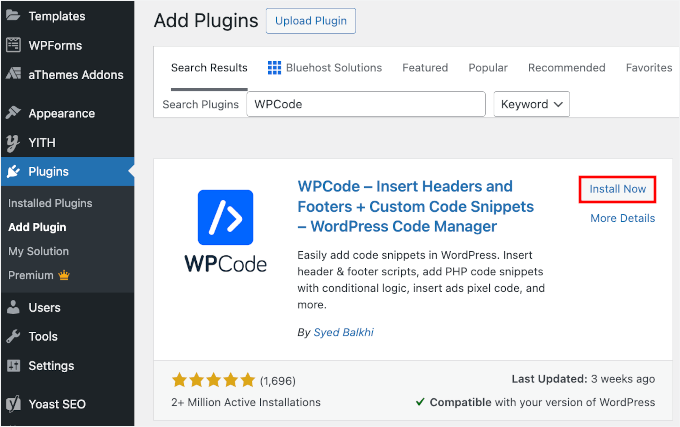
For detailed instructions, see our beginner’s guide on how to install a WordPress plugin.
Step 3. Add Custom Code Snippet to Customize WordPress Forms
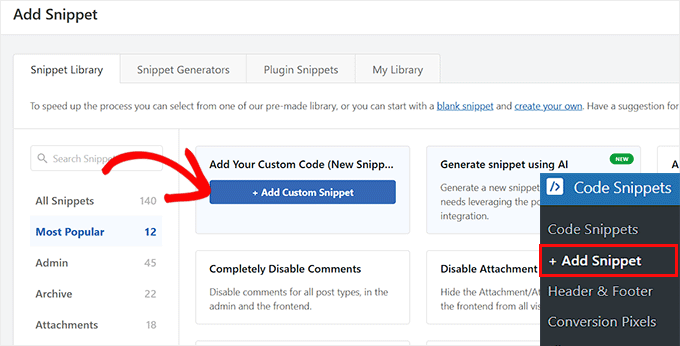
Upon activation, visit the Code Snippets » + Add Snippet page from the WordPress dashboard.
Then, hover over the ‘Add Your Custom Code (New Snippet)’ option and click the ‘Use Snippet’ button.
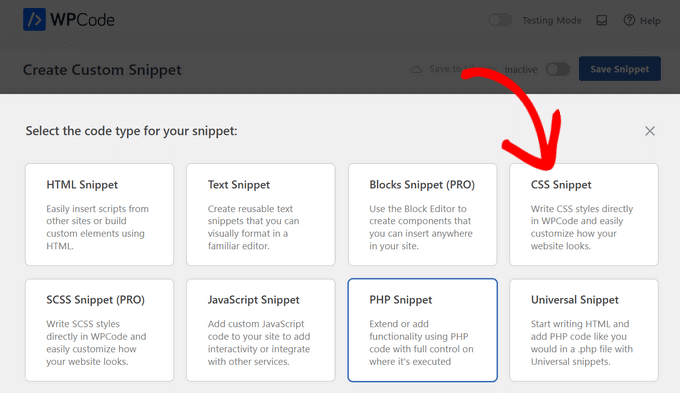
You’ll then see a popup that asks you to select your Code Type.
Let’s choose ‘CSS Snippet.’
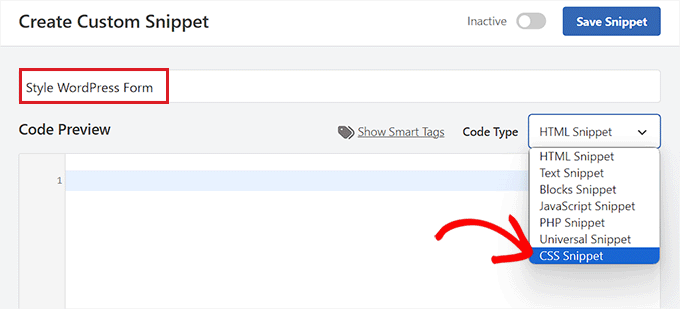
This will take you to the ‘Create Custom Snippet’ page, where you can start by typing a name for your code snippet.
After that, select the ‘CSS Snippet’ option from the dropdown menu in the right corner of the screen.
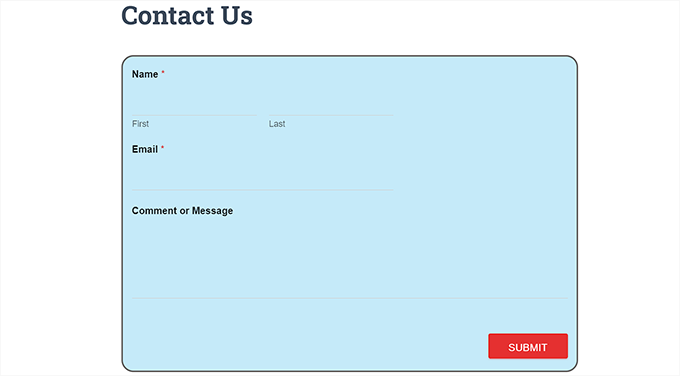
Next, copy and paste the following code into the ‘Code Preview’ box. The !important tags tell the browser to prioritize these styles over your theme’s default settings:
#wpforms-0000 .wpforms-form {
    background-color: #ADD8E6 !important;
	font-family: 'Arial', sans-serif !important;
    padding: 20px 15px !important;
    border: 3px solid #666 !important;
    border-radius: 20px !important;
}
Here’s what it may look like on your screen:
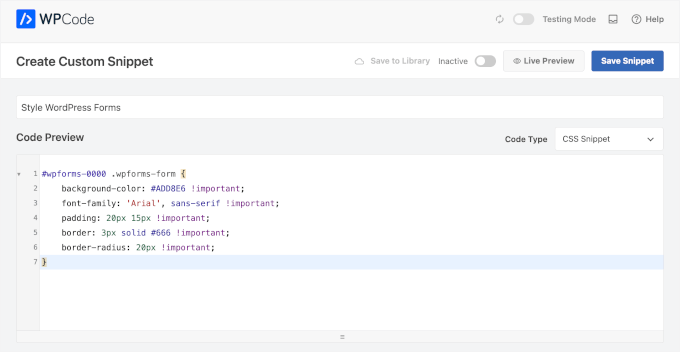
📝 Note: Don’t forget to replace only the 0000 placeholder with your specific form ID number. Make sure to keep the #wpforms- part intact so the code works correctly.
Next, you can change the hex code, like #ADD8E6, to match your brand’s specific color. You can find these codes using any free online color picker tool.
You can also add a font family of your choice and configure the padding (spacing inside the box) and border radius (rounded corners) of the form by changing the code snippet.
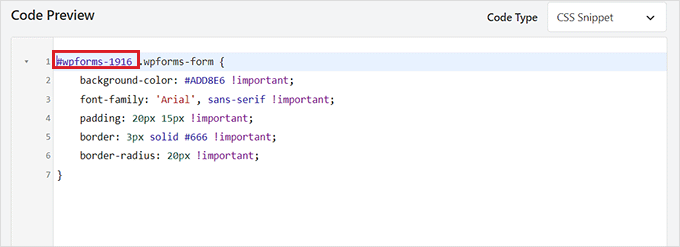
Once you have done that, scroll down to the ‘Insertion’ section and select the ‘Auto Insert’ mode.
The code will automatically be executed on your site upon activation.
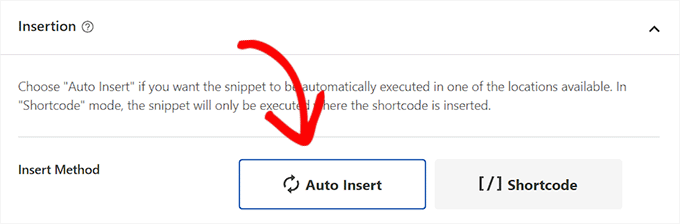
Finally, scroll back to the top of the page and toggle the switch to ‘Active’.
After that, click the ‘Save Snippet’ button to store your settings
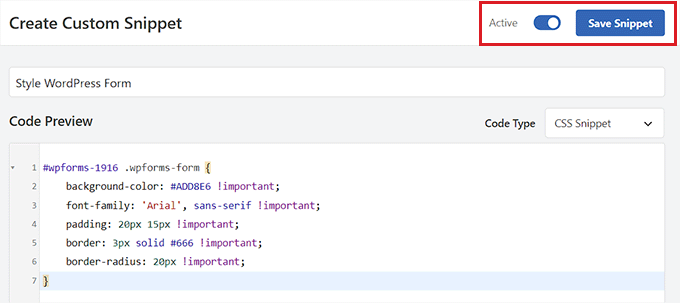
Now, the WordPress form will automatically be customized according to the CSS snippet, and you can go view it.
However, if you haven’t added the form to your website yet, then just open a page or post in the block editor.
Once you are there, click the ‘+’ button in the top left corner to open the block menu and add the WPForms block.
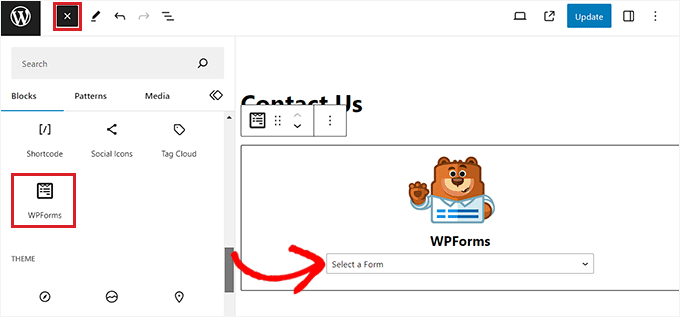
After that, select the form that you styled using the CSS snippet from the dropdown menu in the block itself.
Finally, click the ‘Update’ or ‘Publish’ button to store your settings.
Now, you can visit your WordPress site in an Incognito or Private window to see the customized form in action, as browser caching may sometimes hide recent changes.
🌟 Pro Tip: After adding custom CSS, always check your form on a mobile device. You may need to adjust the padding values if the form looks too narrow on smaller screens.
Bonus Tip 🧑💻: How to Easily Create Custom Website Pages
You can style your WordPress forms to make your site more attractive and visually interesting. It is also possible to design your own fully customized website pages using SeedProd. It is the best drag-and-drop WordPress page builder plugin for creating website pages and themes without code.
We have thoroughly tested SeedProd to see how it compares to other solutions. To read more about our experience, see our complete SeedProd review.
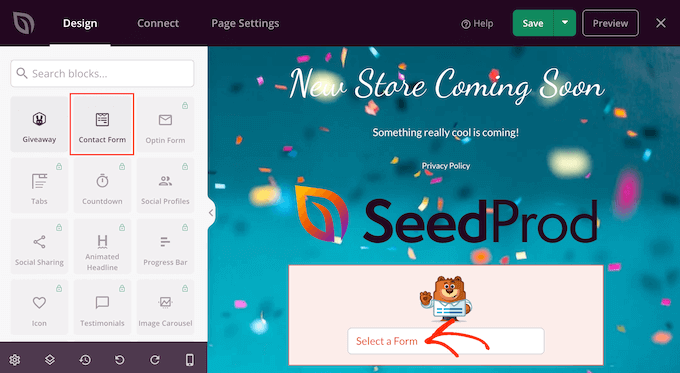
SeedProd also has pre-made templates and site kits, easy customization options, color palettes, and advanced page blocks. Plus, you can easily embed your WPForms forms within the SeedProd editor.
For more details, you can see our tutorial on how to create a landing page in WordPress.
🌟 Pro Tip: You can even use SeedProd to create a viral waitlist page, a sales page, a maintenance page, a coming soon page, and so much more.
FAQs About Customizing and Styling WordPress Forms
Still have questions? Here are some of the most frequently asked questions we get from readers – answered.
What can I customize in a WordPress form?
You can customize the fields, layout, colors, fonts, labels, error messages, and submit button to match your site’s design.
Do I need coding skills to style WordPress forms?
No. With great plugins like WPForms, you can customize and style forms using built-in settings, no code required.
Can I make my forms match my website’s branding?
Yes. You can use your brand colors, fonts, and spacing so the form blends naturally with your WordPress theme.
Will customizing and styling a form affect how it works?
Visual changes won’t affect functionality. Just make sure to test the form if you change required fields or rules.
Can I change the form style later?
Absolutely. You can update the design anytime without rebuilding the form from scratch.
More Guides to Using Forms in WordPress
We hope this article helped you learn how to customize and style your WordPress forms.
You may also want to see our tutorials on:
- How to Upload Files from WordPress Forms to Google Drive
- How to Let Users Take Live Photos and Videos in WordPress Forms
- Tips to Make Your WordPress Forms More Interactive
- How to Automate WordPress Forms with n8n to Save Hours of Manual Work
- Best Google Forms Alternatives (Better Features + Free)
If you liked this article, then please subscribe to our YouTube Channel for WordPress video tutorials. You can also find us on Twitter and Facebook.


Mrteesurez
Part of the reasons I like WPForms is the fact that it’s flexible and highly customizable with built-in templates or using CSS code, one only needs to identify the ID of the particular form he is customizing.
A well designed and customized form appeal to users and position your form as professional.
Thanks for the guide.
WPBeginner Support
You’re welcome!
Admin
Jiří Vaněk
Thanks for the tutorial. I placed a contact form on the website using WPForms and left it in its default state. Actually, I didn’t even think that I could customize it somehow. Thanks to this article, I got several ideas on how to make it more graphically appealing. Thanks
Ralph
Thank you for this guide.
Now my contact form will look better and more professional than default white blank space with light grey lines. This will level up my website design!
WPBeginner Support
Glad we could help improve your site’s design
Admin