


Offering fixed prices doesn’t work for every business, especially if you provide custom services or bulk products.
A ‘Request a Quote’ form solves this by letting customers share their needs before you discuss money. This simple addition can bridge the gap between a casual visitor and a paying client.
We have used custom forms for years to handle our own service inquiries and connect faster with high-quality leads.
In this article, we will show you how to easily create a request a quote form in WordPress.

What Is a Request a Quote Form, and Why Create One in WordPress?
A ‘Request a Quote’ form allows your customers to contact you with their specific information to get pricing based on their requirements.
For instance, if you have a WordPress website for providing gardening services, then your rates may vary depending on lawn size, job type, and time.
Similarly, if you sell products in bulk in your WooCommerce store, then you may be able to adjust pricing based on the customer’s order.
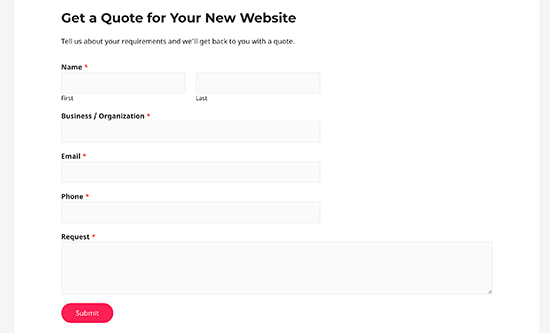
A request a quote form allows you to collect all the customer information you need to offer them accurate pricing for the job.
This provides a dedicated channel for communication between potential customers and your business, saving time and improving customer experience.
Quote request forms typically see higher conversions because users don’t need to enter payment details right away. This helps you generate more leads and make more sales.
That being said, let’s take a look at how to easily create a request a quote form in WordPress.
How to Create a Request a Quote Form in WordPress
You can easily create a request for a quote form in WordPress using WPForms. It is the best WordPress contact form plugin on the market that is used by over 6 million websites.
This plugin allows you to easily make any kind of form using a simple drag-and-drop form builder right inside your WordPress site. Over the years, we have used it across several of our websites for adding forms and have had an incredible experience. To learn more, see our WPForms review.
First, you need to install and activate the WPForms plugin. For more details, see our step-by-step guide on how to install a WordPress plugin.
Note: You can also use the free WPForms Lite plugin to create this form. However, the specific ‘Request a Quote’ template shown below is a Pro feature. If you are using the free version, simply select the ‘Simple Contact Form’ template and add the extra fields manually.
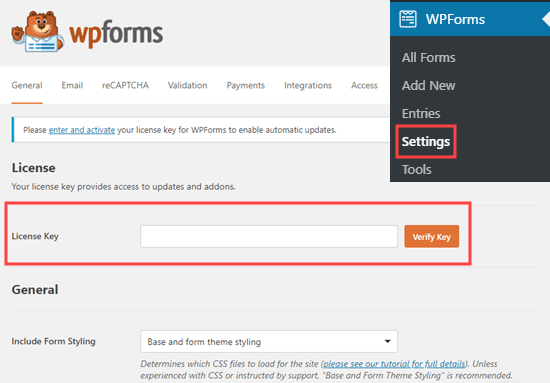
Upon activation, head over to the WPForms » Settings page from the WordPress admin sidebar to enter your license key.
You can find this information in your account on the WPForms website.
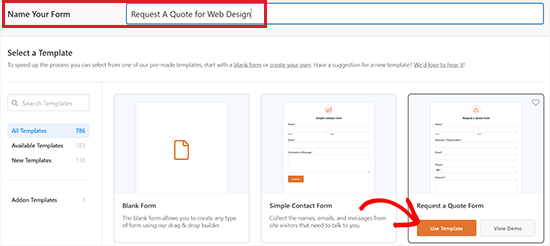
Next, you need to visit the WPForms » Add New page from the WordPress dashboard.
This will direct you to the ‘Select a Template’ page. Here, you can start by typing a name for the form you are about to create.
Once you’ve done that, locate the ‘Request A Quote Form’ template and click the ‘Use Template’ button under it.
This will launch the WPForms drag-and-drop form builder.
Here, you will notice that the available form fields are in the left column, and a form preview is displayed in the right corner of the screen.
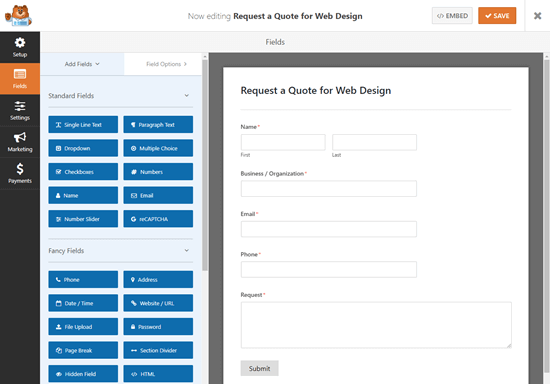
Now, by default, the request a quote form template already has built-in name, email, phone, business, and request fields.
However, you can easily drag and drop additional form fields from the sidebar on the left into the form preview.
For example, you can add the checkboxes field to your form to give users some choices for a question.
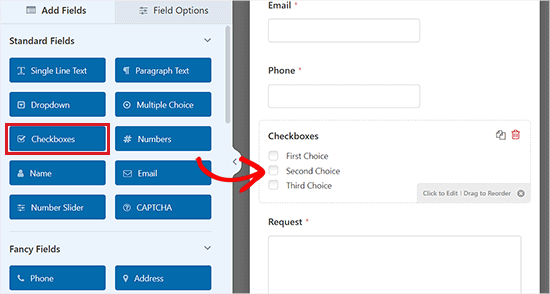
Once you’ve done that, you can also configure the individual form field settings by clicking on them. This will open up the ‘Field Options’ tab in the left column of the screen.
From here, you can change the label, description, field size, placeholder text, and format and even enable smart conditional logic for the field.
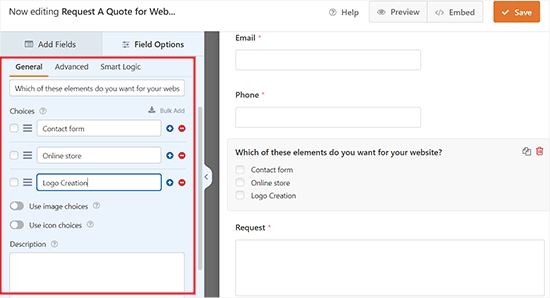
You can also toggle the ‘Required’ switch to active. This way, users won’t be able to submit a form without filling in that specific field.
Once you are finished creating your form, don’t forget to click the ‘Save’ button at the top to save your changes.

Adding Your Request a Quote Form to Your Website
Now that you have created your Request a Quote form, it is time to add it to your WordPress site.
First, open a new or existing page or post where you want to add the form from the admin area.
Once you are there, click the ‘Add Block’ (+) button at the top left corner of the screen to open up the block menu.
From here, locate and add the WPForms block to the page/post. After that, select the request a quote form that you created from the dropdown menu in the block itself.
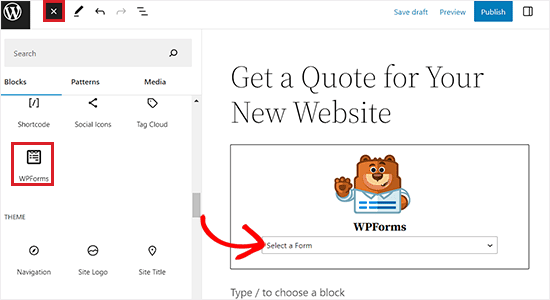
Finally, click the ‘Publish’ or ‘Update’ button to save your changes.
Now, you can visit your WordPress website to view the request a quote form.
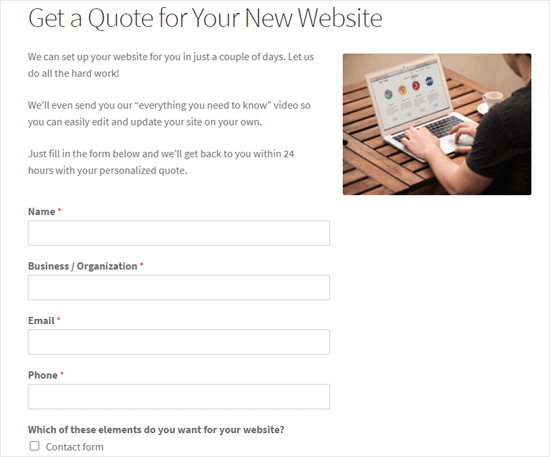
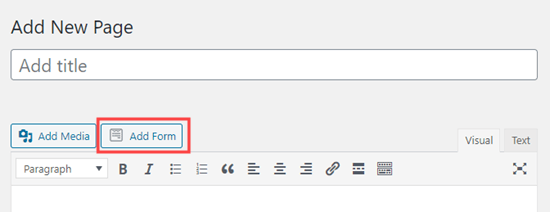
Tip: If you are using the classic editor, then you can easily add the form by clicking the ‘Add Form’ button.
This will open up the ‘Insert Form’ prompt, where you can choose a form to add from the dropdown menu.
Changing the Confirmation Message and Notifications for Your Form
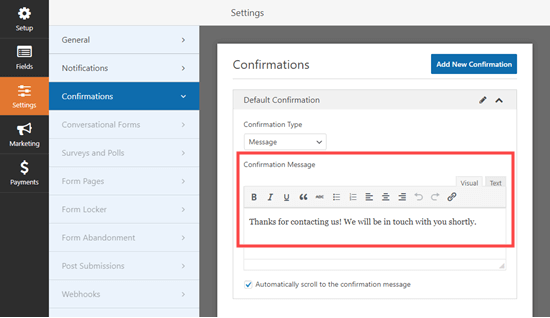
When a potential customer requests a quote, they will see the default confirmation message: ‘Thanks for contacting us! We will be in touch with you shortly.’
However, you can easily change this confirmation message to your liking.
To do this, head over to the WPForms » All Forms page from your WordPress admin sidebar and click the ‘Edit’ link under the request a quote form that you created earlier.
This will launch the WPForms form builder on your screen. Next, you have to click on the ‘Settings’ button in the left column and switch to the ‘Confirmations’ tab.
You will now see a confirmation message box where you can edit and customize the default message.
Don’t forget to click the ‘Save’ button at the top of the screen after making changes.
You can also change the email notification message sent by your form. This is the message that the admin or users receive upon form submission.
To do this, switch to the ‘Notifications’ tab from the left column.
Once you are there, you’ll notice that the ‘Send To Email Address’ setting defaults to {admin_email}. This means that you’ll receive an email every time a user submits the request a quote form on your website.
If you want to send a confirmation email to the users as well, then you have to expand the ‘Show Smart Tags’ option above the ‘Send To Email Address’ field.
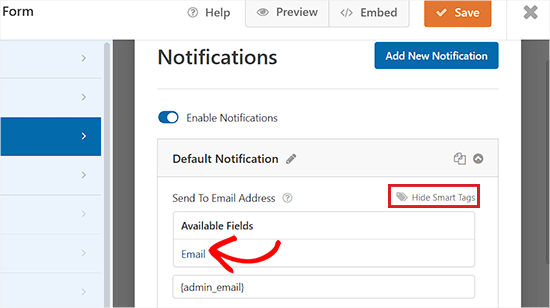
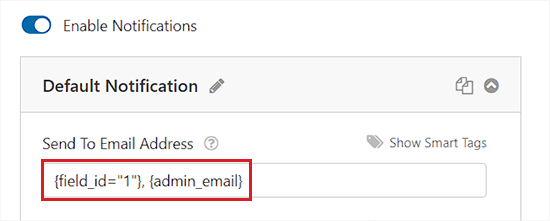
Next, click ‘Show Smart Tags’ and select ‘Email’ from the list. This tells WPForms to send the notification to the email address the user provided in the form.
Remember to separate the smart tags in the ‘Send To Email Address’ field with a comma.
Tip: If you are not getting emails from your form, then you may need to see our tutorial on how to fix WordPress not sending emails issue.
After that, you can change the subject line and the From Name in the email by scrolling to these fields and typing a subject line of your choice.
You can even draft your own form submission confirmation message in the ‘Message’ field.
For more detailed instructions, you may want to see our beginner’s guide on how to send confirmation emails after WordPress form submission.
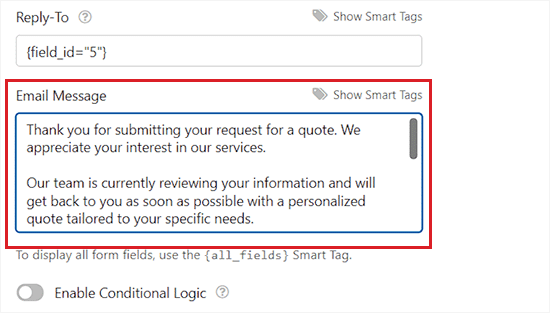
Additionally, you can also send multiple notifications from your form. This lets you send an email to your customer to automatically confirm the details of what they’ve requested.
Once you are done, click the ‘Save’ button at the top to store your form settings.
Bonus: Get More Leads by Offering a Free Quote
WPForms makes it super easy to create a request a quote form in WordPress. However, you may need to give your customers a nudge in the right direction to fill in the form.
This is where OptinMonster comes in.
It is the best lead generation and conversion optimization software on the market that helps you turn abandoned website visitors into subscribers and customers.

The tool helps you convert more users by nudging them to perform the desired action, like filling out a form, joining your email list, or buying a product.
It comes with beautiful popups, powerful on-site targeting, countdown timers, and floating bars. These features help you attract more leads and customers and grow your business.
Video Tutorial
Prefer to watch a video tutorial? You can watch our step-by-step guide below:
Frequently Asked Questions About Request a Quote Forms
We receive many questions from readers about how to best manage quote requests and lead forms. Here are answers to some of the most common questions.
1. Can I allow customers to upload files with their quote request?
Yes. If you need to see a document or a photo of a project to give an accurate price, you can use the WPForms ‘File Upload’ field. This allows users to attach images, PDFs, or other documents directly to their form submission.
2. How do I stop spam quote requests?
Spam can be a major issue for any online form. WPForms comes with a built-in anti-spam token that protects your forms automatically. For extra security, you can also enable Google reCAPTCHA or hCaptcha in the form settings to ensure you only get leads from real humans.
3. Can I redirect users to a custom ‘Thank You’ page?
Yes. By default, the form shows a simple success message. However, you can change the ‘Confirmation Type’ in the settings to ‘Go to URL (Redirect).’ This allows you to send users to a specific page where you can explain the next steps in the process.
4. Does this work with page builders like Elementor or Divi?
Absolutely. WPForms works perfectly with all popular WordPress page builders. You can use the dedicated WPForms widget inside Elementor, Divi, or SeedProd, or simply paste the form’s shortcode into any text module.
5. Can I accept payments on a Request a Quote form?
Yes. While quote requests are typically free, some businesses charge a small consultation fee to filter serious leads. You can easily add payment fields for Stripe, PayPal, Square, or Authorize.net directly to your form to collect these fees.
Additional Resources
We hope this article helped you learn how to create a request a quote form in WordPress. You may also want to see these additional resources:
- How to Fix WordPress Not Sending Email Issue – Essential reading if you aren’t receiving your quote notifications.
- How to Reduce Contact Form Abandonment in WordPress – Tips to get more people to finish filling out your quote form.
- How to Save Contact Form Data in WordPress Database – Ensure you never lose a lead even if an email goes missing.
- Best CRM Software for Small Businesses – How to manage the potential customers who request quotes from you.
If you liked this article, then please subscribe to our YouTube Channel for WordPress video tutorials. You can also find us on Twitter and Facebook.




Jiří Vaněk
I came across this link in another article of yours. Since I have the WPForrms plugin, I am interested in all its options. I’m still amazed at what this plugin can do and I never thought it could even do a quote. So far, I have dealt with this quite unprofessionally using an ordinary contact form. Thanks for your effort and all the articles about WPForms. Since I use it, these tutorials are very useful for me.