


Filling out a long form can feel overwhelming, especially when all the questions appear on one page. Many users lose interest partway through, which can lower your conversion rates.
By breaking a long form into smaller, bite-sized pages, you make the process feel much easier and more approachable. This simple change can lead to a big boost in the number of people who actually complete and submit your forms.
The good news? Creating a multi-page form in WordPress is easier than you might think. With the WPForms plugin, you can use the Page Break field to split the form into different sections.
In this guide, we’ll walk you through the exact steps to create your own user-friendly multi-page form in WordPress. This way, you can make long forms easier to complete and improve your overall conversions. 🙌
Why and When Do You Need a Multi-Page Form in WordPress?
You may need a multi-page WordPress form when your form is long or has many questions. Breaking it into smaller parts makes it easier to fill out and increases the chance that people will finish it.
Adding forms to your website is the easiest way to collect information and connect with your users, whether it’s for contact, email sign-ups, or surveys.
But long forms can be overwhelming and often cause users to give up before finishing.
To solve this, we recommend using multi-page forms. By splitting your questions into smaller sections, you make the form less overwhelming for users.
Here’s an example:
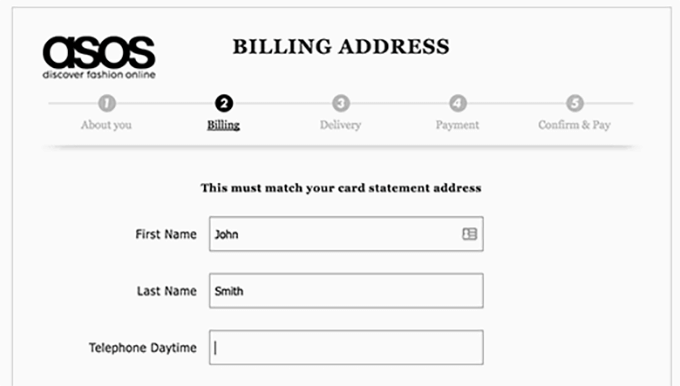
Let’s look at what makes multi-page forms so effective:
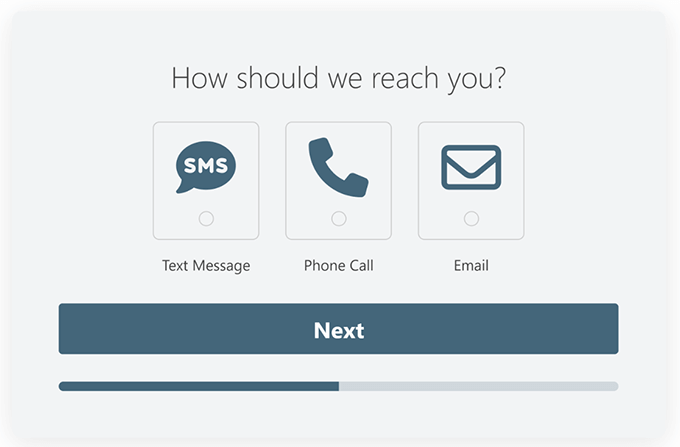
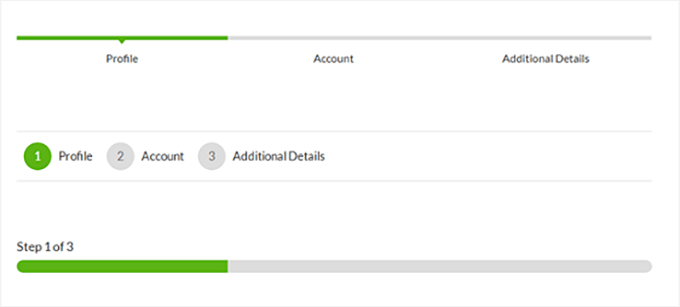
- Progress Bar: Users can see how far along they are, which keeps them motivated to finish.
- Fewer Fields at Once: Only a few questions appear on each page, making the form feel shorter and less stressful.
- Interactive Features: You can add things like image choices or conversational elements to make the form more engaging.
These features can help improve the user experience and boost your form’s completion rate – especially for forms like “request a quote” or lead generation.
Creating a Multi-Page WordPress Form With WPForms
The best way to create a multi-page form in WordPress is by using the WPForms plugin. It is the best WordPress form builder plugin that lets you create any type of form that you need.
Over 6 million website owners use WPForms, including us here on WPBeginner. We use it to display our contact form, run annual reader surveys, manage migration requests, and more. Check out our full WPForms review for more insights into its features.
💡 Note: For this tutorial, you’ll need at least the Basic WPForms plan, which includes multi-page form features and advanced options. On a budget? WPBeginner readers can get 50% off any plan by using the WPForms coupon at checkout.
That said, there’s also a free WPForms Lite version you can try.
With that said, let’s walk you through how to create a multi-page form in WordPress:
- Step 1: Install and Activate the WPForms Plugin
- Step 2: Create Your Multi-Page Form in WordPress
- Step 3: Add Your Multi-Page Form to WordPress Posts and Pages
- Bonus Tip: Take WordPress Multi-Part Forms to the Next Level
- FAQs About Adding a Multi-Page Form in WordPress
- More Guides for Using WordPress Forms
Step 1: Install and Activate the WPForms Plugin
The first step is to set up your WPForms account. You can go to the WPForms website and click on the ‘Get WPForms Now’ button.
From there, simply select a plan, fill out the necessary details, and follow through with the on-screen instructions to complete the process.
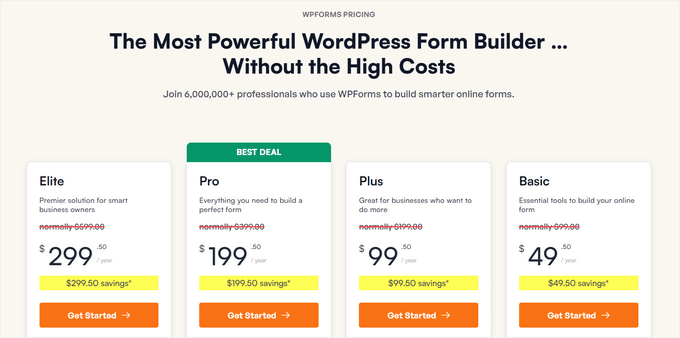
When you’ve finished your registration, you’ll get your WPForms dashboard. Inside, you’ll find your license key. Go ahead and copy your key to use on the next step.
With that done, let’s install and activate the WPForms plugin through the WordPress admin. Simply go to Plugins » Add New Plugin to get started.

On the next screen, you can use the search bar to quickly find the WPForms plugin.
Then, click the ‘Install Now’ button and ‘Activate’ when it appears.
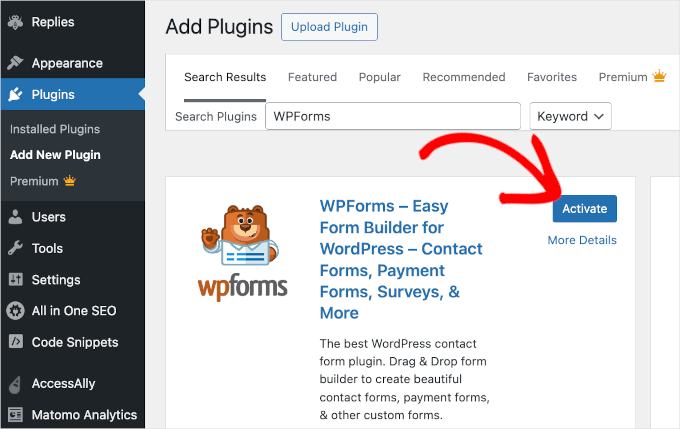
For more details, see our step-by-step guide on how to install a WordPress plugin.
Upon activation, visit the WPForms » Settings page, enter your license key, and click the ‘Verify Key’ button. (You can get this key in your WPForms dashboard.)
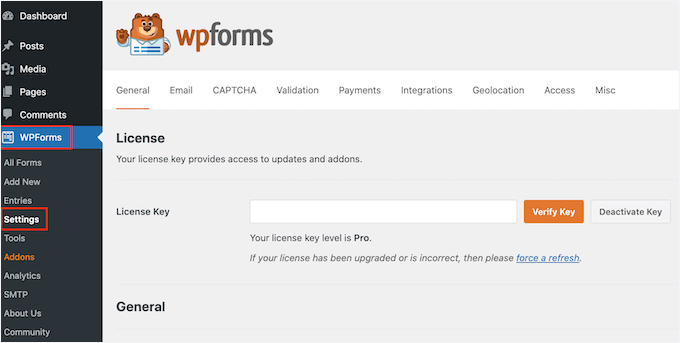
After verifying your license key, you are now ready to create your first multi-page form in WordPress.
Step 2: Create Your Multi-Page Form in WordPress
To start, let’s navigate to the WPForms » Add New page from your WordPress admin area to launch the drag-and-drop form builder.
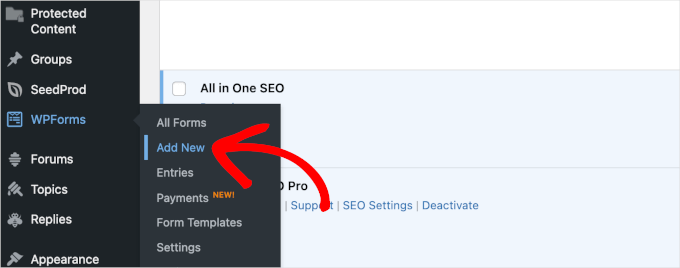
This will take you to the Setup page inside the form builder.
Go ahead and enter a title for your form first.
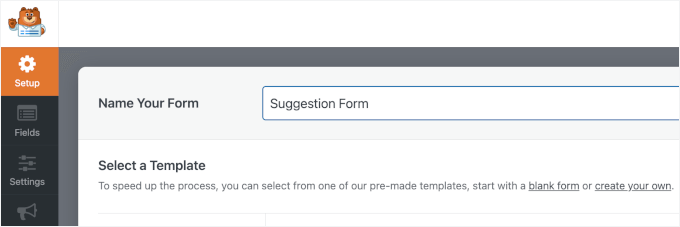
After that, you’ll choose how you’ll build your form.
WPForms offers 2,000+ pre-built form templates to help you save time. You can quickly select one and edit it according to your requirements. There is also a blank form template that you can use to create a fully custom form.
Even better, you can use WPForms AI to quickly build your form. All you need to do is write a short description, and the AI form builder will generate the form for you.

For this tutorial, we’re going to use the ‘Suggestion Form’ template.
Simply hover over the template box and click the ‘Use Template’ button to get started.
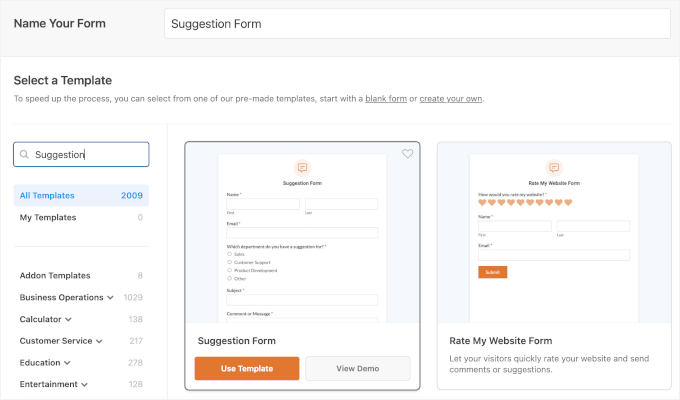
This will take you to their form builder, where you can customize it.
Simply drag the fields from the left column and drop them into your form template. You can also select existing form fields and further customize them.
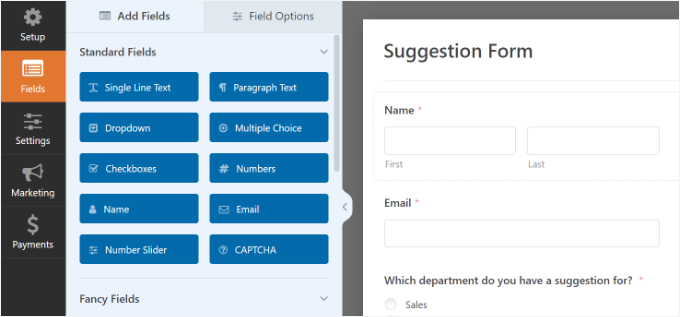
After adding a few form fields, you are ready to add a new page to your form.
Go ahead and add the ‘Page Break’ field under the Fancy Fields section from the left column.
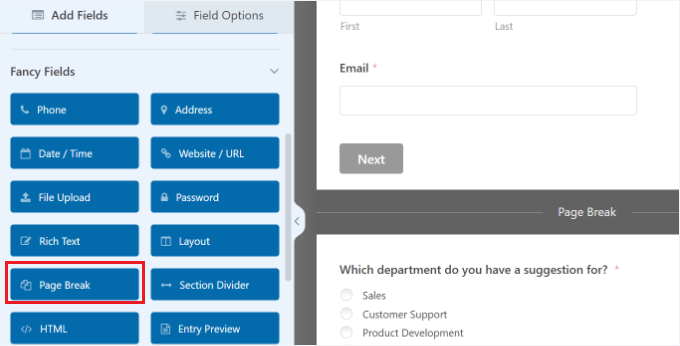
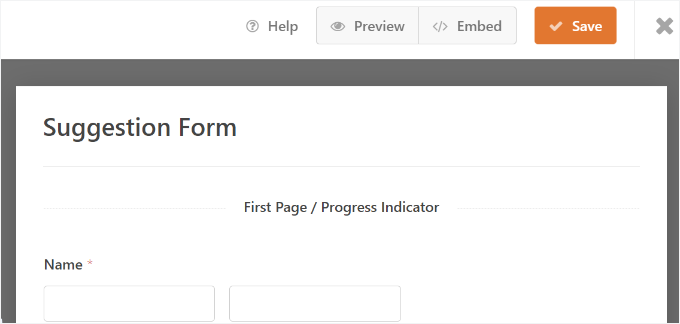
You will notice that WPForms will add a page break marker to the bottom and a ‘First Page / Progress Indicator’ marker at the top of the page.
It will also push the submit button to the next page, and your first page will now have a ‘Next’ button instead.
To edit your multi-page form properties, click on the ‘First Page / Progress Indicator’ marker at the top.
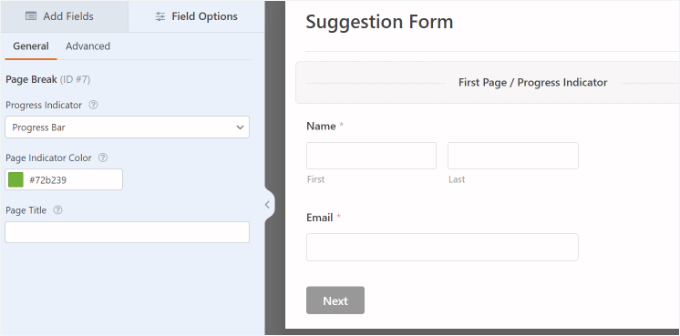
In the left sidebar, you can:
- Choose the type of progress indicator (simple bar, circles, connectors, or none).
- Customize the color for your page indicator.
- Add a title for the first page.
These options enable you to customize the appearance of your multi-page form for users.
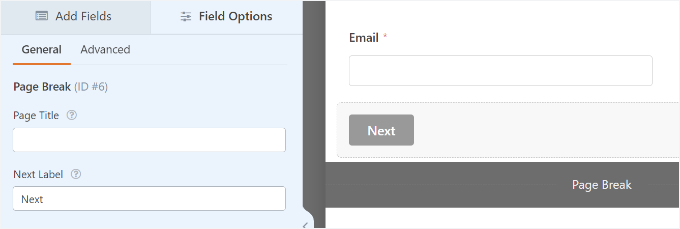
Next, click on the ‘Page Break’ marker to edit its properties. Here, you can:
- Change the text on the ‘Next’ button.
- Provide a title for the next page.
You can then go ahead and add as many page breaks as you need.
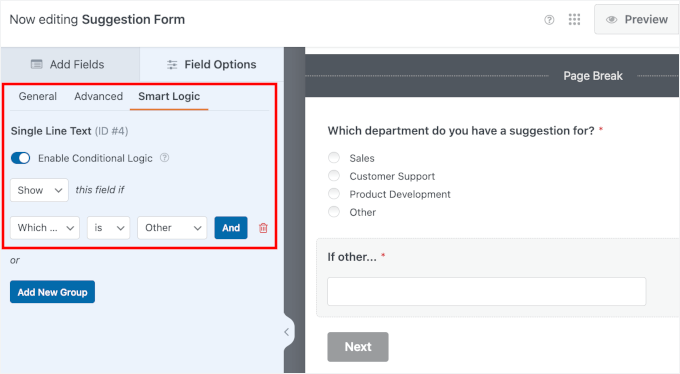
You can also use conditional logic to show or hide fields based on user responses.
In this template, you can see that it’s already set up for the ‘If other…’ field. You can check by clicking on it and going to the ‘Smart Logic’ tab.
When you’re finished, simply click the ‘Save’ button at the top right corner.
You’ve now finished creating your multi-page form. The next step is adding the form to your website.
Step 3: Add Your Multi-Page Form to WordPress Posts and Pages
WPForms makes it super easy to add forms to WordPress posts and pages.
You can click the ‘Embed’ button at the top of the form builder and add the form to a new page or an existing one.
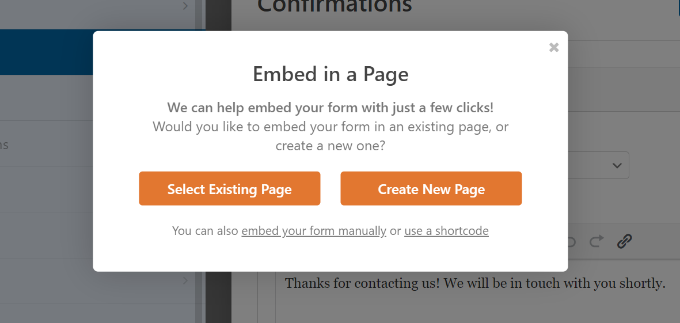
For this tutorial, we’ll pick the ‘Select Existing Page’ option.
In the next popup, you can select a page from the dropdown menu and click the ‘Let’s Go’ button.

This will take you to the WordPress block editor.
From here, you can click the ‘+’ button to add the WPForms block.

WPForms will then load the block to the content editor.
From here, you can select your multi-page form from the dropdown menu.
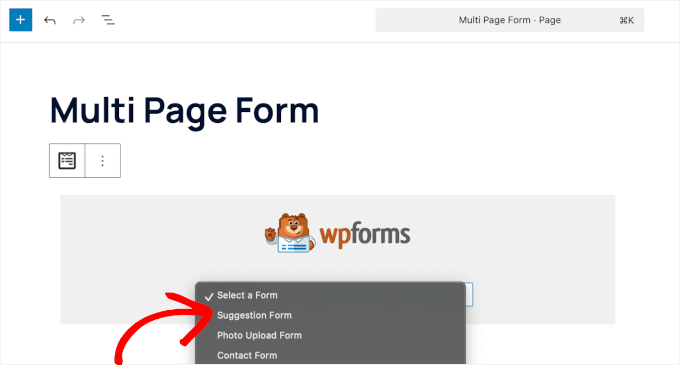
After that, you should see a preview of your form in the block editor.
From here, you can customize how your form should look on your post or page.
For example, in the WPForms block panel on the right, you can enable the Form title and description or style the form using a theme that matches your site design.
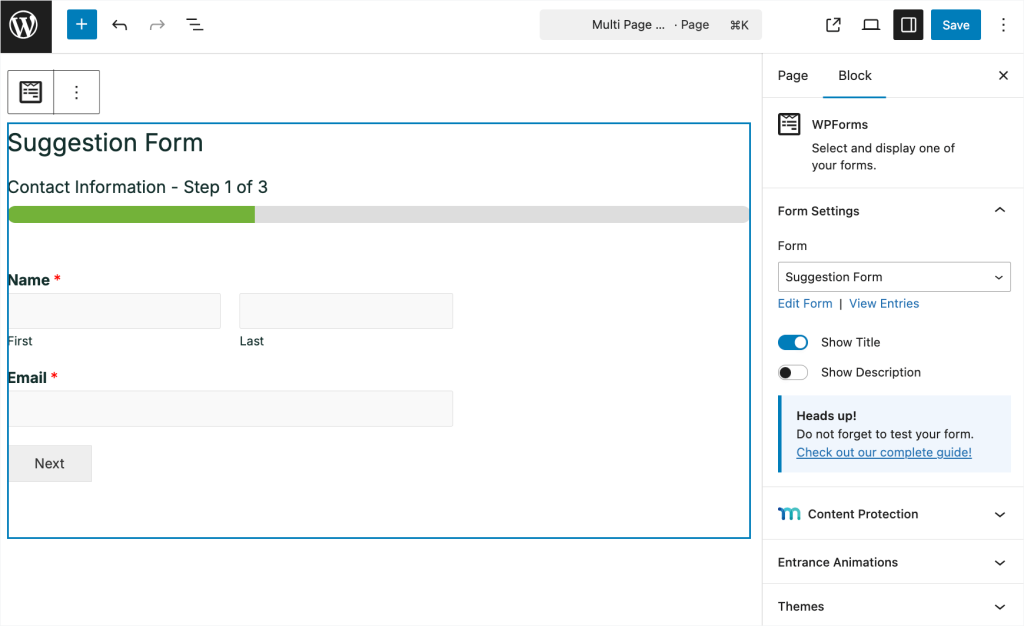
When you’re happy with how everything looks, go ahead and publish your page or post.
With that done, you can visit your WordPress website to see your multi-page form in action:
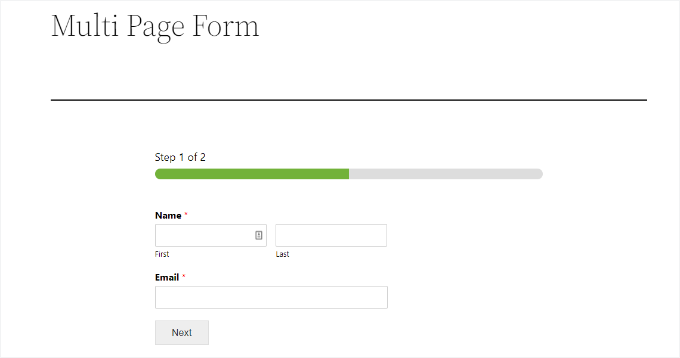
For details, you can see our guide on how to embed forms in WordPress.
Bonus Tip: Take WordPress Multi-Part Forms to the Next Level
Now, if you are like us and other smart business owners, then you probably want to know how to take your lead generation forms to the next level.
There are two things that you can do to drastically improve your WordPress multi-page form conversions.
1. Interactive Lead Forms
WPForms comes with a Lead Forms addon that allows you to improve your form completion rate with an engaging form layout design. (Please note that the Lead Forms addon is available with the WPForms Pro plan or higher.)
Essentially, it allows you to present users with one question at a time, making your forms less intimidating and easier to complete.
This works especially well for a request for a quote form and other lead generation forms on your site. Here’s an example of what it looks like:
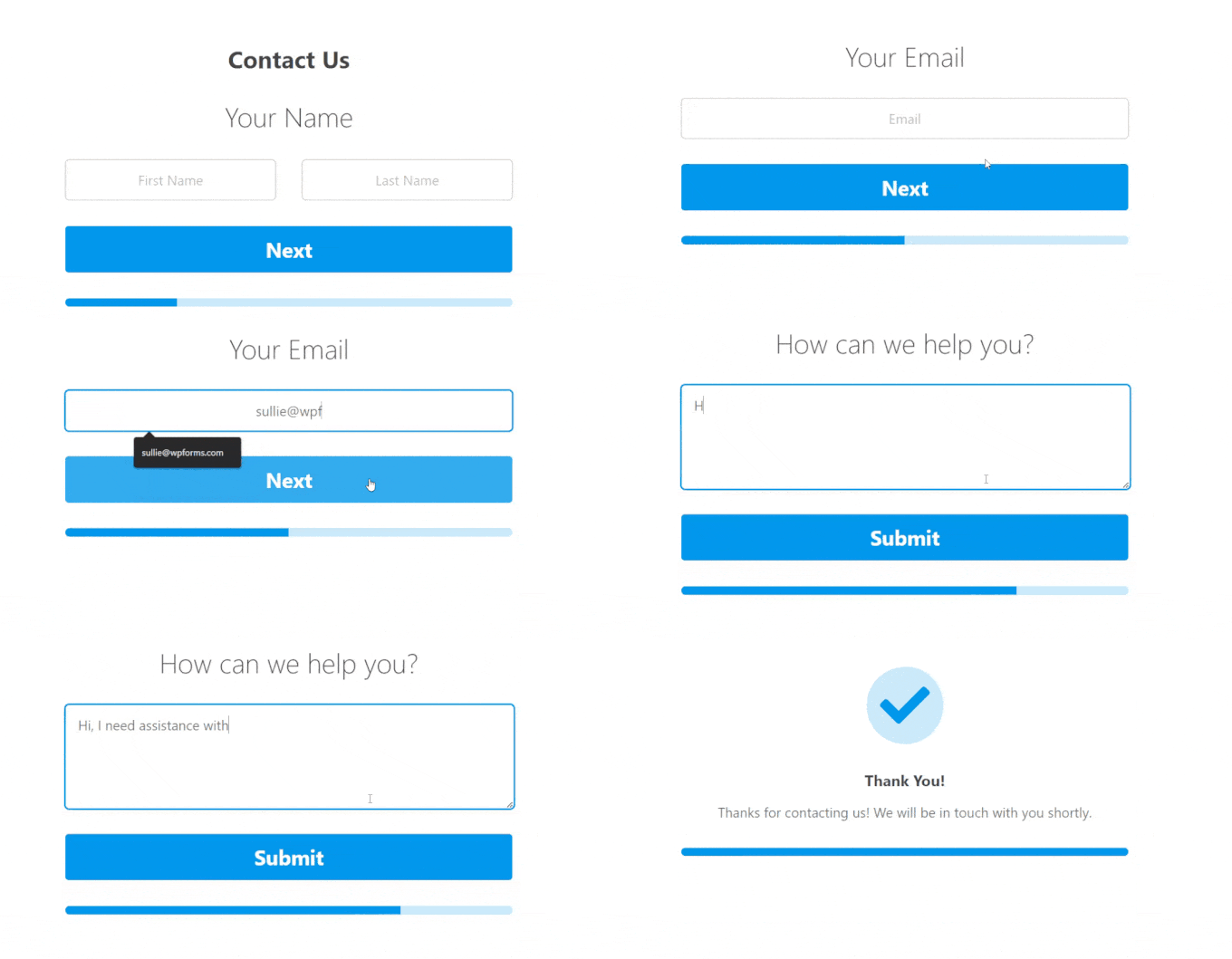
This basically builds on the conversational forms principle that WPForms pioneered in the earlier days. Conversational forms take the one-question-at-a-time approach, similar to a face-to-face conversation.
To put it simply: the Lead Forms addon shows one question at a time within your existing page. Meanwhile, the Conversational Forms addon creates a dedicated, full-screen landing page for a distraction-free experience.

For more tips, see our guide on how to create more interactive forms in WordPress.
2. Enable Partial Form Submissions
Did you know that 81% of people abandon forms before completing them? Studies show this number can be quite high, especially for longer forms, which is why saving partial entries is so valuable.
This is why we recommend enabling partial form submissions in WordPress. The WPForms Form Abandonment addon lets you do that with ease. (This powerful feature is available on the WPForms Pro plan and higher.)
You can simply enable it by going to the Form Abandonment tab in the form builder settings.
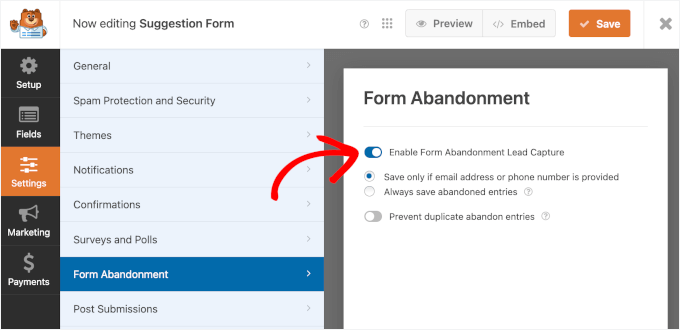
This allows you to send targeted follow-up messages to those who abandon your form to boost your sales conversion.
FAQs About Adding a Multi-Page Form in WordPress
Got more questions about creating multi-page forms? Here are some quick answers to help you out.
Can I have multiple forms on a single page?
Yes, you can add more than one form to a single WordPress page. But if you’re collecting related information, it’s usually better to use a multi-page form instead. It keeps things tidy and makes the process feel easier for your visitors.
What happens if a user abandons the form halfway through?
By default, form data is only saved when someone submits it. If you’re using WPForms Pro, you can turn on the Form Abandonment addon to capture partial entries automatically. That way, you can still follow up with people who didn’t finish filling out the form.
Can I add a ‘Previous’ button to my multi-page form?
Yes! Most form builders let you add a ‘Previous’ button so users can go back and edit their answers before moving forward. It’s a small detail that can make your forms feel more user-friendly.
How can I create a multi-step form in WordPress without a plugin?
It’s possible, but not very practical. You’d need to write the code yourself using HTML and CSS, make sure the information is entered correctly, and build a system to process and save the submissions. Using a plugin like WPForms is much faster and easier for most users.
Can ChatGPT create forms?
ChatGPT can help you write the HTML or plan out how your form should work, including a multi-step layout or question flow. But you’ll still need to add the form to WordPress yourself and handle things like design, validation, and saving entries.
More Guides for Using WordPress Forms
We hope this article helped you add a multi-page form in WordPress.
If you found this helpful, then you may also want to see our guides on:
- How to Show a Floating Contact Form in WordPress
- How to Use Contact Form to Grow Your Email List in WordPress
- Ways to Use Conditional Logic in Your WordPress Forms
- How to Add Save and Continue Functionality in WordPress Forms
- The Ultimate Guide to Using WordPress Forms (All You Need to Know)
If you liked this article, then please subscribe to our YouTube Channel for WordPress video tutorials. You can also find us on Twitter and Facebook.



Ani Kenechi
Hi,
i use WPForms and they are awesome, but i’m having problems with the upload. it doesn’t upload files on most browsers. and it is frustrating.
I am using the upload at the end of a muti-part form of 7 parts
WPBeginner Support
It would depend on your specific issue and the files being uploaded, if you reach out to WPForms’ support they should be able to assist you directly for your specific site and the issue you are running into.
Admin
Tony Ruffo
Hi, I would like to collect step one of a multipart form inside a revolution slider window, then pass the values to the actual multipart form at step 2. I’d like the multipart form to have step 1 when called directly. Is this craziness possible?
jaya
please help me how to add onclick action when we click last submit button the msg come welcome below of progressing bar
Alicia
Can this multi-page form be used in conjunction with the buddypress registration process? i would really like my users to have a multipage form to fill out their profiles…? any thoughts on that :)…Gracias
Alexander Dahlerup
Hey WPBEGINNER
Is it possible to add pictures to your form, so you can show your customers the different opportunities that can be chosen?
Best regards
mike friskney
Hi,
Is it possible to create a table within WPForms?
Mike
Ali
Thanks a lot
would be happy to find a free plugin that provides advanced form settings
Lenlie Ada
Hi,
Good day. And thank you so much for this blog post.
To be honest I’m new to Wordpress and just starting to create my own website for an online business.
My question is does WPForms has the capability to put an “upload audio, video, images option” on one of the pages of the forms? Because I’m planning to use WPForms for an order form wherein the customer will need to upload stuff as one of requirement for the order.
Best regards,
Lenlie
WPBeginner Support
Yes, WPForms allows you to add an upload field to your form. You can also select which types of files and maximum file size users can upload in the field settings.
Admin