


Moving your email service to a new provider often feels risky. One wrong setting, and you worry that important messages from customers will simply vanish into the void.
To make the switch, you need to change your MX records, which act like a digital change-of-address form for your domain. While it sounds technical, it is actually a straightforward setting inside your hosting dashboard.
At WPBeginner, we have managed email migrations for all our brands, so we know exactly how to handle these DNS updates safely without losing data.
In this guide, we will show you how to change MX records for your WordPress site, step by step.
What Are MX Records and Why Change Them?
MX (Mail Exchange) records are like the GPS for your email. They tell the internet where to send messages when someone emails you at your domain.
By default, your domain might not know where to send emails, or it could be pointing to the wrong place. If you’re setting up a business email address, you need to update these records so your emails reach the right inbox.
For example, if you’re using Google Workspace to create an email like name@yoursite.com, your emails need to go through Gmail’s servers. Without the correct MX records, your messages could get lost or never arrive.
Even if you use an SMTP service provider to send WordPress emails, accurate MX records are often required to verify you own the domain. This helps ensure your sent emails don’t land in the spam folder.
Before You Start: You’ll need the correct MX records from your email provider. These records are unique to each service, so make sure to grab them from your provider’s support page.
For example, if you’re using Google Workspace, you can find Google’s MX records here.
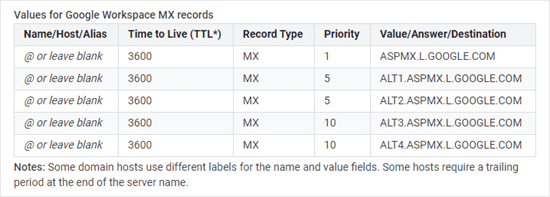
Pro Tip: When switching to a new email provider, you must usually delete or replace the old MX records pointing to your previous host. Having two different sets of MX records can cause email delivery errors.
Now, let’s walk through how to change MX records for your WordPress website—step by step.
Since this is a comprehensive tutorial, we have added quick links so you can jump straight to the section you need:
- Changing MX Records Using Network Solutions
- Changing MX Records Using Bluehost
- Changing MX Records Using Hostinger
- Changing MX Records Using SiteGround
- Changing MX Records Using HostGator
- Changing MX Records Using GoDaddy
- Changing MX Records Using Namecheap
- Final Steps After Setting Up Your MX Records
- Frequently Asked Questions About Changing MX Records
- Additional Resources
Changing MX Records Using Network Solutions
Network Solutions is the best domain name registrar on the market.
If your domain name is registered with Network Solutions, follow the instructions below.
Tip: Want to register a new domain for sending emails? Use our Network Solutions coupon and the promo code NAMEBOY during checkout to get a 67% discount.
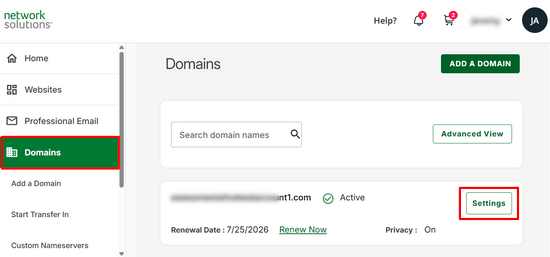
First, you need to sign in to your Network Solutions account and click the ‘Domains’ menu item in the left-hand sidebar. From there, click on the ‘Settings’ button next to your domain name.
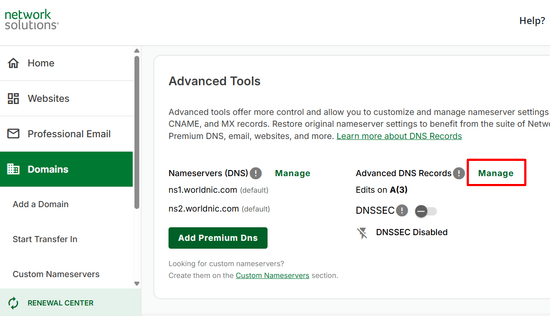
On the following page, scroll down to the ‘Advanced Tools’ section and expand it.
Then, click on the ‘Manage’ link next to Advanced DNS Records.
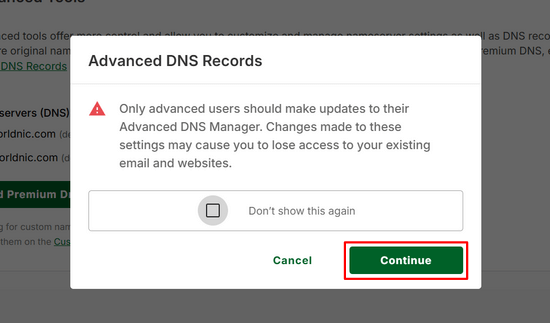
This will bring up a warning popup.
Simply click the ‘Continue’ button to proceed.
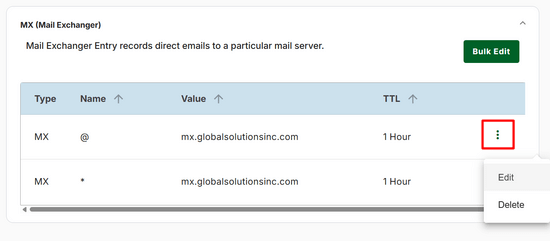
Next, scroll down the list of DNS records to find the MX entries for your domain.
You need to click the 3 vertical dots next to the first MX record and then click the ‘Edit’ link.
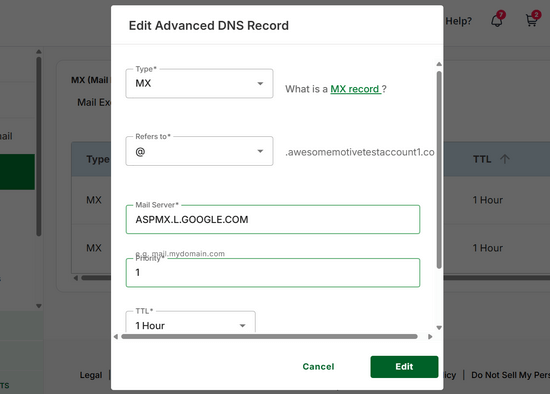
You will now see a popup where you can edit your MX record. Simply enter the new MX record in the ‘Mail Server’ box. We are using the G Suite MX record here.
You can leave the ‘Name’ and ‘Type’ set to their defaults.
After that, you need to enter the TTL (Time To Live) and Priority as specified by Google Workspace or your email host. Then, click the ‘Edit’ button.
You should repeat this process to add the remaining MX records provided by Google (for example, ALT1.ASPMX.L.GOOGLE.COM). Each record will have a different priority and address, so be sure to copy them exactly from your provider’s list.
You should see your changed MX records in the list.
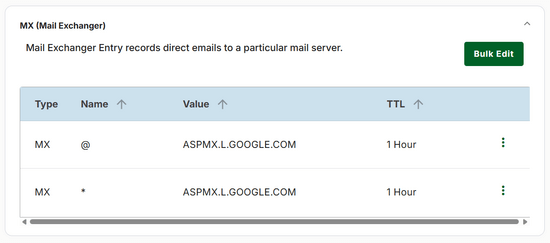
Congrats, you have successfully updated MX records for your domain name on Network Solutions.
Changing MX Records Using Bluehost
Bluehost is the best WordPress hosting company on the market. They offer free domain name registration on every website.
If you registered your domain name with Bluehost, you can follow these instructions to add MX records to it.
First, you need to log in to your Bluehost account and switch to the ‘Websites’ tab in the left sidebar.
After that, click on the ‘Settings’ button below your website.
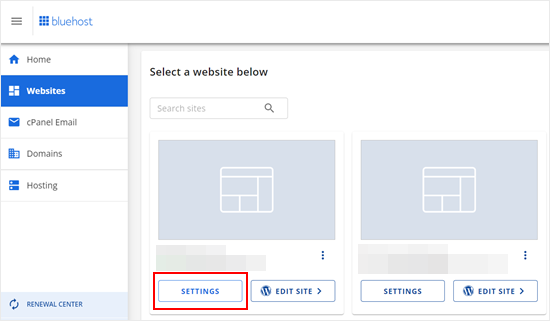
This will open your website settings.
From here, you need to switch to the ‘Advanced’ tab. Scroll down to the ‘cPanel’ section and click ‘Manage’ next to it.
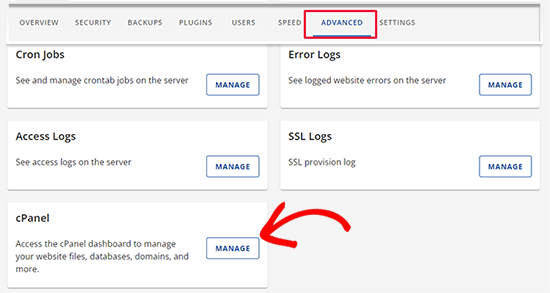
This will launch the cPanel area in a new browser tab.
Next, you need to scroll down to the ‘Domains’ section and click the ‘Zone Editor’ icon.
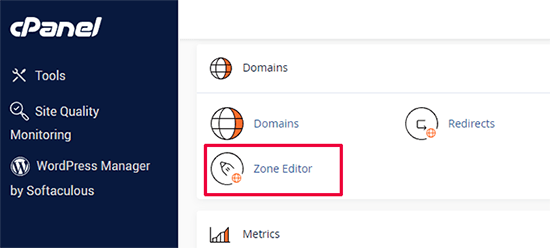
This will open the advanced DNS zone editor page.
You’ll now see a list of your domain names. Click on the ‘+MX Record’ button next to your domain.
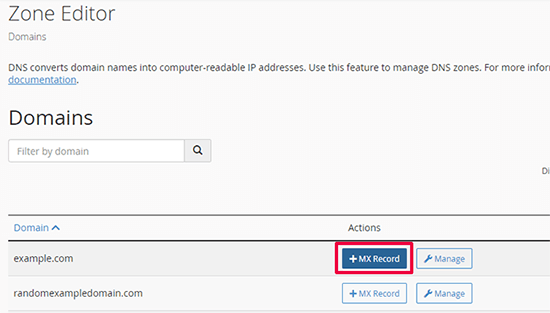
This will bring up a popup where you can add your MX record.
For priority, you can add 1, and for ‘Destination,” add the value or destination provided by your email service.
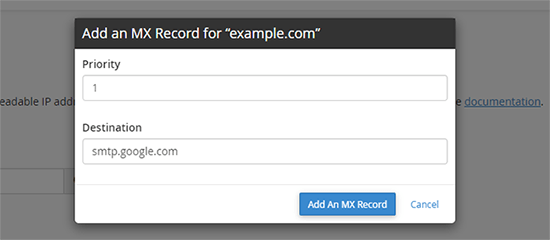
Click on the ‘Add An MX Record’ button to save your changes.
Repeat the process to add more MX record entries. You can give them different priority numbers if you want.
Changing MX Records Using Hostinger
Hostinger is one of the top WordPress hosting companies around. WPBeginner users can avail of our Hostinger coupon to get an exclusive discount on hosting with a free domain name.
If your domain is registered with Hostinger, then here is how to add MX records to your domain on Hostinger.
First, you need to log in to your account on the Hostinger website. From the hPanel dashboard, click on the ‘Domains’ tab at the top and click the ‘Manage’ button next to your domain name.
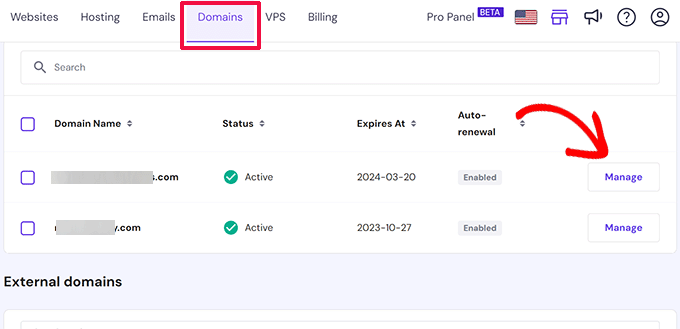
This will bring you to the domain management page.
From here, you need to click on the ‘DNS / Nameservers’ tab in the left column.
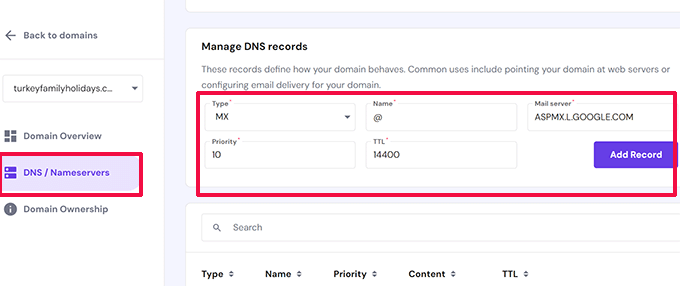
You will find the ‘Add Record’ form in the ‘Manage DNS Records’ section. Select ‘MX’ for the record type and then add value information in the ‘Mail server’ field.
Finally, click on the ‘Add Record’ button to save the MX record settings.
Changing MX Records Using SiteGround
SiteGround is a popular premium WordPress hosting company that we use for WPBeginner’s website hosting. You can get up to 83% off their hosting using our SiteGround coupon.
If your domain is registered with SiteGround, then you can follow the instructions below to update your MX records using their Site Tools dashboard.
First, you need to log in to your SiteGround account and go to Domains » DNS Zone Editor.
From here, switch to the ‘MX’ tab to enter your MX record entries.
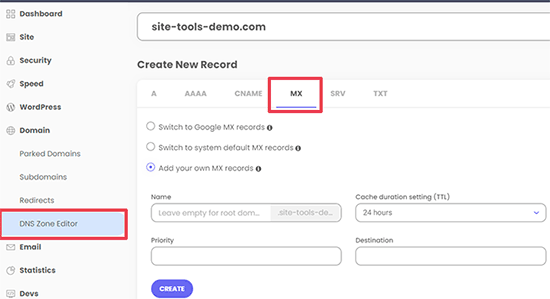
If you want to enter Google Workspace MX records, you can select ‘Switch to Google MX Records’.
Otherwise, select ‘Add your own MX records’ and enter your record entries manually. Don’t forget to click the ‘Create’ button to save each entry.
Changing MX Records Using HostGator
HostGator is a large hosting company that many WordPress sites use. If you want to set up a HostGator account, then check out our HostGator coupon to get 71% off, plus a free domain and SSL certificate.
Note: You’ll need a hosting account with HostGator in order to update your MX records. You can’t change your MX records if you just have a domain registered there.
If you registered your domain and you have a hosting account with HostGator, then you can follow the instructions below to update your MX records.
First, you need to log in to your HostGator account. Then, click the ‘Hosting’ tab in your sidebar.
Below your domain’s name, click on the ‘cPanel’ link.
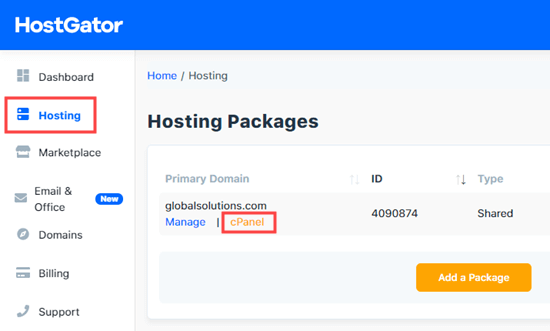
Now, cPanel will load in a new tab.
First, click on the ‘Email’ link on the left-hand side. This will jump you down to the Email section of the page, where you need to click on the ‘MX Entry’ button.
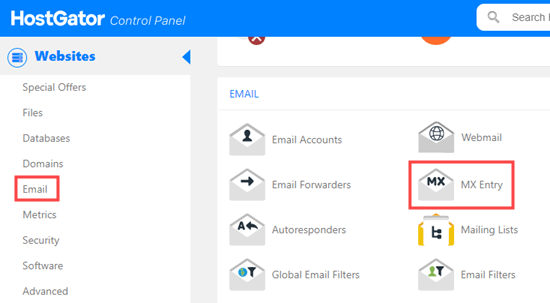
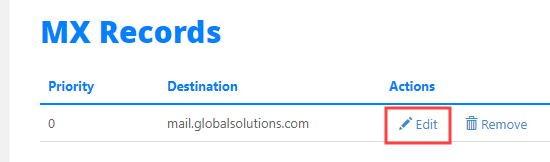
Next, scroll down the MX Records page to the ‘MX Records’ section.
Simply click ‘Edit’ next to the existing record.
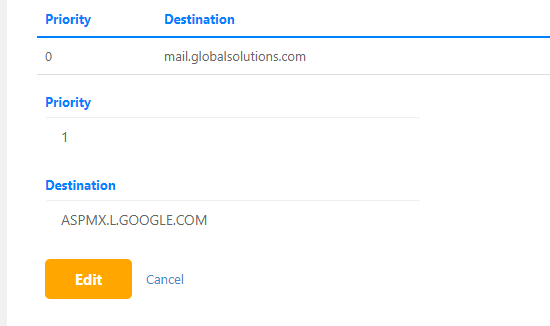
Now, you can change the priority to 1 and the destination to ASPMX.L.GOOGLE.COM in the boxes that appear below the original record. Click the ‘Edit’ button to save those changes.
You will then see the new record listed. However, most providers (like Google Workspace) require multiple records.
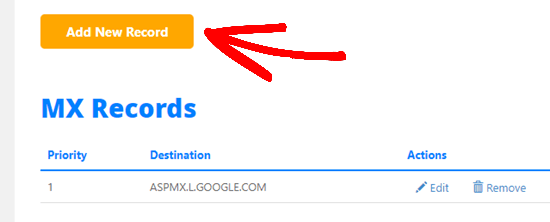
You must add these remaining records using the ‘Add New Record’ button above the list. Be sure to check your email provider’s documentation for the correct Priority numbers (e.g., 5 or 10) for these extra records.
Click the ‘Edit’ button to save those changes.
You will then see the new record listed.
You can also add new MX records using the ‘Add New Record’ button above this.
Changing MX Records Using GoDaddy
GoDaddy is a popular web hosting and domain name company. They are offering WPBeginner readers hosting for just $2.99/month plus a free domain. You can find out more details when you use our GoDaddy coupon.
If you registered your domain with GoDaddy, then you can follow the instructions below to update your MX records.
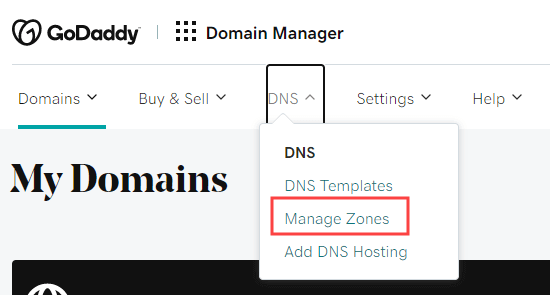
First, log in to your GoDaddy account. Next, click the ‘DNS’ dropdown in the navigation menu and select ‘Manage Zones’.
Next, you need to search for the domain you want to use. This domain needs to be one you’ve already registered with GoDaddy.
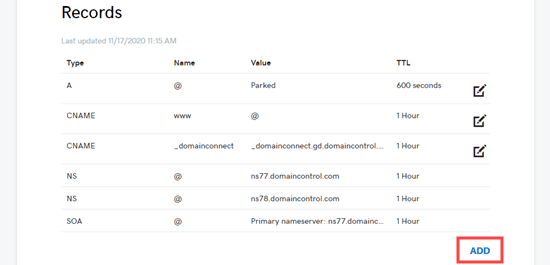
Once you’ve selected your domain, scroll down the page to see a list of records. Here, you need to find and edit your MX records. If you don’t see any MX records, go ahead and click the ‘Add’ button below the list.
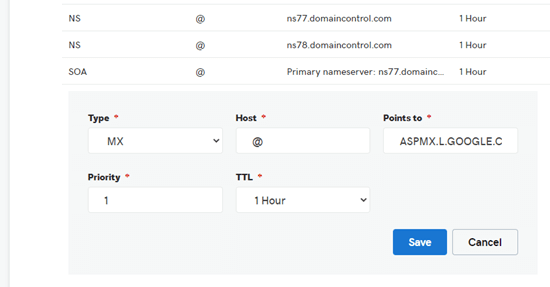
Next, select ‘MX’ from the ‘Type’ dropdown list. You should then enter the details of your first MX record. For G Suite, those details are:
- Host: @
- Points to: ASPMX.L.GOOGLE.COM
- Priority: 1
Go ahead and click the ‘Save’ button to save your MX record.
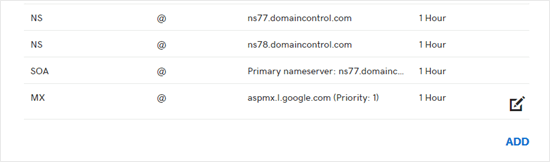
You will then see your record in the list.
To add another MX record, simply click the ‘Add’ button again.
Changing MX Records Using Namecheap
Namecheap is another popular domain name registration company offering great value domains.
If you registered your domain with Namecheap, then just follow the instructions below to update your MX records.
First, go ahead and log in to your Namecheap account. After that, you need to go to Domain List » Advanced DNS.
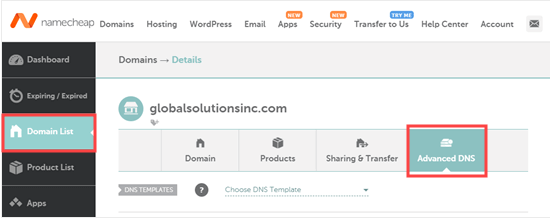
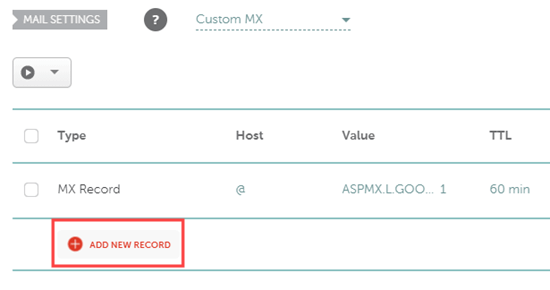
Next, scroll down the page to the ‘Mail Settings’ section.
Here, you need to click the dropdown link and select ‘Custom MX’.
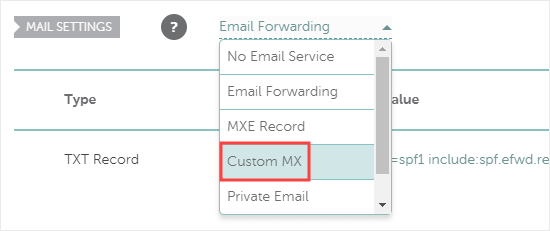
Now, you can enter the details for your MX record. For G Suite, those are:
- Host: @
- Mail Server: ASPMX.L.GOOGLE.COM
- Priority: 1
- TTL: 60 (This stands for Time to Live and determines how quickly the server updates. 60 is a common setting for new records).
Then, simply click the ‘Save All Changes’ button to save your new MX record.
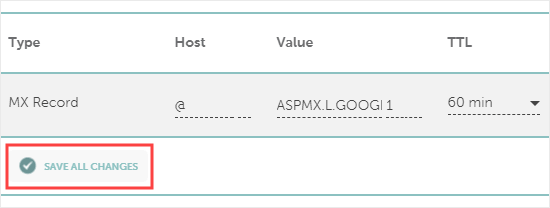
You can go ahead and add more records, too, using the ‘Add New Record’ button.
Just follow the same process we just covered.
Final Steps After Setting Up Your MX Records
After setting your MX records, make sure you follow any other steps for setting up your email or SMTP account correctly. For help with Google Workspace (formerly G Suite), check out our step-by-step instructions on setting up a professional email address with Gmail and Google Workspace.
Next, you may need to set up your WordPress site to send email using your email / SMTP service provider.
To do that, you’ll need the WP Mail SMTP plugin. It allows you to easily route all your WordPress emails using SMTP without any complicated setup.
For detailed instructions, take a look at our ultimate guide on setting up WP Mail SMTP with any host.
Frequently Asked Questions About Changing MX Records
We understand you might still have a few questions about changing your MX records. To help you out, we’ve put together answers to some of the most common ones we hear from our users.
1. Do I change my MX records in my WordPress dashboard?
This is a very common point of confusion. You do not change MX records in WordPress. These settings are part of your domain’s DNS records, so you will always make these changes in your domain registrar’s account (like Network Solutions or GoDaddy) or your web hosting control panel (like Bluehost or SiteGround).
2. Where do I find the correct MX records to use?
Your new email provider will give you the exact MX record values you need. For example, if you are setting up Google Workspace, Google provides a specific list of records on its support website. You can usually find these values in your email provider’s setup guide or help documentation.
3. How long does it take for MX record changes to work?
Changes to your DNS records, including MX records, can sometimes take a few hours to update across the entire internet. This period is called propagation.
During this time, it is normal for some emails to arrive in your old inbox and some in your new one. While it can take up to 48 hours to fully resolve, you will often see the changes take effect within 4 to 6 hours.
4. How can I check if my MX records are set up correctly?
A great way to check your records is by using a free online tool like MXToolbox. You can simply enter your domain name, and it will show you which MX records are currently active for your site. This is a good final step to confirm everything is working as expected after you’ve made the changes.
5. Can I have more than one MX record?
Yes, and it’s very common. Email providers like Google Workspace and Microsoft 365 often provide multiple MX records to act as primary and backup mail servers. This makes your email service more reliable. The ‘priority’ number you see next to each record tells email servers which one to try first.
Additional Resources
Now that you have set up your MX records, you might want to learn more about managing your website’s email and DNS settings. Here are some guides we recommend:
- How to Fix WordPress Not Sending Email Issue – If your site stopped sending notifications after the switch, this guide fixes it.
- The Ultimate Guide to WordPress DNS Configuration – Learn what other records (like A and CNAME) do for your site.
- How to Set up WP Mail SMTP with Any Host – We use WP Mail SMTP on all our brands to ensure emails don’t end up in the spam folder.
- How to Create an Email Newsletter – Ready to market your business? Here is how to get started the right way.
- Best Business Phone Services for Small Business – Complete your communication setup with a professional phone system.
If you liked this article, then please subscribe to our YouTube Channel for WordPress video tutorials. You can also find us on Twitter and Facebook.




Mrteesurez
Thanks for the detailed guide; I can now learn more about MX records and what they actually do. I remember when I was setting up WP Mail SMTP for Brevo, I was asked to edit and change my domain’s MX records. I felt reluctant, but when I read the guide on WP Mail SMTP, I realized it was necessary. Your guide has also introduced me to other conditions that necessitate changing MX records. Thanks again for the helpful information.
THANKGOD JONATHAN
Please do I also need to change MX records if I use SMTP plugin like WP email SMTP? I can see it mentioned somewhere in the post.
Jiří Vaněk
No, you don’t need to change the MX records. With this plugin, you’ll simply stop using the PHP mail function for sending and start sending emails from WordPress via an SMTP server. MX records are only changed when you switch to a different email service provider. MX handles routing mail to a specific mail server. However, if you’re using this plugin, you should instead check that you have an SPF record and a DKIM or DMARC record set up in your domain’s DNS. These are the records that at least Gmail checks, and without them, it could happen that your emails sent from the website or email address won’t reach the recipient’s inbox, as Gmail or other providers that check SPF might reject it.
Jiří Vaněk
I don’t know if I just missed it somewhere, but it’s good to note that @ is here as a wildcard instead of a domain name. Many people don’t know this. That is, @ is filled in instead of the domain name. Just that info.