


Disclaimers are an important part of any website. They help protect your business from legal issues and provide users with important information.
That is why we always display disclaimers on every post to make sure visitors always see them.
However, adding disclaimers manually to each post or page can be time-consuming and repetitive. We’ve tested several methods and found a simple solution to automatically add disclaimers to your WordPress site: using WPCode.
With this code snippet plugin, you can save time and ensure that your disclaimers are always visible without the hassle of manually inserting them every time.
In this article, we’ll show you how to automatically add a disclaimer in WordPress.

Why Show a Disclaimer in WordPress?
Adding a disclaimer to your WordPress website is a great way of communicating important notices and announcements to your visitors. It also protects your business from being legally liable for any claims a user makes.
There are many situations where you can show a disclaimer on your website. For example, let’s say your site features product endorsements or has affiliate links. You can display an FTC disclosure stating how you may receive compensation from the companies whose products you feature on your website.
Similarly, if you operate in an industry governed by different regulations, you can show legal disclaimers. This is really helpful if you’re offering medical or health advice, legal advice, or financial investment tips.
Let’s say you’re writing a blog post on the General Data Protection Regulation (GDPR). You can show a disclaimer notifying users that they should get in touch with an attorney to seek legal advice.
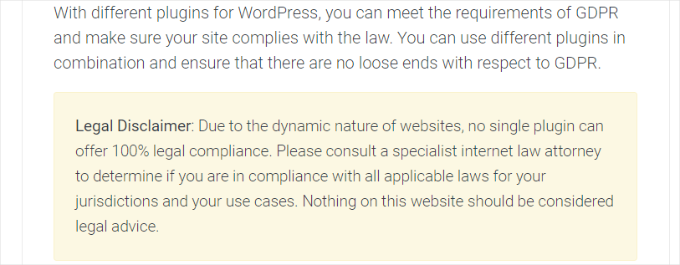
On the other hand, if you have a WordPress blog where you share personal opinions, then adding a disclosure can safeguard you from any legal action.
With that in mind, we’ll show you how to automatically add a disclaimer in WordPress in just 2 steps. You can click the links below to jump to any sections of this post:
Let’s jump right in!
Creating Disclaimers in WordPress
You can add WordPress disclosures manually using the content editor. simply enter the disclaimer content in your blog posts or page.
However, this is inefficient since you have to edit every page manually. WordPress does not have a default option to show these disclaimers automatically.
The best way to fix this is by using WPCode. It is the best WordPress code snippet plugin that makes it easy to manage custom code snippets.
We use WPCode to add custom code snippets across our partner websites. For more details, see our full WPCode review.
What Is a Code Blocks Snippet?
WPCode offers a Custom Blocks Snippets feature to create disclaimers. This feature allows you to create a custom WordPress block and automatically insert it anywhere on your website.
Usually, displaying content automatically across specific locations requires editing theme files. WPCode makes the process easy, so you don’t have to edit code or manually update posts.
Aside from creating disclaimers, you can use this feature to make custom blocks for call-to-action boxes or important notices. You can even create interactive blocks that include forms or image sliders.
For this tutorial, we will be using the WPCode Pro version. You need the Pro plan to access the Custom Blocks Snippets option.
First, install and activate the WPCode Pro plugin. If you need help, please see our guide on how to install a WordPress plugin.
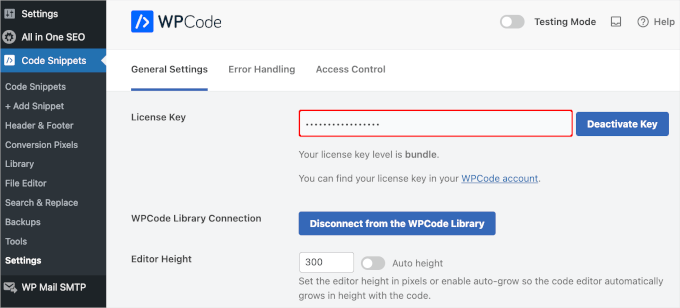
Upon activation, go to Code Snippets » Settings from the WordPress admin panel to enter your license key. You can find this information in your WPCode account area.
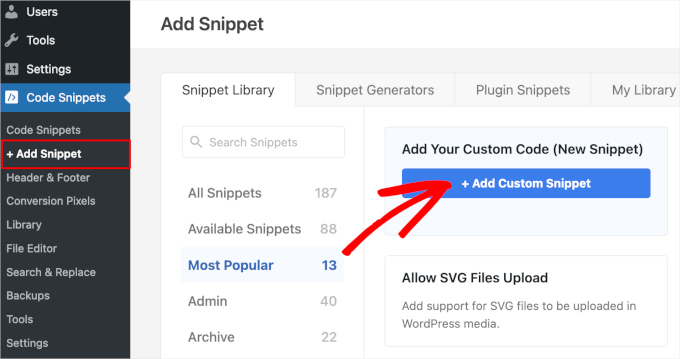
Next, go to Code Snippets » + Add Snippet from the WordPress dashboard.
From here, select the ‘Add Your Custom Code (New Snippet)’ option by clicking the ‘+ Add Custom Snippet’ button underneath it.
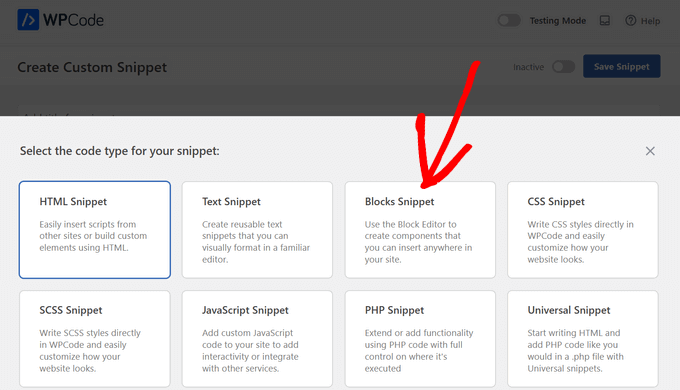
This will take you to a new screen.
Here, select ‘Blocks Snippet’ as the code type from the list of options that appear on the screen.
Next, you can enter a name for your snippet, like ‘Disclaimer Notice.’
When you’re done, simply click the ‘Save Snippet’ button.
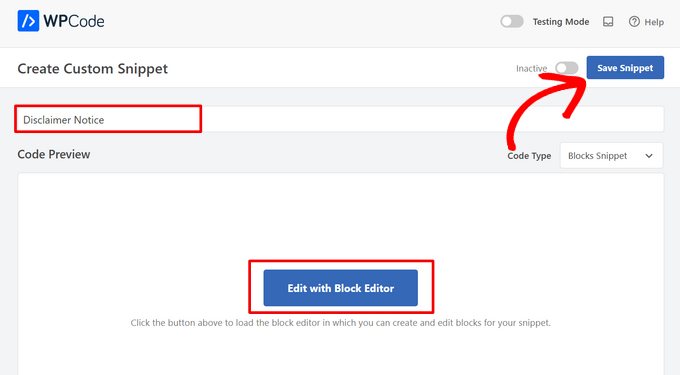
You can now edit your disclaimer notice using the WordPress content editor.
To do that, click the ‘Edit with Block Editor’ button.
Next, you’ll be taken to the block editor. Go ahead and enter the text for your disclaimer.
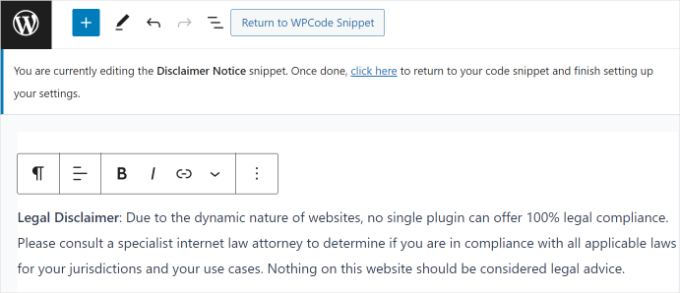
You can further customize your WordPress disclaimer notice using the styling options in the block editor.
Simply switch to the ‘Style’ tab in the Settings panel on the right. From here, you can change the color of the text, background, and link. There are also options to edit the size of the text.
For this tutorial, we will add a background color for the disclaimer notice so that it stands out. Don’t forget to click the ‘Update’ button.
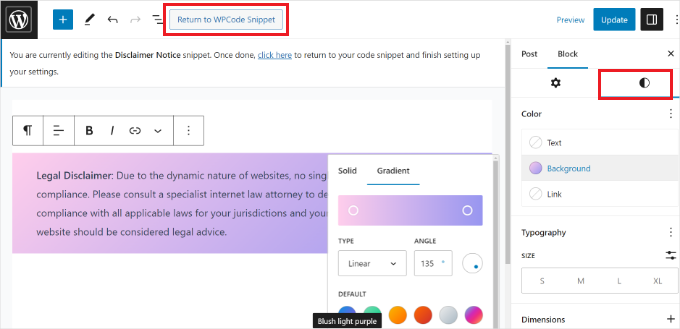
After customizing your disclaimer, click the ‘Return to WPCode Snippet’ button at the top.
Automatically Adding Disclaimers in WordPress
Once you are on the WPCode Snippet screen, scroll down to the ‘Insertion’ section. Here, you can select when and where your disclaimer notice will appear.
Leave the ‘Insert Method’ set to Auto Insert. Next, click the Location dropdown menu.
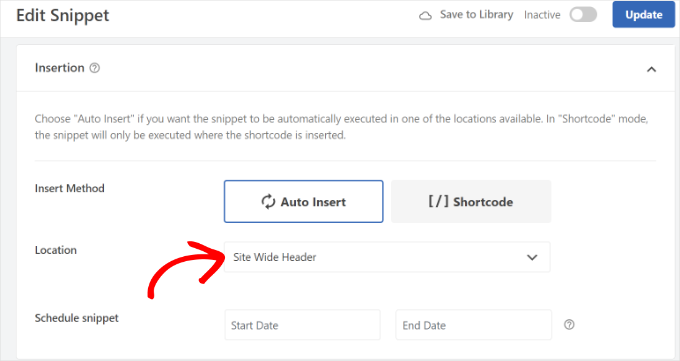
WPCode will show multiple options. Switch to the Page-Specific tab.
Next, choose where your site will display the disclaimer. The best location depends on the type of disclaimer you are adding.
For example, affiliate disclosures are usually placed at the top (Insert Before Content). Legal disclaimers are often placed at the bottom (Insert After Content).
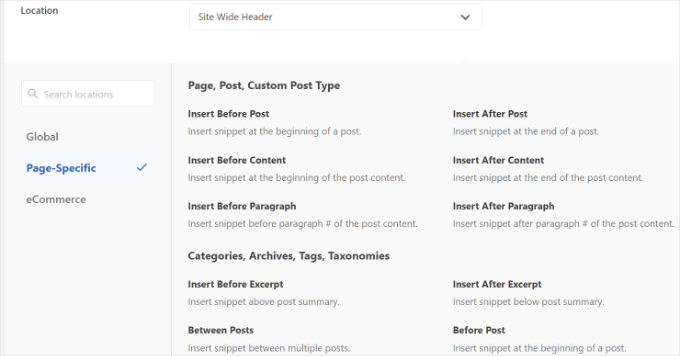
WPCode also lets you select the number of paragraphs before the block appears.
For example, we want the disclaimer to appear automatically after the first three paragraphs.
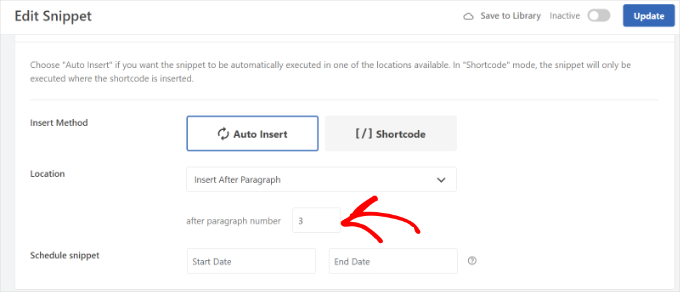
Once you are done, activate the snippet. Then, click the ‘Update’ button at the top.
You can also insert the disclaimer on specific pages using shortcodes.
Switch the Insert Method from ‘Auto Insert’ to ‘Shortcode.’
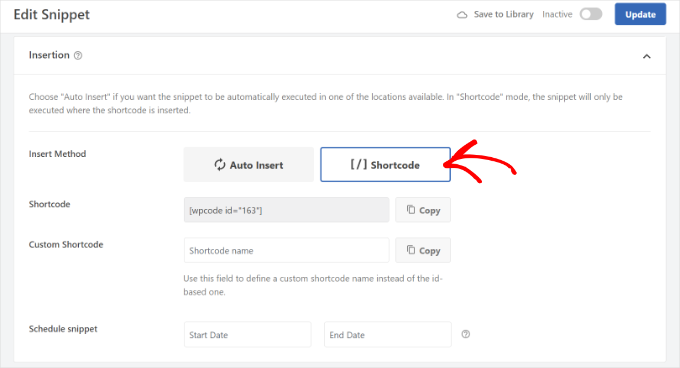
Copy the shortcode provided on the screen. Then, paste it into a ‘Shortcode’ block inside any page or post where you want the disclaimer to appear.
WPCode also lets you schedule your disclaimer scripts. This is useful for time-sensitive notices. To schedule the snippet, select a start date and an end date.
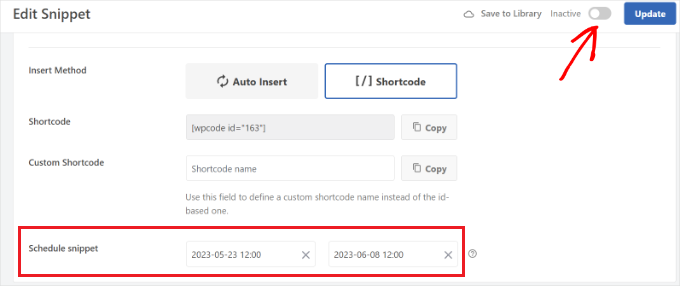
When you’re done, don’t forget to activate the snippet and click the ‘Update’ button.
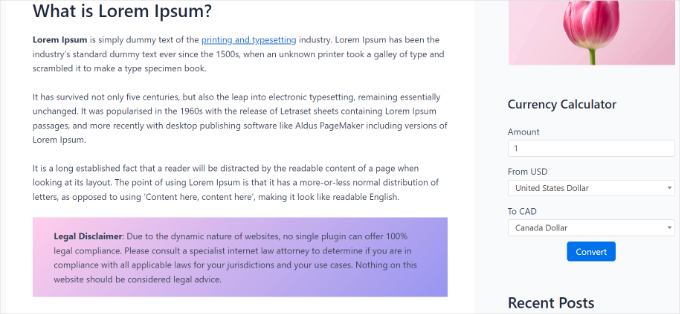
You can now visit your website to see the disclaimer in action.
Frequently Asked Questions About Disclaimers in WordPress
Here are some questions frequently asked by our readers about adding a disclaimer in WordPress:
Can I show a disclaimer only on specific pages instead of the whole site?
Yes. Plugins like WPCode give you full control over where your disclaimer appears using Conditional Logic.
For example, you can set conditions to show the disclaimer only on specific posts, or only on posts within a specific category (like “Reviews”).
Are there other ways to add a disclaimer automatically?
Yes, there are alternative methods if you don’t want to use WPCode. You can use sidebar widgets or floating bars (like OptinMonster) for site-wide notices.
However, if you need the disclaimer to be highly visible for legal reasons, a content-level placement is usually the best choice.
Do I still need a separate disclaimer page?
Yes, having a dedicated disclaimer page is highly recommended. The auto-inserted disclaimer serves as a quick notice, but you should link it to a full disclaimer page that explains all legal details.
We hope this article helped you learn about how to automatically add a disclaimer in WordPress. You may also want to see our expert list of key design elements for an effective WordPress website and our guide on how to highlight new posts for returning visitors.
If you liked this article, then please subscribe to our YouTube Channel for WordPress video tutorials. You can also find us on Twitter and Facebook.




Prud
This puts the disclaimer on posts AND pages. There is no option to have it on POSTS ONLY.
WPBeginner Support
You would use the conditional logic options in the plugin to set it to display only on posts.
Admin
Balakumaran Velumani
Hello Team,
For instance, if we are adding a separate disclaimer page on our blog, do we need to no-index that page or index that page on Google search results?
What is the best option for a healthy blog?
WPBeginner Support
You do not need to no-index your disclaimer page and it is personal preference at the moment for if you allow it to be indexable.
Admin