


Seeing website visitors leave and never return can feel incredibly discouraging. It takes hard work to get traffic, and losing those people means missing out on potential subscribers and customers.
Fortunately, web push notifications offer a highly effective way to bring those visitors back. These clickable messages pop up on user devices, giving you a direct line to your audience.
We rely heavily on push notifications here at WPBeginner, and they consistently rank as one of our top traffic sources.
In this guide, I will show you the exact steps to easily set up web push notifications on your WordPress site.
![[Duplicated]How to Add Web Push Notifications to Your WordPress Site](https://www.wpbeginner.com/wp-content/uploads/2016/08/add-web-push-notifications-in-wordpress-in-post.png "How to Add Web Push Notifications to Your WordPress Site")
How to Add Web Push Notifications (Quick Overview)
- Choose a push notification service (I recommend PushEngage).
- Install their WordPress plugin to connect your site.
- Configure your first campaign and subscription prompt from your WordPress dashboard.
I will cover everything you need to know about sending push notifications in this tutorial.
You can use the quick links below to jump to different sections:
- What Are Push Notifications?
- Why Add Web Push Notifications to Your WordPress Site?
- How to Set Up Web Push Notifications in WordPress
- Send Push Notifications Every Time You Publish a New Post
- Bonus: Set Up Automated Drip Notifications With PushEngage
- Frequently Asked Questions About WordPress Push Notifications
- Additional Resources
What Are Push Notifications?
Push notifications are short, clickable notification messages that appear as a popup on users’ desktop or mobile devices. They have an average opt-in rate of 2-10% depending on the industry.
They display on top of the desktop or in the notification area on a mobile device. The best part is that they can be shown even when the user’s browser is not open.
Here’s an example of a push notification:
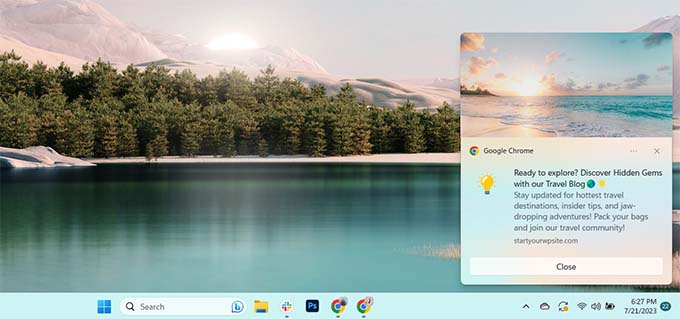
Push notifications let you reach users across devices with your latest updates and offers. This makes them an effective way to convert website visitors into loyal followers and customers.
Why Add Web Push Notifications to Your WordPress Site?
Did you know that over 70% of people who leave your website will never return? Web push notifications are one of the most effective ways to bring those visitors back and turn them into loyal followers.
Here at WPBeginner, they are consistently one of our top traffic sources. That’s because push notifications have incredibly high engagement, with open rates often 10 times higher than email.
Unlike social media, there’s no algorithm to limit your reach, so nearly all your messages get delivered. And since users must give explicit permission to subscribe, you know you’re reaching an audience that is already interested in your content.
While there are several services you can use, we believe PushEngage is the best push notification plugin for WordPress. It’s easy for beginners to set up and has all the powerful features you’ll need. That’s what we use on all our websites, and it’s what I’ll use in this tutorial.
How to Set Up Web Push Notifications in WordPress
Now, let’s walk through the proper way to set up web push notifications on your WordPress site so you can start connecting with visitors after they leave.
Note: Web push notifications require your website to have an SSL certificate (HTTPS). If your site URL starts with HTTP, then you’ll need to enable HTTPS first before continuing with this tutorial.
Step 1: Installing and Activating PushEngage
First, you need to go to the PushEngage website and click the ‘Get Started For Free Now’ button.
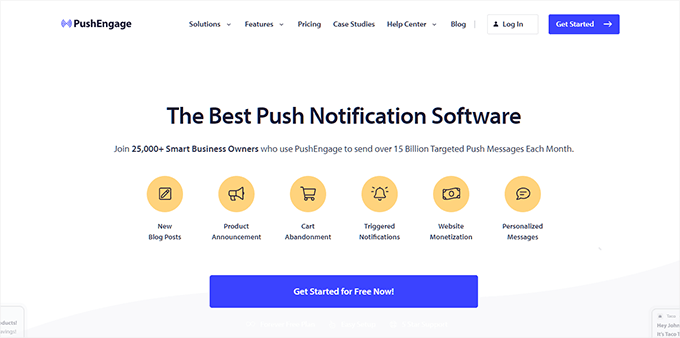
The free plan is a great starting point that allows you to have up to 200 active subscribers and 30 notification campaigns each month.
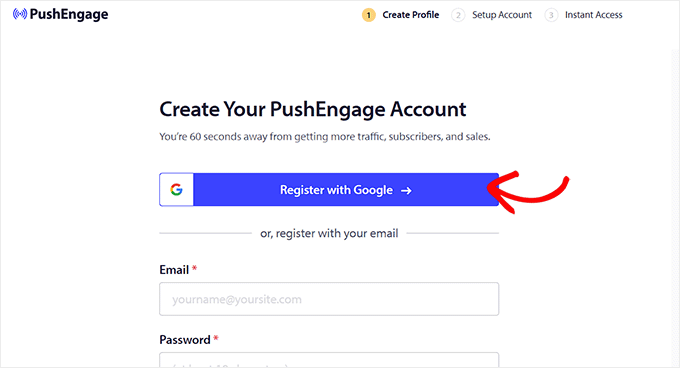
After selecting a plan, you will need to create an account. You can register using your Google account or with an email and password.
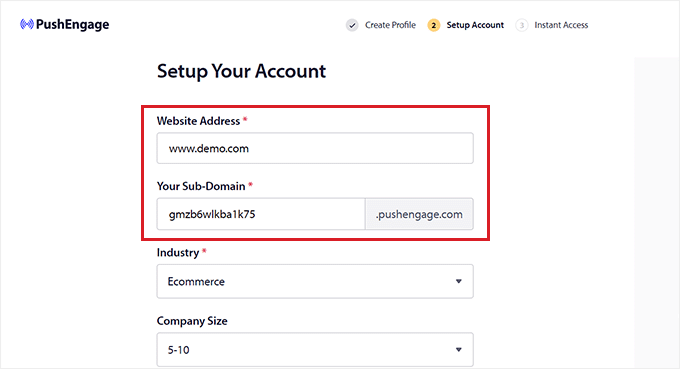
Next, on the ‘Setup Your Account’ page, add your website domain name, industry, and company size. Your subdomain will be automatically generated from this information.
You will need to provide your credit card details. Don’t worry, PushEngage offers a risk-free start, and you won’t be charged for the free plan. This just helps ensure your service won’t be interrupted if you decide to upgrade in the future.
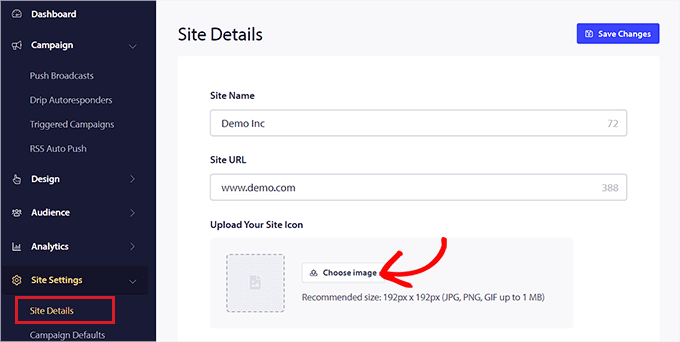
After signing up, you will land on your PushEngage dashboard. From here, navigate to the Site Settings » Site Details page to upload your site logo or icon.
This image will be used in your notifications.
Now, it’s time to connect your WordPress website. The easiest way is with the official PushEngage plugin.
Next, open a new tab and navigate to your WordPress admin dashboard to install and activate the PushEngage WordPress plugin. For more details, see our step-by-step guide on how to install a WordPress plugin.
Upon activation, the setup wizard should launch. Click the ‘Connect Your Existing Account’ button.
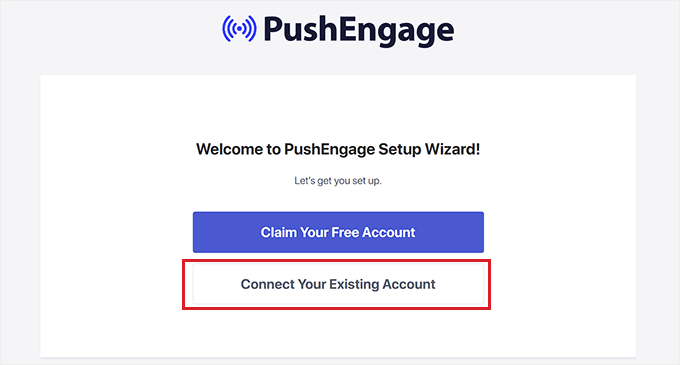
This will open a new window to authorize the connection between your WordPress site and your PushEngage account.
Simply click the ‘Let’s Get Started’ button to confirm.
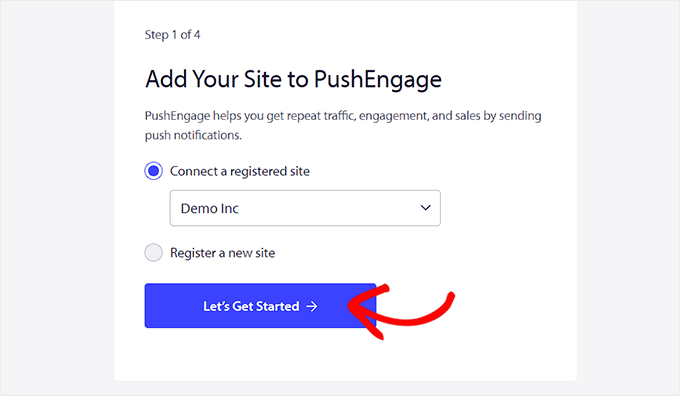
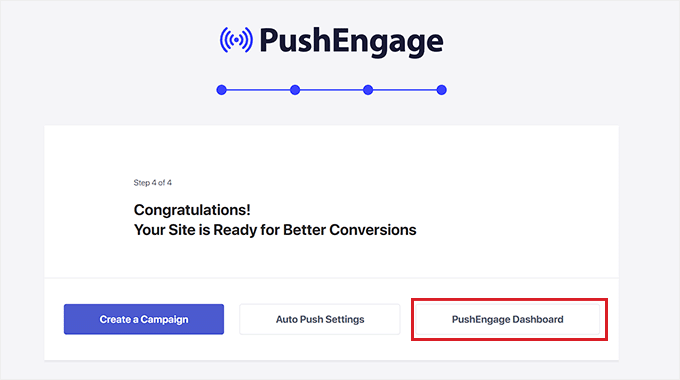
This will connect your website to your PushEngage account.
Once connected, you can return to your WordPress dashboard.
Step 2: Setting Up the Subscription Prompt
Now that your site is connected, you need to set up a subscription prompt. This is the popup message that asks visitors for their permission to send them notifications.
From your WordPress admin sidebar, navigate to the PushEngage » Design page.
Here, you can choose a popup style that you like. Toggle the switch to activate it, and then click the ‘Edit Popup’ button to customize it.
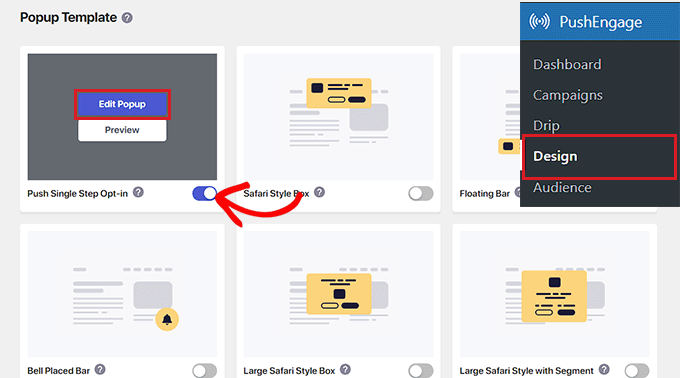
This will open the PushEngage editor in a new tab. You can configure the layout, edit the message text, and change the colors to match your site.
When you are done, click the ‘Save & Choose Display Options’ button at the top.
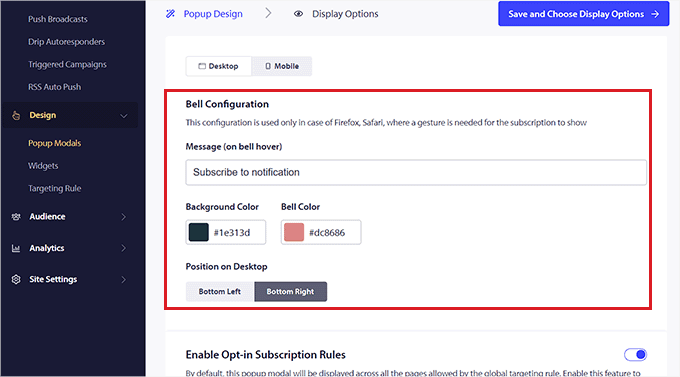
Next, you can configure the display rules, such as when and where the popup should appear.
Finally, click the ‘Save and Enable Popup’ button to activate the prompt on your site.
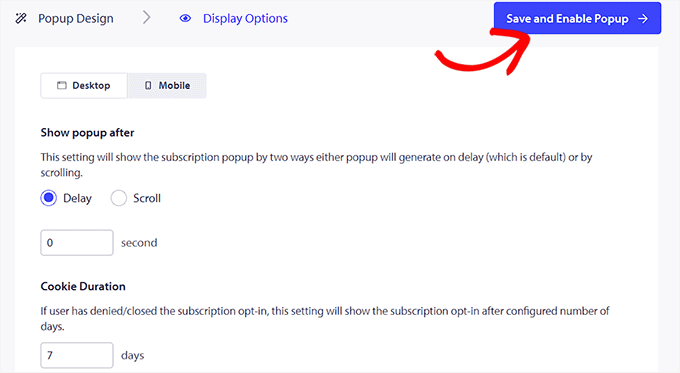
🚀 Pro Tip: For better results, consider changing the display options to show the prompt after a user has been on your site for a few seconds or has scrolled down the page. This gives them time to see your content’s value before you ask them to subscribe.
Now, when a visitor comes to your site and clicks the ‘Allow’ button on the prompt, they will be added to your subscriber list.
Step 3: Creating and Sending Your First Push Notification
Now that you have a way to get subscribers, you’re ready to create your first notification.
From your WordPress dashboard, go to PushEngage » Push Broadcasts and click the ‘Add New’ button.
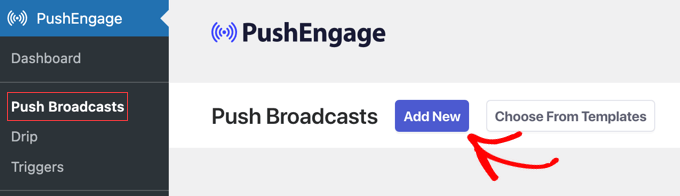
This will open the ‘Create New Push Broadcast’ screen.
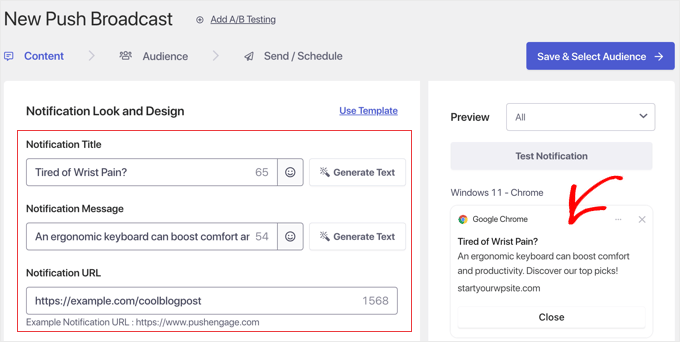
First, you need to manually enter the details for your notification:
- Notification Title: Create a short, catchy title. For my example, I’ll use “Tired of Wrist Pain?”
- Notification Message: Write the main text of your notification. I’ll use “An ergonomic keyboard can boost comfort and productivity. Discover our top picks!”
- Notification URL: Add the link to the page you want users to visit when they click the notification.
As you type, you will see a live preview of your notification on the right side of the screen.
🚀 Pro Tip: Using the AI Assistant
To make writing your notifications even easier, PushEngage offers a powerful AI assistant (available if you have AI credits on your account) to help you refine your message.
After writing your initial text, you can click the ‘Generate Text’ button next to the Title or Message field to automatically generate new variations.
This will open a popup where you can choose a different tone (such as professional, conversational, or informative) to generate new variations of your text automatically.
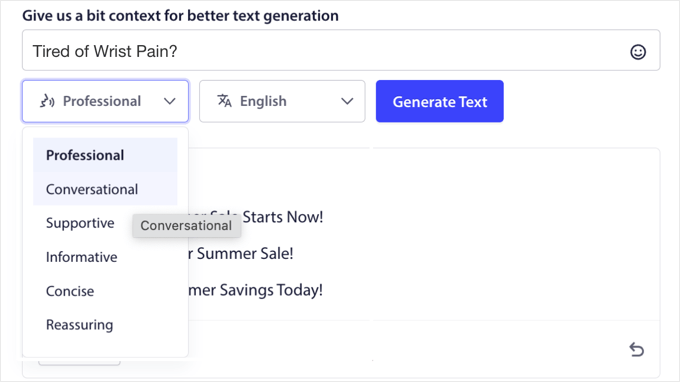
If you do not like the generated text, then simply click the ‘Rewrite’ button at the bottom. Once you have selected the title or message you want to use, you can click the ‘Insert’ button.
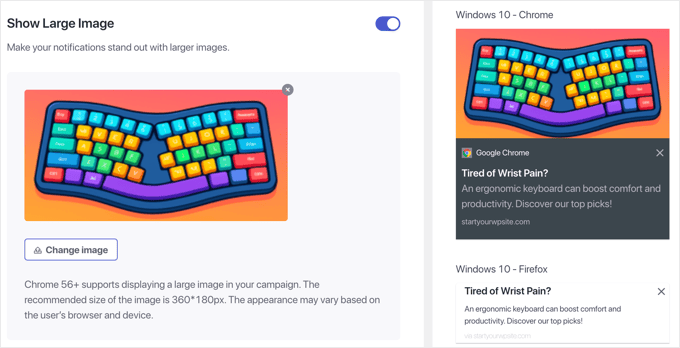
When your message is ready, scroll down to the ‘Show Large Image’ section and toggle the switch if you want to add an image to make your notification stand out.
You can then click the ‘Change Image’ button to choose an image from your Media Library. The recommended resolution is 360 x 180 pixels.
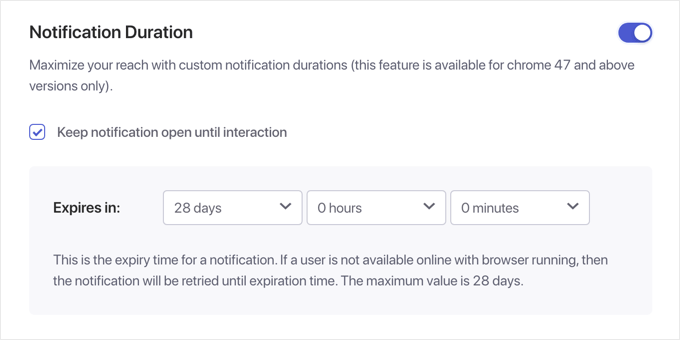
Next, you can set the ‘Notification Duration’. Checking the ‘Keep notification open until interaction’ box means the alert will stay on the user’s screen until they click or dismiss it.
We recommend using this only for critical updates, as forcing users to manually dismiss every standard notification can lead to unsubscribes.
At WPBeginner, we set the duration until the next push broadcast is scheduled so that we don’t have overlapping notifications.
When you’re happy with the settings, click the ‘Save & Select Audience’ button at the top.
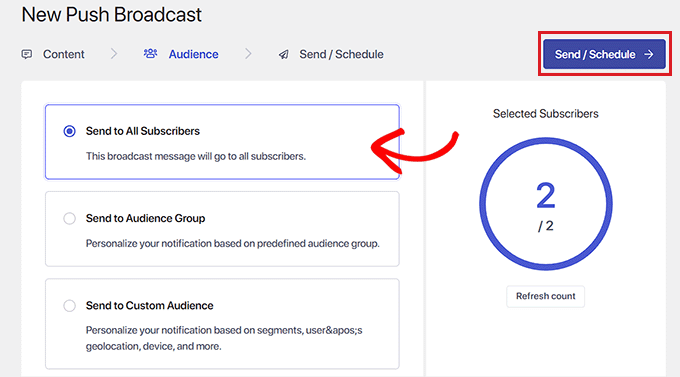
On the next screen, you can choose ‘Send to All Subscribers’ and then click the ‘Send/Schedule’ button.
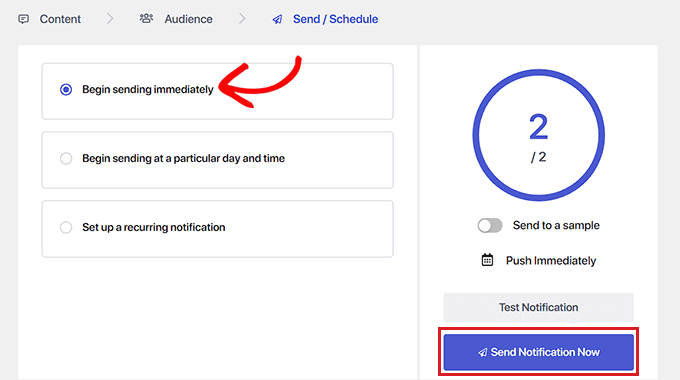
Finally, you can choose to send the notification immediately or schedule it for a later time (scheduling requires a paid plan).
Then click ‘Send Notification Now’ to send it to your subscribers.
Step 4: Viewing Your Subscriber List
After you’ve set everything up, you’ll naturally want to see how many people have subscribed.
You can easily check your subscriber count at any time by logging in to your PushEngage account dashboard and looking at the ‘Total Subscribers’ box.
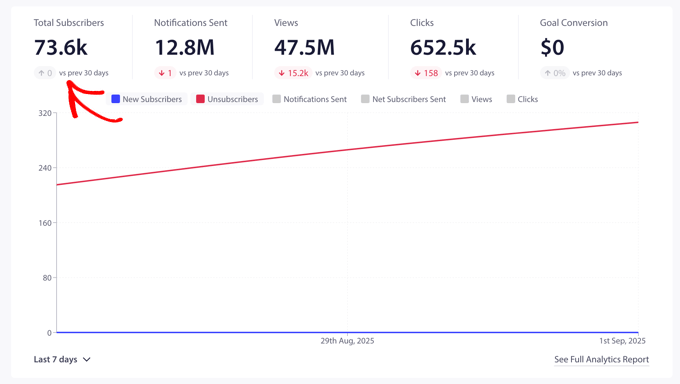
For more details, you can click on Audience » Subscribers from the menu on the left. This page will show you a list of your most recent subscribers and their information.
You can also track your campaign success from the dashboard by looking at your Click-Through Rate (CTR). As a quick refresher, your CTR is calculated by dividing your total clicks by the total number of notifications delivered.
Send Push Notifications Every Time You Publish a New Post
PushEngage lets you automatically send a push notification to your subscribers every time you publish a new blog post.
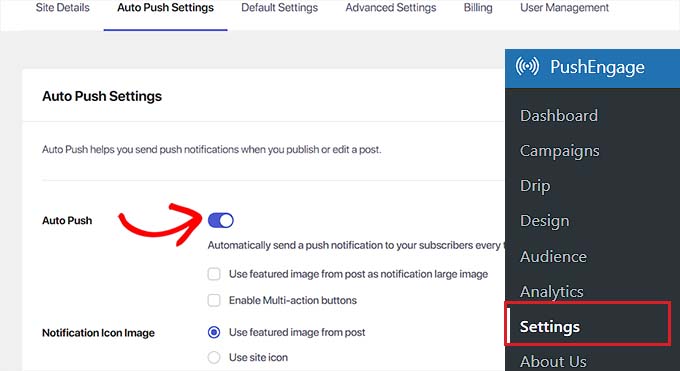
To set this up, go to PushEngage » Settings from your WordPress dashboard and click on the ‘Auto Push Settings’ tab. Then, toggle the ‘Auto Push’ switch to the on position.
Next, you can configure the notification settings. You can choose to display the post’s featured image, use it as the notification icon, and enable multi-action buttons.
Multi-action buttons let you add extra links to your notification, like a link to your YouTube channel or a prompt to sign up for your email newsletter.
Once you have configured the settings, click the ‘Save Changes’ button.
When you create a new post, look for the ‘PushEngage Push Notifications Settings’ panel. Depending on your editor setup, you will find this either in the right-hand settings sidebar or by scrolling down beneath the post editor.
Here, you can customize the notification title and message just for that post.
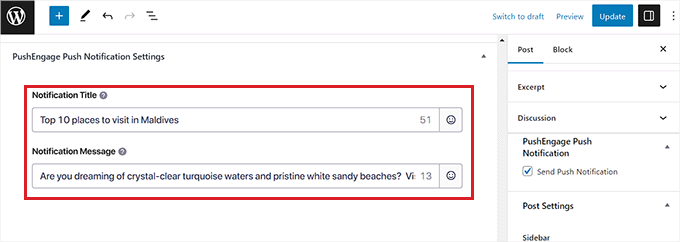
Tip: You can disable the push notification for individual posts by unchecking the ‘Send Push Notification’ box on the right of the screen.
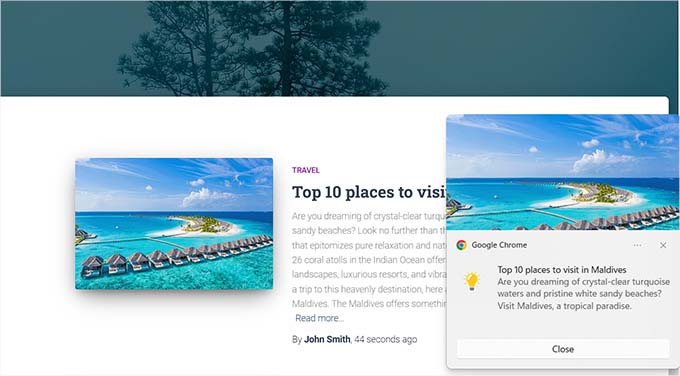
When you click ‘Publish’ on your post, the push notification will be sent automatically to your subscribers.
Here is an example of what the notification will look like for your users.
Bonus: Set Up Automated Drip Notifications With PushEngage
You can also set up automated drip notifications with PushEngage. These are messages automatically sent to subscribers to welcome them, announce a sale, or offer discount coupons.
I use automated drip campaigns to welcome new subscribers and re-engage users who haven’t visited in a while. This is a powerful way to boost user engagement and generate more leads for your business.
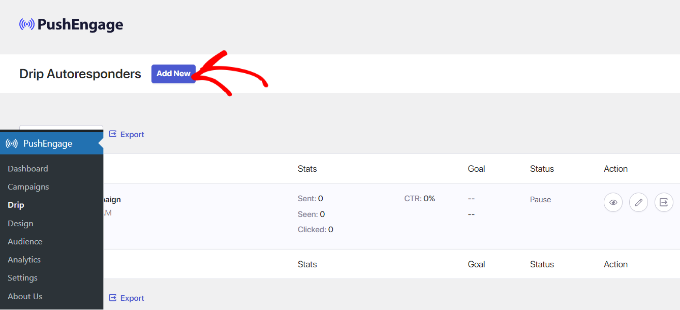
To set up a drip campaign, visit the PushEngage » Drip page from the WordPress dashboard and click the ‘Add New’ button.
Next, you can customize each notification in the sequence. For every message, you can add a unique title, message, URL, and icon image to create a welcome series.
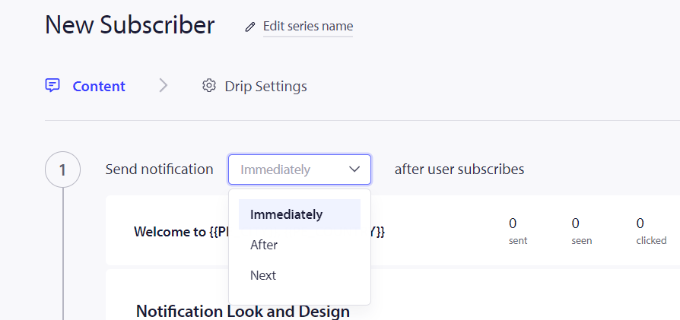
PushEngage will allow you to choose when to send each notification from the campaign. For instance, you can send the first push notification when the user joins your subscriber list.
To do this, simply click the ‘Send notification’ dropdown menu.
After that, you can set different timings for each notification in your campaign. You can also send specific messages to a select group of audience from your subscribers.
Once you are done, don’t forget to click the ‘Activate Autoresponder’ button to enable automated push notifications.
For more detailed instructions, you can see our tutorial on how to set up automated drip notifications in WordPress.
Frequently Asked Questions About WordPress Push Notifications
Over the years, I’ve received a lot of questions about using push notifications. Here are answers to some of the most common ones.
Are web push notifications free?
Many services, including PushEngage, offer a free plan that is great for getting started. These plans typically have limits on the number of subscribers or notifications you can send per month. As your audience grows, you may need to upgrade to a paid plan.
Can I send push notifications from WordPress without a plugin?
While it’s technically possible to integrate push notifications manually using APIs, it requires significant coding knowledge. For almost everyone, using a dedicated plugin like PushEngage is the easiest and most reliable method. It handles all the technical setup for you.
Push Notifications vs. Email: Which is better?
In my experience, it’s not about one being better. They are complementary tools that serve different strategic goals. Email is great for long-form content and newsletters, while push notifications are perfect for short, time-sensitive alerts that drive immediate traffic. I use both as part of a comprehensive marketing strategy.
Do push notifications work on all browsers?
Push notifications are supported by all major modern web browsers, including Chrome, Firefox, Edge, and Safari.
However, for Safari on iPhones and iPads (iOS 16.4+), there’s an extra step: users must first add your website to their Home Screen before they can opt in to receive notifications.
The good news is that PushEngage includes a built-in feature that automatically displays an on-screen overlay to teach your iOS users exactly how to do this!
Additional Resources
I hope this article helped you learn how to add web push notifications to your WordPress site. You might also enjoy these related tutorials to keep growing your website traffic:
- How to Build an Email List in WordPress (Email Marketing 101)
- Push Notifications vs. Email: Which Is Better? (Pros and Cons)
- How to Create an Email Newsletter the RIGHT WAY (Step by Step)
- How to Set Up Automated Drip Notifications in WordPress
If you liked this article, then please subscribe to our YouTube Channel for WordPress video tutorials. You can also find us on Twitter and Facebook.


Dennis Muthomi
I’ve been using PushEngage on several client websites, and it’s been a game-changer. The automated notifications for new posts are super helpful.
I would really love to share that its good to start slow with your notifications – maybe 2-3 per week. You can always ramp up later based on how your audience responds. This really helps keep people subscribed instead of overwhelming them with too many alerts.
Those 10X higher open rates you mentioned? Spot on! I’ve seen the same amazing results, especially when sending time-sensitive updates and special offers to online store customers.
Mrteesurez
I really like this feature of the plugin, I used to see in many website, one signup by users, the notification features alerts visitors even without needing to login.
WPBeginner Support
Glad to hear you like the notifications
Admin
mohadese esmaeeli
Is Push Notification still practical? I have heard a lot that it can be intrusive or weary users. In your opinion, is it recommended to use it?
WPBeginner Support
If done poorly they can cause problems for your users but if you keep your push notifications helpful then they are still a good tool to use.
Admin
Moinuddin Waheed
I think it should be use with very much caution.
I used to think its usability and its positive sides but recently as I subscribed to
some websites push notifications, as soon as I open my chrome browser, it starts
bombarding with so many push notifications and it feels really annoying at times.
It doesn’t let us do any thing until and unless we either close or click on the link.
We should use it but in a very limited sense of use and with limited number of push
notifications.
Mrteesurez
Push notifications are still practical when used thoughtfully. In my experience, I’ve seen them work well when I tailored them to user behavior. For instance, on one of my projects, we used push notifications to remind users right before leaving the site (exit intent). By personalizing and timing these notifications, we saw a significant increase in conversions without annoying our users. The key is relevance and value. only send notifications that genuinely benefit your audience.
Ralph
I was alywas thinking about implementing push notifications on my website but I consider them to be spamy myself. I always block them as soon I see them and think people do the same, but maybe I am wrong?
Is it really so much better than email marketing? In my country it is reported that 50-55% of web users are using adblockers so I don’t know if I should try it.
WPBeginner Support
It depends on your product and how you use them. If used poorly any method can be considered spam but there are also plenty of ways to make a tool useful for your users.
Admin
Moinuddin Waheed
I was looking for a way to use push notifications on my website and I found this article by push notification. This post includes all that is required to send a push notification and keep the post engaging and to keep the website traffic intact.
I want to know if we can build an email list through this push notification and if we can send our posts or articles to that subscribers list. if so, then do we need other email building lists or this push engage will suffice.
I am new to WordPress , so may be my question may seem weird to you.
once again,Thank you for this amazing post.
WPBeginner Support
You can include a call to action to join your newsletter in a push notification
Admin
Mic
Thanks for this post. I guess I may agree with you regarding OneSignal’s support. I’m also switching to PushEngage.
WPBeginner Support
We hope you enjoy using PushEngage
Admin
jasen hudson
I am seriously looking for a blog like this So wonderfully you have explained easily to set up the push notification to the website.
WPBeginner Support
Glad you found our guide helpful
Admin
Nympha
Hi does this work for both android and iOS?
Luca
Is it possibile to activate push notification in a non-online website?
Rubb
Can I use this to send reminder for people registered to webinar a day before the webinar?
WPBeginner Support
It would depend on the tools you are using, if you reach out to the plugin’s support with your specific setup they may be able to assist.
Admin
EdidiongAni
thanks for these. it really help
WPBeginner Support
Glad our guide was helpful
Admin
James
Why doesn’t your site have push notifications?
WPBeginner Support
You may be using a blocker or other tool that is preventing you from seeing our notification request.
Admin
Mahamudul Hassan
Thanks, brother it’s very helpful for me.
WPBeginner Support
Glad our guide was helpful
Admin
KHALID MEHMOOD
Thank you, very detailed and informative step by step tutorial.
WPBeginner Support
You’re welcome
Admin
Sea
Thank for very helpfull and detail post.
WPBeginner Support
You’re welcome
Admin
Tasleem
Nice post. And thanks for this helpful article
WPBeginner Support
Thank you and glad our guide can be helpful
Admin
Naveen Reddy
Thanks for this very detailed and helpful article.
WPBeginner Support
You’re welcome
Admin
Odins
Please which software are they using to blur out private information of certain parts of images and the red circle stuff they are using to emphasize certain stuffs
WPBeginner Support
You can do those edits with different image editors such as Photoshop or GIMP
Admin
kovin
hello guys
i have a social network and i would like whenever someone like or comments or sent a message to one of his friends that friend will receive a push notification
is that possible with this plugin
please guys need your assistance thank you.
WPBeginner Support
You would need to reach out to the support for the plugin you are using for creating the friends list to see if they have the ability to work with push notifications.
Admin
Deepak Baghel
Thank You for share valueable notes it really help me to send push notification to my users. Thank You
WPBeginner Support
You’re welcome
Admin
Scottio
Excellent tutorial. Thank you.
WPBeginner Support
You’re welcome
Admin
Sasha Lizaveta
Hi,
Is there a way to exclude the notification prompt from certain pages in our Wordpress site such as from the opt-in email pages?
Regards,
Sasha
WPBeginner Support
If you reach out to the plugin’s support they will let you know how to set that up
Admin
Marcus Tibesar
I wish these things were outlawed…
WPBeginner Support
We can certainly understand disliking them but some users have found these alerts useful and when used properly they can be used for good
Admin
Alekciss
Hi, nice work !
I would like to know if using a web push notification is against Adsense Policy.
Thank you in advance !
WPBeginner Support
It would depend on how you implemented your Adsense, you would want to reach out to Adsense’s support for this type of question: https://support.google.com/adsense
Admin
Muhammad Junaid
I am using it on my Adsense enabled website. Also, they told that starting from January 2019 we will be able to send web push to 30000 subscribers. Anything beyond that will require an upgrade to the paid plan. For mobile app subscribers, we will be able to send unlimited messages.
krishnakant Raj
It was nice. But can you provide me some details for moving notifications on homepage?
Vandana
Hello Sir,
I am doing everything correctly but there is no button to enable google messaging service
Ca you plz help me
Ashley Bailey
Under Step 1, the setting fields have changed under the Configuration tab.
It’s not called Sender ID anymore. Where do I put the sender ID?
Jitender Singh
Thanks for Great Article Admin
Venugopal
Excellent article. It will be very useful to increase the website traffic.
Thank you _/\_
Suhel Dhuldhule
This Will Work on Android Chrome Also ?
I mean It is Not Working For My Android Chrome
Saurabh
Hi, How can I setup Push notification on my subfolder website? I have followed the above-mentioned steps but it is not working. Although I have successfully implemented it on my other website but I am not able to implement it on subfolder website
subramanyam
I didn’t whatever you said, but nothing works to me, I didn’t get push notification image. Please kindly suggest me.
Note: I didn’t add any image while it ask me.
Mihai
great tutorial.
I see that Amazon have also a push notification offer with a great price.
A tutorial with amazon integration would be great for your subscribers (and for me) because there are not many plugins yet for this
Abi
Nice shots. While executing these kinds of sites, some of the pushes is must need. Thank you
Tim Boehm
This was a good article. I am a little confused though as to how this compares to ‘Notifications’ that is already a tool with the Jetpack plugin?
Love the site and find it enormously helpful.
thx
Tim
Loupio
Thabk you for this awesome tutorial. Is it working with Microsoft Edge.
Dragam
Tried it and is working about fine, but after a while Firefox users just stop receiving updates. Chrome users do not have the same issue. Even if you apply again to receive notifications, it doesn’t work for Firefox users. Well at least on my site.
Giorgio
Sam to me: Firefox users (e.g version 57) don’t receive any notification, while chrome users do.