


Small tweaks to your checkout experience can have a big impact on your sales.
After working with countless WooCommerce store owners, we’ve seen one simple change make a huge difference: adding express checkout buttons like Apple Pay, Google Pay, or PayPal.
These options let customers skip the full checkout form and pay instantly using saved details or biometric authentication. That convenience can seriously boost conversions, especially on mobile.
In this tutorial, we’ll show you step-by-step how to add express checkout buttons to your WooCommerce store, so you can reduce friction and close more sales.
💡Quick Answer: How to Add Express Checkout Buttons
The easiest way to add express checkout buttons like Apple Pay and Google Pay is by using the FunnelKit plugin. Here is the short version of the steps:
- Install FunnelKit and complete the setup wizard.
- Connect your Payment Gateway (like Stripe or PayPal) in the WooCommerce settings.
- Create a Store Checkout in FunnelKit and choose a template.
- Enable Express Checkout inside the checkout step settings under the “Optimizations” tab.
Why Add Express Checkout in WooCommerce?
Adding express checkout to your WooCommerce store provides a better shopping experience for your customers.
It allows customers to go directly to the payment page and skip the shopping cart or checkout pages. They also won’t have to go to a payment provider page or fill out a checkout form to complete their purchases.
Express checkout buttons make the entire buying process quicker. Customers can simply click the button and verify payment instantly using their fingerprint or Face ID.
As a result, you may see a boost in conversions and fewer abandoned carts.
Adding express checkout is also a huge help for mobile users with smaller screens. Customers can simply tap a button to buy instantly.
However, WooCommerce doesn’t offer an express checkout option by default. You will need to use a WooCommerce plugin to add the feature to your online store.
That said, let’s see how you can add express checkout buttons in WooCommerce. Here are the steps we’ll go over:
Setting Up FunnelKit on Your WooCommerce Store
FunnelKit is the best WooCommerce sales funnel plugin on the market. We’ve used it on several of our test stores, and it made a noticeable difference in streamlining the checkout experience.
It lets you add express checkout buttons and create different funnel pages for your online store without needing multiple plugins
One of our favorite things about the plugin is that it works with Stripe, Apple Pay, Google Pay, PayPal Express, Amazon Pay, and other payment gateways for express checkout.
This way, you don’t have to add each payment provider to your online store using third-party plugins or extensions.
FunnelKit also provides user-friendly templates and lets you do A/B testing. You can easily customize your funnels using different drag-and-drop page builders. Plus, there are multiple pre-built templates and automation features for your marketing campaigns.
Note: For this tutorial, we will be using the FunnelKit Pro plugin because it includes premium templates and more customization options. You can also use the free Funnel Builder for WordPress by FunnelKit plugin to add express checkout buttons in WooCommerce.
First, you will need to install and activate the FunnelKit plugin. If you need help, then you can follow our guide on how to install a WordPress plugin.
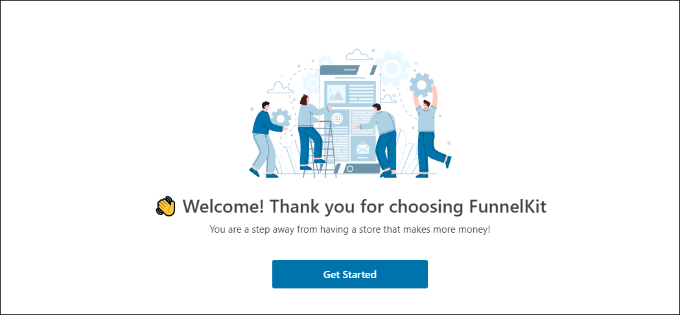
Upon activation, you will see the FunnelKit setup wizard. Go ahead and click the ‘Get Started’ button.
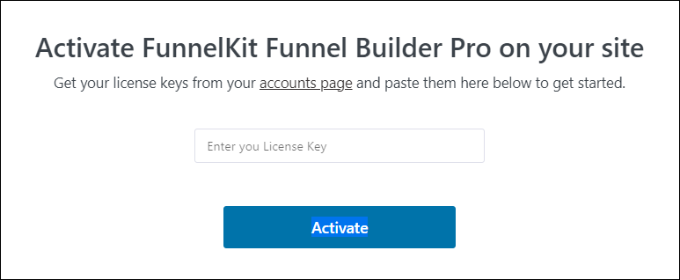
After that, you will need to enter your license key. You can find the key in the FunnelKit account area.
Simply click the ‘Activate’ button after entering the license key.
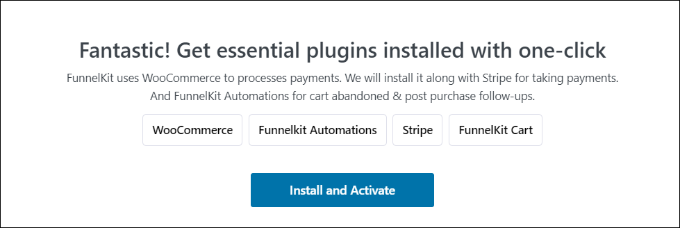
Next, FunnelKit will ask you to install essential plugins. These include WooCommerce, Stripe, FunnelKit Automations, and FunnelKit Cart.
The best part is that you just have to click the ‘Install and Activate’ button, and FunnelKit will take care of the rest.
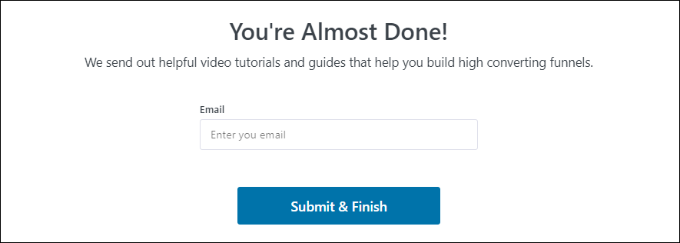
After the plugins are active, the final step is to enter your email address.
Once that’s done, simply click the ‘Submit & Finish’ button.
You will now see a success message. You are ready to create funnels using the plugin and add express checkout buttons to your WooCommerce store.
Go ahead and click the ‘Go to Funnels’ button to continue.

Enabling Payment Gateways in WooCommerce
Before moving forward, make sure you have set up at least one payment service in your WooCommerce store.
To do that, simply go to WooCommerce » Settings from your WordPress dashboard and click on the ‘Payments’ tab.
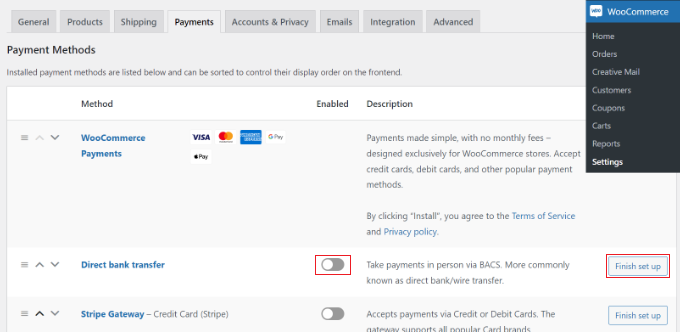
After that, you can click the toggle to enable the payment gateway of your choice. However, simply switching it on isn’t enough. You must click the ‘Finish set up’ button to connect your account.
Depending on the provider, you will need to enter your API keys or log in to your merchant account to finalize the connection.
To learn more, you can follow our guide on how to allow users to choose payment methods in WooCommerce.
Adding Express Checkout Buttons to WooCommerce
Once you have enabled your preferred payment gateways, you can head to the FunnelKit » Store Checkout page from your WordPress admin panel.
From here, simply click the ‘Create Store Checkout’ button.
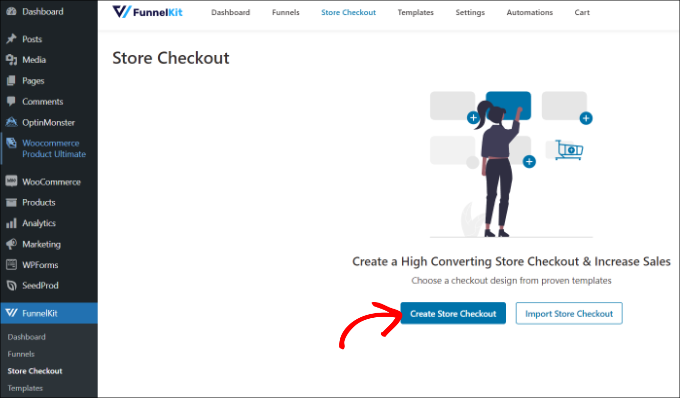
On the next screen, FunnelKit will show you professionally-designed templates for your checkout page. It will also let you create a checkout page from scratch.
However, we recommend using a template and quickly customizing it to match your brand.
Simply hover over a template you’d like to use and click the ‘Preview’ button.
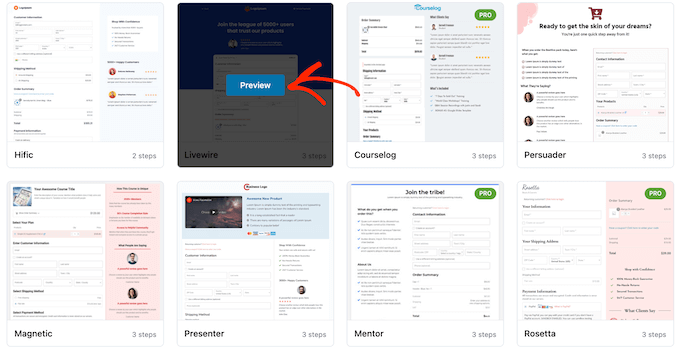
For this tutorial, we will use the Livewire template.
Next, go ahead and click the ‘Import This Funnel’ button at the top.
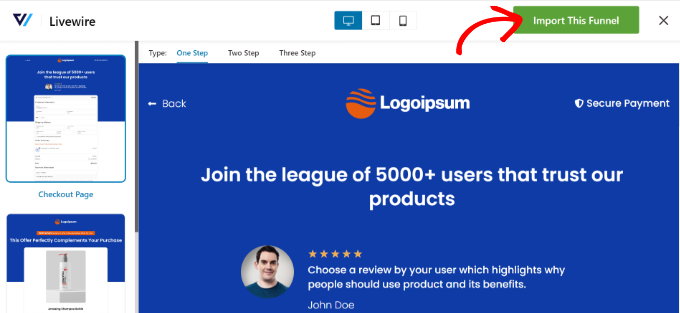
Depending on the template you use, FunnelKit may ask you to install additional plugins like Elementor to edit the checkout page.
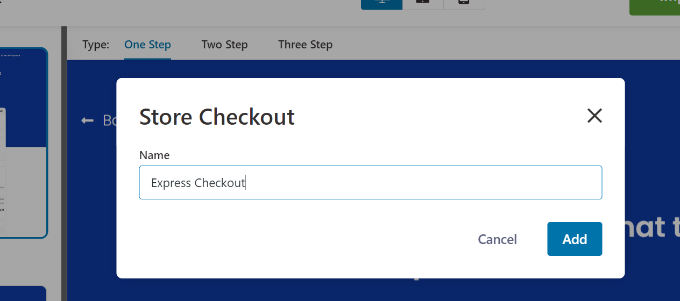
Next, you will need to enter a name for your store checkout and click the ‘Add’ button.
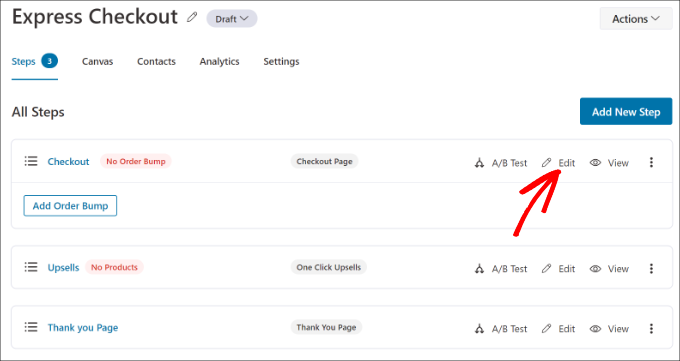
After that, you will see all the steps that are included in the template.
You can simply click the ‘Edit’ button for the Checkout page to continue.
Next, you can switch to the ‘Optimizations’ tab. From here, simply enable the ‘Express Checkout Buttons’ option.
FunnelKit will also let you choose the position of the buttons from the following options:
- Top of the checkout page
- Before/after the product switcher
- Before/after the order summary
- Above the payment gateways
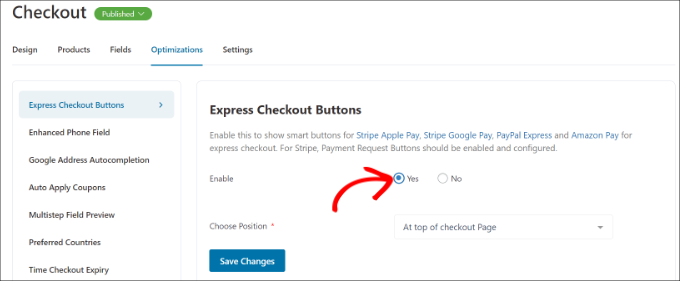
When you are done, simply click the ‘Save Changes’ button.
That’s it, you have successfully added express checkout buttons to your online store.
If you want to edit the appearance of the checkout page, then you can switch to the ‘Design’ tab and click the ‘Edit Template’ button.
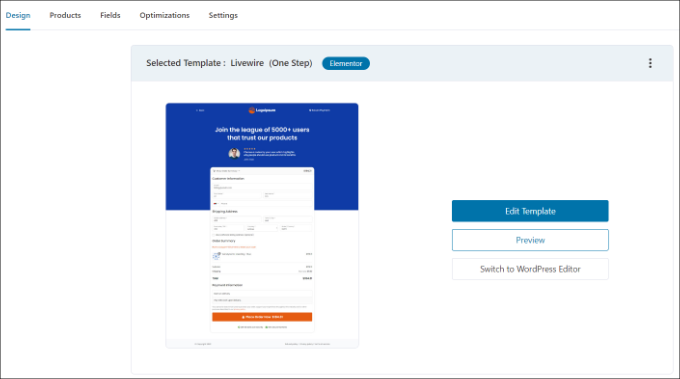
You can learn more by following our guide on how to customize the WooCommerce checkout page.
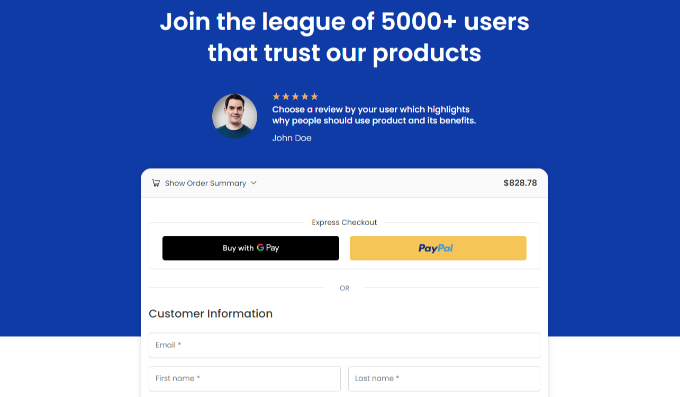
Once you have made your changes, simply visit your online store to view the express checkout buttons in action.
Keep in mind that these buttons are dynamic. You will generally only see the Apple Pay button on Safari devices, and the Google Pay button on Chrome or Android devices.
Additionally, FunnelKit helps you upsell products in WooCommerce. This way, you can boost sales by encouraging users to buy more products.
You can also set up automated emails in WooCommerce using FunnelKit Automations, a sister product of FunnelKit. This plugin lets you create automated workflows and send email campaigns to customers.
Bonus: Create a One Click Checkout in WooCommerce For GPay
If the above method seems complex and expensive, then you can also add a one click checkout button in WooCommerce for GPay. It is a mobile payment service by Google that lets you pay using your Android phone, watch, or tablet.
For this, you can use the Direct Checkout for WooCommerce plugin which is completely free. However, keep in mind that it only adds a button for GPay and won’t support Stripe or PayPal.
Upon plugin activation, just visit the WooCommerce » Settings » Payments page and switch to the ‘Express Checkout’ tab. Here, check the ‘Enable Express Checkout’ option.
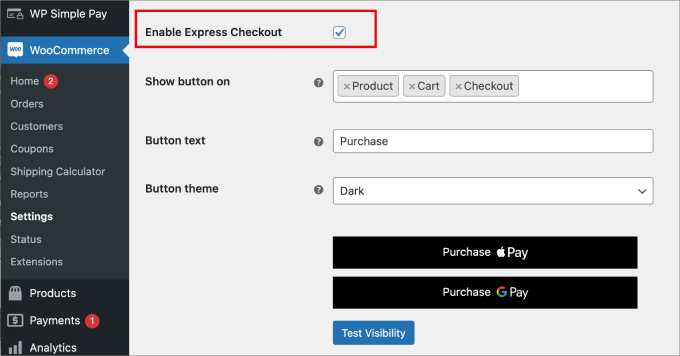
After that, you can configure the rest of the settings to customize your button. Finally, click the ‘Save Changes’ button to store your settings.
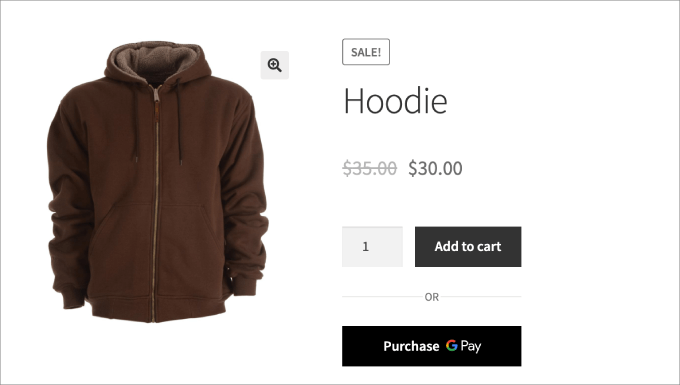
You have now added a ‘Purchase GPay’ button to your store. For details, see our tutorial on how to create a one-click checkout in WordPress.
Frequently Asked Questions About Express Checkout
Here are some questions that our readers have frequently asked before adding express checkout in their WooCommerce stores:
How does express checkout work?
Express checkout works by pulling the payment and shipping information already saved in a customer’s digital wallet (like Apple Pay) or browser. This eliminates the need for them to manually fill out long checkout forms, making the purchase process much faster.
What is the difference between express checkout and standard checkout?
The main difference is speed and convenience. Standard checkout requires users to manually type in their address and credit card details, whereas express checkout fills this data automatically with just one click or a biometric scan.
How to use PayPal Express checkout?
To use PayPal Express checkout, you simply need to enable a PayPal extension in your WooCommerce settings. Once you connect your business account, the “PayPal Checkout” button will automatically appear on your cart and product pages.
How long does PayPal Express Checkout take?
PayPal Express Checkout usually takes just a few seconds to complete. Since the user only needs to log in to PayPal and confirm the payment, it is significantly faster than typing out a full checkout form.
Can I create my own payment link?
Yes, you can create your own payment links using processors like Stripe or plugins like WP Simple Pay. These links take users directly to a hosted payment page where they can pay you instantly without needing a full shopping cart.
How to create a payment button?
To create a payment button, you can use a plugin like FunnelKit or WP Simple Pay. These tools allow you to generate a “Buy Now” button that links directly to a checkout flow without needing to write any code.
We hope this article helped you learn about how to add express checkout buttons in WooCommerce. You may also want to see our list of the best WooCommerce plugins for your store and how to create a WooCommerce popup to increase sales.
If you liked this article, then please subscribe to our YouTube Channel for WordPress video tutorials. You can also find us on Twitter and Facebook.




Jiří Vaněk
Any simplification of the customer’s journey from selecting a product to payment is great and can lead to increased profits. Thanks for the detailed guide. I know myself that I much prefer using apps that take me directly from selecting a product to payment, and I literally avoid e-shops with lots of unnecessary steps that slow down the process. Since I enjoy working with WooCommerce and we are still finalizing the e-shop, this will be another point on the list of things I definitely want to implement along with the article.
Ralph
The easier the purchasing process, the more customers will be converted. This is what I learned years ago. Express checkout bumped my earning by almost 10% and I always lurk into articles how to make it even better. I may use method presented in this guide on my new website. This looks really solid.