


We often see websites that forget to disable directory browsing. At first glance, it might not seem like a big deal, but this small oversight can expose sensitive information and put your site at risk.
When directory browsing is enabled, anyone can view the files and folders on your server. Hackers can use this information to identify weaknesses in your plugins, themes, or even your hosting environment.
Luckily, fixing this issue is quick and easy. By turning off directory browsing, you add an extra layer of protection and make it much harder for attackers to target your site.
In this guide, I’ll walk you through the simple steps to disable directory browsing in WordPress so you can safeguard your website and keep your data secure.
Here is a quick overview of topics I’ll cover in this guide:
What Does Disabling Directory Browsing in WordPress Do?
Disabling directory browsing stops visitors from seeing a list of files and folders on your site when an index file isn’t available. Instead of showing that raw directory, the server will display a blank page or an error message.
When someone visits your website, the server normally delivers an index file (like index.html or index.php) to their browser. If that file is missing, many servers will fall back to displaying all the files in that folder.

This behavior is called directory browsing, and it’s often enabled by default on hosting servers.
The problem is that this exposes sensitive details about your site’s structure. Hackers can use it to look for vulnerabilities in plugins, themes, or even your hosting environment.
In some cases, directory browsing can also reveal private or paid content, such as ebook downloads or online courses, which could then be copied without permission.
That’s why we always point out this risk when helping beginners. Turning off directory browsing is a quick change that can protect your site and prevent unnecessary revenue loss.
How to Check if Directory Browsing Is Enabled in WordPress
An easy way to check if directory browsing is enabled on your WordPress website is by visiting the /wp-includes/ folder directly.
For example, just enter a URL like this: https://example.com/wp-includes/ in your browser.
Make sure to replace example.com with your actual website’s domain name. This simple test works across most WordPress installations.
If you see a 403 Forbidden message or a similar error, then directory browsing is already disabled. This is a good sign as it means your website is more secure.
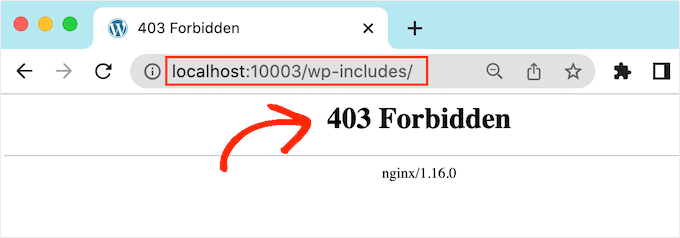
If a list of files and folders appears instead, then directory browsing is enabled.
Leaving directory browsing enabled makes your website vulnerable to malicious attacks.
In our experience, enabling directory browsing exposes sensitive information and increases security risks. For this reason, it’s best to disable directory browsing in WordPress to keep your site safe.
How to Disable Directory Browsing in WordPress
You can disable directory browsing by adding a single line of code to your WordPress .htaccess file.
This is a powerful server configuration file, so it is very important to make a backup of your .htaccess file before making any changes. An incorrect edit could make your site inaccessible.
Tip: We use Duplicator to automatically back up all our WordPress websites. It allows you to create scheduled as well as on-demand backups. More importantly, you can easily restore your website with 1-click. See our full Duplicator review for more details.
You can access this file using two main methods:
Method 1: Edit the .htaccess File Using the File Manager in cPanel
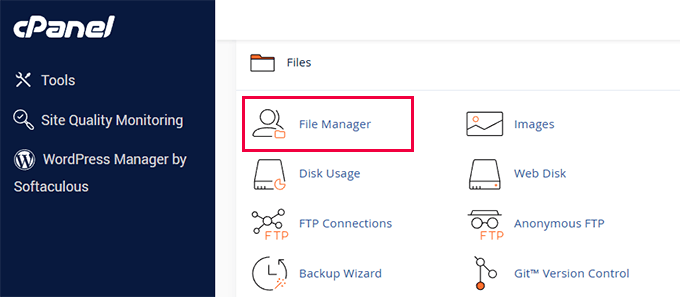
The easiest method for most users is to use the File Manager app provided in your WordPress hosting account’s control panel (cPanel).
First, log in to your hosting account and open the File Manager.
Navigate to your website’s root folder, which is often named public_html.
Now, locate the .htaccess file.
If you cannot see it, make sure to enable “Show Hidden Files” in your File Manager’s settings.
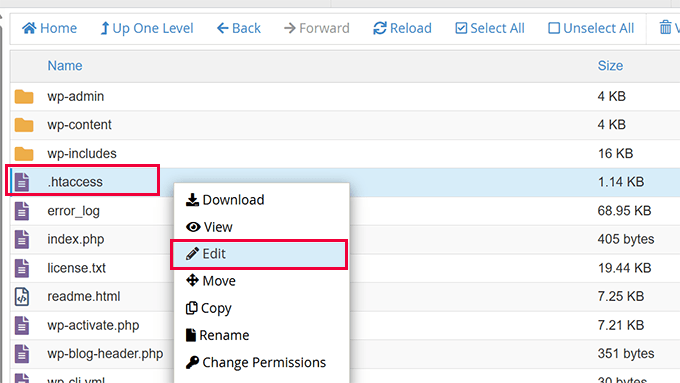
Right-click on the file and select ‘Edit’ or ‘Code Editor’.
Method 2: Editing the .htaccess File Using an FTP Client
Alternatively, you can use an FTP client to connect to your website’s files.
If this is your first time, you can follow our complete guide on how to connect to your site using FTP.
- Once connected via FTP, navigate to your site’s root directory (e.g.,
public_html). - Find the
.htaccessfile. - Download the file to your computer, then open it in a plain text editor like Notepad or TextEdit.
Adding the Code to .htaccess
Once you have opened the .htaccess file for editing using either method, simply add the following line of code at the very bottom of the file:
Options -Indexes
It will look something like this:
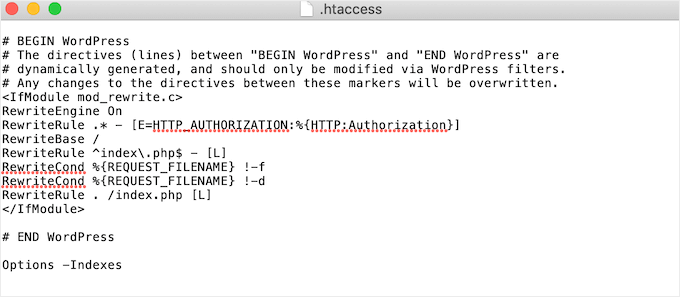
Now, save your changes. If you used an FTP client, you must re-upload the edited .htaccess file to your server, overwriting the original.
Note for Nginx Users 📝: This .htaccess method applies to websites running on an Apache web server. If your website is on an Nginx server, this setting is usually handled at the server level by your hosting provider, and directory browsing is typically disabled by default. To learn more, see our comparison of Apache vs Nginx vs LiteSpeed web servers.
Now, if you visit the same http://example.com/wp-includes/ URL, you’ll get a 403 Forbidden or similar message.
Bonus Tip: Prefer a Plugin Instead?
If you are not comfortable editing code, a good WordPress security plugin can handle this for you.
Most WordPress security plugins include a one-click option to disable directory browsing as part of their website hardening features, so you never have to touch a single file.
Frequently Asked Questions About Disabling Directory Browsing
What is directory browsing, and why is it a security risk?
Directory browsing is a server feature that lists all the files and folders within a directory if an index file (like index.php) is missing. It’s a security risk because it exposes your site’s structure, including which themes and plugins you use, to potential attackers.
Does disabling directory browsing affect my website’s SEO?
No, disabling directory browsing does not negatively affect your SEO. Search engines are interested in your content, not your file structure. In fact, improving your website’s security is a positive signal to search engines.
Is it better to use a plugin or edit the .htaccess file?
Both methods achieve the same result. Editing the .htaccess file is a quick, one-time fix. Using a security plugin like Sucuri is great for beginners as it handles this and many other security settings with a single click, without needing to edit code.
What if my WordPress site uses an Nginx server?
The .htaccess file is specific to Apache web servers. On Nginx servers, directory listing is typically disabled by default in the main server configuration. If you suspect it’s enabled, you should contact your hosting provider to have them disable it for you.
Additional Reading for WordPress Security
Want to keep your WordPress website secure and error-free? You may find the following articles useful:
- Beginner’s Guide to WordPress File and Directory Structure
- Most Common WordPress Errors and How to Fix Them
- How to Fix File and Folder Permissions Error in WordPress
- How to Password Protect Your WordPress Admin (wp-admin) Directory
We hope this article helped you learn how to disable directory browsing in WordPress. You may also want to see our ultimate WordPress security guide or our expert pick of the best WordPress security plugins.
If you liked this article, then please subscribe to our YouTube Channel for WordPress video tutorials. You can also find us on Twitter and Facebook.




Dennis Muthomi
I noticed that I have directory browsing disabled on my WordPress site, because I got a 403 error when trying to access wp-includes, yet I don’t remember ever having edited my .htaccess file to do so.
Does WordPress automatically disable directory browsing during initial installation?
WPBeginner Support
Unless there was a recent change it does not by default, it may be your hosting provider’s default settings for htaccess.
Admin
Dennis Muthomi
That’s what I was suspecting also, thanks for clarifying that WordPress doesn’t disable directory browsing by default.
And the respond too
Dayo Olobayo
I didn’t even know that this vulnerability existed. Just checked mine and got the 403 error. which means directory browsing is disabled. Thank you.
WPBeginner Support
You’re welcome
Admin
Jiří Vaněk
Thanks for the advice. On directory browsing, or that I have it enabled, the AIO SEO plugin keeps warning me. I have currently solved the problem by making the folders have an index file that is empty. Is it possible to take this as one of the possible solutions?
WPBeginner Support
You can try that method but we would still recommend the htaccess method from our guide.
Admin
Jiří Vaněk
Thanks for the advice, I finally used the Options -Indexes method now and AIO SEO already reports the problem as solved. Thanks again.
Ka Khaliq
After editing the htaccess file as per the provided guidelines, I do see 403 Forbidden message for /wp-includes/. But I’m unable to see edit any post. Upon editing a post, I see the same 403 Forbidden message. How to solve this?
WPBeginner Support
There may be an issue with your file permissions, we would recommend taking a look at our guide below for fixing your permissions:
https://www.wpbeginner.com/wp-tutorials/how-to-fix-the-403-forbidden-error-in-wordpress/
Admin
Ka Khaliq
The issue resolved after clearing the web history/cache.
Thanks for your time.
Dina D
Thank you so much! Clear, concise, and easy to follow. Thank you so much!
WPBeginner Support
You’re welcome!
Admin
Rabee Khan
Thank You… precise and easy to understand!
WPBeginner Support
Glad our guide was helpful!
Admin
Kimmy
Thanks for the two-word solution! Lol. Worked perfectly!
WPBeginner Support
Glad we could help!
Admin
Seashell
I was shocked to see the folders accessible right in the browser.
Thanks for your solution!
WPBeginner Support
Glad we could help!
Admin