


I still remember the frustration of sharing one of my first blog posts on Facebook, only to see it pull a completely random, pixelated image. After spending hours on the content, it was discouraging to see it misrepresented before anyone even had a chance to click.
This happens when a website doesn’t give social media platforms clear instructions on what to display. Without that guidance, Facebook just has to guess, and it often guesses wrong.
Here at WPBeginner, we’ve mastered how to control our social sharing appearance using Open Graph meta data. In this guide, we’ll walk you through the proven methods we use, so you can make sure your content always looks its best when shared.

You can use the quick links below to jump straight to the method you’re most interested in:
Important: Please choose only one of the methods below. Using multiple SEO plugins or adding the code manually while a plugin is active can create conflicting Open Graph tags, which can cause unexpected sharing results. We recommend Method 1 using AIOSEO for the easiest and most comprehensive setup.
Method 1: Adding Facebook Open Graph Metadata With AIOSEO
All in One SEO is a popular WordPress SEO plugin used by over 3 million websites. It allows you to easily optimize your website for search engines as well as social platforms like Facebook and Twitter.
First, you need to install and activate the free All in One SEO plugin. For more details, see our step-by-step guide on how to install a WordPress plugin.
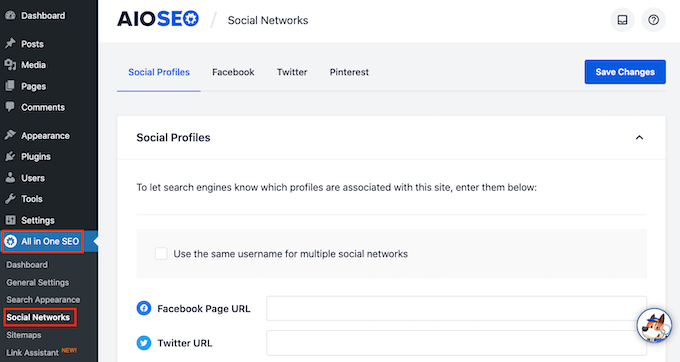
Upon activation, you need to visit the All in One SEO » Social Networks page. Here, you can enter your Facebook page URL and all your other social networks.
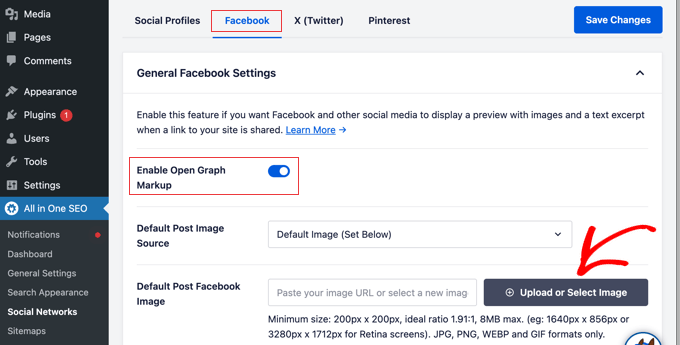
Next, click on the Facebook tab at the top of the page, and you will see that Open Graph Markup is enabled by default.
You can click the ‘Upload or Select Image’ button to choose a default Facebook OG image if an article doesn’t have an Open Graph image.
If you scroll down, you can customize your site name, description, and more settings. Don’t forget to click the blue ‘Save Changes’ button once you are done.
Now that you have set site-wide Open Graph metatags, the next step is to add Open Graph metadata for individual posts and pages.
By default, AIOSEO uses your post’s SEO title and meta description for the Open Graph title and description. You can also manually set the Facebook thumbnail for each page and post.
Simply edit the post or page and scroll down to the ‘AIOSEO Settings’ section below the editor. From here, switch to the Social tab, and you will see a preview of your thumbnail.
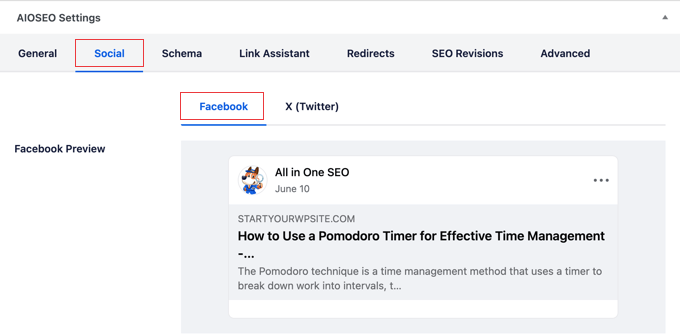
You can set the social media image here, as well as the title and description.
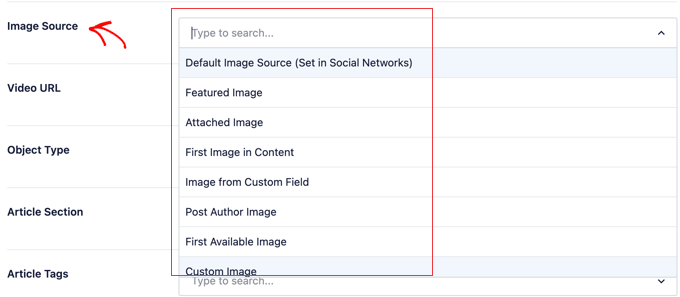
Just scroll down to the ‘Image Source’ field. You can choose to use the featured image, upload a custom image, or other options.
Method 2: Set Facebook Open Graph Metadata Using Yoast SEO
Yoast SEO is another WordPress SEO plugin that you can use to add Facebook Open Graph metadata to any WordPress site.
The first thing you need to do is install and activate the Yoast SEO plugin. For more details, see our step-by-step guide on how to install a WordPress plugin.
Once activated, Facebook Open Graph data is enabled by default.
You can check this by going to Yoast SEO » Settings and scrolling down to the Social Sharing section. Now you can make sure the Open Graph data feature is enabled.
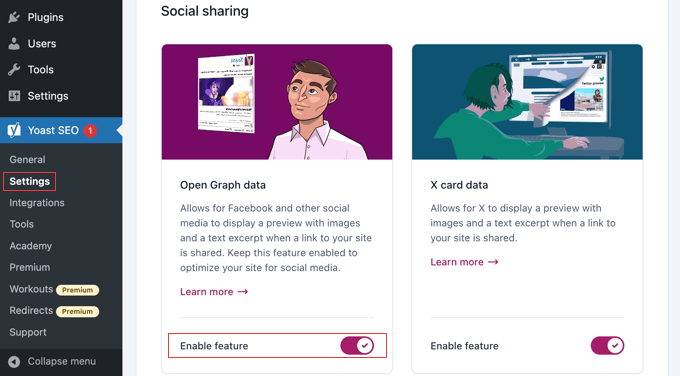
You can save your settings or continue and configure other Facebook social options.
You can provide a Facebook app ID if you use one for your Facebook page and insights. You can also change your homepage Open Graph meta title, description, and image.
Lastly, you can set a default image to be used when no image is set for a post or page.
The Premium version of Yoast SEO also allows you to set Open Graph metadata for individual posts and pages. Simply edit a post or page and scroll down to the ‘Yoast SEO’ section below the editor.
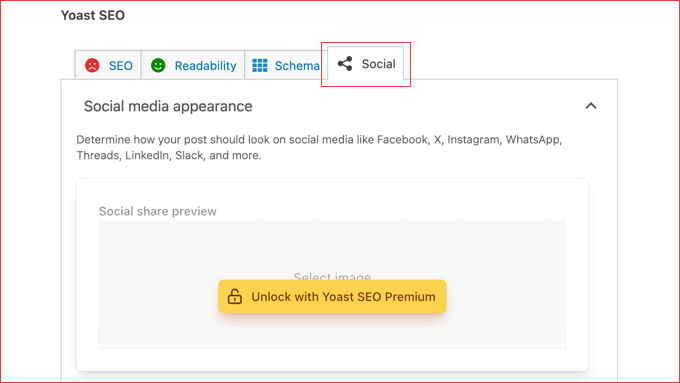
From here, you can set a Facebook thumbnail for that particular post or page. If you don’t set a post title or description, then the plugin will use your SEO meta title and description.
You can now save your post or page, and the plugin will store your Facebook Open Graph metadata.
Method 3: Adding Facebook Open Graph Metadata Using Code
This method typically requires you to copy and paste code into your theme’s functions.php file. However, we recommend adding the code using the WPCode plugin instead, which makes it easier and safer to add custom code in WordPress.
WPCode also comes with a library of ready-made code snippets, including one for adding basic Open Graph tags, so it only takes a couple of clicks.
First, install and activate the free WPCode plugin. For more details, please see our guide on how to install a WordPress plugin.
Upon activation, you can go to Code Snippets » + Add Snippet from your WordPress dashboard.
Search for the ‘Add basic Open Graph Tags’ snippet from the library. Once you find it, hover over it, and click the ‘Use snippet’ button.
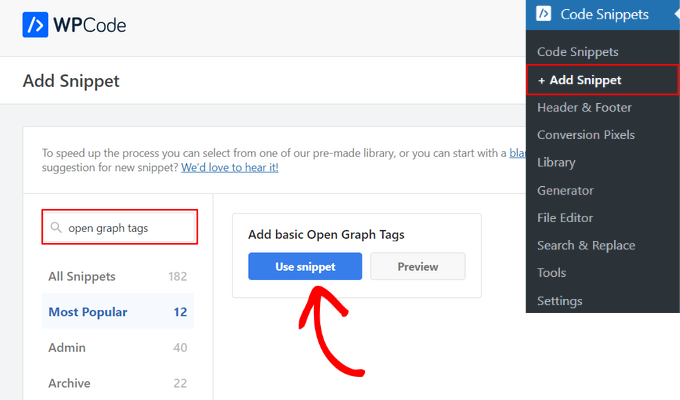
Then, WPCode will automatically add the code for you, as well as set the site wide header as the insertion method location.
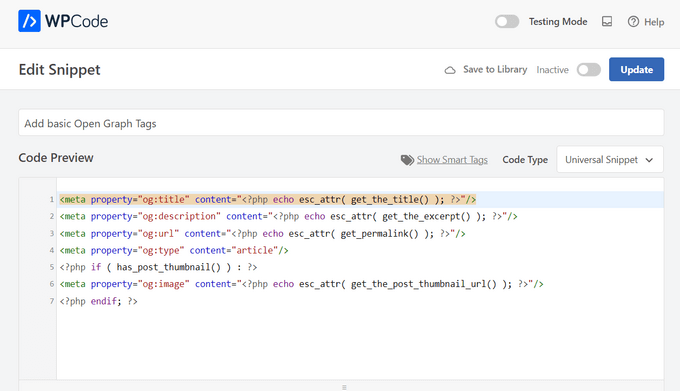
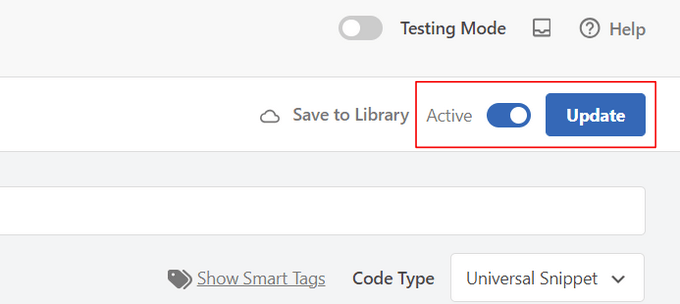
After that, all you need to do is toggle the snippet to ‘Active’ and click the ‘Update’ button. Your theme will now start showing Facebook Open Graph metadata in the WordPress header.
If you’re an advanced user, then you can still copy and paste the code below into your theme’s functions.php file.
Since this requires you to directly edit your theme files, make sure that you back up your theme files before making any changes.
//Adding the Open Graph in the Language Attributes
function add_opengraph_doctype( $output ) {
        return $output . ' xmlns:og="http://opengraphprotocol.org/schema/" xmlns:fb="http://www.facebook.com/2008/fbml"';
    }
add_filter('language_attributes', 'add_opengraph_doctype');

//Lets add Open Graph Meta Info

function insert_fb_in_head() {
    global $post;
    if ( !is_singular()) //if it is not a post or a page
        return;
        echo '<meta property="fb:app_id" content="Your Facebook App ID" />';
        echo '<meta property="og:title" content="' . get_the_title() . '"/>';
        echo '<meta property="og:type" content="article"/>';
        echo '<meta property="og:url" content="' . get_permalink() . '"/>';
        echo '<meta property="og:site_name" content="Your Site Name Goes Here"/>';
    if(!has_post_thumbnail( $post->ID )) { //the post does not have featured image, use a default image
        $default_image="http://example.com/image.jpg"; //replace this with a default image on your server or an image in your media library
        echo '<meta property="og:image" content="' . $default_image . '"/>';
    }
    else{
        $thumbnail_src = wp_get_attachment_image_src( get_post_thumbnail_id( $post->ID ), 'medium' );
        echo '<meta property="og:image" content="' . esc_attr( $thumbnail_src[0] ) . '"/>';
    }
    echo "
";
}
add_action( 'wp_head', 'insert_fb_in_head', 5 );
Remember to add your site name on Line 17, where it says ‘Your Site Name Goes Here’. After that, you should change the default image URL on Line 19 with one of your own image URLs.
We recommend putting an image with your logo there, so if your post does not have a thumbnail, then it pulls your site’s logo.
You also need to add your own Facebook App ID on Line 13. If you don’t have a Facebook app, then you can remove Line 13 from the code.
Frequently Asked Questions About Facebook Open Graph
We’ve helped thousands of users set up their social sharing settings, and a few questions come up quite often. Here are the answers to the most common questions about adding Facebook Open Graph meta data.
1. How do I test if my Open Graph tags are working correctly?
The best way to check your tags is with Facebook’s official Sharing Debugger tool. Just enter the URL of your post or page, and the tool will show you a preview of how it will look when shared and list any errors or warnings it finds.
2. What is the best image size for a Facebook Open Graph image?
For the best results on high-resolution displays, Facebook recommends using images that are at least 1200 x 630 pixels. It’s important to maintain an aspect ratio of 1.91:1 to prevent your image from being cropped awkwardly.
3. Why is Facebook showing the wrong image even after I set one?
This is usually a caching issue. Facebook saves the Open Graph data it first sees for a URL. If you update the image, you need to tell Facebook to check again by running the URL through the Sharing Debugger tool and clicking the ‘Scrape Again’ button.
4. Do Open Graph tags affect my website’s SEO?
While Open Graph tags don’t directly impact your search engine rankings, they have a strong indirect effect. A compelling and professional-looking social share leads to higher click-through rates and more traffic, which are positive signals for search engines.
Additional Resources on Facebook and WordPress
We hope this article helped you add Facebook Open Graph metadata in WordPress. You may also want to see some other guides related to how you can use Facebook in WordPress:
- Best Facebook Tips and Tutorials for WordPress Users
- How to Automatically Post to Facebook From WordPress
- How to Install and Setup Facebook Comments in WordPress
- How to Create a Custom Facebook Feed in WordPress
- How to Display Your Facebook Page Reviews in WordPress
- How to Fix Facebook Incorrect Thumbnail Issue in WordPress
- How to Display Author’s Twitter and Facebook on the Profile Page
- How to Create a Facebook Ads Landing Page in WordPress
- How to Fix the Facebook and Instagram oEmbed Issue in WordPress
If you liked this article, then please subscribe to our YouTube Channel for WordPress video tutorials. You can also find us on Twitter and Facebook.


wpbeginner
@SteveJoseph@joshuatj Josh not sure when you last checked the plugin, but our plugin has full support for the og:description. It has been there since version 0.1.2. Here is the changelog:http://wordpress.org/extend/plugins/facebook-open-graph-meta-in-wordpress/changelog/In version 0.1.3, we improved the description code to actually look for Yoast’s plugin’s description code, and if that doesn’t exist then it pulls the post excerpt if that exists.
SteveJoseph
@joshuatj Good point and thanks again for the links and your help. It’s much appreciated. Between Linter and the Yoast plugin I should be ok. All the best.
joshuatj
@SteveJoseph Or you can wait till Facebook do their Lint run.
SteveJoseph
@joshuatj I tried linter before but that only fixed the 1st post. The rest still display the old copy. I just realized however that if I lint each unique page then it shows the correct information which is what you’ve posted above. Annoying but I guess this is what I’ll need to use for now or check out the link you provided and see if that plugin works for me. Much thanks mate! Cheers.
joshuatj
@SteveJoseph Oops, you’re right, I did make a typo mistake there. I meant “Yoast”. http://yoast.com/wordpress/seo/But in actual fact, Yoast does more than just solving the og-description issue, so it might not be what you want. I just used URL Linter (http://developers.facebook.com/tools/lint/) for your site. It seem to be displaying this description “Future Tomorrow is the collective online moniker, portfolio site and blog of Steve Joseph. With over 14yrs creative experience across several disciplines and knowledge that far extends beyond “just being a creative”, there is much to share but still more to learn.”. Is that what you want in the description field? Try “sharing on Facebook” again?
SteveJoseph
@joshuatj Thanks for the response joshuatj. Unfortunately a search of “Yeost Facebook Plugin” or “Yeost Plugin” didn’t return any helpful results in guiding me to this possible solution. Do you have a direct link?
I also tried searching “Yoast” thinking there may have been a typo in your response and that still didn’t lead me to a solution. Any further help would be greatly appreciated. Thanks for your time.
joshuatj
@SteveJoseph I don’t think this plugin deals with description. Try Yeost’s?
SteveJoseph
sorry for no link – http://futuretomorrow.net/blog/ – click on “share this on Facebook” on any post to see what’s happening in visual detail. Thanks again.
SteveJoseph
Hi,
I tried both your plug-in and code method and neither worked. When clicking “share this on Facebook” from my blog, my title is correct, URL is correct, image is correct but the description is old and incorrect. Is there an update to the code or plug-in where the “description” is properly displayed?Thanks in advance.
Cheers,
Steve
joshuatj
The plugin is awesome! Thanks wpbeginner! However it’ll be awesome if we can also add the “description” content for the <meta property=”og:description” content=””> meta tag
ExpandSM
sorry, the site is http://societyofsocialpreneurs.com/blog
ExpandSM
Thanks for this plugin! I have a blog that is also a Buddypress site and I can’t get it to pull the post excerpt. Any suggestions?
jaffa
@wpbeginner Thank you for your reply.
I realise I’m turning into the biggest pain on this thread and this will be my last question:
I use the catch that image and tim thumb function on my site and was wondering how or if I could implement that into this function to replace the code that looks for a featured image?
Sometimes I don’t use the featured image so it would be handy if the script could just look for the first image in the post and if that is not there then use the default.
Thanks in advance
dbrabyn
@wpbeginner @dbrabyn Fair enough. I’ve just tried it and for a post with no featured image but a post image, FB Lint tells me “The image url is not compliant with RFC2396 and will not be displayed correctly.” The absence of a default image is a problem too. Thanks anyway.
wpbeginner
@jaffa If you don’t have these meta tags, and the user LIKES a post using the like button on your blog (FB will pick a random image for them)….Now if they put the link on their Facebook profile (then they will get option)… Most of the time folks click on the like button then actually copying the link and pasting on their facebook status box. This plugin actually fixes that issue.
wpbeginner
@dbrabyn The plugin that we have in the repository actually does that. It looks for the featured image and if no featured image is found it falls back to the first image of the post… The snippet in this post doesn’t do that. Just use the plugin.
jaffa
Finally got this working with the help of wpbeginner!
I have a question though, when I share a page that doesn’t have any images in the content the default image is used. Is it possible to specify more than one default image?
Also, I noticed if I share the homepage of the website, I have a choice of all the images on the page to pick from but when sharing a normal page I am forced to use the default only. Is there a way to see all images on the page?
Thanks
dbrabyn
Any way to make this function grab the first image from the post, then the featured image, then the default image? Just like get_the_image does.
jaffa
@wpbeginner will do so!
Thank you so much
wpbeginner
@jaffa If you send us an email using the contact form, we can definitely look into it and help you get this working.
jaffa
@wpbeginner It is not that I am not satisfied with the article here, it’s just I can’t seem to get it working. I always visit this site as it has helped me greatly and allowed me to learn a lot about wp.
I couldn’t get the opengraph to work and then started looking elsewhere online which lead me to other articles that just confused me really. I then came back here to try again. Maybe I have done something incorrect or there is something not right in my theme that is preventing it from working. That’s what I meant by ‘I’ll figure it out’
I appreciate your replies and help.
Thank you.
wpbeginner
@jaffa You don’t need an app if you don’t want it. You can still retrieve analytics for your like buttons through your personal account. There is nothing to figure out because the article explains everything, but if you still are not satisfied then sure do further research.
jaffa
@wpbeginner ok, thanks!
Other articles suggested an app needed to be created which is why I was confused. Nevermind, I’ll figure it out.
wpbeginner
@jaffa You DO NOT have to create a facebook application for this tutorial. It will work regardless. We have the app on our page for other reasons that does not relate to the tutorial mentioned in this article….
jaffa
@wpbeginner thanks for your reply. I was getting very confused :s
Do I need to create a facebook application for this open graph to work correctly? I just checked the source code for this page and you have an ‘fb:app_id’ field which isn’t included in the code above?
I apologise for all the questions, if anyone can direct me to some documentation about open graph I will happily try to find some answers and come back and share any info I may find.
Thanks
wpbeginner
@jbjb3077 Look at our article about showing custom fields anywhere on the site. Custom Fields 101 article covers that on our site
wpbeginner
@jaffa It is not the same as an app id…. Your personal user id is different.
jaffa
this may seem like a very silly question but in order for this to work do you have to create a facebook application first? I just have a regular facebook page and nothing else and I have tried this code many times but still cannot get it to work. When I run it through the linter tool I get the error: invalid app ID.
Is the example of the USER ID above the same as an app ID or not?
jbjb3077
@jbjb3077 please check this….
mark.bravura
Thanks again for your quick response. And that is the heart of my question… the Facebook Open Graph Meta For WordPress plugin is pulling in all of the meta data correctly, except for no excerpt/description data. Hence why I am wondering how to manually tweak it. Any suggestions?
wpbeginner
@mark.bravura Your post title is being pulled as the title. Your excerpt is being pulled as the description. Your featured image (thumbnail) is being pulled as the thumbnail. Modify any of those, and you can modify the og data.
mark.bravura
Thanks for the quick reply. So is there a reasonably easy way to manually fine tune (access/modify) the OG data?
wpbeginner
@mark.bravura The information is actually already stored in your database. This plugin merely outputs it.
mark.bravura
Hi,
When using the OG meta data plugin, which PHP file does it store the tags in? Thanks!
Liverpoolfcblog
Hey there wpbeginner @wpbeginner , the code is working fine. Thanks for that.
Just have a question. I ran individual articles through facebook’s linter and all appeared fine. However, when I ran my home page through it says this:
Required Property Missing og:title is required
Required Property Missing og:type is required
Required Property Missing og:url is required
Required Property Missing og:image is required
I noticed this in the code: if ( !is_singular()) //if it is not a post or a page return;
Does adding the above four affect how facebook sees my site? For instance, will it categorize as a website and show the Title?
Cheers.
Editorial Staff
You can remove the is_singular item and show this on the homepage… Most if not all WordPress blogs are only shared from the single post page. That is also the page where the Like button is prominent.
Admin
jbjb3077
hello my post images are in custom field (thumb) i had a hack with previous version but now cant figure it out how to add that. please help me. this is the code i have replaced
if ( get_post_meta($post->ID, ‘thumb’, true) ) { //the post does have featured image $thumbnail_src = get_post_meta($post->ID, “thumb”, true); echo ‘<meta property=”og:image” content=”‘ . esc_attr( $thumbnail_src[0] ) . ‘”/>’; } else{ echo ‘<meta property=”og:image” content=”mysite image in a path.jpg”/>’; } echo “n”;
Danny Foo
Still having the thumbnail problem even after doing the function method.
By the way, do you have to update the xmlns:og? Facebook’s opengraph documentation notes it as; http://ogp.me/ns#
Nurul Imam
Thanks… Succes add this function to my themes
jaffa
@Elliot – Theme does support post thumbnails, I’m using a child theme of Twenty Ten
Here I have added a copy of the code within the functions.php to add thumbnail support;
http://pastebin.com/7Cw480Xy
Maybe I have done something wrong here?
jaffa
Thanks Daniel, adding that did help remove the errors I was receiving before but now it’s telling me the title, url, image and type are missing even though they are there.
It is also showing the wrong image, it doesn’t seem to be picking up the image from the article rather a random image from the page.
I have no idea why I can’t get this to work, I wanted to avoid using the plugin but maybe that’s the way I need to go.
Thanks guys for your help.
Daniel Chenery
Oh! I have that issue too. I popped the info in my header.php, lint the homepage = Works
Link a post page = Broken
I just gave up and ignored it!
jaffa
Thanks Daniel for trying to help.
Think I’m going to have to give up too, can’t waste all my time on this.
Would have been cool if it worked for me.
Elliott the web design guy
Presumably you have re scraped it with the linter tool before testing it again also, have you put the code into your functions.php or your header.php ?
jaffa
Yes, I followed your advice and used the linter tool but still no luck.
And, I placed the code in the functions.php.
Elliott the web design guy
Does your theme support post thumbnails ?
jaffa
I added the code to my functions file and then followed your article on how to add the Like and Send button and all seemed to be fine but today as my client posted a link on the FB wall to the latest article there was no option to select an image to go with the article.
I can’t understand what went wrong or how to go about fixing it. I am assuming it is the FB code I added that has caused this as I have made no other changes.
Any idea’s what could be the problem?
Editorial Staff
Yes, it takes away the option for you to pick images…. The code picks the IMAGE for you. It picks post’s thumbnail and sends that as the image for that article.
Admin
jaffa
Thank you for your reply.
I didn’t realise it took that option away. But I still don’t understand why it didn’t display the thumbnail when I have included a thumbnail image. There just wasn’t an image there at all.
When I view the source I can see a link to the image in the og:image field.
I wish I could get it to work, might have to try the plugin.
Just one other thing, I have defined a number of different thumbnail sizes in my theme to use in various places, so instead of it calling the ‘medium’ sized image do I need to set it so it calls one of my defined thumbnails??
Sorry for the long and confusing comment, newbie here!
Elliott the web design guy
Facebook will scrape your site every 24hrs or so… so if you’ve made any changes on your site facebook will need to catch up – 24hrs or so later. But, you can force facebook to re-scrape your site by using the linter tool. Before testing the Send button again run anyone of your url’s through http://developers.facebook.com/tools/lint/ to force Facebook to refresh the details, hopefully this should resolve the image issue
jaffa
Thanks Elliott, the Linter tool you provided a link to was quite helpful.
After passing a url through it, the error message I got was:
fb:admins field contained some invalid ids, I noticed that my page ID is 15 characters long but the one used in the example above is only 10.
The other message I got was:
You put App ID in the fb:admins field. It should be in fb:app_id
Should there be an extra field for app_id in the code above?
I’m slightly confused now…
Daniel Chenery
@Jaffa What you need to do is add
Should do the trick.
Daniel Chenery
Sorry, I thought the
codetag might keep the tags, turns out not. Let me try and post that again<meta property=”fb:app_id” content=”Your_App_ID”/>
<meta property=”fb:admins” content=”Your_Profile_ID”/>
Gretchen
I’m not seeing a field for the default image–just for ID and site name. Am I missing something?
Editorial Staff
We updated the plugin to fix a bug with the default image issue. Now, it is checking if your post has a thumbnail… If it doesn’t, then it picks the first image from your post. We do have plans on bringing the default image feature back soon.
Admin
Gretchen
Good! I definitely like the default image feature, because not all my posts have images.
Thanks for the great plugin!
Ayanna Mitchell
I installed the plugin…but there is no spot to add a default picture. Please help.
Editorial Staff
Look at our reply to Gretchen.
Admin
Ovidiu
I am curios about this part of the code: add_opengraph_doctype the problem is that that function doesn’t seem to do anything on my install the rest is working fine but this add_opengraph_doctype doesn’t.
is it necessary and why do you think my themes doesn’t trigger that?
Editorial Staff
It won’t do anything if your theme doesn’t include a standard code (language attributes) that all WordPress themes SHOULD include.
Admin
Ovidiu
I am missing the inclusion of this code: `’ xmlns:og=”http://opengraphprotocol.org/schema/” xmlns:fb=”http://www.facebook.com/2008/fbml”‘`
my header.php has this at the top:
`
`
whats wrong with that? what am I missing?
Ovidiu
ok it seems its getting filtered… here is a link to pastebin: http://pastebin.com/vrsVzFhU
Sheryl
I installed the open graph plug-in to wordpress. I configured the settings swapping my business name out for the name on the URL you posted.
Now what?? What do I do next to get the send button under my like button?
Editorial Staff
Look at our send button article. You can also use our SmartSharing plugin.
Admin
Thnok
Where do I need to add the code in the functions.php? AT the top or where?
THe plugin doesnt work.
Preston
This is great. Any guidance on how to modify this so that Facebook draws an excerpt from the written content? The plug-in doesn’t go to content but takes author name, categories, and date. Thoughts?
Elliott the web design guy
yup just add this after the first if statment:
echo ‘<meta property="og:description" content="” />’;
Preston
I attempted to add that code and received a fatal error disabling the plug-in. Can’t figure out why.
Elliott the web design guy
looks like the commenting doesn’t allow for certain markup, follow me on twitter and I’ll dm the code to you.
The content should contain the wp the_excerpt() function
Gretchen
I assume that if we have a Facebook page for the website, we’d enter the user ID of the page rather than that of our personal Facebook profile?
Chris Bracco
This code only adds the OG tags to single posts and pages. I’d like to have the tags appear on all of my pages, and I can’t figure out a simple way to accomplish this. Any ideas?
Editorial Staff
You have individual like / send buttons on your archive, category, tags pages??? Like buttons are only good on single posts / pages which is why the code adds that. The only other like button added on the site is the (Like Box) for the Facebook page of the site. Which doesn’t require this information.
But if you must, then remove the !is_singular conditional statement.
Admin
Daniel Chenery
Surely it seems easier to just plug the info into the header.php? I’m sure I read a tutorial on that once
Editorial Staff
You can hard code it into the header.php but that is a multiple step process as you have to edit doctype, then add the other meta tags… This is a one step process. Paste, and Done. Or install the plugin, and done. If you use the plugin, then you are even better of because the tags stay even when you change the themes.
Admin