


Building WordPress sites has taught us that small details make big differences. Custom widget styling can transform good websites into great ones.
At WPBeginner, we make every element work together. Take our sidebar widgets, for example.
We’ve customized their appearance to highlight important resources and make them blend seamlessly with our site’s design. This helps us build trust with millions of visitors.
In this guide, we’ll share the easiest methods to customize WordPress widget styles. You’ll learn techniques to make your widgets look professional and integrate perfectly with your theme.
💡Quick Answer: The easiest way to add custom styles to WordPress widgets is by using the built-in design settings in the block editor.
For more advanced control, you can add a custom CSS class and style it using the WPCode plugin. If you prefer a visual interface without writing code, we recommend using a plugin like CSS Hero.
Why Add Custom Styles to WordPress Widgets?
By default, WordPress widgets use your theme’s styling, which might not always match your design goals. Adding custom styles gives you more control over how your widgets look and feel.
Here’s why it’s worth customizing:
- 🎨 Match Your Brand: Custom styles let you align widget colors, fonts, and spacing with your site’s branding for a more cohesive look.
- 👓 Improve Readability: Sometimes, the default widget layout isn’t easy to read. Styling can help improve font sizes, contrast, or alignment for a better user experience.
- 🌟 Highlight Important Content: Want your recent posts, call-to-action, or contact info to stand out? Custom CSS can make those widgets more eye-catching.
- 🧹 Clean Up Cluttered Designs: If a widget looks too crowded or out of place, custom styles help streamline its appearance and integrate it more smoothly into your layout.
- 🧩 Create Unique Layouts: Custom styles open up layout possibilities, such as turning a basic text widget into a styled promo box or aligning multiple widgets in a grid.
In short, styling your widgets helps you go beyond the default look and create a more polished, professional website.
Having said that, let’s take a look at how to easily add custom styles to your WordPress widgets.
We’ll show you 2 ways to customize your WordPress widgets with custom styles. You can use these quick links to skip to the one that works best for you:
Note: This guide is written for users with classic themes who are using the modern block-based widget editor.
If you are using a block theme, please see our complete guide to WordPress full-site editing instead.
Method 1: Style WordPress Widgets With CSS Code
Because WordPress widgets now use the block editor, you have a few different ways to change their appearance depending on how much control you need.
We will walk through the built-in options first, and then show you how to add fully custom styles:
1. Using Default Block Settings
Before adding custom code, it is worth checking if the block already has the settings you need.
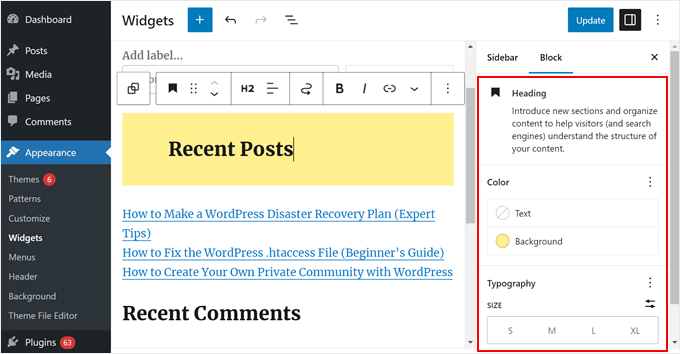
If you go to the Appearance » Widgets page and click on a specific block, you will often see options in the block settings panel to change colors and typography.
2. Adding a Custom CSS Class
If the default settings aren’t enough, you can add a specific “class” to the widget. This acts like a nametag that lets you target just that widget with your custom code.
Simply click on the widget where you want to add custom styles. Next, scroll down to the ‘Advanced’ tab under the Block panel. From here, you can add a custom CSS class.
For this tutorial, go ahead and type latest-articles into the field. Make sure you do not add a dot (.) at the beginning of the class name.
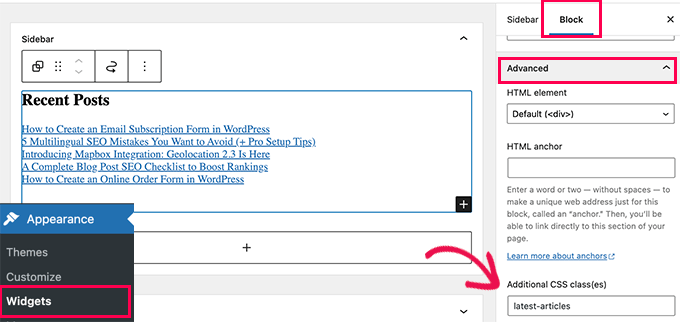
Don’t forget to save your widget settings by clicking on the ‘Update’ button.
3. Applying Your Custom Styles
Now that you have given your widget a class name, you need to add the code that tells WordPress how to style it. There are two ways to do this:
Option 1: Using the Theme Customizer
This is the quickest way to add code if you just want to test it out.
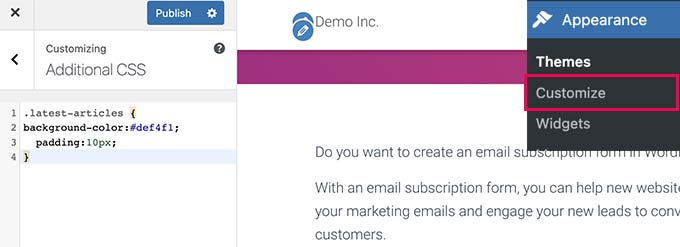
Simply go to the Appearance » Customize page and switch to the ‘Additional CSS’ tab. There, you will see a live preview of your website with a box to add your CSS rules.
Option 2: Using WPCode (Recommended)
We recommend using WPCode because it saves your custom styles even if you change your theme later. It is also the safest way to add code snippets to WordPress.
We’ve tested it extensively and found it to be one of the safest ways to integrate custom code into your theme. If you’re managing numerous CSS snippets, WPCode makes it easy to organize and track them.
For more details on its features and benefits, feel free to check out our WPCode review.
First, make sure to install the WPCode plugin. For step-by-step instructions, you can read our guide on how to install a WordPress plugin.
Note: You can use WPCode’s free plan for this tutorial. But if you decide to go pro, you’ll get additional perks like access to a cloud library of code snippets and smart conditional logic for more flexibility in managing your code.
Next, go to Code Snippets » + Add Snippet and select ‘Add Your Custom Code (New Snippet). Then, click the ‘+ Add Custom Snippet’ button.
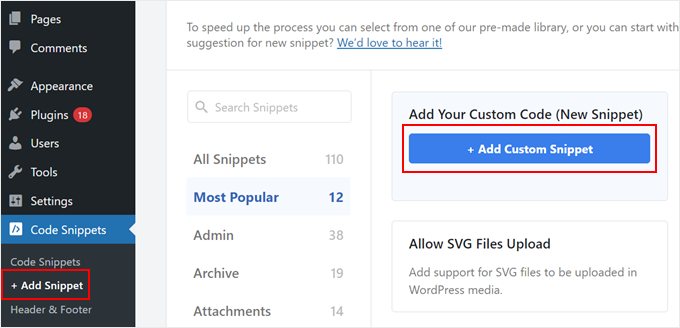
Now, give your new custom CSS a name. It can be something simple like ‘Custom Widget Style.’
Then, change the Code Type to ‘CSS Snippet.’
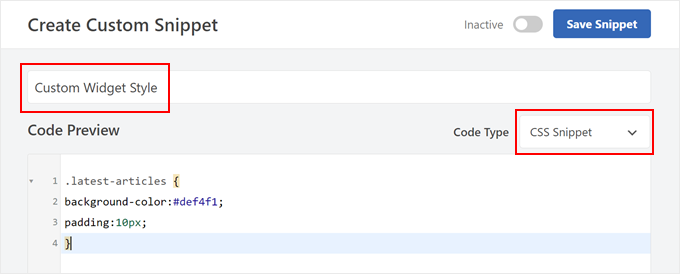
Next, add your custom CSS to the field.
Here is some basic CSS we used:
.latest-articles {
background-color:#def4f1;
padding:10px;
}
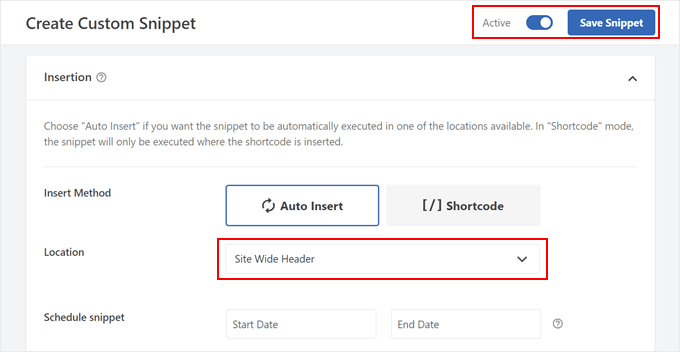
Once done, just scroll down to the Insertion section. Make sure the Insert Method is set to ‘Auto Insert’ and the Location is ‘Site Wide Header.’
After that, toggle the button at the top right corner until it says ‘Active’ and click ‘Save Snippet.’
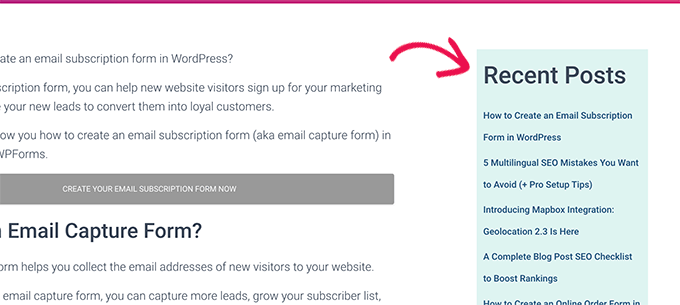
After adding your custom CSS, you can view your WordPress website on mobile or desktop to see it in action.
Here’s what ours looks like on our demo WordPress site:
Method 2: Style WordPress Widgets With CSS Hero (No Code)
Writing CSS code manually can be tricky for beginners. A small mistake could break your site’s layout, and learning the syntax takes time.
If you don’t want to deal with code, you can use CSS Hero. It is a visual styling plugin that lets you customize your widgets with a simple point-and-click interface.
You can learn more about the plugin in our CSS Hero review.
First, you need to install and activate the CSS Hero plugin. For more details, see our step-by-step guide on how to install a WordPress plugin.
Upon activation, the plugin will add a new menu item to your WordPress admin toolbar at the top.
Next, you need to visit the page where you can see the widget you want to style and click on the CSS Hero button at the top.
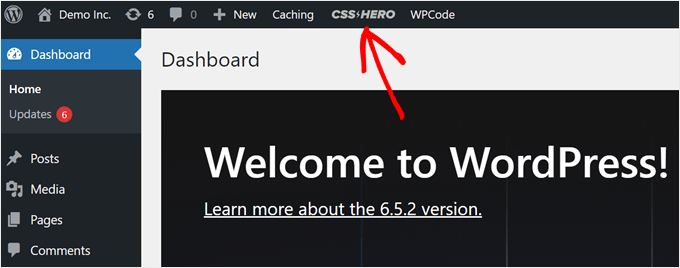
This will open the page in the CSS Hero editor interface.
It is a live editor where you can simply point and click on any item on your website and change its style.
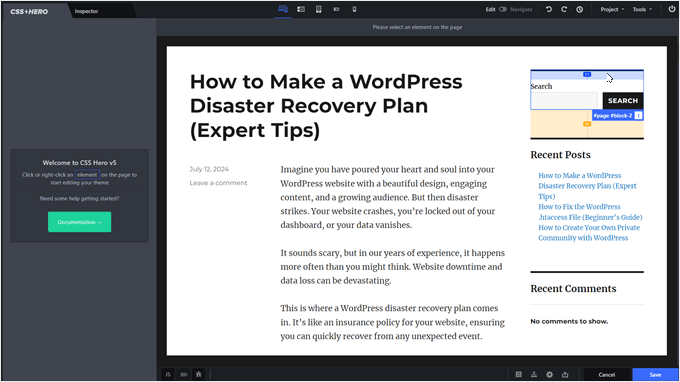
Simply take your mouse over to the widget that you want to style. Then, click to select it.
In this example, we selected our Search widget.
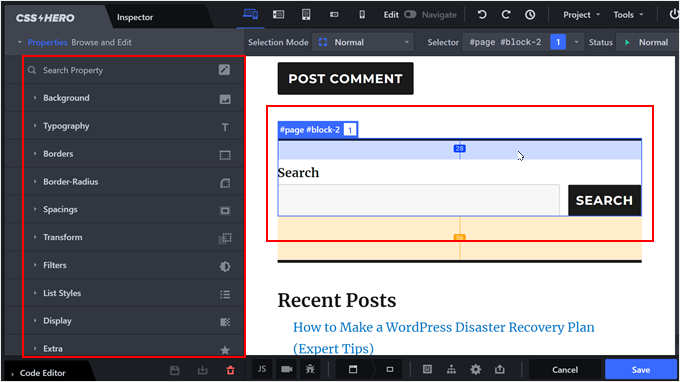
After that, you can use the menu on the left to style your widget any way you want. This includes advanced styling options like gradients, typography, padding, margins, and borders.
In the example below, we changed the font size of the WordPress Search widget so that it stands out even more.
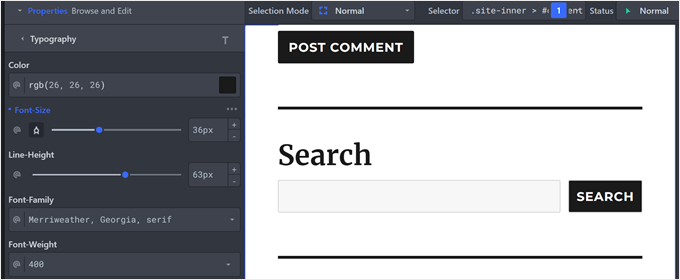
You can also change specific elements of the widget if needed.
For instance, we decided to change the border radius of the button and search fields. This way, they look more curved and stylish.
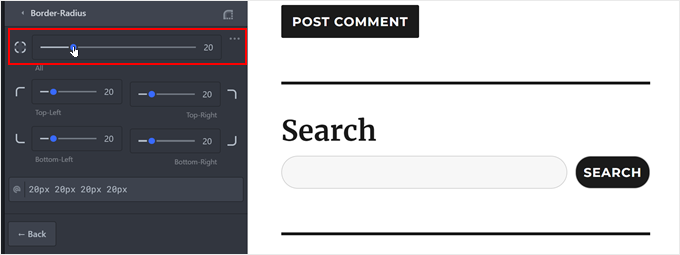
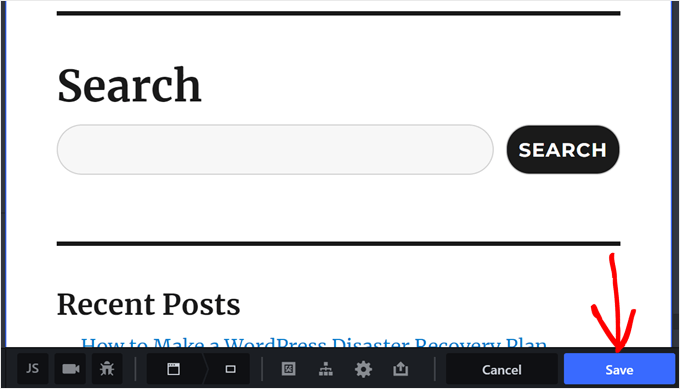
Once you are finished, don’t forget to click the ‘Save’ button to store your settings.
Then, go ahead and preview your website to see your new WordPress design in action.
Frequently Asked Questions About Styling Options in WordPress
Here are some questions that our readers have frequently asked about styling different elements in WordPress:
How do I add custom widgets in WordPress?
To add a custom widget, go to Appearance » Widgets in your dashboard and click the plus (+) add block button. You can then select any available block, such as text, images, or recent posts, and place it into your sidebar or footer area.
How do you add styles in WordPress?
The safest way to add styles is by using the Additional CSS tab in the Theme Customizer or a plugin like WPCode. These methods allow you to add custom CSS code without modifying your theme’s core files, ensuring your changes aren’t lost during updates.
Can you customize a widget?
Yes, you can customize nearly every aspect of a widget. Modern WordPress widgets have built-in settings for background colors and typography. For more advanced control, you can assign a specific CSS class to the widget and style it manually with code.
How to create a custom menu widget in WordPress?
You can add a custom menu by using the Navigation Menu block in your widget area. First, create your specific menu in Appearance » Menus, then simply select that menu from the dropdown options inside the Navigation Menu block settings.
How to build a custom widget?
If you need specific functionality not found in default blocks, you can build a custom widget by writing a plugin or using a tool like WPCode. However, if you simply want a custom design, you can usually achieve this by grouping existing blocks and applying custom CSS styles.
We hope this article helped you learn how to add custom styles to WordPress widgets. You may also want to see our pick of the best drag-and-drop page builders for WordPress and our pros and cons comparison between free vs premium WordPress themes.
If you liked this article, then please subscribe to our YouTube Channel for WordPress video tutorials. You can also find us on Twitter and Facebook.




Ankush
The Plugin was really Great but I had a problem…
It doesn’t work when i add custom css….
May be plugin css is overriding my code but.. that really sad…
Hey Wpbeginner.com Team.. Please leave me a reply,]
I You can tell me how to fix it…
Rachael
I love this plugin but every time I activate it, I have trouble with the gallery widget. It works fine with the plugin deactivated, but if I turn on the plugin, the gallery widget won’t save any images. All of the other widgets work fine. Does anyone else have this issue?
Regina
Does how to instructional above also also include the ability to customize the font of the widget titles?
Thanks!
terry
Finally, after failing at trying to decode the jargon I get on inspect, this article told me exactly what I needed.
Thanks
Alex
I don’t have any classes on widgets.
irfan
There is extra white space while creating extra widget area for header. Kindly tell us , how to remove this
Thomas
Hi, I tried to do it manually, inspected the element and its class but it did not work.
I am trying to change the style of a WPform.
Could you help me?
WPBeginner Support
Hey Thomas,
Please take a look at this guide on how to add custom css to WPForms.
Admin
daniel
i have added a widget area to my header using the functions.php and header.php files. i can see the widget ive added on my site but i want to put it next to the menu, any idea how to do this please? i want it to sit to the right hand side of the menu.
WPBeginner Support
Hey Daniel,
You’ll need to use place the widget code before your menu and then add custom CSS to position it.
Admin
Deniz Kumru
It’s my first wordpress theme.I was nervous till found your article.It’s done thank you
ivan
Why does my layout under widget styles only shows the padding option, without the bottom margin, gutter & row layout option.
Rimi
hallo
I can not make any changes because it is inactive
Being processed plugin / css / plugin-front.css (inactive),How can I activate pleas
Grace
Hello, my theme doesn’t have a right sidebar, it came with just a footer widget area, can I use the custom css to add a right sidebar? Please help me, thanks
WPBeginner Support
No, you will first need to define a widget ready area. Your theme may already have an option to use a sidebar layout. If it doesn’t, then we would recommend you to ask the theme author for support. On the other hand, if you feel confident in your coding skills, then go a head.
Admin
Mr.T
I want to change them manually. Am I right that by using widget-number class you actually can’t move them up or down in the widgets area, because their id will change, or it works differently?
Erick
I have the same question
Correen K
I was looking for something like this to add some style to my sidebar and stumbled upon the Flexible Posts Widget plugin. I think it’s always nice to have options
Abhishek Prakash
Will using these many CSS not impact the page speed?
WPBeginner Staff
Not if you do it right.